Ads Studio: templates, languages, product catalogs and export
Start from a ready-made template, test headlines without regenerating artwork, translate a creative into many languages, compose ads for every product in a feed and export the approved ones.

The cheap and free tools around the creative engine
Creating images is the expensive part of an ad. Most of what you do around it is not. This article covers the parts of the Ads Studio that reuse artwork or compose it from templates: Templates, the variant matrix, Languages, Brands, Product catalogs and Export. Several of them cost no credits at all.
| Tool | What it does | Credits |
|---|---|---|
| Templates | Ready layouts with copy. Adding to a campaign is free. | Artwork is the paid step |
| Variant matrix | Recombine headlines, texts and calls to action over existing artwork | Free |
| Languages | Rewrite the copy of one creative in up to 32 languages, reuse the artwork | Per language |
| Brands | Harvest colours, fonts, logos and products from a website | Free |
| Product catalogs | Import a feed, compose a creative per product | Free |
| Export | Download approved creatives as a ZIP with a manifest, or a CSV | Free |
Templates
Open Templates. The page is Ad templates with the subtitle "Ready-made layouts and copy. Adding one to a campaign is free; the artwork is the paid step." It has two tabs, Gallery (hundreds of templates) and My templates.
- Add to campaign (free) writes the template's headline, text and button into new creatives of the campaign you choose. A Variables step lets you fill placeholders such as the product name.
- Duplicate into my templates copies it so you can edit it. Edit template and Create template manage your own.
- Generate from template opens Factory with the template's copy prefilled.
Artwork for a template-based creative is rendered on the creative's own page with the Generate artwork button. Until you press it the creative has copy only. That means you can build twenty text variants for free and pay for artwork only on the three you choose.
Variant matrix: test headlines for free
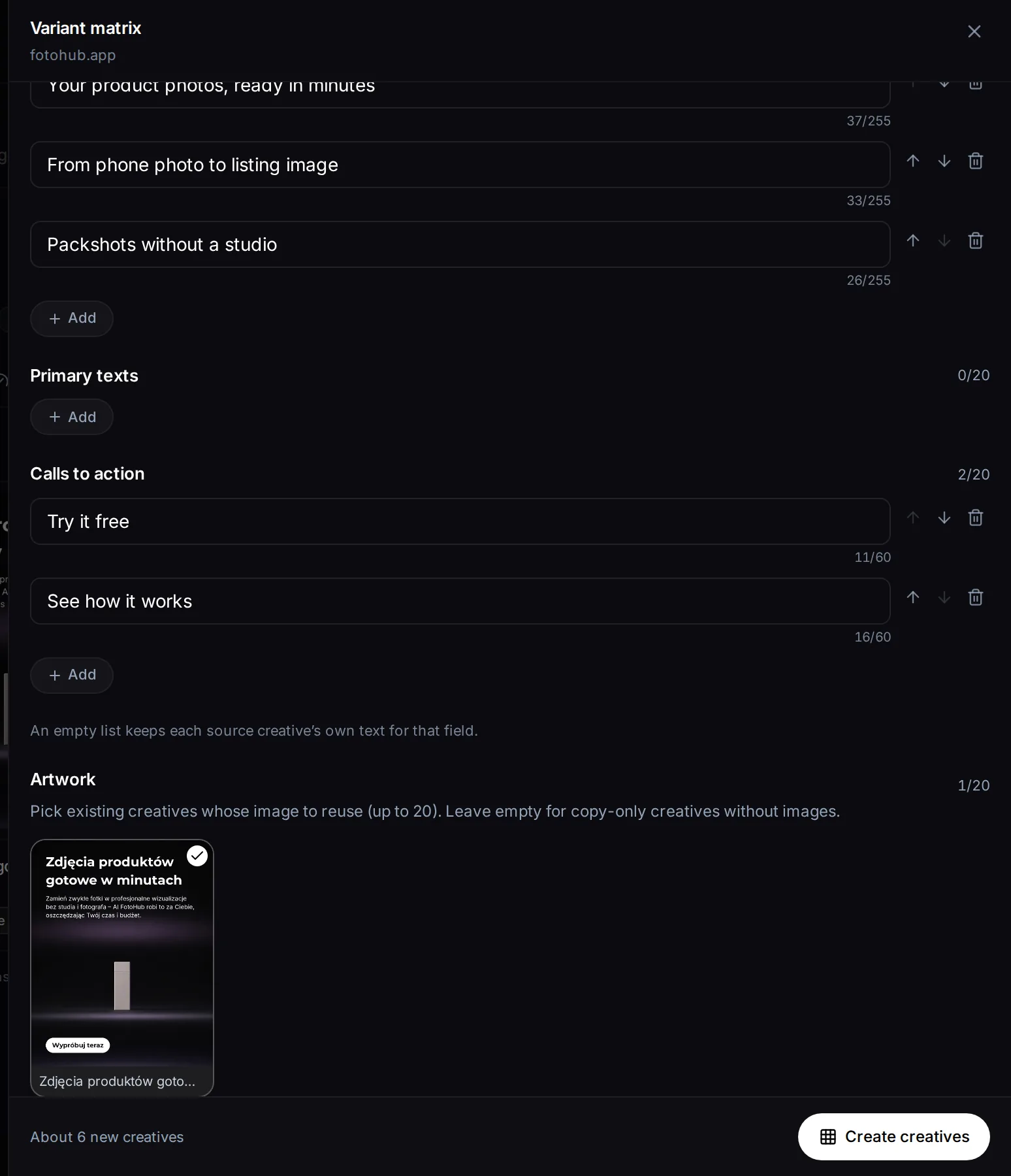
Inside a campaign that already has creatives, the variant matrix combines your Headlines, Primary texts and CTAs with the existing artwork and creates a new creative for every combination. No model runs, so it is free copy-only work. A matrix of three headlines and two calls to action gives six creatives from one picture.
Languages: adapt one creative for many markets
Open Languages, titled Multi-language adaptation. Choose a Campaign, then a Creative: its headline, text and button become the source. Tick the target languages. There are 32 of them, with quick groups EU and Asia, and the source language is excluded. An optional Cultural context box lets you say, for example, "Swiss German market, formal address". Press Adapt into N languages.
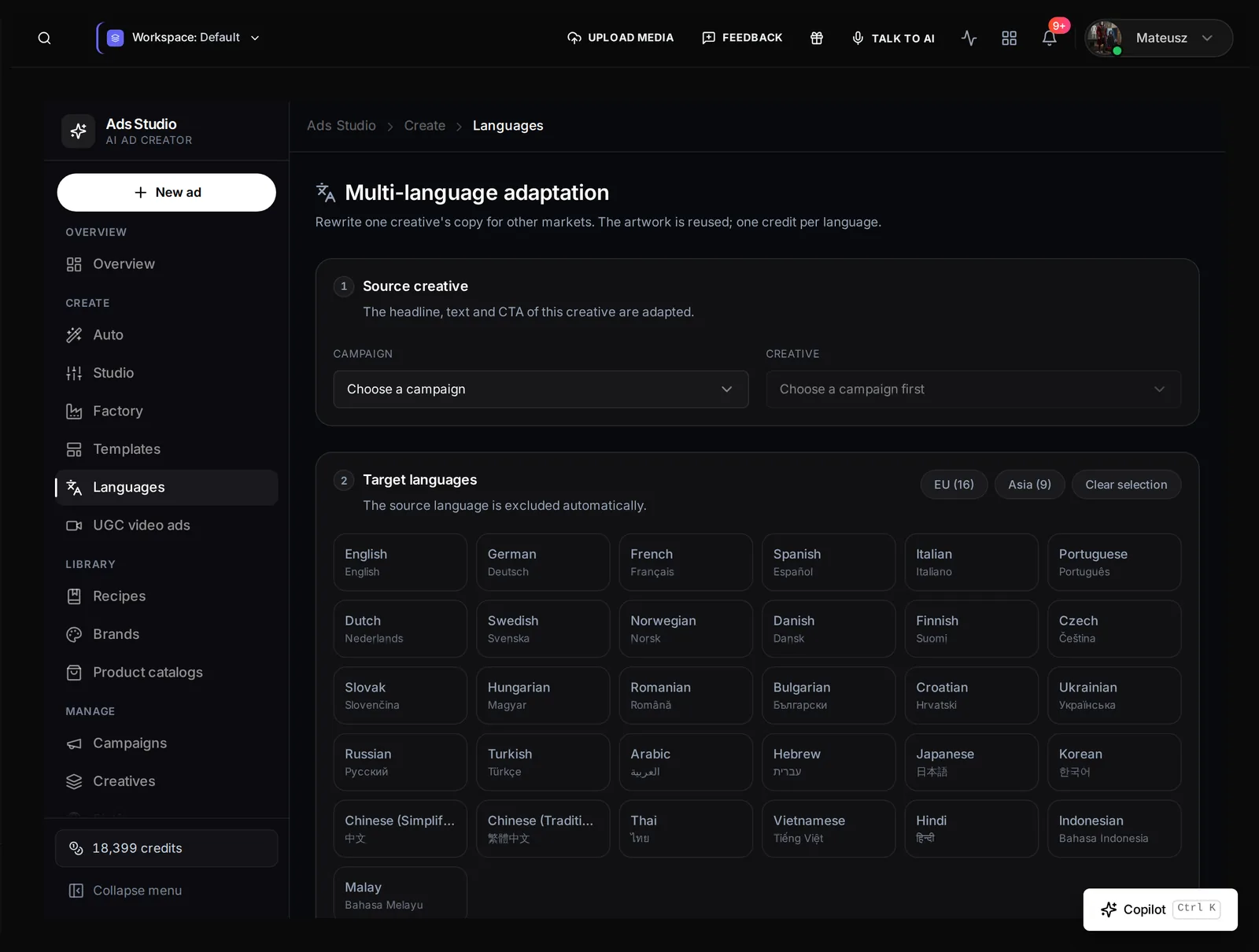
Each language returns a rewritten headline, text and button. This is an adaptation, not word-for-word translation, so lengths and idioms are adjusted. Save as variant (or Save N as variants) stores the results as new creatives that reuse the artwork. Billing is per language.
Brands: harvest a brand from a website
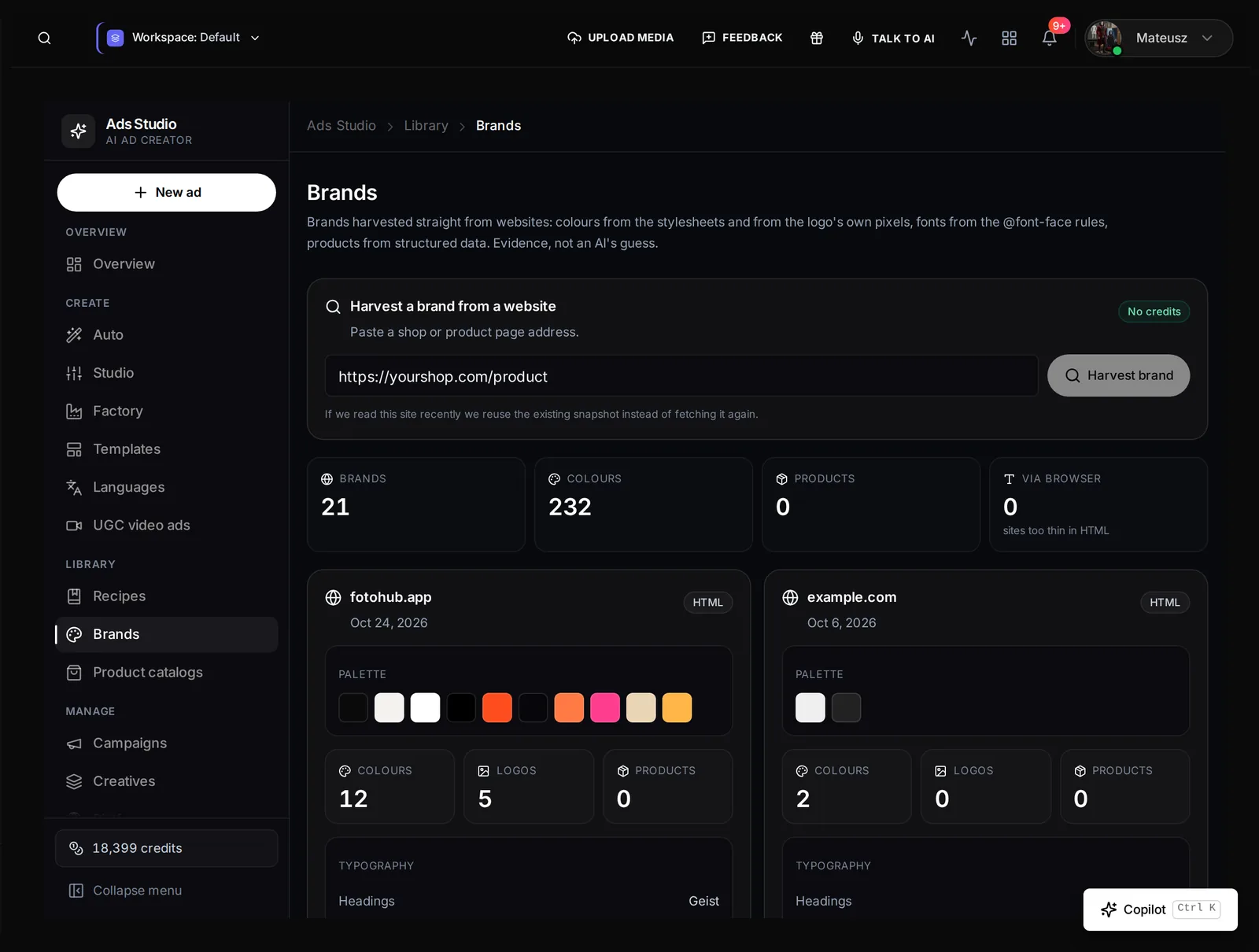
The Brands page keeps snapshots of brands the Studio and Autopilot read from websites. Paste a shop or product page address, press Harvest brand and the page shows the palette, logos, fonts and products. It is free (the page says "No credits"), and a recent snapshot of the same address is reused. Each row offers Open in Studio, Build a campaign in Auto, Details, Refresh, Open site and Delete. Deleting removes only the harvested data; campaigns and creatives stay.
Product catalogs: an ad for every product in your feed
A product catalog is your shop's product feed. Import it once and the Ads Studio composes a creative for every product with a title, a price, a sale badge and the product image. Composition happens on FOTOhub's servers from your template and your feed data, so it costs 0 credits. It is composition, not AI-generated artwork.
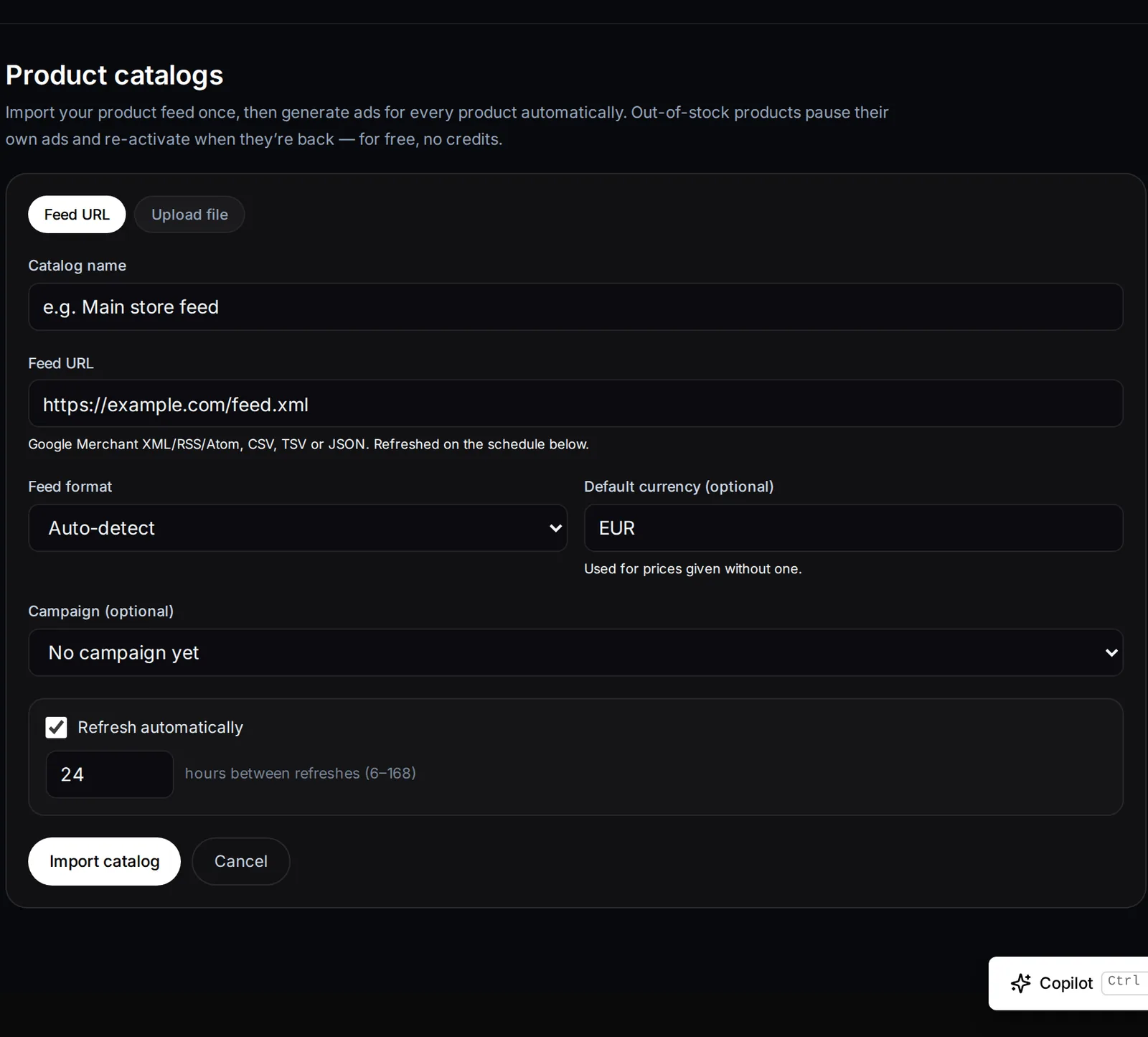
- Add the catalog Press Add catalog, give it a Catalog name and choose Feed URL or Upload file (up to 25 MB, read in your browser). The Feed format can stay on Auto-detect or be XML (Google Merchant), RSS, Atom, CSV, TSV or JSON. A feed URL can Refresh automatically every 6 to 168 hours. Uploaded files do not refresh.
- Check the import report After Import catalog you see a validation report and a summary of what changed. The product list can be filtered by All, In stock, Out of stock, Preorder, Backorder and Removed from feed.
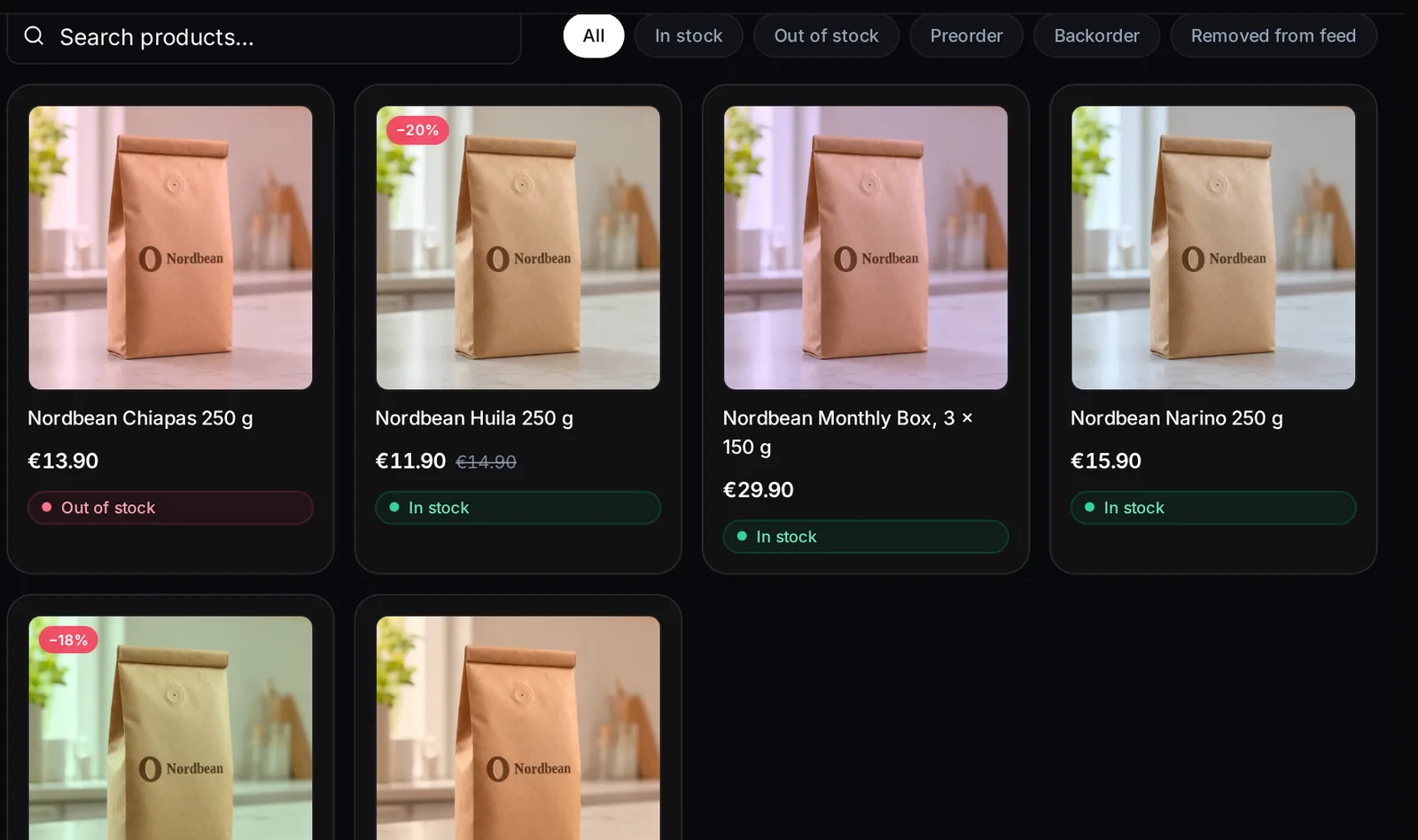
- Generate creatives Choose the Campaign, the products (none selected means all in stock, A to Z), Max products this run (1 to 50), up to four Formats, an optional template and copy, a Sale badge (Auto with the percentage, None or Custom text) and whether to Show the price on the creative. Press Generate creatives.
Out-of-stock products pause their own ads on connected ad platforms and switch them back on when stock returns, at no credit cost. That part needs a connected ad account.
Export approved creatives
On Export select the approved creatives and press Download ZIP, or Download CSV only. Rejected and undecided creatives are not offered. The ZIP is built in your browser, so the files never pass through a FOTOhub server on the way. It contains the media files, a manifest.csv and an AI-ACT.txt note. The manifest has columns that mark each creative as AI generated, with the disclosure text, the generation time and the legal basis, so you can keep the paperwork that platforms increasingly ask for.
Two worked campaigns
Six headline tests from one creative
Goal. Find the best headline for a product-photo ad without paying for six pictures.
Input you can copy.
Headlines: "Your product photos, ready in minutes" / "From phone photo to listing image" / "Packshots without a studio". CTAs: "Try it free" / "See how it works". One existing creative with artwork.| Setting | Value |
|---|---|
| Tool | Variant matrix |
| Combinations | 3 headlines x 2 CTAs = 6 |
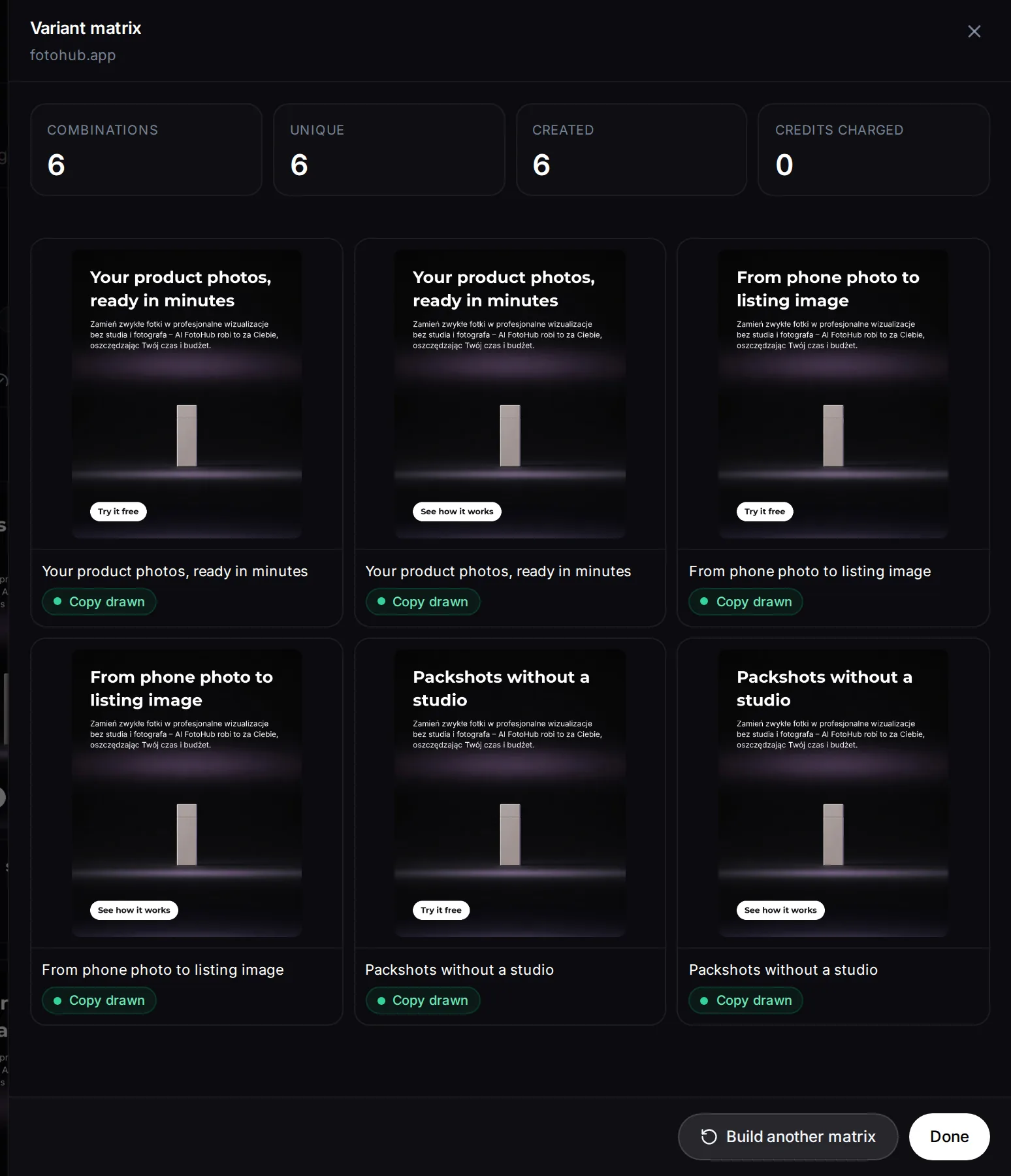
Why it works. Six creatives share one artwork. After a week of data you can keep the winner and generate fresh artwork only for it.
A six product feed turned into creatives
Goal. Advertise every in-stock coffee without opening a design tool.
Input you can copy.
A CSV with six coffees (id, title, description, link, image_link, price, sale_price, availability), format 1080 x 1080, Sale badge Auto. One of the six is marked out of stock.| Setting | Value |
|---|---|
| Feed | Uploaded CSV, six products |
| Formats | 1080 x 1080 |
| Sale badge | Auto |
Why it works. The import report counted six rows, six valid products and no rejected rows, and the list shows each coffee with its price, its stock badge and a sale percentage worked out from the regular and sale price (the out-of-stock Chiapas is flagged). From here Generate creatives composes one creative per in-stock product and format at 0 credits, and the set can go straight to Export.
Limits and troubleshooting
- "The file is larger than 25 MB".
- Split the feed or remove unused columns.
- "Refresh interval must be between 6 and 168 hours".
- Enter a value in that range.
- "At most 4 formats per run".
- Run again with the other formats.
- My uploaded catalog does not refresh.
- Only feed URLs refresh automatically. Upload the file again.
- The export is empty.
- Only approved creatives are exported. Approve some on the Creatives page.
- Platforms says "Not configured by the administrator".
- Publishing to that platform is not enabled yet. Export the ZIP and upload in the platform's own ad manager.