Ads Studio: make a campaign of ads from a web address
Paste a shop or product URL, let FOTOhub read the brand, plan the campaign and price it, approve the quote and review finished creatives. Then do the same by hand in Studio or at volume in Factory.
What the Ads Studio is
The Ads Studio turns a brand and a goal into a set of ad creatives: images with a headline, primary text and a button label, sized for the placements you choose. It does not need an ad account to make the ads. You can generate, review, approve and export them as a ZIP, and only if you want to publish them as paid campaigns do you connect Meta, Google, TikTok or LinkedIn.
It has three ways to create, and they share one pipeline and one rule: nothing is charged until you approve a quote.
| Route | You give | You get | Best for |
|---|---|---|---|
| Auto | A web address | Ready image creatives for the channels you tick. No other choices. | The first campaign for a shop, or a quick test of a product page. |
| Studio | A recipe, a brand and exact formats | Image or video creatives in the formats you choose, with a style preview and per-creative editing. | When you care about the look, or you need video. |
| Factory | Your headlines, calls to action and tones | Every format times every headline times every variant, in one run. | Volume testing and agency work. |
Auto: from a URL to creatives
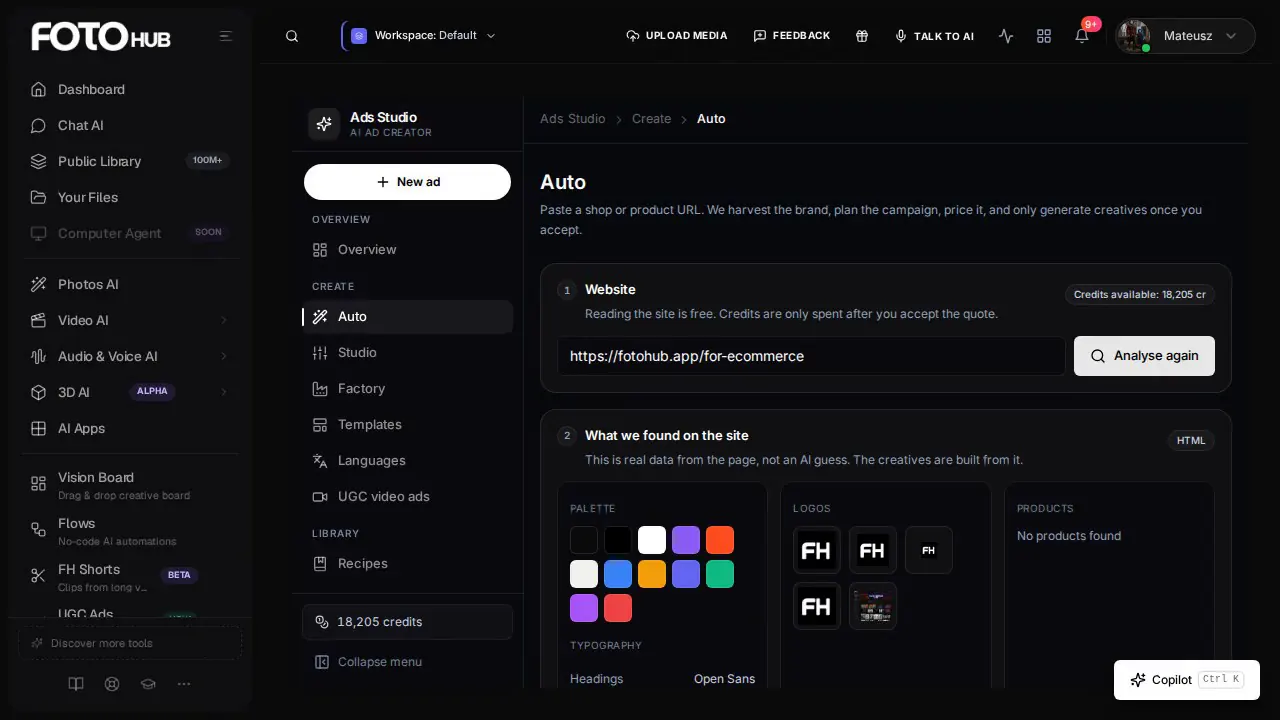
Open Auto (the New ad button goes here). The page has five numbered steps and everything on it is explained in plain language.
- Website Type a full address that starts with
https://orhttp://in Website address and press Analyse site. Reading the site is free, and the page says credits are only spent after you accept the quote. Private and internal addresses are refused.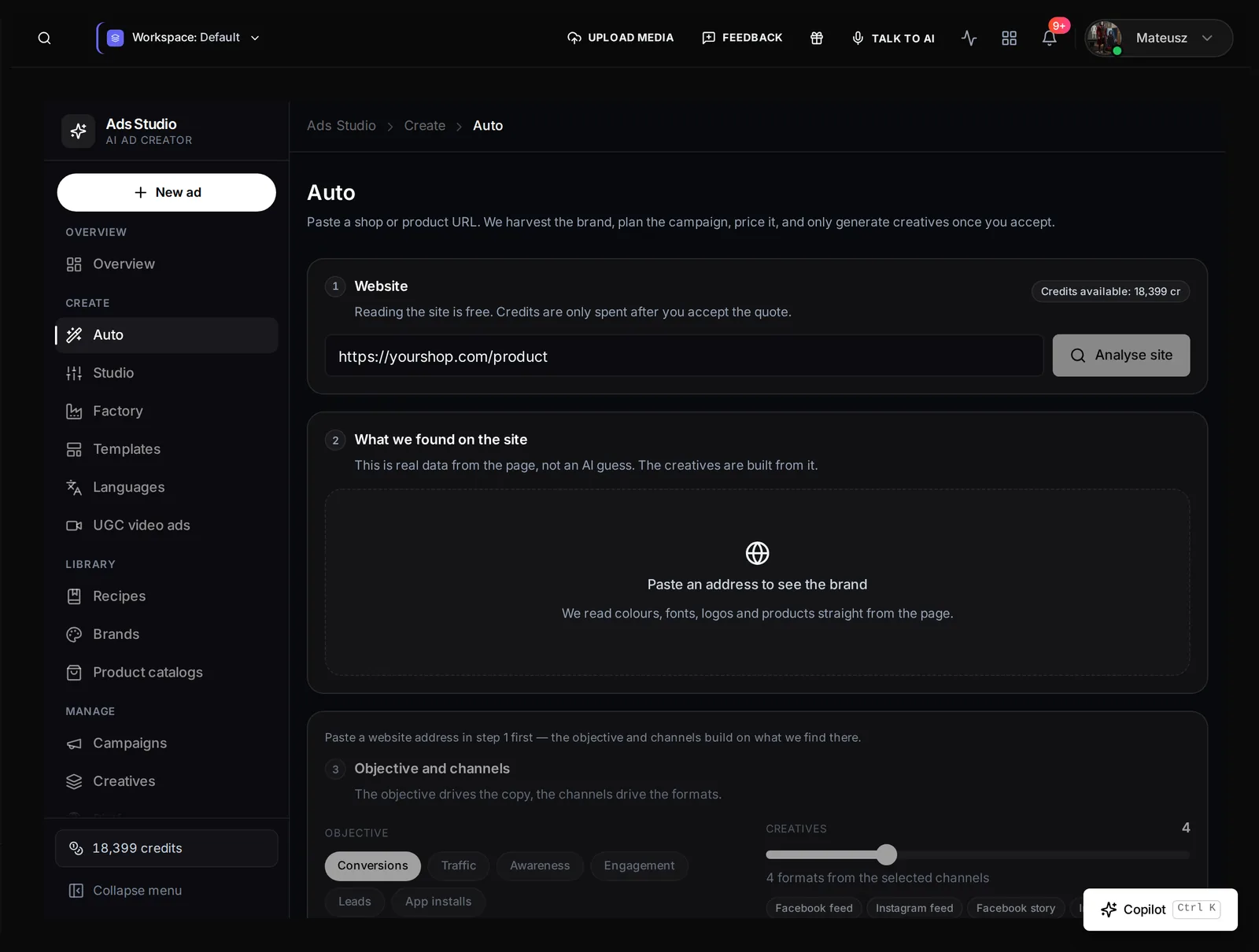
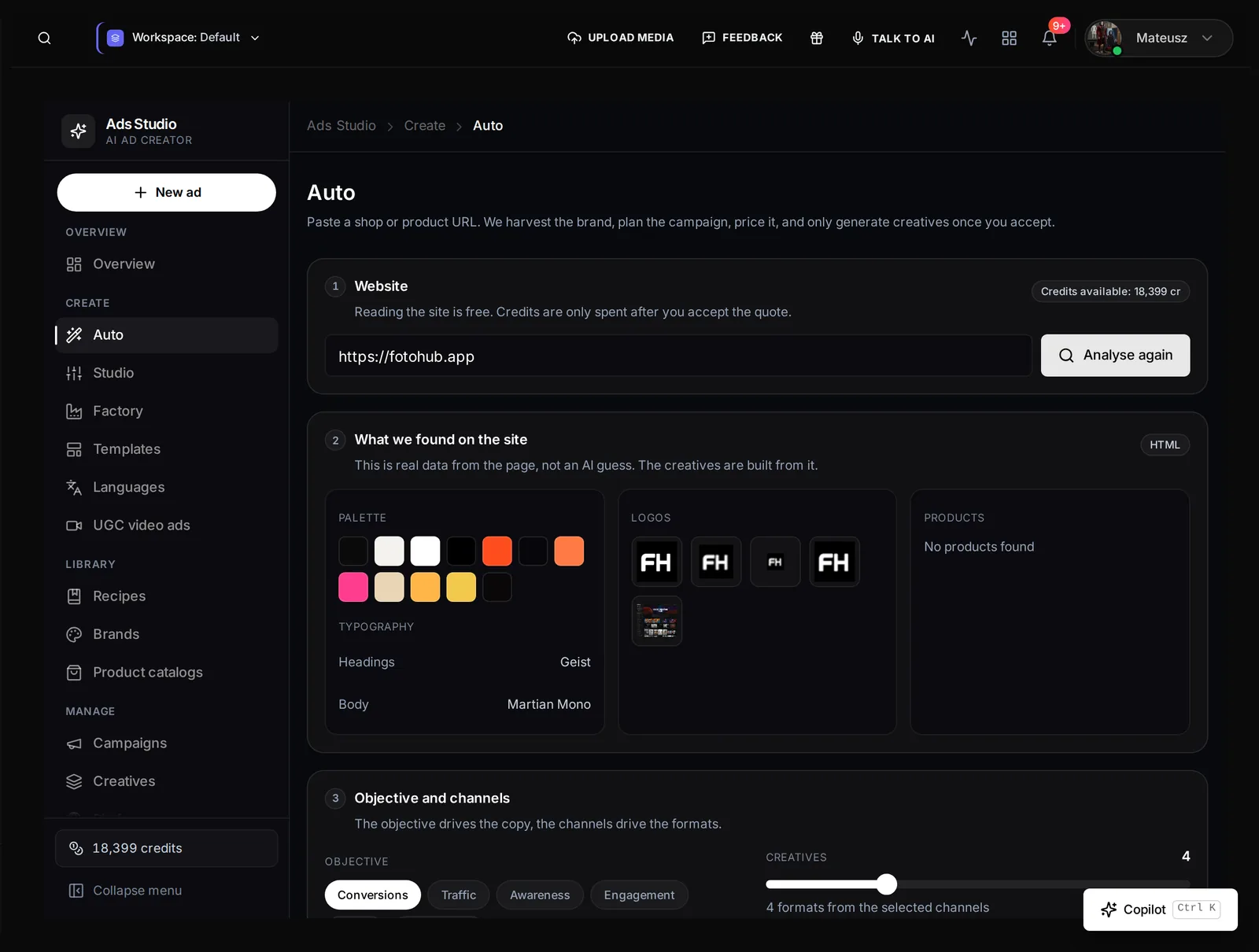
- What we found on the site The card lists the Palette, Typography (headings and body), Logos, Products and the Method used to read the page (plain HTML or a browser). These are real values from the page, not an AI guess. If the site was only partly readable the card says so.
- Objective and channels Choose an Objective (Awareness, Traffic, Engagement, Conversions, Leads or App installs; Conversions is the default), tick the Channels (Facebook, Instagram, Google, TikTok, YouTube, LinkedIn; at least one) and set Creatives with the slider from 1 to 12. The page shows how many formats come from the channels you picked. Name the campaign or keep the name taken from the site, and decide whether to Score each creative with AI.
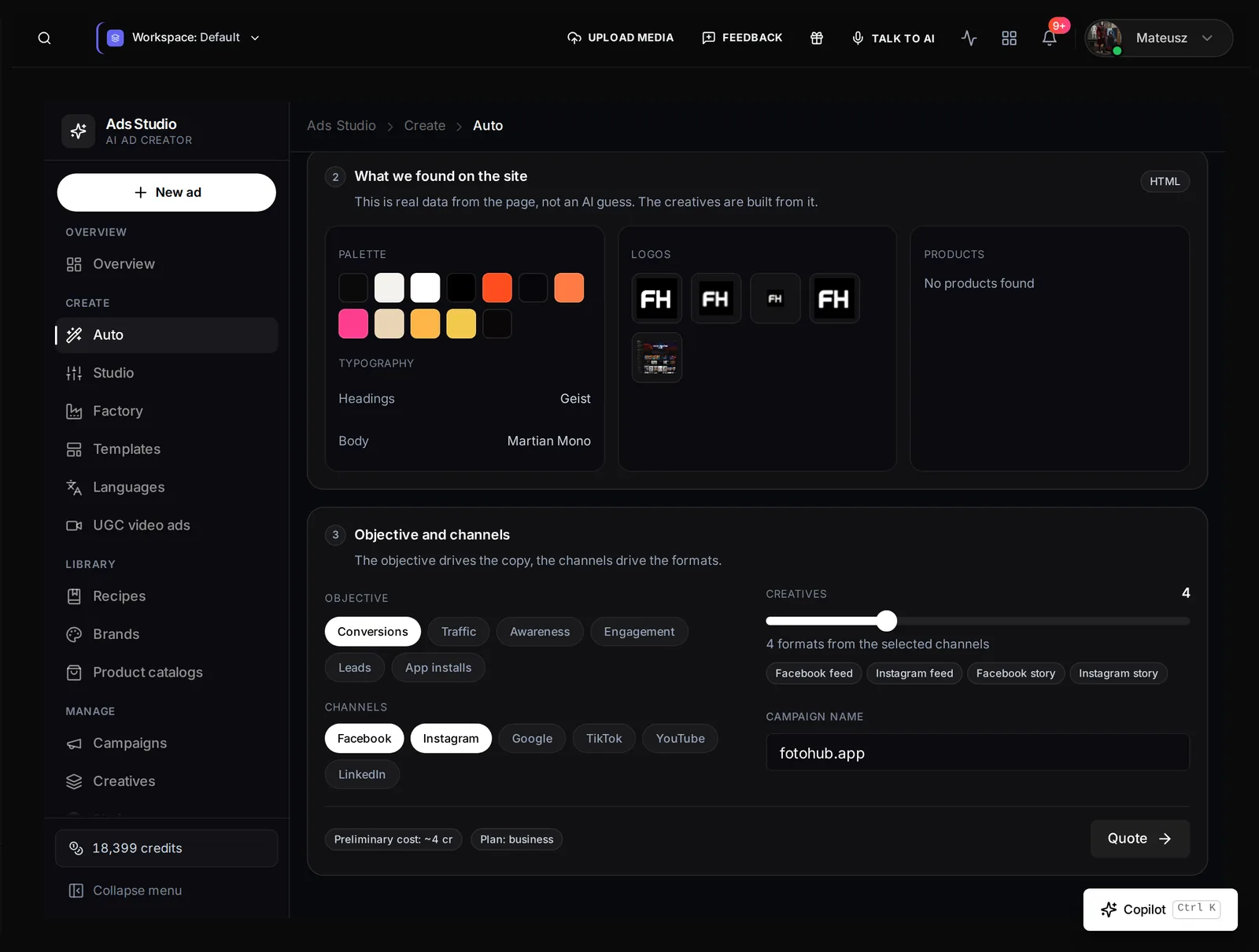
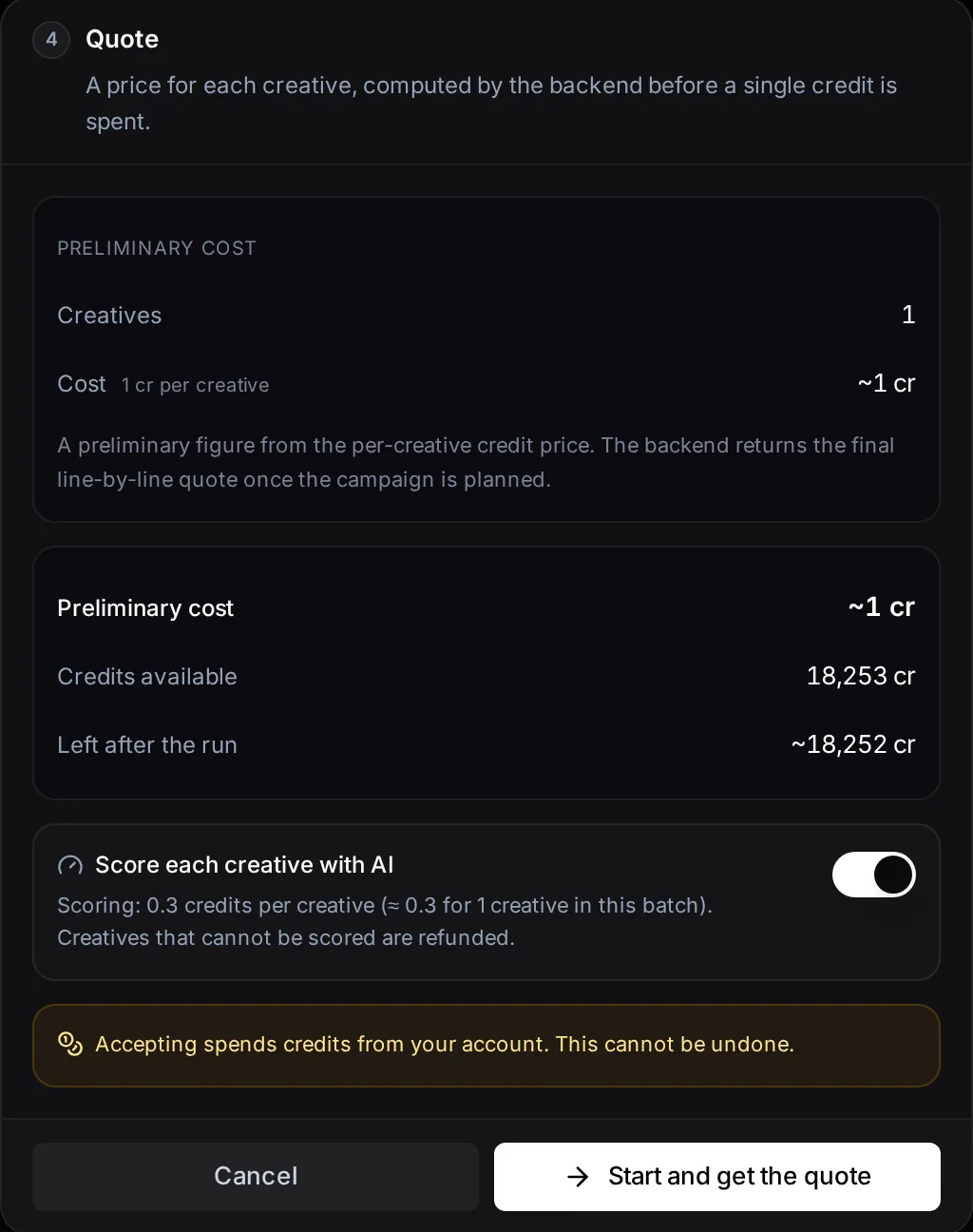
- Quote The page shows a preliminary cost. Press Start and get the quote. The run reads the site, analyses the brand and plans the campaign, then pauses and shows the real line items.
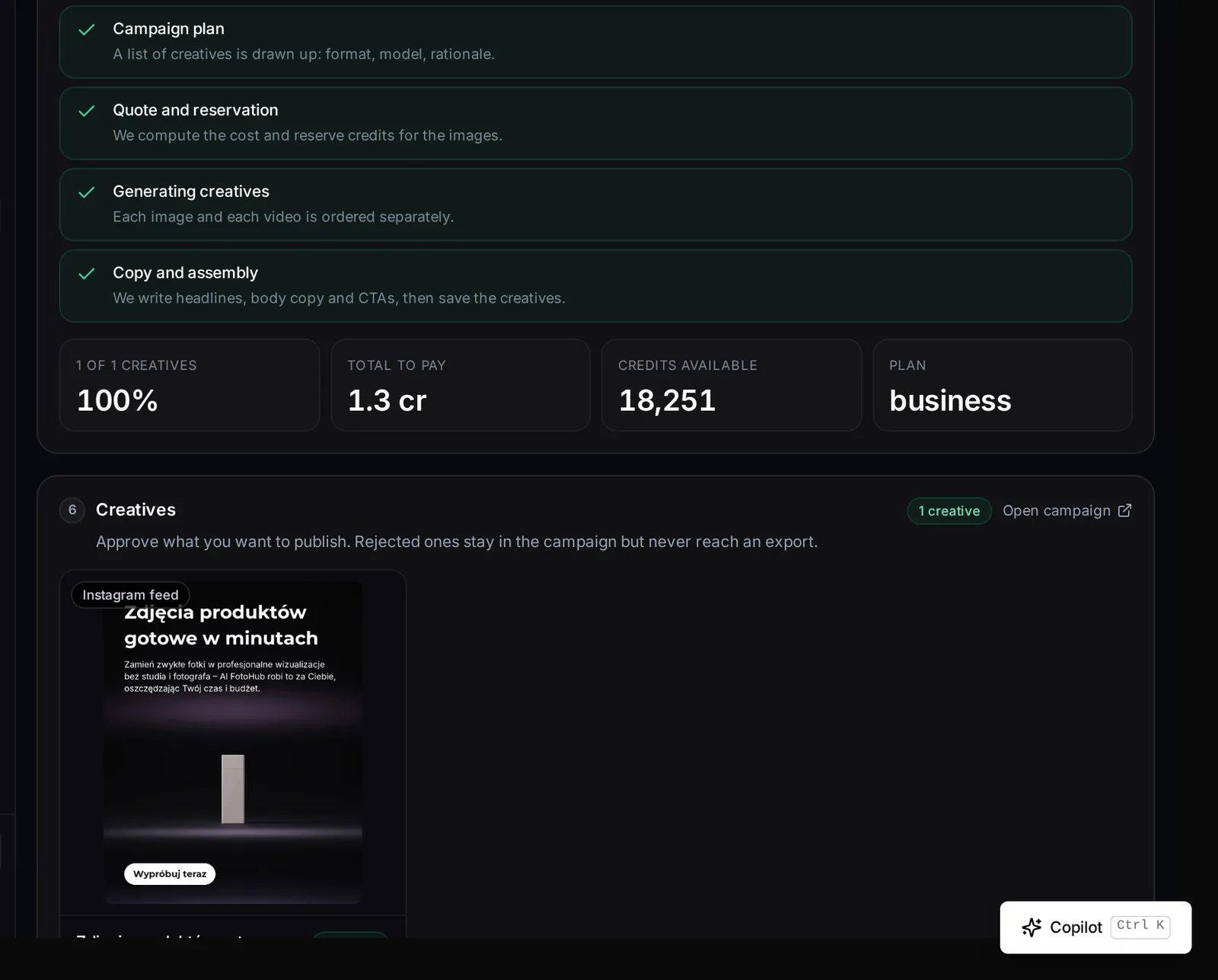
- Approve and watch the production A panel says Quote ready, your approval is needed and No credits have moved yet. Accept and generate starts the work, Dismiss, nothing charged cancels it. The run then goes through its stages: reading the site, brand analysis, campaign plan, quote and reservation, generating creatives, copy and assembly. You can close the page; the run finishes in the background.
Auto produces image creatives only, going round-robin over the channels you ticked. Video and carousels come from Studio, Factory or UGC video ads.
Review the results
Each finished creative shows its Headline, Primary text and Button, with Approve and Reject under it. A rejected creative stays in the campaign but never reaches an export. The link Open campaign takes you to the full list.
Studio: the manual route
Studio runs the same pipeline with the choices made by you. It is the page to use when you want a particular look, or when you need video.
- Creative recipe Pick a recipe or open the Recipe library. Without one the planner decides.
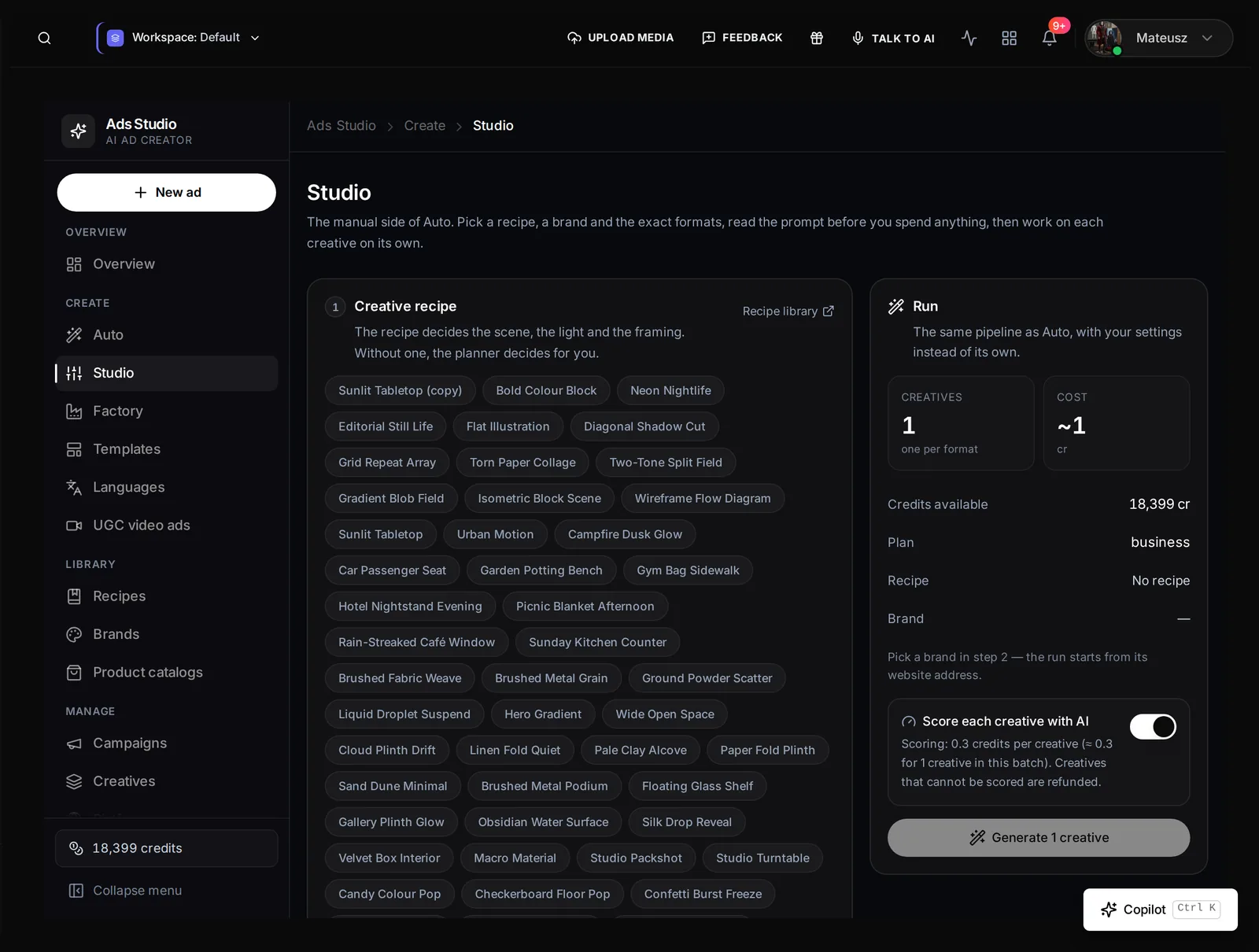
- Brand Required. Choose a harvested brand, Manage brands, or Harvest a brand from a web address.
- Formats Formats are grouped as Social, Display and Video. One creative is made per format. Image and video never mix in one run.
- Objective, campaign name and creative note The Creative note holds up to 500 characters and is passed to the planner as a hint. It cannot override the built-in rules that keep text and logos out of generated art.
- Generate The button reads Generate N creatives and shows the cost estimate. As in Auto, the real quote follows and waits for your approval.
Compare 2-3 styles opens a Style preview: real, paid renders of two or three recipes side by side so you can Choose this style before spending on the whole set. Once creatives exist, open one to edit Headline, Primary text, Description, Button and Destination URL and press Save copy, which is free. Generate again makes a new creative and costs credits, and the old one stays.
Recipes
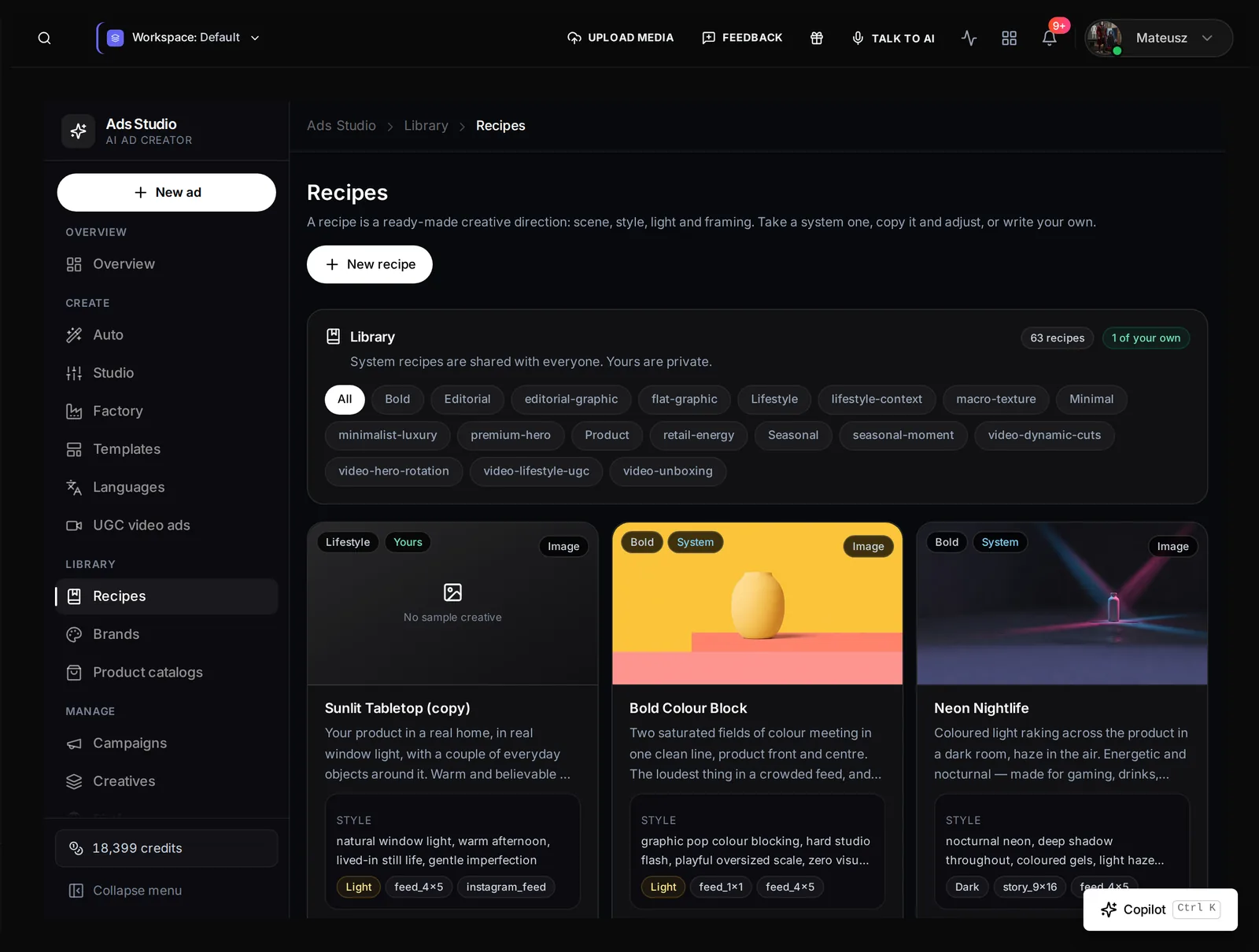
A recipe is a saved description of a look: scene, style, light, camera, tone. FOTOhub ships system recipes in the categories Product, Minimal, Lifestyle, Editorial, Bold and Seasonal. System recipes are read-only: press Copy to fork one into your own, then Edit. Use in Studio opens Studio with the recipe selected.
Factory: volume with your own words
Factory is a five step wizard: Brand, Format, Copy, Generate, Review. It is the right tool when you already know the headlines and want every combination.
- Brand: type a Campaign Name (required), choose a brand from your Brand Kit if you want one, and pick the Objective card (Brand Awareness, Traffic, Engagement, Lead Generation, App Installs, Sales / Conversions).
- Format: tabs for Meta, Google, TikTok and LinkedIn with Select all per platform. The list includes image formats and the video formats Facebook Reel, Instagram Reel, TikTok Feed and YouTube Short.
- Copy: Headlines (comma-separated) is required. Add CTA Options, a Tone of Voice (Professional, Casual, Playful, Urgent, Inspirational, Luxury, Bold, Warm & Friendly), a Target Audience and Variants per Format (1, 3, 5 or 10).
- Generate and Review: the review step multiplies formats by variants, shows the cost and the totals. Video lines are priced by the server quote that you approve first.
Two worked campaigns
One creative from a web address, the cheapest end to end run
Goal. See the whole pipeline once, spending as little as possible.
Input you can copy.
Website address: a public page of your site. Objective: Traffic. Channel: Instagram only. Creatives: 1. Score each creative with AI: left on (the default).| Setting | Value |
|---|---|
| Route | Auto |
| Creatives | 1 |
| Scoring | on (default) |
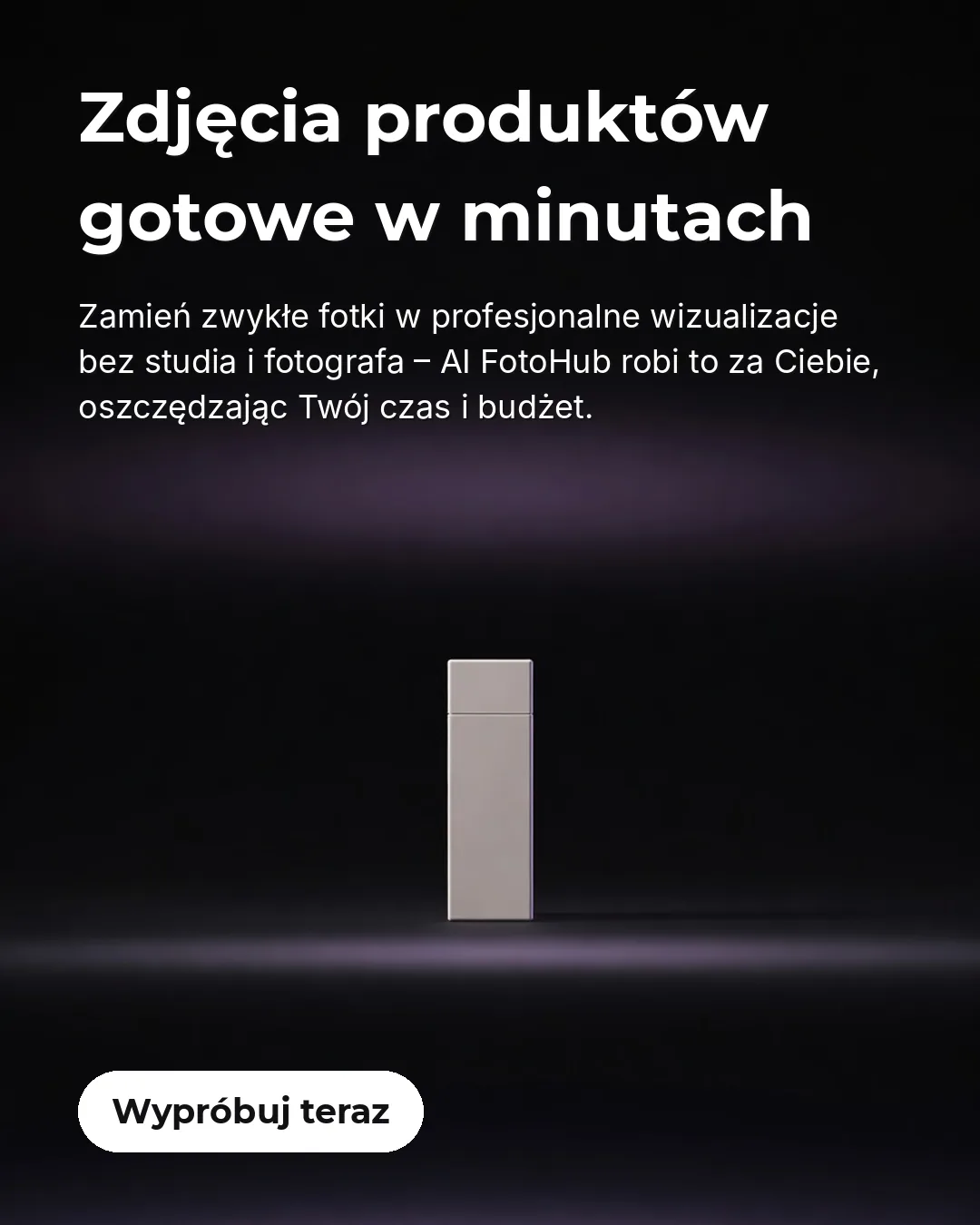
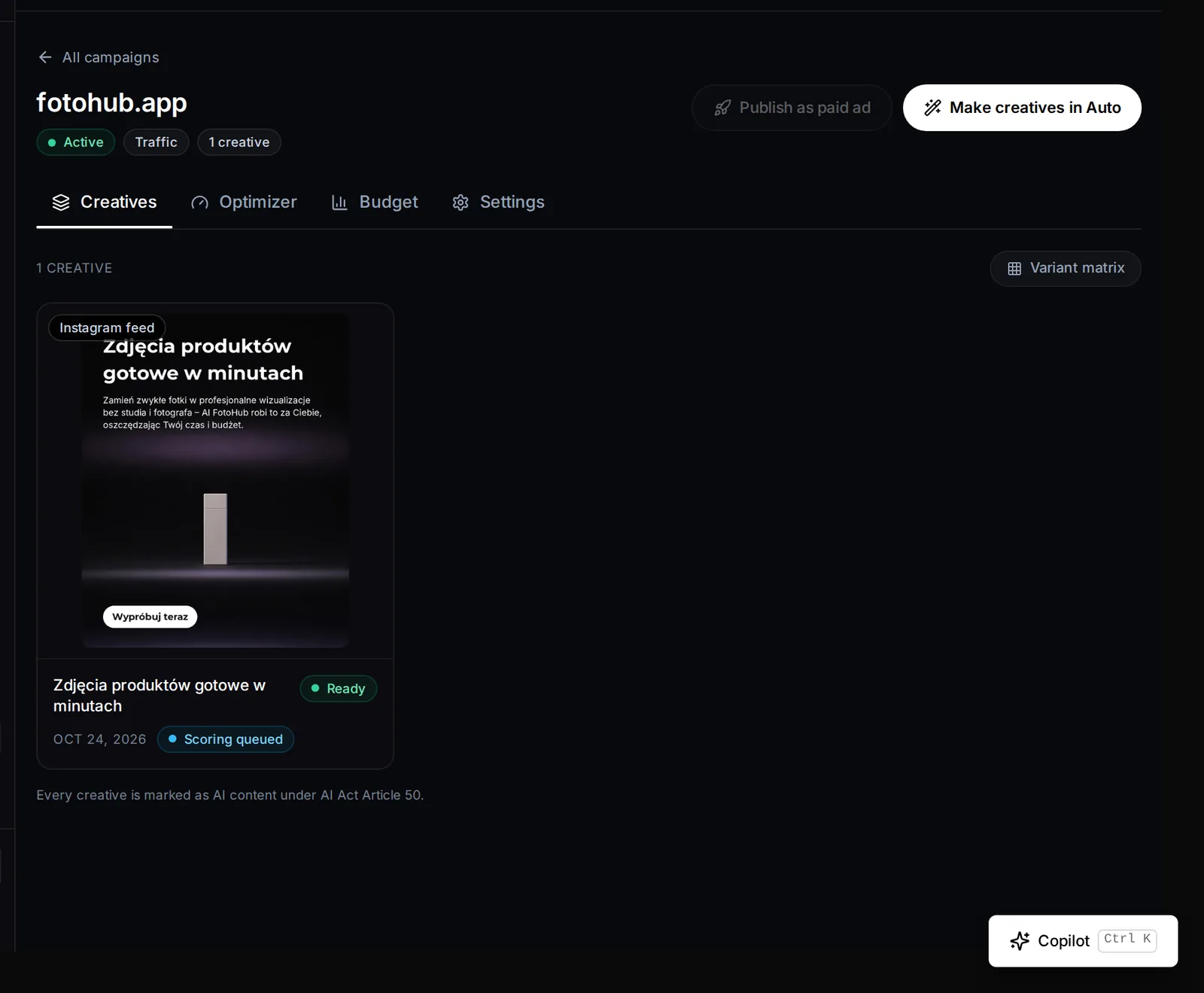
Why it works. Auto read the palette and fonts from the page, planned a single Instagram feed placement, showed the line items and waited. After Accept and generate the creative arrived with a Polish headline ("Zdjęcia produktów gotowe w minutach", roughly "Product photos ready in minutes"), body text and a button label, ready to Approve. The quote panel listed the image and the optional AI score as separate lines before anything was charged.
Copy only variants, no generation
Goal. Test several headlines on creative you already have, at no cost.
Input you can copy.
Open a campaign that has a creative, use the variant matrix to combine three headlines with two calls to action.| Setting | Value |
|---|---|
| Result | 6 new copy variants that reuse the same artwork |
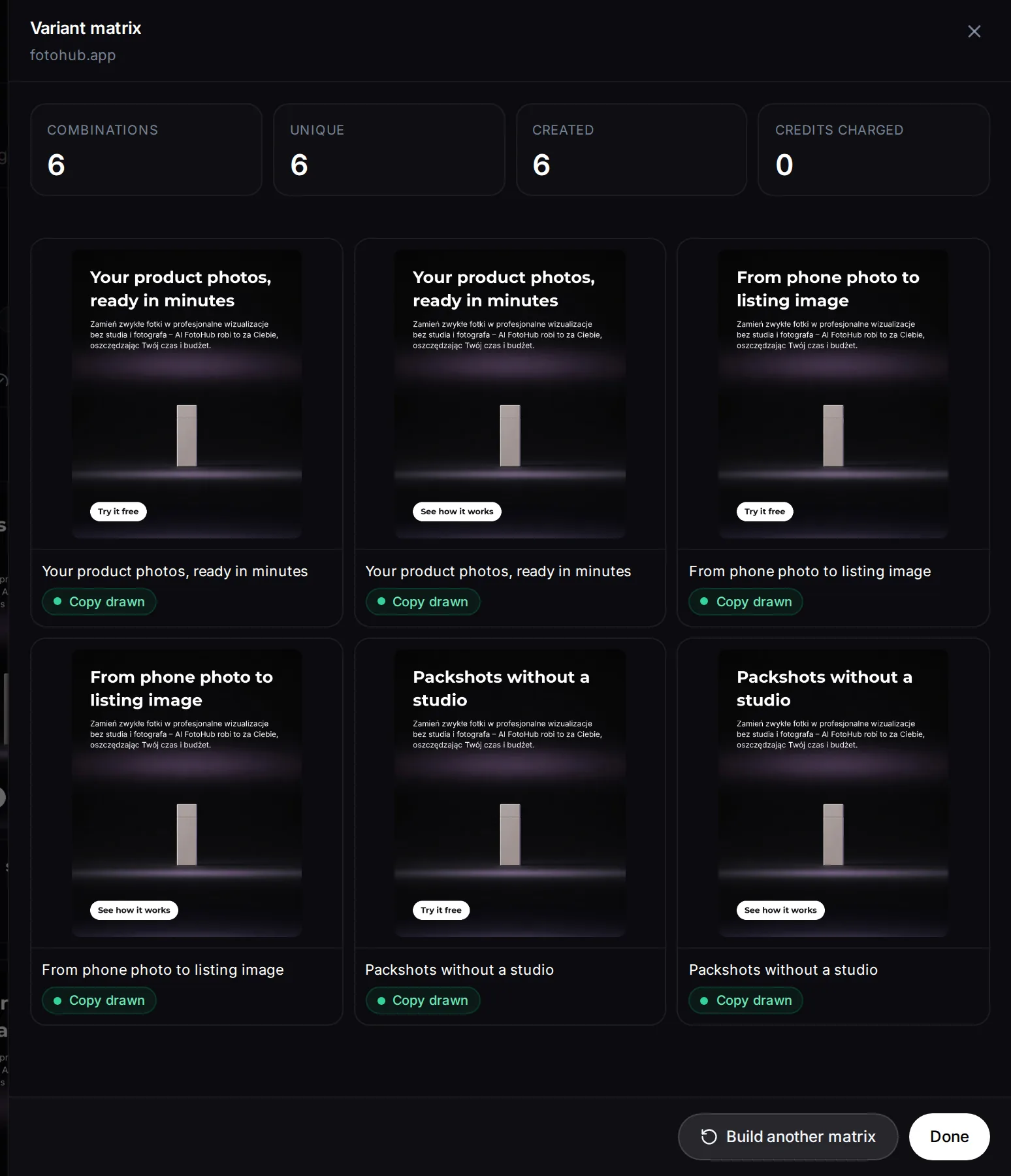
Why it works. The variant matrix runs no model: it recombines headlines, primary texts and calls to action over artwork you already have. Artwork for a new variant is a later, separate step that you choose.
Which route should you use?
| Your situation | Use | Why |
|---|---|---|
| You have a shop page and want a first set of ads today | Auto | It reads the page, picks formats and asks you for a single decision: accept the quote or not. |
| You know the look you want, for example a bold colour block or a sunlit tabletop | Studio with a recipe | You choose the recipe, the exact formats and, if you wish, a short creative note. |
| You need video ads | Studio, Factory or UGC video ads | Auto makes images only. |
| You already wrote the headlines and want every combination across formats | Factory | It multiplies formats by headlines by variants and shows the total before you commit. |
| You have a campaign with good artwork and want to test copy | Variant matrix | No model runs and no credits are spent. |
| You sell many products from a feed | Product catalogs | Creatives are composed from the feed at no credit cost. |
Writing a useful creative note in Studio
The Creative note is limited to 500 characters and goes to the planner as a hint. Describe the subject and the mood, not the layout, and do not ask for text or logos inside the picture: those rules are built in. A good note is one or two sentences, such as "Close crop on the product, morning window light, calm and premium, lots of empty space on the left for a headline". A weak note is a list of adjectives with no subject.
Habits that save credits
- Start with one creative and one channel. Look at it before you ask for twelve.
- Read the copy of the first creative for language, claims and spelling before you approve the rest.
- Reject early. A rejected creative stays in the campaign but never reaches an export, and it takes one click.
- Turn the per-creative AI score off while you are still exploring, and on when you need a quick ranking of many creatives.
- Do not publish to an ad platform before you have exported and looked at the files yourself.
Templates, languages, catalogs and export
The rest of the module is covered in the article on Ads Studio templates, languages and catalogs: ready-made layouts, translating a creative into up to 32 languages, generating from a product feed, and exporting approved creatives. Here is the short version.
- Templates: add one to a campaign for free, pay only for the artwork.
- Languages: adapt one creative into many languages, copy only, artwork reused.
- Product catalogs: import a feed once and compose creatives for every product, with no credits.
- Export: select approved creatives and download a ZIP with a manifest, or a CSV only.
Publishing to ad platforms (optional)
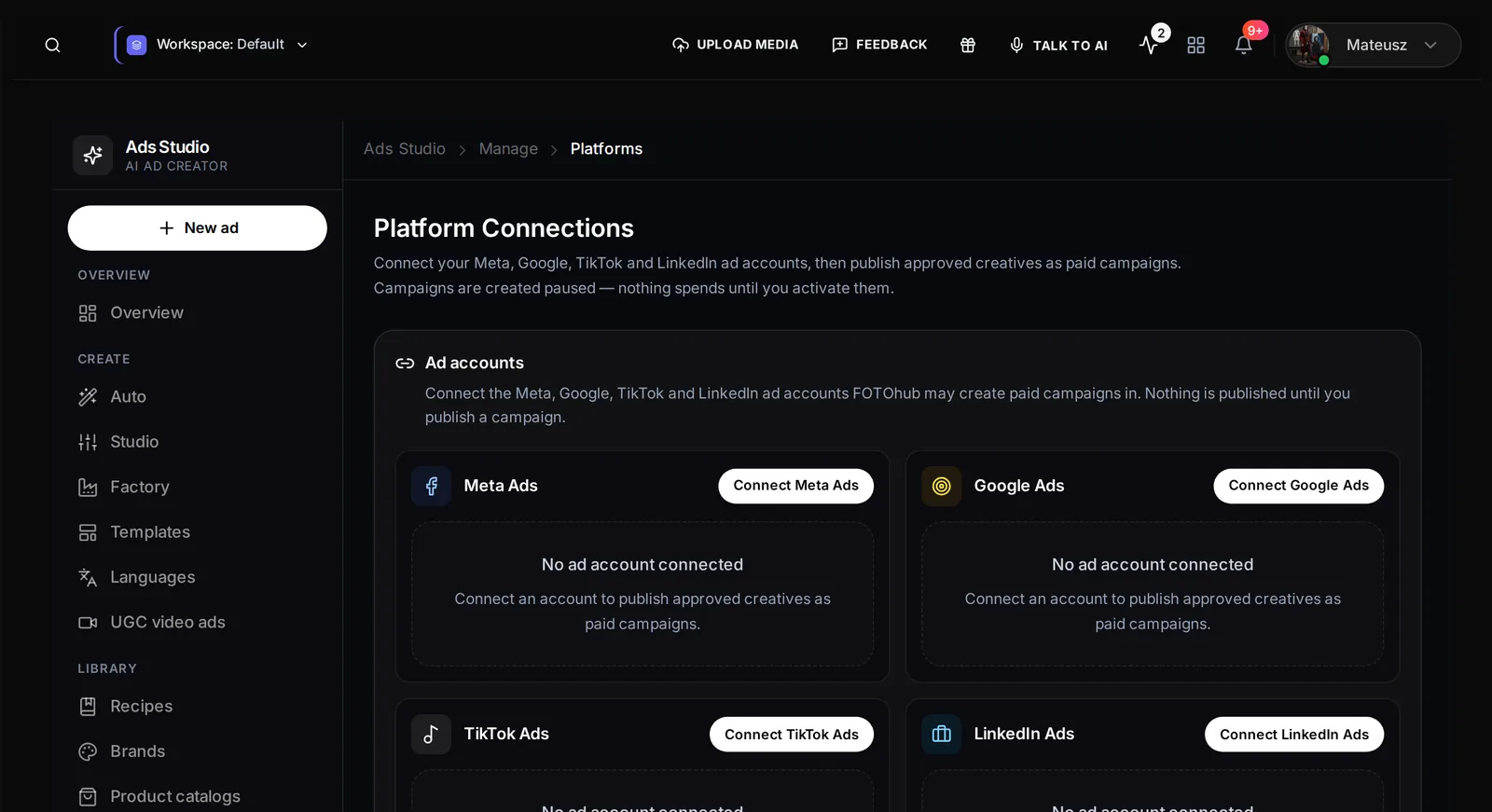
The Platforms page connects your Meta, Google, TikTok and LinkedIn ad accounts and publishes approved creatives as paid campaigns. Campaigns are always created paused, nothing spends until you switch them on, and the ad platform bills you, not FOTOhub. A platform shows a message such as "Not configured by the administrator" when its connection is not enabled yet, in which case use Export and upload the ZIP in the platform yourself.
Tests, Results, Budget, Optimizer and Autopilot depend on performance numbers that come from a connected ad account. Without one they show empty states. The Ad Library search needs a server token and may say it is not configured.
What costs credits, and when
| Free | Paid |
|---|---|
| Reading a site, harvesting a brand | Image creatives, per creative |
| Adding a template to a campaign | Per-creative AI scoring (the optional toggle) |
| Variant matrix, Save copy | Style preview, Generate artwork, Generate again |
| Catalog creatives | Languages, per language |
| ZIP and CSV export | UGC video ads, per delivered scene |
Auto and Studio show a preliminary cost first and the real quote at the pause. Credits are reserved when you accept the quote and refunded for creatives that were not produced. Resuming a stopped run never charges twice. If your balance is too low the dialog says how much the run costs and offers Buy credits.
Troubleshooting
- "This address is not allowed".
- Private and internal addresses cannot be read. Use the public address of the site.
- "Could not read this site".
- Try another page of the same site. Very thin pages fall back to a browser read, which can take longer.
- The run stopped and says "The run failed".
- Press Start over. A run that is not approved within about two hours is closed automatically.
- I accepted the quote but nothing was charged.
- Credits are reserved at acceptance and settled as creatives are produced. Check the campaign for the creatives.
- My headline is in the wrong language.
- See the copy language note: rewrite headlines in Factory, or use Languages.
- Where do the finished ads go?
- Into the campaign you named, under Creatives. They are not copied to Files automatically. Use the Continue with menu on a creative to save or edit it elsewhere.