Running a flow and working with results
Understand what happens when you press Run: the order nodes execute in, how to run only part of a flow, what it costs, how errors show up and where your results end up.
Three ways to run
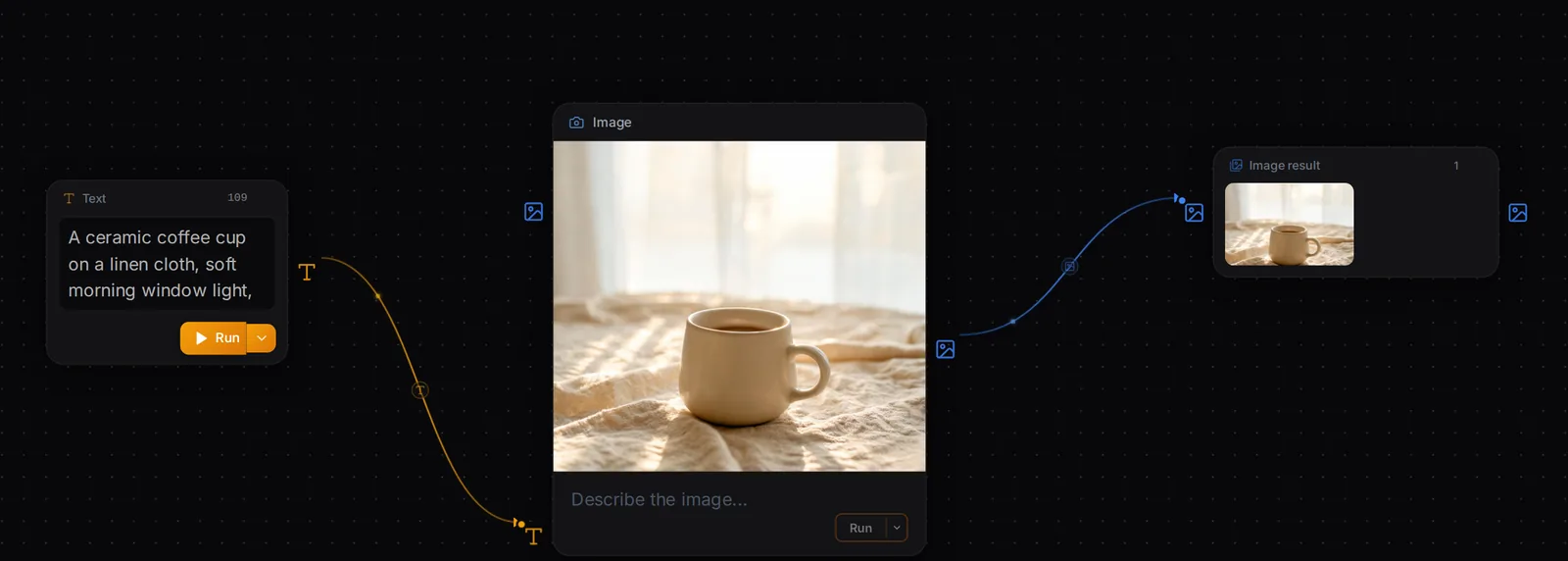
Flows has no separate execution page: you run a flow on the canvas and results appear in the nodes. There are three scopes.
| Scope | How | What runs |
|---|---|---|
| The whole flow | Run in the top bar | Every generating or processing node, in dependency order |
| One node | Run on the node card | Only that node. Everything it reads must already have a result. |
| Part of the flow | Run options next to a node's Run button | Run from here: this node and everything downstream. Run to here: this node and everything upstream. |
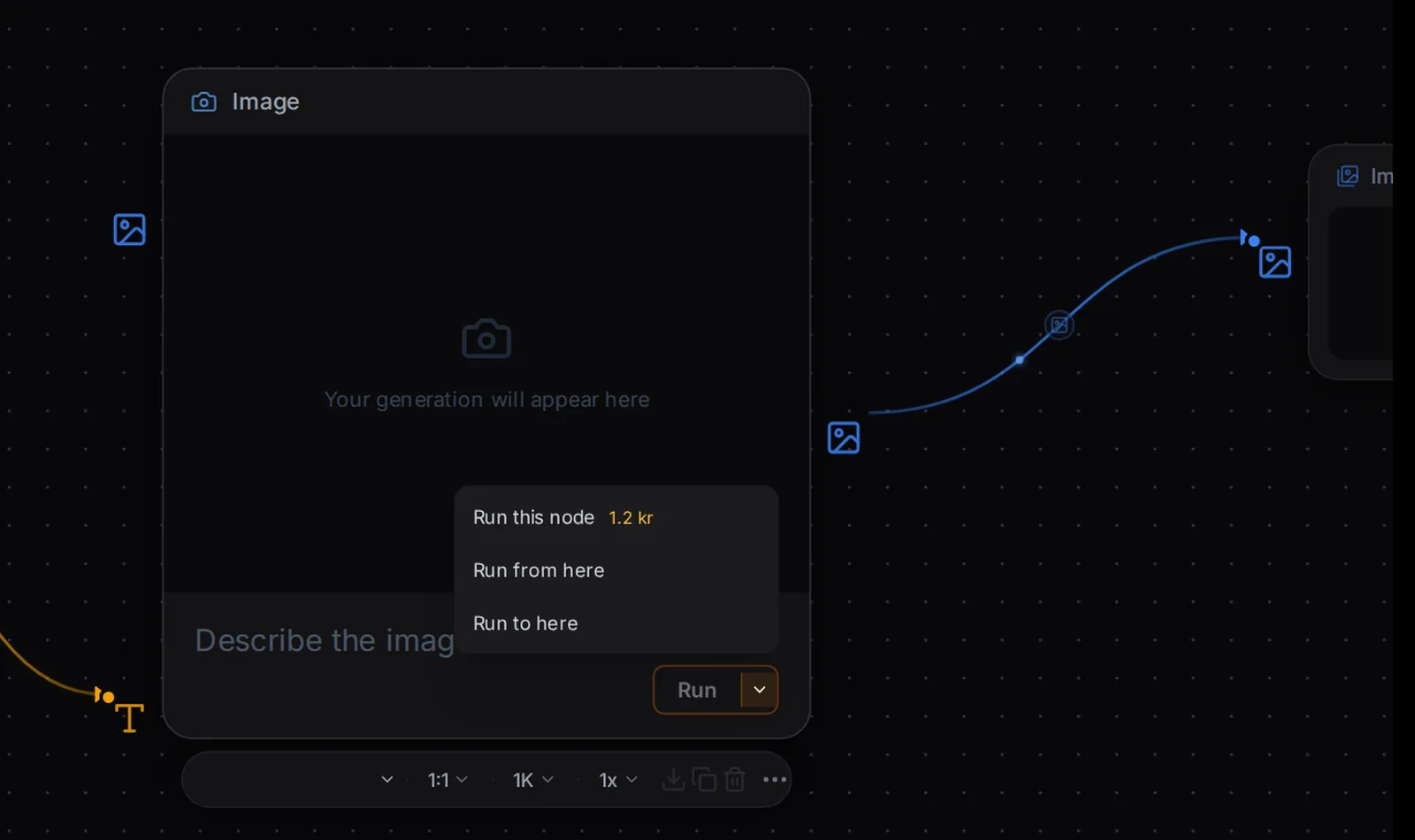
Partial runs are the way to iterate cheaply. Tweak the prompt of the third image in a ten-node flow, choose Run from here, and the first two images are not paid for again. When a node is on a branch that shares an expensive upstream step, run that step once and reuse its result.
What happens when you press Run
The runner works out which nodes depend on which, groups them into levels and runs level by level. Nodes in the same level run in parallel, at most three at a time. A toast announces the plan (for example, how many steps across how many levels), and another one tells you when the pipeline completed. If a level fails, the pipeline stops and the toast names the nodes that failed; nodes that already finished keep their results.
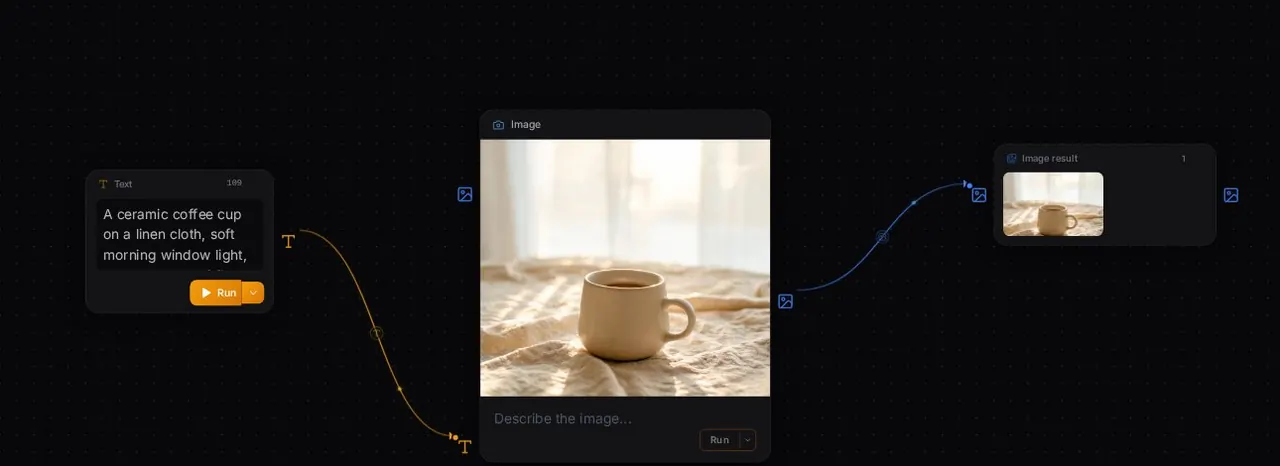
While nodes run, the Run button turns into Stop. Stop cancels what is still waiting; a generation that already finished stays. Long jobs such as video, merging and composition run as background jobs on the servers: the node shows that the job is queued and waits for the result, and if the wait runs out the node says so instead of hanging forever.
What is checked before a node starts
- A required input is connected. If not, the node says which port needs a connection.
- The node feeding it has a result. If the source is idle, still generating, failed or finished empty, the message names the source node and its state.
- The chosen model is available. A model that was switched off or has a provider outage tells you to choose another one.
- The price is confirmed. If a music price could not be loaded, the node asks you to try again in a moment instead of running without a quote.
Cost and the estimate
The coin badge in the top bar always shows the estimated credits for the whole flow, and updates as you change models, durations, resolutions and variant counts. Hover over it for the breakdown: one line per generating node with its model, the number of variants and the credits.
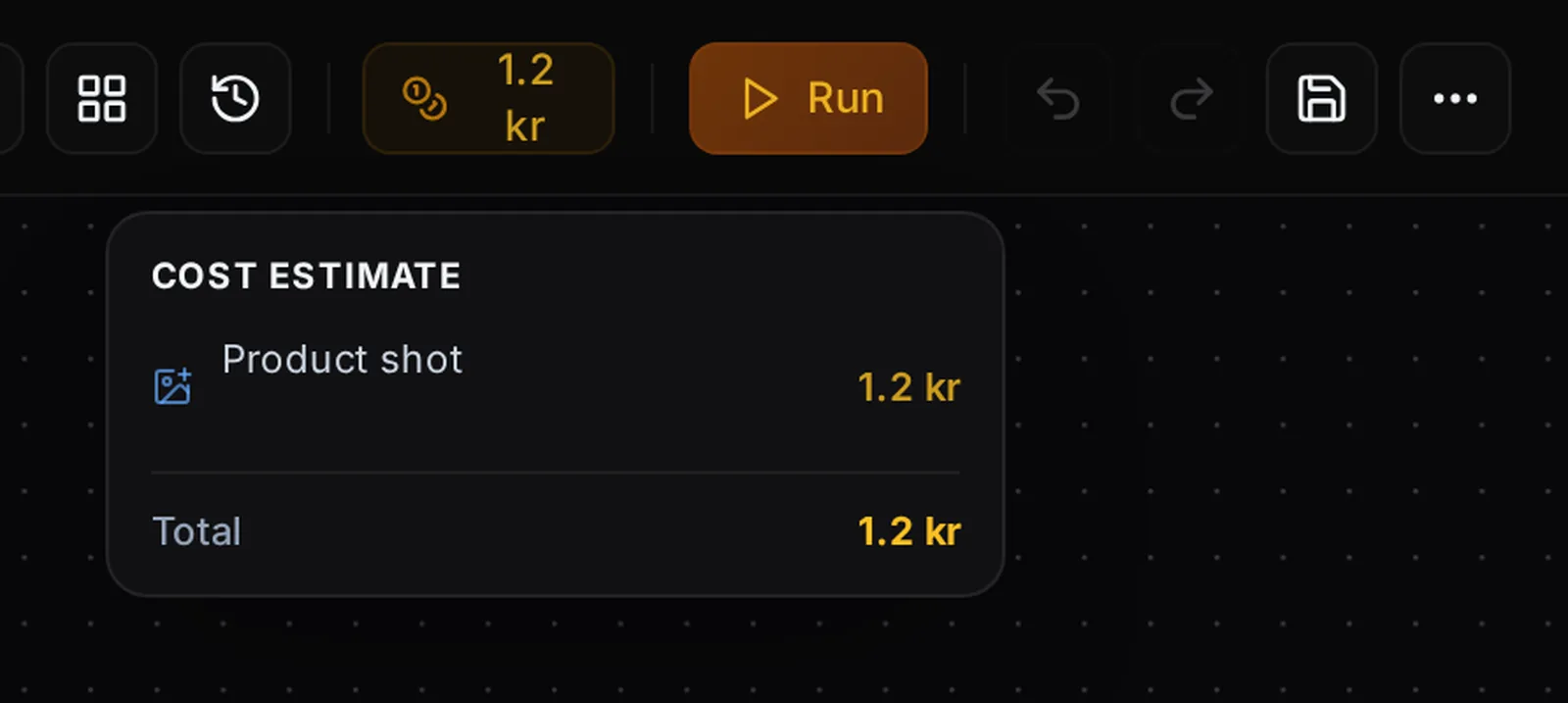
- Generation nodes (image, video, audio, text) are charged per run at the price shown in the estimate. The price you see is the price charged.
- Merge audio + video and Composition render on FOTOhub's own servers and are marked included in plan. The same goes for the Vision node's tools.
- If a price cannot be confirmed yet, the estimate shows no number for that node and Run is blocked until the price loads. This is deliberate: a flow should never run on a guess.
- Credits come from your plan balance, the same one the generators use. The generated images and videos are also saved to your gallery.
Results and where they live
A result appears inside the node that made it, and again in any result node connected behind it. From the card you can Download the file, Copy it, Delete generation to clear it, or open More actions for Extract generation, which turns the output into a plain image or video node so you can reuse it without paying for it again.
- Gallery. Generated images and videos are saved to your gallery as they finish, so deleting a node does not lose the file. If saving to the gallery fails for a video, the node tells you and asks you to download the file from the card.
- Versions. A video node keeps each take as a version; the one you leave selected is what flows on to the next node.
- Reopening. Media links in a saved flow are refreshed when you reopen it. If a file no longer exists in storage, the node shows an explicit error instead of silently going back to empty.
Run history
Run history in the top bar lists the runs made in the current browser session: when each started, how many steps it had and how it ended. It is a session log, not a permanent archive; for the files themselves use your gallery.
When something fails
A failed node turns red and shows a message in plain language on the card. The most common ones, and what to do:
| Message | Meaning | Fix |
|---|---|---|
| Connect a node to port Prompt | A required input is empty. | Wire a Text node, or type a prompt on the card. |
| Source node has not been run yet | You ran one node whose upstream node has no result. | Use Run to here, or run the upstream node first. |
| Model disabled / provider outage | The model is unavailable right now. | Pick another model in Choose model and run again. |
| This model cannot handle this mode | The model does not support the combination of inputs, for example references. | Disconnect the reference or choose a model with the References filter. |
| The wait for the result timed out | A background job took longer than the node waits. | Run the node again; check your gallery in case the file arrived after the timeout. |
| Cycle detected in the graph | Connections loop back on themselves. | Remove the connection that points back upstream. |
- Can I run two flows at the same time?
- Yes, each canvas runs independently, but they draw on the same credit balance and the same generation queues, so a busy queue slows both.
- Do I have to keep the tab open?
- Keep it open while a run is in progress. The pipeline is coordinated by the open canvas; background jobs on the servers continue, but the canvas is what collects the results and moves to the next level.
- Why did a node run again when I pressed Run?
- Run on the top bar starts the whole flow. To avoid re-paying for finished nodes, use Run from here on the first node you changed.