Flows node library: every node and its settings
A reference for every Flows node: what goes in, what comes out, which settings it has and how to connect it. Read it to pick the right node and to understand why a connection is refused.
How nodes work
Every node is a card with input handles on the left and output handles on the right. A handle is a small circle with an icon for its data type: text, image, video or audio. A line can only join an output to an input of the same type, and an input accepts one line (a few inputs, such as reference images and the clips of a composition, accept several). All settings live directly on the card; there is no separate settings panel.
| Type | Carries | Produced by |
|---|---|---|
| Text | Prompts, scripts, captions, detected text | Text / Prompt, AI text, Vision (OCR, tags) |
| Image | Pictures, masks, frames | Upload image, Generate image, Vision, Frame from video |
| Video | Clips | Upload video, Generate video, Merge, Composition, Vision (tracking, smoothing) |
| Audio | Music, sound effects, speech | Generate audio |
Right-click a node, or open its More actions menu, to Run, Rename, Duplicate, Focus node or Remove node. Hover a handle to see its name and whether it is required or optional. Typed text, uploaded files and settings travel with the node when you duplicate or copy it.
Input nodes
Text / Prompt
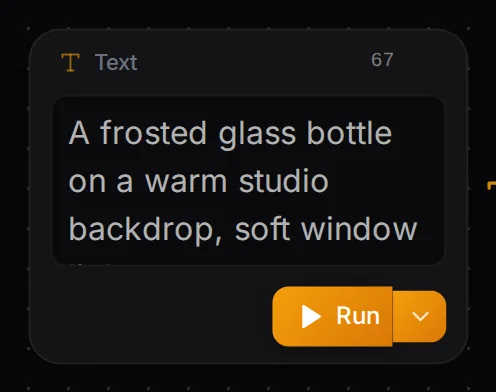
A free text box with a character counter. It has one output, Text, which you can wire into several nodes at once: the same brief can drive an image, a video and a voice-over. Keep each Text node about one idea; it makes flows easy to re-run with a different scene.
Upload image and Upload video
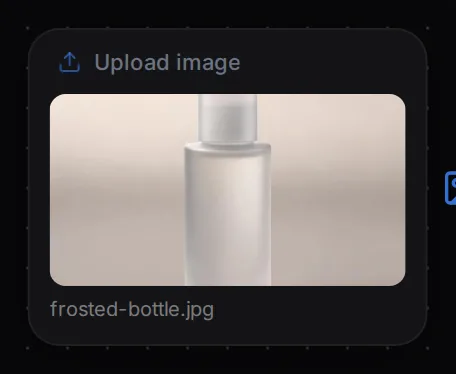
Click the card to choose a file from your device. Upload image accepts pictures (logo, product photo, reference, start frame) and outputs Image. Upload video accepts MP4, WebM and MOV clips and outputs Video. Use the small remove button to clear the file. An uploaded file lives in your browser until a generation node runs and uses it. After you reload or reopen the flow, upload the file again.
Generation nodes
Generate image
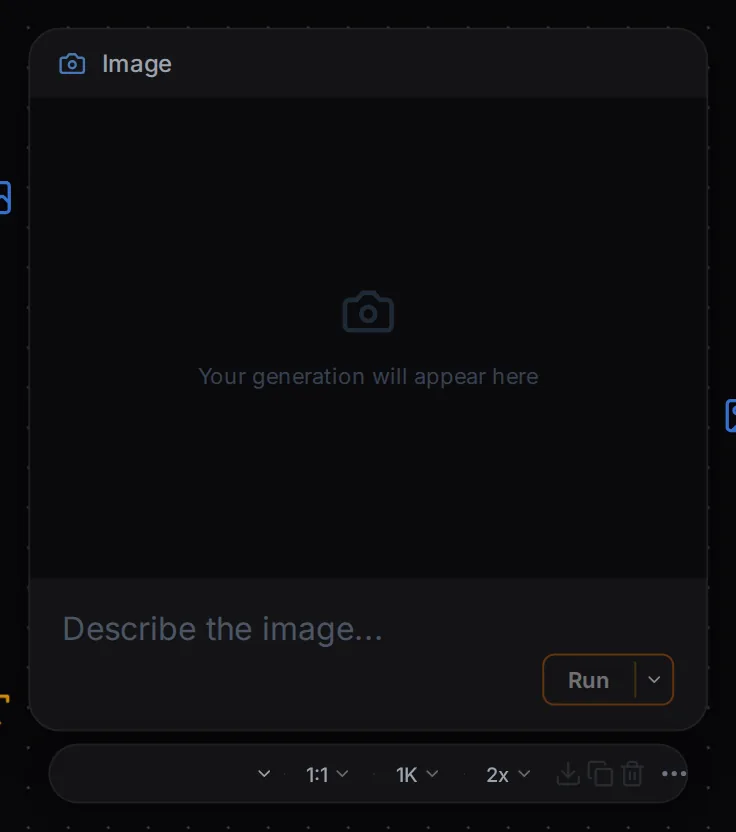
The workhorse. Inputs: Prompt (required) and Reference (optional images; the card shows the maximum the chosen model accepts). Output: Images. Settings on the card:
| Setting | Options | Notes |
|---|---|---|
| Choose model | The image model catalogue, with search and the filters Fast, Cheap, Quality, Edit and References | The list also shows some FOTOhub models that run in their own queue; those cannot run inside Flows yet (see the note below). |
| Aspect ratio | 1:1, 16:9, 9:16, 4:3, 3:4 | Click the button to step through the ratios; the card reshapes to match. |
| Resolution | 1K, 2K, 4K | Only the sizes the model supports are offered. |
| Variant count | 1 up to the model's maximum | More variants show as a carousel on the card and all flow to the next node. |
| Negative prompt | Free text of what to avoid | Shown only for models that use it. |
Under a finished image the card offers Download, Copy, Delete generation and More actions, including Extract generation, which pulls the picture out as an ordinary image node you can reuse elsewhere in the flow.
Generate video
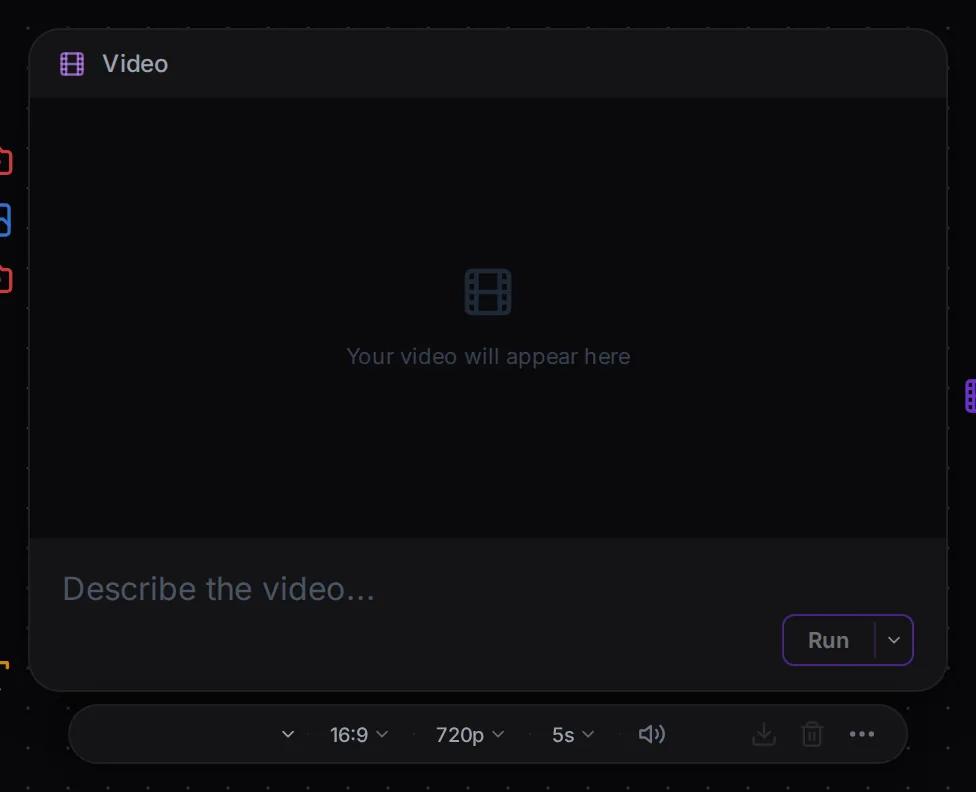
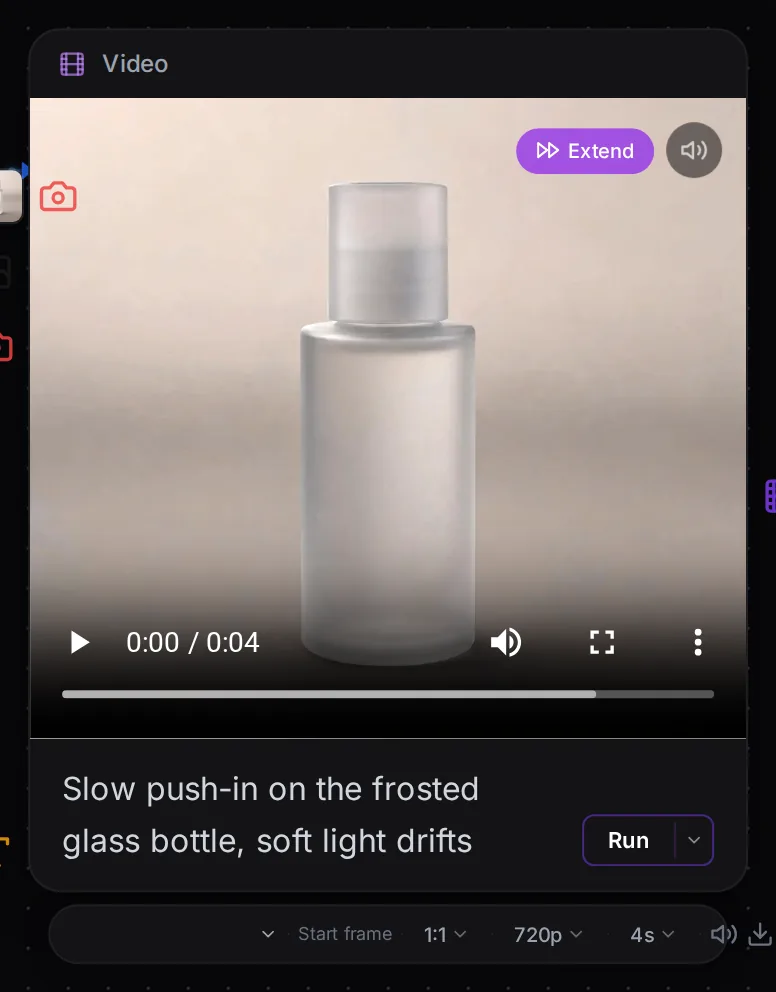
Inputs: Prompt, Start frame, Reference images and End frame. Which of them are active depends on the model; the card tells you when a model has no start frame, no end frame or no references. A model never takes a start frame and reference images together. Output: Video.
- Duration and quality (720p, 1080p or 4K) offer only the values the model supports.
- Audio on / Audio off appears for models that can generate sound; for the others the card says the model has no audio, and you add sound with a Generate audio node and a Merge node.
- Extend continues a finished clip: it grabs the last frame, creates a new video node with it as the start frame and tells you to run it. Chain Extend to build a long scene shot by shot.
- Every generation is kept as a version; a small carousel lets you flip back to an earlier take, and the version you leave selected is the one that flows downstream.
Generate audio
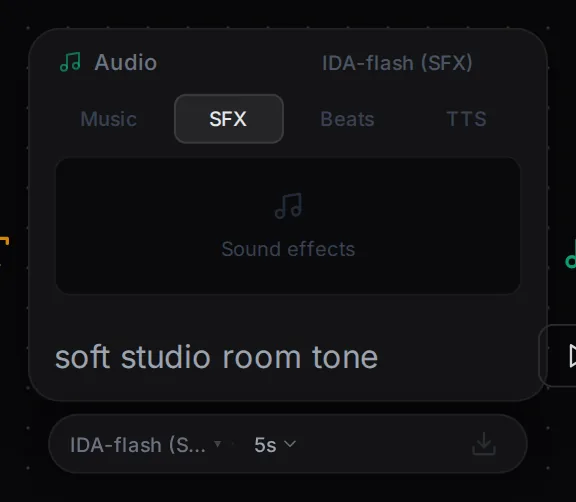
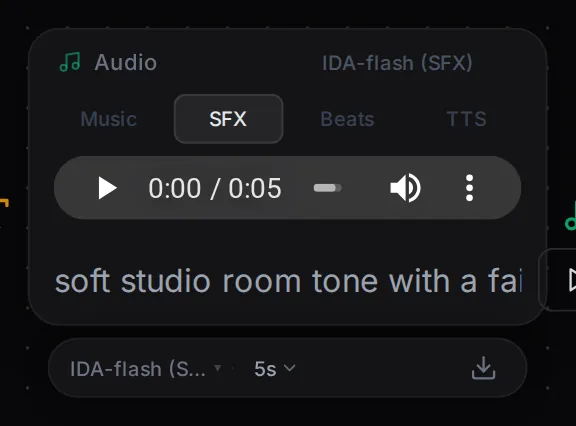
One node, four tools, switched with the tabs on the card: Music (full tracks), SFX (sound effects), Beats (beats and backing tracks) and TTS (text to speech). Input: Prompt; output: Audio. Pick a model per tool, set the duration where the model allows it, and for music choose a genre (click to step through). When the node is connected to a text source it shows the beginning of that text as context. A model that exists on the platform but is not wired into Flows yet is marked Not wired in Flows; the card warns that picking it would generate with a different engine, so prefer models without that mark.
AI text (LLM)
Writes text for the rest of the flow: scripts, product descriptions, caption variants, or a more detailed image prompt. Input: Prompt; output: Text. It has a model picker, Thinking (Off or Auto) and Length (Auto, Short, Medium, Long). Result buttons: Copy text, Delete text and Extract text, which turns the answer into a Text node. A typical use is a short brief in, a polished image prompt out, wired into a Generate image node.
Processing nodes
Merge audio + video
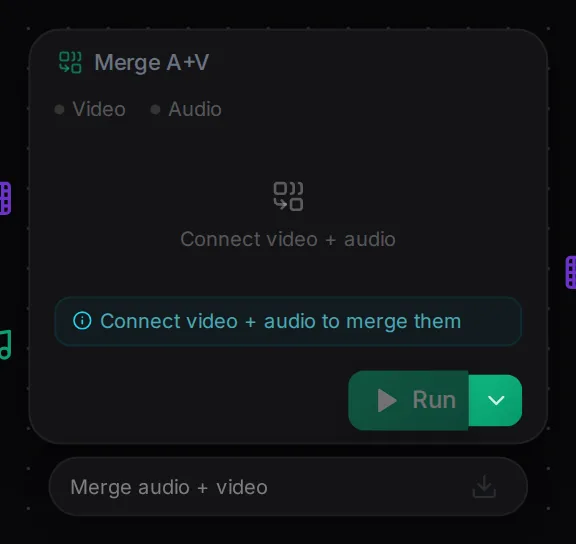
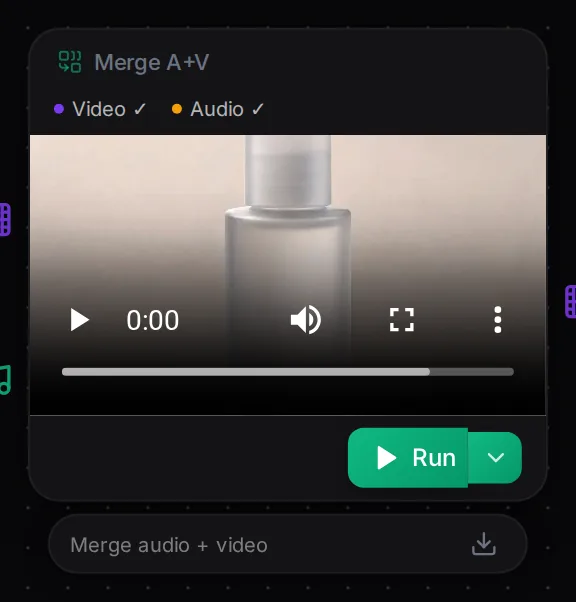
Joins a silent video and an audio track into one file. Inputs: Video and Audio (both required); output: Merged video. Use it behind a video model without sound and a Generate audio node. The card says Connect video + audio until both are wired. Merging runs on FOTOhub's own video servers and is included in your plan, so the cost popover lists it with no credits.
Composition
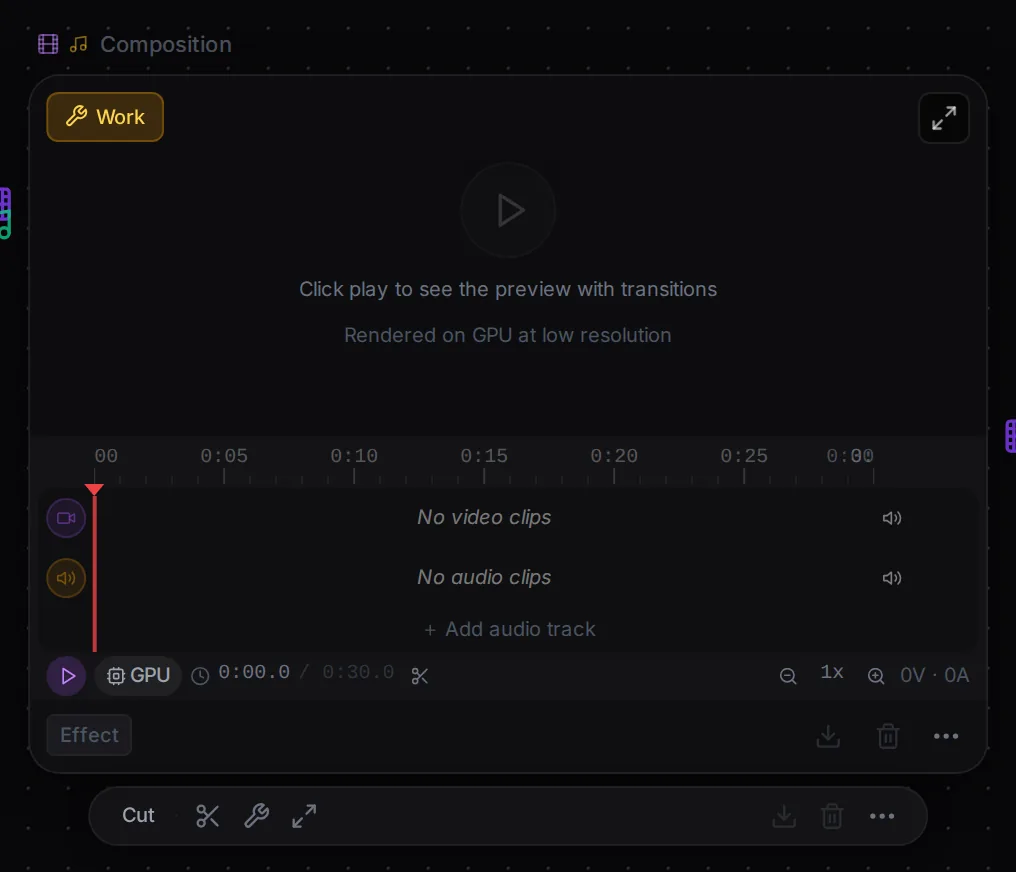
A small timeline inside a node. Connect several videos (the Video (multiple) input) and optionally audio, and arrange them as clips on tracks. You can Split clip here at the playhead, set a clip's duration and speed, fade in and out, reverse it, give it a colour label, and choose a transition at the end of each clip: Cut, Dissolve, Fade, Crossfade, Wipe left or right, Slide up or down. Audio tracks can be muted, soloed, locked and have their own volume. Work mode shows the source of the clip you click; Preview mode shows the composition. The preview renders on a GPU at low resolution so you can judge timing and transitions before you run the final render. Like Merge, it is included in your plan.
Vision
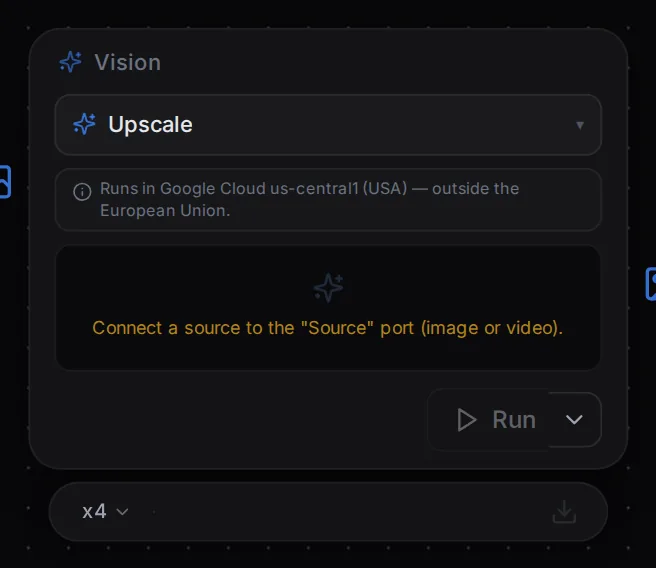
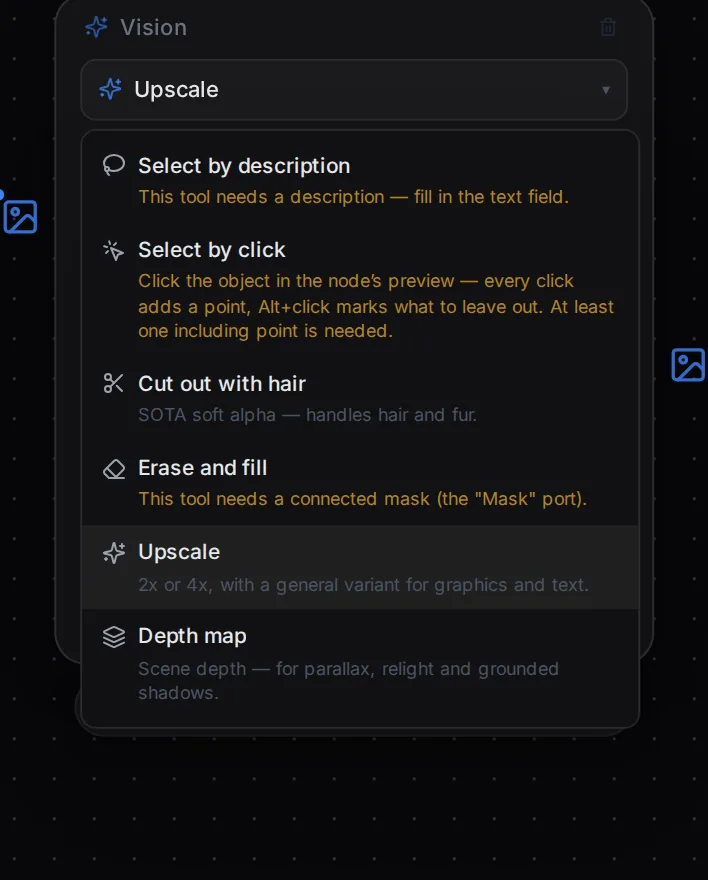
One node with eleven image and video tools, picked from the drop-down on the card. They run on FOTOhub's own GPUs and are included in your paid plan. The card states that this work runs in Google Cloud in the United States (outside the European Union); keep that in mind for material that must stay in the EU.
| Tool | What it does | Needs |
|---|---|---|
| Select by description | Finds every match of a described object and returns a mask | Image or video frame + a text description |
| Select by click | Fast single-object selection: click the object in the preview, Alt+click what to leave out | Image + at least one include point |
| Cut out with hair | Soft cut-out that keeps hair and fur | Image |
| Erase and fill | Removes the masked area and paints a matching background | Image + a mask (white = remove) |
| Upscale | 2x or 4x, with a general variant for graphics and text | Image |
| Depth map | Scene depth for parallax, relighting and shadows | Image |
| Detect on-screen text | Finds text in the frame with boxes (Polish and English) | Image |
| Describe and tag | Scores how well each label you give fits the frame | Image + comma-separated labels |
| Track object | Per-frame mask of an object described in words (rotoscoping) | Video + a description |
| Remove object from video | Erases an object across the shot | Needs per-frame masks that the Flows builder cannot supply yet, so it stays blocked |
| Smooth frames | Adds in-between frames for slow motion and smooth 60 fps | Video |
Eight of the tools work on a single still picture. If you connect a video to one of them, the card tells you to put a Frame from video node in between, or to pick a video tool (tracking, object removal, smoothing).
Frame from video
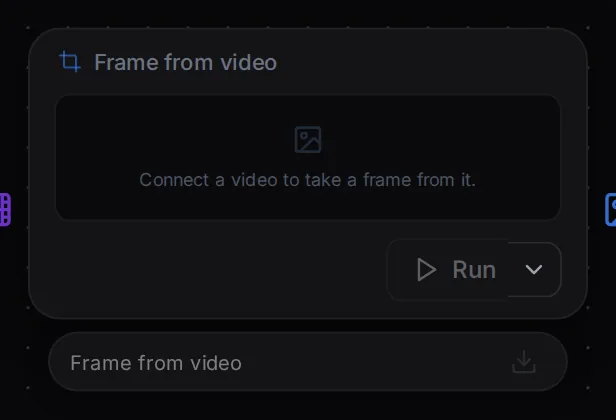
Takes one still out of a clip. Input: Video; output: Frame (image). Set Frame time (s), run the node, and the picture leaves it like any uploaded photo. The frame is captured in your browser from a clip uploaded to FOTOhub or generated in Flows; a clip from an outside address that the browser cannot read is refused with a message.
Result nodes
Image result, Video result and Audio result are end nodes. They show what arrives (a gallery of images, a video player, an audio player), keep it visible while you work elsewhere, and offer Download. They are also the clearest way to tell yourself which output matters in a flow with many branches. Each shows its own error state with a plain message if the upstream step failed.
Connection rules in practice
- Type must match. Image to image, text to text. A text output cannot go into a video input.
- One line per single input. A second line onto the same input is ignored and the app names the extra connection.
- Frames and references exclude each other. A video model uses a start/end frame or reference images, not both. Disconnect one to use the other.
- Reference limits follow the model. The card shows the maximum number of reference images; the app refuses a connection above it.
- Dropping a line on empty canvas opens a menu of nodes that fit the port you dragged from.
- Dropping a node on a line inserts it into the connection when its ports fit.