AI Architect: create a flow from one sentence
Describe what you want to produce and let the AI Flow Architect lay out the nodes and connections for you. Learn the three modes (Chat, Quick, Step by step), how to apply a plan and how to check it before you run.
What the AI Architect does
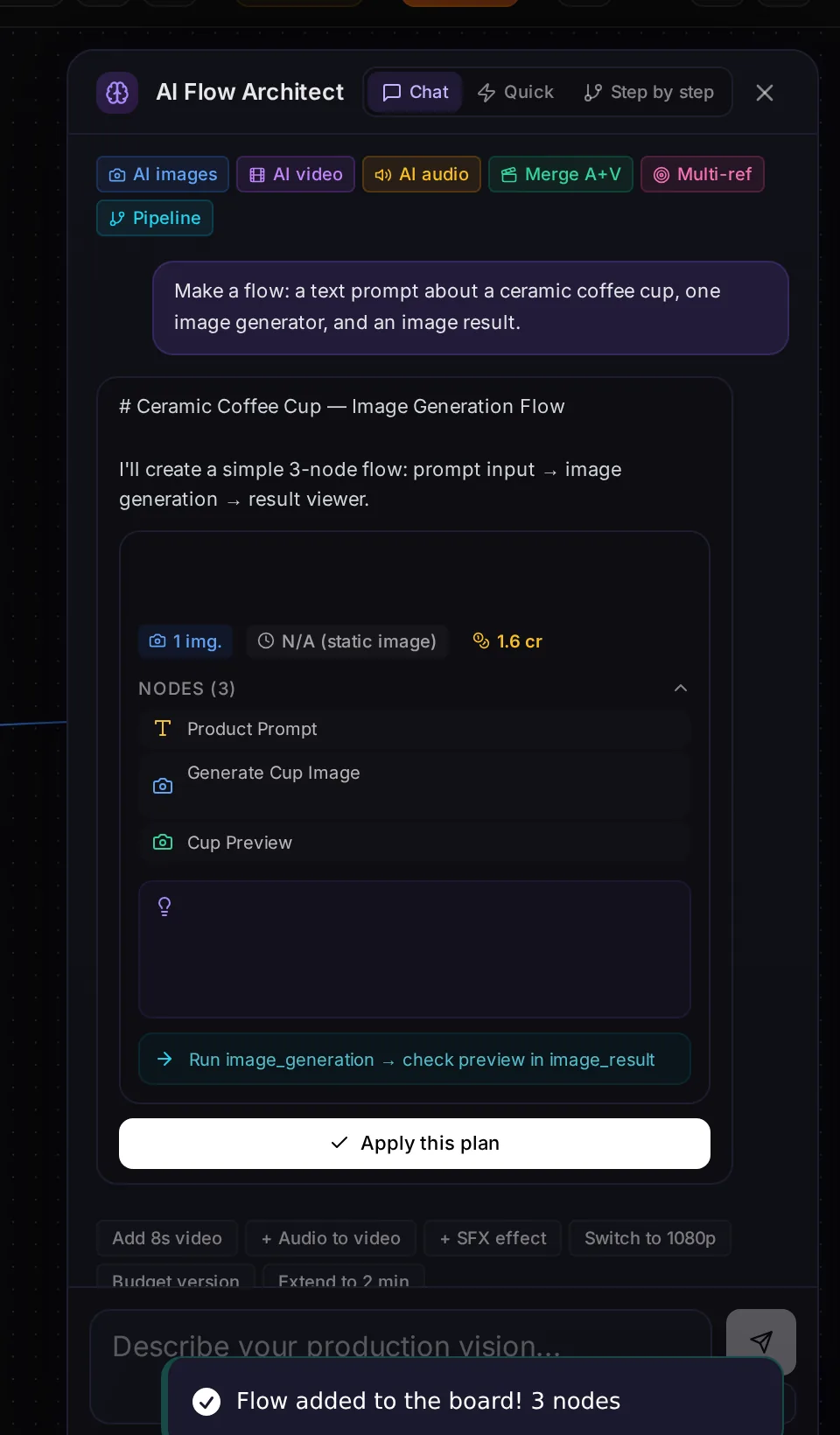
Building a long flow node by node is slow when you already know the result you want. The AI Architect takes a sentence such as "a product photo of a ceramic cup, then a cut-out, then a square, a story and a banner version" and proposes a graph: which nodes, in which order, with which settings and how they connect. You review it, add it to the board and run it like any other flow.
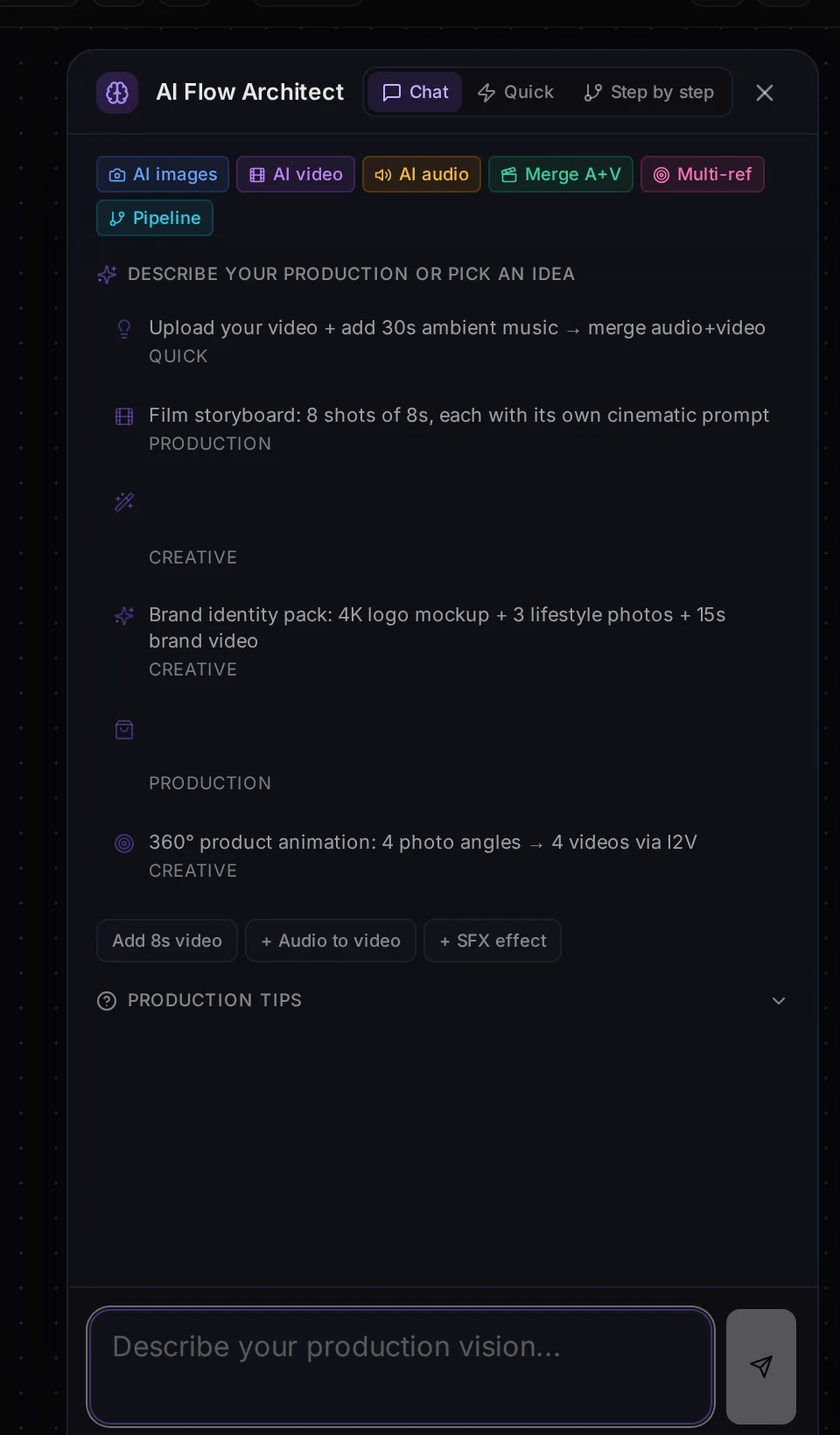
There is no separate wizard page: the Architect is a panel inside the flow canvas. Open any flow (a new empty one is fine) and click AI ARCHITECT in the top bar. The panel opens on the right, with the three modes at the top and chips that remind you what the Architect can build: AI images, AI video, AI audio, Merge A+V, multi-reference and pipelines.
The three modes
| Mode | Use it when | What you get |
|---|---|---|
| Chat | You want to talk it through and refine | A written answer with the plan: title, short explanation, node list, estimated credits and a button Apply this plan. Ask follow-ups ("make the banner 16:9") and the plan updates. |
| Quick | The request is clear and you want the plan at once | A one-shot plan without a conversation (the hint under the box says: instant JSON). If the Architect cannot produce a valid plan it says "The AI did not return a valid plan"; try again, rephrase, or switch to Chat. |
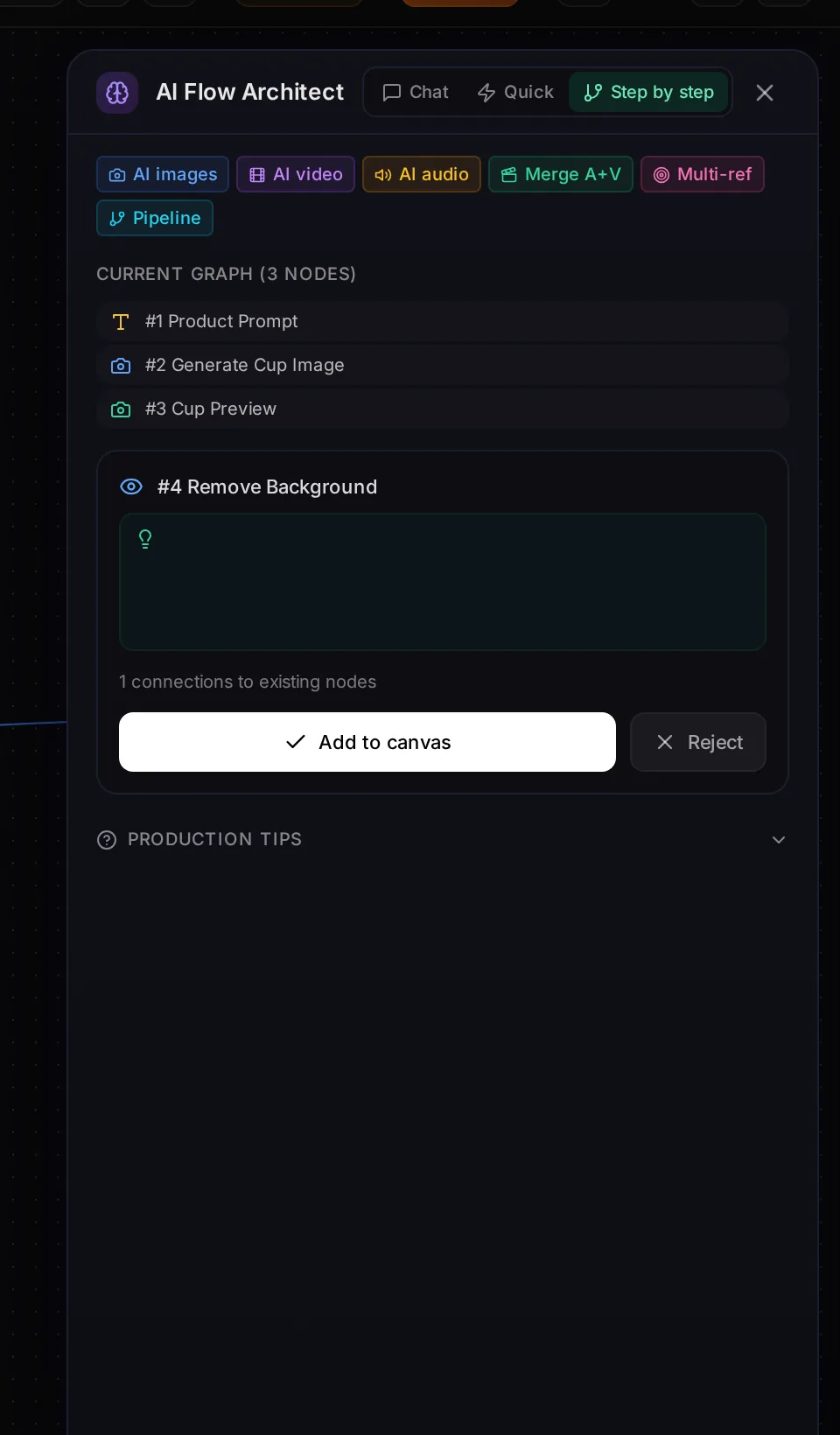
| Step by step | You already have part of a flow and want the next node | It reads your current graph (listed as numbered nodes), optionally takes a goal for the next step, and suggests one node with its connections. You accept with Add to canvas or decline with Reject. |
Walkthrough: a flow from one sentence
- Open the panel In a new flow click AI ARCHITECT. Stay in Chat mode.
- Describe the production Write what you want in the box Describe your production vision.... Be concrete about the pieces: the kind of image, how many versions, whether you need video or sound. Press Enter to send (Shift+Enter makes a new line).
- Read the plan The answer shows a title, a short explanation, how many images or videos the plan produces, the estimated credits and the list of nodes. Expand NODES to see each one.
- Apply it Click Apply this plan. A toast confirms "Flow added to the board" with the node count, and the nodes appear on the canvas already connected. Use Auto-arrange in the top bar if the layout needs tidying.
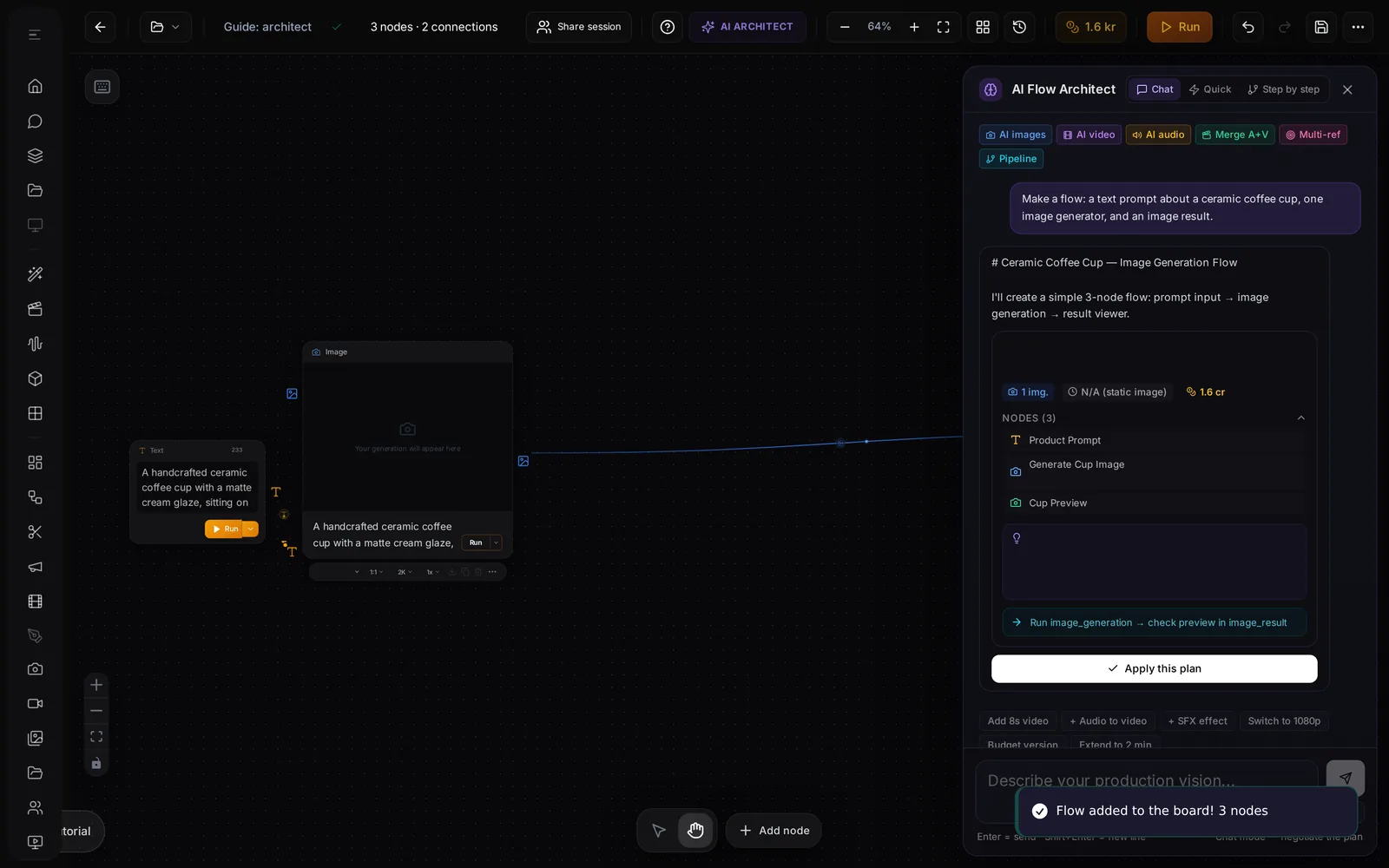
- Check, then run Open each generating node, confirm the model and settings, read the cost estimate and press Run. Nothing has been generated or charged until you do.
A simple product flow in one message
Goal. Get a ready three-node flow without placing a single node by hand.
Input you can copy.
Make a flow: a text prompt about a ceramic coffee cup, one image generator, and an image result.| Setting | Value |
|---|---|
| Mode | Chat |
| Nodes created | Text, Image, Image result |
| Connections | 2 |
Why it works. The Architect named the nodes, wrote a prompt into the Text node, picked an image model and wired the three nodes. The prompt it wrote is longer and more specific than the request, which is usually an improvement; read it and edit it if needed.
Step by step mode
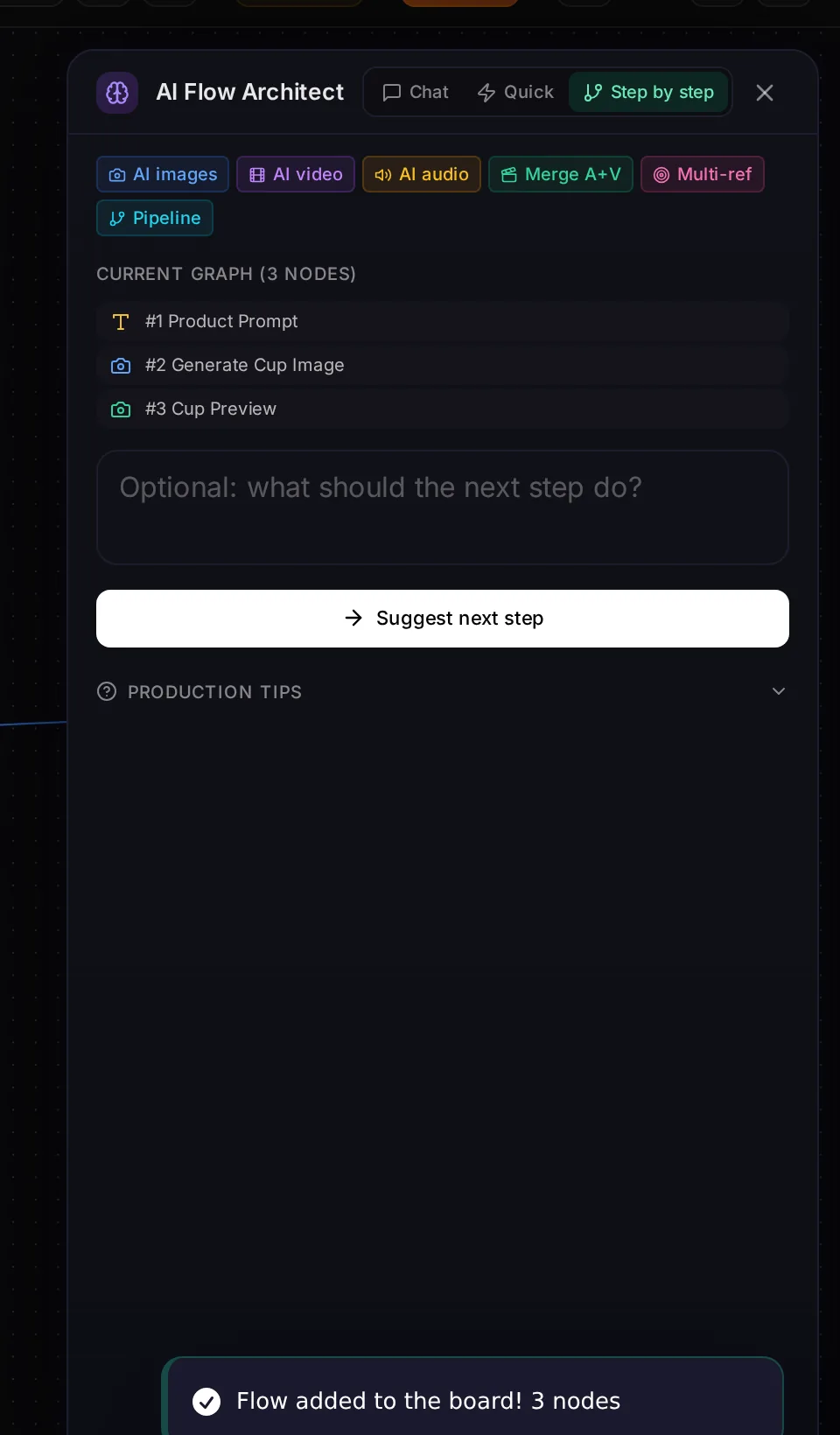
Switch to Step by step when you are mid-flow. The panel lists your Current graph as numbered nodes. Optionally type what the next step should do in Optional: what should the next step do?, then click Suggest next step. The suggestion arrives as one node with a short reason and the number of connections it will make to existing nodes. Add to canvas places and wires it; Reject asks again. On an empty canvas it suggests a starting node.
Quick actions, ideas and tips
- Ideas on the first screen are example requests grouped as Production, Social Media, Creative, Audio + Video and Quick. Click one to put it in the box, then edit it.
- Quick actions under an answer (Add 8s video, + Audio to video, + SFX effect, Switch to 1080p, Budget version, Extend to 2 min) send a ready follow-up request to extend or change the plan.
- Production tips at the bottom explain patterns such as adding sound to a silent video model, chaining clips for longer scenes and keeping cost down while prototyping.
- New conversation clears the chat; the flow on the canvas stays.
What the Architect checks, and what you must check
Before a plan reaches the canvas, the Architect validates it against the same rules the canvas enforces: every node type must exist, every model must exist in the catalogue and be available today, connections must join matching port types, and Vision tools must have the inputs they need (a mask, a prompt). A plan that breaks a rule is refused with a message that lists the broken rules, so you never receive a graph the canvas would reject.
What it cannot check for you is whether the result is what you meant. Treat the plan as a draft:
- Read the prompts the Architect wrote and edit them.
- Look at the model chosen on every generating node and change it if you prefer another. A model that cannot run inside Flows stops the node with a message when you run it (see the node library guide).
- Read the cost estimate in the plan and in the top bar. The plan's figure is an estimate; the price shown on the node's Run menu is what that node charges.
- Do not send private information in the request. The Architect is an AI assistant; describe the production, not your customers.
- Quick says it did not return a valid plan.
- Quick asks for a plan in one shot and gives up if the result breaks a rule. Rephrase with fewer ideas in one sentence, or use Chat, which can negotiate the plan.
- Can I use a template instead?
- Yes. On the Flows page Use template opens a ready flow you adjust. Templates are good for well-known pipelines; the Architect is better for something specific.
- Does the Architect run the flow for me?
- No. It only adds nodes. You press Run.