Choosing the right image model
Which model for which job: FOTOhub's own IDA models in detail, the partner models by capability, a comparison table, the same prompts run on several models, and a decision guide for posters, products, edits and more.
Why the choice of model matters
The image generator offers about fifty models, and they are not interchangeable. One draws readable lettering, another invents it. One takes four reference images, another takes none. One answers in seconds, another waits in a queue for a few minutes. One can cut the subject out on a transparent background, most cannot. The prompt matters, but the model decides what is possible at all.
This guide is a map, not a ranking. It describes FOTOhub's own models by name, because those are yours to rely on, and the partner models by what they can do, because that list changes from month to month and a capability stays true when a name does not. Prices are not quoted here: the picker and the Create button always show the current price, and a guide that repeated numbers would be wrong within weeks.
FOTOhub's own models
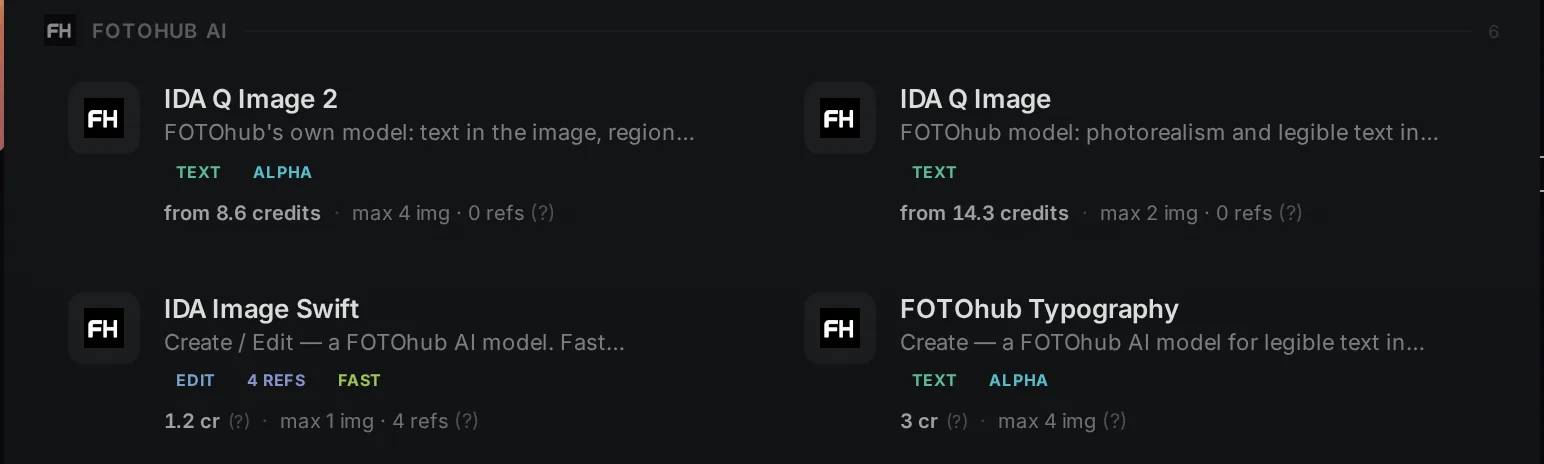
FOTOhub runs four image models itself. They sit together in the FOTOhub AI group of the picker, they use their own settings panels, and their cards say where an image is computed. Two of them are queue models: they wait their turn on a shared GPU, show your position and the expected time, and let you leave the page.
IDA Q Image 2: text, layout and cut-outs
The most capable of the four for design work. It letters quoted words as written, lets you draw regions and say what goes in each, produces a transparent background on request, and offers three speed presets (Fast, Balanced, Max), three resolutions (1K, HD 2K, Full 2K), 14 aspect ratios and up to four variations per job. It takes no reference images: you describe, you do not attach. A fixed seed repeats a result. It is a queue model, so a Fast 1K image is the quickest and a Max one takes the longest.
IDA Q Image: photorealism from a simple panel
The first IDA Q model. It aims at photorealistic pictures with legible text, and its panel is deliberately small: a size (the choices depend on your plan), one to four variations, the price and the time. It runs a single balanced preset, has no seed field and takes no references. Pick it when you want the look of a photograph and do not want to tune anything.
IDA Image Swift: quick drafts and edits with references
The fast one. It finishes in seconds when warm, creates and edits, accepts up to four reference images, works at 1K or 2K, offers 11 aspect ratios, a seed and Draft, Standard and High quality presets. It makes one image per job, so more images mean more jobs, each priced and refunded on its own. Its card says the image is computed in the United States. It is the model to use for iterating on an idea, and for the Edit mode when you want to stay inside FOTOhub's own models.
FOTOhub Typography: lettering as the main job
Built for text that has to read correctly: posters, signs, packaging, social posts. It has text styles (Auto, Poster, Logo, Social post, Packaging, Signage, Handwritten), up to twelve layout boxes you draw to place text or an object exactly, a JSON prompt for full control, a transparent-background switch, 11 aspect ratios and a seed. It makes up to four images at 1K. Its card says the image is computed in Zurich, Switzerland. It does not take reference images.
| IDA Q Image 2 | IDA Q Image | IDA Image Swift | FOTOhub Typography | |
|---|---|---|---|---|
| Modes | Create | Create | Create, Edit | Create |
| Text in the image | Strong, with exact quoted words and layout regions | Good | Not its job | Strong, with text styles and layout boxes |
| Transparent background | Yes | No | No | Yes |
| Reference images | None | None | Up to 4 | None |
| Sizes | 1K, HD 2K, Full 2K | Depends on your plan | 1K, 2K | 1K, 2K |
| Aspect ratios | 14 | 14 | 11 | 11 |
| Seed | Yes | No | Yes | Yes |
| Images per job | Up to 4 | Up to 2 | 1 | Up to 4 at 1K |
| How it runs | Queue, three presets | Queue, one preset | Fast background job | Background job, three presets |
| Where it is computed | Not stated on the card | Not stated on the card | United States | Zurich, Switzerland |
The partner models, read by capability
The rest of the picker is partner models: roughly forty of them, from about ten providers. Instead of memorising names, read the badges. They are computed from the data the product itself uses, so they stay true when a model is renamed or replaced.
| Capability | How common it is among partner models | Why it matters |
|---|---|---|
| Edit mode with references | About three in four can edit; about one in three takes eight or more references, some up to sixteen | Changing a picture, combining several, keeping a character or product consistent. |
| Text badge | About half carry it | Headlines, labels and signs that read correctly. Check it before you build a poster. |
| Alpha badge (transparent background) | Fewer than one in five | Stickers, logos and product cut-outs without a separate background-removal step. |
| 4K badge | About a quarter | Large prints and crops. A 2K model plus Upscale is the cheaper route for a screen. |
| Fast badge | About one in four | Drafts and many iterations; usually the lowest price. |
| Seed field | About four in ten | Repeatable results, controlled comparisons. |
| Negative prompt | Fewer than one in five | Keeping a named thing out of the picture. |
| Create only | About one in four | Pure text-to-image; no editing, no references. |
| More than one image per request | Most take two to four, a few up to fifteen | Several options for one price decision. The price multiplies with the count. |
Three rules of thumb cover most choices. First, if you need to edit or combine pictures, filter the picker by Mode: Edit and look at the reference count on the card. Second, if you need words in the picture, prefer a model with the Text badge, and for anything that must be perfect use FOTOhub Typography or IDA Q Image 2. Third, if you need a size for print, look for 2K and 4K in the size chips of Model controls and remember that many models stop at 1K.
Same prompt, several models
Two tests, each run once on the live product with an identical prompt and the same aspect ratio. Partner models appear as outputs only, labelled by what they are good at: Partner model A is a fast model with text rendering, transparent backgrounds and many references; Partner model B renders natively at 2K and 4K and takes a few references.
Test 1: a poster with a headline
Poster prompt
Goal. See which models letter a headline correctly and which turn it into decoration.
Input you can copy.
Minimalist concert poster with the headline "SUMMER NIGHTS" in bold serif letters, warm sunset gradient, small date line at the bottom| Setting | Value |
|---|---|
| Ratio | 3:4 |
| Size | 1K, or the smallest size the model offers (Partner model B starts at 2K) |
| Runs | One per model, everything else at its default |
Why it works. The prompt asks for one exact headline and a small date line. A model that spells the headline right is doing the job; a model that nails the mood but garbles the letters is better used for backgrounds. Read the results below with that in mind.
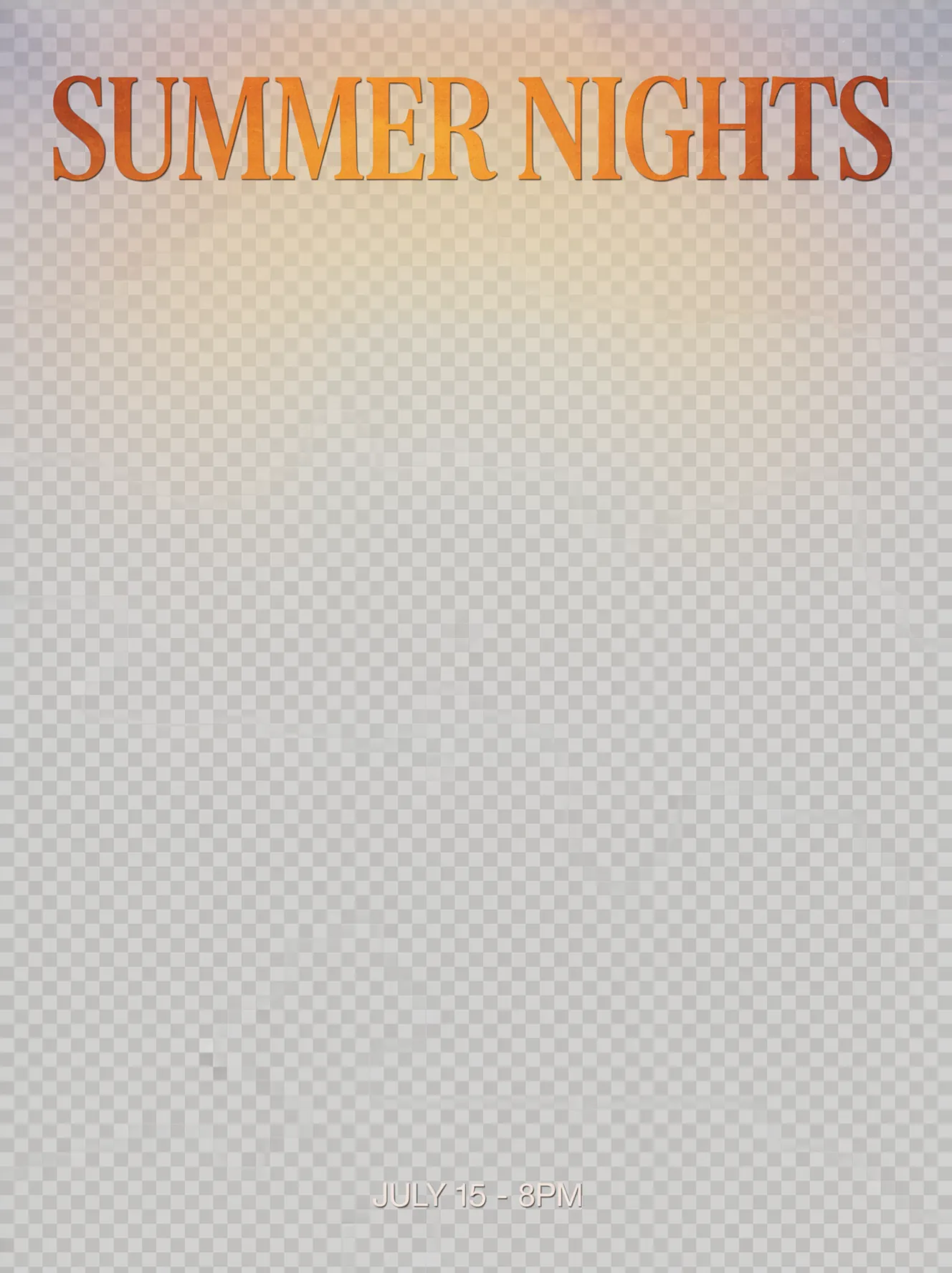
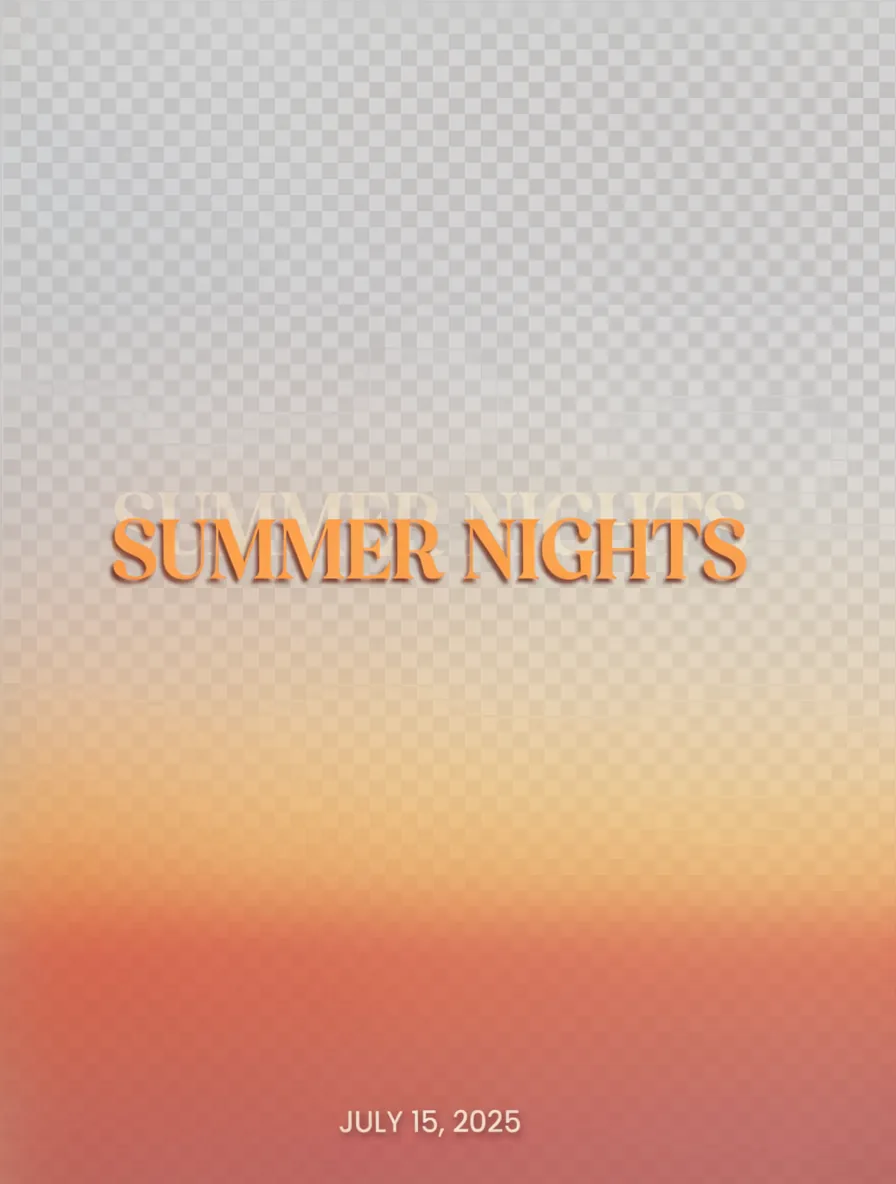
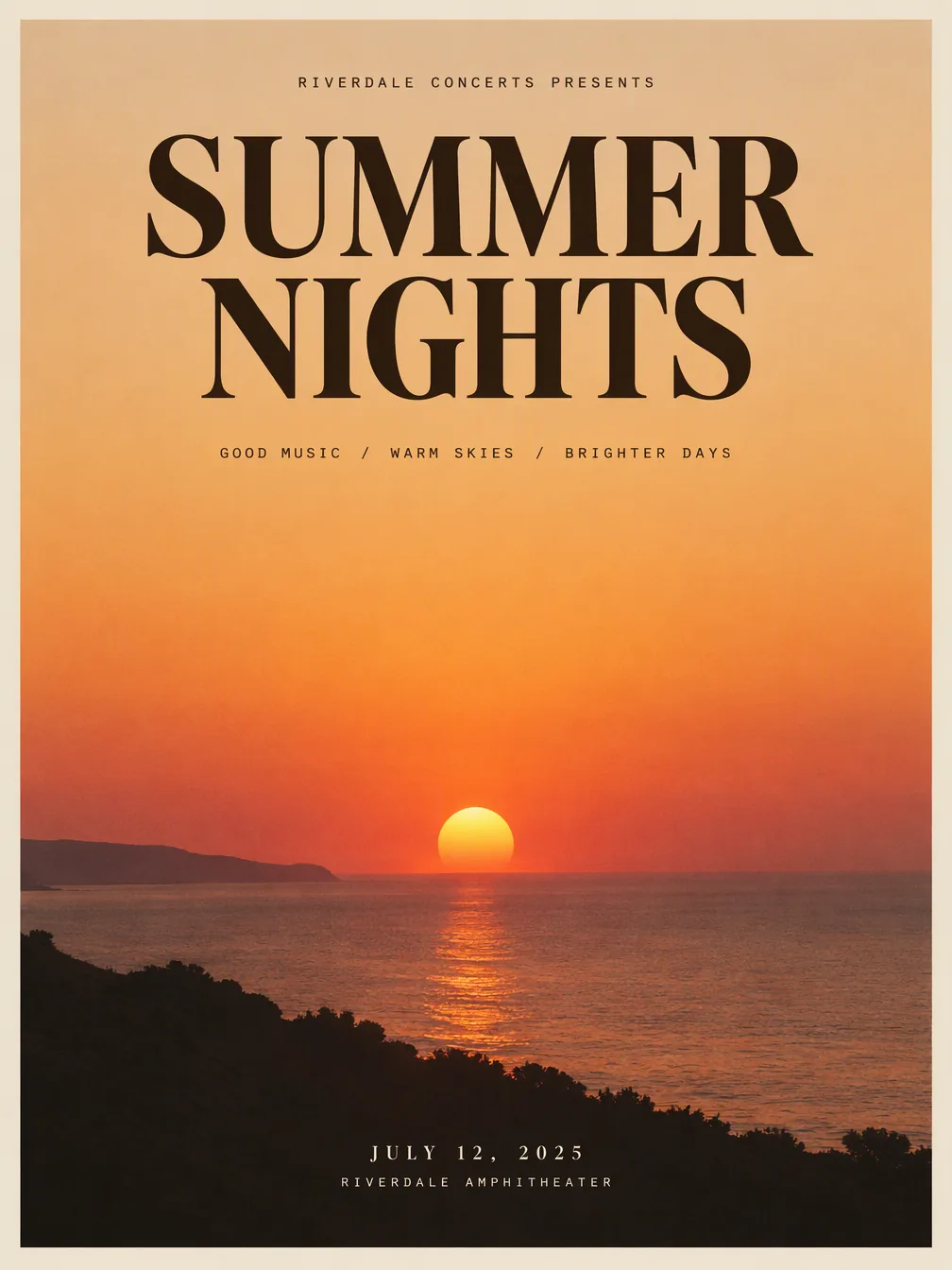
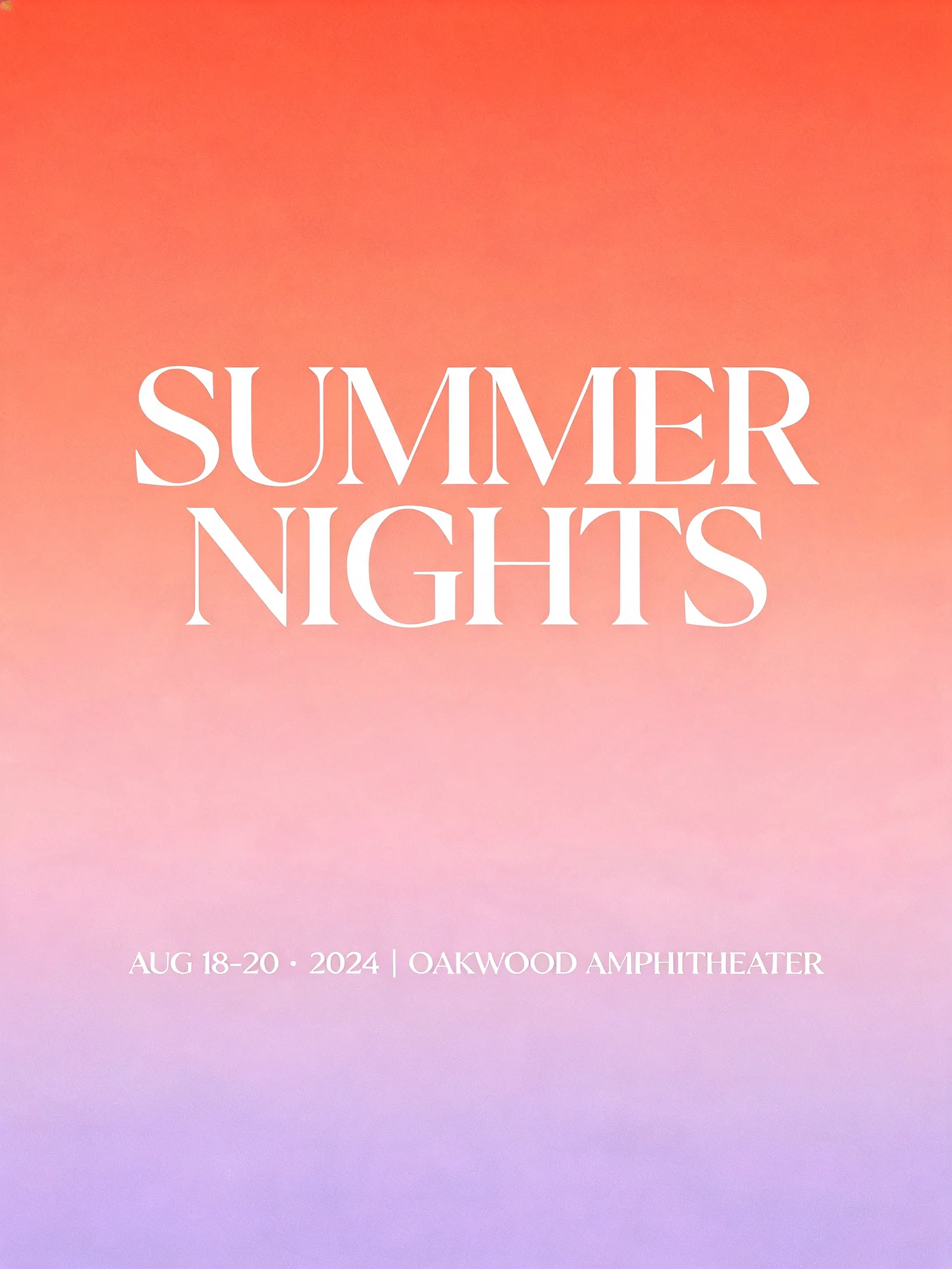
The poster test is the most telling one. Partner model A returned the most finished poster, and it wrote far more than you asked for: a presenter line, three taglines, a venue and a date. Partner model B returned a clean gradient poster with the headline and its own event details. The two FOTOhub text models spelled the headline correctly and kept to the little text you gave them, but they treated the background differently: FOTOhub Typography drew a grey transparency grid across the whole canvas, and IDA Q Image 2 faded the upper half into one. In the guide to the image generator, naming a solid background fixed this for IDA Q Image 2. The lesson: the partner models fill the canvas and add copy of their own, so check the words before you print; the FOTOhub text models give you the letters you asked for and leave the canvas to you.
Test 2: a photographic still life
Still-life prompt
Goal. Compare realism, light and the feel of a photograph with no text involved.
Input you can copy.
a ceramic coffee mug on a wooden table, warm morning light, shallow depth of field| Setting | Value |
|---|---|
| Ratio | 3:4 |
| Size | 1K, or the smallest size the model offers (Partner model B starts at 2K) |
| Runs | One per model |
Why it works. A simple, familiar subject. The differences you can see are light, texture of the wood, how soft the background falls off, and whether the mug looks like an object or like an illustration of one.




The still-life test left the style open, so the differences are taste, not correctness. IDA Image Swift gave a clean, slightly soft frame in seconds. IDA Q Image 2 chose a moodier, side-lit frame with steam rising. Partner model A went for a crisp, bright look with books and a plant behind the mug, and Partner model B for a glowing, backlit image with a lot of steam. If one of them is close to your brand, note the model and reuse it with a fixed seed where the model offers one.
A decision guide: I need...
| I need... | Start with | Why |
|---|---|---|
| A poster or banner with a headline | FOTOhub Typography or IDA Q Image 2 | Both are built for lettering; quote the words and keep them short. |
| Text that must sit in an exact place | IDA Q Image 2 layout regions or Typography layout boxes | You draw the box and say what goes in it. |
| A product on white or a transparent cut-out | IDA Q Image 2 or Typography with Transparent on, or a partner model with the Alpha badge | No background-removal step afterwards. |
| Many quick drafts of an idea | IDA Image Swift, or a partner model with the Fast badge | Seconds per image and the lowest price. |
| To change one thing in an existing picture | IDA Image Swift in Edit mode, or a partner model with the Edit badge | Add the picture as a reference and describe only the change. |
| To combine several pictures or keep a product consistent | A partner model with a high reference count | Models with eight or more references hold more of each input. |
| A photographic look | IDA Q Image, or a partner model marketed for photorealism in its card | Light, texture and depth of field. |
| A large print | A model with 4K in its size chips, then Upscale if you need more | Native large sizes keep detail that enlarging cannot invent. |
| The same result again | Any model with a Seed field | Same prompt, same settings, same seed. |
| Several variations for one decision | IDA Q Image 2 variations, or a partner model that makes up to four per request | One submit, a set to choose from. |
Five jobs, five choices
The decision table gives you a starting point. Here are five complete decisions with the reasoning behind each, so you can copy the way of thinking and not only the answer. None of them promises a result: they tell you what to try first and what to check.
A banner for a bakery with the opening hours
The words matter more than the picture, so start from a model with the Text badge. IDA Q Image 2 is the first choice: quote the shop name and the hours, pick a wide ratio, and use its layout regions to say where the text goes. FOTOhub Typography is the alternative when the lettering is everything and the picture is a plain backdrop. Draft at Fast and 1K, read every letter, then fix the seed and move to Balanced for the final. Keep the text short: a name and one line of hours are safer than a paragraph.
A product on a clean background for a web shop
Look for two things on the card: a size of 2K or more and the Alpha badge if you want the background gone. If you already have a photo of the product, work in Edit mode and add the photo as the reference instead of describing the product from scratch: IDA Image Swift stays inside FOTOhub's own models and takes up to four references. If you have no photo, describe the product, the surface and the light, and compare two or three models at the same ratio before you commit to one.
A sticker with a cut-out edge
You need transparency, so only the models that offer it are candidates: IDA Q Image 2 and FOTOhub Typography have a Transparent switch, and some partner models carry the Alpha badge. Describe a bold, simple subject, switch Transparent on, and download the PNG. Look at the edges at full size; a soft, glowing outline is the usual weak spot.
Changing the colour of a jacket in an existing photo
This is an edit, not a creation. Choose Edit mode and a model with the Edit badge, add the photo as the reference and describe only the change: the colour and what must stay. If people are in the photo, look for a model that has the Preserve faces control in Model controls. When only one region should change, send the image to MaskAI with Continue with... and paint over that region instead of letting the model rework the whole frame.
A 4K wallpaper
There are two routes. Pick a model with the 4K badge, check that the ratio you need (for example 21:9) is in its list, and render at 4K. Or render at 2K on a model you like and enlarge the winner with Upscale, which uses no AI credits. Native large sizes keep more real detail; Upscale is cheaper and good enough for many screens. If the picture will be printed, prefer the native size.
Reading price and speed
Price and time are shown in three places, and they agree. The picker card shows the starting price. Model controls shows the price per size tier. The Create button shows the total for the run you set up, and the queue models print the expected time next to it. The price you see is the price you pay.
| Kind of model | Relative price | Typical wait | Notes |
|---|---|---|---|
| IDA Image Swift, 1K | Low | Seconds | One image per job. |
| Partner models with the Fast badge | Low | Seconds | Often the cheapest way to draft. |
| FOTOhub Typography | Medium | About two minutes | Up to four images at 1K. |
| IDA Q Image 2, Fast | Higher | Around one minute | Balanced and Max cost and take more. |
| IDA Q Image | Highest of the four | A few minutes | Queue; one balanced preset. |
| Partner models, premium tiers | Medium to high | Seconds to a minute | Larger sizes cost more. |
Run your own comparison
Your subject is not the one in this guide, so test your own. Keep it fair: one prompt, one aspect ratio, one size, and change only the model. Three tools help.
- Compare models. Where the switch shows at the top of the picker, tick two or three regular models and press Create once. The same prompt goes to each, the button shows the summed price, and the results open side by side with a slider. The FOTOhub queue models are not part of it, so run those separately.
- A fixed seed. On models with a seed field, keep the seed while you change the model or one word in the prompt, so chance does not blur the difference.
- Redo with another model. On any tile, the arrow next to Redo offers Redo with another model...: pick a model and the generator opens with your prompt filled in and the price shown before anything runs.
Common mistakes when choosing
- Starting with the most expensive model. Draft on a fast, cheap one and spend on the final only.
- Comparing at different ratios or sizes. A tall image and a square one cannot be judged side by side, and a larger tier flatters any model.
- Judging by thumbnails. Open the result at full size; lettering and edges are where models differ.
- Asking for lettering from a model without the Text badge. It may still try, but you are gambling; use one of the text models.
- Expecting a seed to carry over. A seed repeats a result only on the same model with the same prompt and settings; change the model and you get a different picture.
- Forgetting the reference limit. In Edit mode a model that takes one reference ignores the others; the badge on the card says how many it takes.
- Overlooking where an image is computed. For material that must stay in a region, read the line on the card before you upload references.
Questions
- Which model is the best?
- There is no single best one. For lettering, FOTOhub Typography and IDA Q Image 2 are the safest. For quick drafts and edits, IDA Image Swift. For large sizes and many references, look at the 4K and refs badges among the partner models.
- Why does the same prompt look so different on two models?
- Each model was trained on different pictures and reads a prompt its own way. Some add style on their own; some follow your words literally. That is why a short prompt shows the differences more than a long one.
- A model is greyed out or says SOON.
- It cannot be chosen yet or right now. The generator keeps such cards at the bottom of the list. Try another model with the same badges.
- Do all models support every aspect ratio?
- No. The list in Model controls runs from five to fourteen ratios depending on the model. If the ratio you need is missing, choose another model or crop afterwards.
- Where are my images computed?
- For FOTOhub's own models the card in the picker says it, for example the United States or Zurich. Partner models are run by their providers; read the card and your plan's terms if location matters to you.