Writing prompts that work
Build a prompt from subject, setting, light, lens and style, use Translate, Enhance and the Tab suggestion, and see real weak-versus-strong pairs made with the same model and ratio.
What a prompt does and why wording matters
A prompt is the written brief you give the image generator at /generate/new. The model reads those words and nothing else, unless you also attach reference images. Everything you leave out, the model decides for you, and it tends to pick the most average option: a middle-aged subject, flat light, a generic background. Good prompting is mostly the habit of making those decisions yourself.
This guide takes you from a one-line idea to a prompt that behaves. You will learn the parts a prompt is made of, what the helper buttons next to the prompt box really do (Translate, Enhance prompt, the Tab suggestion, Prompt history, Presets), how text inside an image works, how the aspect ratio changes the picture, and what to change when a result goes wrong.
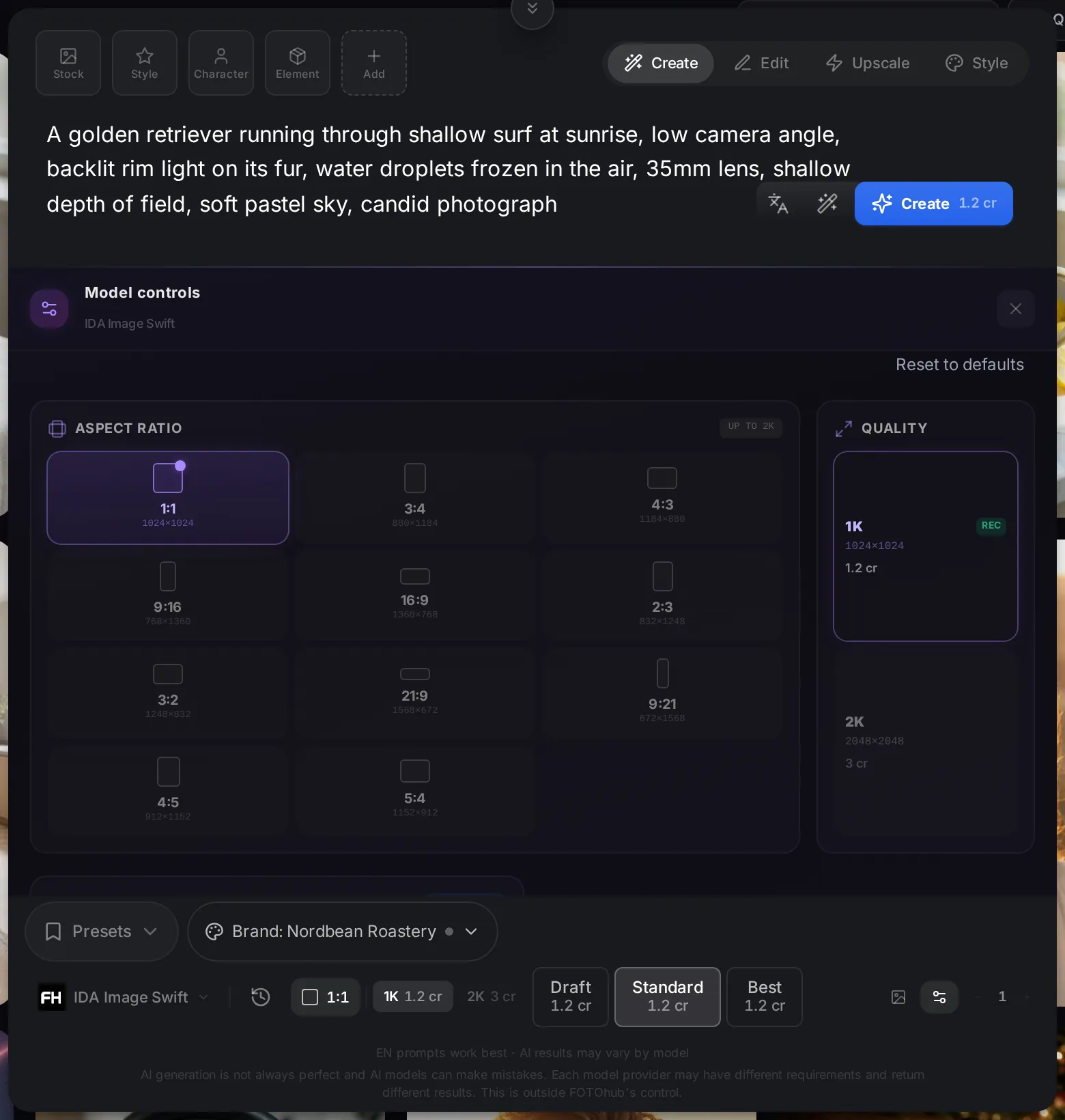
The prompt box and the buttons around it
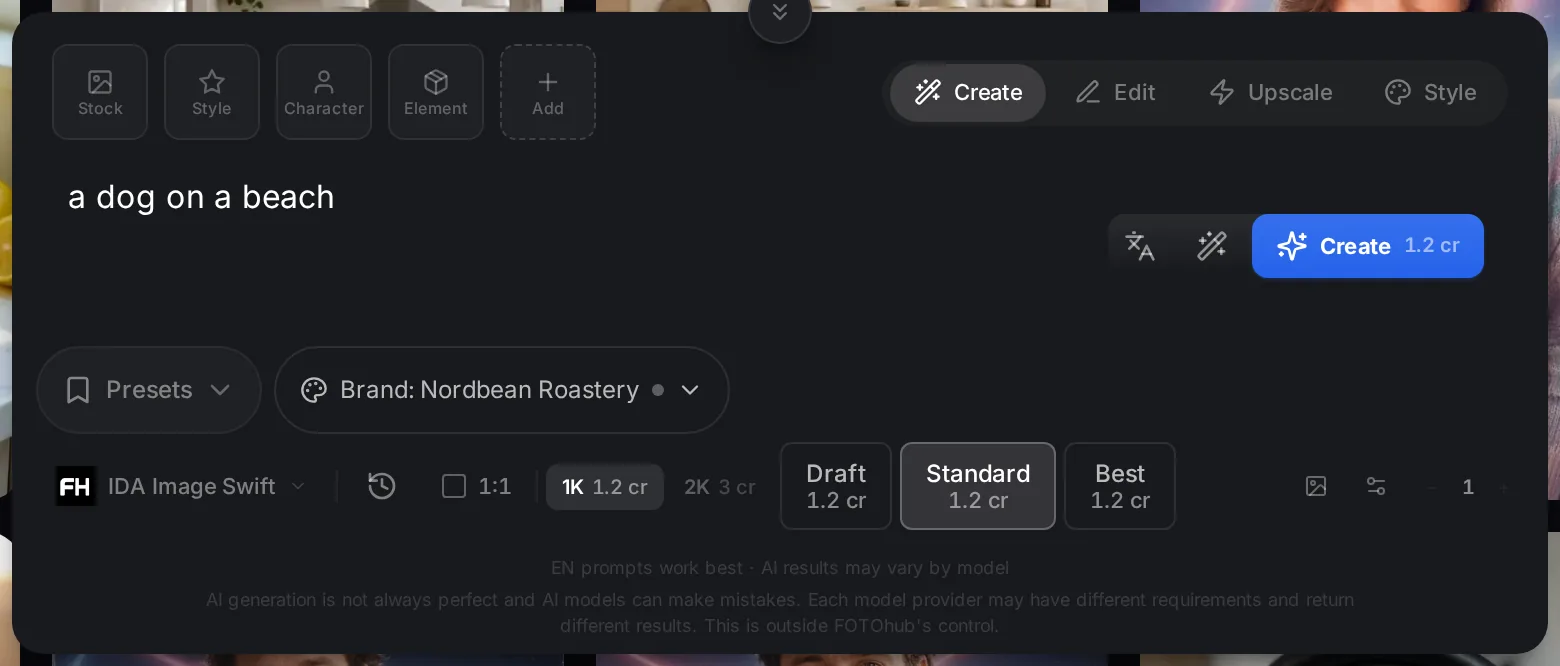
The composer sits at the bottom of the generator. The prompt box is the large field; a handful of small controls hang around it. The screenshot labels the ones used in this guide.
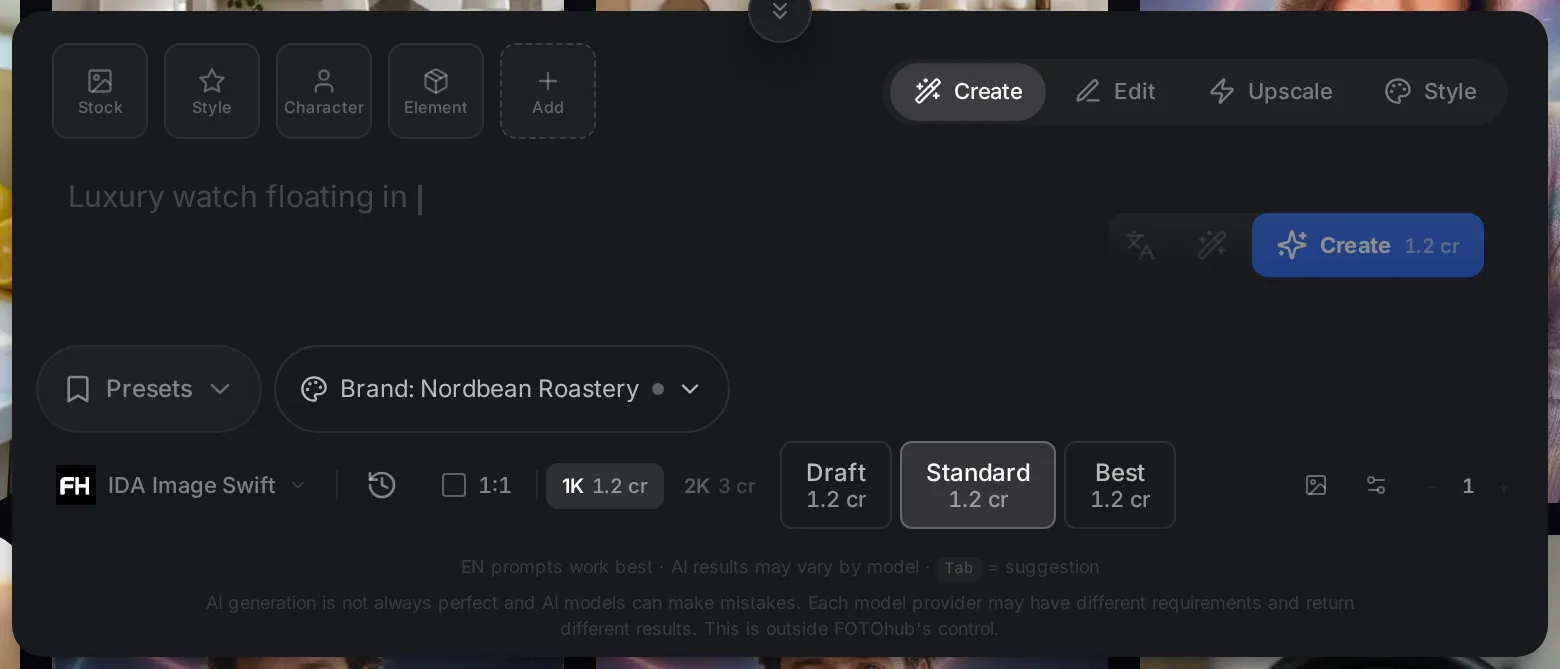
- Prompt box. Type or paste your text. While it is empty, the box types example prompts at you; press Tab to accept the one on screen (the footer shows the hint). Ctrl+Enter (Cmd+Enter on a Mac) starts the generation without reaching for the mouse.
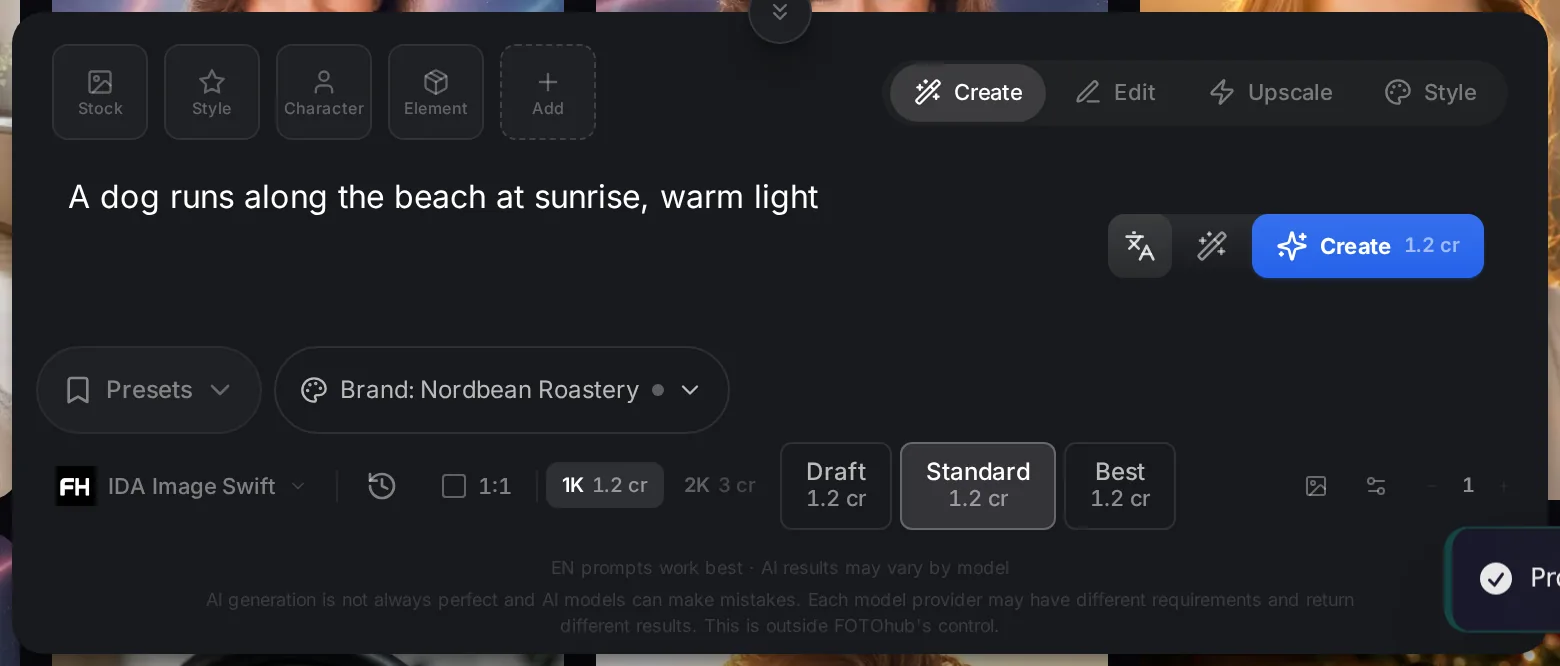
- Translate. The language icon rewrites what is in the box as English. More on it below.
- Enhance prompt (AI). The wand icon expands a short idea into a fuller description, and an Enhanced chip with an Undo link appears under the box.
- Create. The button shows the price for the current model, size and number of images before you press it. You are charged only for what the button announced.
- Presets. Saves the current settings (model, ratio, size) under a name so you can apply them in one click later. You can also tick Include the prompt when you save.
- Model, Prompt history, Aspect ratio, 1K and 2K, quality preset, number of images. The bottom row. The clock icon opens Prompt history.
- Stock, Style, Character, Element, Add. The row above the box attaches reference images and descriptions. They are covered in the article on multi-image and references.
English prompts work best. The footer of the composer says so, and the Translate tooltip repeats it: AI models understand English prompts best. You can write in your own language when you are sketching an idea and translate before you create, or write English from the start.
Anatomy of a prompt
A prompt that works usually answers a few simple questions, in roughly this order. You do not need every row every time; a product shot cares about light and background, a portrait cares about lens and expression.
| Part | The question it answers | Words that do the work |
|---|---|---|
| Subject | Who or what is in the picture, and what are they doing? | golden retriever running, elderly fisherman, frosted glass perfume bottle |
| Setting | Where is it, and what surrounds it? | shallow surf at sunrise, blurred harbour, pale grey seamless background |
| Light | Where does the light come from and how hard is it? | backlit rim light, soft diffused light from the left, overcast window light |
| Camera and lens | How close, from where, with which optics? | 35mm lens, 85mm macro, low camera angle, shallow depth of field, f/1.8 |
| Style and medium | Photo, illustration, 3D render, film still? | candid photograph, clean commercial look, flat illustration |
| Mood and colour | What should it feel like and which palette? | soft pastel sky, muted colours, warm and calm |
| Composition | Where does the subject sit in the frame? | centred, empty space above the bottle, generous margins |
| Text in the image | Which exact words must appear, and where? | the headline “FRESH COFFEE” across the top |
Order and length
Put the subject first and the finishing touches last. Models weigh the start of a prompt more heavily, so a sentence that opens with the camera settings gives you a nice lens and an unclear subject. Aim for one to three sentences, roughly 20 to 60 words. Shorter prompts leave too much to chance; much longer ones start to contradict themselves, and the model drops whichever detail is hardest.
Specific beats fancy
Piling on quality words (“masterpiece, ultra detailed, 8K”) adds little. Concrete choices add a lot: a breed instead of “dog”, a time of day instead of “nice light”, a focal length instead of “cinematic”. If you can picture the sentence as a photo brief for a human photographer, it is probably specific enough.
Weak prompt, strong prompt: three real pairs
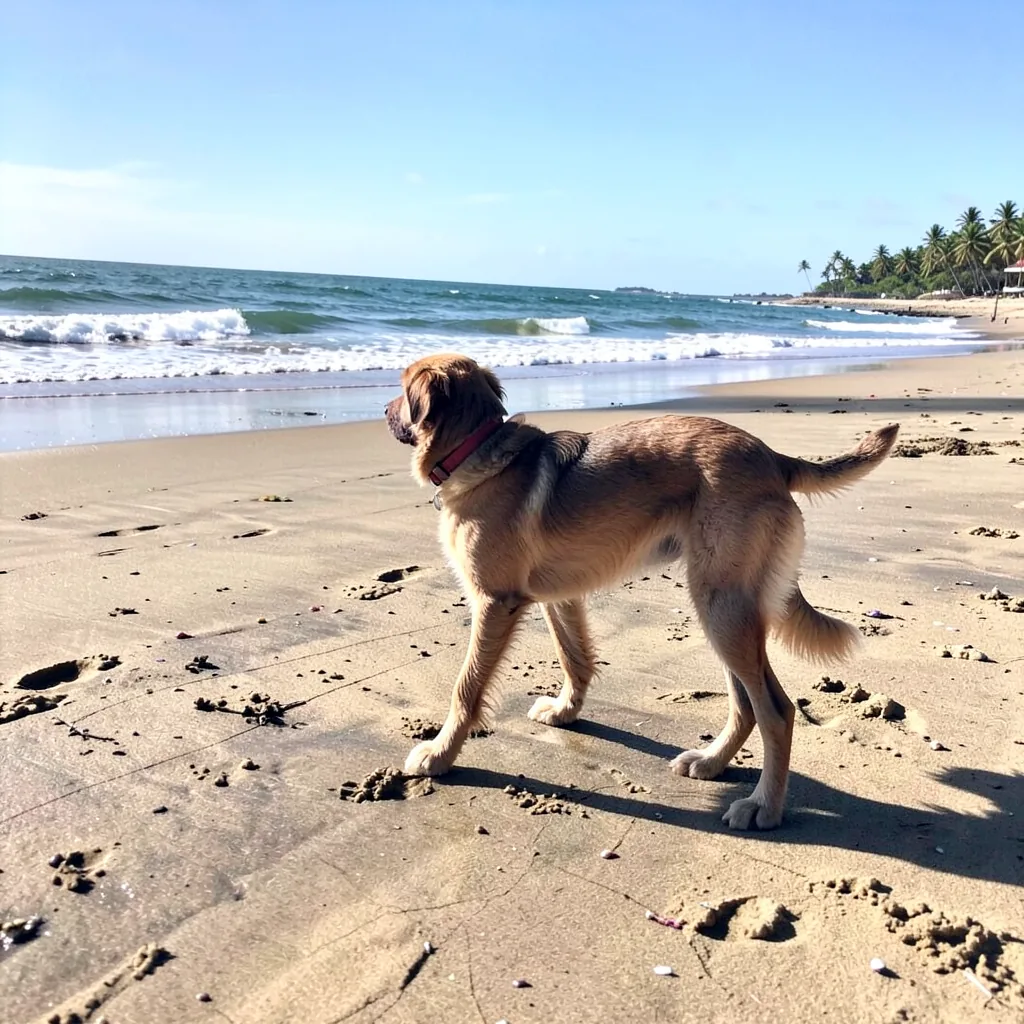
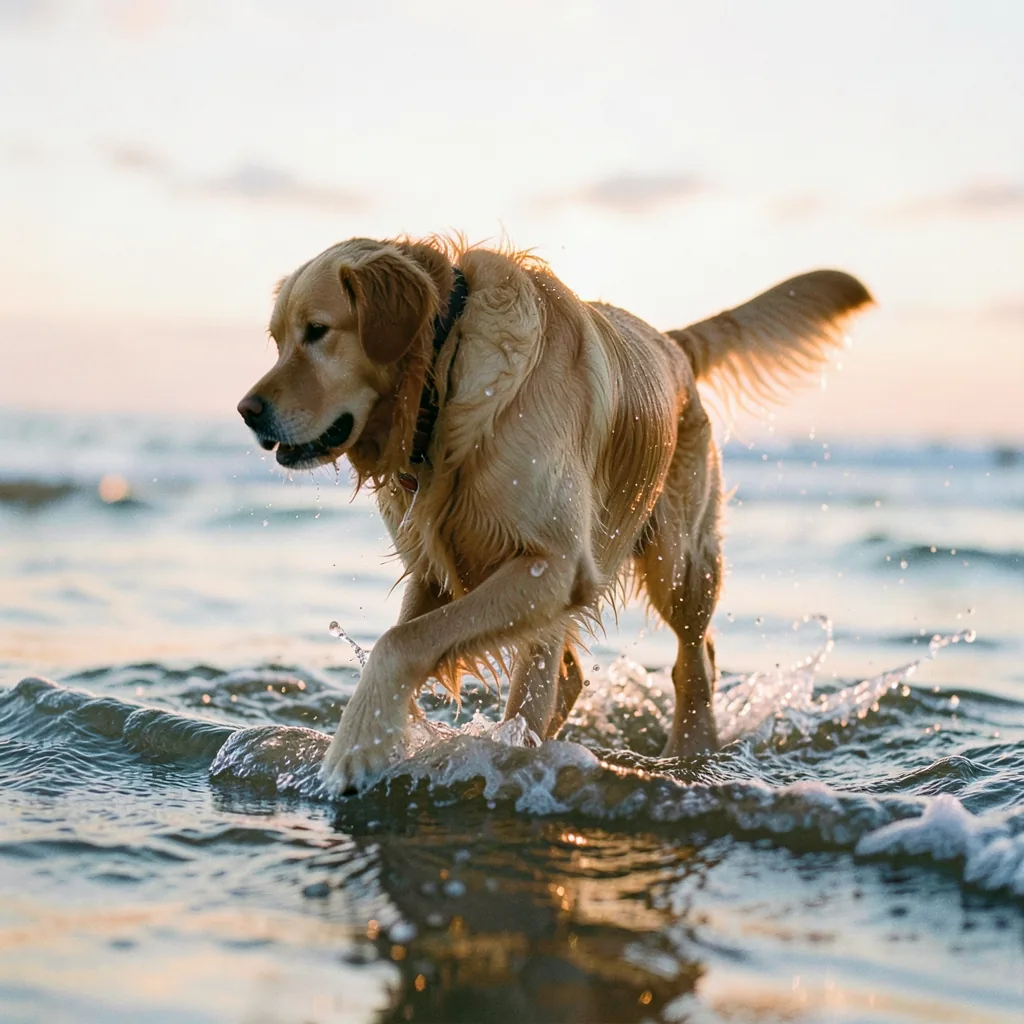
Each pair below uses the same model, the same 1:1 ratio and the same 1K size. The left image comes from a prompt most people would type first; the right image comes from the same idea with the parts from the table filled in.
A scene: the dog on the beach
Give the scene a camera and a light
Goal. Turn a stock-photo dog into a picture with energy and a clear point of view.
Input you can copy.
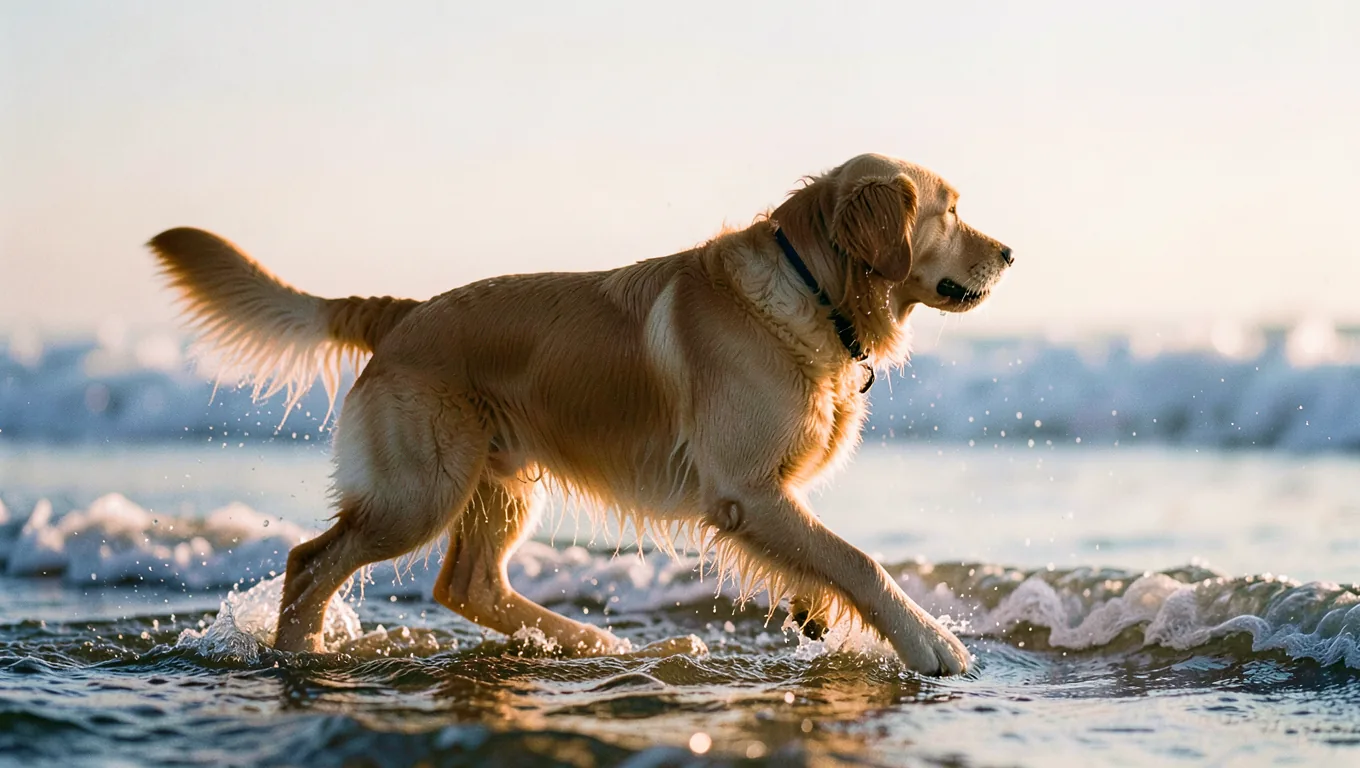
A golden retriever running through shallow surf at sunrise, low camera angle, backlit rim light on its fur, water droplets frozen in the air, 35mm lens, shallow depth of field, soft pastel sky, candid photograph| Setting | Value |
|---|---|
| Model | IDA Image Swift |
| Ratio and size | 1:1, 1K |
| Weak prompt | a dog on a beach |
Why it works. The weak prompt gives a pleasant but anonymous snapshot: a dog standing on sand, flat midday light, nothing to look at. The strong prompt names a breed, an action, a light direction, a camera height and a lens, so the model has something to compose: the dog is caught mid-stride in the surf, rim-lit from behind, with spray frozen in the air and a soft sky. Same model, same ratio, same size.
A product: the perfume bottle
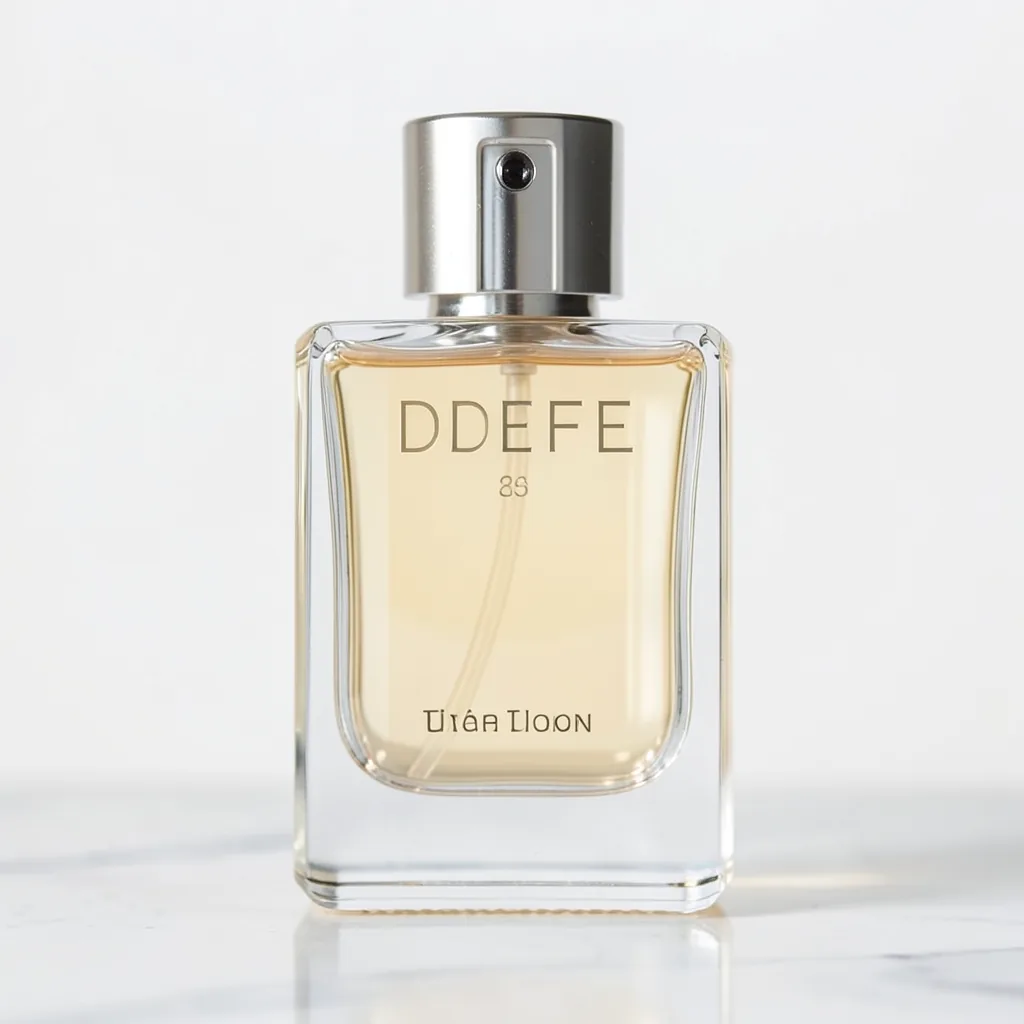
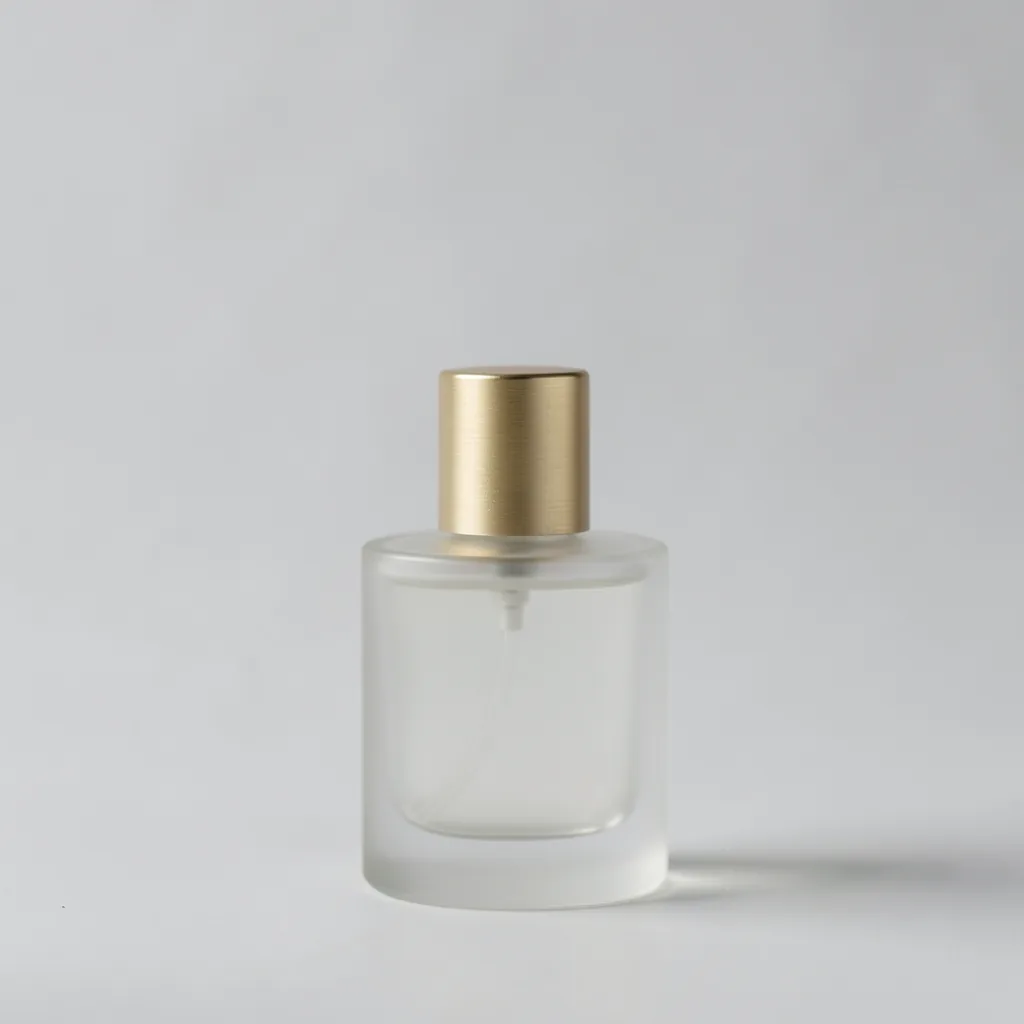
Brief the product like a photographer
Goal. Get a clean commercial packshot with room for a headline.
Input you can copy.
Studio product photograph of a frosted glass perfume bottle with a brushed gold cap, centred on a pale grey seamless background, soft diffused light from the left, a faint reflection on the surface, 85mm macro lens, clean commercial look, empty space above the bottle| Setting | Value |
|---|---|
| Model | IDA Image Swift |
| Ratio and size | 1:1, 1K |
| Weak prompt | perfume bottle |
Why it works. The two-word prompt let the model invent a label, and it filled the bottle with made-up lettering. The strong prompt describes the material (frosted glass, brushed gold cap), the backdrop and one soft light, so the label problem disappears and the bottle sits clean on a grey seamless. One thing to learn from it: asking for empty space above the product worked a little too well, and the bottle is small in the frame. If you want it larger, say so (for example, the bottle fills half the frame height).
A portrait: the fisherman
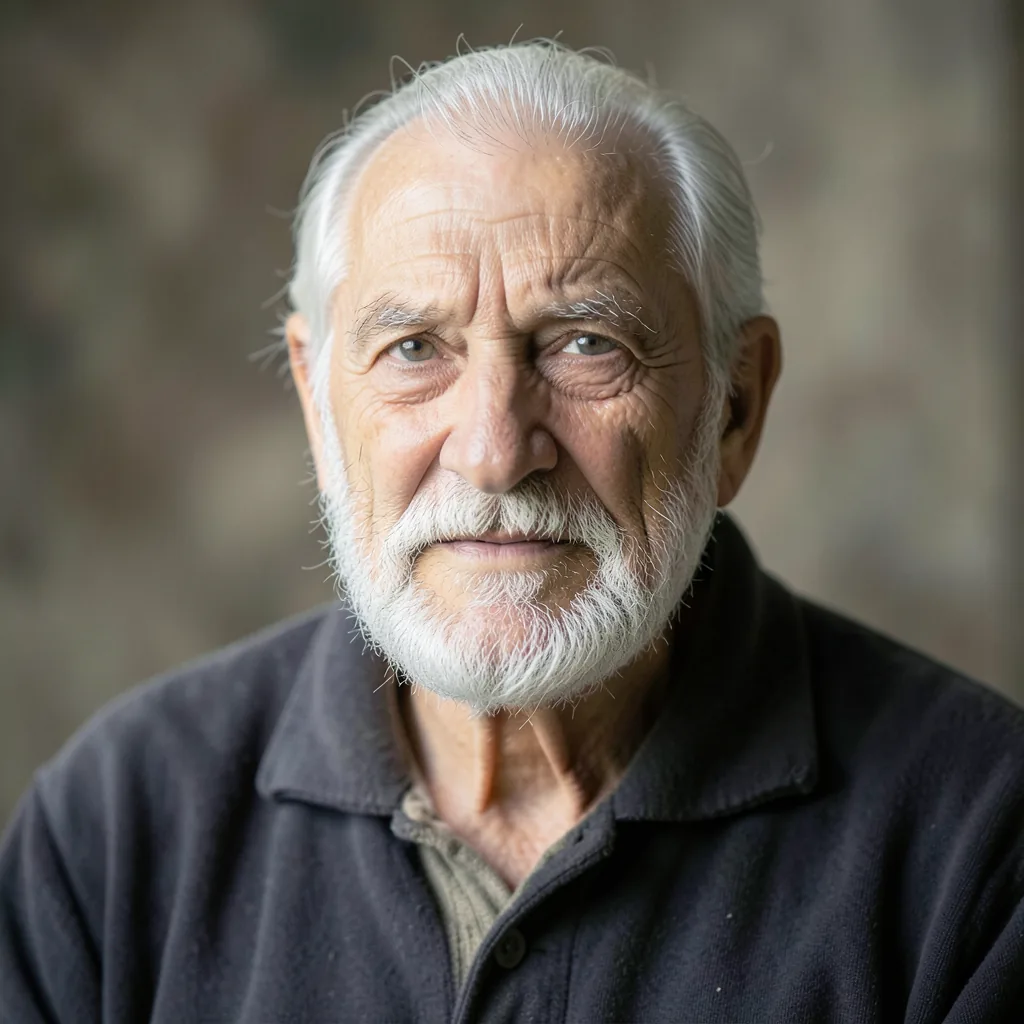
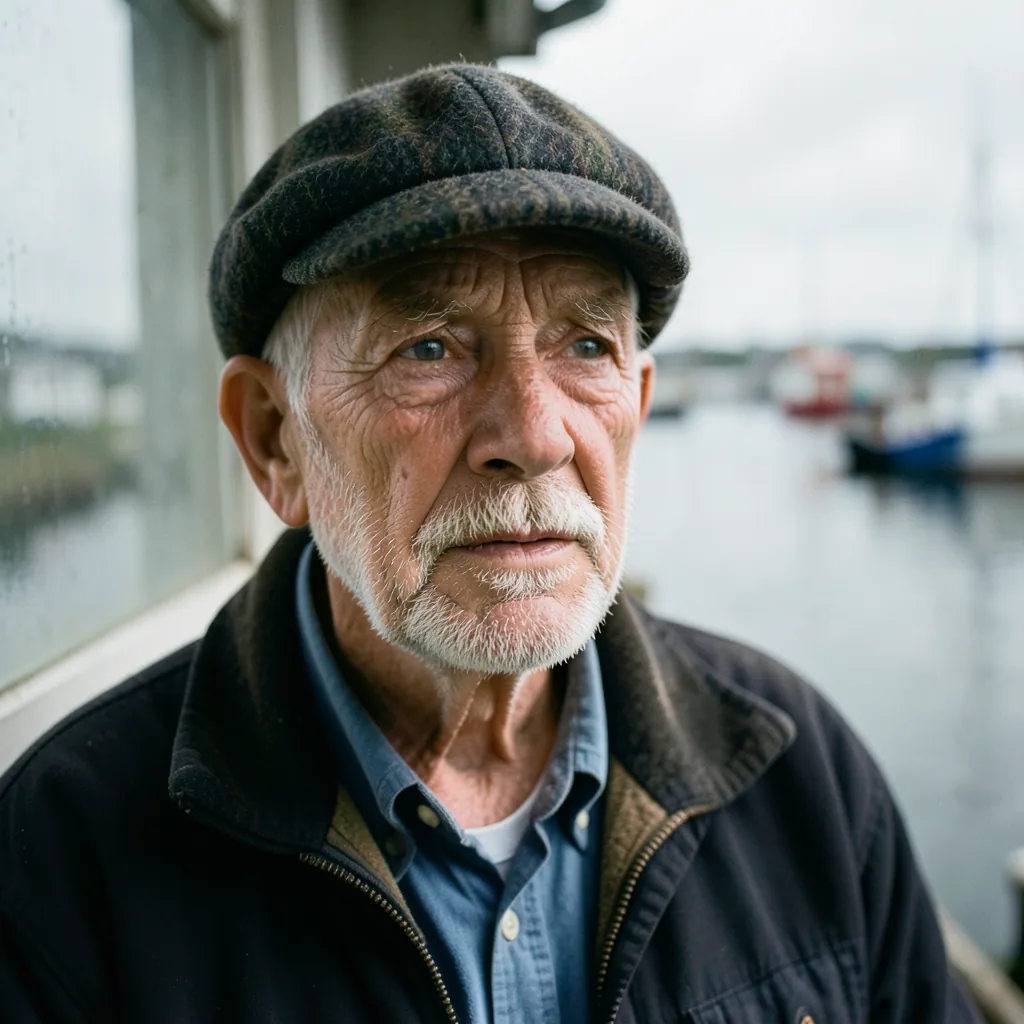
A portrait needs a gaze, a light and a lens
Goal. Move from a generic face to a person with a story.
Input you can copy.
Environmental portrait of an elderly fisherman with a weathered face and white stubble, wool cap, looking just past the camera, overcast window light from the side, 85mm lens at f/1.8, blurred harbour in the background, natural skin texture, muted colours| Setting | Value |
|---|---|
| Model | IDA Image Swift |
| Ratio and size | 1:1, 1K |
| Weak prompt | portrait of an old man |
Why it works. “Portrait of an old man” returns the most average old man there is: front-facing, neutral, grey background. Naming the cap, the stubble, the gaze past the camera, the window light and the harbour gives the picture a place and a story. The 85mm at f/1.8 phrase is why the background melts away behind the face.
| What changed | Effect you can see |
|---|---|
| A noun became a specific noun (retriever, frosted glass, fisherman) | The model stops averaging over every dog, bottle or old man it knows. |
| The light was named | Shadows, highlights and mood become deliberate instead of flat. |
| A lens and a camera position were named | Depth of field and perspective stop being left to chance. |
| The background was described | The subject sits somewhere instead of floating in a default studio. |
Translate, Enhance, suggestions and history
Translate
Press the language icon and the text in the prompt box is replaced with its English translation. It is a straight replacement, not a preview, and it needs some text in the box. A toast confirms when it is done, and it is worth reading the result once: translation keeps your meaning but may pick a different synonym for a visual detail.
Enhance prompt (AI)
The wand icon sends your prompt to FOTOhub AI and replaces it with a fuller version: it adds subject detail, a lighting idea and photographic terms. It needs at least three words to work with; with fewer, the button is disabled or reports that it could not improve the prompt. After it runs, an Enhanced chip with Undo appears under the box. Undo restores your exact original text, and the chip disappears as soon as you edit the enhanced text yourself.
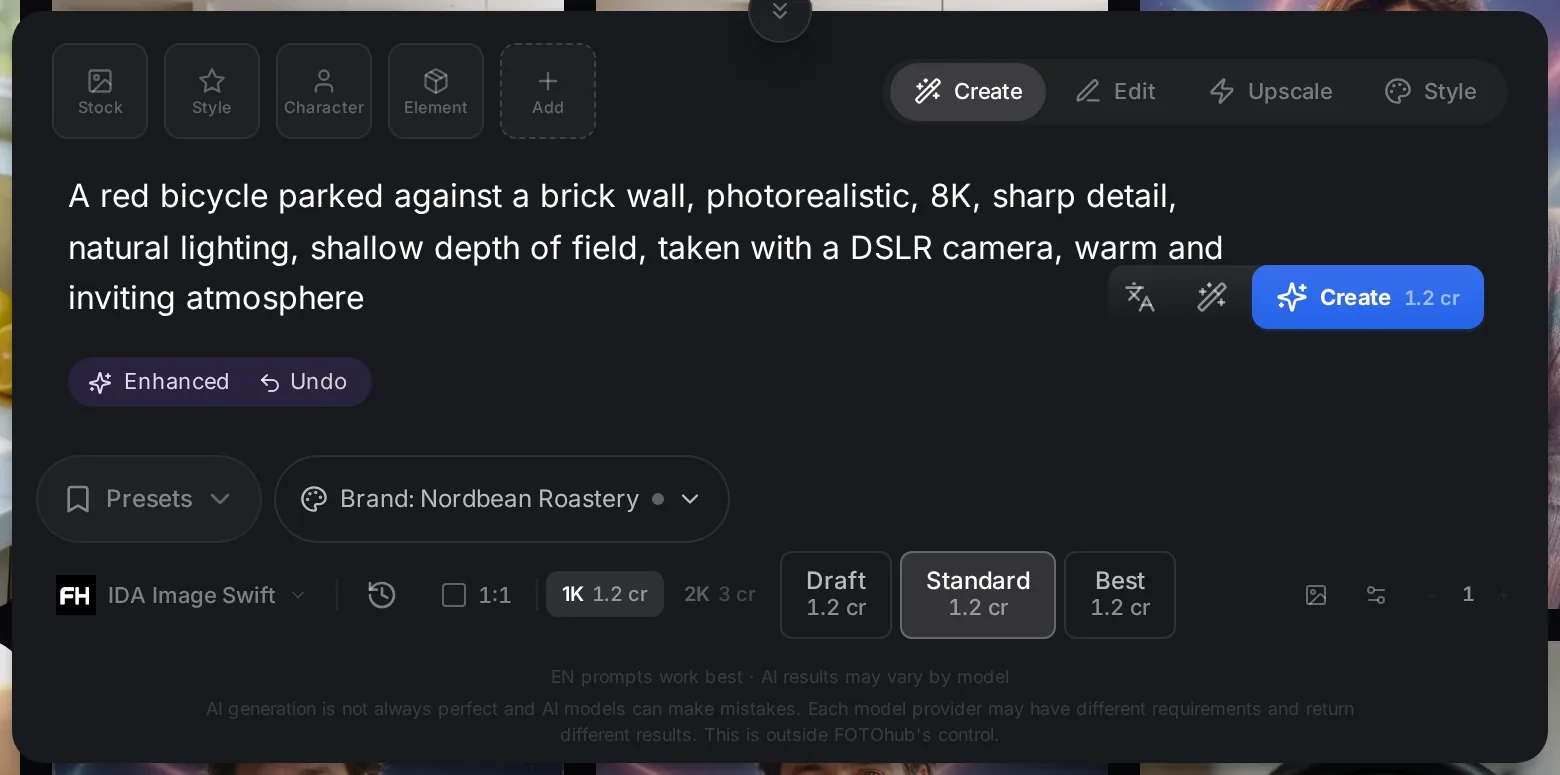
What Enhance did to a four-word idea
Goal. See the rewrite before you decide whether to keep it.
Input you can copy.
a red bicycle against a brick wall| Setting | Value |
|---|---|
| Button | Enhance prompt (AI) |
Why it works. Enhance returned: “A red bicycle parked against a brick wall, photorealistic, 8K, sharp detail, natural lighting, shallow depth of field, taken with a DSLR camera, warm and inviting atmosphere”. It kept the idea, added a verb (parked) and a block of generic photographic terms. That is useful as a base, but notice what it did not add: no time of day, no colour of the wall, no lens. Those choices are still yours.
Tab suggestion
With an empty box, the placeholder cycles through example prompts as if someone were typing them. The hint in the footer reads Tab = suggestion. Press Tab and the box fills with the one currently shown, which you can then edit. Use it to see how a complete prompt reads, then replace the subject with your own.
Format and model suggestions
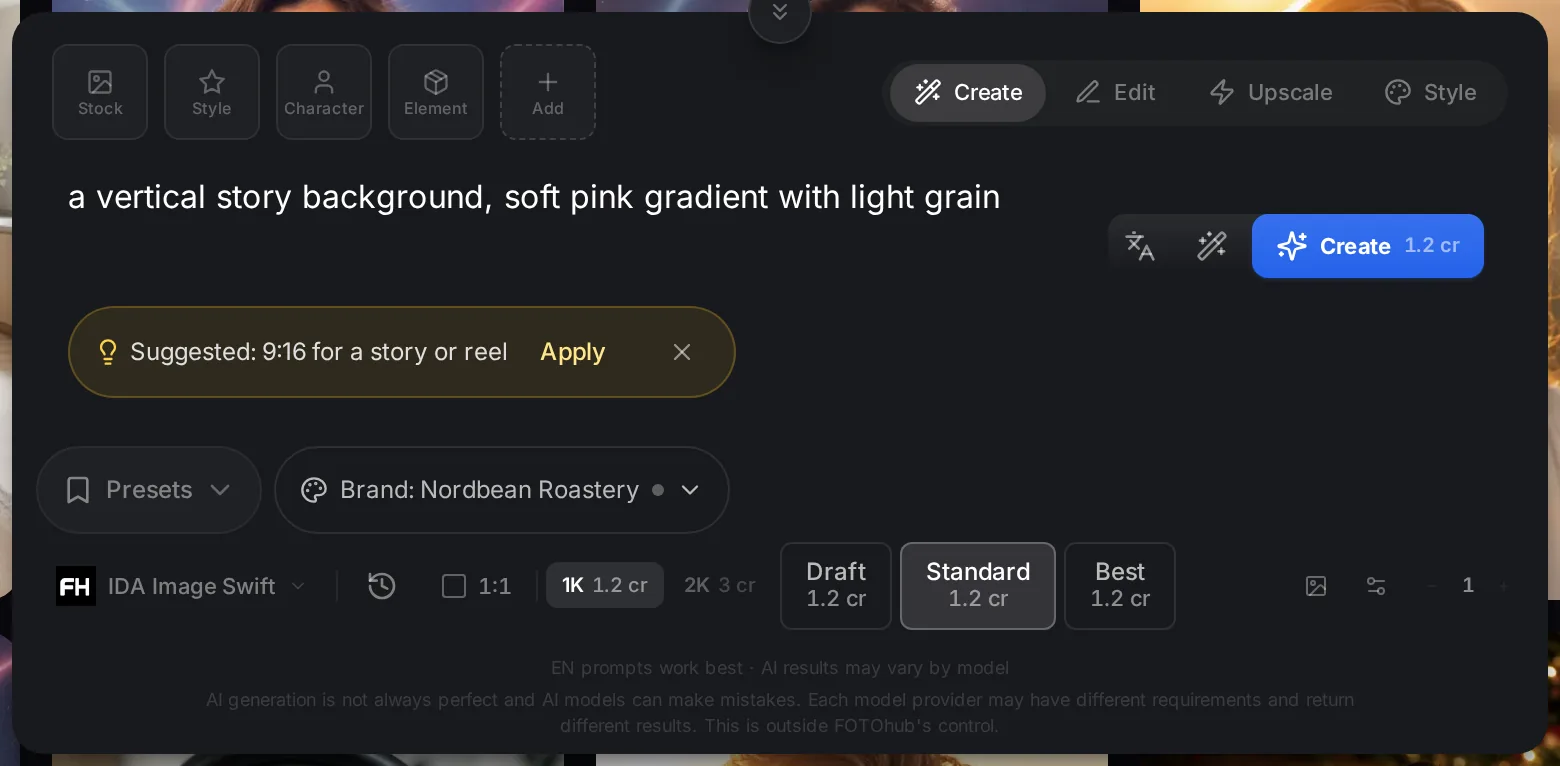
The composer also reads your words. If the prompt mentions a story, a reel, a banner, a thumbnail, a poster, a logo or a post, a Suggested chip appears under the box with a better aspect ratio and an Apply button. If you put words in quotation marks or ask for a transparent background, it may suggest a model that handles text or transparency. The chip is only a hint: ignore it and nothing changes.
Prompt history and presets
The clock icon opens Prompt history: the prompts you generated with, newest first, with a Recent and a Starred tab, a search field, and a star, remove and Clear history action. The list is stored only in the browser you are using and is never sent to our servers, so it will not follow you to another device. Star the prompts you want to keep, then reuse the structure next time.
Presets is the other memory: it stores settings rather than words. Save a combination such as model, 4:5 ratio and 1K size under a name like “Square product shots”, and apply it in one click. The Include the prompt option stores the text as well, which makes a preset a reusable prompt template.
Words inside the picture
Most image models are trained to paint, not to spell. Short headlines usually survive on current models; long phrases, small print and unusual names are where letters get mangled. FOTOhub Typography is built for this job: a FOTOhub AI model for legible text, with typography presets, layout frames, a JSON prompt and a transparent-background option. Its image is processed in Zurich, Switzerland, which the model card states.
Rules that help with any model
- Put the exact words in quotation marks and say where they go: the headline “FRESH COFFEE” across the top.
- Keep it short. A headline of one to four words is reliable; a paragraph is not.
- Always supply the words yourself. If you only say “with some text”, a text model will invent a slogan and a price.
- Name the lettering: bold dark brown sans-serif capital letters, white handwritten script, neon tube lettering.
- Do not use Enhance on a prompt that carries exact words; it may paraphrase them.
- Check the spelling in the result. If one letter is wrong, regenerate or fix it in an editor afterwards.
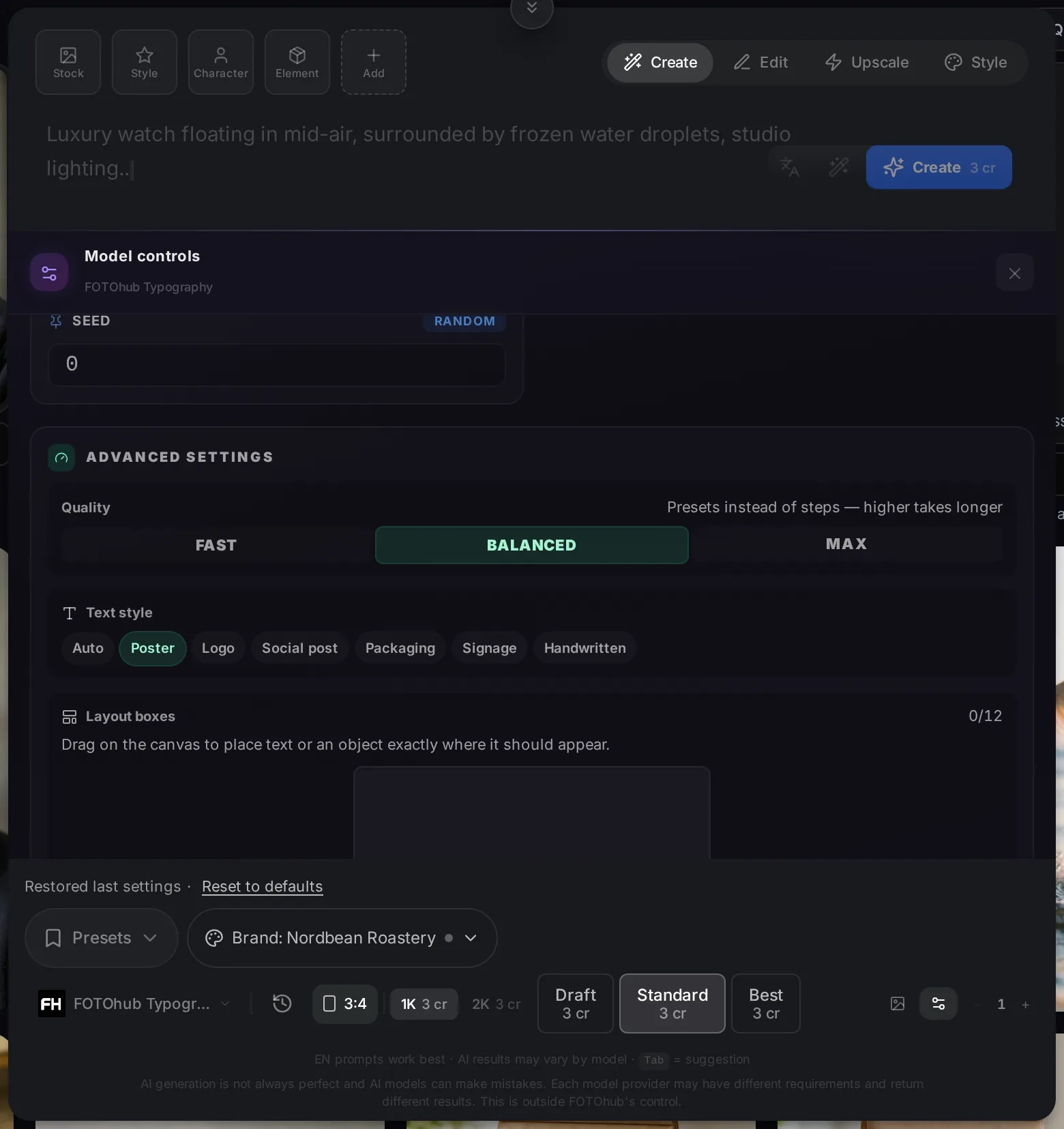
FOTOhub Typography settings
| Setting | Options | Use it when |
|---|---|---|
| Quality | Fast, Balanced, Max | Fast for drafts; Balanced or Max when the lettering must be exact. Higher is slower. |
| Text style | Auto, Poster, Logo, Social post, Packaging, Signage, Handwritten | Pick the one that matches the job; it tells the model what kind of lettering layout to aim for. |
| Layout boxes | Up to 12 boxes, each with exact text and an optional lettering style | You need a word in a precise place. Drag on the canvas to draw a box. |
| JSON prompt | A structured caption, up to 6000 characters | You already have a structured description and want it used as written. |
| Transparent background | On or off | Logos and stickers. It costs a little more, and the price is shown before you run. |
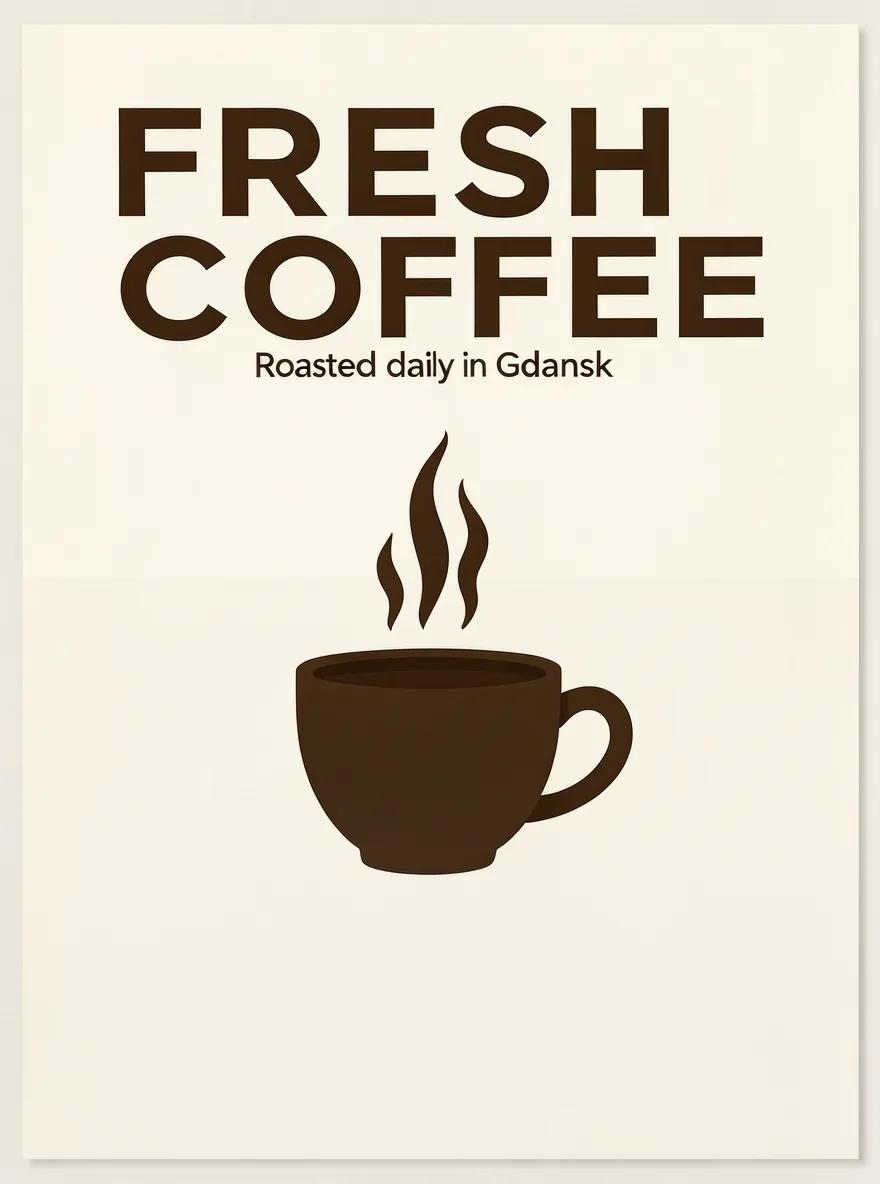
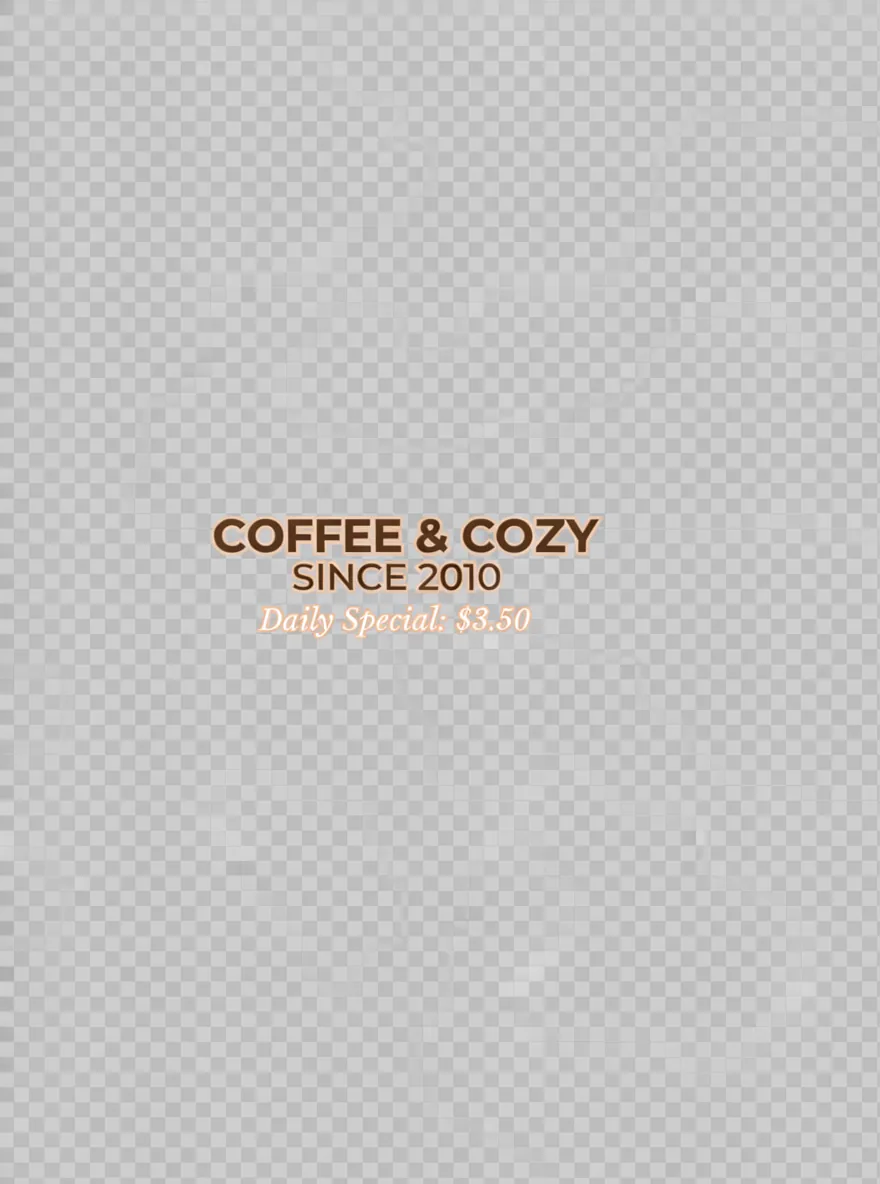
The same poster on two models, with and without exact words
Goal. See what happens to lettering when you give the model words, and when you do not.
Input you can copy.
A minimalist poster on cream paper. The headline “FRESH COFFEE” in bold dark brown sans-serif capital letters across the top, below it in small letters “Roasted daily in Gdansk”, a simple flat illustration of a steaming cup in the centre, generous margins| Setting | Value |
|---|---|
| First image | IDA Image Swift, 3:4, 1K, the detailed prompt |
| Second image | FOTOhub Typography, 3:4, 1K, the vague prompt “coffee shop poster with some text” |
| Third image | FOTOhub Typography, 3:4, 1K, Balanced, Text style Poster, the detailed prompt |
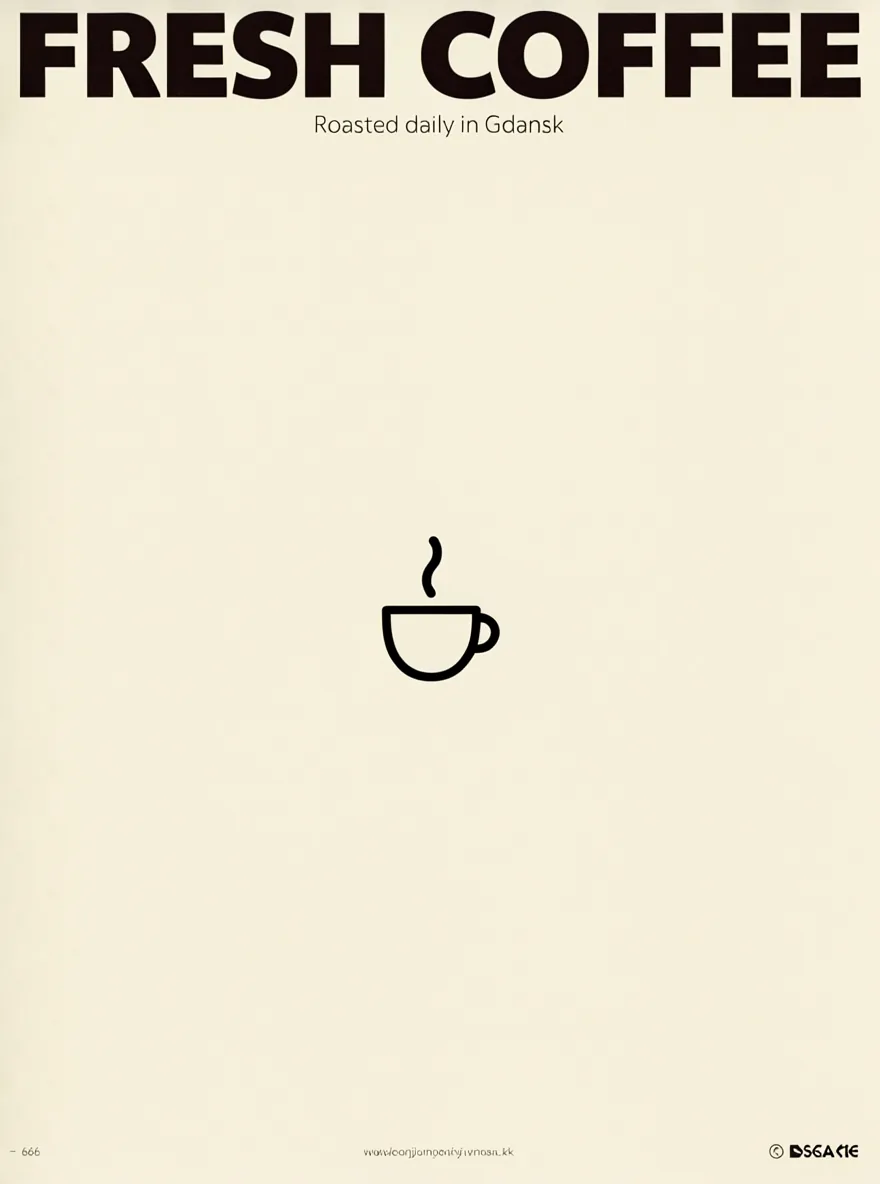
Why it works. Three things are worth reading off these images. First, with a vague prompt FOTOhub Typography has to invent the words, and it did: “Coffee & Cozy, since 2010, Daily Special: $3.50”, none of which you asked for (it also painted a fake transparency grid behind it). Second, once the exact words are in quotation marks, both models spelled “FRESH COFFEE” and “Roasted daily in Gdansk” correctly on this run, so short headlines are no longer a lost cause on a general model. Third, the text model gives you the controls that matter when the copy gets longer or the placement must be exact: Text style, layout boxes and a JSON prompt. Read the edges of every poster: the Typography version here carries a few tiny stray marks at the bottom, which is the kind of thing a proofread catches.
Aspect ratio changes the picture
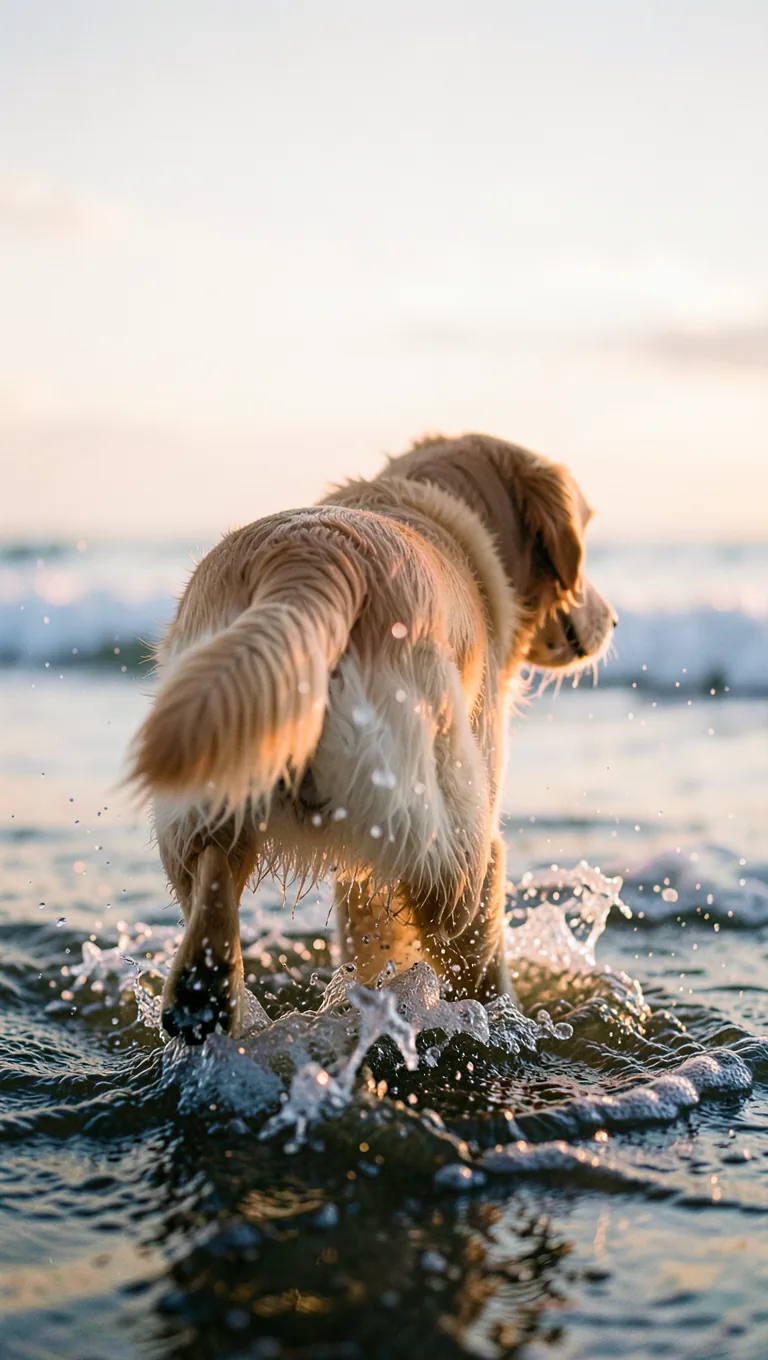
The ratio is not a crop applied afterwards. The model composes for the shape you pick, so the same words give a different picture. A wide frame invites a landscape and a sense of place; a tall frame pushes toward a single subject from head to toe; a square keeps things centred and compact.
| Ratio | Typical use | How to word the prompt |
|---|---|---|
| 1:1 | Avatars, product tiles, album art | One centred subject, clear margins |
| 4:5 or 3:4 | Social posts, portraits, posters | Subject large in frame, headroom for text |
| 16:9 | Banners, thumbnails, landscapes | Say what fills the sides: sky, shoreline, room |
| 9:16 | Stories, reels, phone wallpapers | Describe a vertical stack: sky above, subject, ground |
Recipes for products, portraits, scenes and consistency
| Goal | Recipe | Starting prompt |
|---|---|---|
| Product shot | Material, backdrop, one light source, macro or portrait lens, space for copy | Studio product photograph of a matte black wireless speaker on a light concrete plinth, soft light from the right, 85mm lens, clean commercial look, empty space on the left |
| Portrait | Age and one telling detail, gaze, window or rim light, 85mm, blurred setting, natural skin | Portrait of a young violinist with freckles, looking at the camera, warm window light from the left, 85mm lens at f/1.8, blurred concert hall behind |
| Scene or landscape | Place, time of day, weather, foreground and background, wide lens | A fishing village on a rocky coast at blue hour, light fog over the water, lit windows, wet stones in the foreground, 24mm wide-angle lens |
| Typography | Exact words in quotation marks, lettering style, position, simple background | A square sticker on a plain white background with the word “HELLO” in rounded bold pink letters |
| Illustration | Medium and palette first, then subject | Flat vector illustration in warm earth tones of a bicycle leaning on a brick wall, simple shapes, no gradients |
Keeping things consistent across several images
- Reuse a description block. Write the subject once in a fixed sentence (for example the fisherman line above) and paste it into every new prompt; change only the setting. The same words anchor the same look.
- Fix the size and the model. A different model or ratio changes the whole look, so keep both while you build a set.
- Use the seed where the model offers one. The Seed control in the model panel is Random by default. Setting a number and keeping the prompt identical repeats the image; changing a single word then shows you what that word does.
- Switch to references when words are not enough. To keep the same person, product or style across images, attach a reference image or a character. That is the subject of the article on multi-image and references.
Negative prompts and what the models offer
A negative prompt is a second field that lists what to keep out of the image, for example blurry, low quality, watermark. It is not a universal feature. Whether it exists depends on the model: when the model supports one, the Negative prompt field appears under Advanced settings in the Model controls panel, and when it does not, the field is simply not there. Do not look for it on the FOTOhub models: IDA Image Swift, FOTOhub Typography and IDA Q Image have no negative prompt, and the composer does not pretend otherwise.
Without that field, put the exclusion into the positive description. Ask for what you want instead of banning what you do not: a clean white background instead of no clutter, a person with natural skin texture instead of no plastic skin, an empty beach instead of no people.
| Control | Where it appears | What it does |
|---|---|---|
| Negative prompt | Advanced settings, only on models that support it | Lists what to avoid. |
| Seed | Advanced settings on models that expose it | Random by default; a fixed number repeats the same image for the same prompt. |
| Quality preset | Draft, Standard, Best for IDA Image Swift; Fast, Balanced, Max for FOTOhub Typography | Trades speed for detail. The number of steps is not exposed. |
| Size | 1K and 2K chips in the bottom row | Bigger images cost more and take longer; the price updates on the Create button. |
When a result goes wrong
| What you see | Likely cause | What to try |
|---|---|---|
| Generic, stock-photo look | The prompt names categories, not specifics | Name the breed, the material, the time of day, the lens. |
| The subject is right but the mood is flat | No light described | Add one light: backlit rim light, soft window light, hard noon sun. |
| Details you listed are missing | Too many ideas in one prompt, the hardest ones are dropped | Cut to one subject and two or three details; add the rest in a second pass. |
| Mangled or misspelled text | Long or small copy on a general model | Move to FOTOhub Typography, use quotation marks and the matching Text style, shorten the text. |
| The picture ignores a “no …” instruction | Negation is weak in prompts | Describe the opposite (empty street) or use a model that offers a Negative prompt field. |
| Wrong crop or framing | The ratio does not suit the idea | Pick the ratio first, then word the composition for it. |
| Enhance changed what you meant | The rewrite guessed details | Press Undo, then add the missing details yourself. |
| A good image you cannot reproduce | No seed was fixed | Use a model with a Seed control and write the number down. |
- Do Translate and Enhance cost credits?
- They are composer helpers, not generations, and neither shows a price. The Create button is the control that announces what a run costs. If you press a helper many times in a row it may decline for a moment; wait a little and press it again.
- Why does Enhance say it could not improve my prompt?
- It needs at least three words, and it only replaces your text when the rewrite is longer than the original. Add a few words and try again, or write the extra detail yourself.
- My Prompt history is empty on another computer.
- History is stored only in the browser where you generated, never on our servers. Use Presets with Include the prompt, or star and copy your best prompts somewhere you control.
- Which language should I write in?
- English gives the most predictable results on every model. Write in your own language to sketch, then press Translate and read the English before you create.
- How long should a prompt be?
- One to three sentences, roughly 20 to 60 words, is a good range. If you need more control than that, use references or the layout boxes of FOTOhub Typography instead of a longer prompt.