One-click generators: the App Gallery and how they all work
About a hundred ready-made generators sit in one gallery: logos, stickers, posters, product photos, portraits, memes, seasonal cards. Learn where to find them, how the shared flow works, what the common controls mean, and which generator to pick for which job.
What these generators are and when to use them
The general image generator is a blank prompt box: you can ask for anything, and you are responsible for describing it well. A one-click generator is the opposite. Somebody has already written the hard part of the brief for one specific job, such as a sticker, a YouTube thumbnail, a jewelry photo or a Christmas card. You pick a style, fill in a few fields, optionally add a photo, and press one button.
Use them when the job is common and the look matters more than the freedom: a logo for a shop, a poster for an event, a listing photo, a profile picture in a new style, a seasonal greeting. Use the open prompt box when you want something that none of the generators describes. You can mix the two: many results can be sent on to the prompt-based tools afterwards.
All of them live in one place, the App Gallery. This guide explains that gallery, the shared flow that nearly every generator follows, the controls that appear again and again, and a tour of what is inside by category. Three bigger families have their own guides, linked in the tour: logos and mockups, product photos, and the portrait, interior and social generators.
Finding a generator: the App Gallery
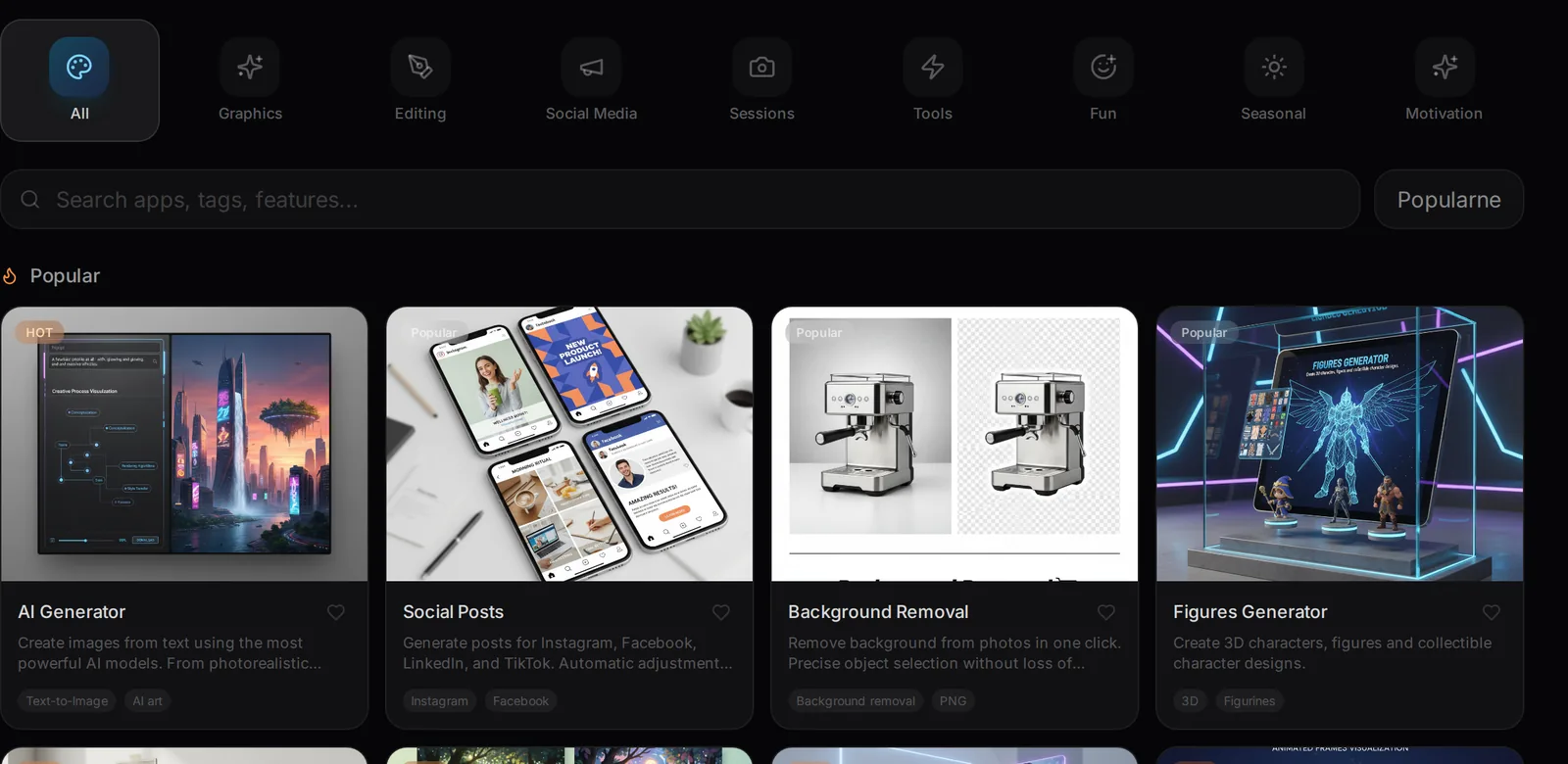
Open AI Apps in the left sidebar, or go to /generate/studio. The page is titled App Gallery. It shows a grid of tiles, each with a picture, a name, one line about what it does, a few tags and sometimes a badge such as HOT, Popular or New. Click a tile to open that generator.
- Categories: All, Graphics, Editing, Social Media, Sessions, Tools, Fun, Seasonal and Motivation. An app can belong to several, so the same generator may show up under Graphics and Fun.
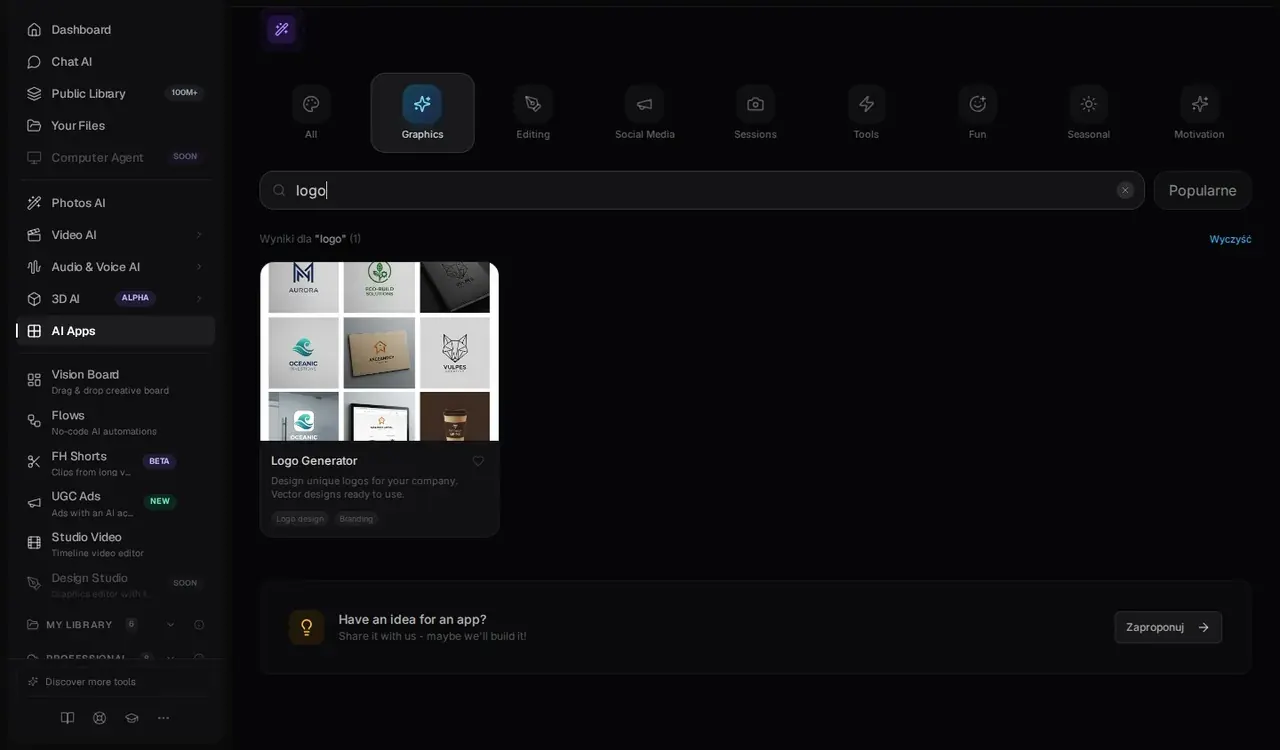
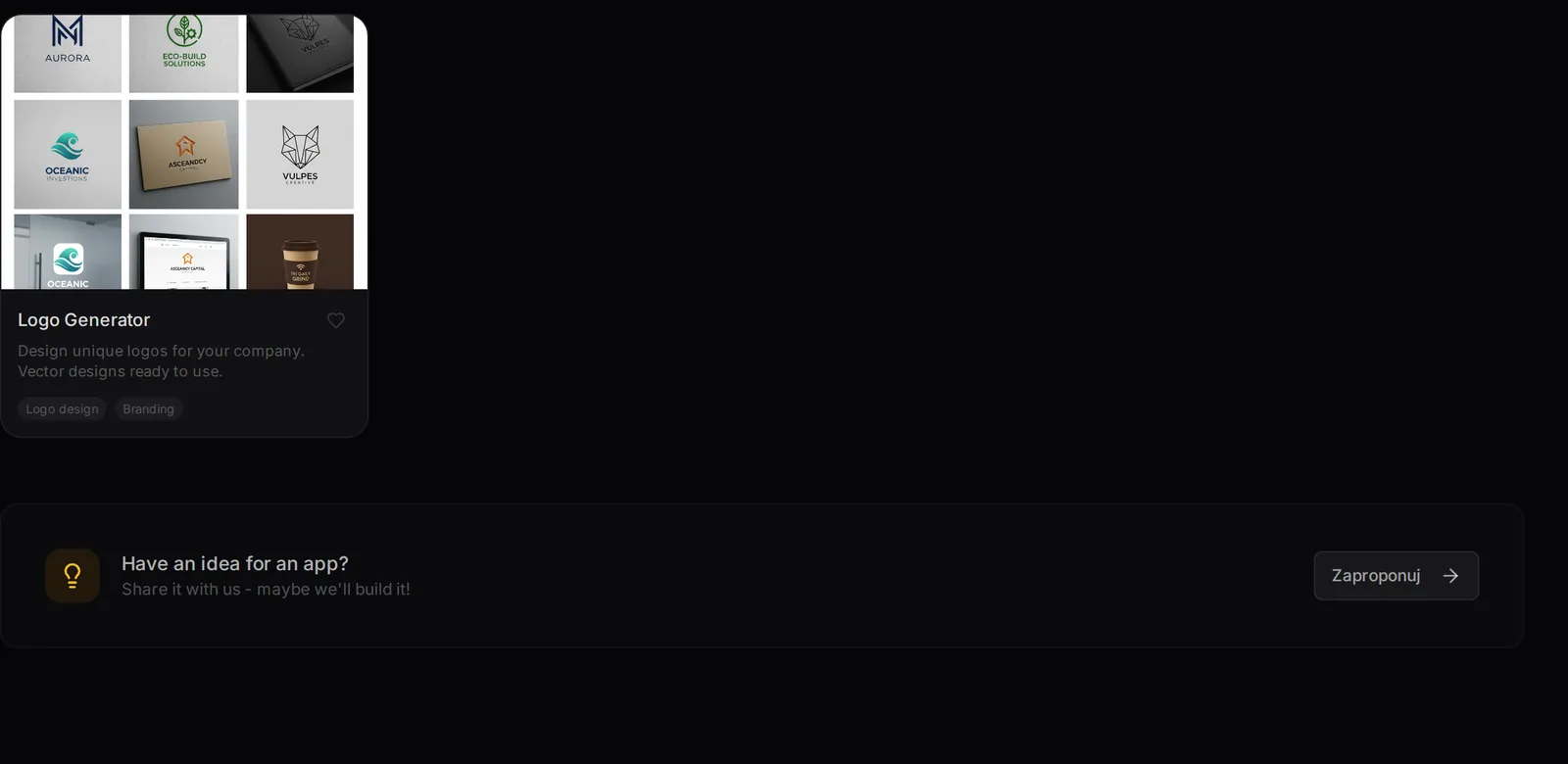
- Search looks in the name, the description and the tags. Typing logo or coffee narrows the grid at once. Search and a category combine, so a search inside Seasonal only looks at seasonal apps. If the grid goes empty, check which category chip is active.
- Sort offers Popular, New and Top. The labels in this menu are shown in Polish on the English interface (Popularne, Nowe, Top).
- Favourites: the small heart on a tile pins it to a Favourites row above Popular. Favourites are kept in your browser, so they do not follow you to another device.
- A direct link works too. /generate/studio?q=sticker opens the gallery with sticker already typed in the search field.
On a phone
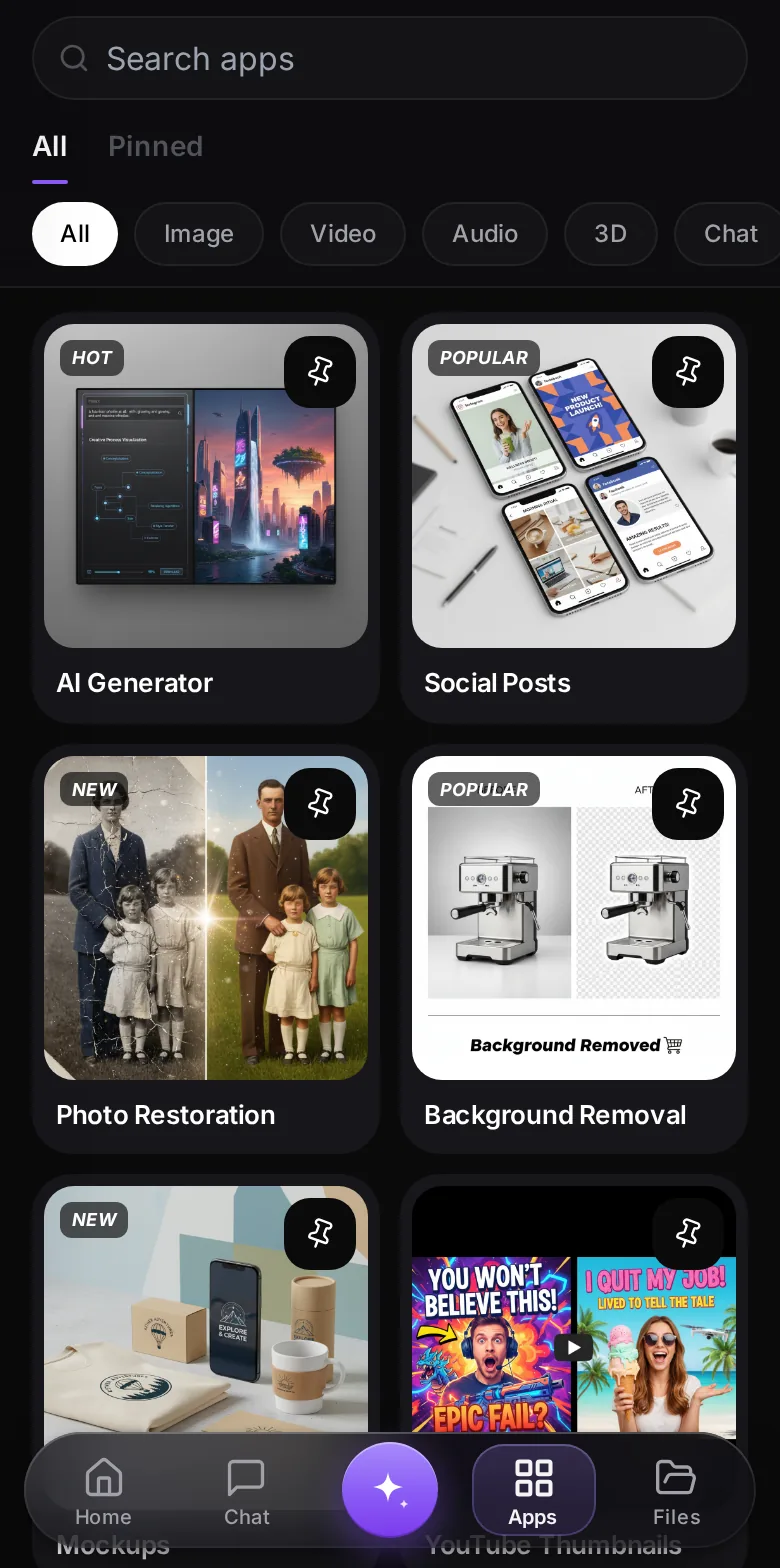
On a small screen the gallery turns into an app launcher. A search bar sits on top, then All and Pinned tabs, then chips for the kind of output (Image, Video, Audio, 3D, Chat and more), then large tiles. The pin button on each tile keeps the app in your Pinned tab.
How a generator page is built: three layouts
Every generator has the same bones: something to start from (a photo, a name, a description), a way to choose a look, a few options, a price, a Generate button and a results area. What changes is the layout. You will meet three.
| Layout | Where you see it | How it feels |
|---|---|---|
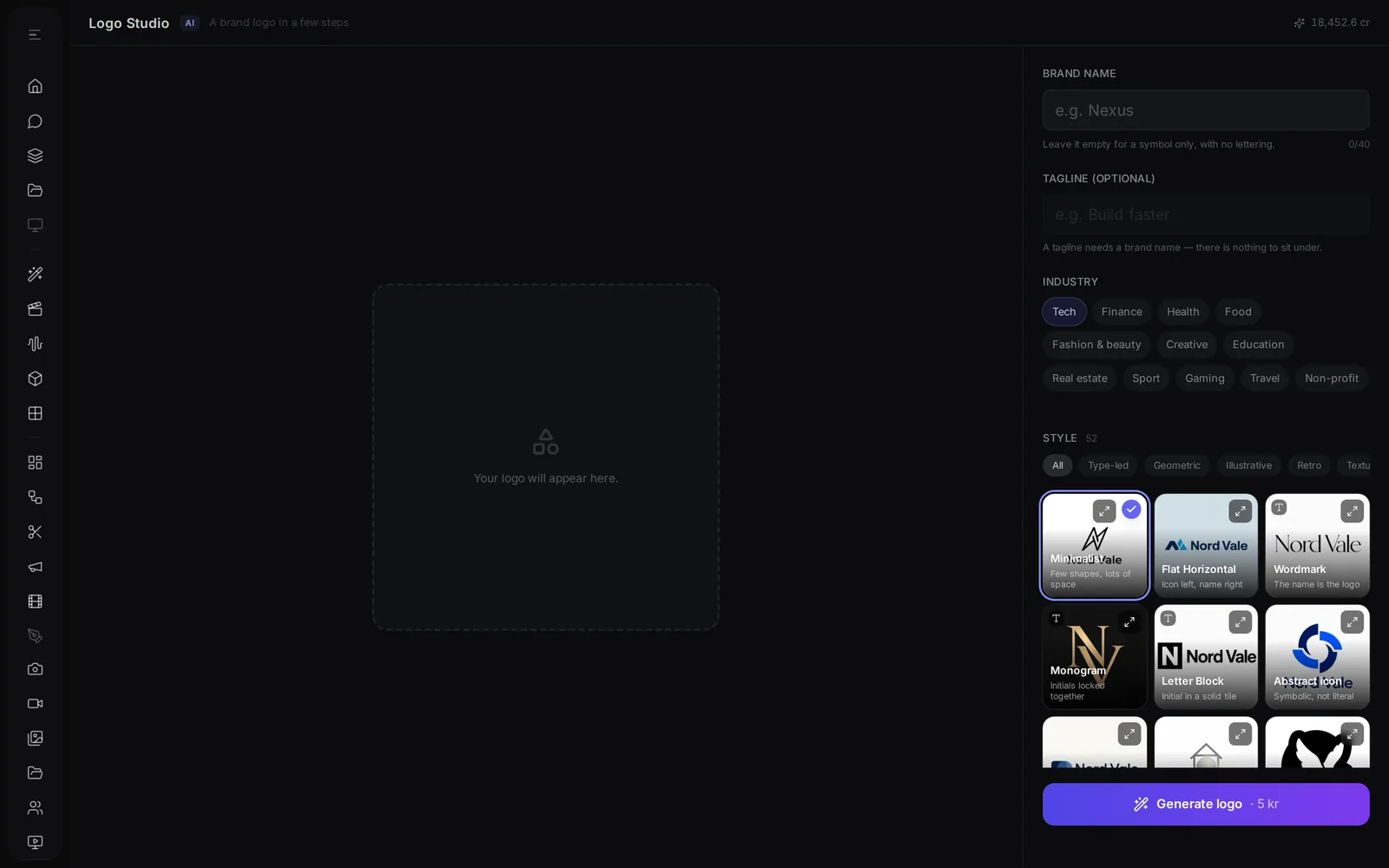
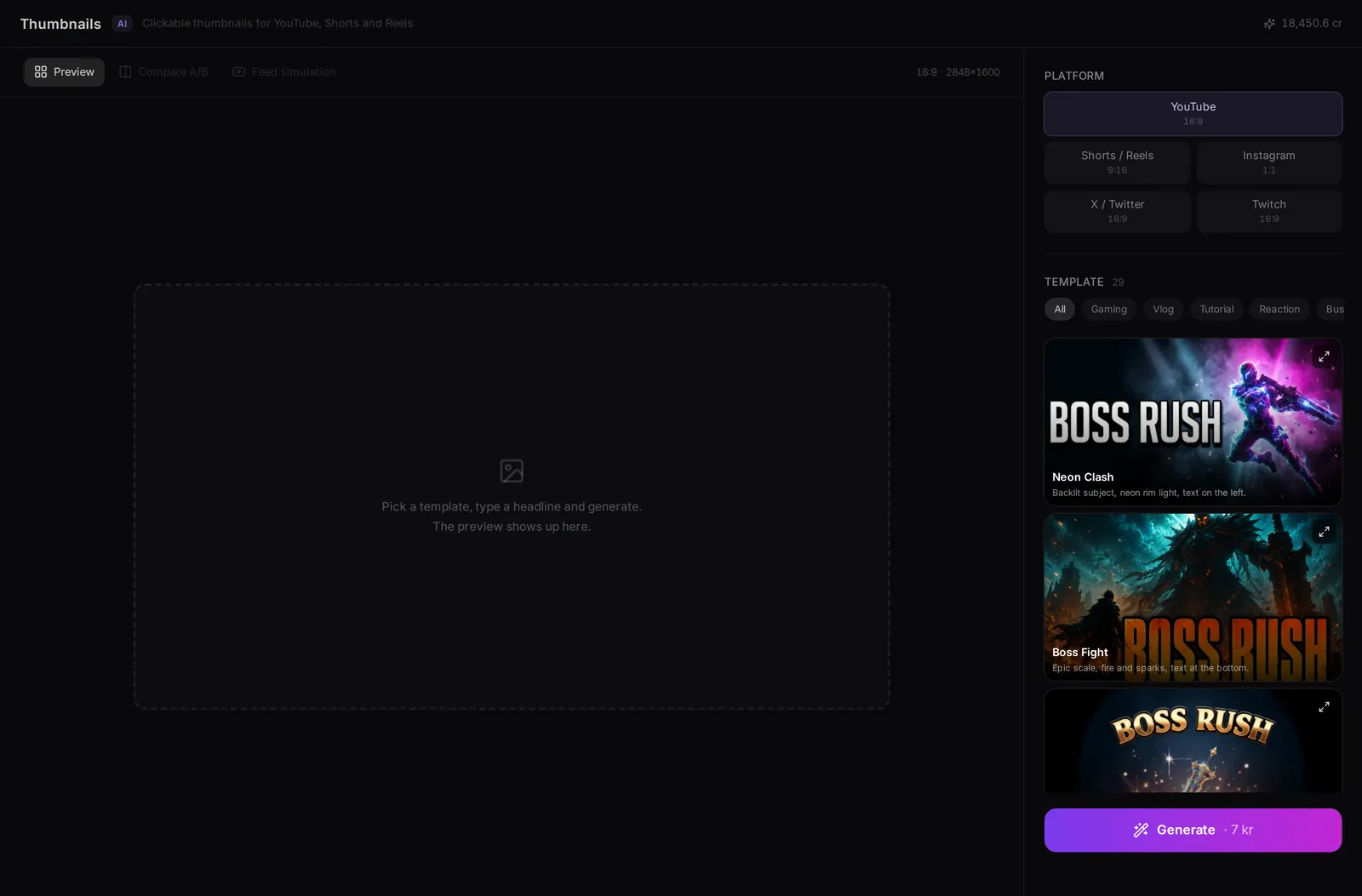
| Studio: preview on the left, one scrolling panel on the right | Logo, Mockups, Posters, Thumbnails, Social Posts, Polaroid and vintage, Interiors, Avatars, Tattoos, the photo sessions | The newest pages. Everything stays on one screen, the preview is live, and the sticky Generate button at the bottom shows the total price. On a phone it becomes a few steps with Next and Back. |
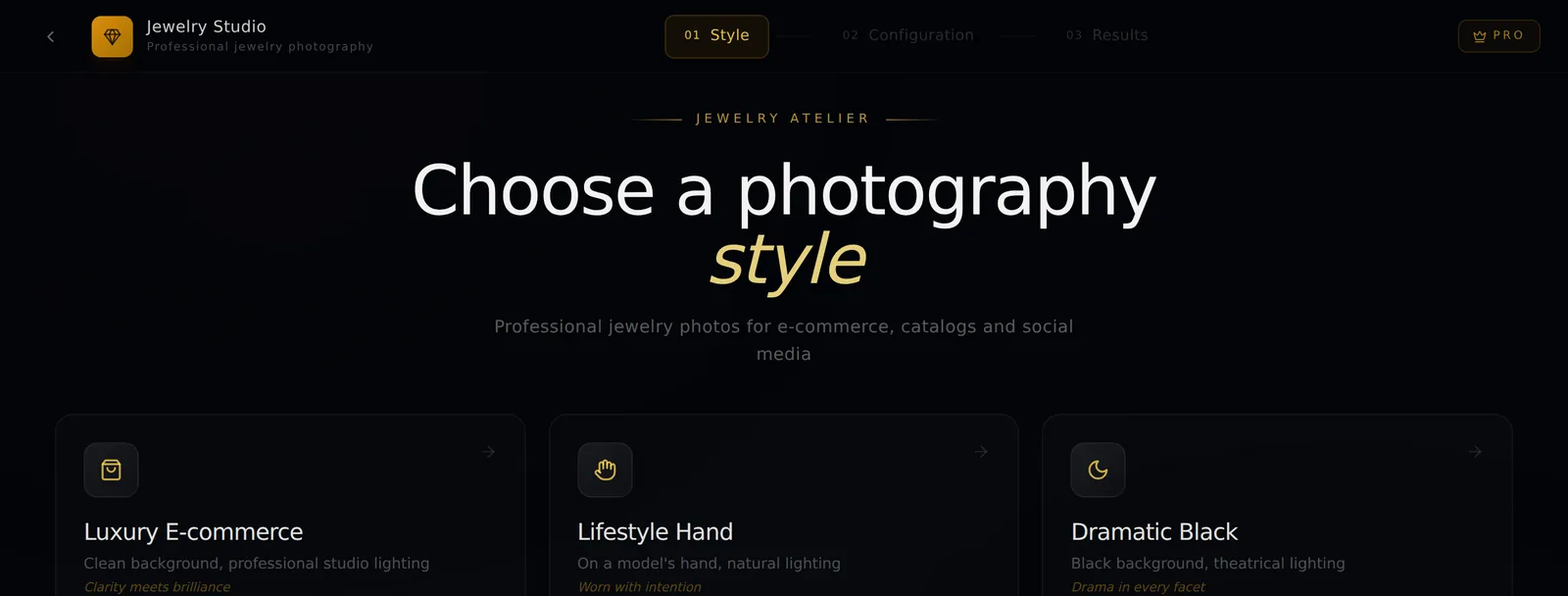
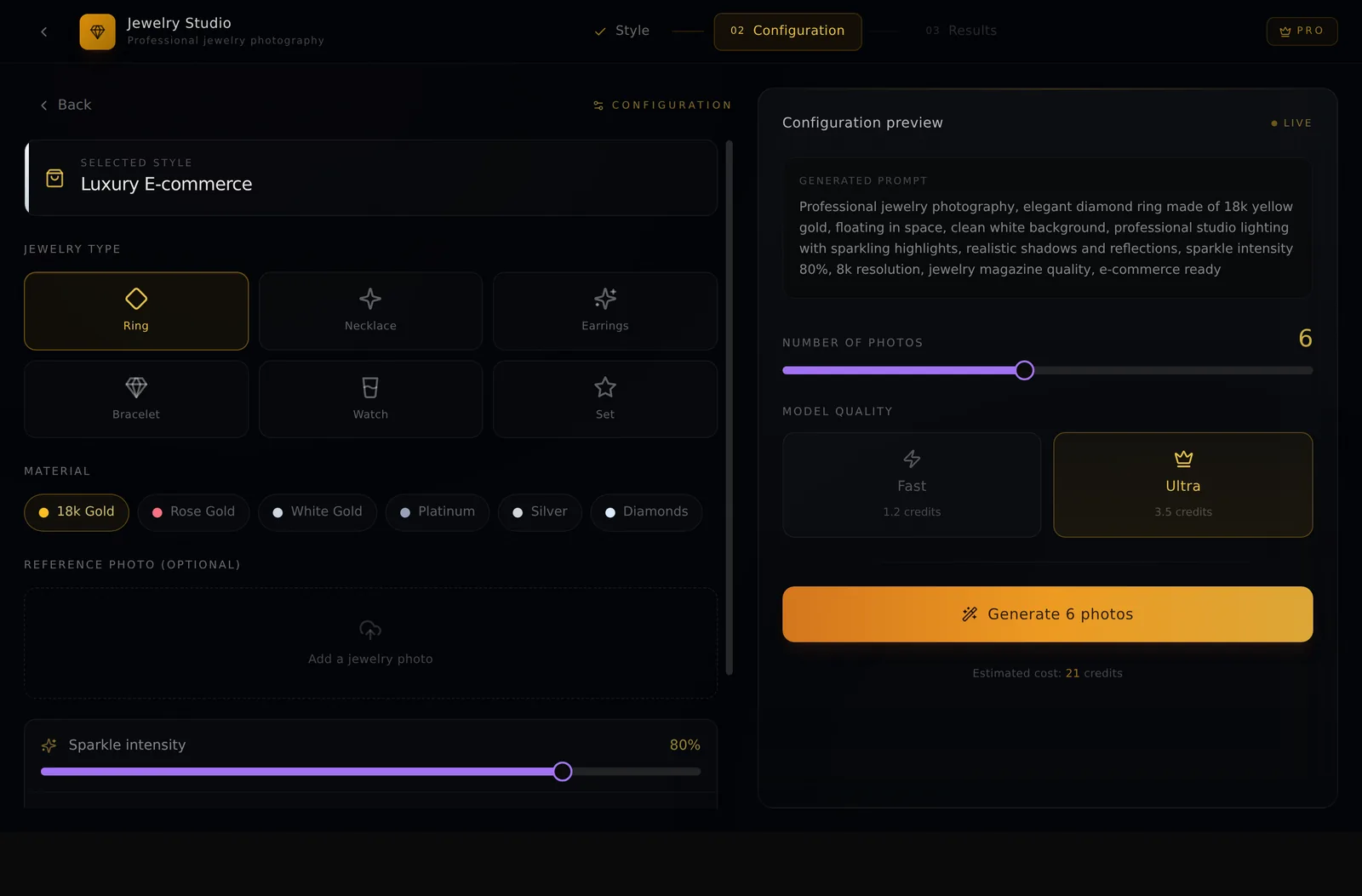
| Wizard: Style, Configuration, Results | Jewelry, Watches, Wine, Food, Bakery, vehicles, game assets, infographics, the retro, anime and cinema styles | Three numbered tabs at the top. You pick a style card first, then fill in the details, then wait for the photos. |
| Single form | Stickers, Photo Booth, Business Photo, Christmas cards, Memes | One page of fields: a source photo or description, a few options and a Generate button. The Meme generator is a short four-step form. |
The common flow in six moves
- Start from something A source photo (upload it or pick one from your library), a name, or a plain description. Pages that edit a photo say whether the photo is required or optional, and many say what kind works best, for example a sharp, well-lit face looking at the camera.
- Pick a look Style cards, tiles or chips. Click the tile or its expand icon to see a larger sample before you commit.
- Set the options Product type, scene, colours, mood, format, how many images. Defaults are usually sensible, so a first run can leave most of them alone.
- Read the price Look at the Generate button or the estimate near it before you run. The price is per image, so more images cost more.
- Generate Press the button. Most pages take from a few seconds to a minute or two. Keep the tab open; some pages produce their images one after another from your browser.
- Review, download, continue Look at every image, download the good ones, and either run again with one change or send a result to another tool.
The controls you will see again and again
| Control | What it does | Good to know |
|---|---|---|
| Source or reference photo | Starts the result from your picture instead of from nothing. | On many wizard pages only the first image of a run uses it. See the product photos guide for what this means in practice. |
| Style card or tile | A saved set of lighting, background and mood. | The most powerful single choice on the page. Change it first when a result feels wrong. |
| Option chips | Pick one value per row: product, scene, framing, finish. | The label next to the row names the axis; chips in the same row exclude each other. |
| Sliders | Sparkle, depth of field, level of detail, number of photos. | Number of photos is usually a slider from 1 or 4 up to 12 or 15. |
| Variants or Number of versions | How many images one run makes. | Billed per image. Start with 1 or 2 while you are exploring. |
| Quality or model | Fast or Ultra on the wizard pages, a short model menu on some studios. | Each choice shows its own price. The note under a model menu says what it is best at. |
| Notes or additional description | Free text added to the request. | Keep it short and concrete. It is the right place for one detail the cards cannot express. |
| Estimate or price chip | The cost of the run before it starts. | The unit is credits, written cr in the header and kr on buttons. |
Your first run: a sticker
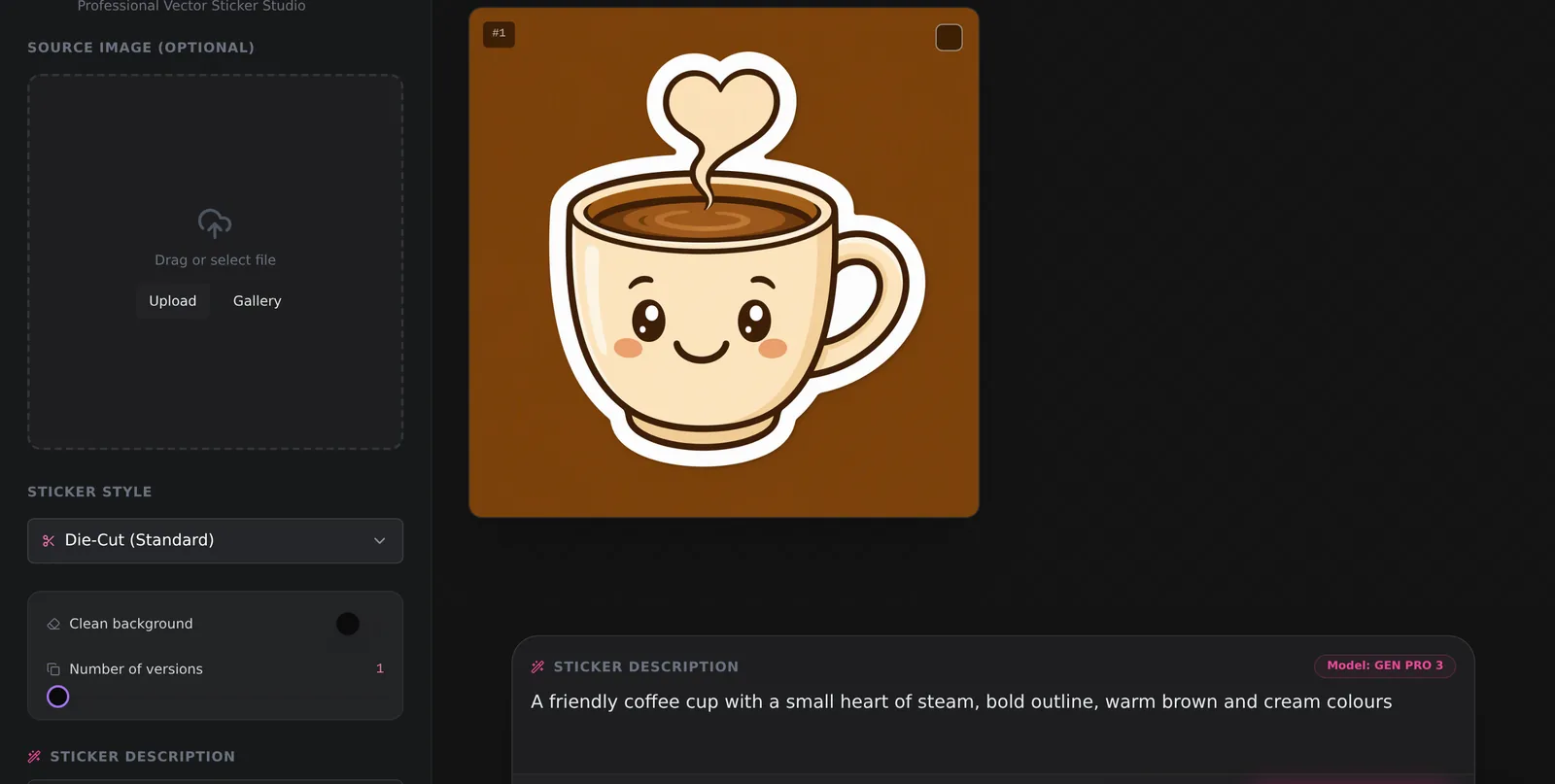
Stickers are a good first generator: one text box, one style menu and a quick result. Open Stickers in the gallery (or /generate/stickers). Type what the sticker shows, leave the style on Die-Cut, and press Generate.
A coffee cup sticker
Goal. A friendly cut-out sticker for a laptop lid or a packaging label.
Input you can copy.
A friendly coffee cup with a small heart of steam, bold outline, warm brown and cream colours| Setting | Value |
|---|---|
| Sticker Style | Die-Cut (Standard) |
| Clean background | Off |
| Number of versions | 1 |
| Source image | None |

Why it works. The die-cut style adds the thick white border that makes a sticker look cut from a sheet. Naming the colours in the description kept the palette tight. With Clean background on, the page asks for a plain white background that is easy to cut out instead.
- Styles available: Die-Cut (Standard), Holographic, Pixel Art, Vintage / Retro, 3D Glossy and Badge / Emblem.
- Number of versions: 1 to 4.
- Source image: upload a picture or choose one from the gallery and the page switches to edit mode, so the sticker is based on it.
- Edit this: on a result, it sends that sticker back as the source image so you can adjust the description and run again.
A tour of what is inside, by job
The gallery has about a hundred entries. Rather than list every tile, here they are grouped by the job they do. Names are the tile names; when a family has its own guide, it is named in the heading.
Brand and graphics (see the logos and branding guide)
- Logo Generator (Logo Studio) with 52 styles, Mockups with 100 products, Style Architect for outfits.
- Posters for print-ready posters with real text, Social Posts and YouTube Thumbnails for feed and video covers, Stickers, Tattoos for tattoo designs, Multi Image Generator to combine several pictures, Figures Generator for collectible character figures.
Product and food photography (see the product photos guide)
- Jewelry Studio, Watch & Accessories, Wine & Spirits, Luxury Vehicles.
- Gourmet Food, Beverage Art, Bakery Showcase, Meal Prep, Recipe Cards.
- Business Photo is in this neighbourhood of the gallery but makes headshots of people, so it belongs with portraits.
Rooms, buildings and gardens (see the interiors and architecture guide)
- Interiors, Architect, Architectural Render, Landscape Design, Interior Renovation (an older address of Interiors).
People, portraits and sessions (see the avatars and portraits guide)
- AI Avatars, Business Photo, Women's Session, Family Session, Winter Session, Retro Session, Cyberpunk Session, Photo Booth.
- Style makeovers that start from your photo: Polaroid Vintage (45 styles), Y2K Nostalgia, Retro Decades, Yearbook Transform, Ghibli Dream Style, Chibi Cute, Anime Glow-Up, Anime Warrior, K-Drama Aesthetic, Action Movie Hero, Neon Noir Cinema, Hyper-Realistic 3D, Fantasy Creature, Mermaid Transformation.
Social, fun and trends (see the social and fun generators guide)
- Memes and the template memes, Italian Brainrot, Pet to Person Swap, Squish Effect, Liminal Space, Weirdcore and Weirdcore Portrait, Dance Animation (a short video), WFH Office Struggles, Fitness Transformation.
- Entries that place people into scenes also live here. They follow the same flow, with the same rule about faces.
Seasonal and gift cards
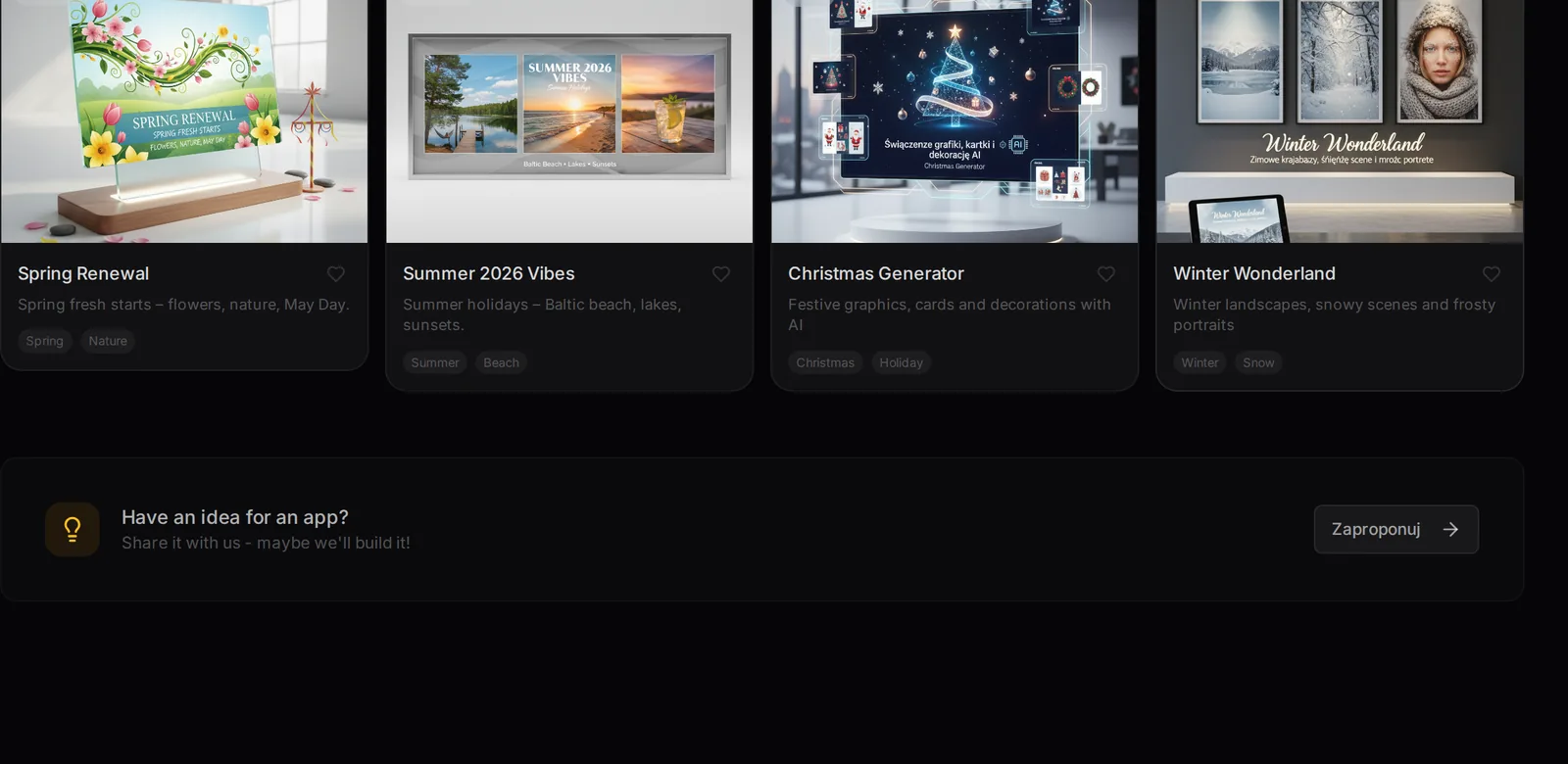
- Christmas Generator (up to four faces on a holiday card, six scenarios such as Santa's Workshop and Cozy Fireplace), Winter Wonderland, Valentine's Romance, Spring Renewal, Summer 2026 Vibes, New Year's Resolutions (the one Motivation entry).
Business, learning and games
- Infographics and visuals: Medical Visuals, Legal Infographics, Real Estate Market, Financial Reports, Case Study Design, Quiz Graphics, STEM Diagrams, Language Flashcards.
- Games and streaming: Gaming Setup, Esports Merch, Game Assets, Twitch Overlay, Storyboard.
Photo tools and animation in the same gallery
- Photo Restoration, Background Removal and Background Removal Pro, GPU Image Tools, Anonymize / Redact, Motion Control. These work on what you give them rather than inventing a picture from nothing, and they have their own guides.
Results: where they go and what to do next
- Saved automatically. A generated image is stored in your photo library when it is made. Closing the page does not lose the images that were already shown.
- Download is on every result, either under the image or in the hover buttons. Pages that make several images also offer Download all.
- Continue with... appears under the results of the newer studios, for example Logo and Mockups. It opens a searchable list of tools that can take this exact image: upscale, the photo editor, masking, resizing for social formats and more.
- Older wizard pages have a larger preview, a mask editor on a few of them, and Download. To send a result elsewhere, open it from your library or choose it with From gallery in the next tool.
- Edit this on Stickers returns a result to the source slot for another round.
Cost, limits and honest expectations
- You pay per image. Variants, versions and Number of photos all multiply the price. The price is shown before you run on most pages; on the few that do not show it, check your balance after the first run.
- Fast or Ultra, Draft or Best choices are listed with their own prices. A higher choice is not automatically better for the job, so test the cheaper one first.
- Results vary. The same settings can give different images, which is why most pages offer two or more variants.
- Text in images is good but not perfect. Short words come out best; check every letter.
- Rights and honesty. You are responsible for how you use an image. Do not present a generated product photo as a photo of a different product, and do not use likenesses of real people without their consent.
- Nothing is posted for you. The generators make and save images. Publishing is always a separate step that you take.
Troubleshooting and questions
- I cannot find a generator I saw before.
- Clear the search field and set the category to All. A search inside a category only looks at that category. On the Simple interface level the gallery also shows only the first 15 apps until you search.
- A page shows some Polish labels.
- A few older pages still have Polish headings or buttons, such as Styl, Konfiguracja, Wyniki, Generuj, Wróć and Pobierz wszystkie. They mean Style, Configuration, Results, Generate, Back and Download all. The options themselves are in English.
- The generation takes very long.
- Pages that make several images do it one after another, so a batch of 12 takes about twelve times as long as one. Reduce the count or wait. Keep the tab open.
- My favourites disappeared.
- Favourites are stored in your browser. A different browser, a private window or cleared site data starts with none. Use pins on a phone, or favourite them again.
- An old link gives a different page.
- Three old addresses redirect to the current generator: Interior Renovation to Interior design, Architect Home to Architect, Vintage Photo to Polaroid and vintage.
- Where is the history of what I made?
- In your photo library. Several studios, such as Logo and Mockups, also show a Recent strip under the preview.
- Which generator should I use for a profile picture?
- Start with AI Avatars or one of the style makeovers that start from your photo, then see the avatars and portraits guide.