API keys: create, scope and manage
Create a key, choose its type, scopes, limits and output location, then rotate or revoke it without breaking your integration.
What an API key is
An API key is the credential your code uses to call the FOTOhub API. It looks like fh_live_ followed by 32 lowercase hex characters, 40 characters in total, and you send it in the Authorization: Bearer header. One key belongs to one account, and every request made with it is paid from that account's prepaid USD wallet.
There is only one kind of key. FOTOhub has no test key, no sandbox and no mock-response mode: every successful call spends real money. To experiment cheaply, pick the cheapest model in the category you need and read its price from GET /v1/pricing first.
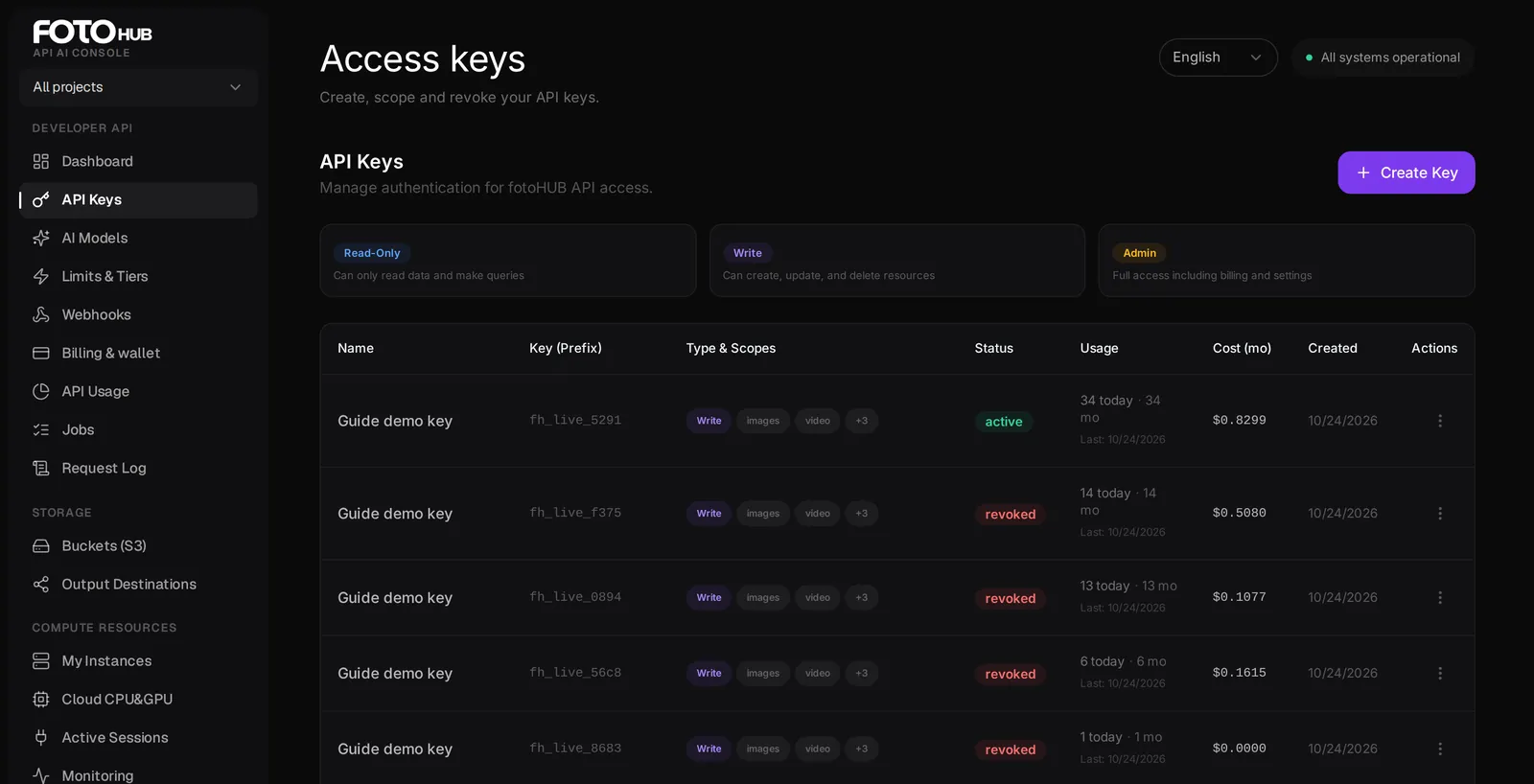
Keys are created and managed in the developer console, on the API Keys tab. The same settings exist over the API (see the last section).
Create your first key
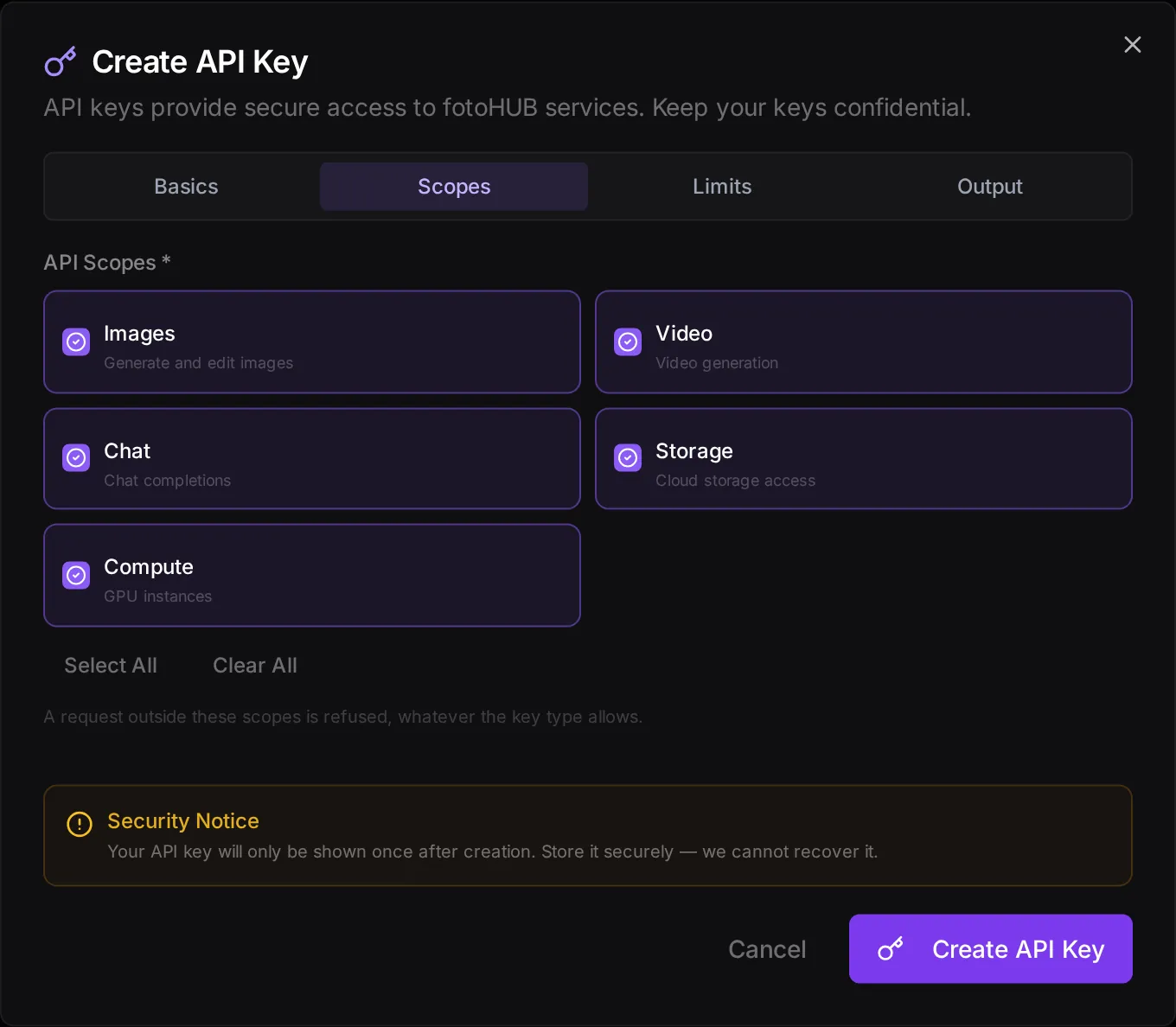
The create dialog has four tabs: Basics, Scopes, Limits and Output. Every tab has working defaults, so for a first key you only need a name.
- Open the API Keys tab Go to Console → API Keys (
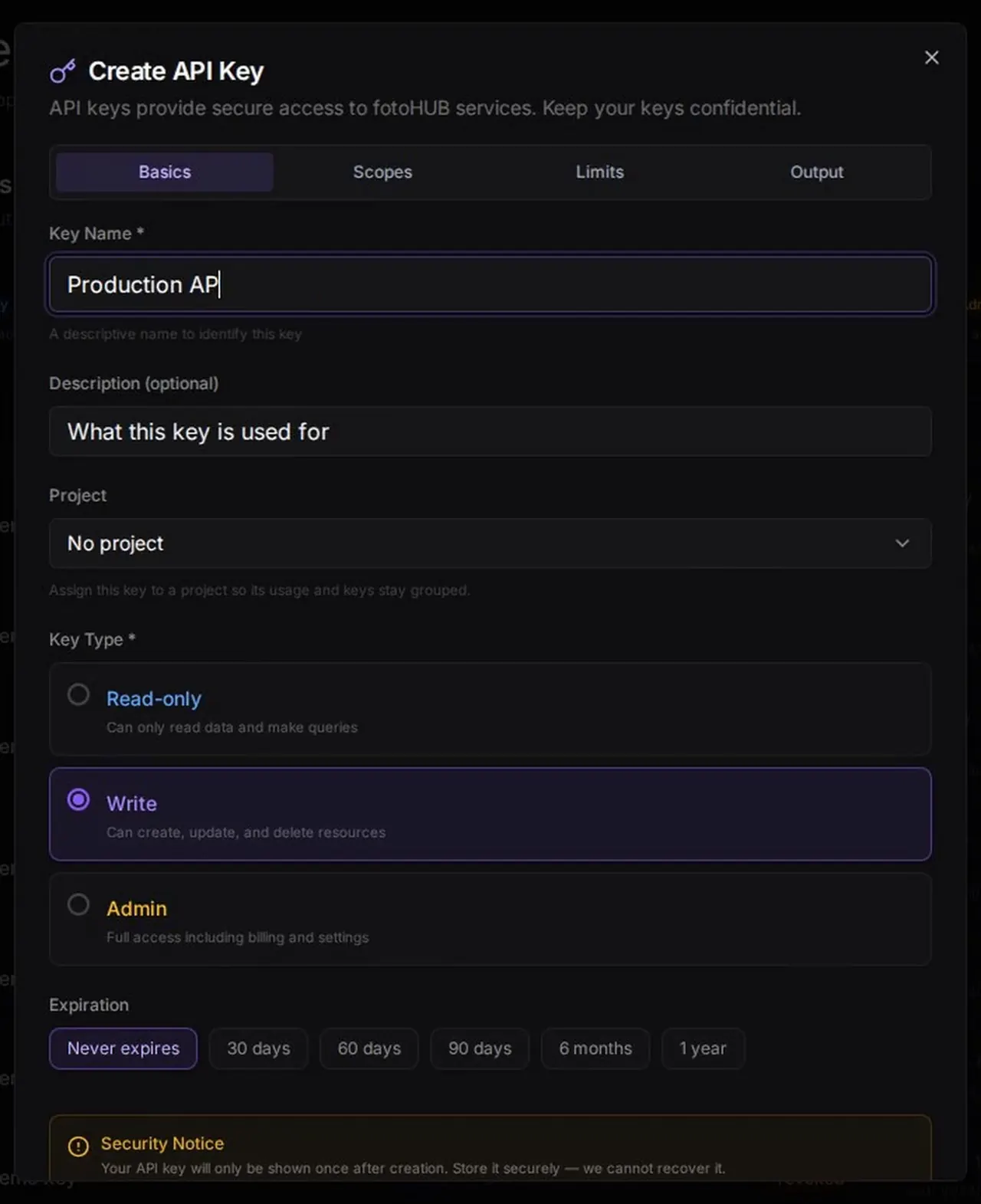
/console/keys) and press Create Key. - Name the key Type a descriptive name such as "Production API" or "Staging worker". The name is how you recognise the key later in logs and cost reports. A description and a project are optional; assigning a project keeps usage and keys grouped.
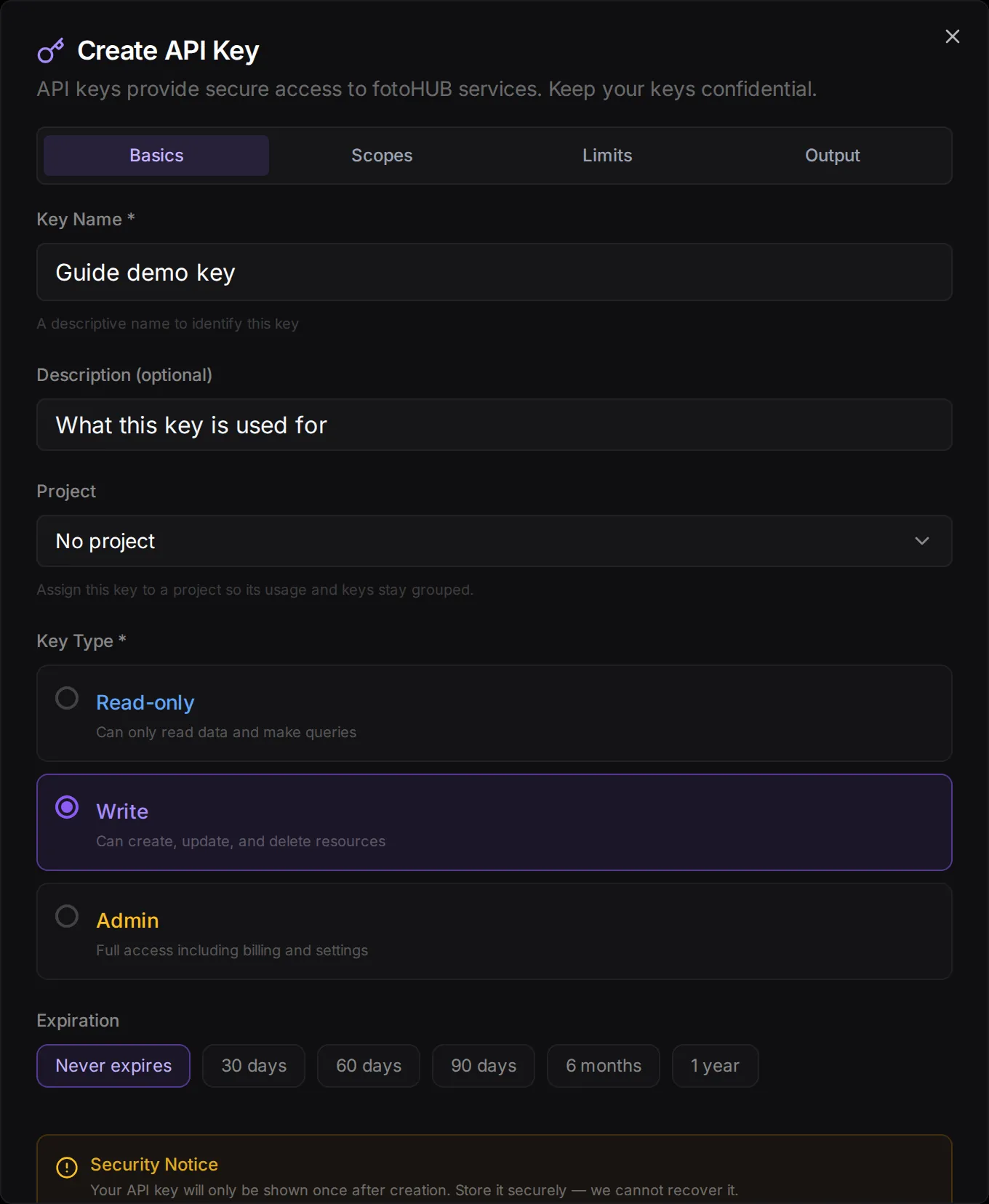
- Pick the key type Read-only can only read data and make queries. Write (the default) can also create, update and delete resources. Admin adds billing and settings. Use the narrowest type that does the job.
- Set the expiration Choose Never expires, 30, 60 or 90 days, 6 months or 1 year. A key that expires on its own is a good habit for contractors and short projects.
- Choose scopes, limits and output The next tabs are explained in the sections below. Leave them as they are if you are unsure; you can change scopes, rate limit, IP list, retention and destination later in the key details.
- Create and copy the secret Press Create API Key. The full key appears once, in a dialog with a copy button. Copy it into your secret manager or an environment variable now, then press I have copied it. FOTOhub stores only a hash, so a lost key cannot be recovered, only replaced.
Key types and scopes
Two settings decide what a key may do. The type says how much it may change; the scopes say which families of endpoints it may touch.
| Type | What it can do |
|---|---|
| Read-only | Read data and make queries. Account actions that create something, such as registering a webhook, are refused. |
| Write | Create, update and delete resources. The default. |
| Admin | Everything Write can do, plus billing and settings. |
| Scope | Endpoint families it unlocks |
|---|---|
| Images | /v1/ai/generate/image, /v1/ai/edit/image, /v1/ai/analyze/image, /v1/ai/tryon, /v1/images/* |
| Video | /v1/ai/generate/video, /v1/video/*, /v1/shorts/*, /v1/story/*, lip-sync |
| Chat | /v1/ai/chat/*, /v1/ai/translate, /v1/ai/enhance-prompt |
| Audio (no toggle) | Music, sound effects, speech and transcription (/v1/ai/generate/music, /sfx, /speech, /v1/ai/transcribe) need the audio scope. The dialog does not list it separately: a key with the default five scopes is unrestricted and covers audio too. |
| Storage | /v1/photos, /v1/albums, /v1/buckets, /v1/storage, /v1/destinations |
| Compute | /v1/ai/agent, /v1/ai/gabriel |
A new key starts with all five scopes selected, which behaves as an unrestricted key. Narrow it down for anything that runs outside your own infrastructure. A key limited to Storage that calls the image endpoint receives a 403 with error: "insufficient_scope", the scope it needed and the scopes it has.
{
  "detail": {
    "error": "insufficient_scope",
    "message": "This API key does not have the 'images' scope. Update the key's scopes in the console, or use a key that has it.",
    "required_scope": "images",
    "granted_scopes": ["storage"],
    "docs": "https://docs.fotohub.app/api/authentication"
  }
}
403 for a key that lacks the scope the endpoint needs
Two details catch people out. The API also accepts older colon names such as images:generate. A list with only names the API does not recognise is ignored, so the key ends up unrestricted, as do all, *, full, admin and exactly the default five.
Rate limit and access restrictions
| Setting | What it does |
|---|---|
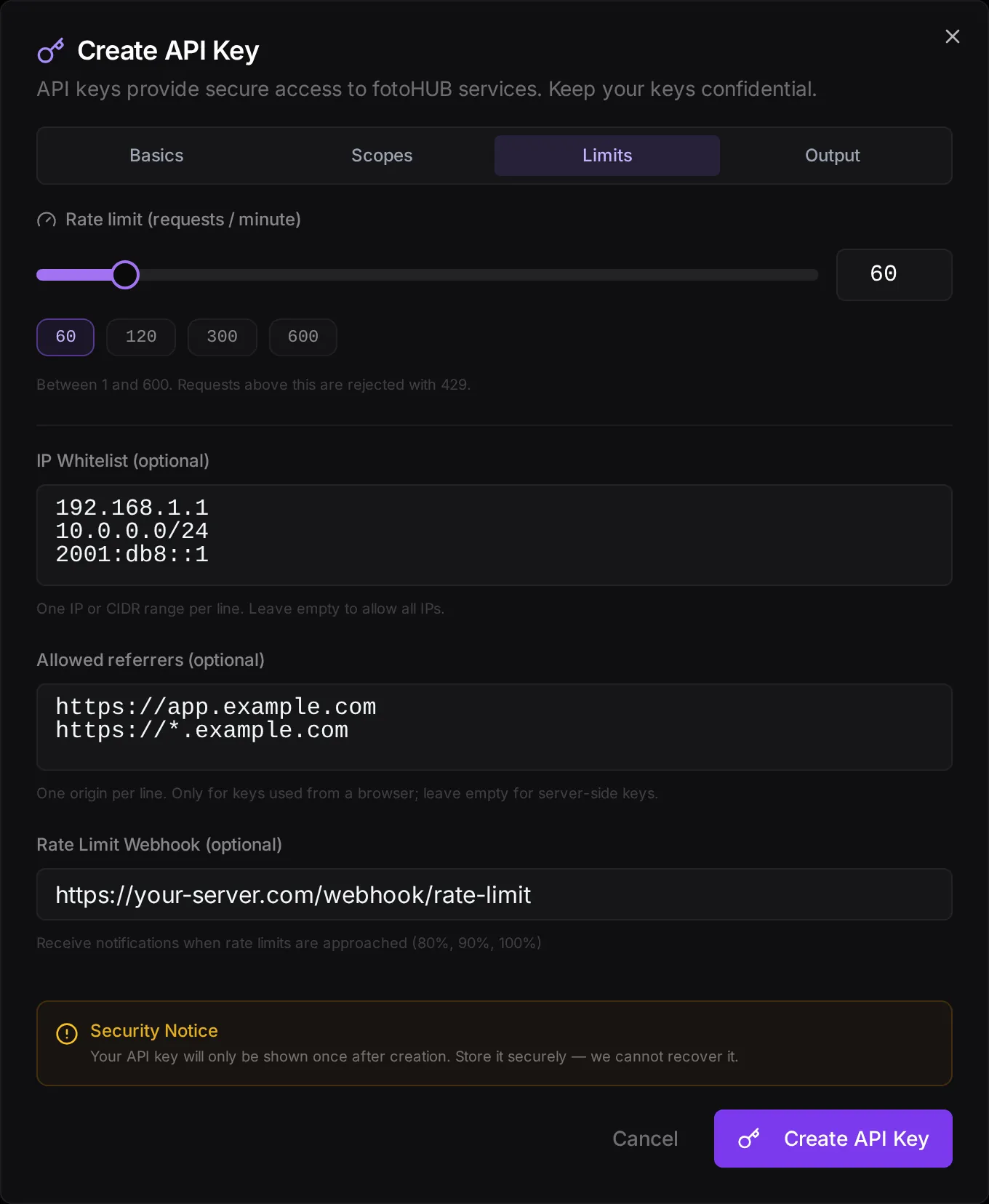
| Rate limit (requests / minute) | Between 1 and 600 per minute for this key, with presets 60, 120, 300 and 600. Above it the API answers 429 and Retry-After: 60. This is a ceiling for the key; your account tier has its own throughput limits on top. |
| IP whitelist | One IP address or CIDR range per line. Leave empty to allow every IP. The address that counts is the one the API sees, so behind a NAT gateway list the gateway's public address. |
| Allowed referrers | One origin per line, for a key used from a browser. It is stored with the key, but the API does not reject a request because of its referrer, so treat it as a label, not protection. |
| Rate limit webhook | An HTTPS URL for rate-limit notifications at 80%, 90% and 100%, as the dialog describes it. Also watch X-RateLimit-Remaining in your own client. |
Every API response from a key carries the rate-limit state in X-RateLimit-Limit, X-RateLimit-Remaining and X-RateLimit-Reset (a Unix timestamp), so a client can slow down before it hits a 429. The 429 body names the scope that was exceeded:
{
  "detail": {
    "error": "rate_limit_exceeded",
    "message": "This API key is limited to 60 requests per minute. Raise the limit on the key in the console, or spread the calls out.",
    "limit_rpm": 60,
    "scope": "api_key"
  }
}
The counter belongs to the key, not to a server: every machine using it shares one fixed 60-second window, and X-RateLimit-Reset is when it restarts. A request refused for a missing scope still uses a slot, because the rate limit is checked before scopes.
Where the output goes
By default every file an API call generates is stored in FOTOhub's private storage and handed back as a signed URL that expires. The Output tab changes that per key.
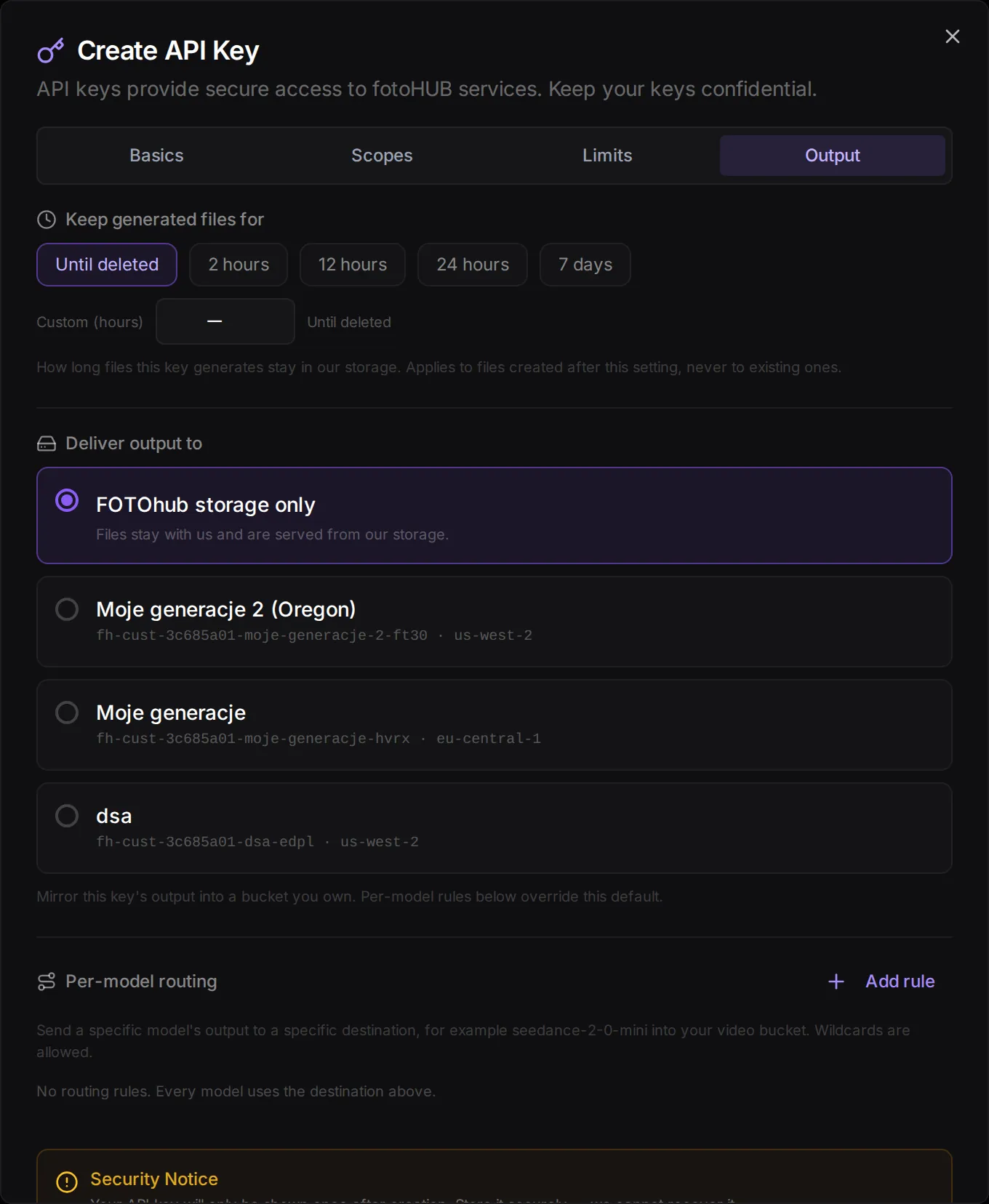
| Setting | Behaviour |
|---|---|
| Keep generated files for | Until deleted (default), 2 hours, 12 hours, 24 hours, 7 days, or a custom number of hours up to one year. Applies to files created after the setting, never to files that already exist. |
| Deliver output to | FOTOhub storage only (default) or one of your connected destinations: a FOTOhub bucket you bought, or your own S3-compatible bucket. |
| Also keep a copy with us | Keeps FOTOhub's copy until retention expires, so a failed delivery to your bucket does not lose the file. |
Destinations live on their own tab (Output Destinations). Connect one first: the rule editor stays locked until a destination exists.
How routing rules match
A rule has a model pattern, a destination, an optional path template and a priority from 0 to 100000 (default 100). The pattern is a case-sensitive wildcard such as ida-q-image* (up to 200 characters), matched against the dashed model id. A key cannot hold two rules with one pattern (409, pattern_already_routed). When several rules match, the lowest priority number wins, and on a tie the longer pattern wins, so a specific model can sit next to a broad wildcard.
Four levels decide where a file goes, highest first: an output object in the request body (bucket, prefix, visibility), the best matching rule on the key, the key's default destination, then FOTOhub storage. A level that cannot be used, such as a removed destination, does not fail the call. The file drops to the next level, because the generation is already paid for.
Path templates
The console accepts {model}, {date}, {YYYY}, {MM}, {DD}, {job_id}, {user_id} and {ext}; the API also takes {HH}, {mm}, {ss}, {name} and {index}. End the template with / and the file name is appended. Include {job_id} or {name}, otherwise every file of the day lands on one key.
The console refuses to save a bad template and says why:
| Template | Message in the console |
|---|---|
/images/{job_id}.{ext} | A path template must be relative, with no leading slash or drive letter. |
images/{modle}/{job_id}.{ext} | Unknown token. Allowed: {model} {date} {YYYY} {MM} {DD} {job_id} {user_id} {ext} |
images/{model/{job_id}.{ext} | Unbalanced '{' or '}' in the path template. |
images/../{job_id}.{ext} | A path template cannot contain '..'. |
images//{job_id}.{ext} | A path template cannot contain an empty segment ('a//b'). |
A rule also needs a pattern and a destination, and the priority must be a whole number from 0 to 100000. Over the API, an invalid template answers 400 with error: "invalid_path_template", a message, allowed_tokens and an example.
Route images, voice and everything else to separate places
Goal. Send images, voice and everything else from the IDA family to different places.
| Setting | Value |
|---|---|
| Rule 1 | ida-q-image* to Images bucket, template images/{model}/{YYYY}/{MM}/{job_id}.{ext}, priority 100 |
| Rule 2 | ida-q-image-2 to Hero archive, template hero/{date}/{job_id}.{ext}, priority 100 |
| Rule 3 | ida-voice* to Audio bucket, template voice/{YYYY}-{MM}/{job_id}.{ext}, priority 100 |
| Rule 4 | ida-* to Archive, template misc/{model}/{job_id}.{ext}, priority 900 |
Why it works. ida-q-image matches rules 1 and 4; rule 1 wins on priority and writes to a key like images/ida-q-image/2026/10/<job id>.png. ida-q-image-2 matches 1, 2 and 4: rules 1 and 2 tie on priority, and rule 2 wins with the longer pattern. Voice goes to the audio bucket, any other ida- model to the catch-all. A request with its own output object beats all four rules.
What happens to a request with your key
Each step runs only if the previous one passed. That explains which error you see first, and why a failing call can still use up rate limit:
| Step | Check | What you get when it fails |
|---|---|---|
| 1 | Authorization header present | 401 Missing Authorization header |
| 2 | The key exists | 401 Invalid API key |
| 3 | Status is active | 401 API key is revoked |
| 4 | Not past its expiry date | 401 API key has expired |
| 5 | Caller IP is on the allow-list (only if the list is not empty) | 403 IP address not allowed for this key |
| 6 | Per-key rate limit, one slot is consumed here | 429 rate_limit_exceeded with Retry-After: 60 |
| 7 | Scope for this path | 403 insufficient_scope |
| 8 | API entitlement: paid plan, prepaid balance or a grant | 403 api_access_required |
| 9 | Endpoint-specific rules, such as the key type on account-changing calls | 403 This API key is read-only. Use a key created with write access, or the dashboard, to perform this action. |
Billing, usage, plans, model listings and /v1/me stay reachable without entitlement, so a lapsed account can still top up. Balance checks and validation come after step 9 (see api-errors-limits). The first failures look like this on production:
{"detail": "Missing Authorization header"}
{"detail": "Invalid API key"}
401 bodies from real calls: no header, then a key that does not exist
{
  "detail": {
    "error": "api_access_required",
    "message": "The FOTOhub API requires a paid plan or prepaid balance. Buy a plan or top up your balance to enable API access.",
    "reason": "<reason code>",
    "tier": "<tier>",
    "upgrade_url": "https://console.fotohub.app/console/tiers",
    "topup_url": "https://console.fotohub.app/console/wallet"
  }
}
Shape of the step 8 refusal; reason and tier depend on the account
Review, rotate and revoke
The list shows each key's prefix (the first characters only), type, scopes, status, requests today and this month, last use, cost this month in USD and creation date. Open the row menu for the three actions.
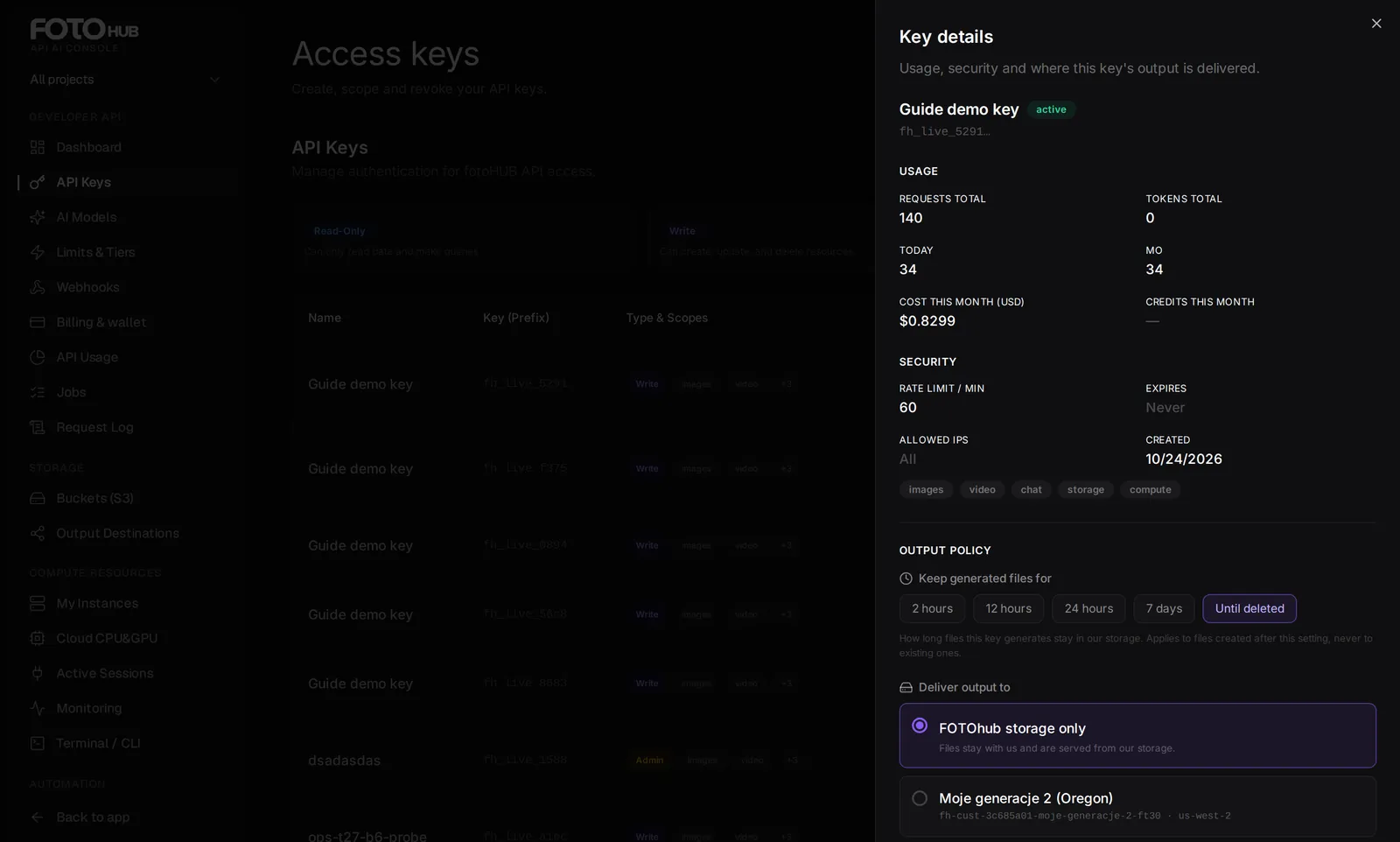
- View Details shows total requests and tokens, rate limit, expiry, allowed IPs, the output policy and what the key stores with us (objects, size, next expiry). You can edit and save there.
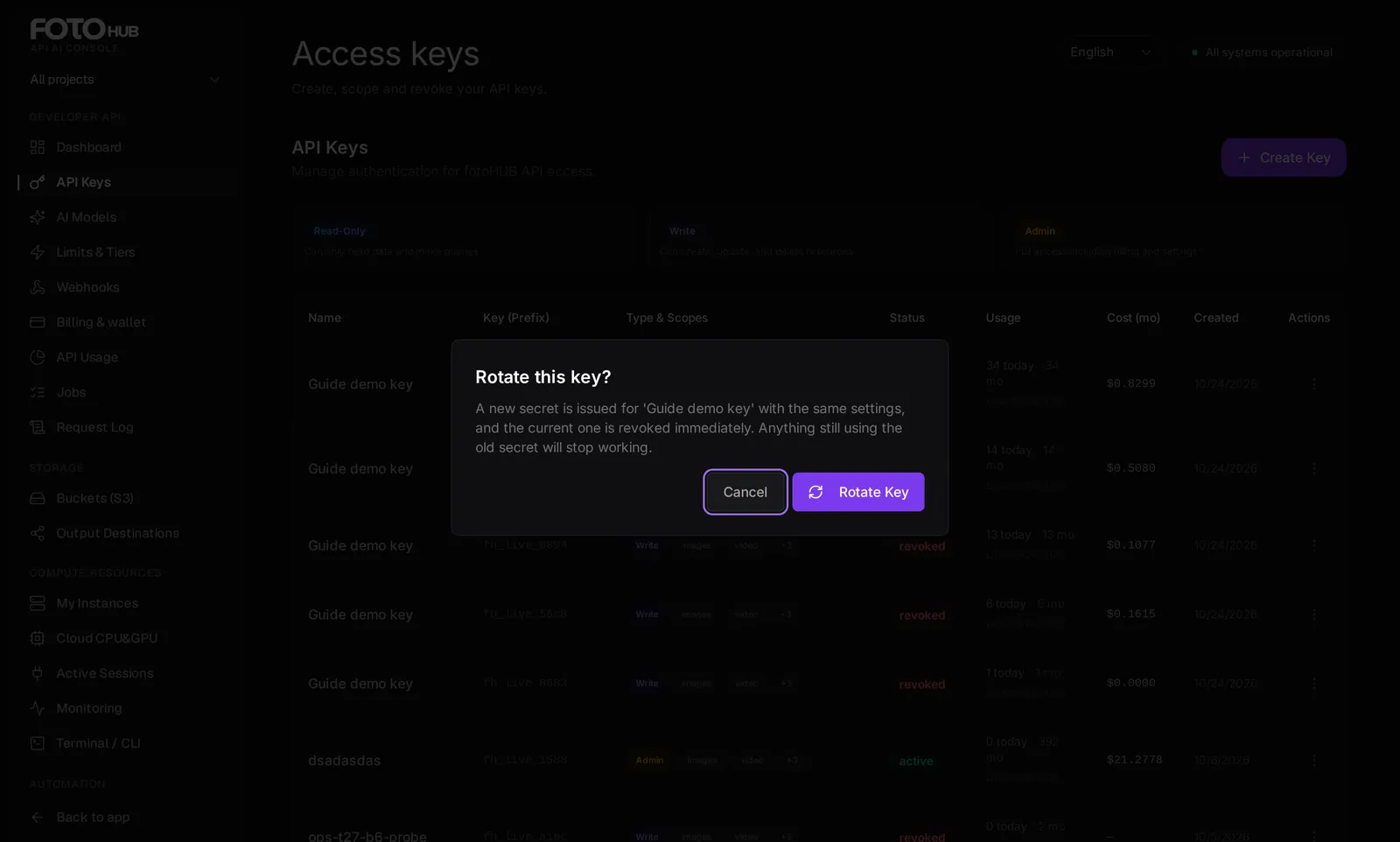
- Rotate Key asks "Rotate this key?". Confirming creates a new key with the same name, type, scopes, limits, expiry date, destination and routing rules, shows its secret once and revokes the old key in the same step. Anything still holding the old secret gets
401from that moment. A revoked key can be neither rotated nor edited. - Delete Key revokes the key. The row stays in the list with status revoked so past usage and cost remain visible, and the key can never authenticate again.
An empty cost means unknown, not zero: the list returns null, never 0, until a priced request exists.
Rotate a key with no downtime
Goal. Replace the production key after a teammate left the project.
Input you can copy.
1. Create a second key named "Production API 2" with the same type and scopes.
2. Put it in your secret manager and redeploy the service.
3. Check the new key's usage count rising in the list.
4. Delete the old key.
Why it works. Two live keys for a few minutes mean no request ever sees a revoked secret. It needs a free slot, and you copy routing rules and the IP list yourself. Rotate Key is faster when a brief interruption is fine, such as after a leak.
A key strategy that holds up
The cheapest security is separation: one key per workload, with only the scopes it needs, limits what a leak can do and how long you spend finding out what happened.
| Environment | Type and scopes | Rate limit | Lifetime and extras |
|---|---|---|---|
| Production backend | Write; only the families the service calls | Real peak plus headroom | No expiry, rotation on a calendar, IP list of your servers |
| Staging | Write; same scopes as production | 60 | 90 days, its own project |
| CI | Read-only to list or read, Write if tests generate; one scope | 60 | 30 days; IP list if runners have fixed addresses |
| Contractor | Write; the narrowest scope that does the job | 60 | 30 days or less, own project, revoke on handover |
| Browser-bound prototype | Write; one scope | 60 | Prefer your own server in between. Otherwise its own key, 30 days, referrers as a label, and assume visitors can read it |
- Name keys after the workload (
prod-render-worker,ci-nightly), neverkey1. - Set the rate limit just above the real peak, so a runaway loop meets a
429instead of draining the wallet. - Leave one or two slots of your key limit free, so you can always create an overlap key.
Give a contractor access for two weeks
Goal. Let a freelancer generate product images, and nothing else, without sharing your own key.
| Setting | Value |
|---|---|
| Name | Contractor Anna, product shots |
| Type | Write |
| Scopes | Images |
| Expiration | 30 days in the dialog (the shortest preset), or expiresInDays: 14 over the API |
| Rate limit | 60 |
| IP whitelist | Her office's public address |
| Keep generated files for | 7 days |
Why it works. Video, chat and storage endpoints are refused with insufficient_scope. Her spend appears on her own row. After delivery press Delete Key; if you forget, the key expires on its own.
If a key leaks
Treat a leaked key as a spending leak first and an investigation second:
- Rotate now Open the row menu of the key and press Rotate Key. The old secret stops working the moment you confirm, which is the point. If the key was not in use anywhere, press Delete Key instead.
- Ship the new secret Put the new secret in your secret manager and redeploy. If the console says the previous key could not be revoked, delete it by hand.
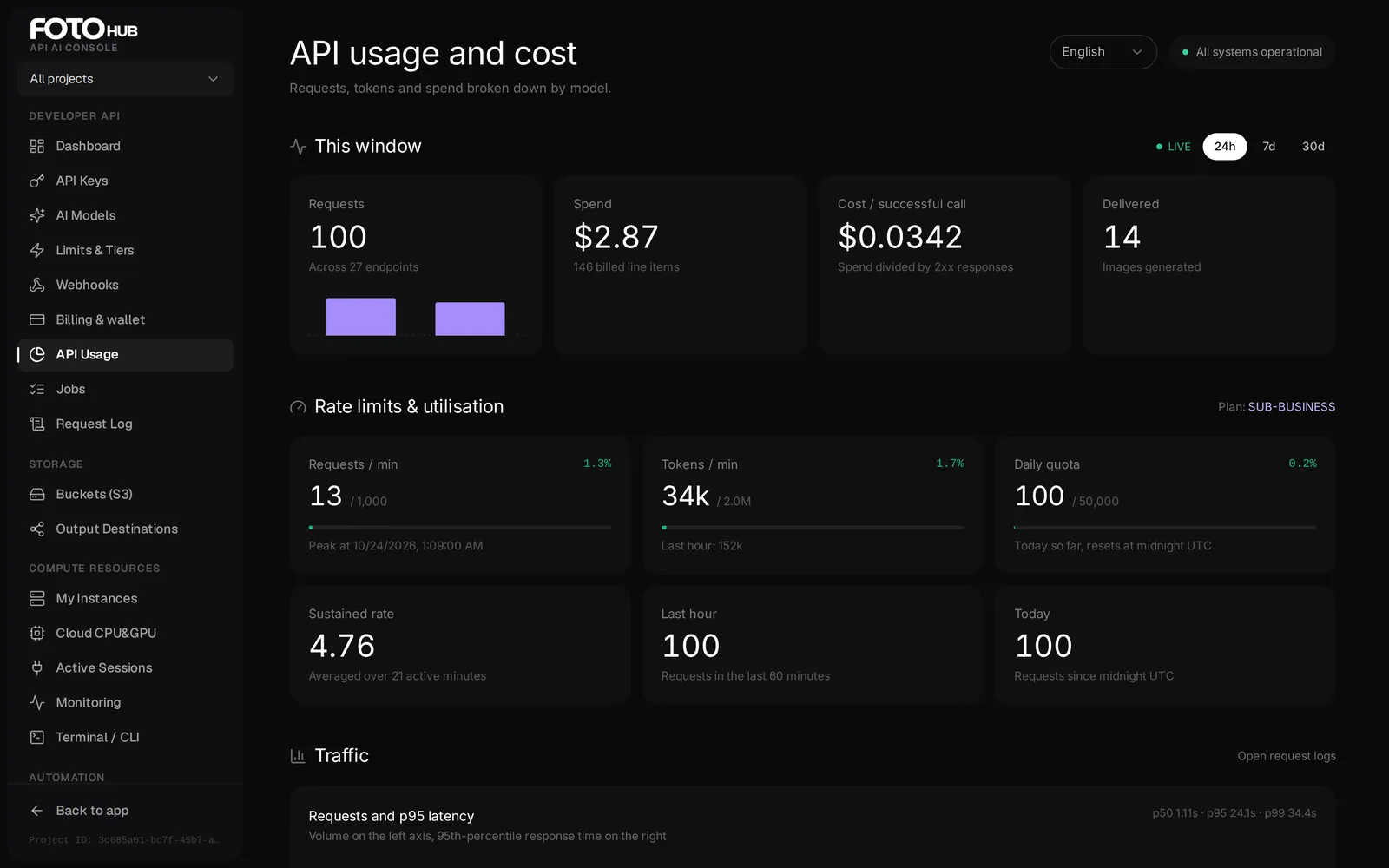
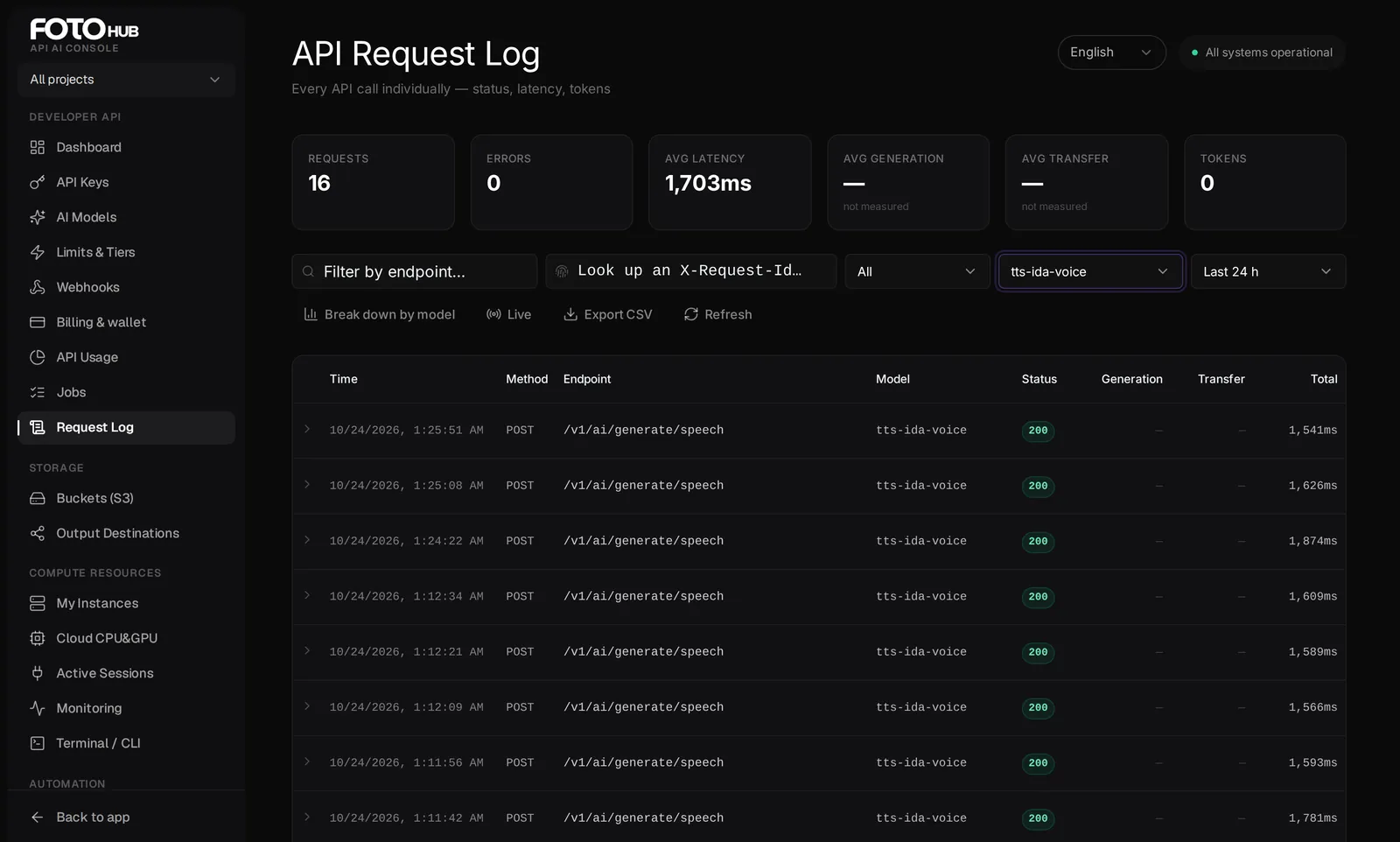
- Measure the exposure The old key stays in the list as revoked, with its counters. Compare Requests, Last and Cost (mo) with normal. The Jobs tab has a Key column showing which key submitted each job, and Billing & wallet lists the charges. The Request Log has no key column, so match its rows to the time window.
- Tighten the replacement Open View Details on the new key and add what the old one lacked: an IP list, fewer scopes, a lower rate limit. Later rotations carry these settings over.
- Find and close the source Search Git history, CI logs, screenshots and front-end bundles for the old prefix, remove the secret there and rotate any secret stored beside it.
Managing keys over the API
The console calls the same endpoints you can, all under https://apis.fotohub.app/v1/auth. Creating, changing, rotating and revoking keys and writing routing rules need your signed-in session token, not an API key, so a leaked key can never mint keys, widen its scopes or redirect its output. Reading also works with an API key; the CLI's key listing relies on it.
| Endpoint | Purpose | Accepts |
|---|---|---|
GET /v1/auth/keys | List your keys with usage counters (never the secret) | Session or API key |
POST /v1/auth/keys | Create a key; the secret is in the response, once | Session |
GET /v1/auth/keys/{id} | One key with its settings, destination, routing rules and stored objects | Session or API key |
PATCH /v1/auth/keys/{id} | Change name, scopes, rate limit, IP list, retention, destination | Session |
POST /v1/auth/keys/{id}/rotate | Issue a replacement secret and revoke the old one | Session |
DELETE /v1/auth/keys/{id} | Revoke the key | Session |
GET /v1/auth/keys/{id}/output-rules | List routing rules and the rule limit | Session or API key |
POST /v1/auth/keys/{id}/output-rules | Add a per-model routing rule | Session |
The create body accepts name, description, keyType (read-only, write, admin), scopes, expiresInDays, rateLimitPerMinute (1 to 600), allowedIps, allowedReferrers, projectId, retentionHours (1 to 8760), destinationId and keepLocalCopy; camelCase and snake_case both work. PATCH takes the same fields except type and expiry, writes only what you send, and adds clearRetention and clearDestination. Changes apply to files generated afterwards. This walkthrough creates a key, then a routing rule:
API=https://apis.fotohub.app

# SESSION_TOKEN is the access token of your signed-in console session, not an API key.
curl -s -X POST "$API/v1/auth/keys" \
  -H "Authorization: Bearer $SESSION_TOKEN" \
  -H "Content-Type: application/json" \
  -d '{
    "name": "Staging worker",
    "keyType": "write",
    "scopes": ["images", "storage"],
    "expiresInDays": 90,
    "rateLimitPerMinute": 120,
    "allowedIps": ["203.0.113.10"],
    "retentionHours": 24
  }'
Create a key over HTTP
{
  "apiKey": "fh_live_<32 hex characters>",
  "meta": {
    "id": "<key id>",
    "key_prefix": "fh_live_xxxx",
    "name": "Staging worker",
    "expires_at": "<timestamp, 90 days out>",
    "rate_limit_per_minute": 120,
    "subscription_id": "<subscription id or null>",
    "retention_hours": 24,
    "destination_id": null,
    "keep_local_copy": true,
    "key_type": "write",
    "scopes": ["images", "storage"],
    "project_id": null
  }
}
The response echoes what took effect; the secret is in apiKey, once
KEY_ID=<meta.id from the response above>

curl -s -X POST "$API/v1/auth/keys/$KEY_ID/output-rules" \
  -H "Authorization: Bearer $SESSION_TOKEN" \
  -H "Content-Type: application/json" \
  -d '{
    "modelPattern": "ida-q-image*",
    "destinationId": "<destination id from Output Destinations>",
    "pathTemplate": "images/{model}/{YYYY}/{MM}/{job_id}.{ext}",
    "priority": 100
  }'
Add a routing rule; success is 201 with the stored rule
{
  "detail": {
    "error": "invalid_path_template",
    "message": "path template must be relative (no leading '/')",
    "allowed_tokens": ["DD", "HH", "MM", "YYYY", "date", "ext", "index", "job_id", "mm", "model", "name", "ss", "user_id"],
    "example": "video/{YYYY}/{MM}/{job_id}.{ext}"
  }
}
The 400 you get when the same call sends pathTemplate "/images/{job_id}.{ext}"
curl -s -X POST "$API/v1/auth/keys/$KEY_ID/rotate" -H "Authorization: Bearer $SESSION_TOKEN"
curl -s -X DELETE "$API/v1/auth/keys/$KEY_ID" -H "Authorization: Bearer $SESSION_TOKEN"
Rotate returns a new apiKey and meta with rotated_from, old_key_revoked and output_rules_copied; delete answers "Key revoked successfully"
Listing works with a key too. A trimmed example from a real call; the cost fields are null, not 0, until a priced request exists:
curl -s "$API/v1/auth/keys" -H "Authorization: Bearer $FOTOHUB_API_KEY"{
"keys": [
{
"name": "Guide demo key",
"key_prefix": "fh_live_xxxx",
"status": "active",
"key_type": "write",
"scopes": ["images", "video", "chat", "storage", "compute"],
"rate_limit_per_minute": 60,
"expires_at": null,
"allowed_ips": null,
"retention_hours": null,
"destination_id": null,
"keep_local_copy": true,
"requests_total": 2,
"requests_today": 1,
"requests_month": 1,
"cost_usd_month": null,
"credits_month": null,
"priced_events_month": 0,
"unpriced_events_month": 0
}
],
"limits": { "max_active_keys": -1, "active_keys": 45, "retention_presets_hours": [2, 12, 24, 168] }
}From a real call, one key shown. The response also returns response headers X-RateLimit-Limit, -Remaining and -Reset
Troubleshooting
- I get 401 "Invalid API key" right after creating a key.
- Check that you copied the whole 40-character key without spaces and that the header is
Authorization: Bearer fh_live_.... If the key was rotated or deleted, it no longer works; its status in the list says revoked. - A call returns 401 "API key is revoked" or "API key has expired".
- Revoked keys never come back, and rotation keeps the old expiry date, so rotating an expired key does not help. Create a new key with a fresh expiration and switch your service to it.
- A call returns 403 "insufficient_scope".
- The key lacks the scope in
required_scope. Open View Details, add the scope and save, or use another key. - A call returns 403 "IP address not allowed for this key".
- The address the API sees is not on the key's list. Behind a NAT gateway or a cloud function you appear under the platform's public address. Add it in View Details, or empty the list.
- A write action says "This API key is read-only".
- Use a Write or Admin key for account changes such as webhooks, or make the change in the console while signed in.
- A call returns 403 "api_access_required" with a key that worked yesterday.
- The account has no paid plan, prepaid balance or grant any more;
reasonsays which. The key is fine. Billing, usage, plans and model listings still answer, so you can top up in Billing & wallet. - My service gets 429 although each instance sends few requests.
- The limit counts per key across every instance, in fixed 60-second windows. Raise the key's limit (up to 600), or give each worker its own key.
X-RateLimit-Resettells you when the window restarts.
What to read next
api-errors-limitsfor every error body, retry advice and the limits that sit above a single key.s3-storagefor buckets and the destinations your routing rules point at.sdk-typescript,sdk-pythonandfotohub-clifor using the key from code and the terminal.