AI tools in the Design Studio
Use the assistant that edits the canvas from a sentence, the FOTOhub AI Studio tools (remove background, magic edit, enhance and more), AI image creation and voice-overs, and learn what each costs and where results land.
The AI toolbox at a glance
AI shows up in four places in the editor. Pick by what you want to change.
| Where | What it is for | Result lands as |
|---|---|---|
| Assistant | Layout and style by sentence: move, align, restyle, change the background, add a headline | changes to existing layers |
| FOTOhub AI | Tools for images: generate, magic edit, remove background, replace sky, enhance, recolor, style transfer; AI writer for copy | a new layer or text |
| IDA Q | Image creation with speed presets, aspect ratios, variations, transparent cut-outs and styles, aimed at poster text, cut-out elements and layers on the page | an image layer |
| Voice AI | Voice-overs for presentations | an audio track |
The credit counter at the bottom left of the editor shows how many credits you have. Tools that cost credits say so before you run them: the Apply button carries the price, and the IDA Q panel shows the price and the expected time for the preset you picked. Nothing is charged when you only open a panel.
The Assistant: edit by sentence
Click the chat button in the top bar, or Assistant in the rail. The panel docks on the right and introduces itself as the studio assistant in Agent mode: it controls the canvas in real time. Type a command in the box and press Enter.
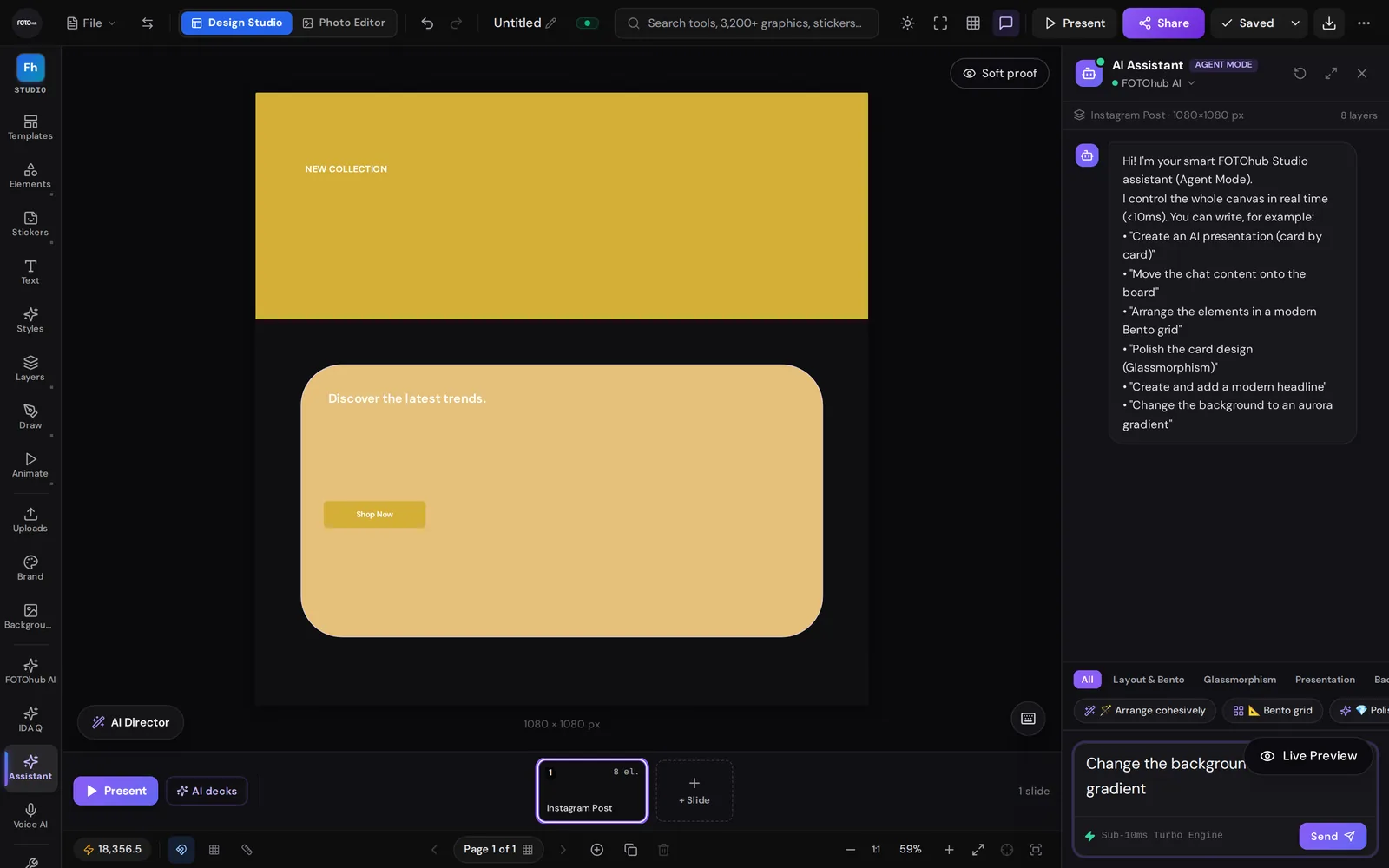
- Layout: "Move the chat content onto the board", "Arrange the elements in a modern Bento grid", Arrange cohesively, Bento grid, Center, Shrink by 20%.
- Style: "Polish the card design (Glassmorphism)", Violet gradient, CTA button, Replace with a modern one.
- Content: "Create and add a modern headline", "Create an AI presentation (card by card)", + Headline text, Generate image.
- Clean-up: Delete selected. The chips are grouped under All, Layout and Bento, Glassmorphism, Presentation, Backgrounds and AI Images.
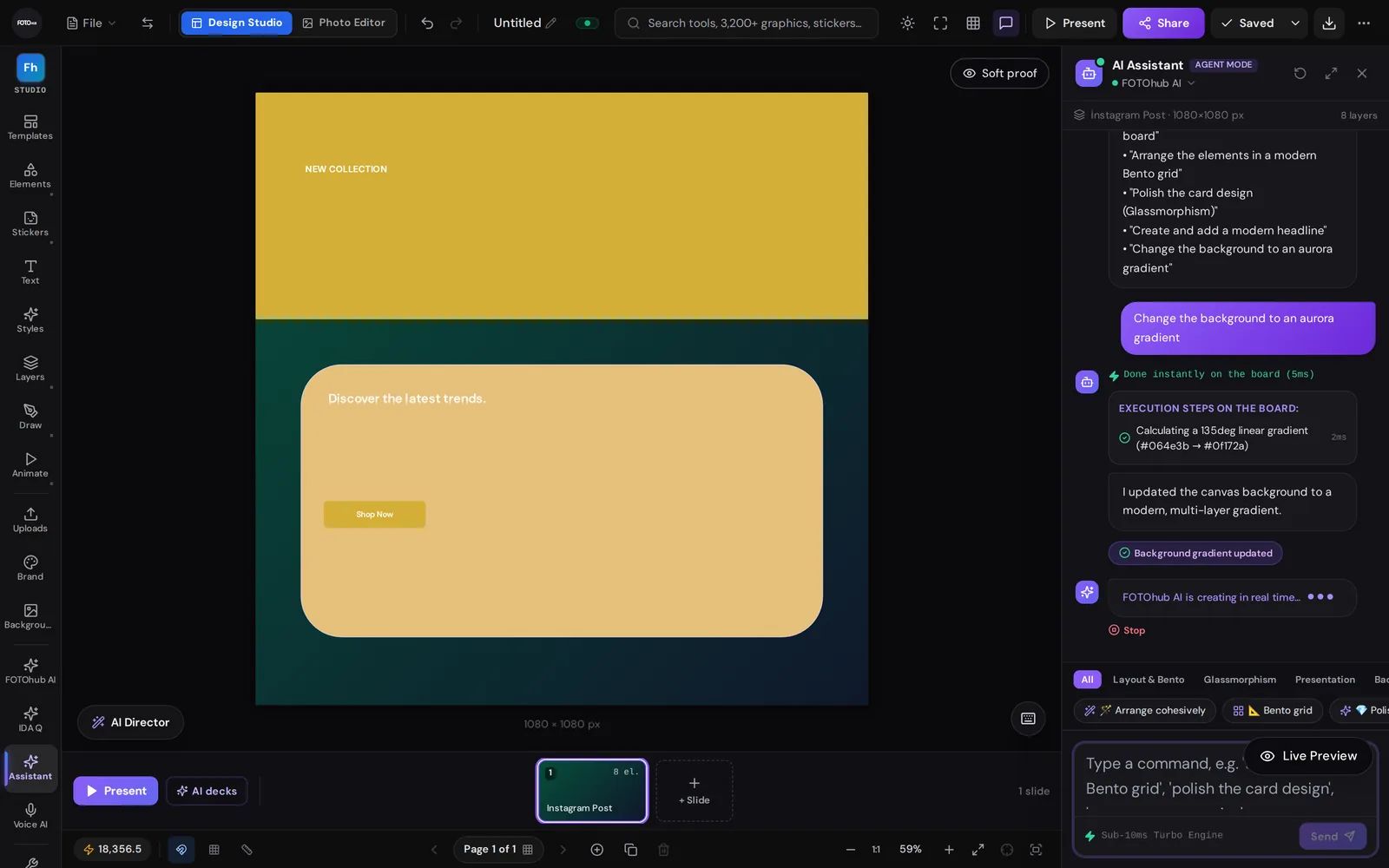
Simple layout and style commands run instantly on the board: the answer says "Done instantly" with the time it took and lists the execution steps (for example the gradient angle and colours it calculated). Commands that need creation, such as images or whole presentations, take longer and the assistant shows that FOTOhub AI is working.
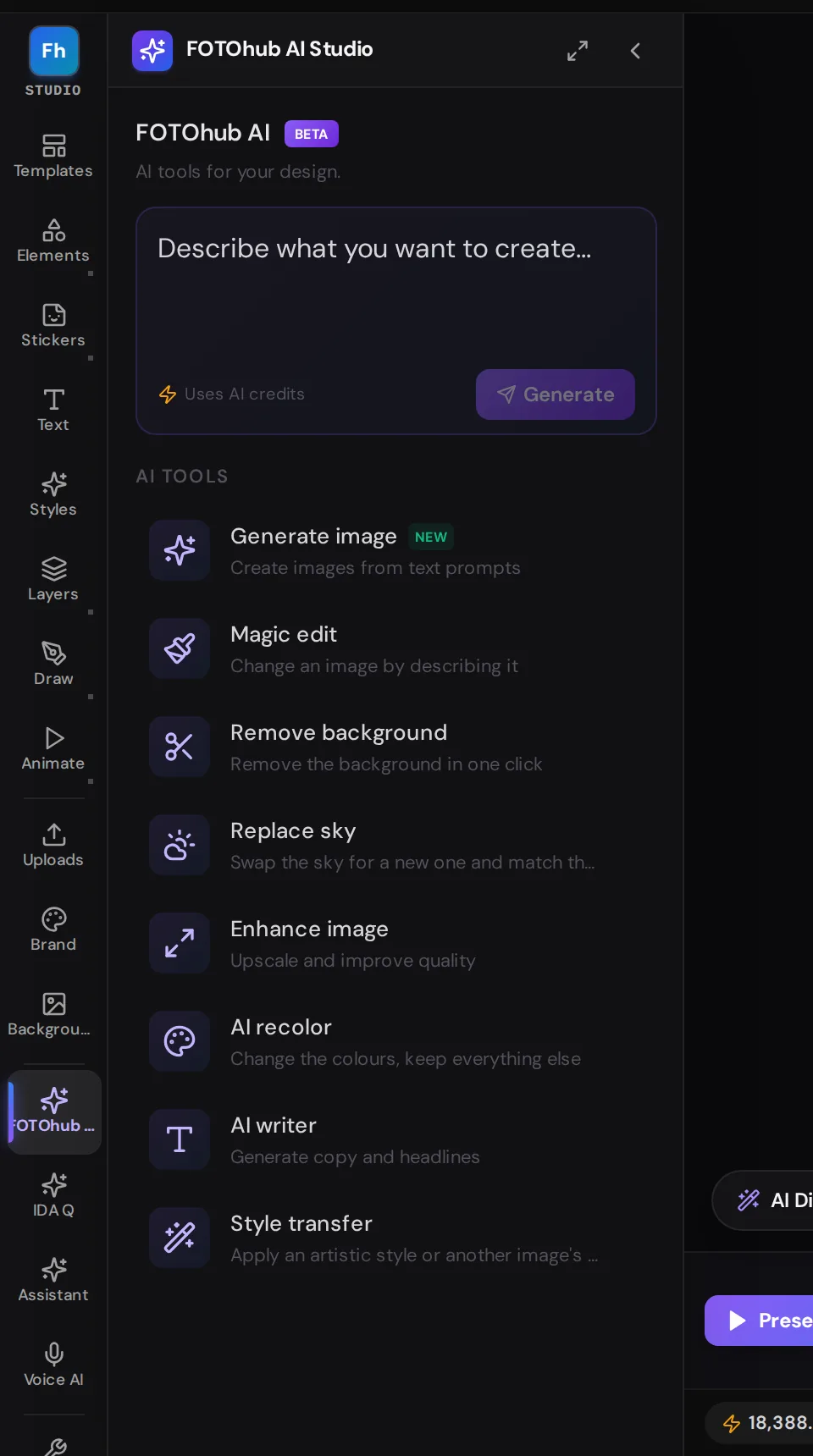
FOTOhub AI Studio tools
Open FOTOhub AI in the rail (Alt+9). The panel is labelled Beta and says Uses AI credits. At the top is a prompt box with Generate; below is the list of AI tools. When an image is selected on the page, a line tells you that the tools apply to the selection.
| Tool | What it does |
|---|---|
| Generate image | Creates an image from the prompt and places it on the page as a layer. Shows a Generating placeholder while it works. |
| Magic edit | Changes the selected image by describing the change. |
| Remove background | Removes the background of the selected image in one click. |
| Replace sky | Swaps the sky and matches the light. |
| Enhance image | Upscales and improves quality. |
| AI recolor | Changes the colours and keeps everything else. |
| AI writer | Writes copy and headlines. |
| Style transfer | Applies an artistic style or the look of another image. |
Walkthrough: remove a background
- Put a photo on the page In Uploads, upload a product photo or click one of your files; a toast confirms that it was added to the canvas.
- Select it and open the tool Click the photo, open FOTOhub AI and click Remove background. A sub-panel opens with a description and the button Apply Remove background; the price is printed on the button.
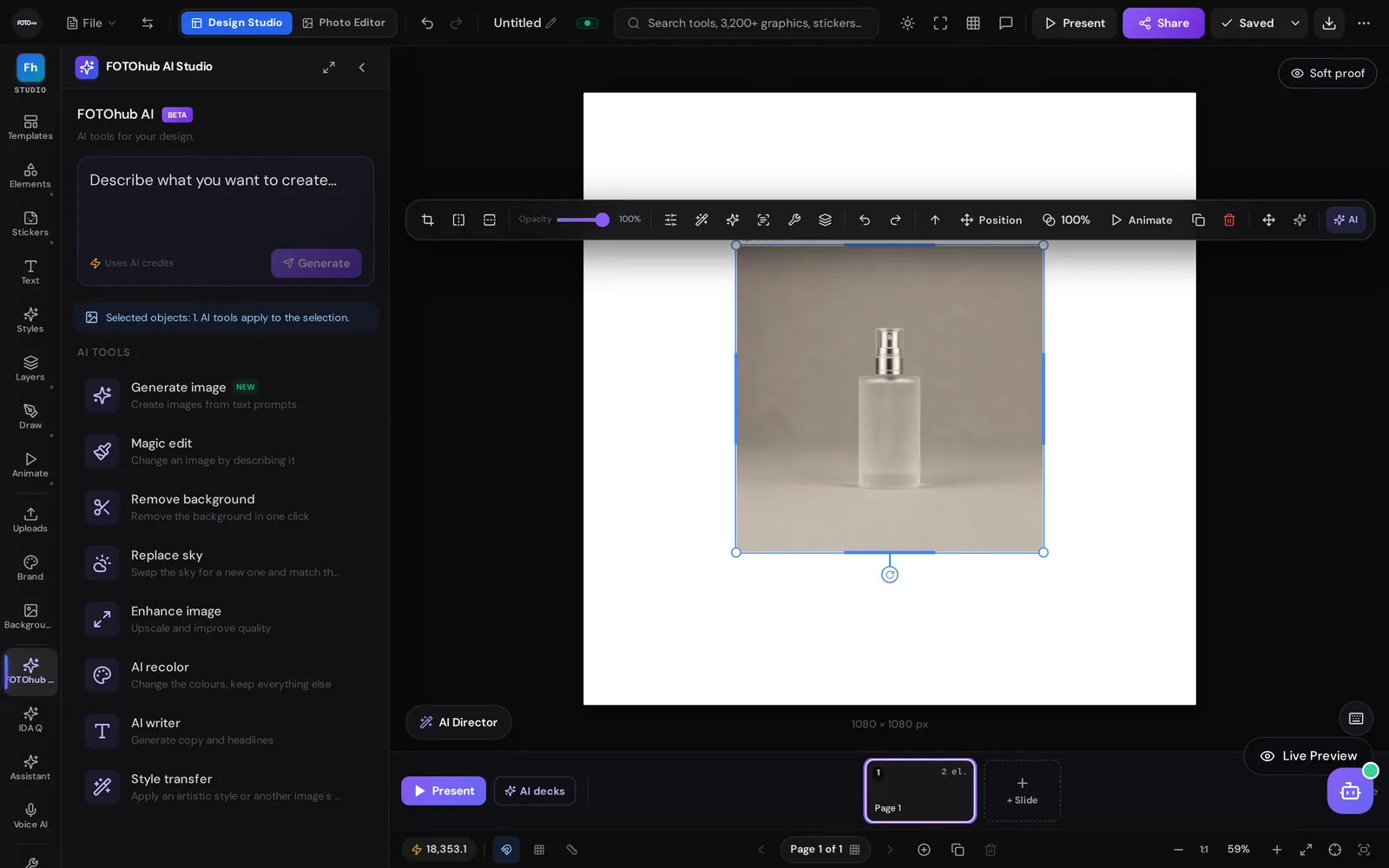
- Apply Click the button. The panel says Background removed within seconds and the result appears as a new layer above the original.
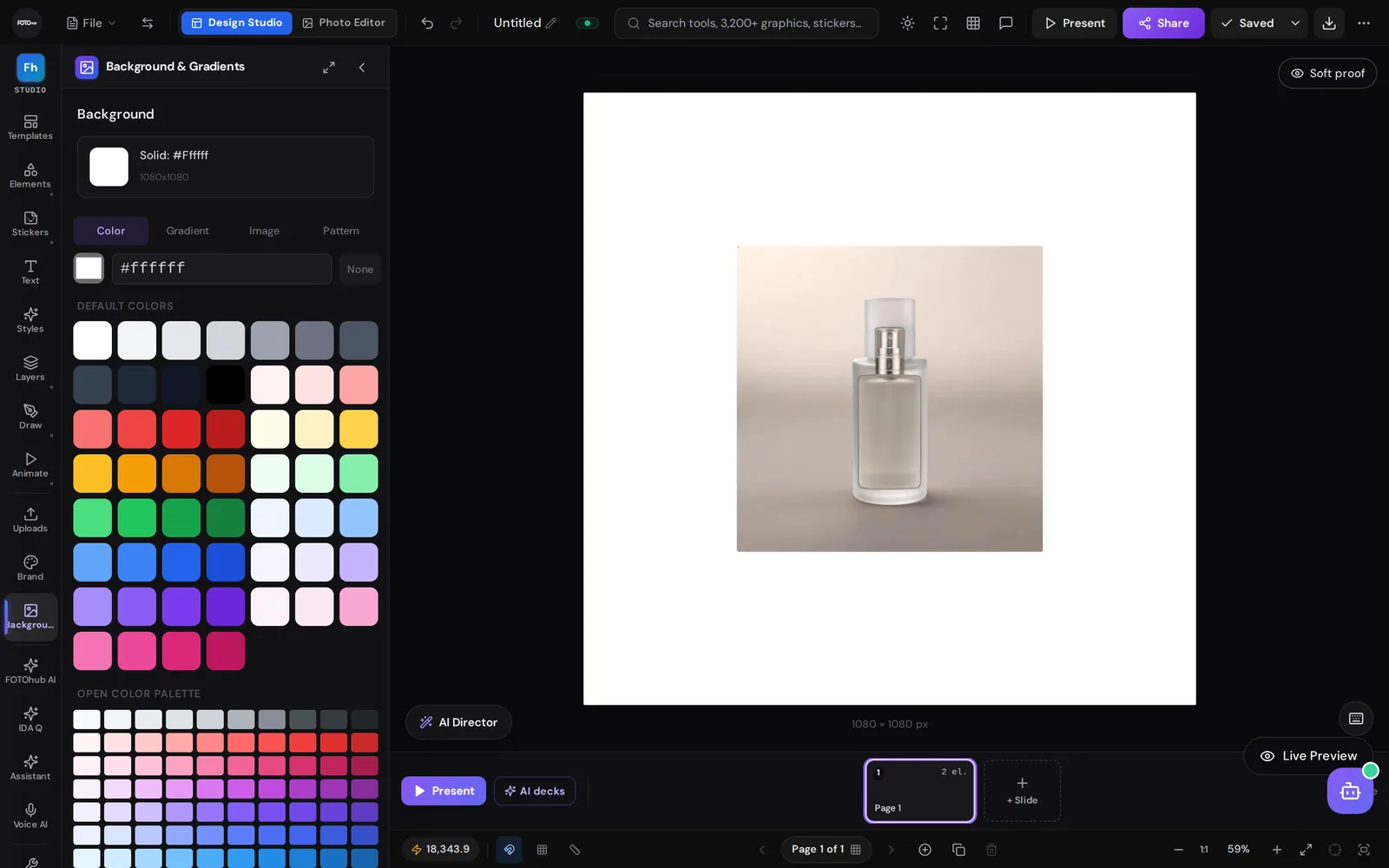
- Tidy up Open Layers: the original and the cut-out are both there. Hide or delete the original so only the cut-out remains.
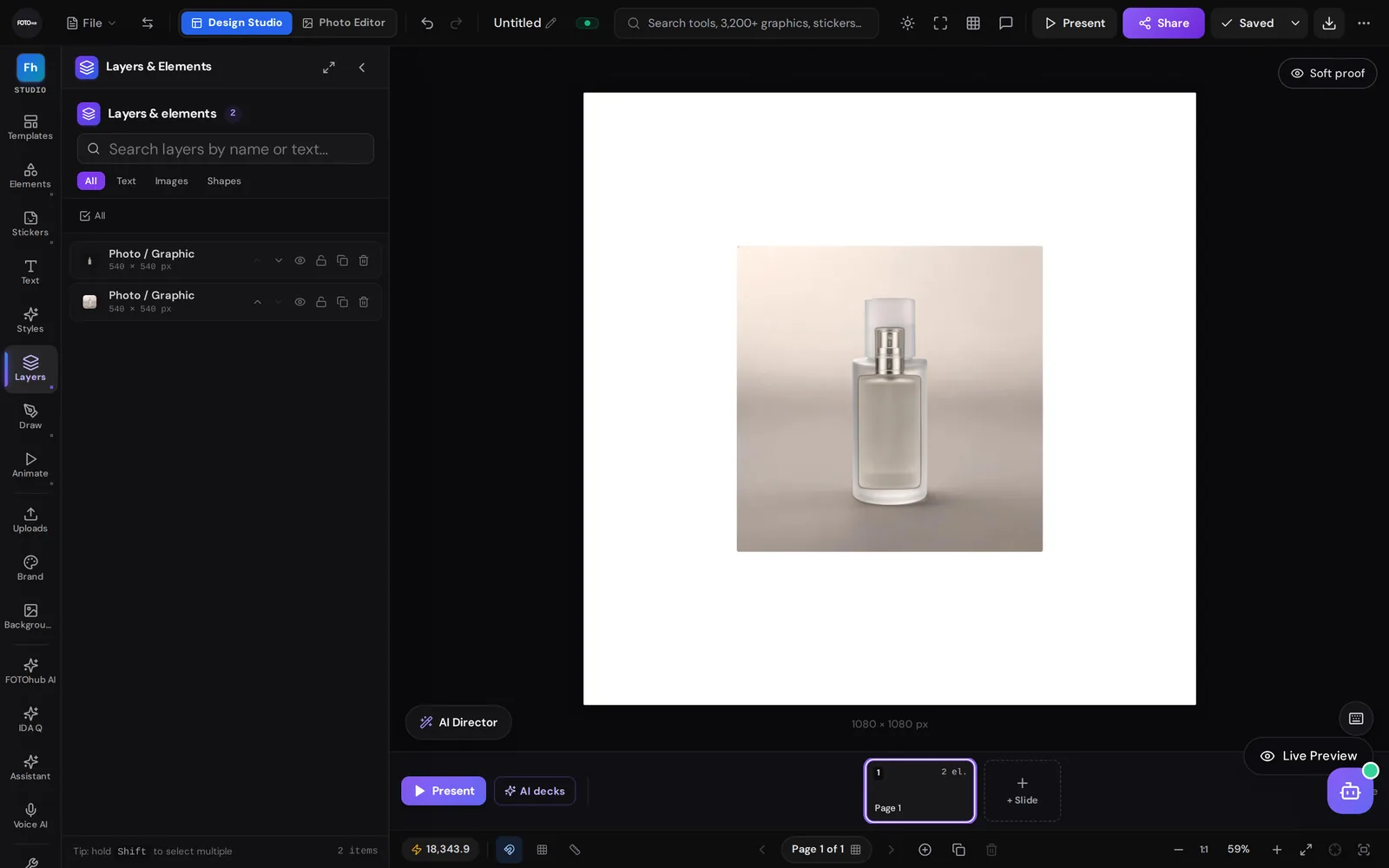
A product cut-out in one click
Goal. Isolate a bottle from a studio backdrop to place it on a coloured page.
| Setting | Value |
|---|---|
| Tool | Remove background |
| Time | a few seconds |
| Price | shown on the Apply button |
Why it works. The tool kept the glass edges and the cap, and handled a plain backdrop in a few seconds. A plain backdrop is the easy case; busy backgrounds and transparent glass take more cleaning, so inspect the edge at 100 percent zoom.
IDA Q and Voice AI
IDA Q is FOTOhub's own image model, built into the editor for poster text, cut-out elements and layers on the page. The panel offers three speed presets (Fast, Balanced, Max), each with its price and expected time, an aspect ratio list, resolution (1K, HD, Full 2K), Variations from 1 to 4, a Transparent background switch for cut-out elements, a Style list (Auto, Photo, Cinematic, Product, Poster, Typography, Illustration, 3D render, Anime, Watercolour, Minimal vector, Retro print), a Style code field to reuse a look and a Colour palette. The price and the time update as you change settings, and the button states them again ("ready in about...").
Voice AI (Beta) adds a spoken voice-over to a presentation. Paste a Script (the panel counts characters and estimates the length), choose a Language (English, Polish, German, French, Spanish, Italian or Japanese) and a Voice, then Generate voiceover; or Upload your own audio. Audio in the rail holds background music by mood (Energetic, Calm, Tech, Happy, Cinematic, Lo-Fi, Corporate) and can generate music with AI.
Two more doors: AI Director (bottom left of the page) and AI decks create and structure whole presentations, and the Continue with... menu in Export hands a finished image to other FOTOhub tools (covered in the export guide).
- Can the AI tools work on several images at once?
- They work on the selection; the panel shows how many objects are selected and applies the tool to them.