AI Chat: write, search, create images and keep projects
Learn the FOTOhub AI chat: the interface, attachments, web search and Deep Research, image creation from a message, projects with their own instructions, and the Canvas and Visual modes.
What AI Chat is for
AI Chat is the conversation window of FOTOhub, found at /dashboard/chat-live (Chat AI in the sidebar). Use it to draft and rewrite text, plan campaigns, analyse files, research a topic on the web, write code and, when you need a picture, to ask for one without leaving the thread. It is the right place for open questions. When the work is a repeatable pipeline, use Flows; when it has to run on its own with approvals, use Agents.
FOTOhub states on the start screen that your chats are not used to improve its models and are visible only to you.
The interface
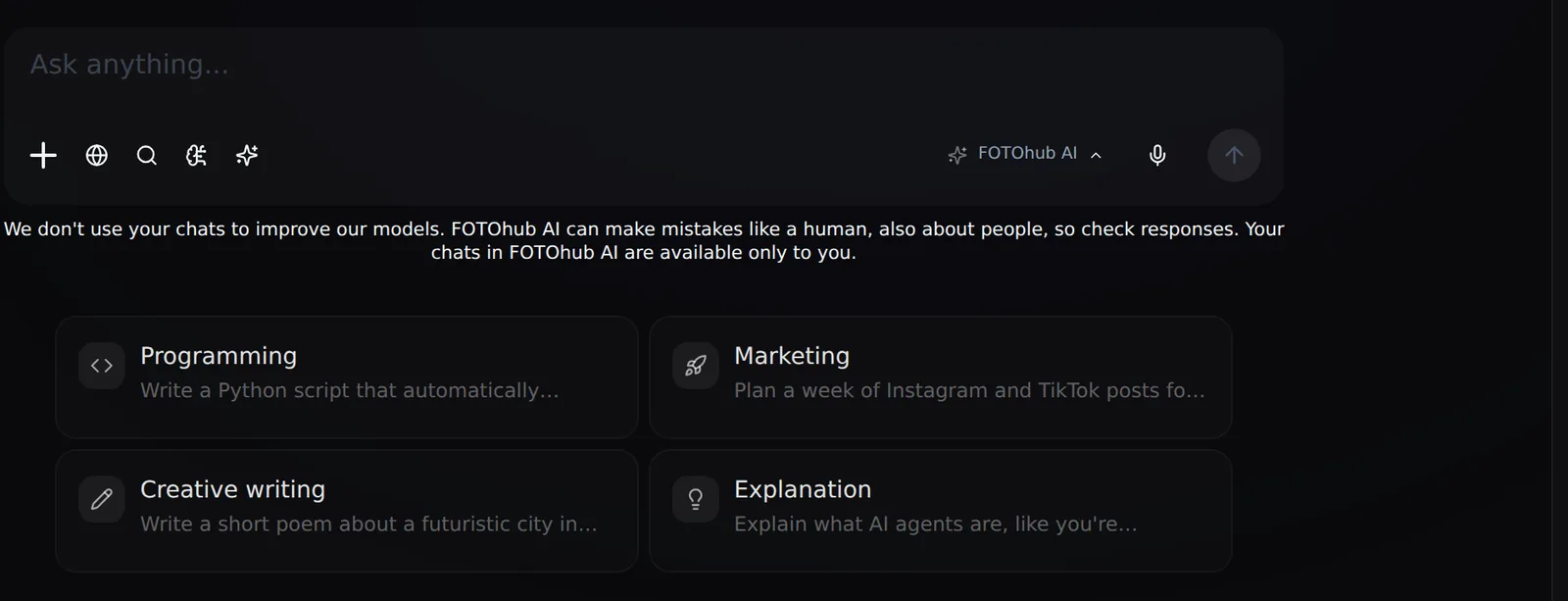
- Header. The breadcrumb, the mode switch Chat, Canvas and Visual, a share button, fullscreen, a new-chat button and the chat history toggle.
- Greeting and suggestions. A greeting and four tiles of example prompts (programming, marketing, creative writing, explanation); Shuffle inspirations brings others (brainstorming, planning).
- The input box. Type under Ask anything.... Below it: the plus button for files and tools, the globe for web search, the magnifier for Deep Research, a sparkle for Enhance prompt, the model chip, Dictate text and Send.
- Right sidebar. New conversation, a search field, your Projects, and Chats grouped by date with a CHAT or CANVAS tag. Clear history deletes all chats after confirmation.
The plus menu
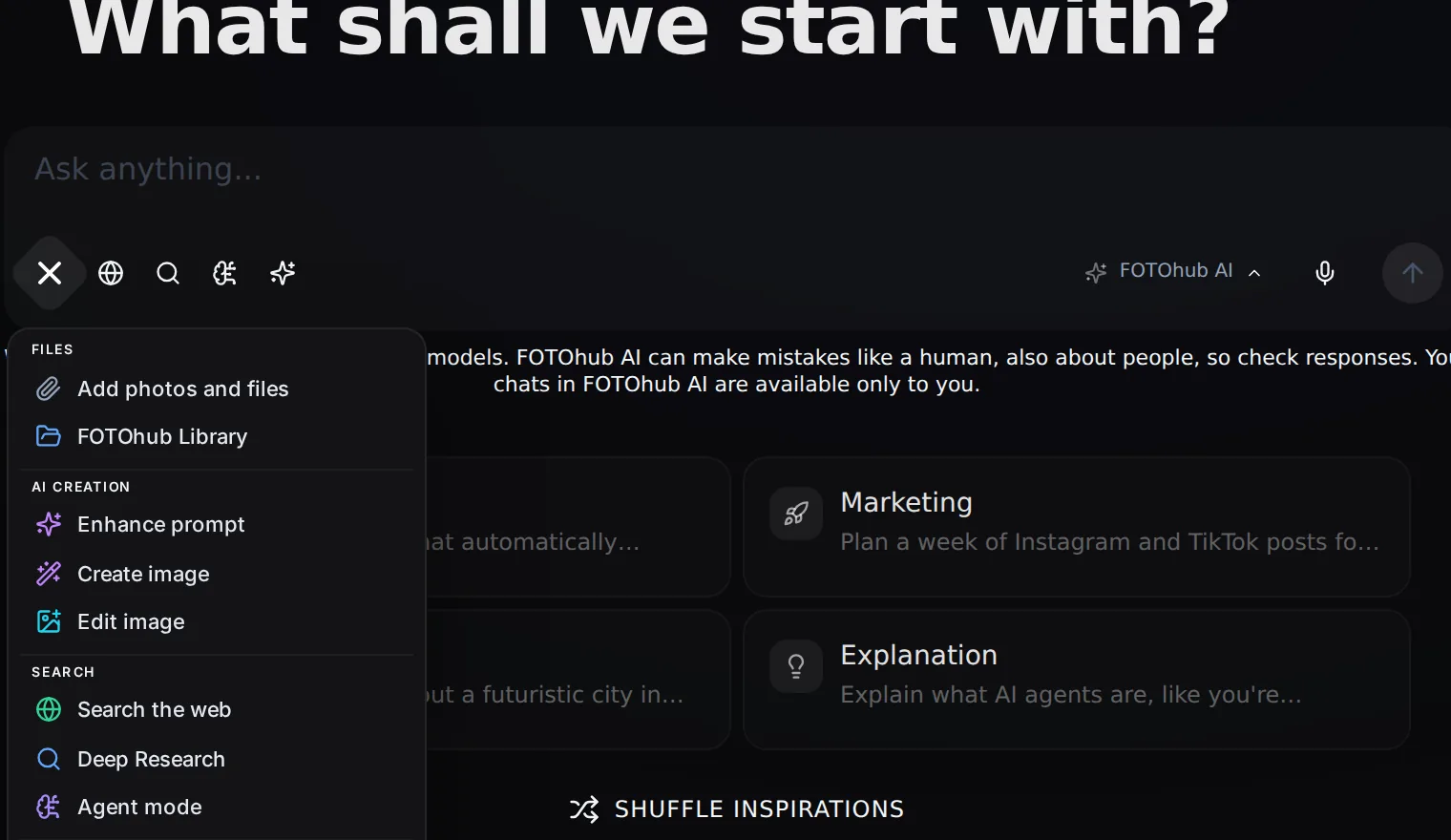
| Entry | What it does |
|---|---|
| Add photos and files | Attach a file from your device to the message. Images need a model that can read images; if the chosen model cannot, the chat says so and asks you to pick another. |
| FOTOhub Library | Attach something from your own FOTOhub files. |
| Enhance prompt | Rewrites and expands your draft with AI before you send it. |
| Create image, Edit image | Switch the box into image mode (next section). |
| Search the web | Searches in real time and cites its sources in the reply. |
| Deep Research | A multi-step run: the AI reads many sources, compares them and writes a detailed report. |
| Agent mode | The AI plans and runs multi-step tasks such as drafting documents and analysing data. |
| AI memory | Facts the assistant remembers about you; a counter shows how many are stored. When the AI proposes to remember something it asks you to click to save it. |
| MCP servers | Connect external tool servers. |
Writing, rewriting and analysing
Type a request and press Enter (Shift+Enter makes a new line). The reply streams in; Stop ends it early. Under every answer you get Copy, Retry and a button to retry with another model, and further actions such as read aloud, share and rating. The first message names the chat; click the title to rename.
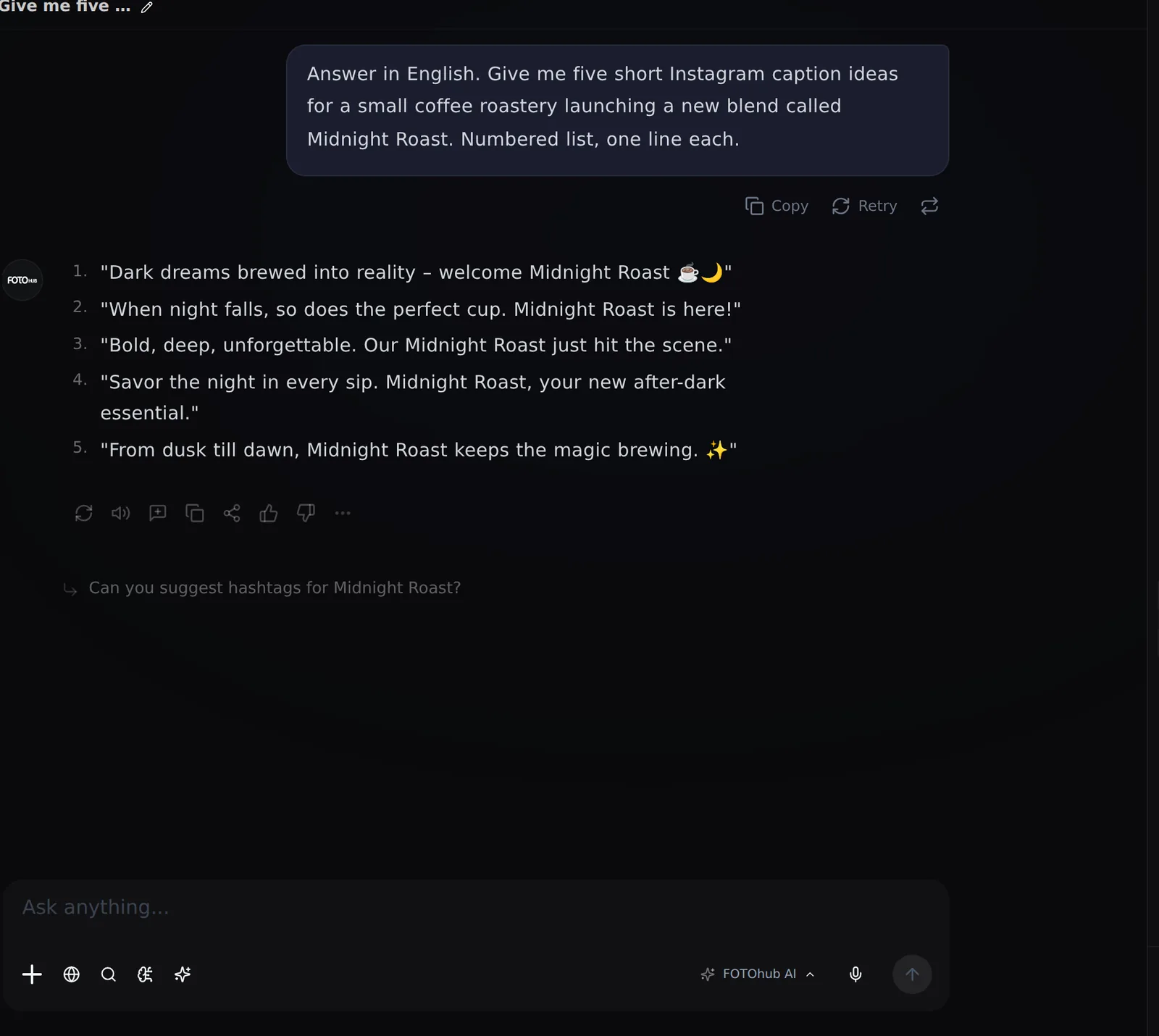
Five captions for a product launch
Goal. Get short, usable social captions in one message.
Input you can copy.
Answer in English. Give me five short Instagram caption ideas for a small coffee roastery launching a new blend called Midnight Roast. Numbered list, one line each.Why it works. State the format (numbered list, one line each), the product and the language. When no language is stated, the reply may arrive in another language than the interface, so name the one you need.
Web search and Deep Research
Toggle the globe (Enable web search) and the reply is built from live results with source links, which is what you want for prices, news, regulations and anything after the model's training. Deep Research (the magnifier) goes further: it plans a research, reads many sources, compares them and returns a long report; it takes noticeably longer than a normal answer, so use it for questions worth the wait. Both are switched off again by clicking the same icon (Disable web search, Disable Deep Research).
Creating images from the chat
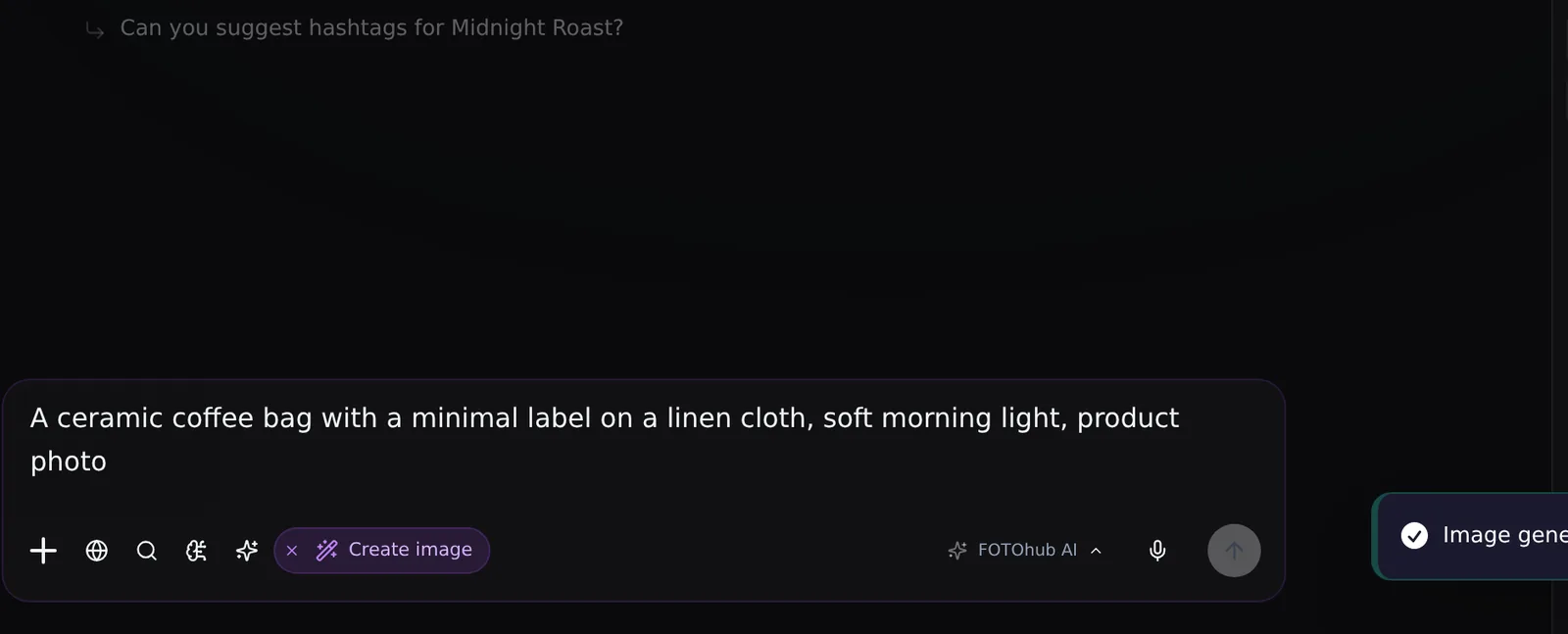
Open the plus menu and choose Create image. A chip appears in the box and the placeholder changes to Describe the image you want to create.... Describe the picture and send. The chat answers with an image card: it repeats your prompt, offers a Generate button and a model picker with the price in brackets, so you see what the picture will cost before you run it. Edit image works the same way on an image in the conversation and asks what to change.
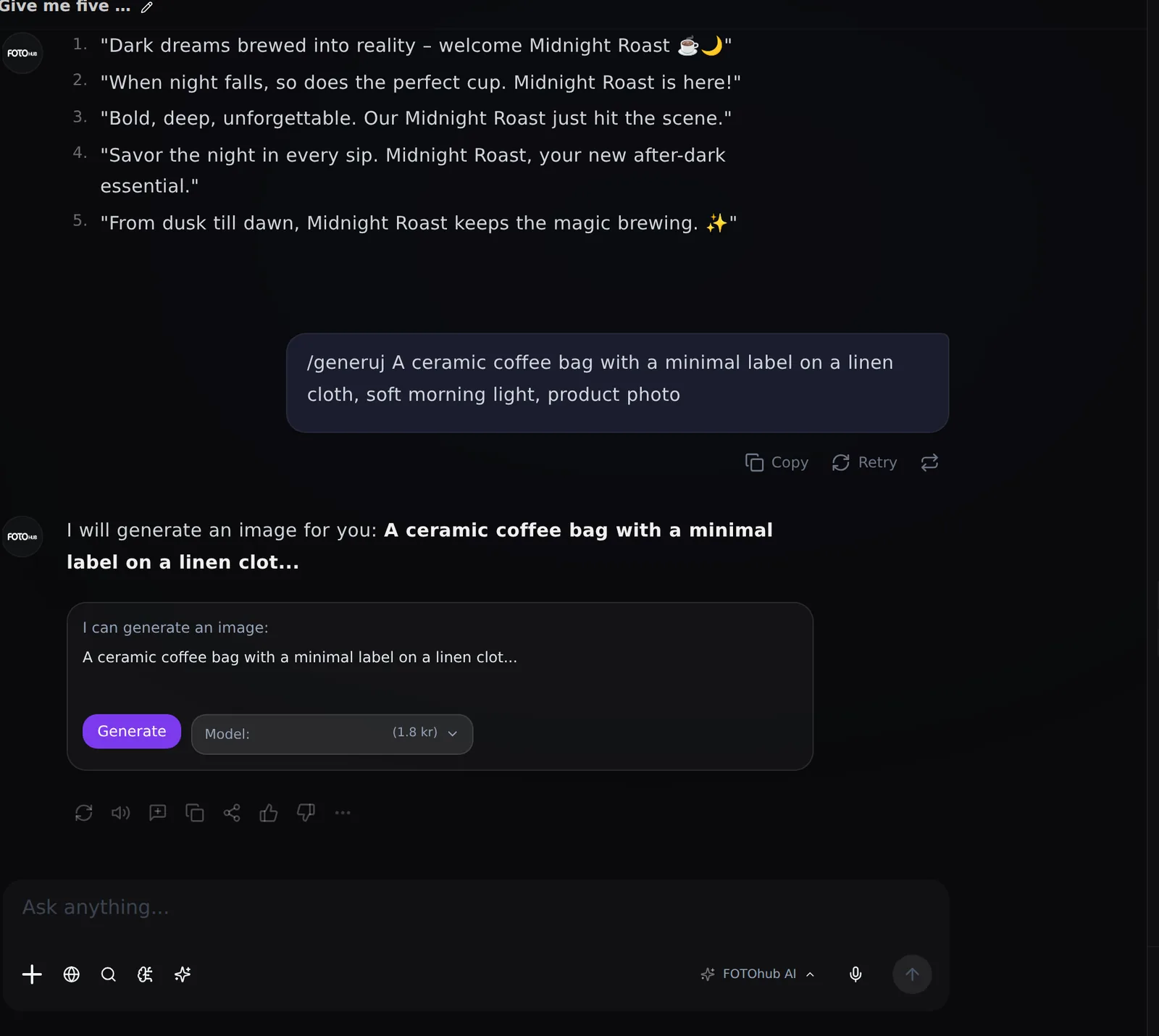
The chat can also return other artifacts inside the reply: charts, files and slide decks arrive as cards, and the Visual mode builds a presentation slide by slide from a topic (for example a 10-slide deck), which you can download as a PDF.
Projects, Canvas and sharing
Projects keep related chats, files and standing instructions together. In New Project you give a name and description, then open the project's settings to set a Role / Persona (general assistant, lawyer, data analyst, creative copywriter, senior developer, researcher, marketing specialist, translator, teacher, coach, customer support), a Response tone (professional, casual, concise, detailed, friendly), a Response language, Custom instructions (a system prompt that takes priority), Knowledge / context, Constraints, up to four Suggested questions, and switches for code generation, image generation and file search. Files you add to a project become its knowledge base. Everything in the settings applies to every conversation of that project.
The Canvas mode is for long documents and code: the answer opens in an editable panel beside the chat (a code sandbox with live preview, or a document you can edit). Share (the share button in the header) makes a public read-only link to the conversation, or invites team members to chat together in real time (Multiplayer, Beta; it needs a Team plan). Export a conversation to Markdown or JSON from the chat menu.
- The model cannot read my image.
- Not every model reads images. The chat says which one cannot and asks you to pick a vision-capable model from the model chip.
- A locked model says it needs a higher plan.
- The model list marks those entries. Pick an unlocked one, or upgrade in your account.
- An image stays on its progress bar.
- Image creation runs on a queue and can take minutes when it is busy. Reload the conversation: if the card shows Generate again, run it once more; check the price on the card before you do.