Files, photos and albums
Learn where your work lives, how to upload, organise, share and download it, what the limits are and how deleting and recovering really work.
Where your work lives
Everything you make or upload in FOTOhub ends up in your account. There are a few different places to look at it, and knowing which is which saves a lot of searching. The sidebar group My Library and the item Your Files at the top lead to them.
| Place | Where | What it is |
|---|---|---|
| Your Files | Sidebar, Your Files (or Files in My Library) | A real file manager. Any file type, folders, stars, trash, share links and invitations. Also shows windows onto your photos, videos and audio. |
| Photos | My Library, Photos | Your image gallery. Images you generate, photos you upload with Upload Media and items you saved from the Public Library. |
| Videos | My Library, Videos | Your generated and exported videos. Nothing to upload here. |
| Albums | My Library, Albums | Named collections of photos or videos. An album points at your items, it does not copy them. |
| Shared Albums | My Library, Shared Albums | Albums you were invited to and the invitations you sent. |
| Presentations | My Library, Presentations | Live shows that present albums and photos to clients in real time. |
A tour of Your Files
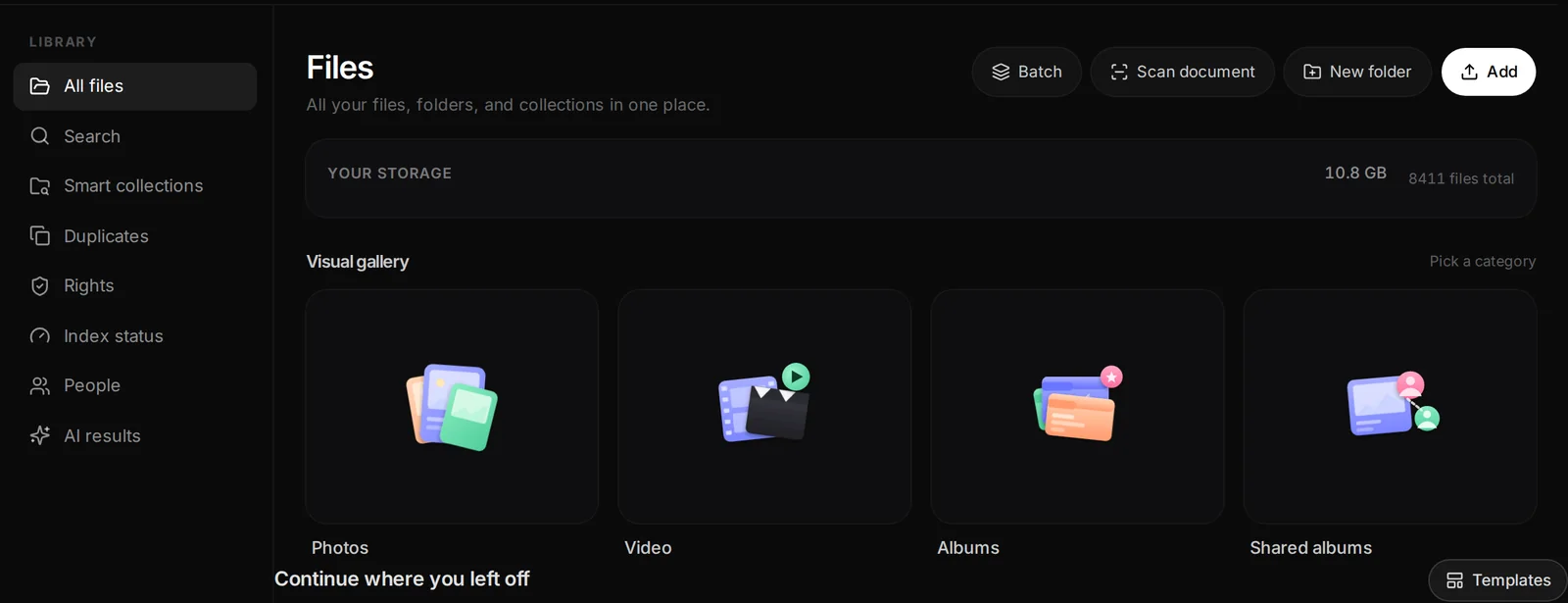
Open Your Files from the sidebar. The heading says Files, with the line "All your files, folders, and collections in one place". The first time you come, a short welcome dialog appears; click Get started.
- New folder and Add at the top right create folders and bring files in.
- Your storage shows how much you use. If your plan has a size limit it shows a bar, otherwise it reads Unlimited.
- Visual gallery has four shortcut tiles: Photos, Videos, Albums and Shared albums.
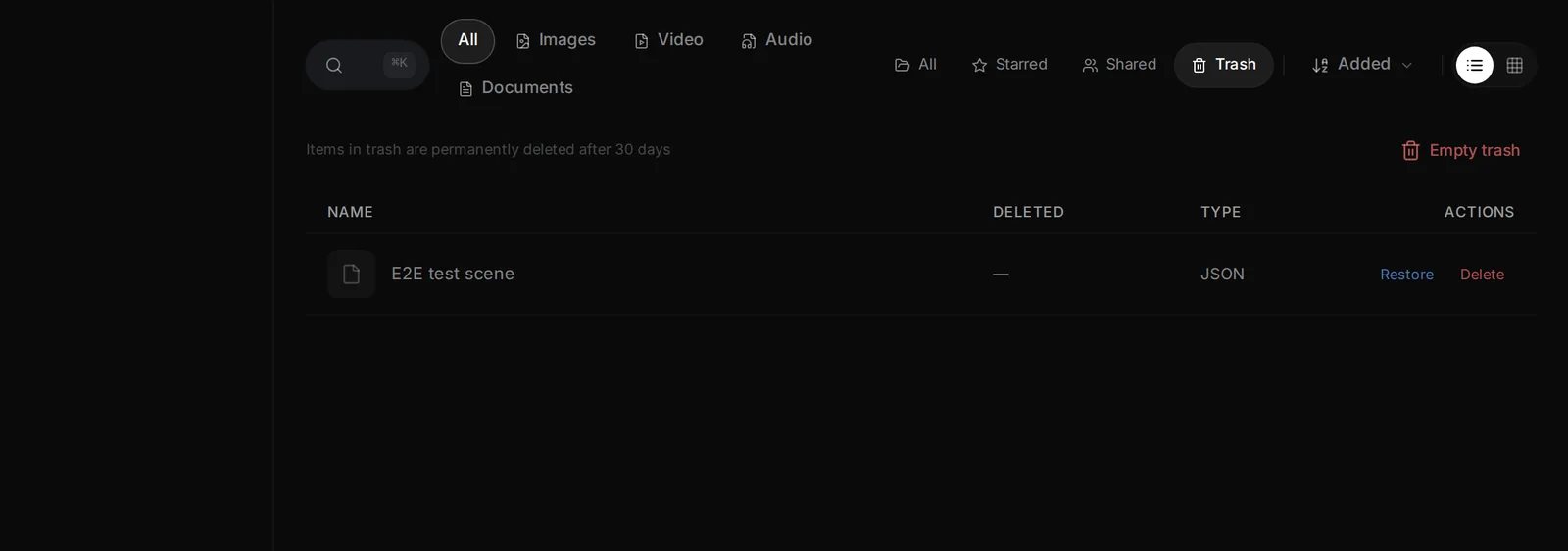
- The toolbar has a search box, type chips (All, Images, Video, Audio, Documents), tabs (All, Starred, Shared, Trash), a Sort menu (Name, Added, Type, Size) and a switch between list and grid view.
- Breadcrumbs show where you are. Home, then folder, then subfolder. You can drag files onto a breadcrumb to move them up.
Up to four smart folders appear at the top level, each only when it has something in it: Photos, Videos, Audio and Vision Board. They are read-only windows onto the other libraries, so you can find everything in one place. In a smart folder you can preview, download, copy a link and use Add to Files, which copies the item into your own files so you can rename, move and share it.
Bringing files in
There are four ways to get a file into Your Files. Open the Add menu to see the first three.
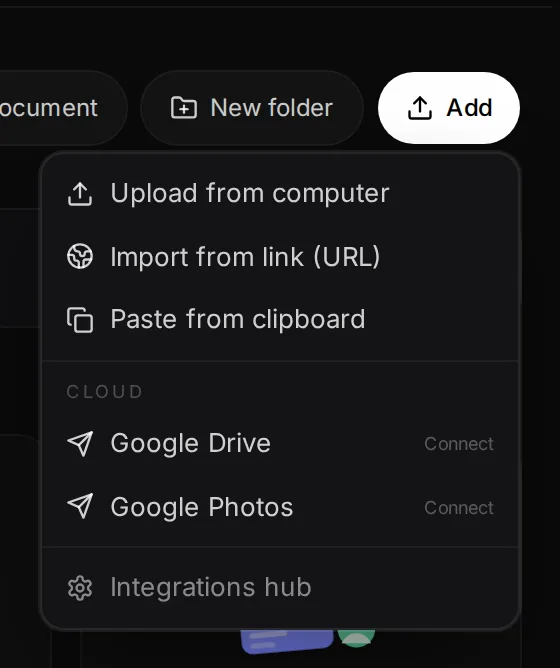
- Upload from computer Pick one or many files in the file picker. They land in the folder you are looking at. Three files upload at the same time, each with a progress bar.
- Or drag and drop Drag files from your desktop anywhere onto the page. A box says Drop files here and uploads them into the current folder. Dropping onto a folder tile moves them into that folder instead.
- Or paste Copy a screenshot or an image, click on the page and press Ctrl+V (Cmd+V on a Mac). The file is saved as pasted-and-a-timestamp.
- Or import from a link Import from link (URL) takes a direct address to an image, video, audio file or PDF and saves it for you. Some websites block this. Then download the file by hand and upload it.
The Add menu also has Google Drive and Google Photos. If they say Connect, the app sends you to the integrations page to connect your account first, and then you come back.
Upload limits
| Where | Limit |
|---|---|
| Your Files | 50 MB per file, any file type. A file that is too large is skipped with a message and the rest still upload. There is no limit on how many files you drop at once. |
| Upload Media (button in the top bar, adds to Photos) | Images only. JPG, PNG, WebP, GIF, HEIC and TIFF work. The box accepts SVG, AVIF, BMP and RAW files too, but they are rejected after upload, so convert them first. The upload is limited to roughly 50 to 100 MB per photo. |
| Album: Add photos | PNG, JPEG or GIF images. New photos are private. |
| Reference images in generators | A limited number per model, JPG, PNG or WebP. |
Organising, searching and selecting
- Make a folder Click New folder, type a name and press Enter. Inside a folder you can create sub-folders.
- Move things Drag a file onto a folder, or select it and use Move in the bar at the bottom.
- Find things Type in the search box. It matches names in the folder you are in, not the whole tree. For everything, go back to Home first.
- Star the ones you need often Click the star on a file, then open the Starred tab.
- Select many Tick the boxes, or click a file and Shift+click another to select a range. Ctrl+A selects all.
When files are selected, a bar appears at the bottom with the actions. Move, New folder (from the selection), Download (one by one, up to 25 files), ZIP (up to 50 files in one archive), Rename in bulk with a pattern such as photo_{n}, star and delete. Folders can be selected too. Folders marked as protected are skipped on delete.
| Shortcut | Action |
|---|---|
| Ctrl/Cmd+A | Select all |
| Shift+Click | Select a range |
| Space | Toggle the selected file |
| Enter | Open the file |
| F2 | Rename the selected file |
| / | Focus the search box |
| Delete | Move the selection to Trash |
| Ctrl/Cmd+K | Open the command bar for Files |
| Esc | Clear the selection or close the preview |
Previewing, downloading and using a file elsewhere
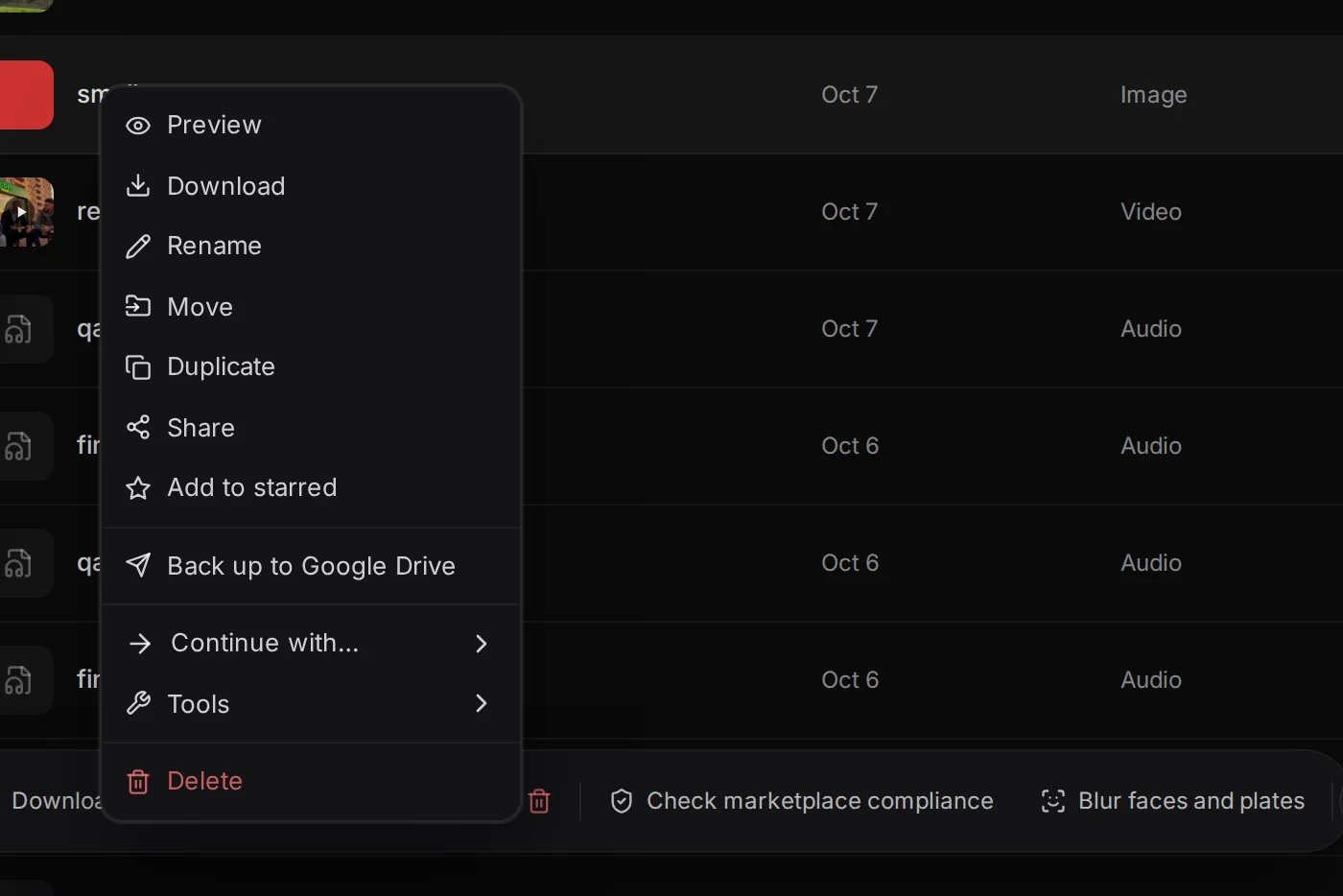
Click a file to open the preview. Use the arrow keys to move to the next file. The side panel shows when it was created, the type, size and, for images, the dimensions. From the preview or from the three-dot and right-click menu you can:
- Download the original file. No format is changed.
- Copy link to the file in your storage.
- Share, Rename, Move, Duplicate and star.
- Continue with..., the menu that sends the file to another tool: the photo editor, the video editor, Image to Video, Remove Background, Upscale and many more. It is explained in its own guide.
Sharing
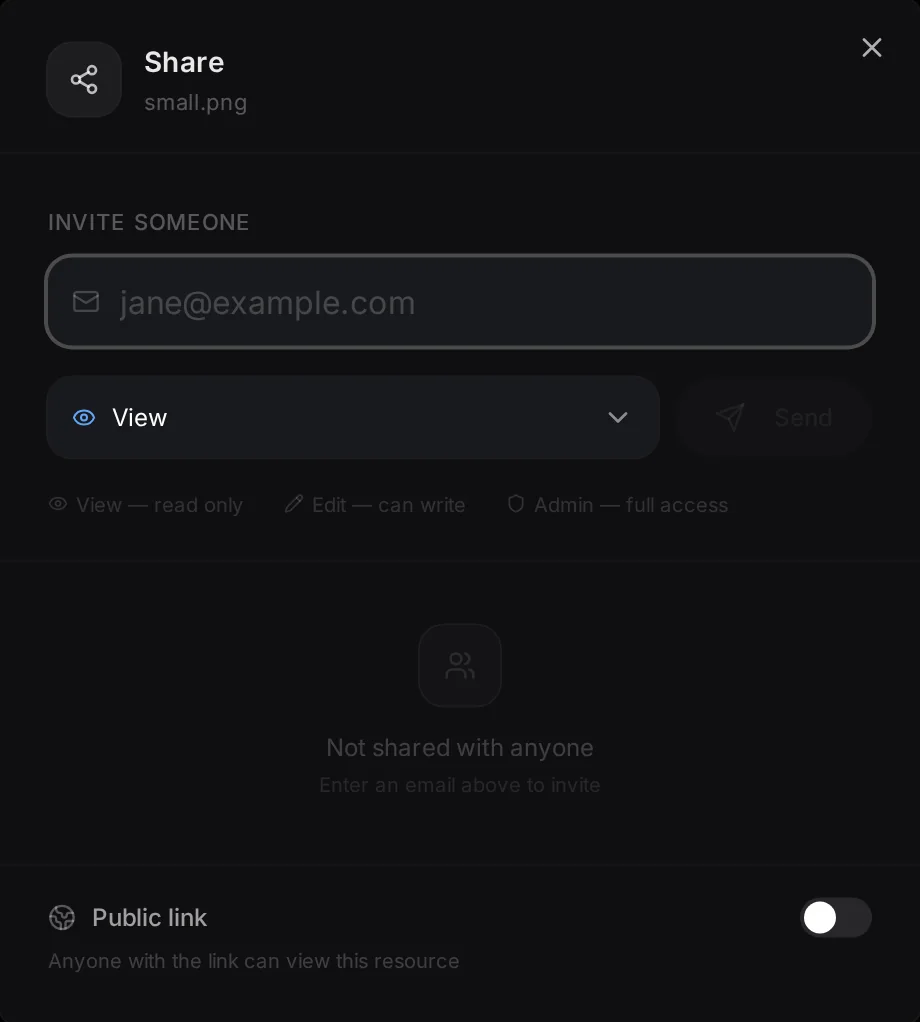
Open the Share option of a file or a folder. The dialog has two parts.
Invite a person
Type the email address of someone who already has a FOTOhub account, choose a permission, View, Edit or Admin, add a message if you like and press Send. The person gets a notification that opens the invitation, where they press Accept or Decline. Invitations expire after 30 days. You can change a permission or remove someone at any time.
Share with a public link
Turn on Enable public link and copy the address. Anyone who has it can view and download the file or the files in the folder without signing in. A folder link lists up to 200 files.
- A new link is valid for 90 days. Choose 7, 30, 90 or 365 days under Set expiry to, which also brings back an expired link.
- Generate new link makes the old link stop working. Disable link turns sharing off.
- There is no password for a file or folder link. Do not use a public link for anything private. Use an invitation instead.
- An expired or disabled link shows a plain message to the visitor.
Deleting and getting things back
How deleting works depends on where you do it. This table is worth a minute, because one of the places is permanent.
| Where | What delete does | Can you get it back? |
|---|---|---|
| Your Files (file or folder) | Moves it to Trash. A folder takes everything in it along. | Yes. Click Undo within 5 seconds, or open the Trash tab and press Restore. Items in Trash are removed for good after 30 days. |
| Trash tab, Delete or Empty trash | Removes it for good. | No. |
| Photos (My Photos) | Removes the photo and its file for good. | No. There is no trash for photos. |
| Videos | Removes the entry from your library. | No. |
| Albums | Deletes only the album. The photos stay in your library. | Not needed. |
Photos: your gallery
My Library, Photos is where generated images, uploads and saved stock items arrive. At the top you see counts for All, AI-generated and Classic (not AI). Tabs switch between them.
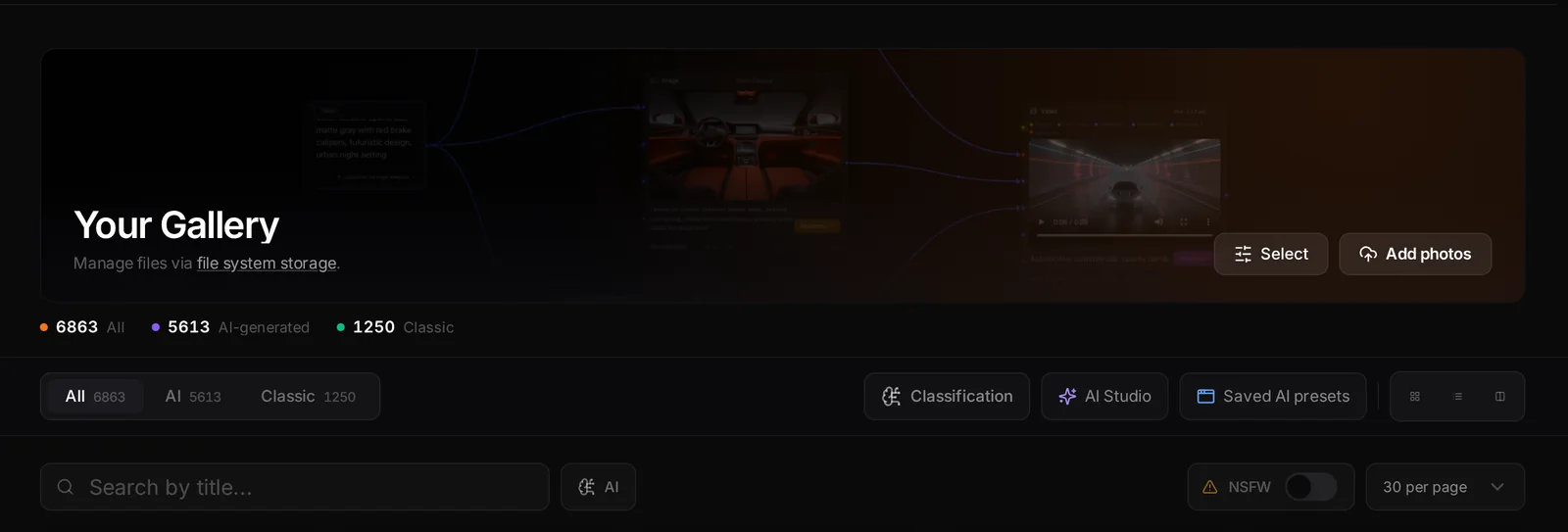
- Search by title looks through titles, descriptions and tags. The AI switch next to it turns on a search by meaning: describe what is in the picture, for example "dog on a beach", and press Enter.
- Per page: 15, 30, 60 or 100 photos. Switch between grid, list and cards.
- Select turns on selection mode for bulk actions: add to an album, make public or private, delete. Some of the bar labels are shown in Polish.
- Each card has Edit photo, Add to album, Share photo and Delete photo. Open the photo for the full preview with the prompt, the model, dimensions and a Copy prompt button.
- The NSFW switch is a filter, not a hide button. When it is on, the gallery shows only photos you marked as NSFW.
Albums and sharing a collection
An album groups photos or videos without copying them. Delete an album and your photos stay. Open My Library, Albums.
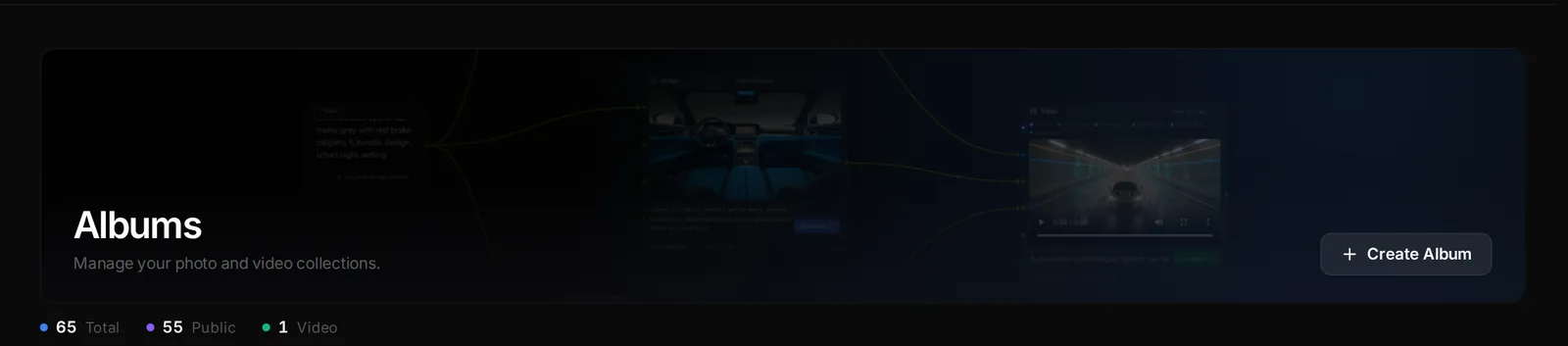
- Create Album Press Create Album. Pick Photos or Video, then the album type.
- Choose the type Standard is a simple collection. Professional adds an optional password and the option to put the album up for sale.
- Name it Give it a name and a description, then save.
- Add content Open the album and add photos. In a photo album, upload photos straight into it. In a video album, pick videos from your library.
- Share it Use the Share option. A public album has a link anyone can open. A Professional album asks visitors for the password if you set one.
You can also invite collaborators to an album by email and give them a role: Viewer (look), Contributor (add photos), Moderator (add and remove photos) or Administrator (manage everything). Invitations and the albums you collaborate on are under Shared Albums. The album page itself is shown in Polish for now.
Storage and limits
The storage card on Your Files shows how much space your files, photos, videos and audio use together. At the moment the app does not stop an upload because your account is full: the only hard limits are the per-file sizes above. If your plan ever has a cap, the card shows a bar that turns amber and then red as you approach it.
Storage Buckets (in the Professional group of the sidebar) are something else: named containers for developers, billed in money by the amount stored. They are not needed for normal work.
- What is the difference between Your Files and Photos?
- Photos is the image gallery that generators and Upload Media fill. Your Files is a general file manager for any file type with folders, trash and share links. Photos also show up inside Your Files as a read-only smart folder.
- How do I download many files?
- Select them in Your Files and use Download (up to 25 files, one after another) or ZIP (up to 50 files in one archive).
- I deleted a photo by mistake.
- It cannot be restored. Photos are removed for good. Files deleted from Your Files can be restored from Trash for 30 days.
- How long does a share link work?
- 90 days by default for files and folders, and you can set 7, 30, 90 or 365 days. You can turn it off earlier.
- Can I upload a RAW file?
- Not into Photos. Your Files accepts any file type up to 50 MB, so a RAW file of that size can be stored there.