Prompt library, presets and the Public Library
Never start from a blank box again: use ready-made prompts, your own prompt history and presets, and browse the Public Library for photos and videos you can save and build on.
Ways to start from something
A blank prompt box is the hardest part of any generator. FOTOhub gives you several ways to start from something that already works. They look similar but do different jobs, so here is the overview first.
| Tool | Where | What it does |
|---|---|---|
| Prompt Library | Search "prompt library" or open /dashboard/prompt-library | A browsable grid of ready-made prompts from the community. Copy one, or send it straight to the image generator. |
| Prompt history | The clock icon in the image generator's composer | Your own recent prompts, plus the ones you starred. Stored only in this browser. |
| Presets | The Presets dropdown in the image generator | Saves a set of settings (model, ratio, quality and more) under a name you choose, and applies them again in one click. |
| Use this prompt | Continue with... on any result that remembers its prompt | Puts the prompt of an earlier result back into the generator. Costs nothing. |
| Public Library | Sidebar, Public Library | Photos and videos to browse, save to your gallery and use as starting points. |
The Prompt Library
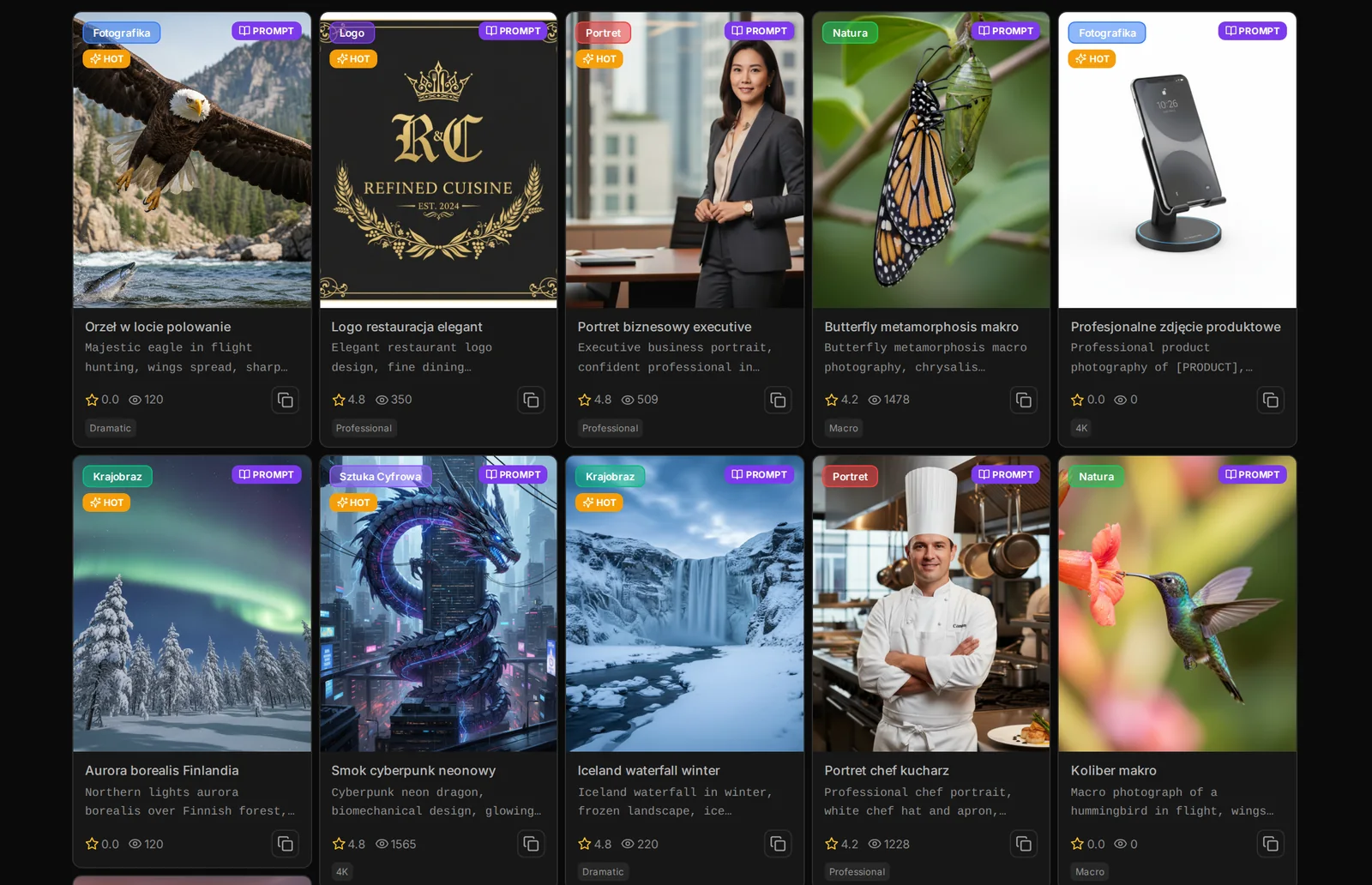
The Prompt Library is a wall of example prompts, each with a picture of what it produced. It is a good place to learn what a strong prompt looks like and to borrow structure.
- Open it Press Ctrl+K (Cmd+K on a Mac), type prompt library and press Enter. You can also open the address
/dashboard/prompt-librarydirectly. - Search Type a word in the search box at the top. The grid filters by title, description and the prompt text itself. Try "portrait", "product" or "logo".
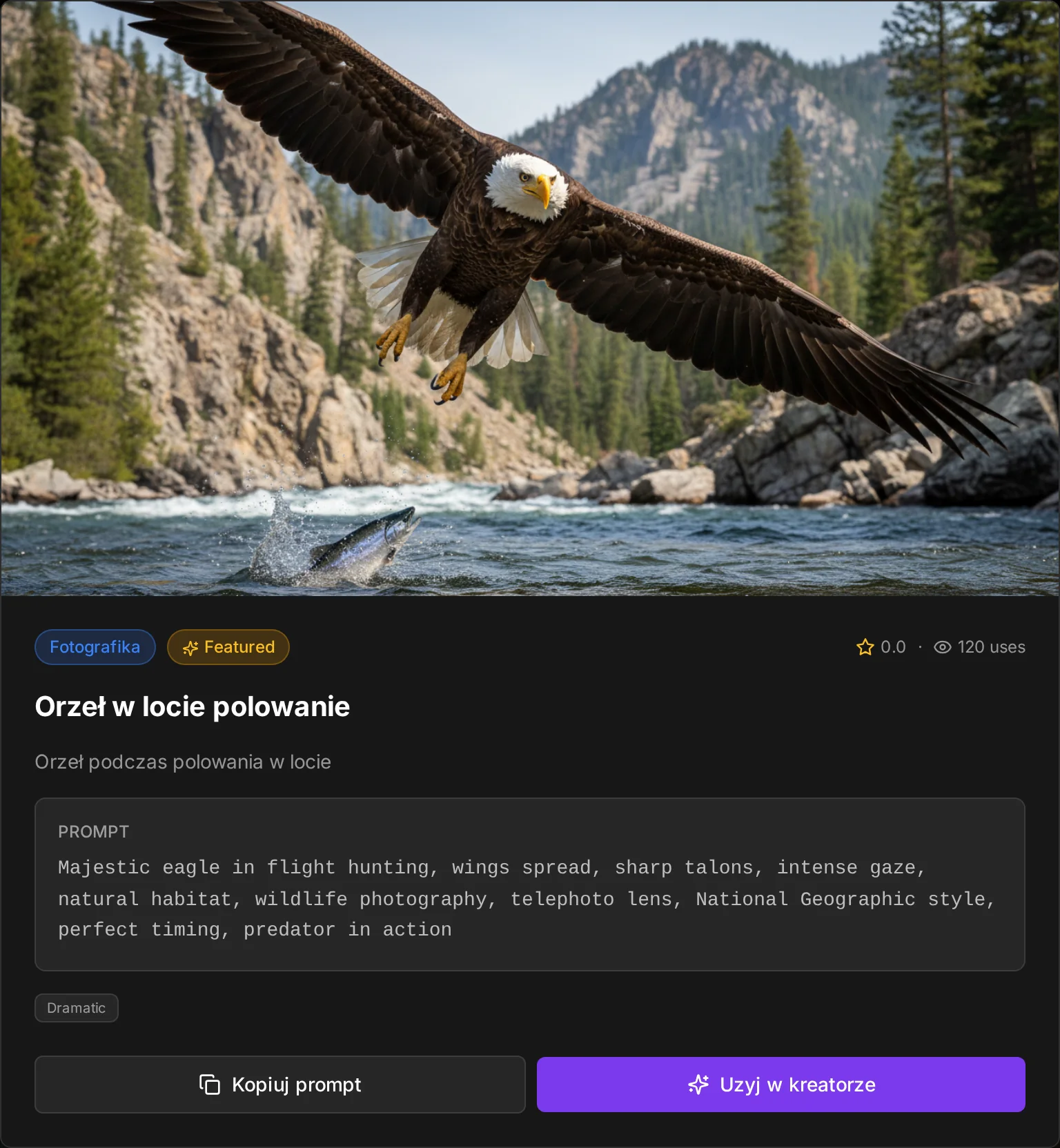
- Open a card Click a card to open it. You see the category, the rating and how many times it was used, the full prompt in a box labelled PROMPT, and the tags. Arrow keys move to the next prompt, Esc closes.
- Copy it or use it The two buttons at the bottom are in Polish for now. Kopiuj prompt copies the text. Uzyj w kreatorze copies it and opens the image generator with the prompt already filled in.
Prompt history: your own saved prompts
The image generator remembers what you typed. Click the clock icon next to the model chip. A panel called Prompt history opens with two tabs, Recent and Starred, and a search box.
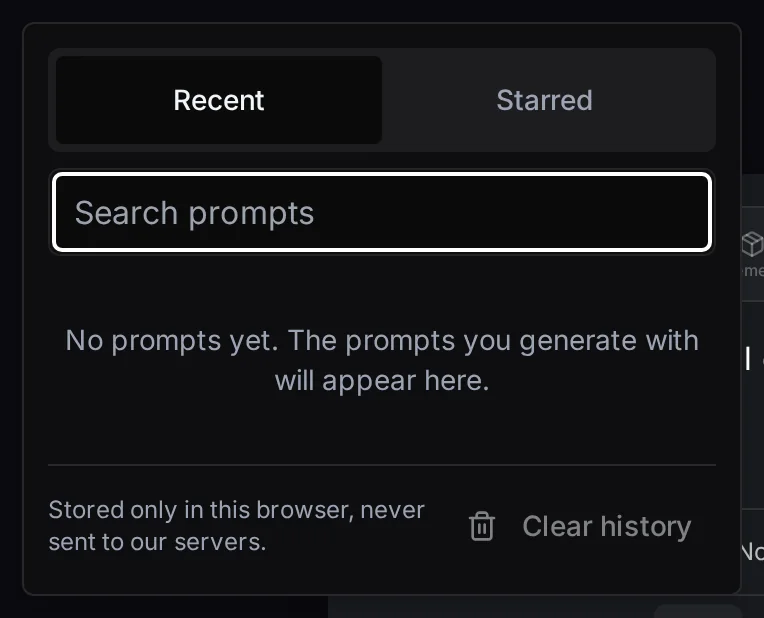
- Generate as usual Every prompt you send is recorded under Recent.
- Star the keepers Click the star on a prompt to move a copy to Starred. Starred prompts stay when Recent fills up.
- Pick one Click a prompt to put it back in the box. Use the arrow keys and Enter if you prefer the keyboard.
- Clean up Remove deletes one prompt, Clear history empties the list.
Presets: save a whole setup
A prompt is only part of a good result. The model, the aspect ratio and the quality matter just as much. Presets saves those settings under a name. Open the Presets dropdown above the model chip.
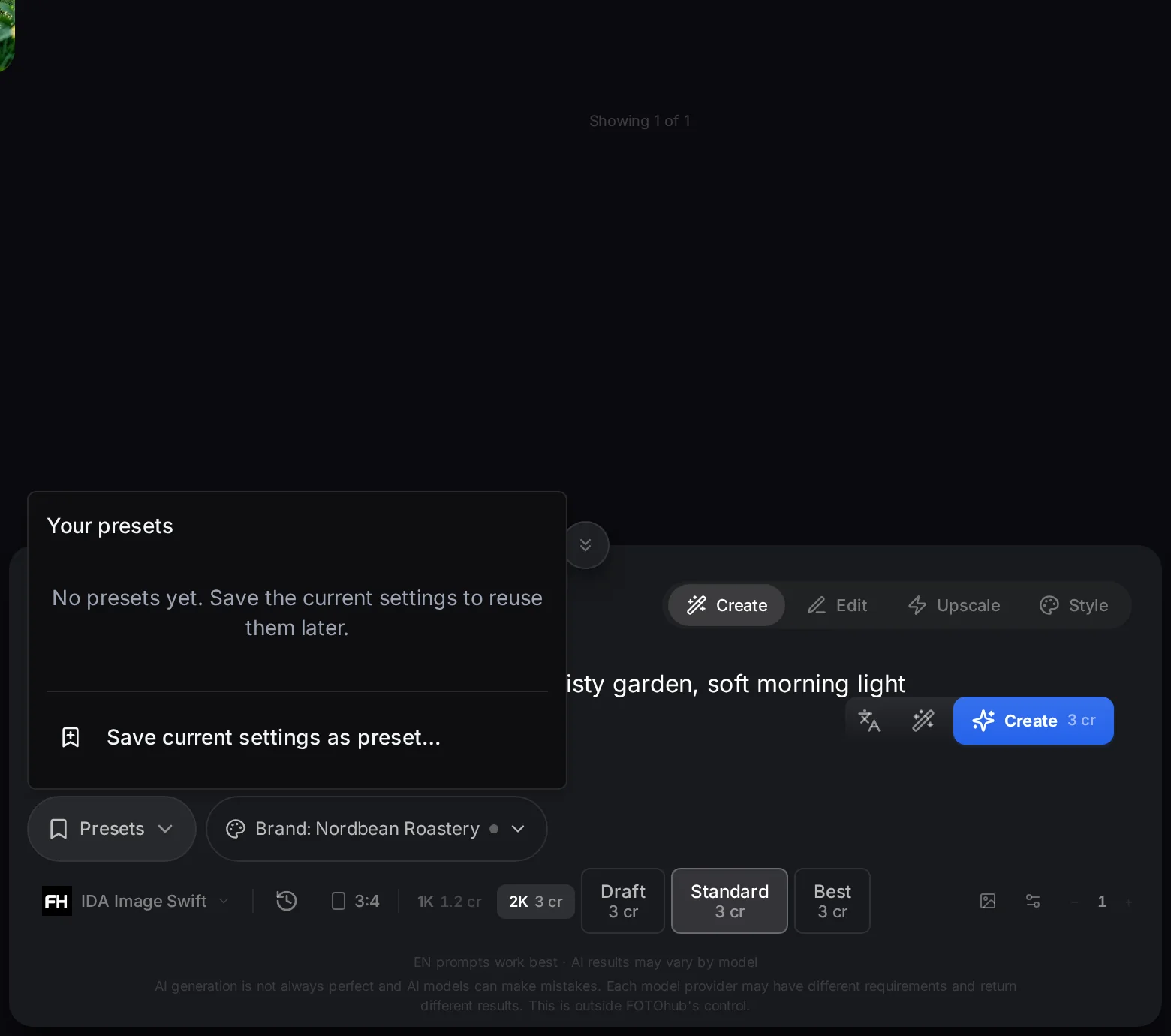
- Set up the generator the way you like For example the model, a square ratio and the quality you use for product photos.
- Open Presets and choose Save current settings as preset Type a name such as "Square product shots" and press Save. You can include the prompt if you want.
- Apply it later Open Presets and click the name. A message confirms the preset was applied. If a model has since changed, the app tells you which settings were skipped.
- Rename or delete Both are in the same list.
There is also a shortcut: on a finished result, Continue with... includes Save these settings as preset, which keeps that result's model and settings. The list has a limit, and the dialog tells you how many you have and when you need to delete one.
Writing prompts that work
Ready-made prompts are a shortcut, and your own prompts will soon be better because you know your subject. Four habits make the biggest difference.
- Say what is in the picture. One main subject, and the few things around it.
- Say where and when. A place and a time of day change the whole mood: "on a stone kitchen counter at sunrise".
- Say how it is lit and shot. Side light, soft light, shallow depth of field, eye level. These words steer the image more than adjectives like "beautiful".
- Change one thing at a time. Keep the prompt, change the light or the place, and compare. That is how you learn what each word does.
The same object, two prompts
Goal. See what a few concrete words add.
Input you can copy.
a kettle| Setting | Value |
|---|---|
| Model | IDA Image Swift |
| Words | 2 |
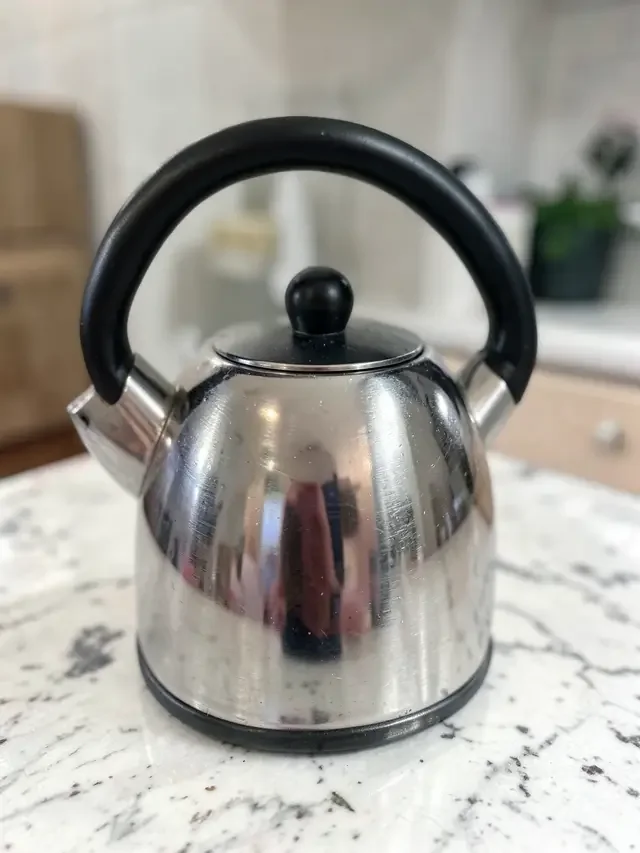
Why it works. Two words are enough to get a kettle, but the model has to guess everything else: material, place, light, angle. You get something average, and a different one every time.
Now with place, light and camera
Goal. Give the model the choices instead of leaving them to chance.
Input you can copy.
A copper kettle on a stone kitchen counter at sunrise, a thin trail of steam, side light from a window on the left, shallow depth of field, warm tones| Setting | Value |
|---|---|
| Model | IDA Image Swift |
| Words | 28 |
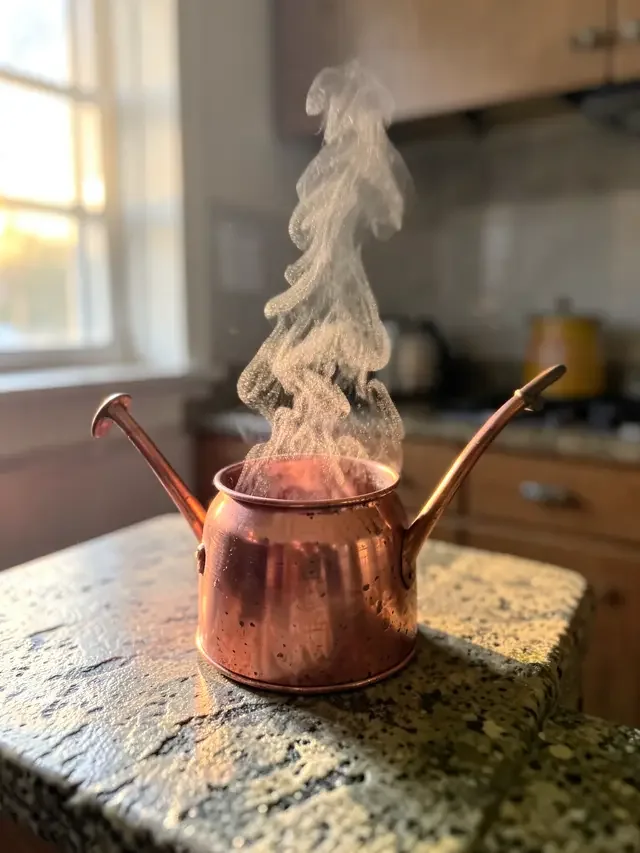
Why it works. Material (copper), surface (stone), time (sunrise), a detail (steam), the light direction and the depth of field are all decided by you. Re-run it with only the time changed, say to dusk, and you get a matching second picture.
The Public Library
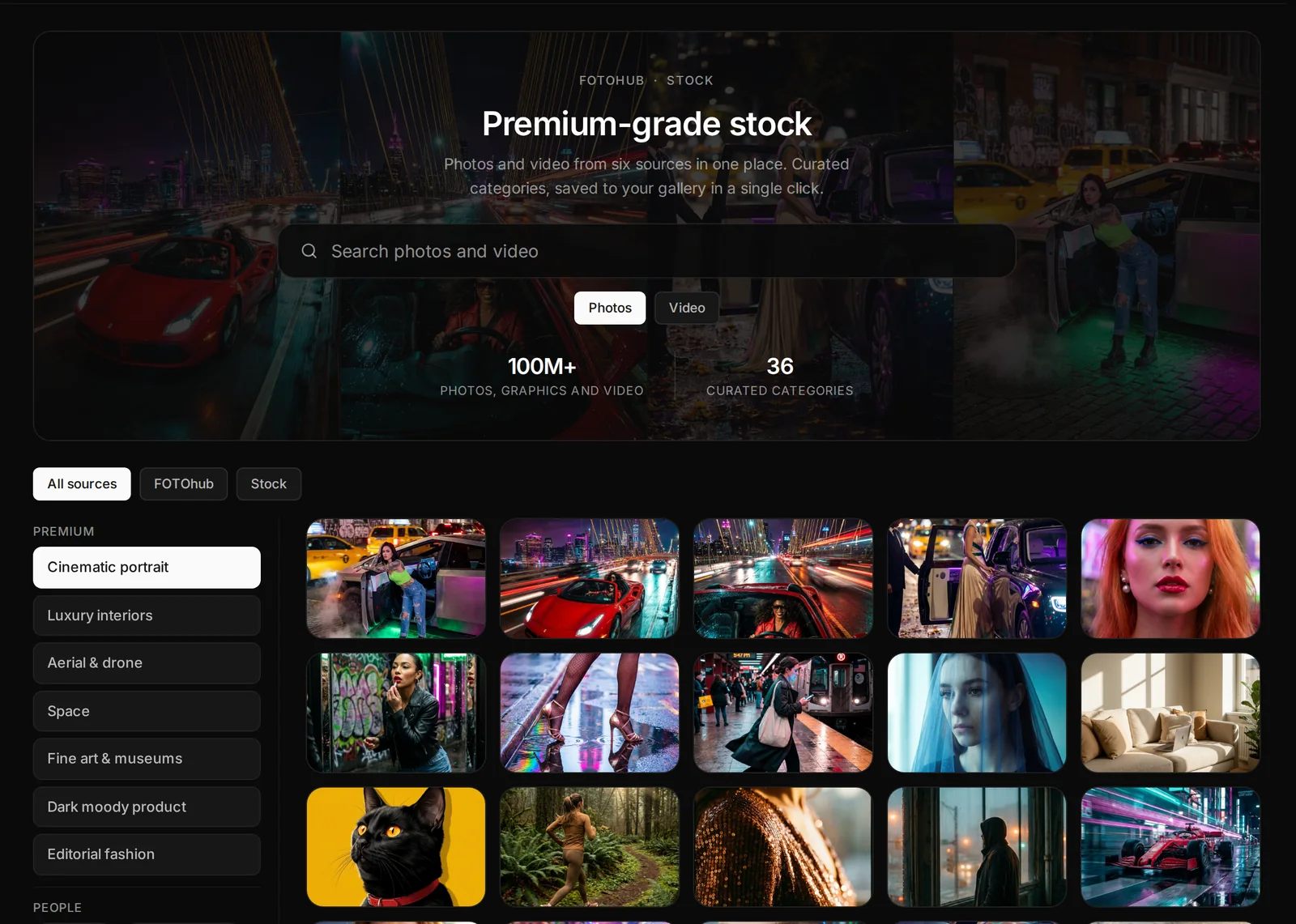
The Public Library is the second row of the sidebar. It is a large collection of photos and videos that you can browse, save into your own gallery and use as the starting point for a new image or video. The number on its badge is a round marketing figure, not a live counter.
- Sources: All sources, FOTOhub (public items created on the platform) and Stock (free-licence stock catalogues).
- Photos or Video toggle at the top.
- Categories in the list on the left, grouped by theme: Premium styles, People, Business, Technology, Nature, Food, Interiors, City and more. Picking a category clears your search and the other way round.
- Search works on both photos and video. Scroll for more: the grid loads as you go.
Open an item and put it to work
Click a tile to open the preview. You see the dimensions, the author and source and a Usage line. Below are the actions.
| Action | What it does |
|---|---|
| Save to gallery | Copies the file into your own Photos. Saving the same item twice tells you it is already there. |
| Edit with AI (photos) | Opens the image generator with the photo as a reference image. |
| Reimagine (photos) | Opens the generator to make a fresh variation of the photo. |
| Enlarge (photos) | Opens the generator's upscale mode. |
| Use as video start frame (photos) | Opens the video generator with the photo as the first frame. |
| Edit video (videos) | Saves the clip to your storage and opens it on the timeline of the video editor. |
| Enlarge video (videos) | Opens the video upscale tool. |
Every tool first saves a copy into your own storage, so using an item also adds it to your gallery. There is no separate Download button in the preview. To get the file itself, save it to your gallery and download it from there (see the files guide).
Limits and good manners
- Saving is limited to about 30 items per minute, a stock file can be up to 25 MB, and stock video has a daily download budget. If you hit one, the app says so and you try again later.
- Browsing and saving show no credit price. The generator or editor you open next charges by its own rules, and shows its price first.
- The Usage line reads Included in your FOTOhub plan for every item. It is not a legal statement of the licence. Each source (for example a free photo site or an open image archive) has its own terms, and the original details are written into the description of the photo you save. Read them before you use something commercially.
- A photo that someone uploaded as Public can appear in the FOTOhub source. The same goes for yours if you upload as Public.
- Can I add my own prompt to the Prompt Library?
- No. It is a curated, read-only list. Keep your own in Prompt history or as presets.
- Why are the buttons and many prompt titles in Polish?
- The two buttons on the prompt card have not been translated yet. They mean Copy prompt and Use in creator. Many of the prompts come with Polish titles, while the prompt text itself is in English.
- My prompt history is empty on my laptop.
- It is stored per browser. Each browser has its own history.
- Is the stock free to use commercially?
- Check the terms of the item's source before you do. The preview does not state a licence.
- Why does Use as reference on a stock video do nothing?
- On videos that button only opens the video generator for now. Use Edit video or Enlarge video instead.
Open Prompt library, presets and the Public Library in FOTOhub