Using FOTOhub on your phone
Create, check results and manage your files from a phone: the bottom dock, the create menu, what works well on a small screen, what needs a computer and how to save results to your device.
What FOTOhub does on a phone
FOTOhub works in the browser of your phone, with nothing to install. Open fotohub.app in Safari or Chrome and sign in. Below a screen width of about 770 pixels the app switches to a phone layout: a floating bar at the bottom, a simpler home screen and a compact menu. A tablet in portrait uses the same phone layout, and a wider screen uses the desktop layout with a menu you open from the top left.
| Good on a phone | Needs a computer |
|---|---|
| Generating images, video and audio from a prompt | Vision Board (Canvas), Flows, FH Shorts |
| AI chat and the voice assistant | Design Studio and the Photo editor |
| Browsing and sharing your files and albums | The advanced video editor and Studio Video Pro |
| Apps from the App Gallery (posters, logos, mockups and more) | Board workspace, agent builder, 3D studio, code studio |
| Checking jobs, notifications and credits | Anything that needs a mouse and a large canvas |
The phone home screen
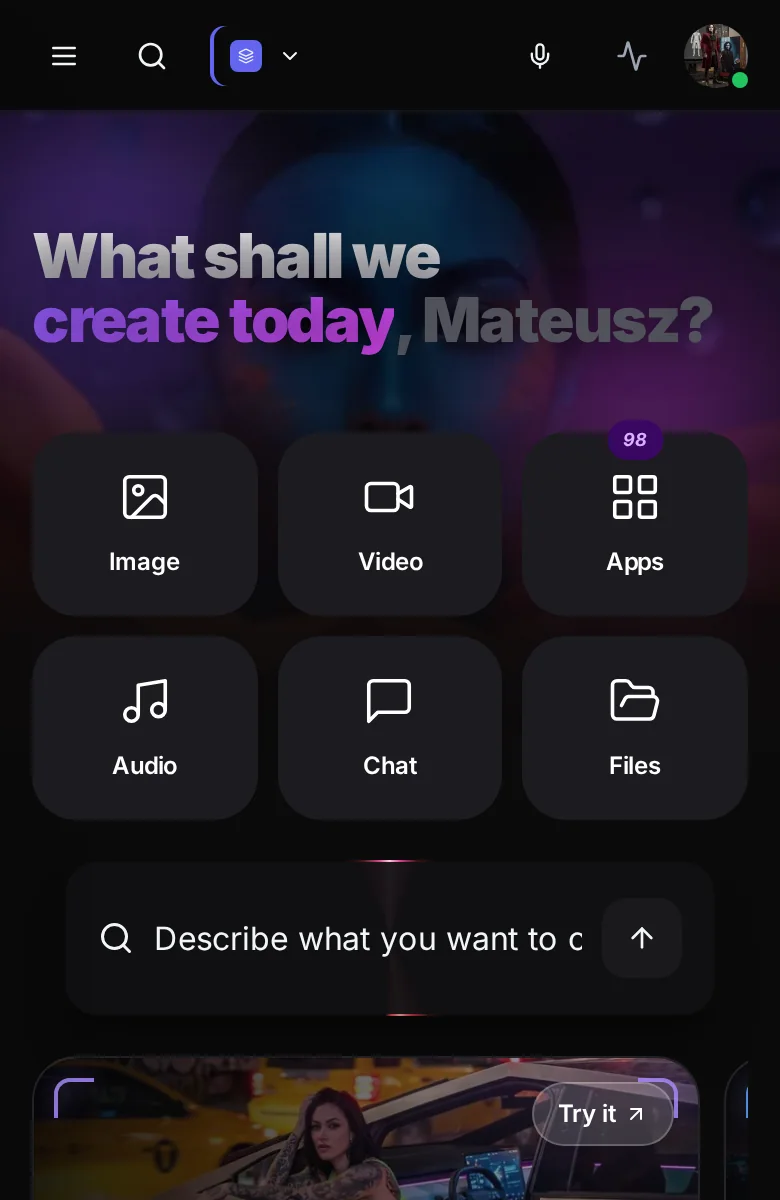
On a phone, Dashboard is built for thumbs. From the top:
- A greeting, and six tiles: Image, Video, Apps, Audio, Chat, Files. Tap one to open that tool.
- A prompt box ("Describe what you want to create..."). Type and tap Send. FOTOhub's assistant picks the right tool and opens it with your text. Nothing is generated and no credits are spent until you press the create button in that tool.
- A row of promotions, then For you: six shortcuts ordered by what you use most.
- Popular apps: ready-made tools such as social posts, mockups, thumbnails and logos. Pinned apps appear above them if you pinned some in the App Gallery.
- More on desktop tells you which tools need a computer, with a button that explains why.
- Recent work shows your last ten photos.
A round microphone button floats above the dock on the dashboard. Tap it to talk to the AI assistant. Your browser asks for microphone permission the first time.
The bottom dock and the create menu
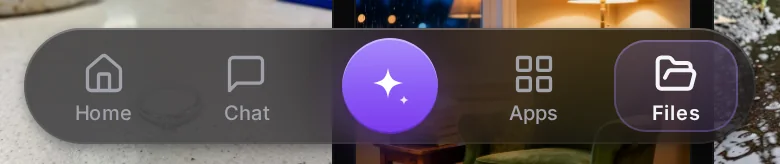
The floating bar at the bottom is your main navigation. It has four tabs and a round button in the middle.
| Tab | Opens |
|---|---|
| Home | The dashboard. |
| Chat | AI Chat, with your conversations in a slide-in list. |
| Apps | The App Gallery of ready-made tools. |
| Files | Your Files. It stays lit while you are in Photos or Videos. |
The create menu
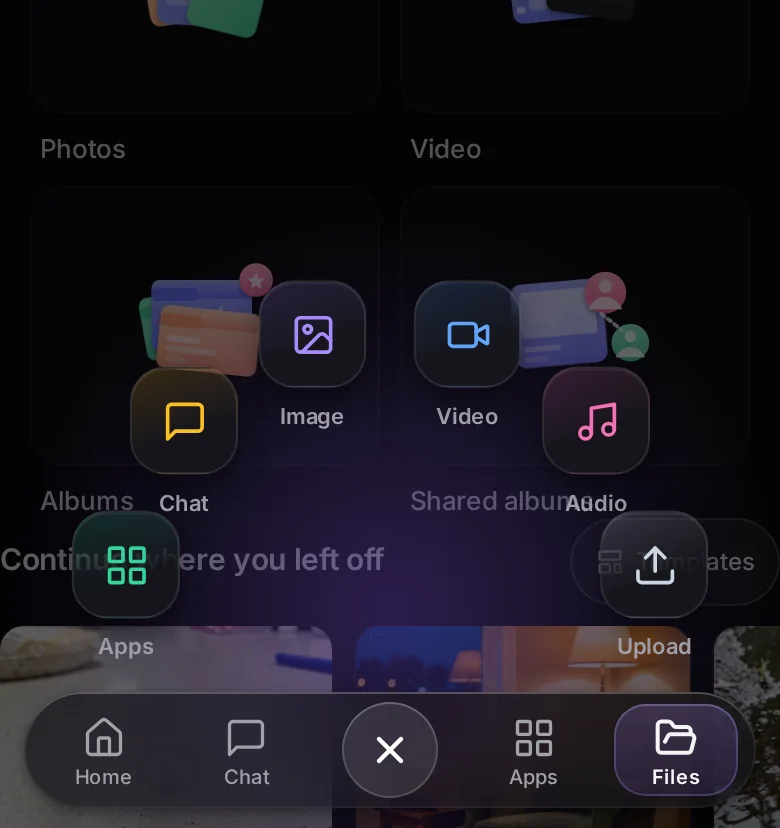
Tap the round button in the centre. A fan of six choices opens above it under the question What do you want to create: Apps, Chat, Image, Video, Audio, Upload. Tap one. Or press and hold the button, slide your finger to a choice and let go. Your phone gives a small vibration as you pass each one. Tap the button again, or press back, to close it.
The dock hides itself while the on-screen keyboard is open, so it never covers what you are typing.
The menu, search and your account
The top bar on a phone is slimmer than on a computer. It has a menu button, search, the workspace chip (just a coloured dot), the microphone for the AI assistant, the activity button for running jobs and your avatar.
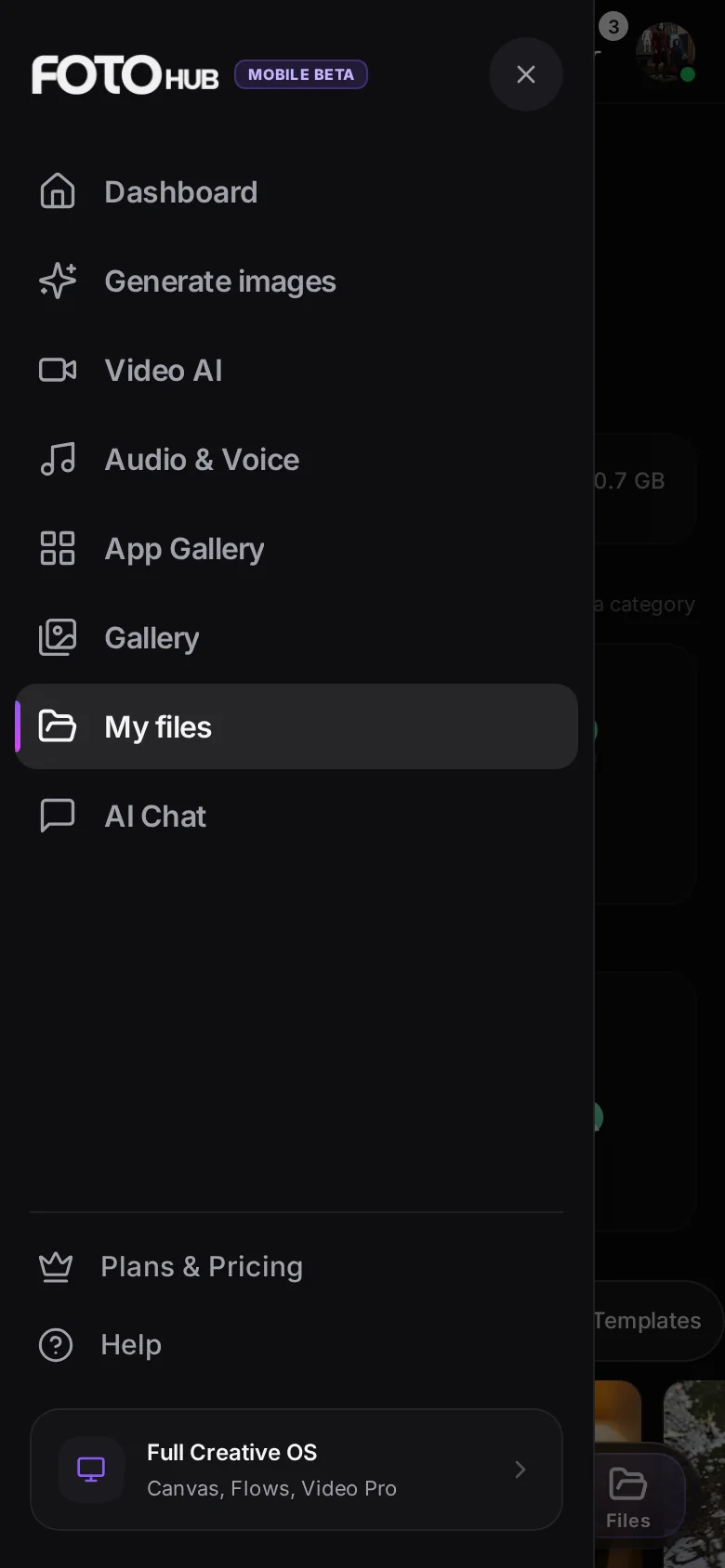
- Menu (top left): Dashboard, Generate images, Video AI, Audio & Voice, App Gallery, Gallery (your photos), My files, AI Chat, then Plans & Pricing and Help. A card at the bottom lists what needs a computer.
- Search opens a full-screen sheet. Type what you want to do, such as "upscale", and tap the result.
- Avatar: a sheet with your credits, Settings, Refer & Earn, Billing and Log out. The language is not on this sheet. Change it in Settings, Profile, Interface language.
- The notification bell and the Upload Media and Feedback buttons are not in the phone header. Use the Upload choice in the create menu, and the notification page at the address fotohub.app/notifications.
Generating on a phone
The generators keep the same layout as on a computer, in a single column. The settings panels open and close in place as folding sections, and the page leaves room for the dock.
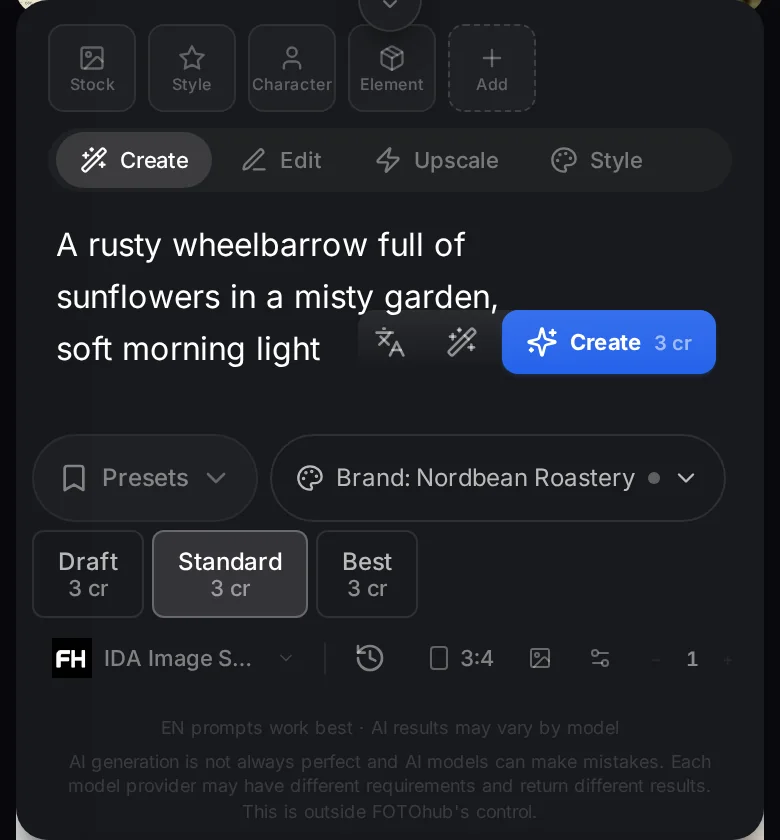
- Tap Image in the create menu Or tap the Image tile on the home screen.
- Write your prompt Tap the box and type or dictate with your keyboard's microphone.
- Check the price The price shows on or next to the create button. Open the settings folds for model, ratio and quality only if you want to change them.
- Tap Create Your job appears in the history above. You can switch to another tab while it works. The activity button and notifications tell you when it is done.
Your files and saving to the phone
Files in the dock opens Your Files. Tap a file to preview it. Use the three-dot menu for Download, Share and Continue with.... To upload from the phone, use the Upload choice in the create menu, or the Add button in Files, then choose from your photo library or your files.
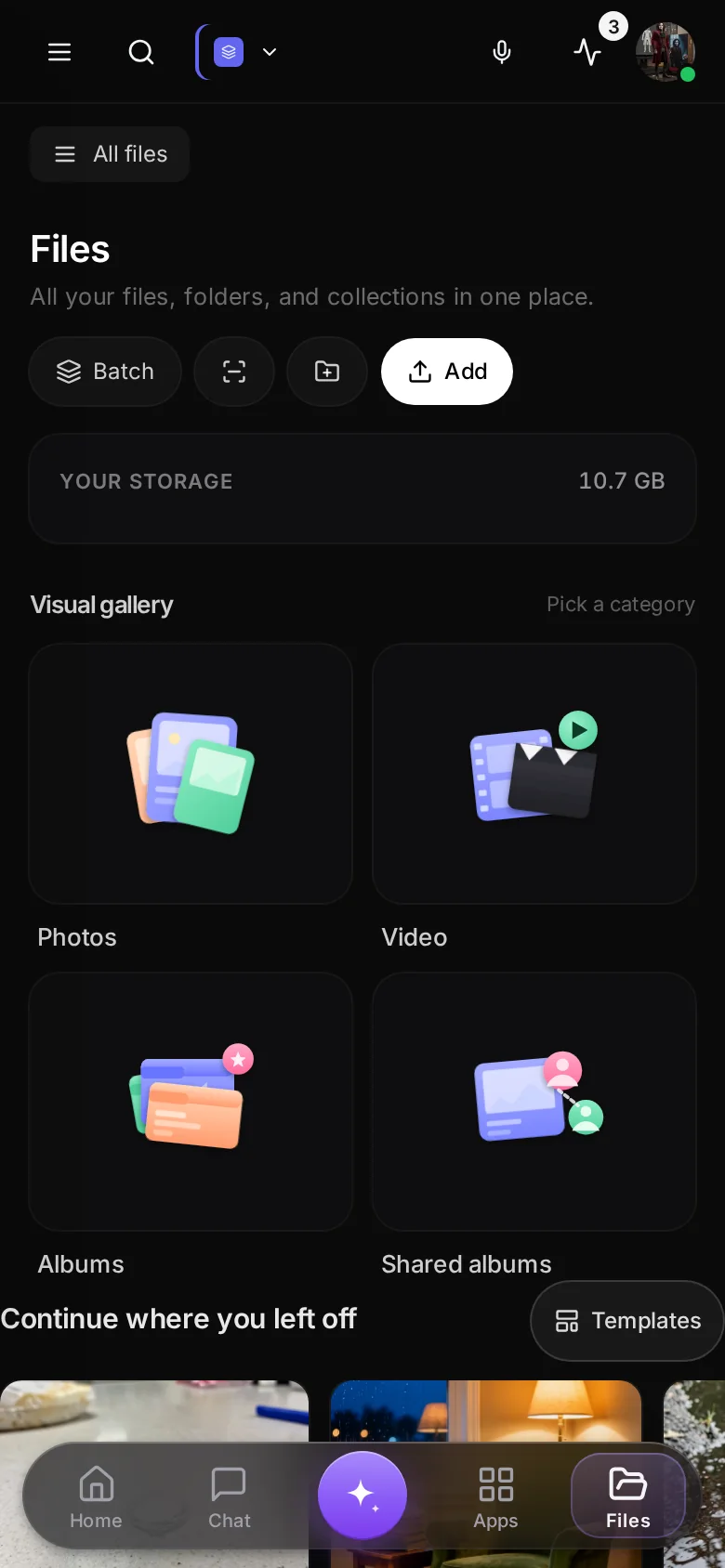
Getting a result onto the phone
- Download saves the file through your browser. On an iPhone it lands in the Files app under Downloads, on Android in the Downloads folder.
- If your browser blocks the download, the file opens in a new tab and a message tells you to save it from there. Press and hold the image and choose Save to Photos.
- Save to gallery in FOTOhub's own tools means your FOTOhub gallery, not your phone's camera roll.
- Some result panels offer the phone's own Share sheet, which can send the picture to a messenger or save it.
Tools that ask for a computer
Some tools need a large screen and a mouse. If you open one on a phone, FOTOhub does not show a broken screen. It shows This tool works best on a computer, with the line "It needs a bigger screen with a mouse and keyboard".
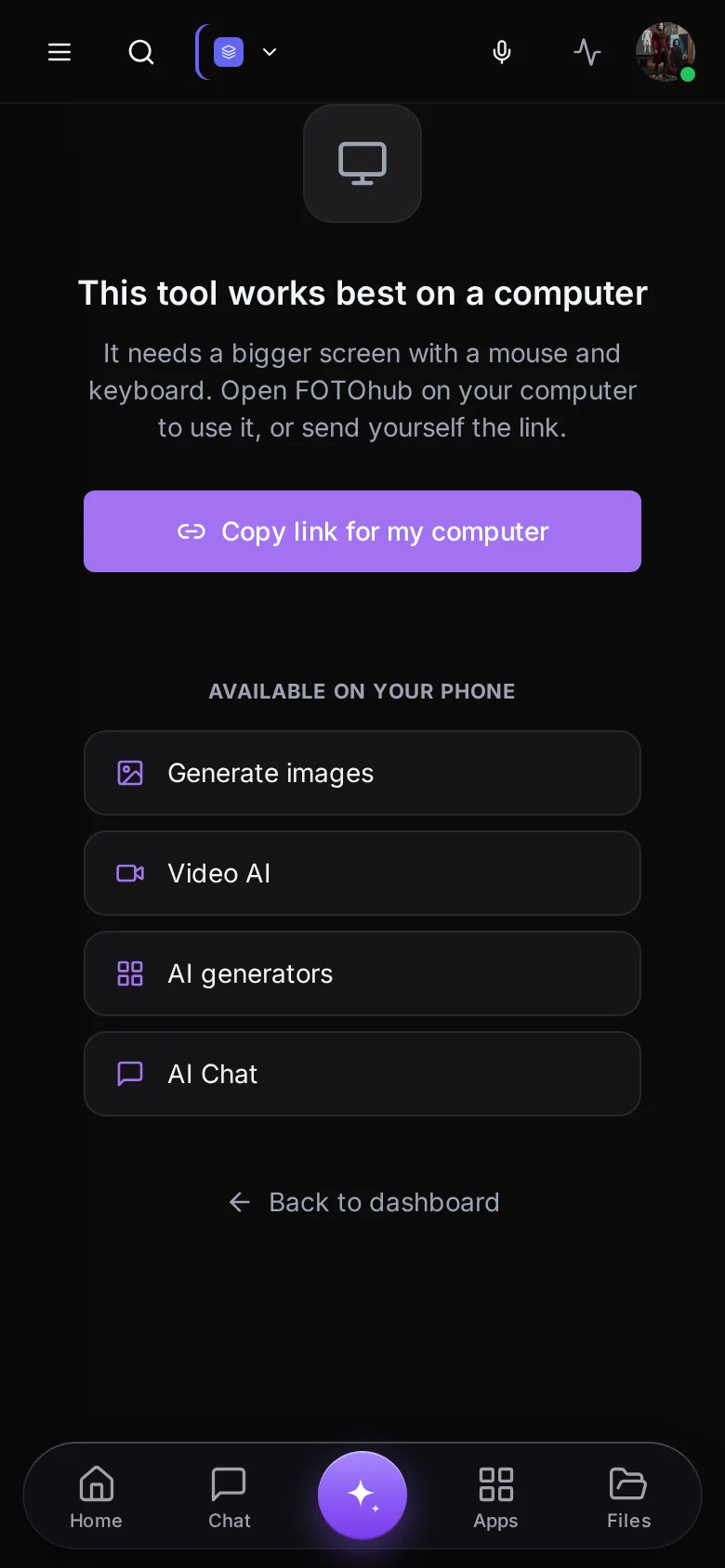
- Tap Copy link for my computer and send the link to yourself. Open it on the computer.
- Under Available on your phone you find quick links to the image generator, Video AI, the other generators and AI Chat.
- Back to dashboard takes you home.
The tools behind this notice are Vision Board (Canvas), Flows, FH Shorts, Design Studio, the advanced video editor, the board workspace, the 3D, animation and code studios, and the agent builder.
Put FOTOhub on your home screen
FOTOhub can be added to your home screen so it opens full screen, like an app, with its own icon. It is a shortcut to the website, not a download from an app store.
- On iPhone Open fotohub.app in Safari, tap the Share button, then Add to Home Screen.
- On Android Open fotohub.app in Chrome, tap the menu with three dots, then Install app or Add to Home screen. On the public pages a banner that says Add FOTOhub to home screen can also appear.
- Open it from the icon It starts at your dashboard. Sign-in is remembered.
- Where is the bell?
- The bell is only in the computer layout. On a phone open fotohub.app/notifications, or watch the activity button for running jobs.
- Why does a tool say it works best on a computer?
- It needs a big canvas or a mouse. Copy the link and open it there. Your work is in your account either way.
- Can I change the language on the phone?
- Yes. Settings, Profile, Interface language. English, Polish and German are available.
- My generation finished but I did not see it.
- Open Activity (the button at the top) or the history on the generator page. Results are always saved to your library.