Live Sessions: present photos to clients in real time
Run a live photo presentation that your clients follow on their phones: create a session, share the link or QR code, drive the slideshow, let guests react, pick favourites and leave comments, then read the recap.
What Live Sessions is for
A live session is a private room built around a set of your photos. You decide which photo everybody looks at; guests see the same photo on their own screen, in sync, and can talk about it. It replaces the shared-screen call and the folder of attachments that photographers use to review a wedding, a product shoot or a portrait set with a client who is not in the same room.
- Guests need no account. They open a link or scan a QR code and type a display name. An optional password protects the room.
- It costs no credits. Creating and running a session does not use credits, and guests never pay.
- Clients can choose. In proofing mode each guest picks photos for the album and you see every guest's list afterwards.
- It ends. Every session has a duration; when it ends or expires, the room closes and you keep a recap.
The product page at /live-sessions shows the idea; the working tool is the dashboard at /dashboard/live-sessions (Live Sessions in the sidebar) and the guest room at /live-chat/<session id>.
The sessions dashboard
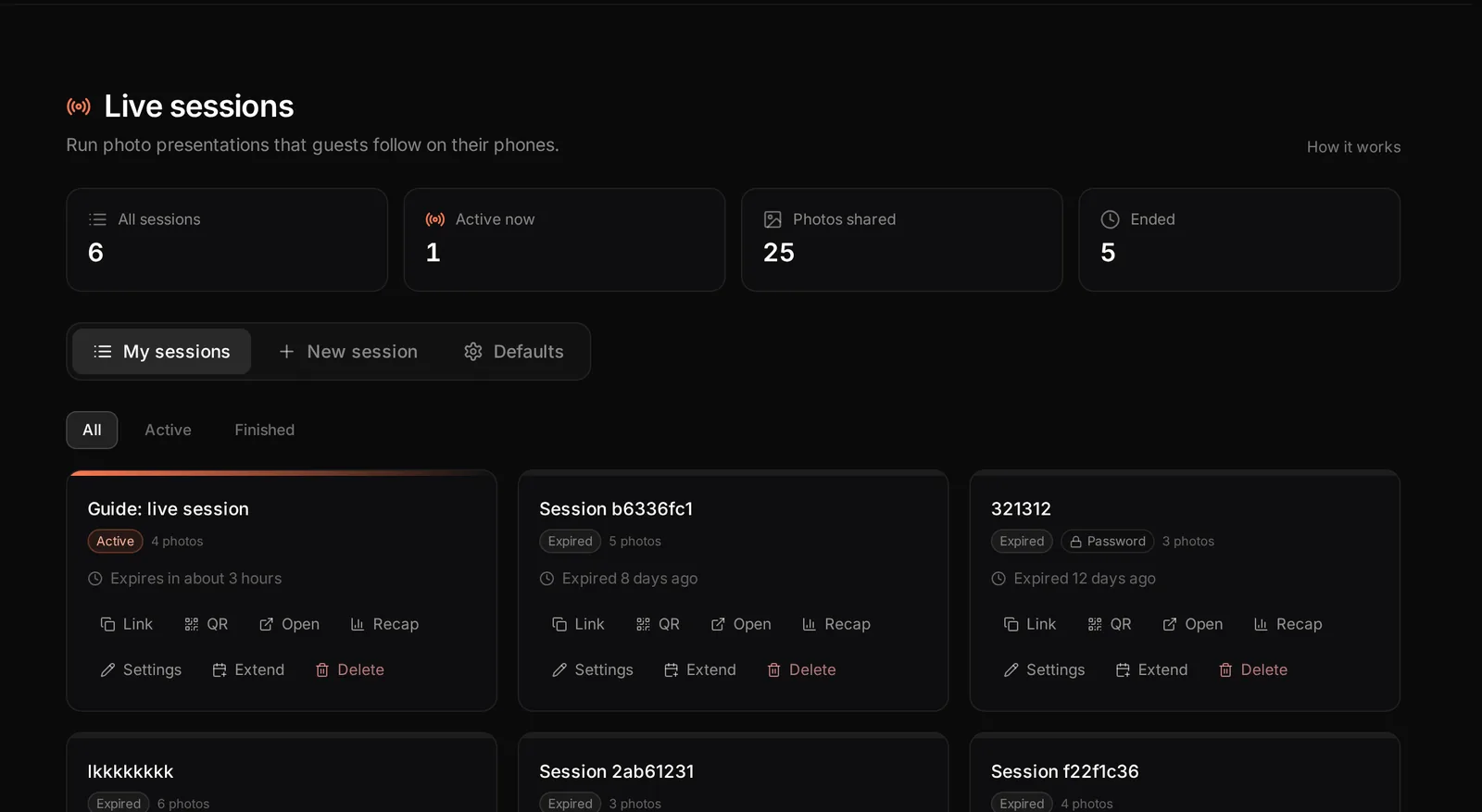
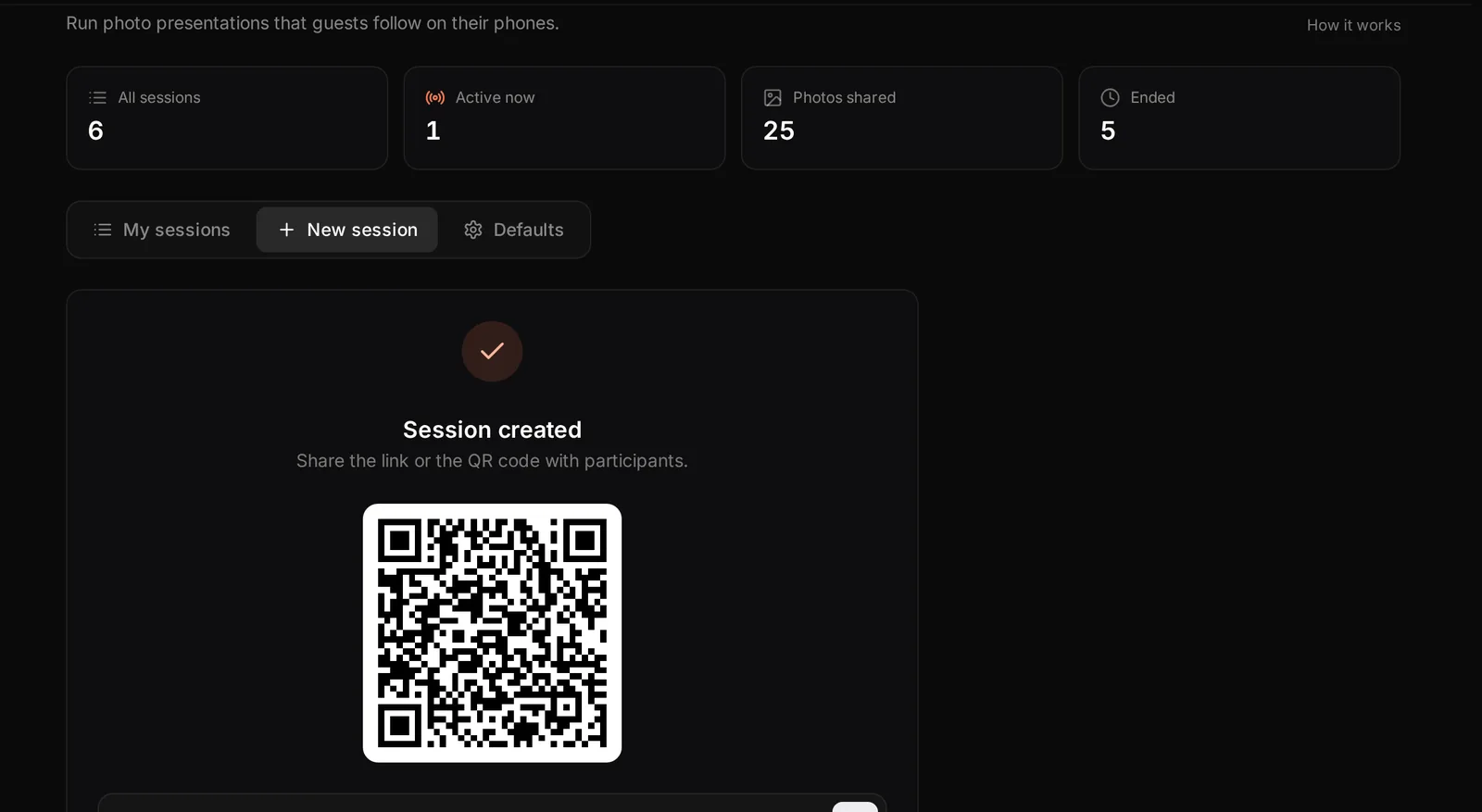
The dashboard opens on My sessions. Four counters sit on top: all sessions, active now, photos shared and ended. Filter the list with All, Active and Finished. Each row shows the name, a status badge (Active, Expired or Ended, plus Locked and Password when they apply), the number of photos and when it expires or expired, and seven actions.
| Action | What it does |
|---|---|
| Link | Copies the guest link to the clipboard. |
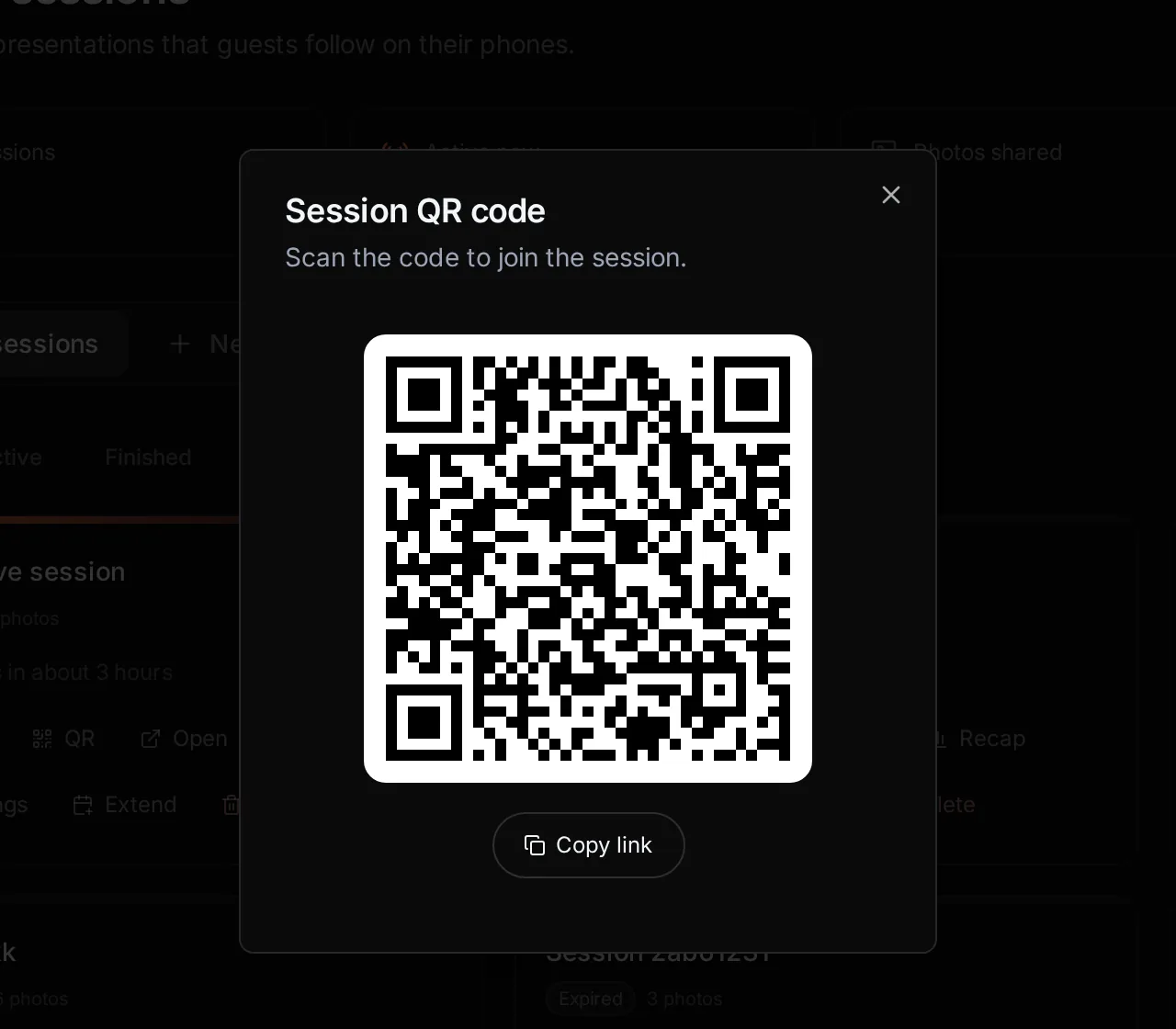
| QR | Shows a QR code you can put on a projector or print; scanning it opens the room. |
| Open | Opens the room as the host, with the presentation controls. |
| Recap | Opens the summary of guests, favourites, picks and reactions. |
| Settings | Changes name, password and what guests may do, before or during the session. |
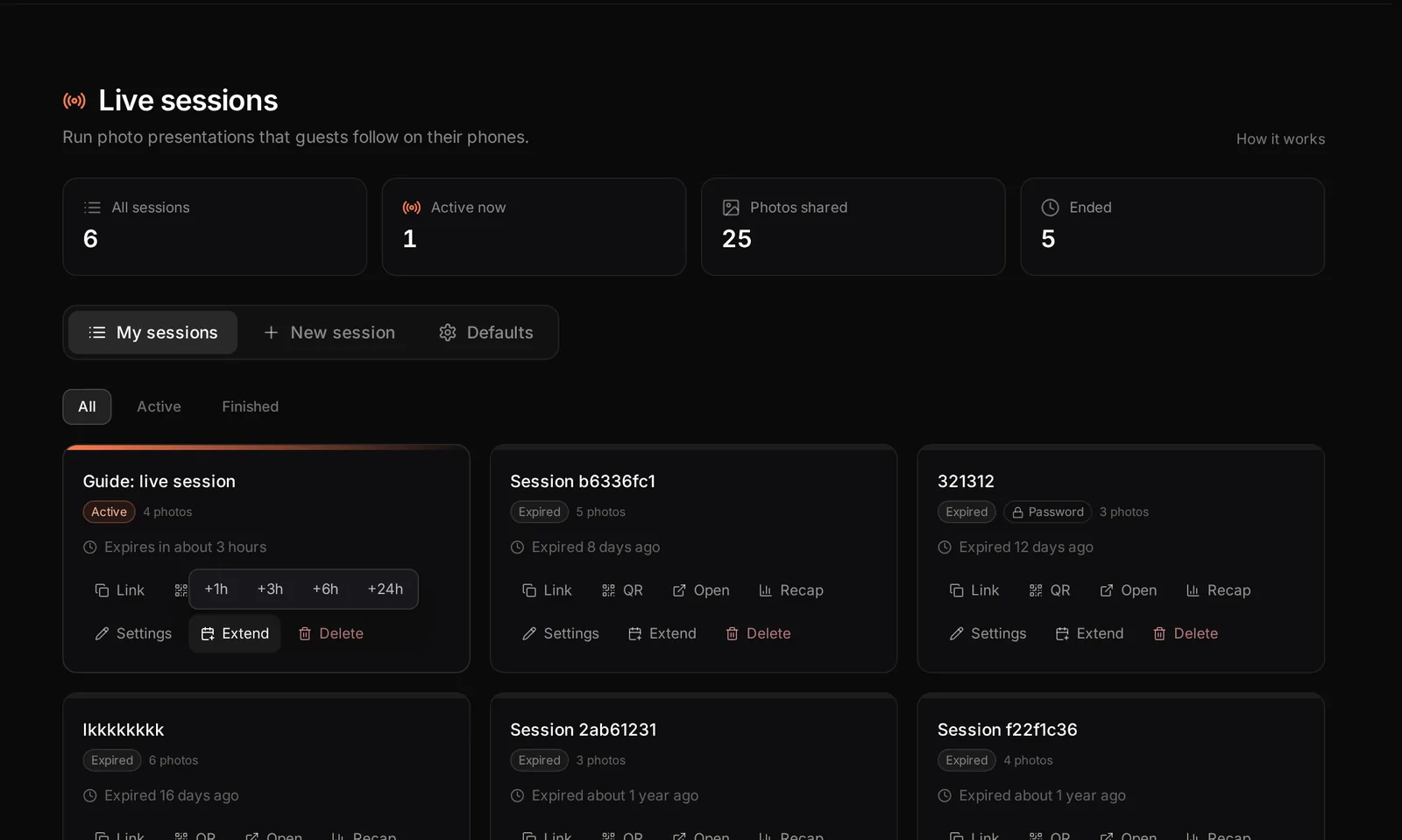
| Extend | Adds time: 1 hour, 3 hours, 6 hours or 24 hours. Extending a finished session reopens it. |
| Delete | Deletes the session, its chat and guests' picks for good. Photos in your library are not affected. |
Create a session
- Open the form In the dashboard click New session.
- Name it Type a Session name the guests will see, for example
Anna & Tom, wedding gallery. - Choose the duration Pick 1 hour, 3, 6, 12 or 24 hours. You can extend later from the list.
- Set a password (optional) Leave it empty for an open session. A password must be at least 6 characters; it is stored hashed, so you cannot read it back, only replace or remove it.
- Choose guest options Under Guest options switch on what you want: guests can add photos, a watermark with your name, photo downloads (not available while the watermark is on) and photo picking. See the settings table below.
- Select the photos The grid shows your most recent photos from the library. Click to select; the counter reads
Photos (n selected)and Clear selection starts over. At least one photo is required, and a session holds up to 500.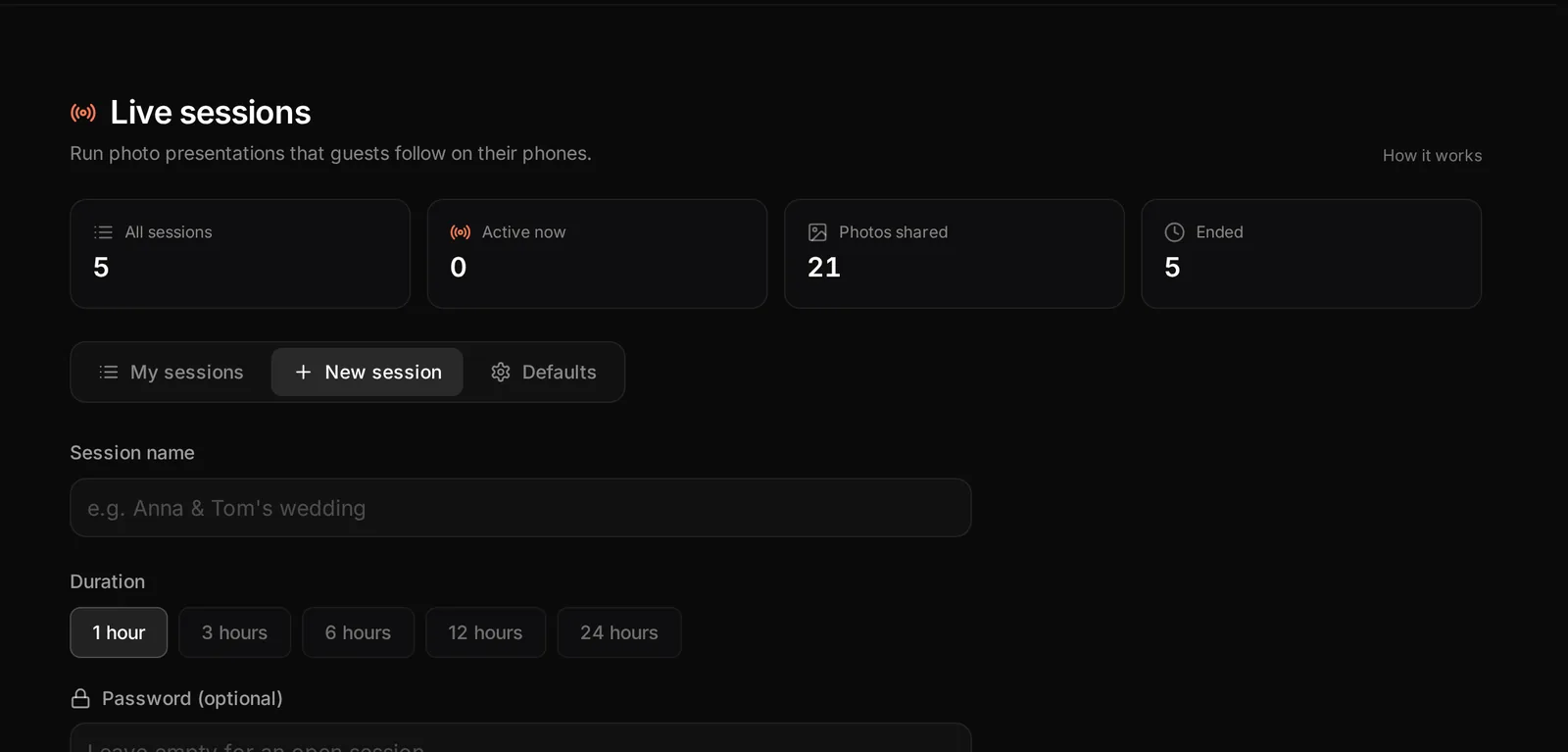
- Create Click Create session. You get the guest link, a copy button and Open session.
Session settings
Open Settings on a row, or the settings button inside the room. Changes apply immediately to everyone in the room.
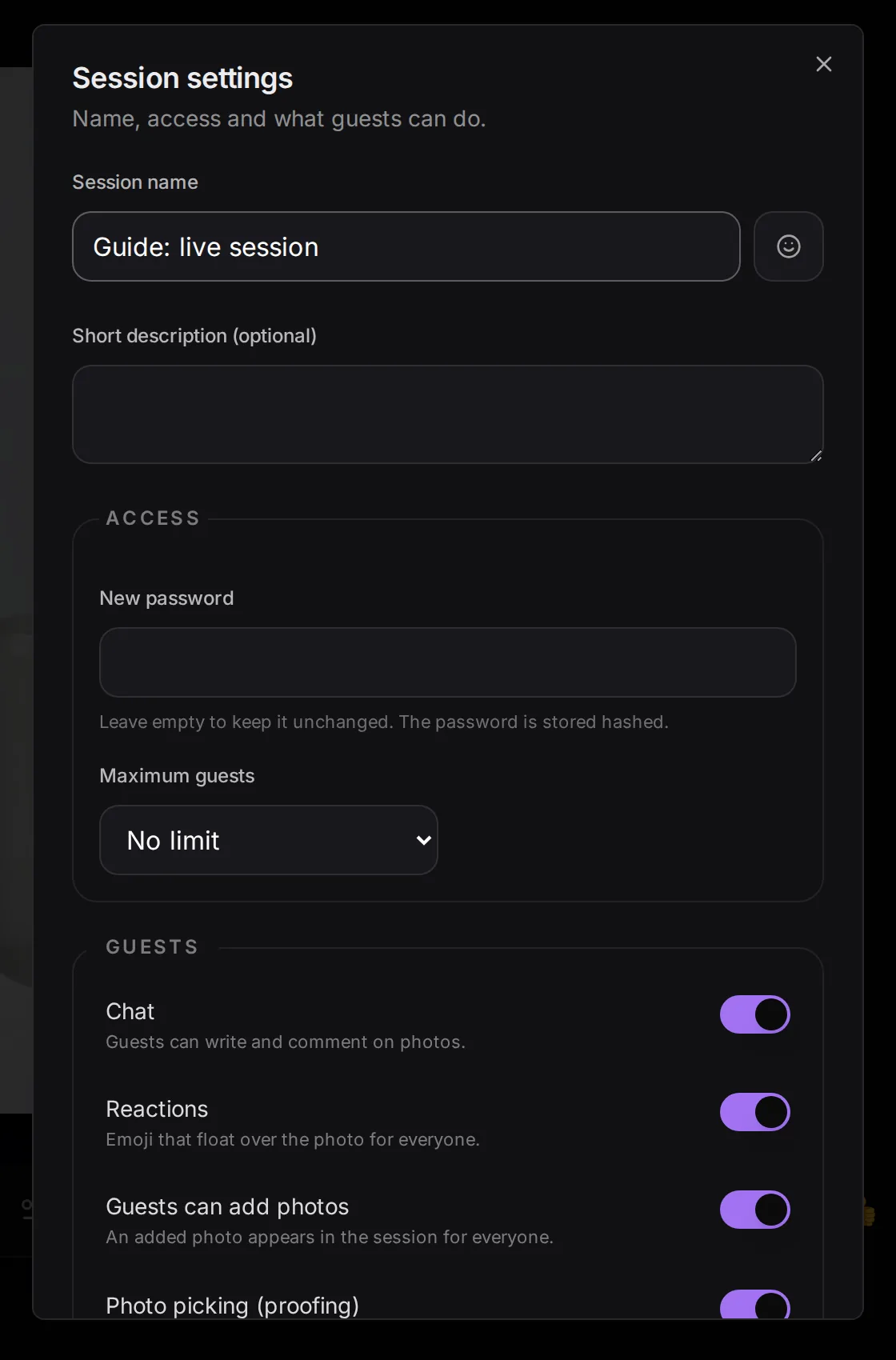
| Setting | Effect |
|---|---|
| Session name, short description | The name is required. The description is optional. |
| New password / Remove password | Empty keeps the current password. The password is checked on the server. |
| Guests can add photos | Guests can upload JPG, PNG, WebP, GIF or AVIF up to 25 MB each; the photo appears for everyone. Uploads are not screened automatically, so remove what you do not want. |
| Watermark | A visible mark with your name on every photo on guest screens. Downloads are off while it is on. |
| Photo downloads | Guests get a download button. |
| Chat | Guests can write messages and comment on photos. |
| Reactions | Eight emoji float over the photo on every screen. |
| Photo picking (proofing), Picks per guest | Guests pick photos for the album. Cap the number of picks per guest or leave it with no limit. |
| Maximum guests | Lower the room's capacity (up to 500) or leave it with no limit. |
| Lock joining | Newcomers cannot enter; guests already inside stay. |
Running the room as host
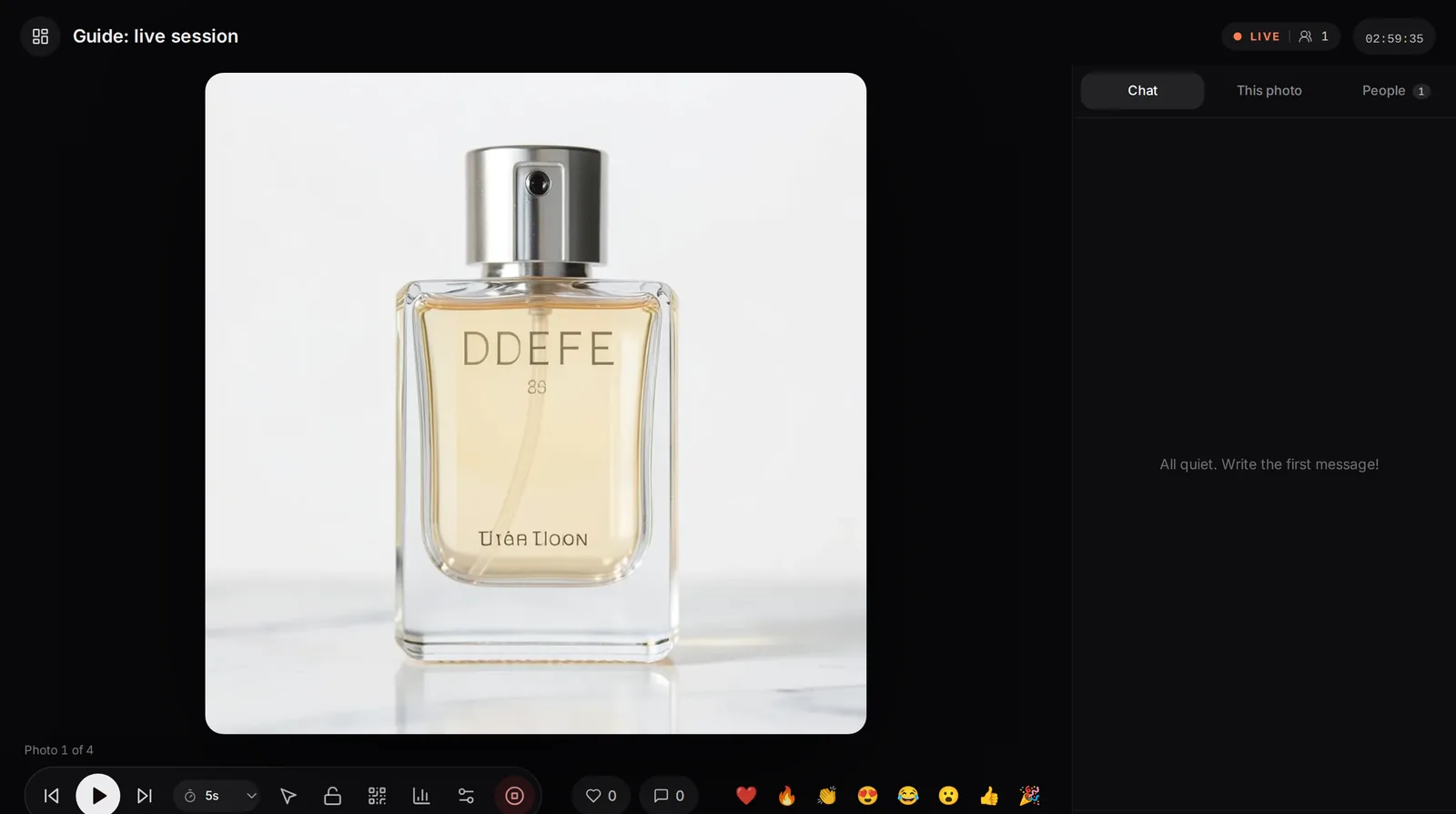
Click Open to enter the room as host. The stage shows the current photo large, a thumbnail strip below it, and the live side panel with Chat, This photo and People tabs. A countdown shows the time left, and a badge shows how many people are in the room.
Presentation controls
- Previous photo and Next photo move everybody. Guests follow automatically; a guest who browses on their own sees Back to live to snap back to you.
- Autoplay advances on a timer, with six speeds under Time per photo.
- Pointer shows a Laser or a Spotlight on the photo that every guest sees, so you can point at a detail while you talk. Turn pointer off removes it.
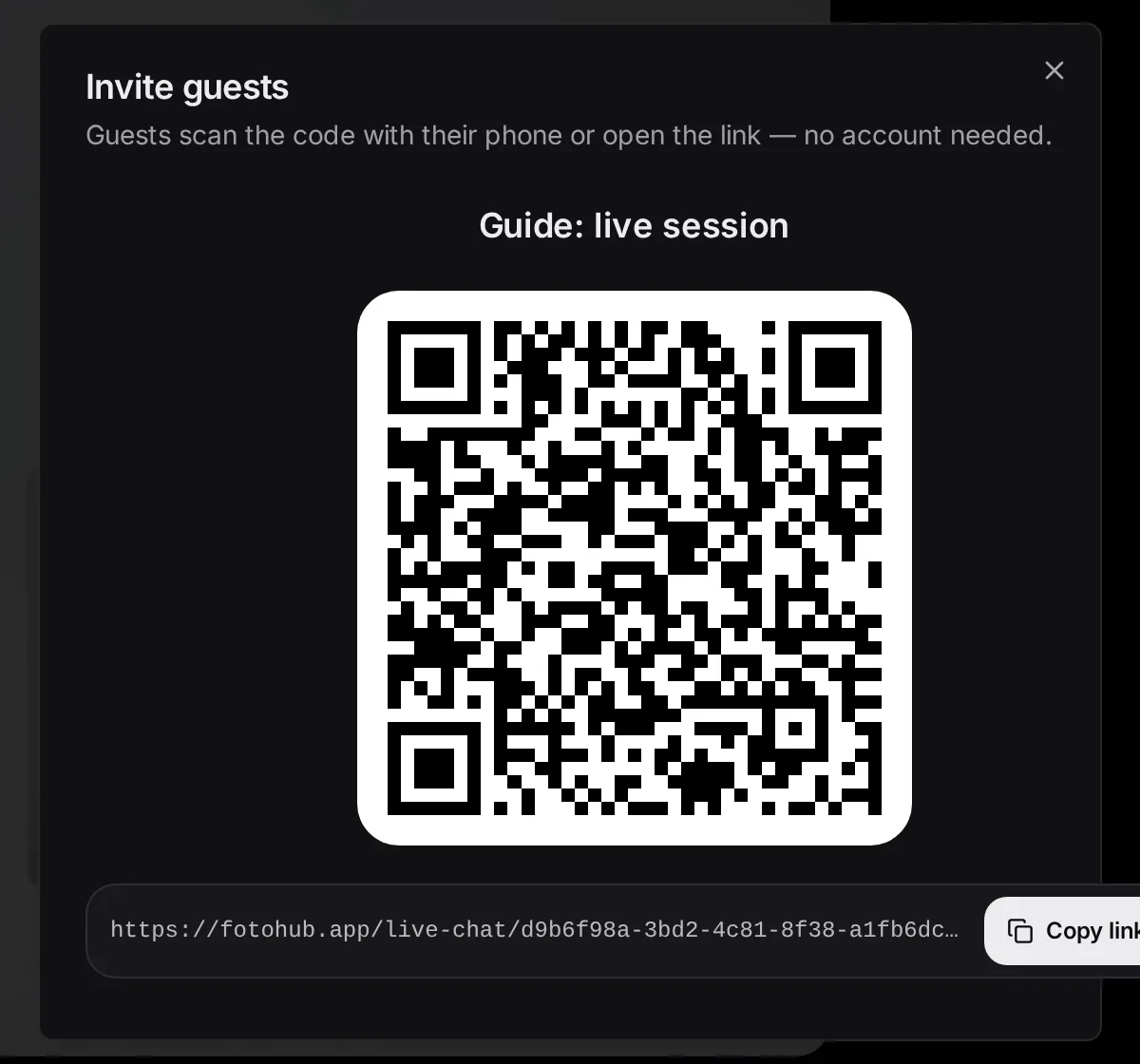
- Invite guests shows the link and a large QR code for a projector. Lock joining closes the door to newcomers.
- Recap, Session settings and End session. Ending asks for confirmation, shows guests the end screen and gives you the recap; you can extend the session later from the dashboard.
Moderation
In People you see who is online or away. You can remove a guest; the dialog notes that a removed guest can return under another name, so choose Lock joining as well if you want to prevent that. In the chat you can delete a message, and on the stage you can remove a photo from the session (the photo stays in your library).
What guests see
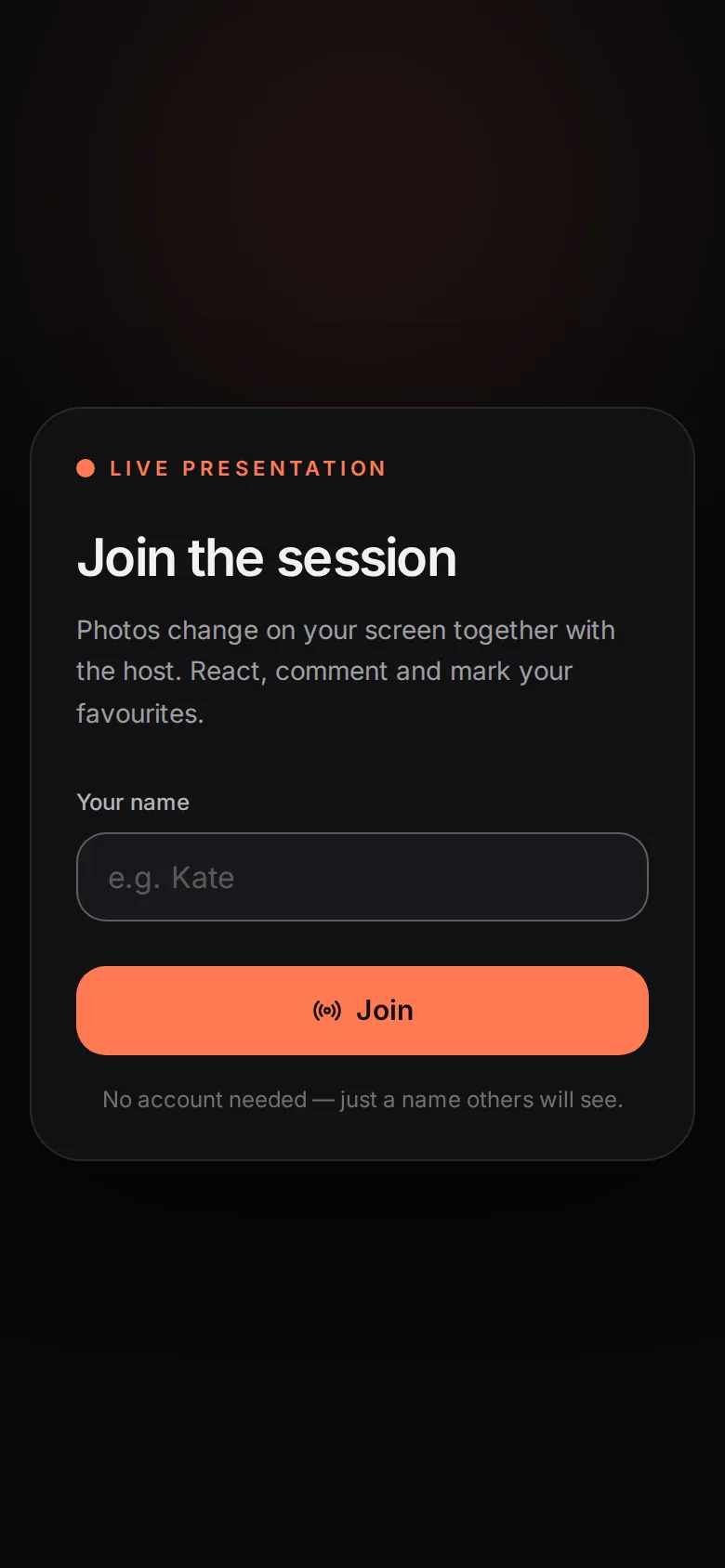
A guest opens the link or scans the QR code. If there is a password, they type it; then they enter a display name (1 to 40 characters, unique in the room). No account, no app. The room works on a phone, a tablet or a laptop.
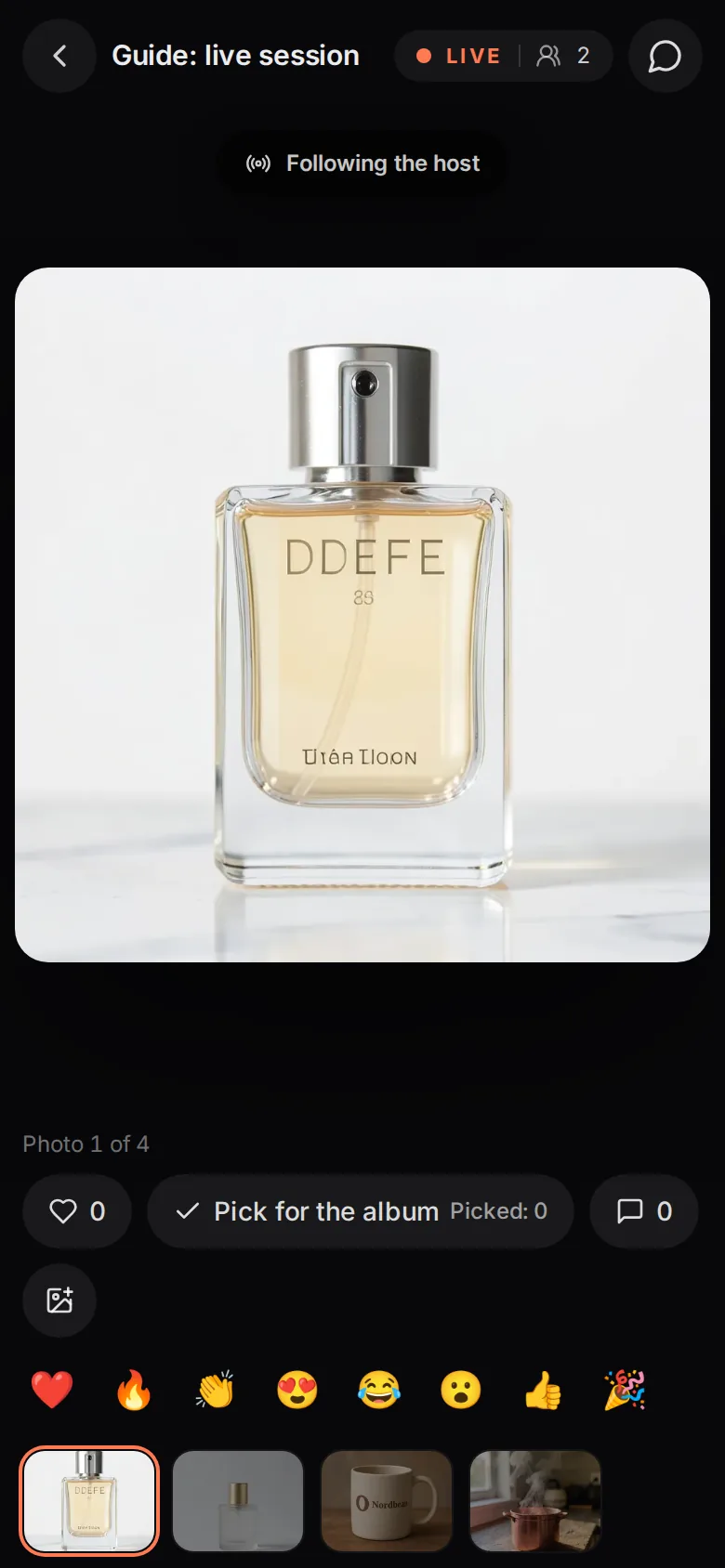
- Follow or browse. Guests follow the host by default (Following the host). They can swipe or tap through the thumbnails (Browsing on your own) and return with Back to live.
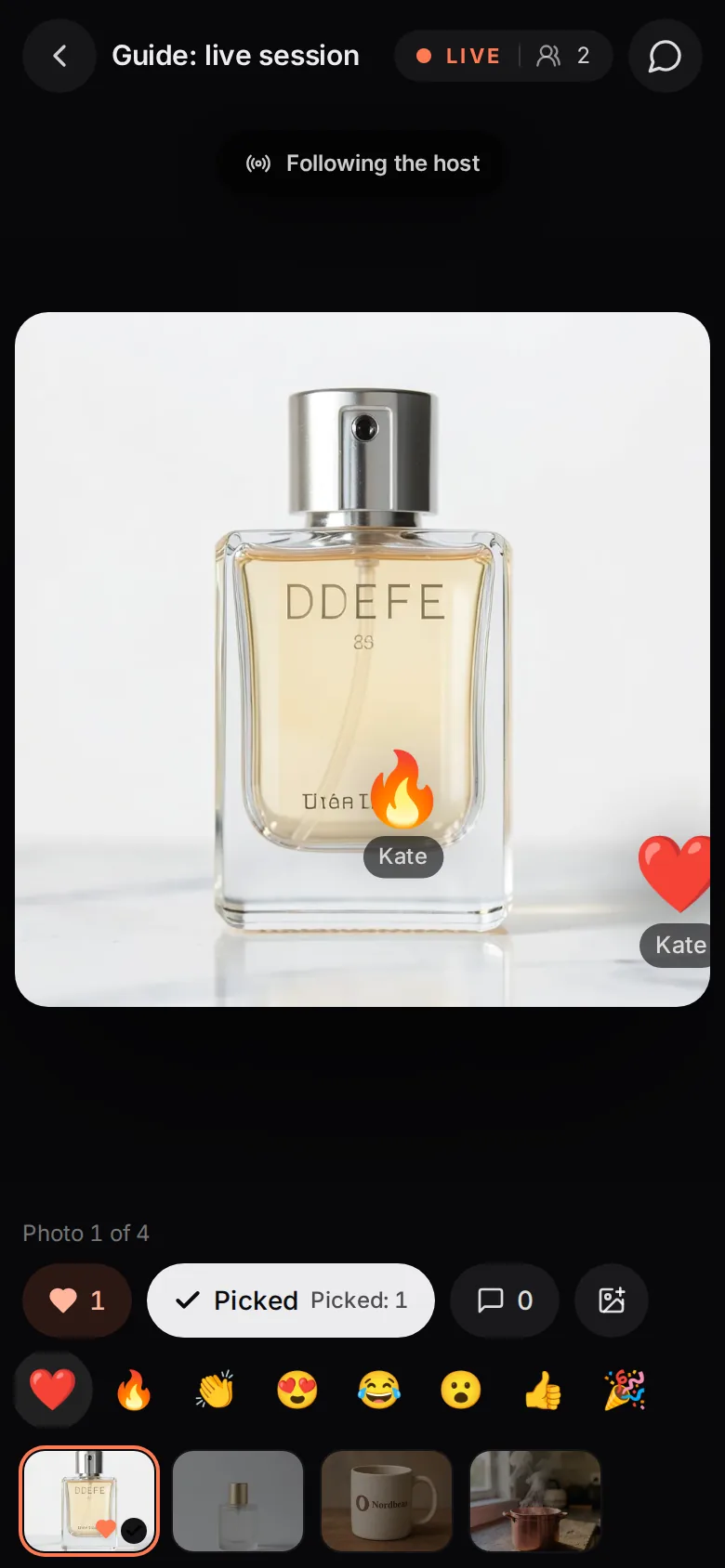
- React. Eight emoji (heart, fire, clapping, heart eyes, laughing, surprised, thumbs up, party) float over the photo for everyone.
- Favourite. Add to favourites marks a photo as liked. Counts per photo are visible.
- Pick for the album. With proofing on, Pick for the album adds the photo to the guest's own list. Other guests do not see it, you do.
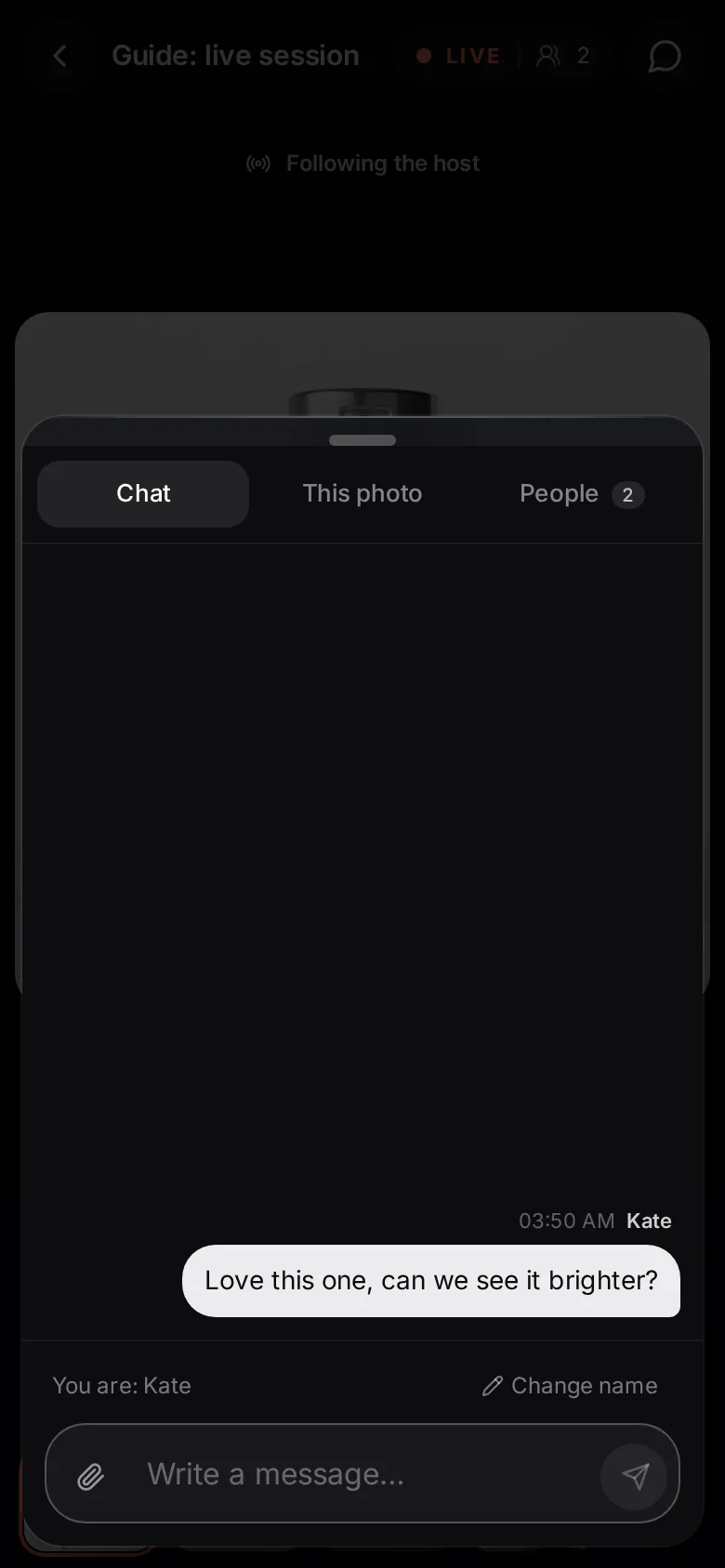
- Chat and comments. The Chat tab is for the room; This photo holds comments on the photo being shown. Messages can carry an attached image and are limited to 1000 characters.
- Resume. A guest who closes the tab is let back in from the same browser without typing the name again.
The recap
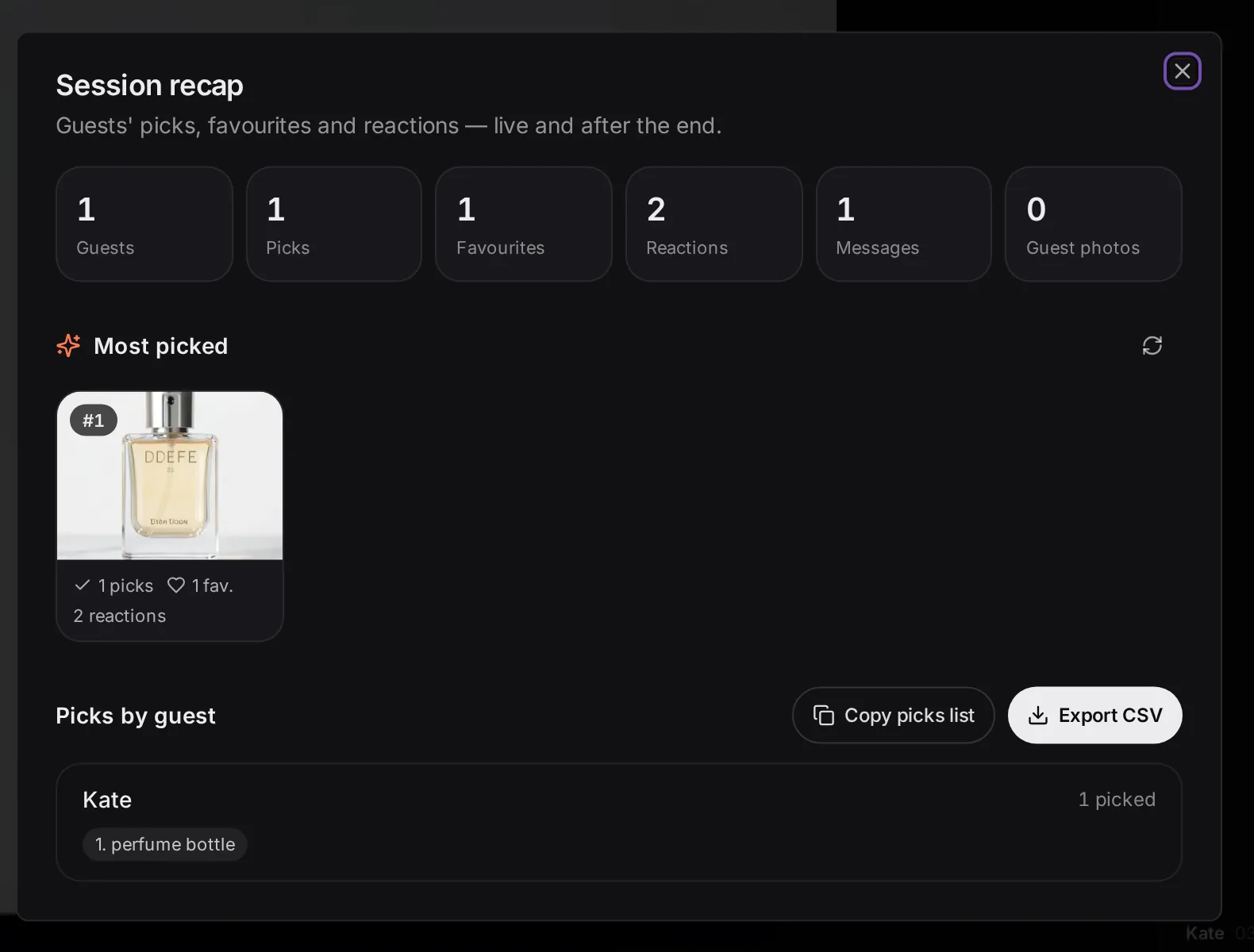
Recap (on the dashboard row or in the room) summarises the session even while it is live. It shows the totals for guests, messages, favourites, picks, reactions and guest photos; Most picked lists the top photos; Picks by guest shows each guest's list. Export CSV downloads every pick and favourite with the guest, the type, the position and the photo, and Copy picks list puts the list on your clipboard for an email or a retouching brief.
A wedding preview with the couple
Goal. Let the couple choose 40 photos for the album from 300 edited images, without a long email thread.
| Setting | Value |
|---|---|
| Duration | 24 hours |
| Password | set |
| Photo picking | on, 40 picks per guest |
| Watermark | on |
Why it works. Proofing mode gives each guest a private list and the host a CSV, so the album order is decided in one sitting. The password keeps the room limited to people you gave it to.
Questions and limits
| Limit | Value |
|---|---|
| Photos per session | up to 500 |
| Guests per room | up to 500 (you can set a lower number) |
| Guest photo | 25 MB; JPG, PNG, WebP, GIF, AVIF |
| Chat message | 1000 characters |
| Session length | 1, 3, 6, 12 or 24 hours, extendable |
- Do guests see each other's picks?
- No. Picks are private to each guest and the host. Favourite counts and reactions are shared.
- Can a guest download the photos?
- Only if you switch on photo downloads, and never while the watermark is on.
- A guest cannot join.
- The join screen names the reason: wrong password, name already taken, joining is locked, the room is full, too many attempts, or the session has ended or expired.
- What happens to the session after it expires?
- The room closes for guests. You still see it in the list as Expired, can open the recap and can extend it to reopen it, or delete it.