Publish an agent: versions, schedules, webhooks and the API
Move an agent from a draft to production: publish a version, run it on a schedule, call it from another system with a signed webhook or the API, set limits and budgets, and know which embed options exist today.
Draft, published version and production
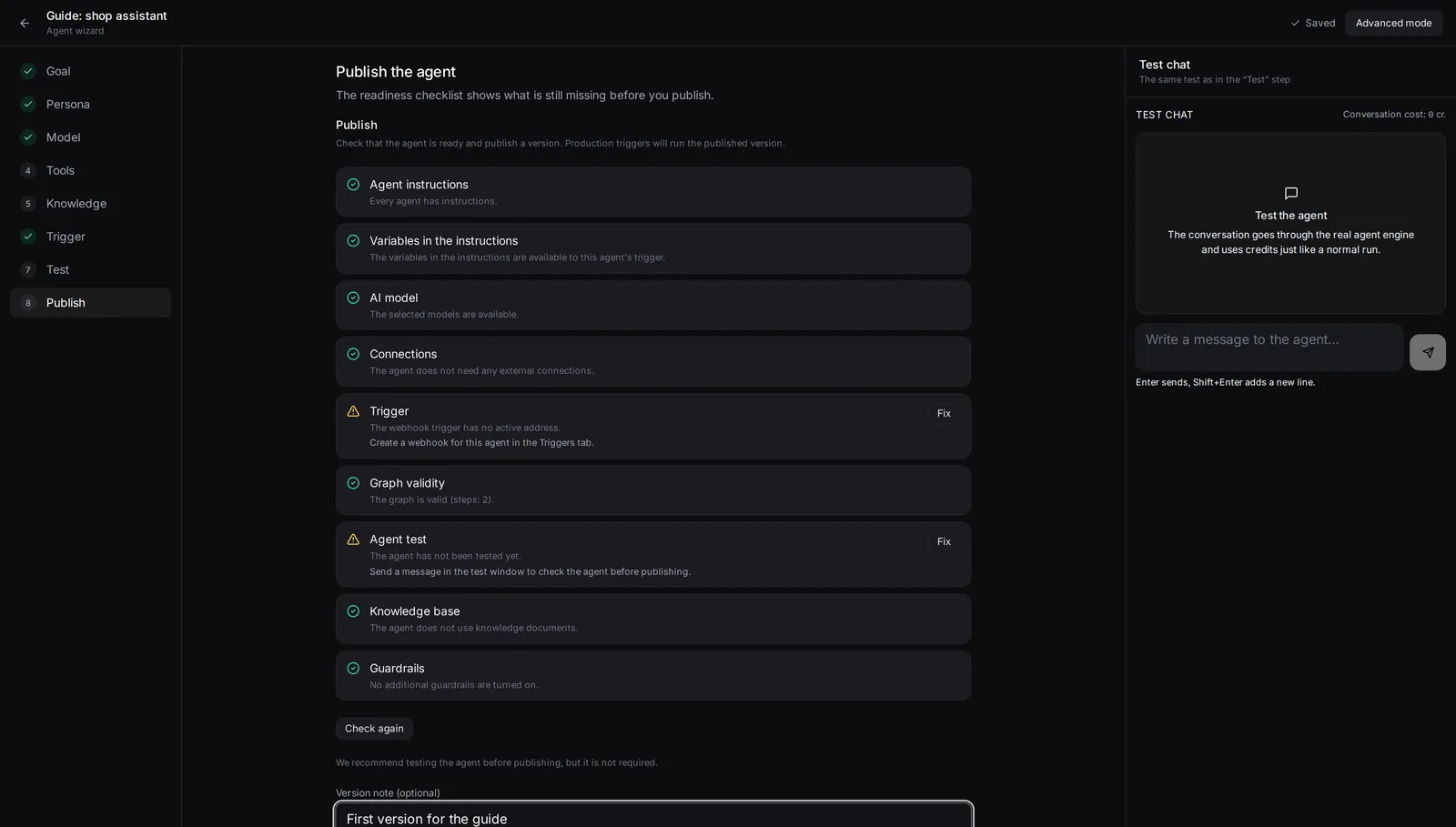
An agent has a working version (the draft you edit and test) and published versions (frozen snapshots). The rule that matters: production triggers run the published version, namely the schedule, the webhook and the widget. The test in the wizard and Test in the builder run the working version, so changes you make later do not affect production until you publish them. This lets you keep improving an agent without breaking what is already running.
- Check readiness Open the wizard's Publish step. The checklist shows All good or Warning for the agent instructions, variables, model, connections, trigger, graph validity, a test, knowledge base and guardrails. A warning such as "The agent has not been tested yet" has a Fix link; it recommends testing before publishing but does not block you.
- Add a version note Optionally write what changed in this version. It appears in the version history.
- Publish Click Publish. The page confirms Published version 1 and offers Run and Widget. If nothing changed since the last version it says so and creates no new one. In the advanced builder the same action is the Publish button in the top right.
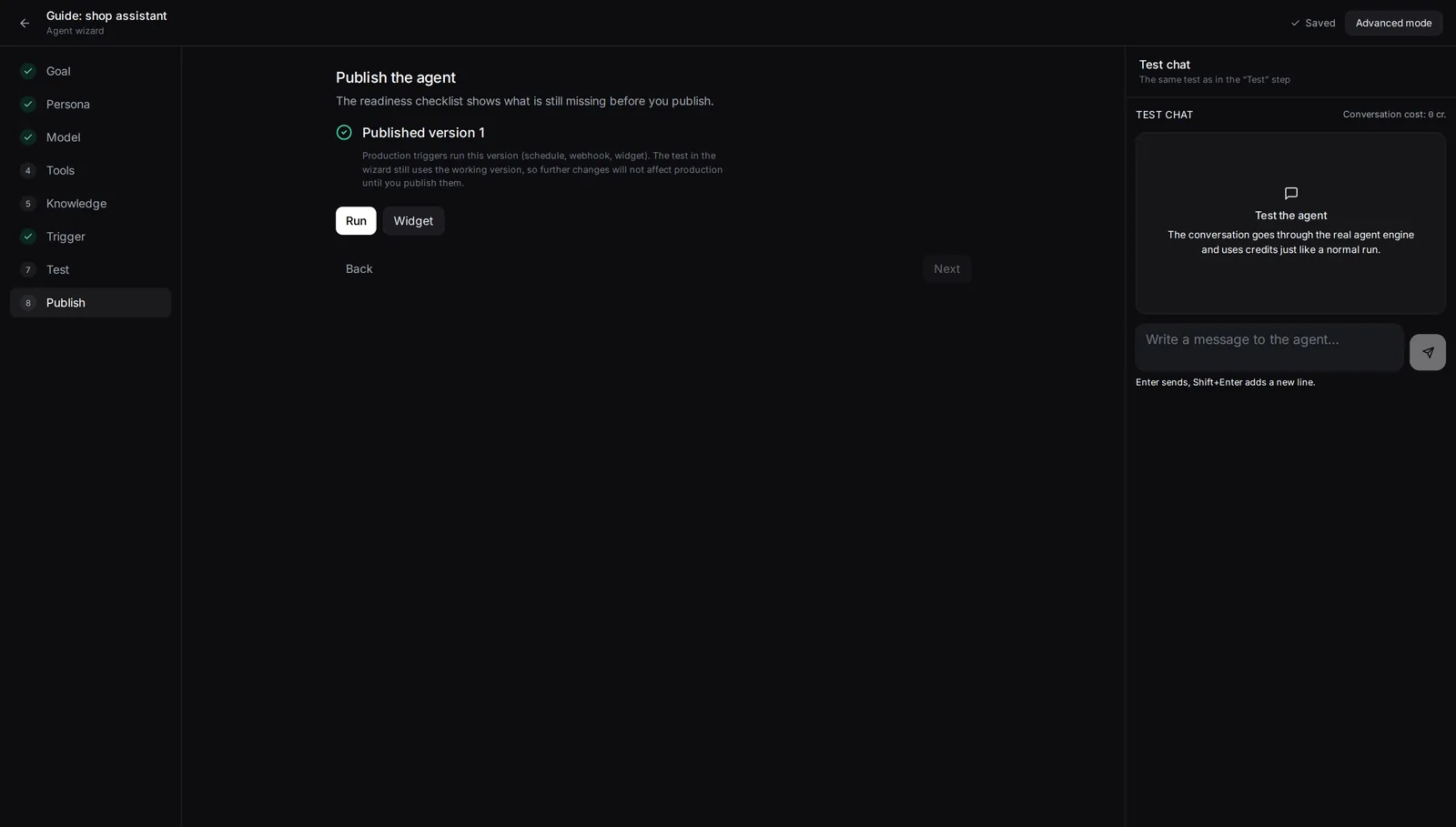
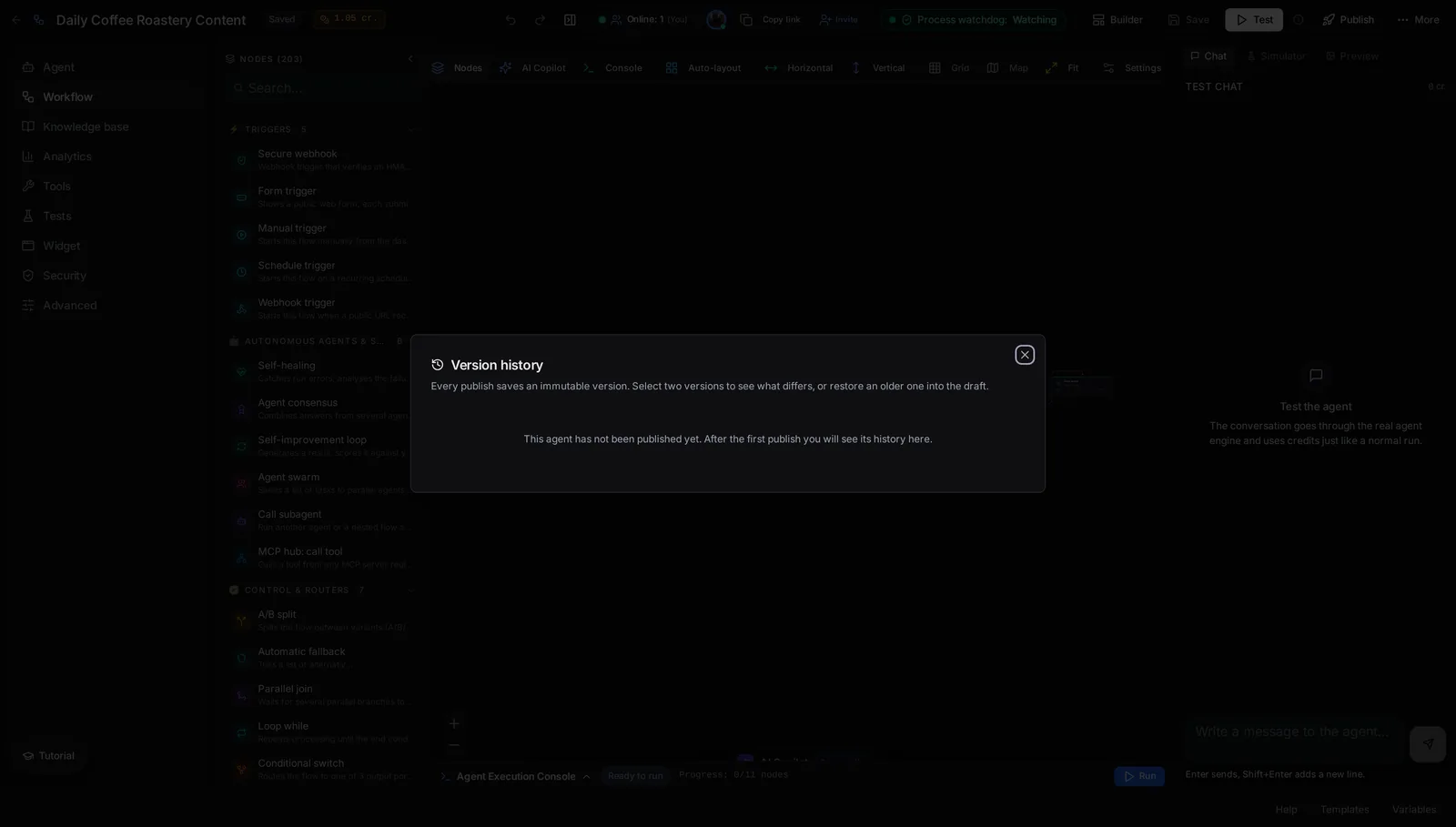
Publishing is for production use of your own agent; it does not put the agent in the marketplace or share it with anyone. More, Version history lists every published version with its note, and you can select two versions to compare or restore an older one into the draft. Until you publish, the history says that the agent has not been published yet.
Run on a schedule
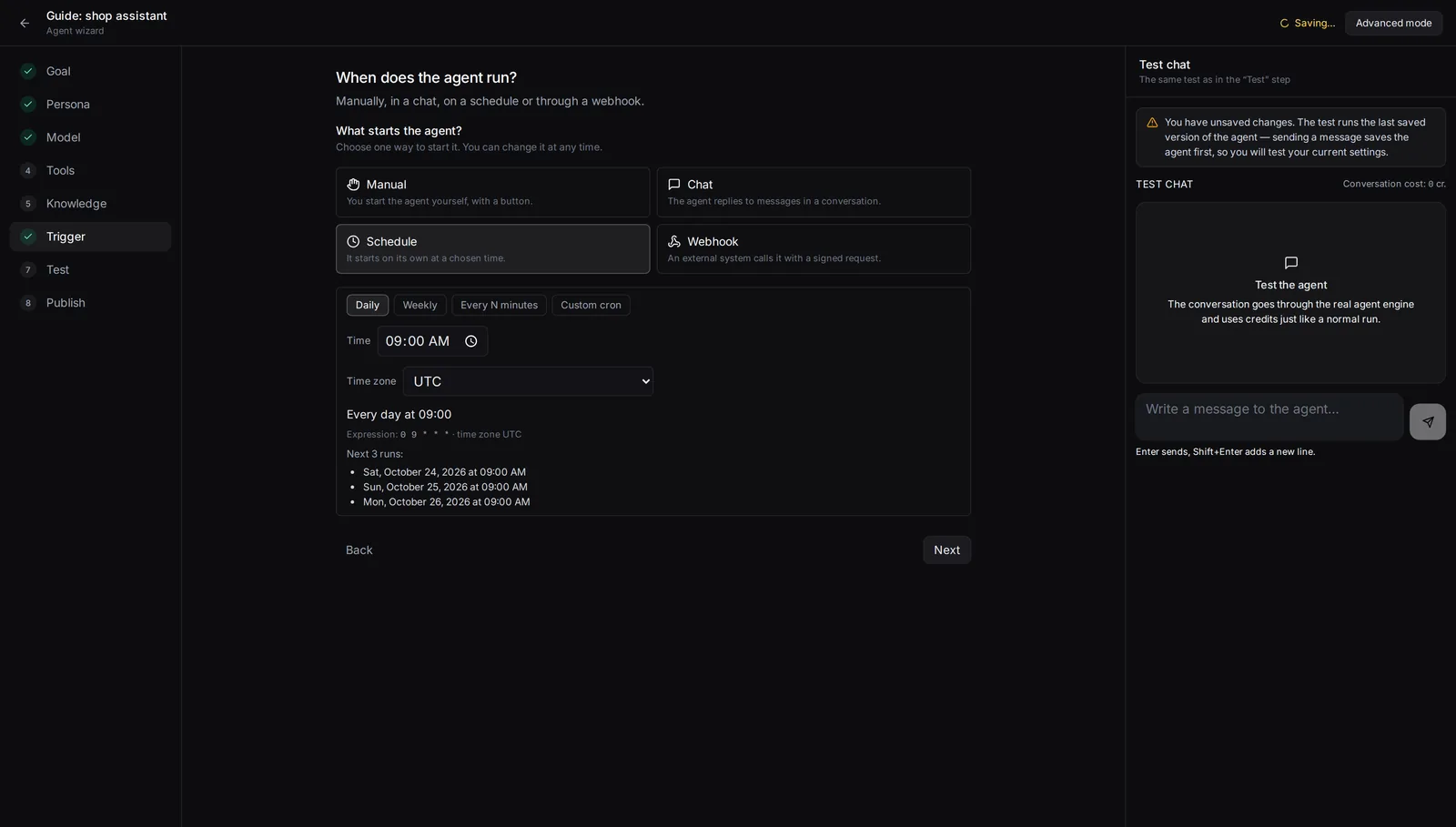
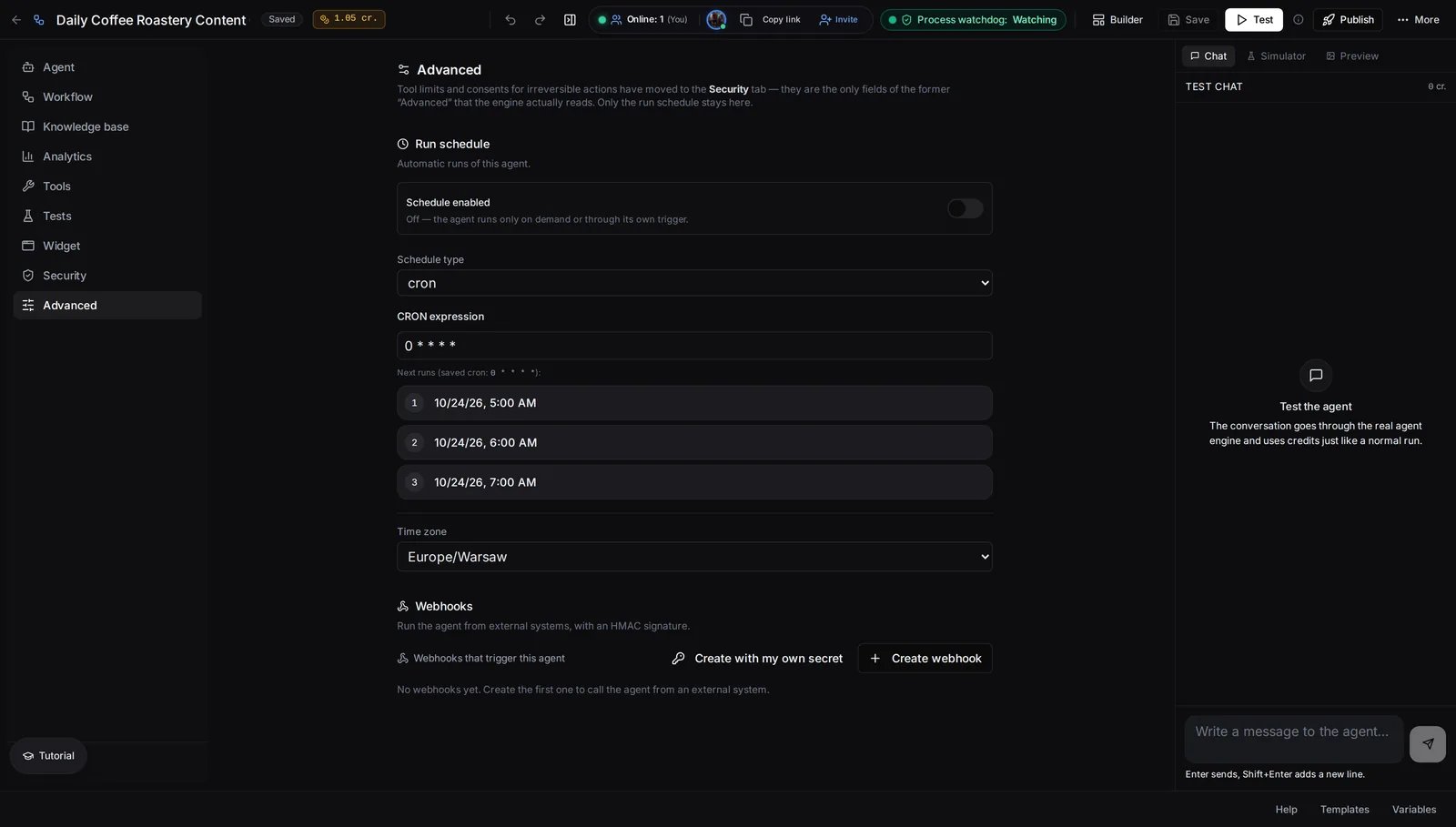
Choose Schedule in the wizard's Trigger step: pick Daily, Weekly, Every N minutes or Custom cron, then a Time and a Time zone (UTC, Europe/Warsaw, Europe/London, Europe/Berlin and many more). In the advanced builder the same schedule lives in the Advanced tab, Run schedule: switch on Schedule enabled, pick Once, Interval or CRON expression, and the page previews the Next runs so you can check them. A CRON expression has exactly five fields (minute, hour, day of month, month, day of week); the page refuses to save an invalid one. Settings has presets such as every 15 minutes, hourly, daily at 9:00, weekdays at 8:00, every Monday at 9:00 and first day of the month.
Call it from another system
Webhook
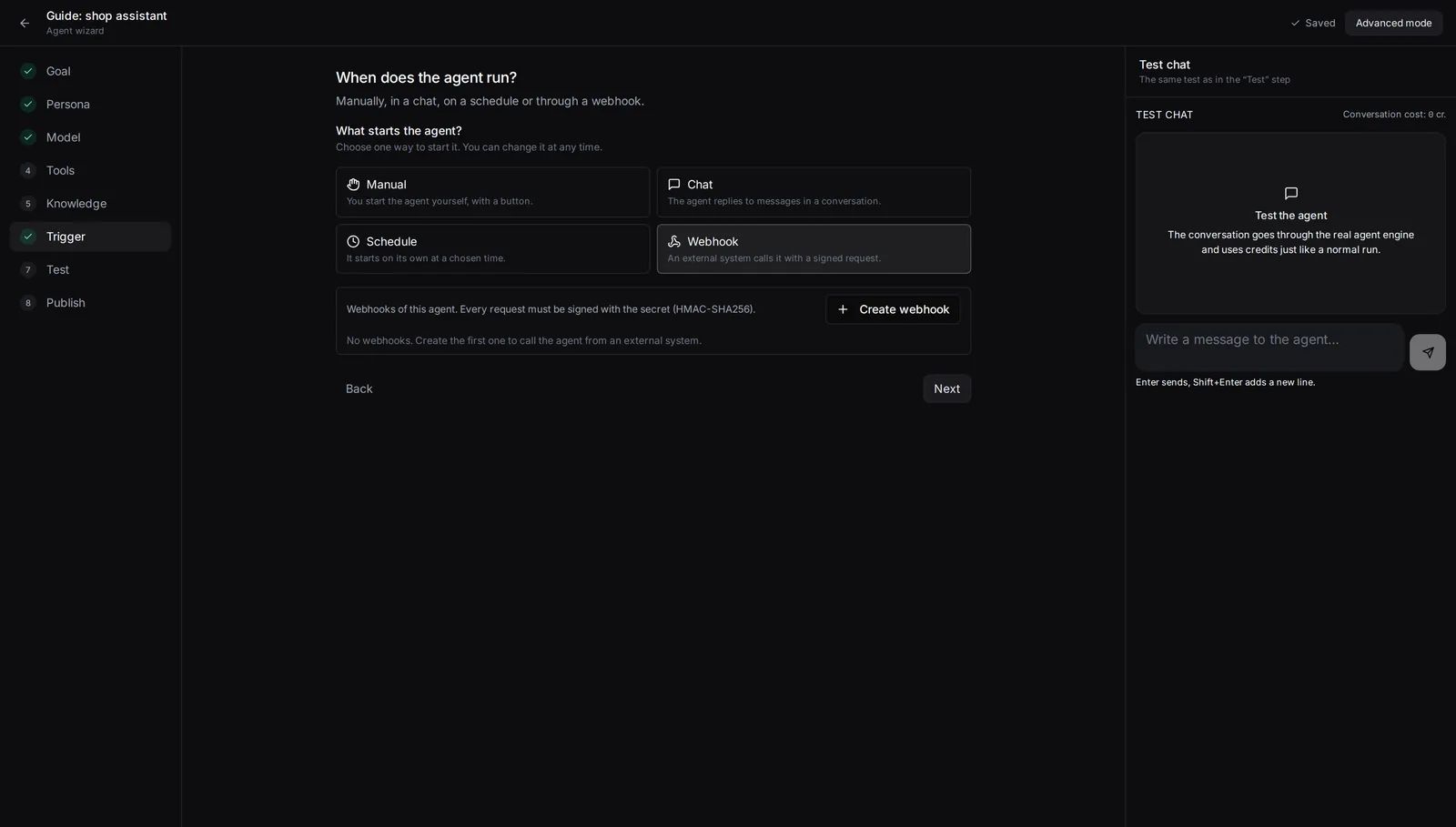
With the Webhook trigger you create webhooks for the agent (Create webhook). An external system sends an HTTP POST with JSON data to the webhook's address to start a run, and every request must be signed with the webhook's secret using HMAC-SHA256. The builder has a Secure webhook trigger node that verifies the signature and can filter by IP address, a copy button for the address, and a Webhook simulator in the More menu that sends a signed test request so you can see the result without wiring a real system. Save the agent first: the address only exists for a saved agent.
API and code
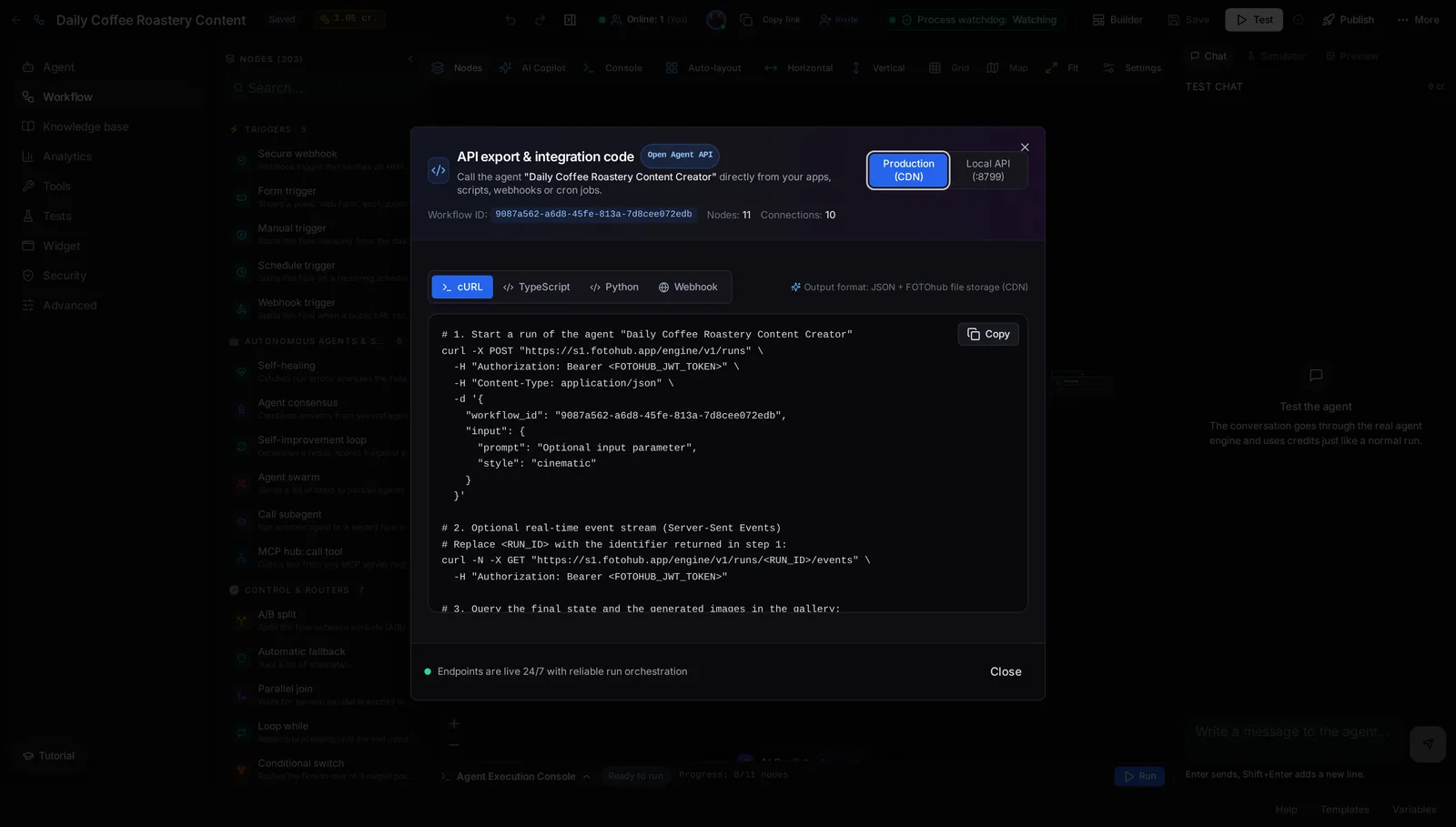
More, API code opens API export and integration code for the agent, with a toggle between the production address and a local one. It shows the agent's workflow id, number of nodes and connections, and ready code in four tabs: cURL, TypeScript, Python and Webhook. The pattern is the same in all: (1) start a run with a POST that carries your token and an optional input such as a prompt, (2) optionally follow real-time events, (3) read the final state and the generated media. Run it from your own backend, a cron or an automation tool such as Make or n8n.
Budgets, limits and the cost dialog
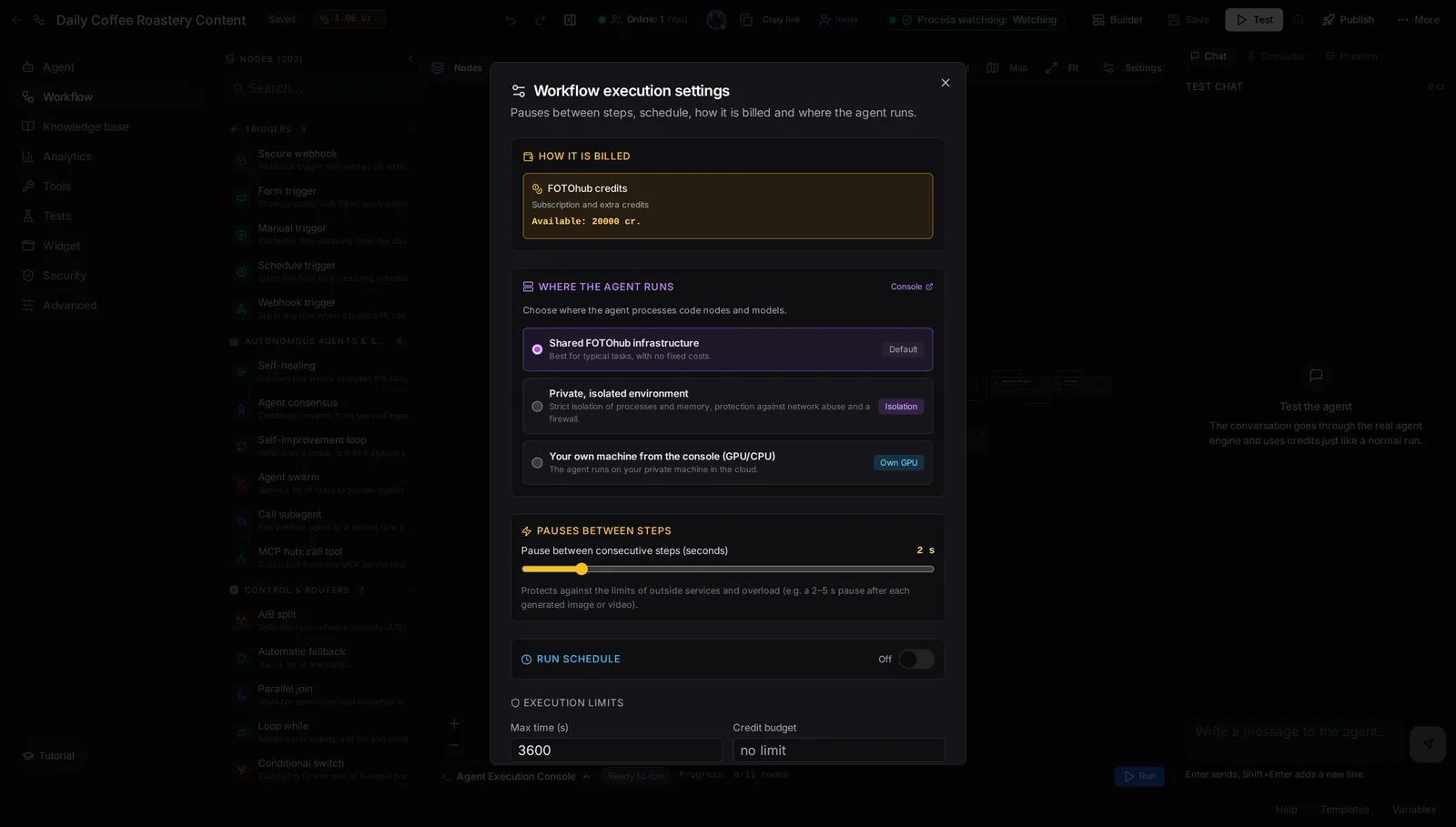
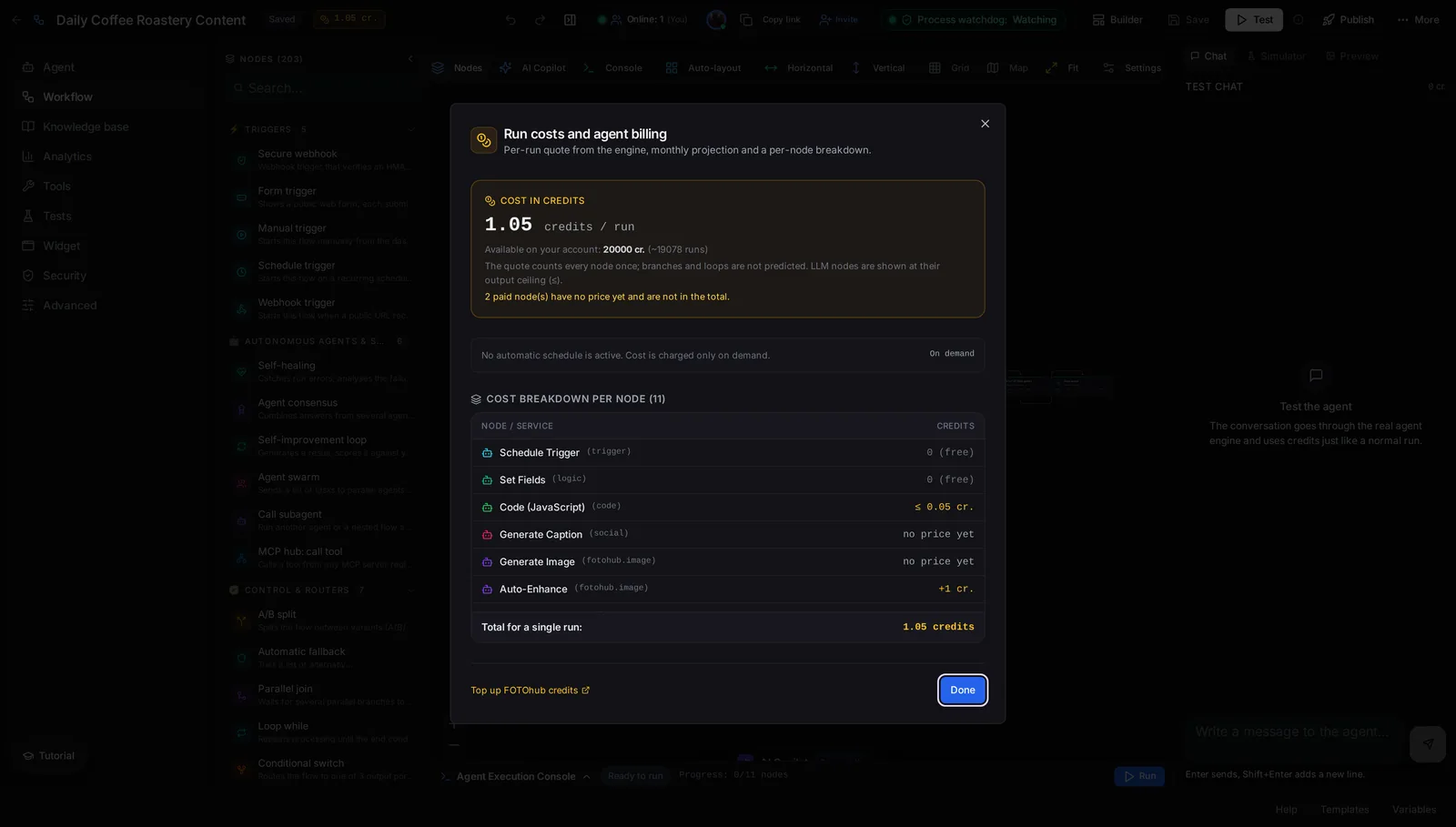
More, Settings (Workflow execution settings) is where you decide how a production agent behaves: How it is billed (your FOTOhub credits or a dollar wallet), Where the agent runs (the shared FOTOhub infrastructure, a private isolated environment, or your own machine from the console), Pauses between steps to respect provider limits, the Run schedule, and Execution limits: a maximum time, a Credit budget (the run aborts when it is exceeded), a Max steps loop guard and the On error policy (abort, continue or retry three times). The Cost estimate and wallet dialog shows the credits per run and a breakdown per node; nodes without a price yet say so.
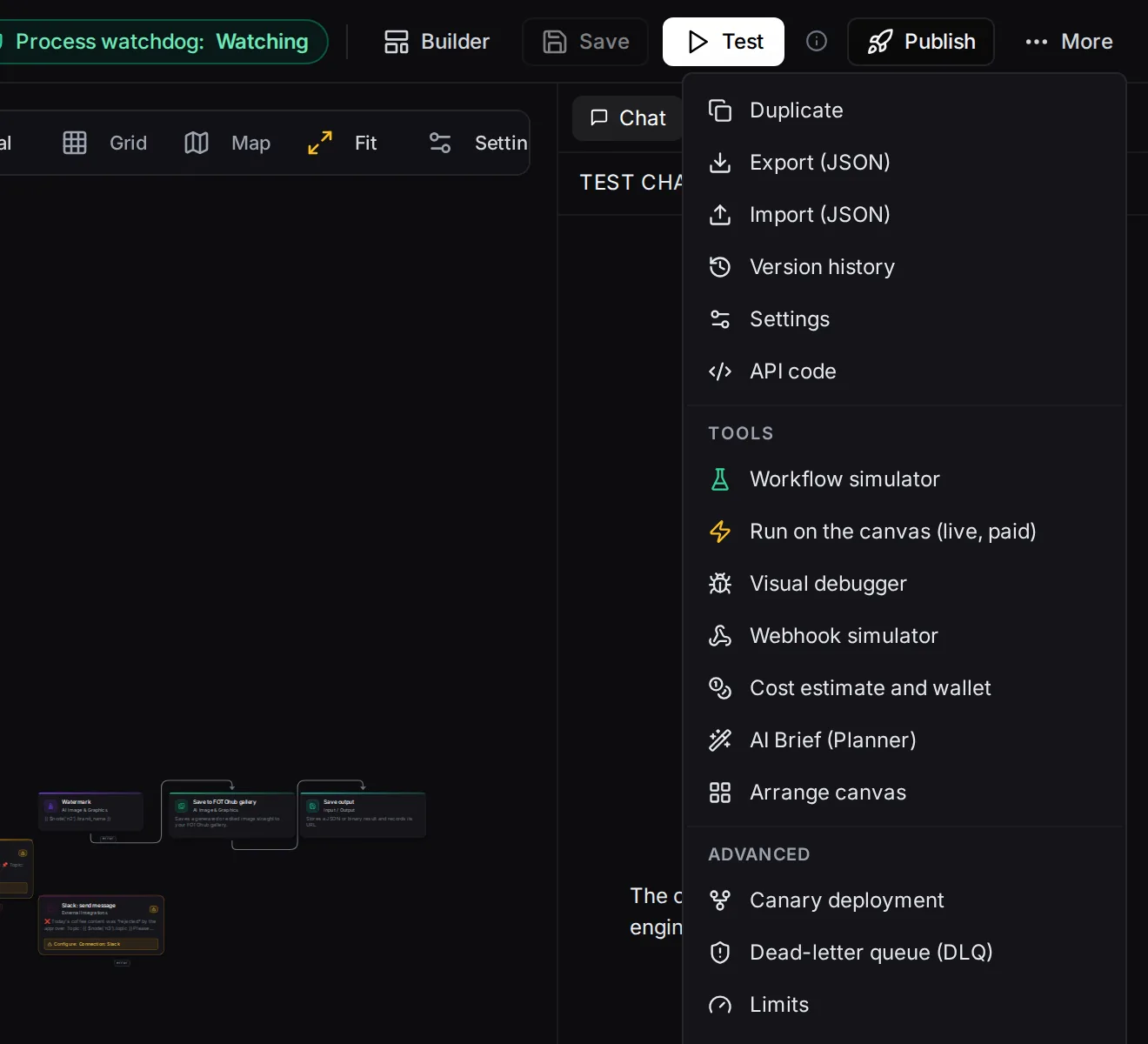
The same More menu, under Advanced, has Canary deployment (route a share of runs to a new version and watch the error rate before promoting it), Dead-letter queue (replay runs that failed), Limits (rate limits such as concurrency and requests per minute) and an Audit log. They are production tools: reach for them once an agent is serving real traffic.
Embedding: what exists today
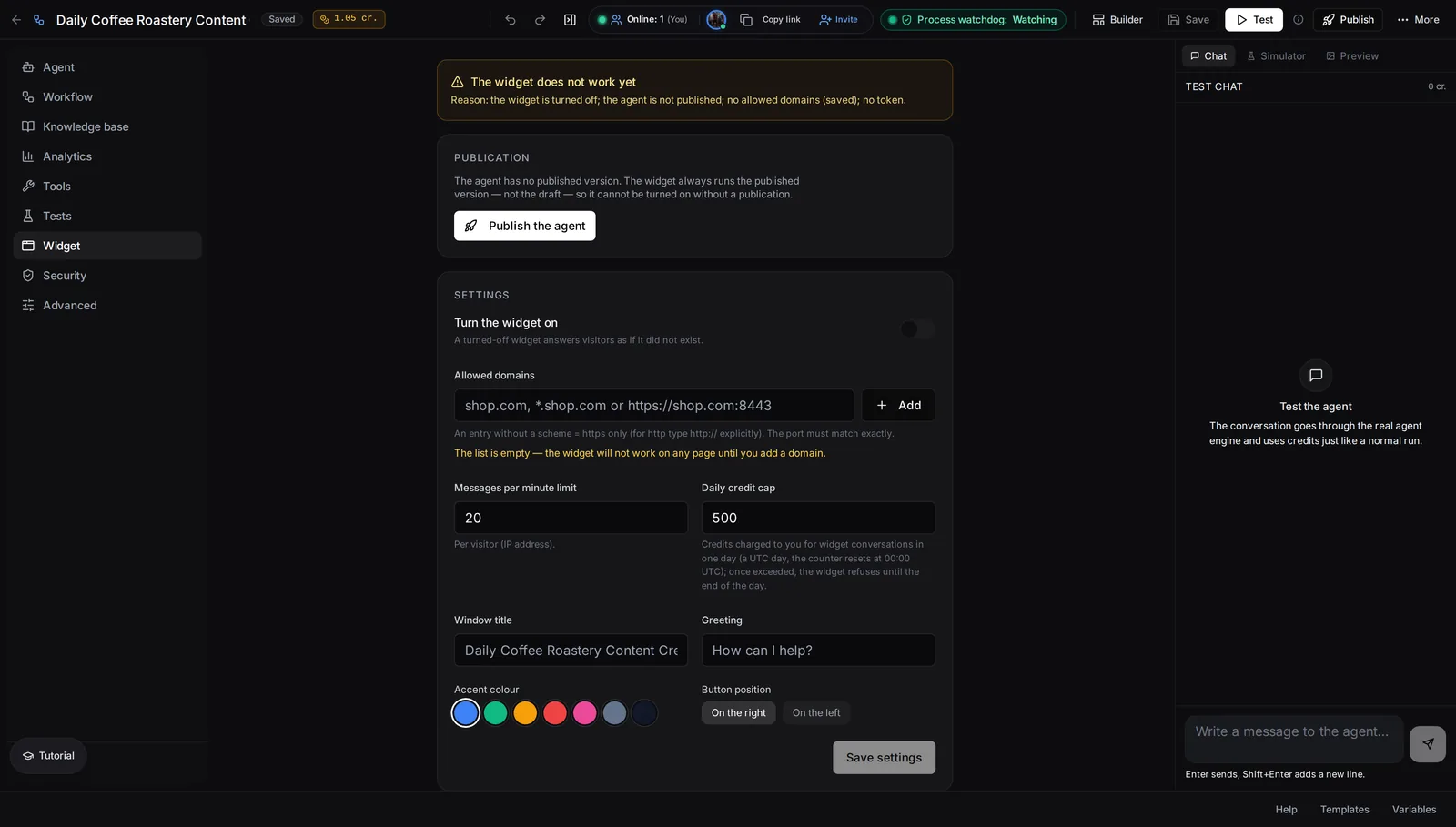
The Widget tab is meant to turn a published agent into a chat widget you place on a website. At the time of writing it does not work: the tab states that the widget does not work yet and lists the reasons that apply to your agent (the widget is turned off, the agent is not published, no allowed domains are saved, no token), and the embed page for agents is not live. Do not promise a client an embedded agent chat yet. What you can embed today is the result of an agent: call it through a webhook or the API from your own site or backend, and show the output yourself.
A nightly agent a shop can call
Goal. Run a product-photo agent every night, and let the shop's own system trigger an extra run on demand.
| Setting | Value |
|---|---|
| Schedule | Daily, 02:00, Europe/Warsaw |
| Webhook | HMAC-SHA256 |
| Budget | a credit budget in Settings |
Why it works. Two triggers on one published agent: a schedule for the routine and a signed webhook for the shop. Both run the published version, so you can keep editing the draft safely.
- I changed the agent but the schedule still runs the old behaviour.
- Production triggers run the published version. Publish again to promote your changes.
- The webhook returns an authorisation error.
- The request is not signed, or signed with the wrong secret. Use the webhook simulator to send a correctly signed request and compare.
- Can I stop all automatic runs quickly?
- Pause the agent on its card to stop its schedule. A webhook-triggered agent is not stopped by Pause yet, so delete or disable its webhook as well.