Post graphics generator: describe the post, get the picture
Turn a sentence about your promotion into a finished social graphic with headline, offer and button, in the format of your choice, with or without your own photos.
What it makes
The post graphics generator is the page behind the Generate with AI button in the Social Studio composer. It is titled Social Studio and its subtitle says it all: describe the post in plain words, and the studio handles the rest. You write what you promote, optionally add photos of your product or a style reference, choose a format, and the generator designs a finished graphic with the text on it. There is no prompt to engineer: FOTOhub writes the instructions for the image model on the way, and shows nothing to approve.
It fits promotions, announcements, price offers, event posters and quote cards. For a clean product picture with no text, use Product Shot Studio. For editing a graphic afterwards, send it to the Design Studio.
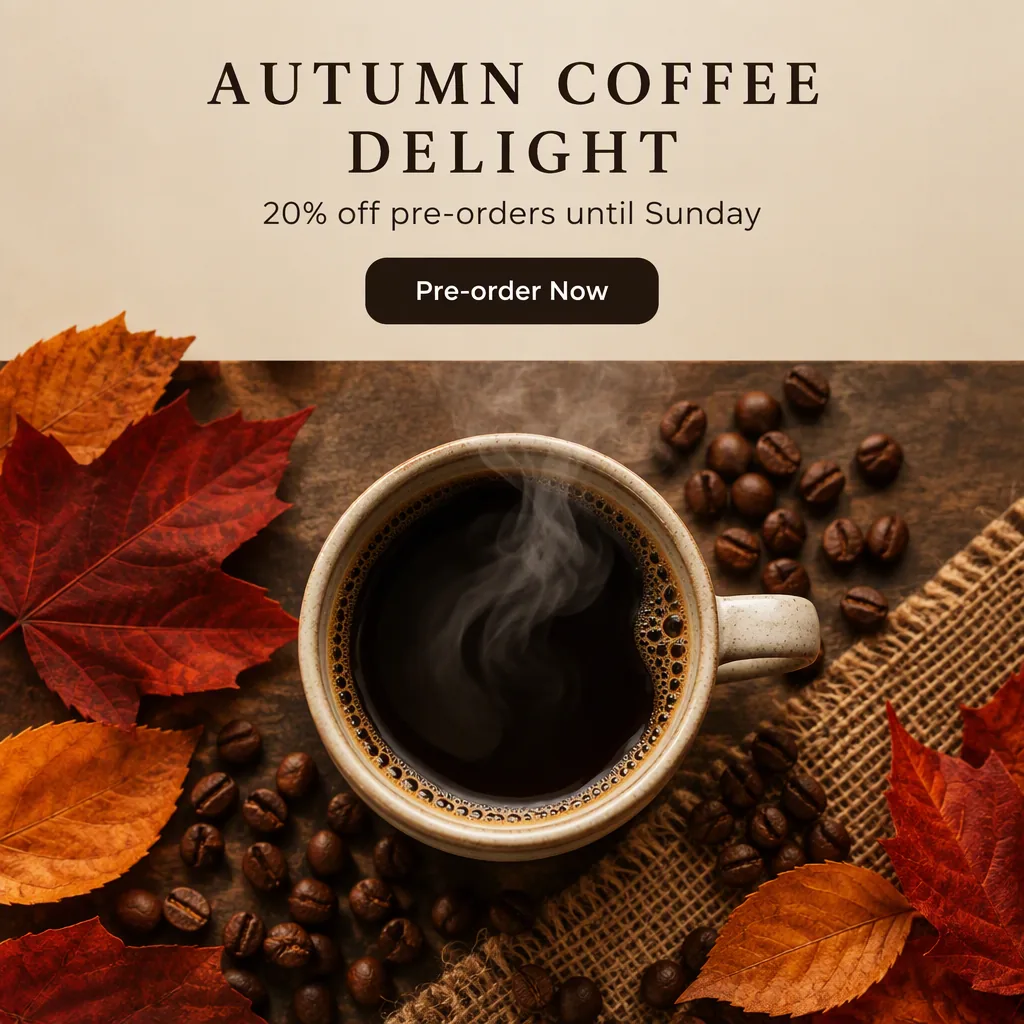
/generate/social-post, made from one sentence: "Autumn promo for our specialty coffee roastery, 20% off pre-orders until Sunday, warm and premium mood".Step by step
- Add reference photos (optional) Use Upload or From my photos. Give each photo a role: Product, Person, Background or Style. You can add up to four references (fewer on some models). JPEG, PNG and WebP are accepted and resized automatically. With no photos the generator invents the scene.
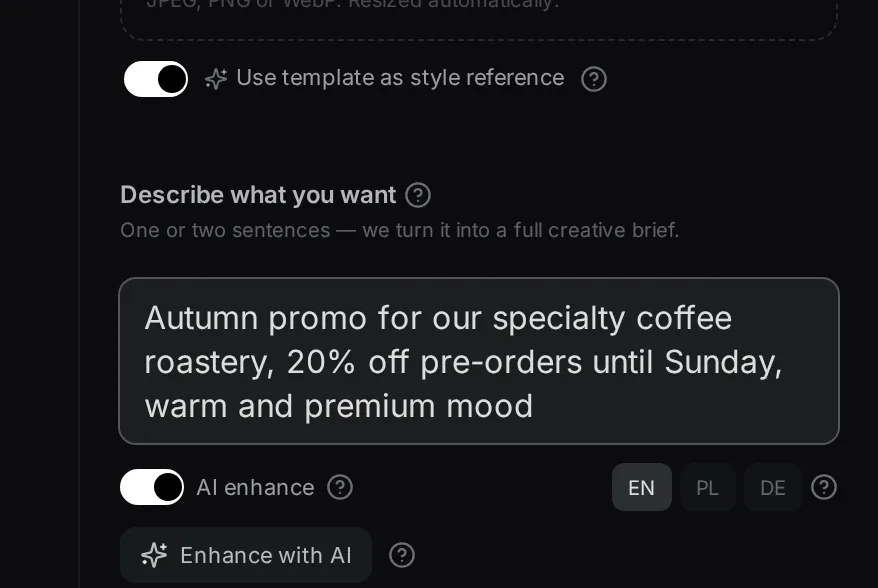
- Describe what you want Write the brief in your own words, for example: "Autumn promo for our specialty coffee roastery, 20% off pre-orders, warm and premium mood". Industry, goal, offer and mood help most. AI enhance is on by default and reads your sentence for industry, goal, audience and tone. Enhance with AI runs it now.
- Check what the AI understood After enhancing, a block What AI understood shows Industry, Goal, Audience, Tone and Art direction. If something is wrong, edit your brief and press Regenerate brief.
- Pick a style Autopilot lets the generator choose a layout. All references opens a gallery of more than three hundred templates by industry, in several languages, and you can filter by language. No template, from your description keeps the layout open. If you pick a template, the switch Use template as style reference controls whether its layout is followed, and a box takes extra instructions.
- Text on the graphic Fill Brand name, Headline, Subhead, Offer, Call to action and List rows if you want exact wording. Empty fields are written by the autopilot. The language of the copy is EN, PL or DE.
- Format, resolution and variants Choose Feed 4:5, Square 1:1, Wide ad 16:9 or Story & Reels 9:16, then the resolution 1K, 2K or 4K, then the number of variants from 1 to 4. A model picker above shows the cost per graphic of each choice. The cheapest suitable model is fine for a first try.
- Design the graphic The button reads Design the graphic with the price. The hint explains how many graphics at what resolution you are about to make. Rendering takes about ten to thirty seconds. Keep the tab open.
Results, history and next steps
The result tab shows your variants as thumbnails. Download saves one, Generate again makes new ones with the same settings. Every render is also saved to your photos with the tag social-post and appears under Recent graphics, which keeps the last 24.
- Post to social media (from your gallery) opens the Social Studio composer with the image attached.
- Design Studio lets you adjust text or add your logo.
- Upscale raises the resolution of the chosen variant.
- From the composer, Generate with AI brings you here and you return with the picture.
Two worked graphics
A coffee pre-order promo, square
Goal. A feed graphic for the autumn pre-order.
Input you can copy.
Autumn promo for our specialty coffee roastery, 20% off pre-orders until Sunday, warm and premium mood. Style: No template. Nothing typed in the text fields.| Setting | Value |
|---|---|
| Style | No template |
| Format | Square 1:1 |
| Resolution | 1K |
| Variants | 1 |
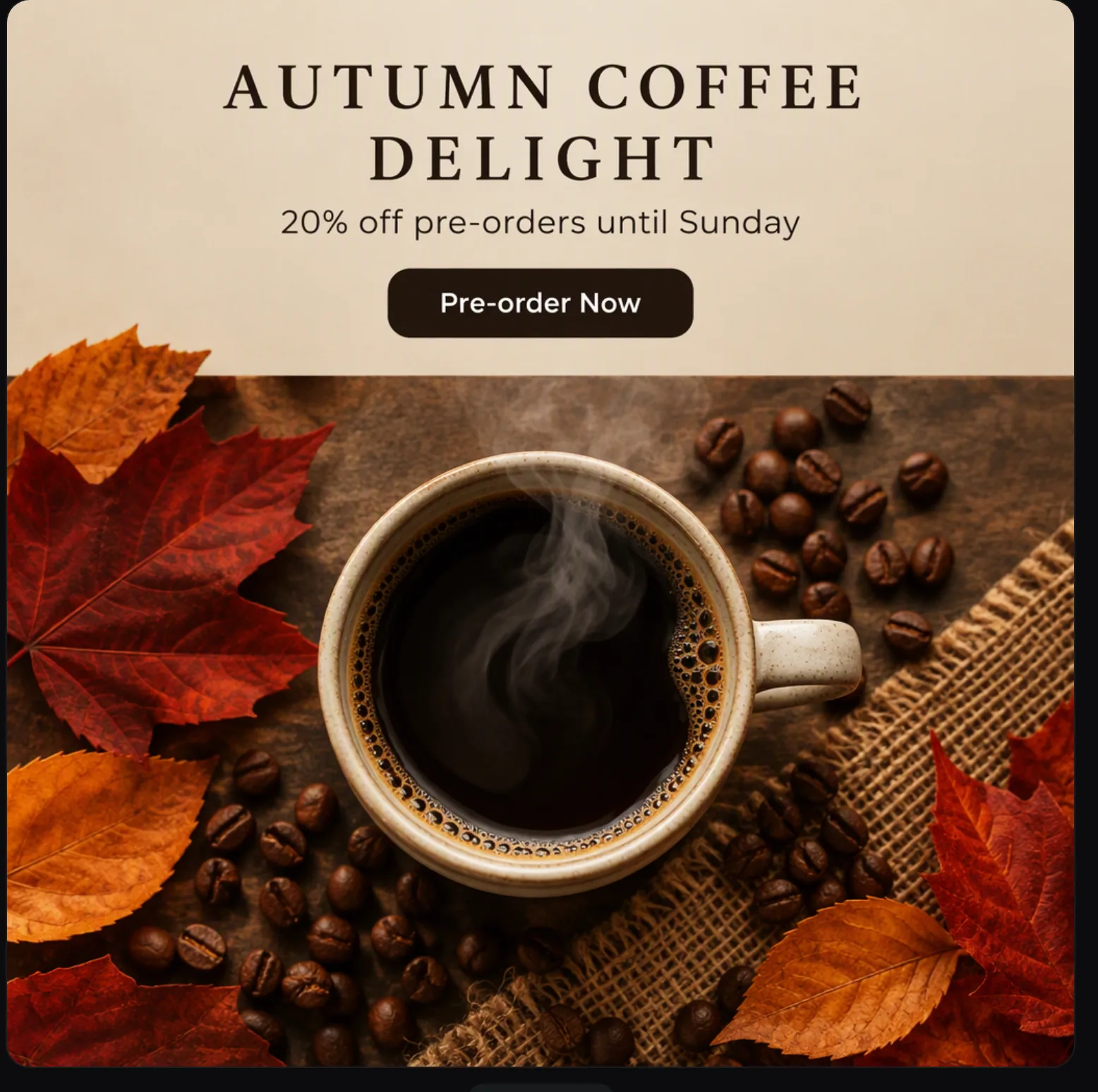
Why it works. With the text fields left empty the autopilot wrote the copy itself: the headline "AUTUMN COFFEE DELIGHT", the line "20% off pre-orders until Sunday" and a button reading "Pre-order Now", set over a steaming cup, beans and autumn leaves. The offer and the deadline came straight from the brief. If you need exact wording, type it into the text fields and the autopilot uses yours.
A story-format announcement for a workshop
Goal. A vertical graphic for stories and Reels covers.
Input you can copy.
Saturday latte art workshop for beginners at our coffee roastery, ten seats, friendly and relaxed mood, wooden table and morning light.| Setting | Value |
|---|---|
| Format | Story & Reels 9:16 |
| Resolution | 1K |
| Variants | 1 |
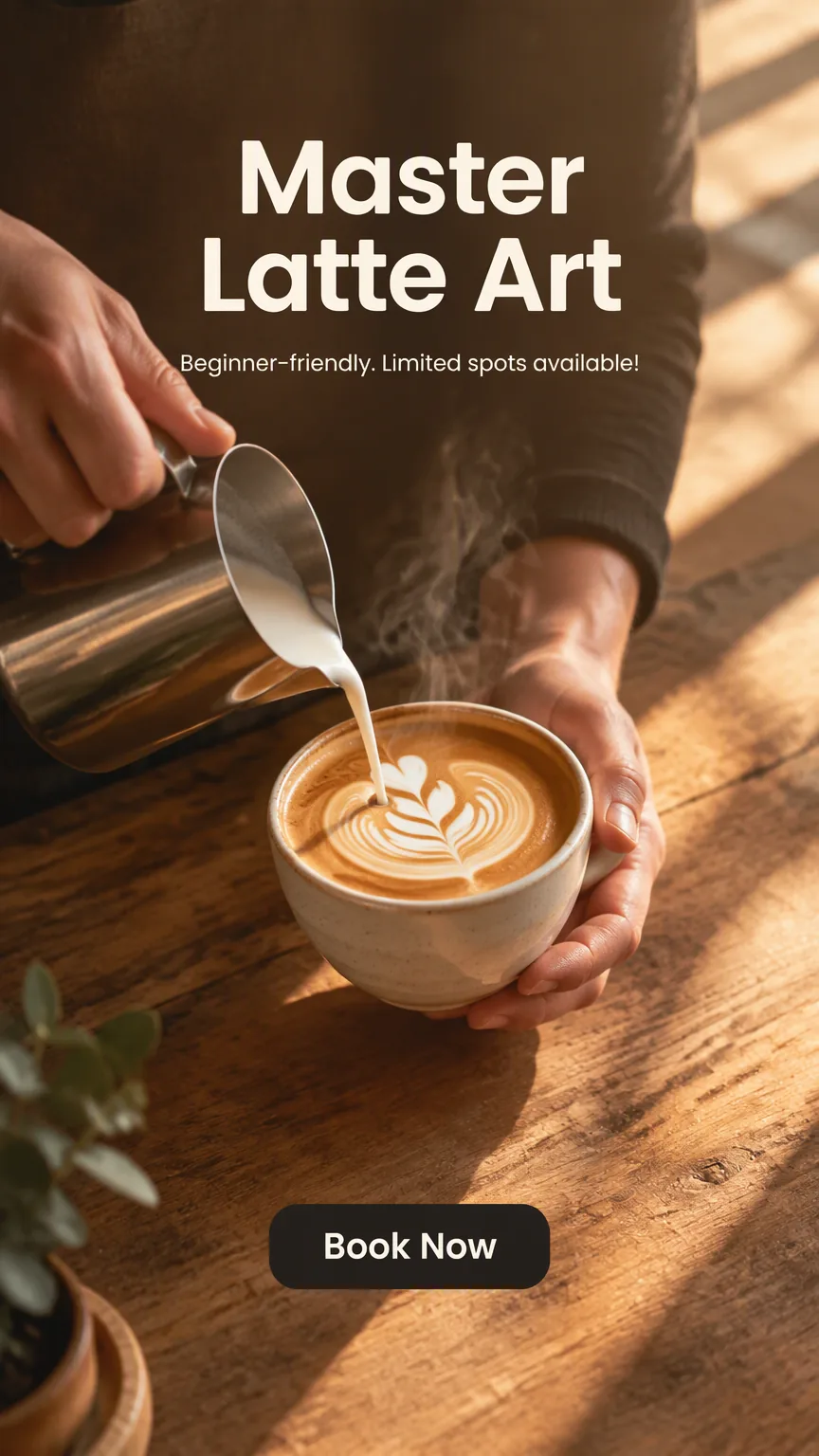
Why it works. The tall format changes the layout, not just the crop: the generator stacks headline and offer in the upper third and keeps the lower part free for the story's own interface. Your audience, the date and the number of seats are worth putting in the brief, because the on-image copy is built from it.
Write a brief that gets a usable graphic
The brief is one or two sentences, and it decides most of the result. The structure that works is: what you promote, for whom, the offer, the mood. Compare a weak and a strong version of the same request.
| Weak | Strong |
|---|---|
| Coffee post | Autumn promo for a specialty coffee roastery, 20% off pre-orders until Sunday, warm and premium mood |
| Sale | Weekend sale for a children's bookshop, up to 30% off picture books, playful, bright colours |
| New product | Launch of a new single-origin coffee bag for home brewers, warm and clean, light background, one hero product |
| Event | Saturday latte art workshop for beginners, ten seats, friendly and relaxed, wooden table and morning light |
- Name the industry so the layout vocabulary fits: gym posters look different from boutique hotels.
- State the offer once, in numbers if you have them. Offer text is then reused for the on-image copy.
- Describe the mood with two or three words, not a paragraph.
- Do not describe the layout in the brief. Let the style step handle it, or pick a template.
- Keep brand names exact. Put the spelling you need in Brand name to be safe.
When to use a template
Templates are a good start when you want a proven composition: a price badge over a dark gym floor, a quote card, a menu board. Open the gallery with Browse all templates, filter by industry or language, and select one. Your brief and your text fields then fill the template. If you want to reuse the layout of a template but not its look, leave Use template as style reference switched off. Switch it on to follow the layout closely.
Variants as a testing tool
Ask for two to four variants when you have two different headlines or want to compare compositions. Download the winners, post them as an A/B pair in the Social Studio, and keep the notes. Because each variant is charged, use one variant while you refine the brief and only widen when the brief is settled.
Cost and troubleshooting
Each graphic is a normal image generation charged per variant. The price depends on the model, the resolution and the number of variants, and the model picker shows the cost per graphic up front. Turning AI enhance off removes the small extra charge for reading the brief. A failed render is refunded; the page says the credits should be back on your account. A wallet at zero is a hard stop.
- "Not enough credits for this render. Top up your account or drop to a lower resolution."
- Pick 1K, one variant, or top up.
- "The model declined to create this graphic."
- Change the text or pick a different template.
- "The render took too long and was cancelled."
- Try again, with one variant and a lower resolution.
- "Too many requests in a short time."
- Wait a minute.
- My text has a typo.
- Generate again, or open the result in the Design Studio and fix the text there. Short headlines are rendered most reliably.
- Some resolutions are greyed out.
- The chosen model cannot render that resolution natively. Pick another model or a lower resolution.