Social Studio: plan, write and schedule posts
Connect your channels, write a post with AI help, check it before it goes out, and put it on a calendar. Everything that works before an account is connected is shown too.
What Social Studio is for
Social Studio is where posts are written, checked and scheduled. It covers the whole path from an idea to a published post: a pipeline for ideas and drafts, a composer with AI captions and hashtags, a calendar with best-time suggestions, an approval step, a link-in-bio page and analytics once accounts are connected. Publishing and scheduling themselves are free. Only the AI helpers use credits.
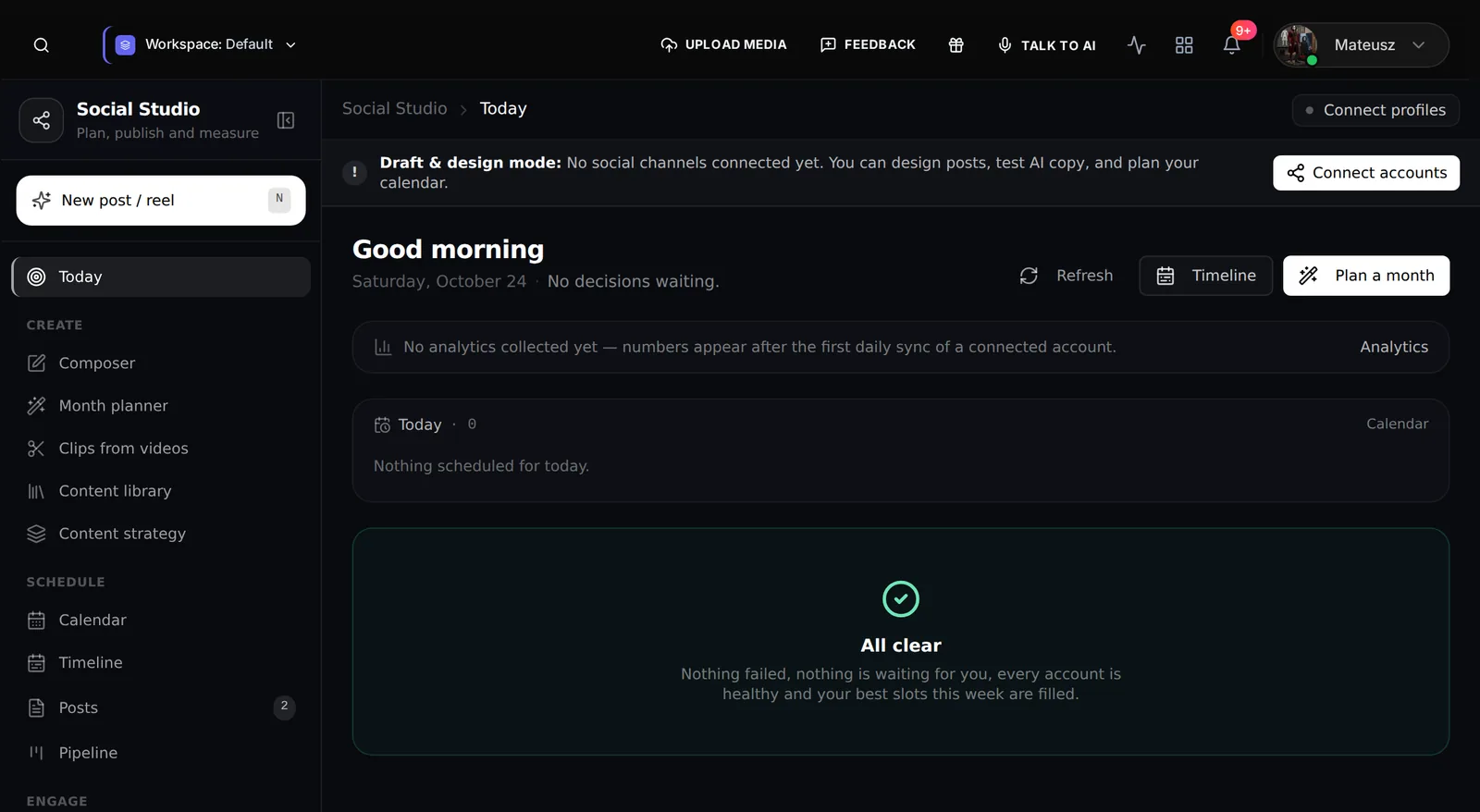
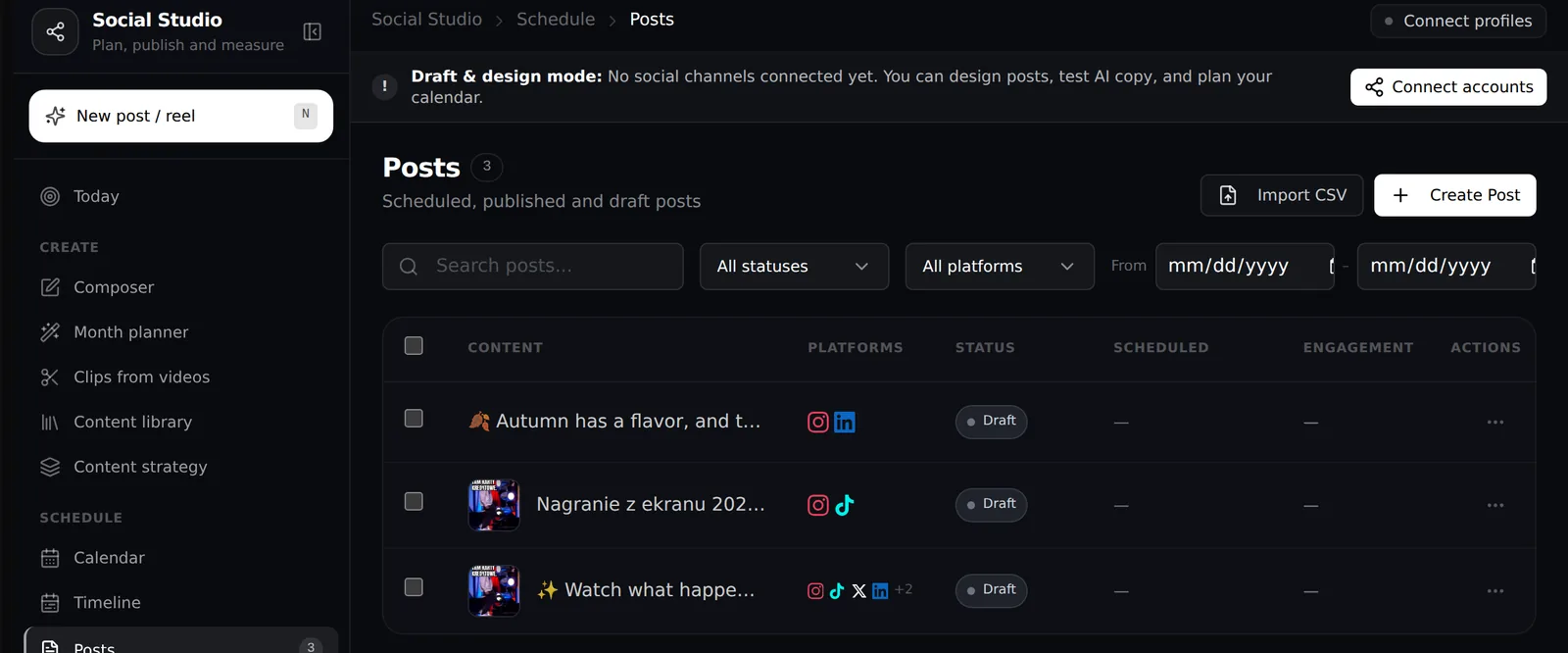
You do not need a connected account to use most of it. Without one the studio runs in Draft & design mode: you can write posts, preview them for each network, run the pre-flight check, save drafts, plan a month and fill a calendar. A banner at the top says so and offers Connect accounts. What needs an account is publishing, the inbox, analytics and A/B tests.
| Menu group | Pages | What they do |
|---|---|---|
| Today | Today | What needs a decision, what is scheduled for today, and a health line for your accounts. |
| Create | Composer, Month planner, Clips from videos, Content library, Content strategy | Write a post, plan a month, cut a long video into vertical clips, keep captions and references, define content pillars. |
| Schedule | Calendar, Timeline, Posts, Pipeline | Place posts in time, see posts and ad flights together, list every post, move ideas through stages. |
| Engage | Inbox, Approvals | Replies and mentions from connected accounts, and sign-off for posts that need approval. |
| Grow | Analytics, Competitors, Listening, A/B tests, Campaigns, Link in bio | Numbers from connected accounts, public competitor pages, group posts into campaigns, build a link-in-bio page. |
| Automate | Automation | Rules that create posts on a schedule or from an RSS feed. See the article on planning and automation. |
| Setup & accounts | Accounts, Settings | Connect channels, set the time zone, queue slots, notifications and AI preferences. |
Connect your accounts
Open Accounts in the menu. The page is titled Connected accounts and starts empty with a card that says No accounts connected. Press Connect Account (or Connect your first account). The dialog Connect a social account explains what happens: you are sent to the platform to approve access, then brought back here.
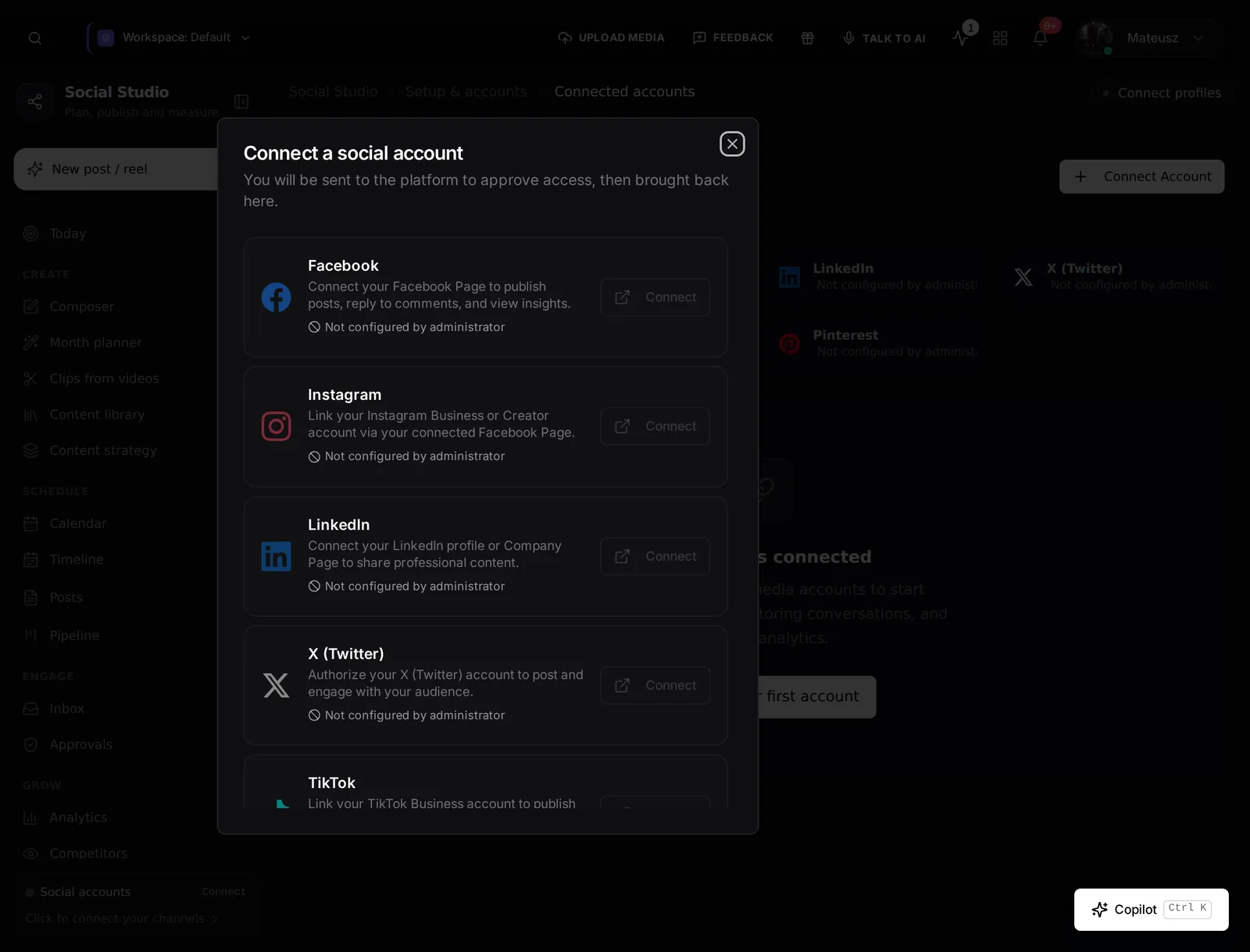
- Instagram is linked through a Facebook Page that has a Business or Creator profile attached.
- LinkedIn can be a personal profile or a Company Page.
- TikTok needs a Business account.
- You can connect up to 20 accounts, and Add another appears once a platform has one.
Each connected account becomes a card with its follower count, the time of the last sync, the health of the access token, the permissions you granted, and the buttons Reconnect, Refresh token and Disconnect. Pinterest accounts also get a Default board for new Pins.
Write a post in the Composer
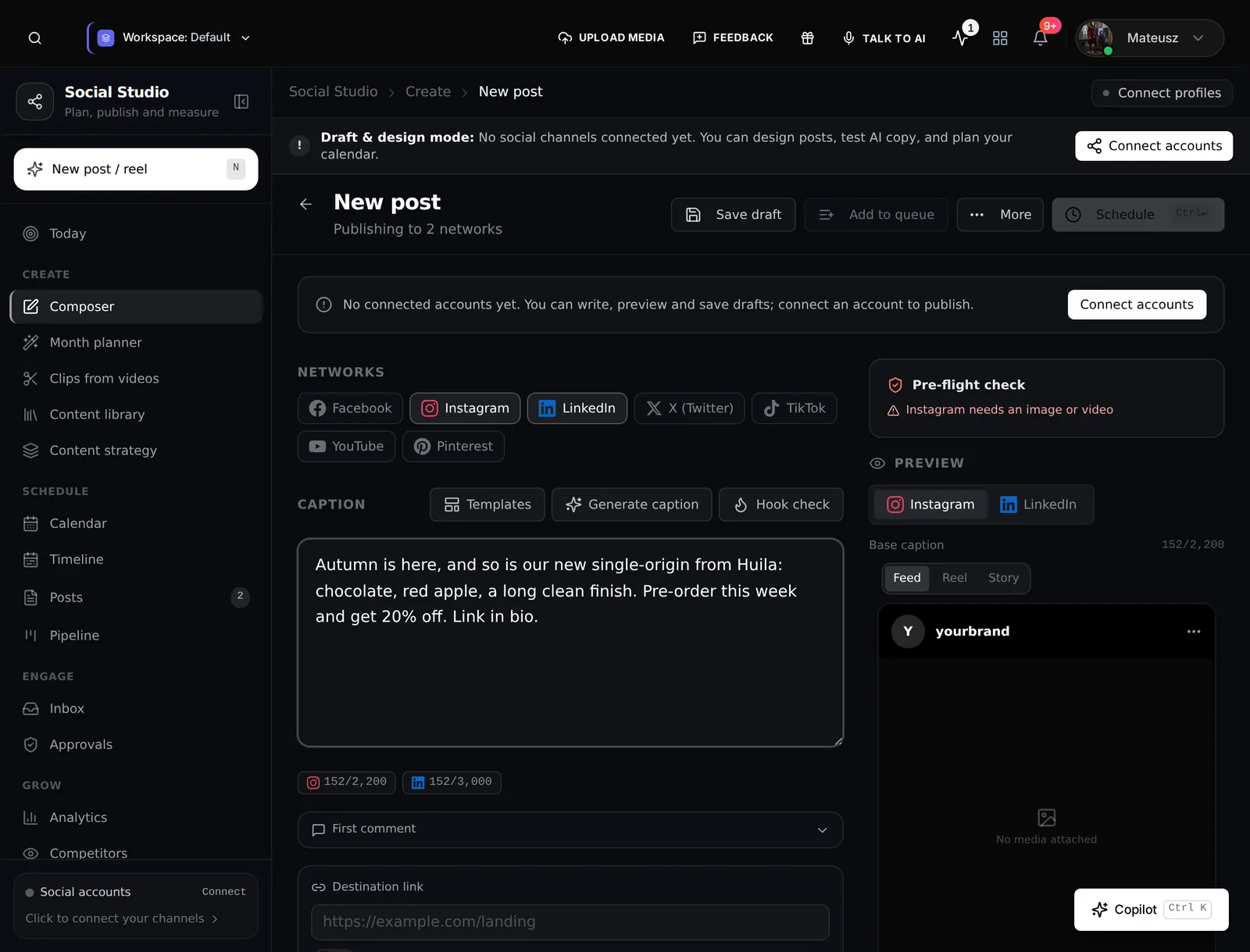
Press New post / reel at the top of the menu, or open Composer. The page title is New post. The top bar holds Save draft, Add to queue, More and Schedule. With no accounts a notice reads: "No connected accounts yet. You can write, preview and save drafts; connect an account to publish." In this state the account selector is called Networks and you tick the platforms yourself.
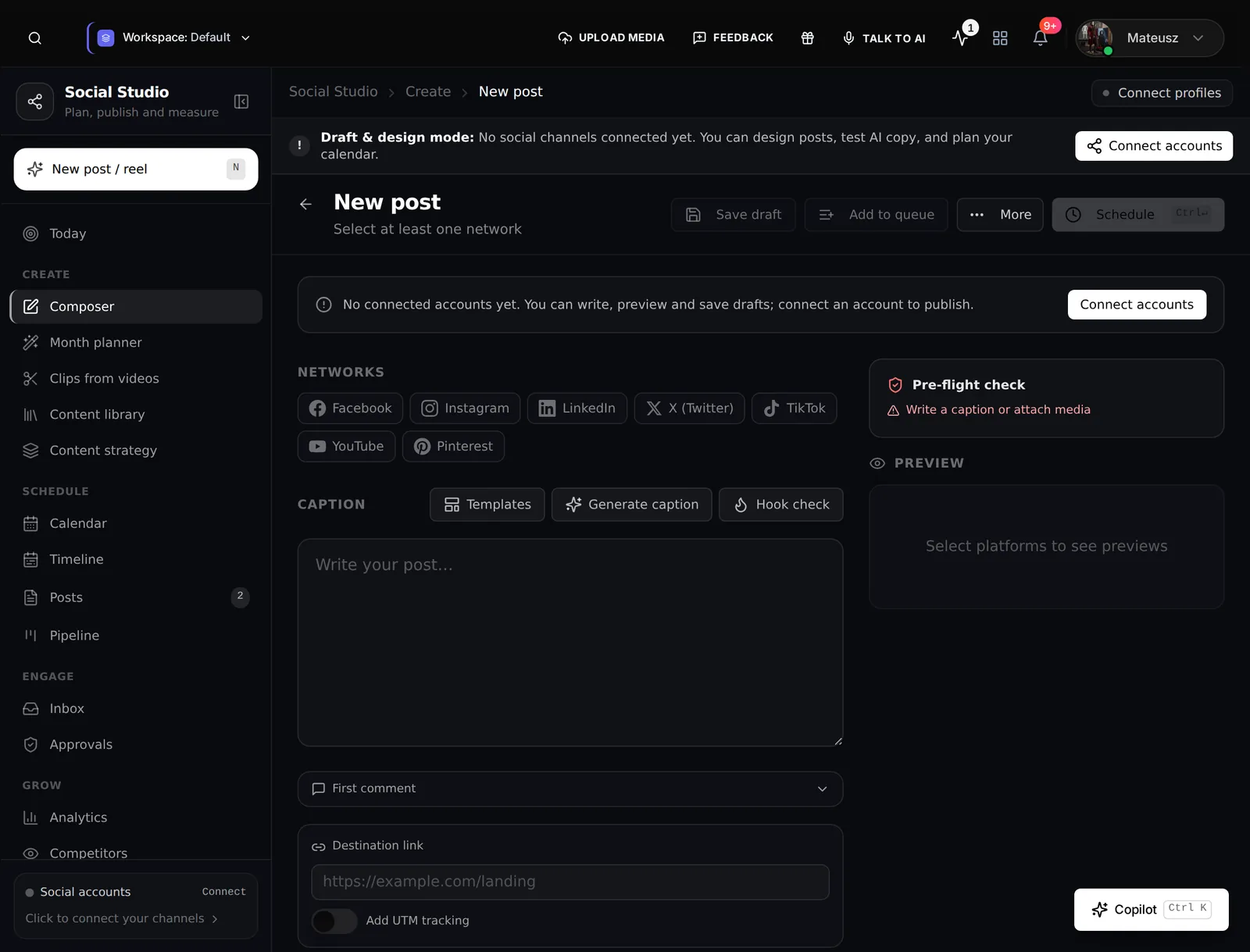
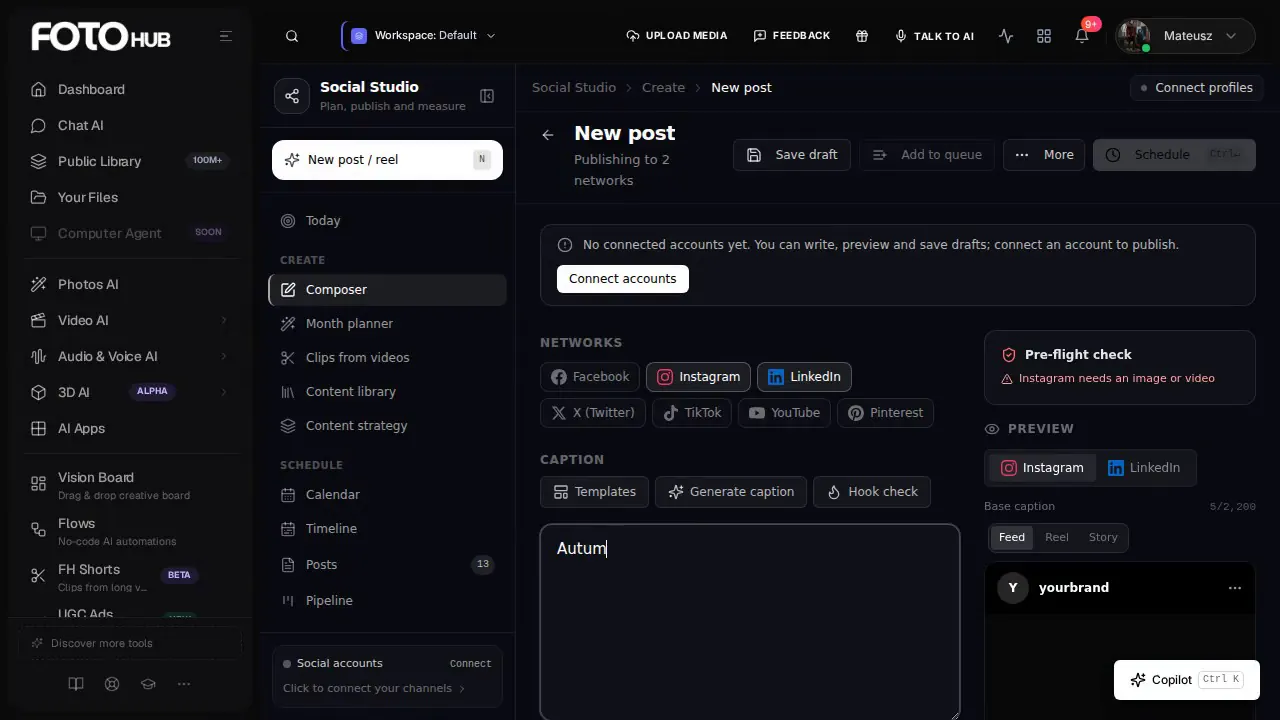
- Choose the networks Toggle Instagram, LinkedIn or any of the seven. Each network shows its own character counter: 63,206 for Facebook, 2,200 for Instagram, 280 for X, 3,000 for LinkedIn, 2,200 for TikTok, 5,000 for YouTube, 500 for Pinterest.
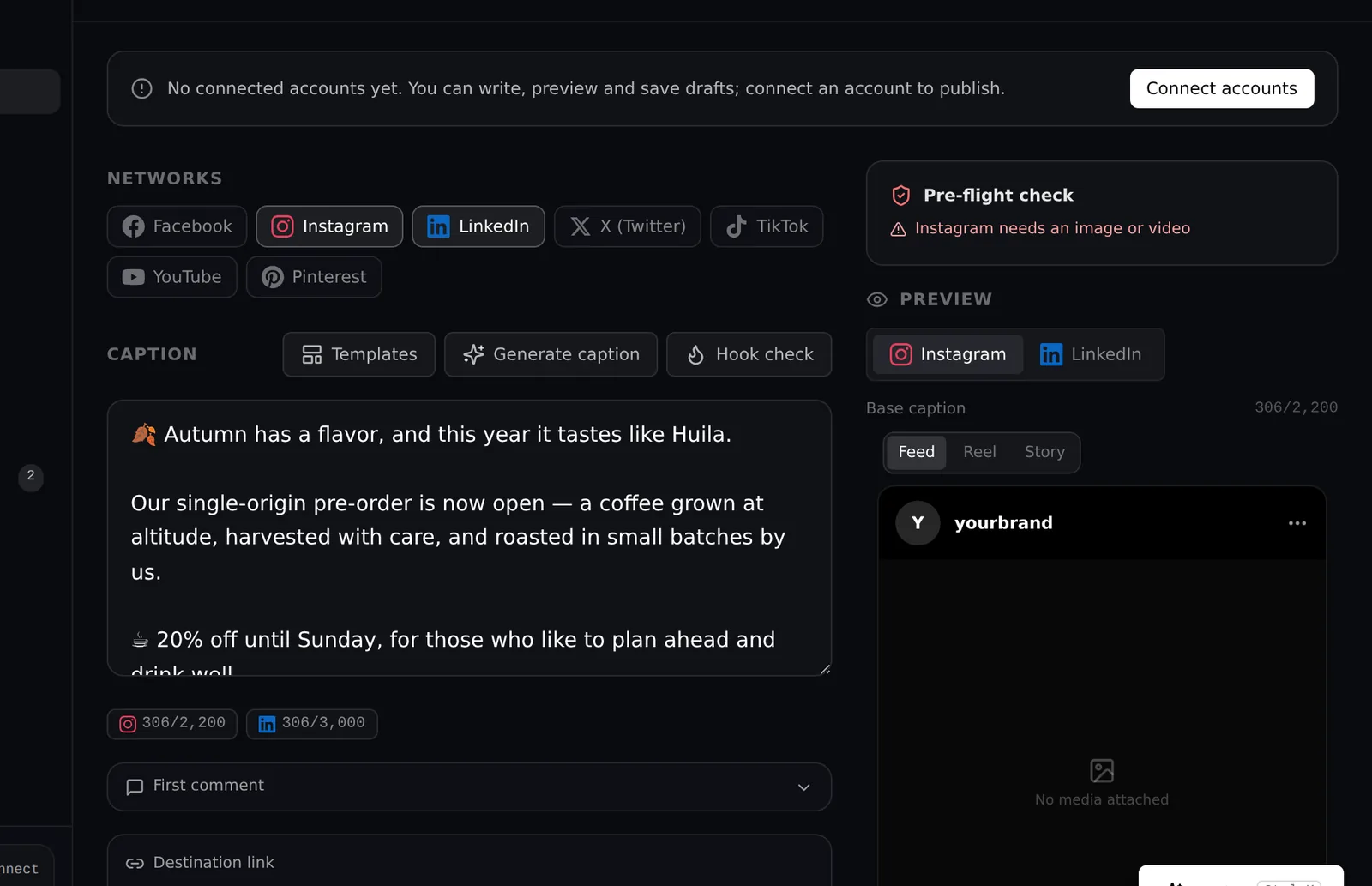
- Write the caption Type in Caption ("Write your post…"). Three helpers sit above it: Templates opens a library of ready-made post templates in English and Polish, Generate caption writes one with AI, and Hook check scores your opening line.
- Add media Upload images (up to 50 MB each) or videos (up to 4 GB), Pick from FOTOhub to use something from your library, or Generate with AI to open the graphics generator. Add alt text to every image; the pre-flight check complains if it is missing.
- Add the extras A First comment (often used for hashtags on Instagram), a Destination link with an Add UTM tracking switch, and hashtags. Hashtag mix and Suggest propose sets, and you can Save set to reuse a group.
- Preview and pre-flight The Preview panel on the right shows the post as each network renders it. The Pre-flight check lists problems that block saving: a caption over the limit, missing media where the network needs it, a video required, images without alt text, uploads still running.
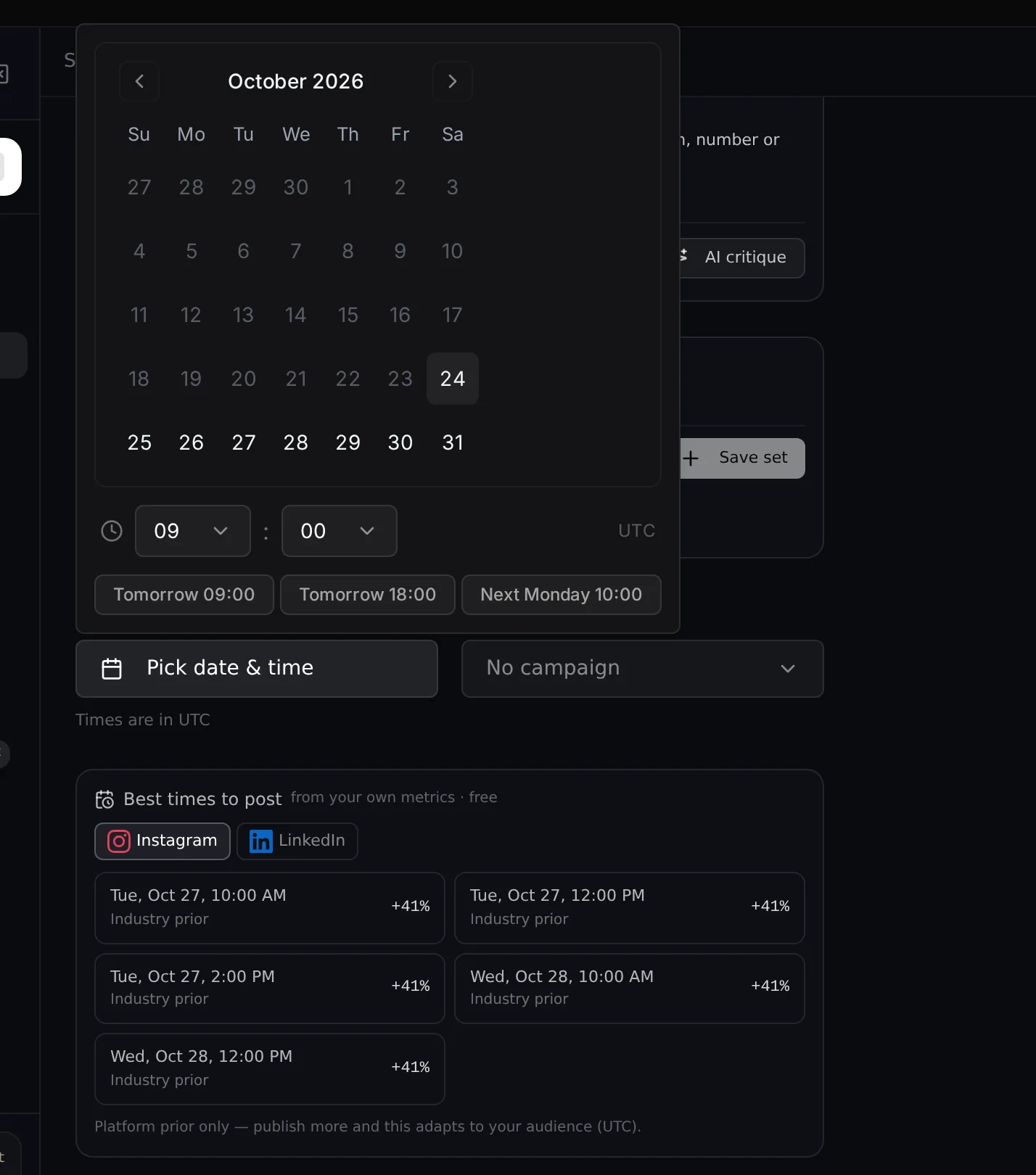
- Save, queue or schedule Save draft keeps it. Add to queue puts it into the next free queue slot from Settings. Schedule opens a date and time picker. Past times are rejected.
One idea, different captions per network
Open Per-network captions. Adapt for each network with AI rewrites your base caption to fit each platform's length and style, Custom caption lets you write one by hand, and Reset to base goes back. For X there is also Post as thread, which splits long text into 280-character posts.
| Button | What it does | Costs credits? |
|---|---|---|
| Generate caption | Writes a caption from a short brief, a tone and a network | Yes, small. Refunded if the call fails. |
| Hook check | Scores the opening of the caption | The plain score is free, the written critique is billed only when you ask. |
| Adapt for each network with AI | Rewrites the base caption per network | Yes, small. |
| Hashtag Suggest | Proposes hashtags | Yes, small. |
| Best times to post | Shows slots from your own metrics or industry averages | Free. |
| Save draft, Schedule, Add to queue | Stores or schedules the post | Free. |
AI captions
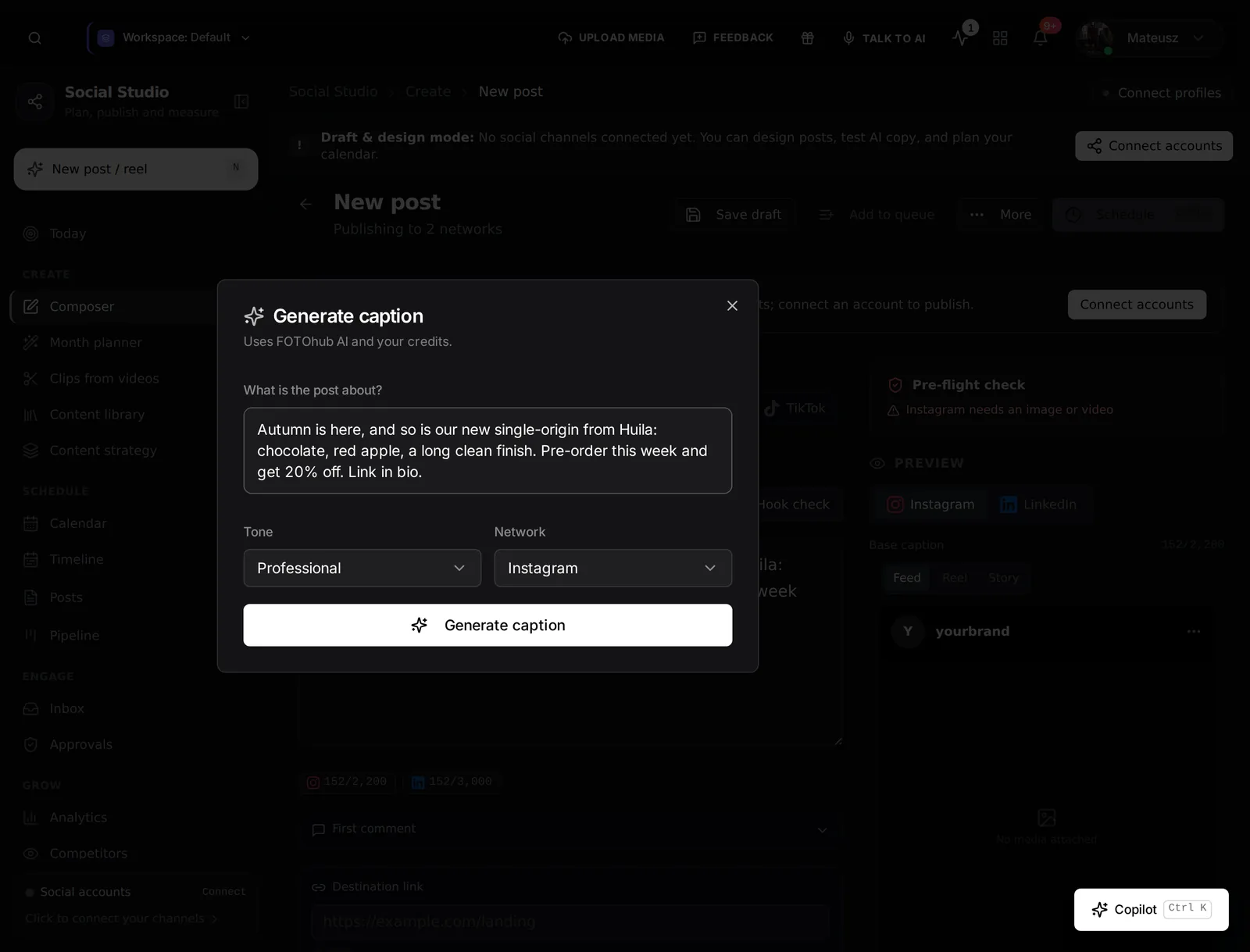
Generate caption opens a dialog with one question: What is the post about? Choose a Tone (Professional, Casual, Humorous, Inspirational or Educational) and a Network, then press Generate caption. The dialog says it uses FOTOhub AI and your credits. It returns three different captions at once, each with its own Use this caption button, and Regenerate asks for a new set. Pick one and it drops into the composer, where you can edit it freely.
Autumn pre-order post for a coffee roastery
Goal. Get an Instagram caption that sounds like a person, with the offer and a clear next step.
Input you can copy.
What is the post about? Autumn pre-order at our small specialty coffee roastery: single-origin from Huila, 20% off until Sunday. Tone: Professional. Network: Instagram.| Setting | Value |
|---|---|
| Tone | Professional |
| Network |
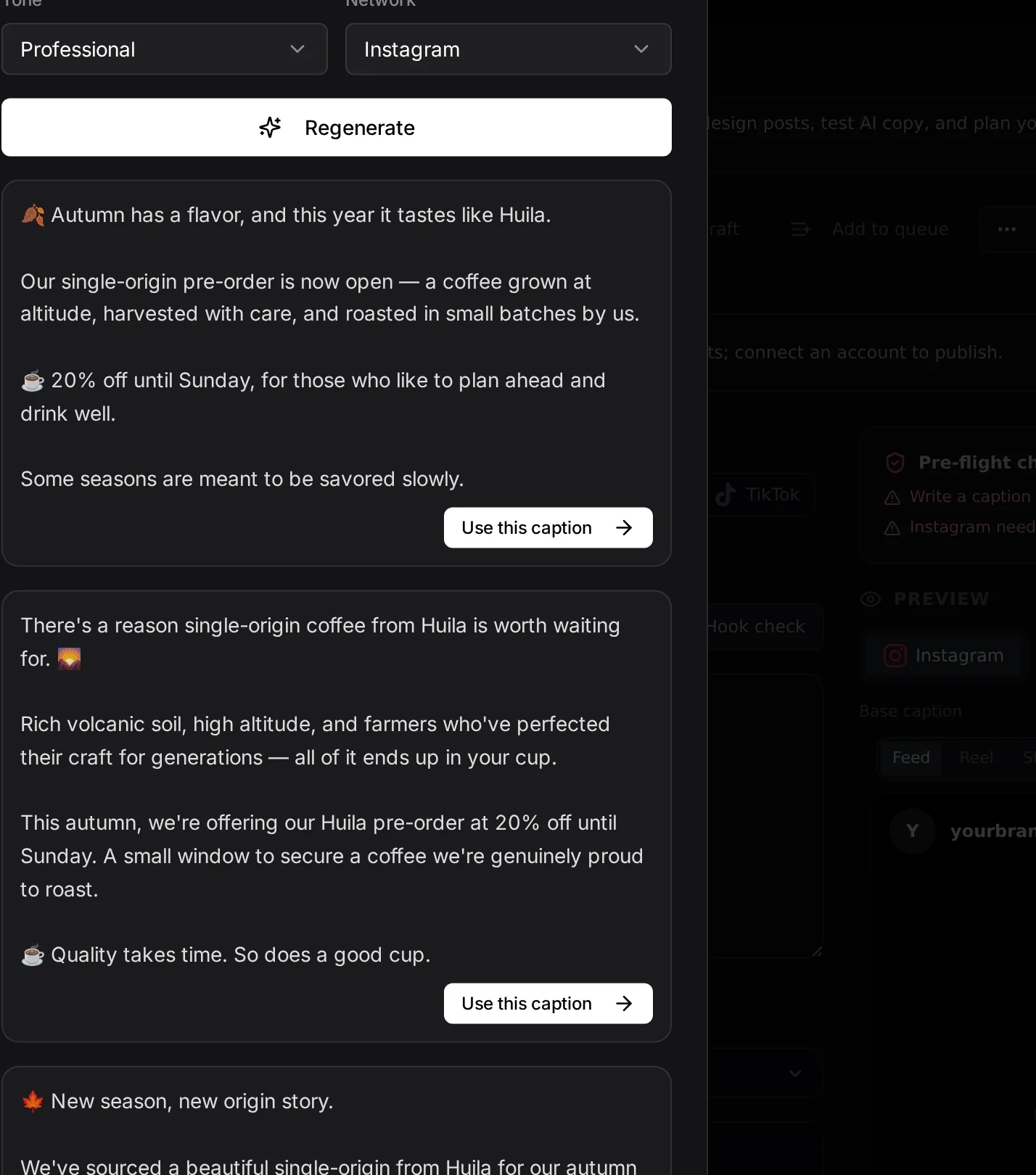
Why it works. The first of the three captions opened with "Autumn has a flavor, and this year it tastes like Huila", then carried the origin, the 20 percent offer and the Sunday deadline from the brief into the text. Every caption invented the harvesting details (altitude, small batches), so read each one for claims that are not true of your coffee before you press Use this caption. Vague briefs such as "promote our coffee" give generic copy, so put the facts you want in the brief.
Calendar, queue and best times
The Calendar (titled Publishing calendar) shows a month or a week. Previous, Next and Today move around, a platform filter narrows it, and New post or the Schedule a post on this day button adds a post. You can drag a post to another day or hour to reschedule it. Past days are locked.
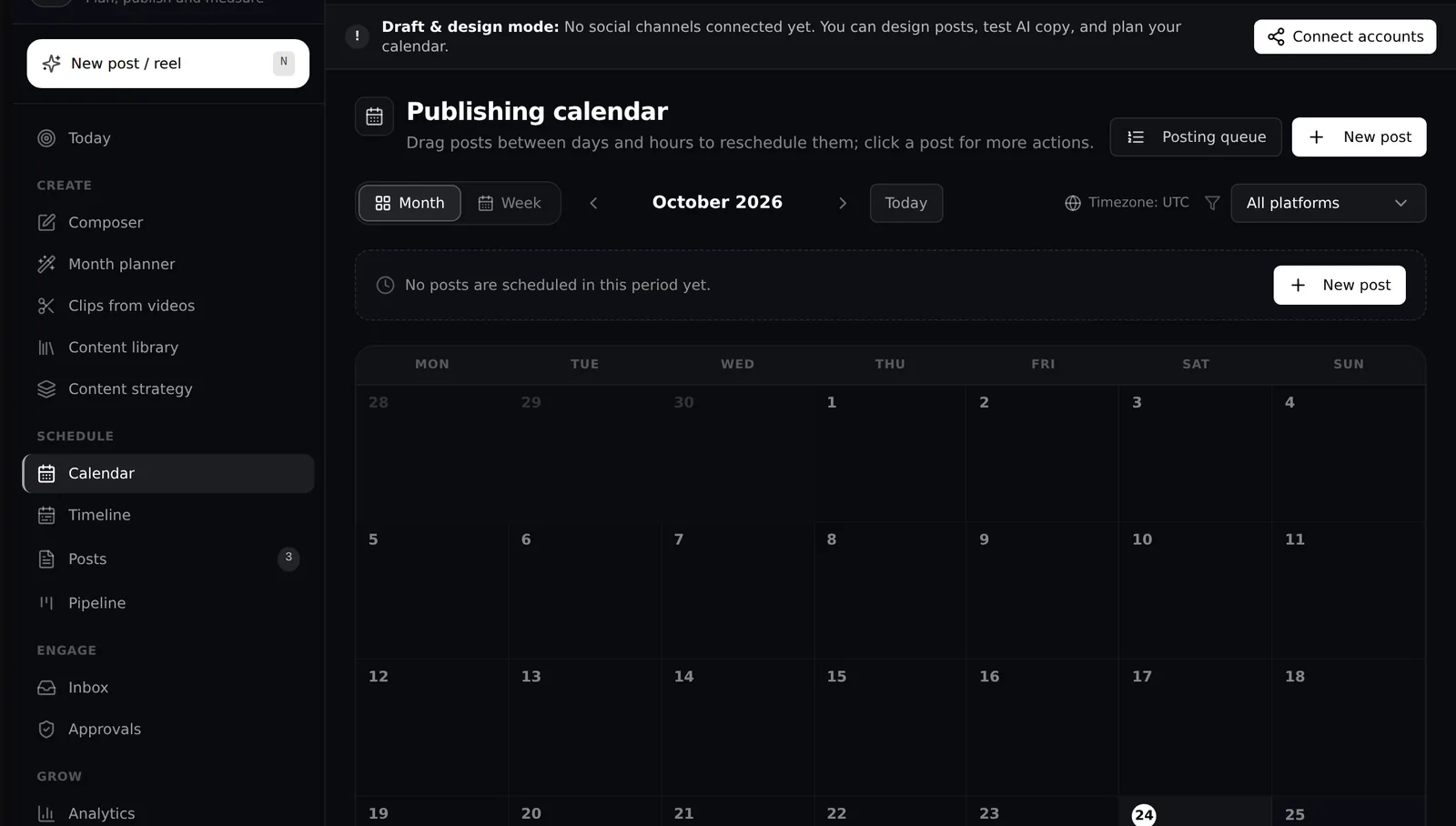
- Unscheduled drafts: a panel lists drafts. Auto-schedule places one draft at a best time, Auto-schedule all places them all. It works without accounts, using industry averages.
- Posting queue: define weekly slots, for example Tuesday and Thursday at 10:00. Add to queue in the composer then picks the next free slot. If no slot is free in the coming weeks you are told to add slots.
- Best times to post: in the composer's picker, suggestions come from your own account metrics when you have them and from industry averages otherwise. Click one to set the time.
- Times use the time zone saved in Settings under Default Timezone.
Pipeline and approvals
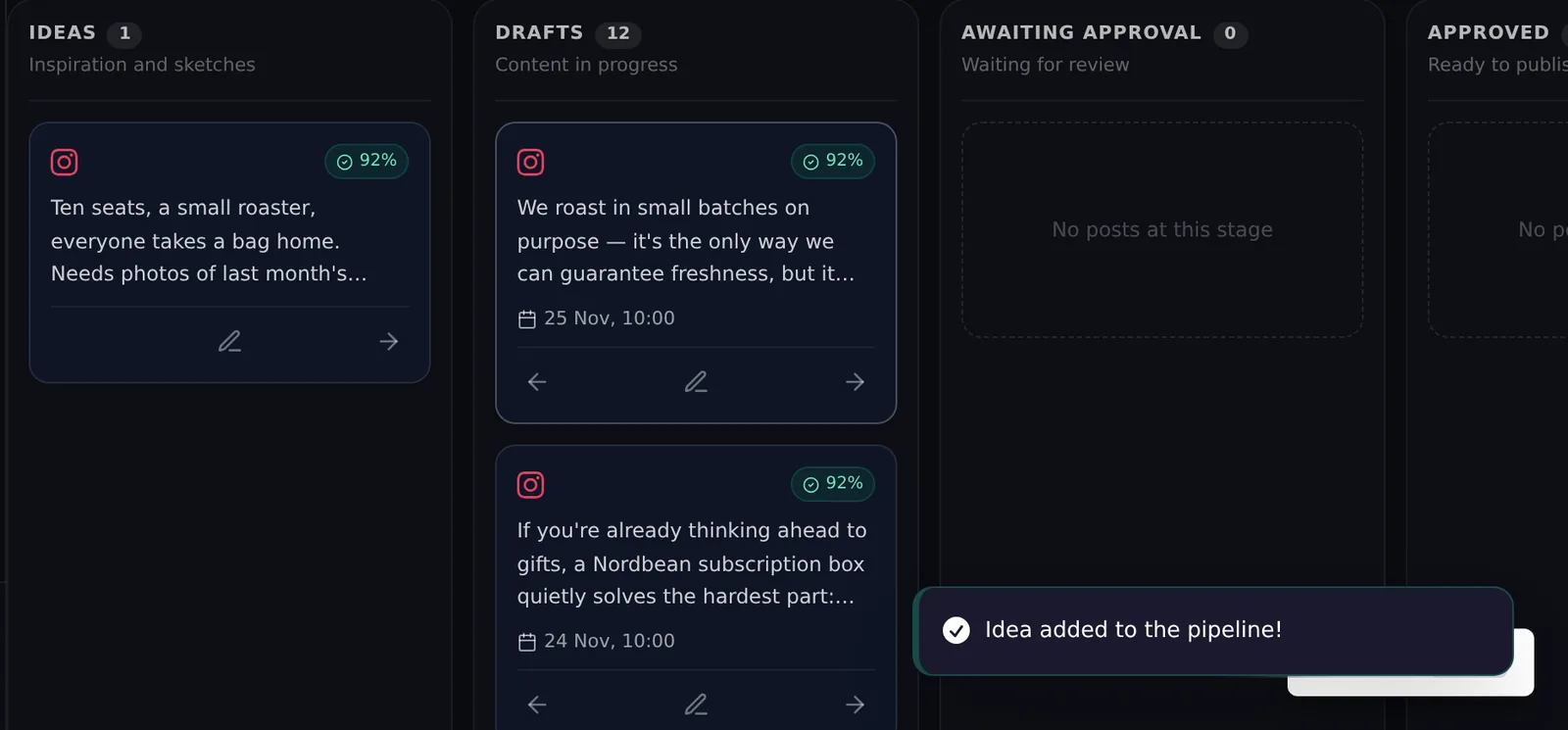
The Pipeline (titled Content pipeline) is a board with the columns Ideas, Drafts, Awaiting approval, Approved, Scheduled and Published. Capture a new idea at any time, drag it to Drafts, and use Create post in Composer to turn it into a real post. Cards show a pre-flight compliance score out of 100.
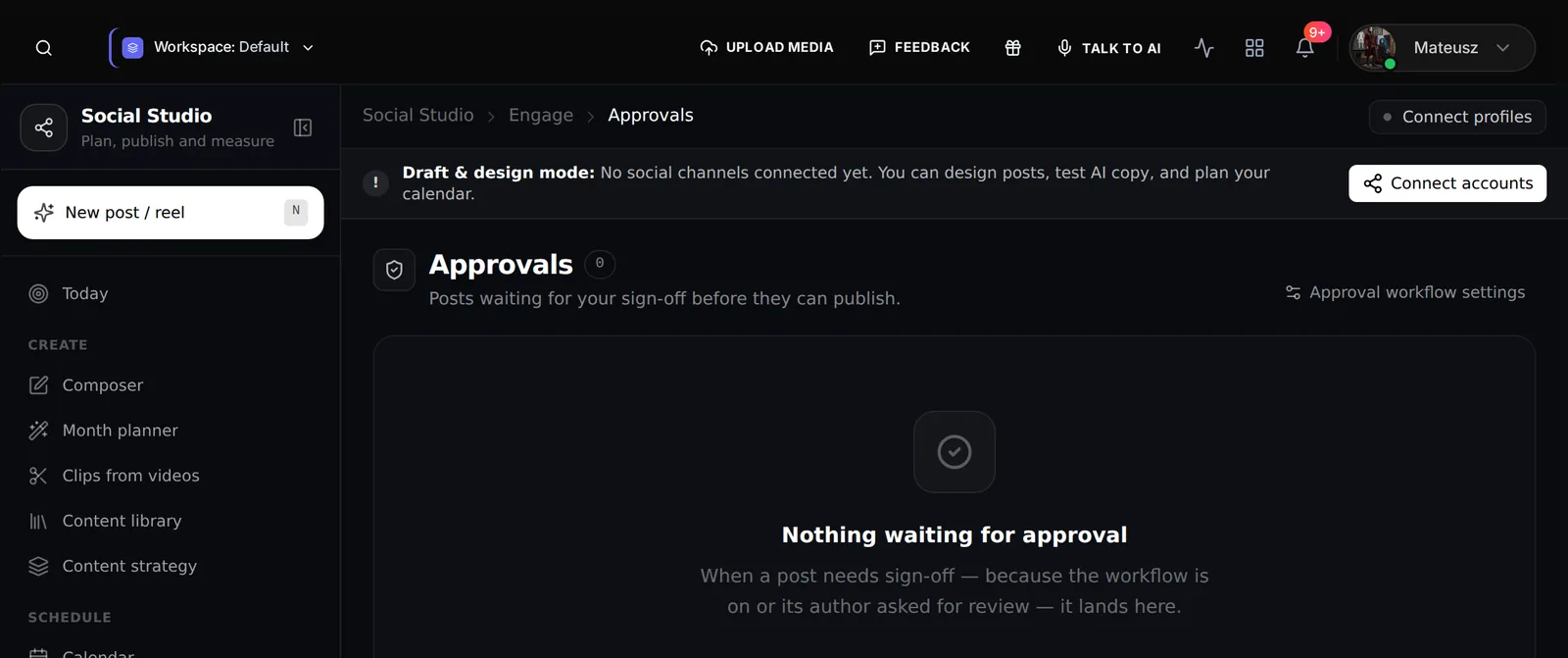
If you work with clients or a manager, open Settings and switch on Approval workflow under Team Settings. Scheduled posts then wait on the Approvals page, where a reviewer can Approve, Request changes or Reject. A comment is required when asking for changes or rejecting. Keyboard shortcuts j and k move through the list and a approves. Even with the workflow off, Submit for approval in the composer works for a single post.
Two worked campaigns
A one-week launch for the Nordbean autumn box
Goal. Three posts across Instagram and LinkedIn, written and scheduled in under fifteen minutes.
Input you can copy.
Post 1 (Monday), the announcement: Instagram + LinkedIn. Post 2 (Wednesday), a behind-the-scenes roast: Instagram. Post 3 (Friday), the last-chance reminder: Instagram + LinkedIn.| Setting | Value |
|---|---|
| Networks | Instagram, LinkedIn |
| Tone | Casual for Instagram, Professional for LinkedIn |
| Scheduling | Auto-schedule all drafts |
Why it works. Write each post with Generate caption, use Adapt for each network with AI for the two-network posts, and save all three as drafts. Then open the Calendar and press Auto-schedule all. Each draft lands on a best time, and you can drag anything that does not suit you.
From a loose idea to a checked post
Goal. Never lose an idea, and never publish a post that fails the check.
Input you can copy.
Capture "Saturday workshop: roast your own" in the Pipeline, drag it to Drafts, press Create post in Composer, write the caption, add alt text, then run the Pre-flight check.| Setting | Value |
|---|---|
| Start | Pipeline, Ideas |
| End | Composer, Save draft |
Why it works. The pipeline keeps the idea visible while you wait for photos. The pre-flight check catches the boring failures (over the limit, no alt text) before they cost you a failed publish.
Writing for each network
The composer lets one idea travel to several networks, but a caption that works on LinkedIn rarely works unchanged on Instagram. Use the per-network captions to adjust the parts below, and let Adapt for each network with AI do the first pass.
| Network | What usually works | Watch out for |
|---|---|---|
| A strong first line, because only the first lines show before the "more" cut. Hashtags in the first comment or at the end. One clear next step. | Captions near the 2,200 limit that bury the offer. A post with no image or video, which the pre-flight check flags. | |
| A short story or a lesson, written in the first person, with line breaks. A question at the end invites comments. | Hashtag walls. Promotional tone with no insight. | |
| X | One idea in 280 characters, or a thread built with Post as thread when you need more room. | Copying a long caption and letting it be cut. |
| Plain language and a link with its preview. Longer posts are fine. | Posting the same picture and text as every other network, word for word. | |
| TikTok and Pinterest | TikTok needs a video and a privacy choice. Pinterest needs a board and an image that stands alone. | Missing platform settings, which the composer asks for before it lets you save. |
A checklist before you schedule
- Does the first line make sense on its own, without the rest?
- Is there exactly one thing you want the reader to do, and is the link or the "link in bio" mentioned once?
- Does every image have alt text? The pre-flight check complains if not, and screen reader users depend on it.
- Are the offer, the date and the price the same in the caption, the picture and the landing page?
- Did you read every sentence an AI caption invented? Remove claims about your product that are not true.
- Is the time zone in Settings the one your audience lives in?
Settings, limits and what is not here
| Setting | Where | What it controls |
|---|---|---|
| Default Timezone | Settings | All scheduled times. |
| Posting Queue | Settings and the Calendar | Weekly slots used by Add to queue, up to 100 slots. |
| Notifications | Settings | Email on publish, on failure and on mention. |
| AI Preferences | Settings | Auto-suggest captions and hashtags, default tone. |
| Approval workflow | Settings, Team Settings | Require sign-off before publishing. |
| Disconnect all accounts | Settings, Danger Zone | Removes every connected channel. |
- Limits: 20 connected accounts, 50 campaigns, 100 queue slots, and up to 500 posts per CSV import on the Posts page (columns text, platforms, scheduled_at, media_url).
- Without an account: Publish now is disabled, the Inbox is empty, Analytics says "No Analytics Yet", and A/B tests ask you to connect first.
- Listening is best effort and currently searches only X. Competitors reads public pages every twelve hours and is also best effort.
- Per-link click counts on link-in-bio pages are not tracked yet.
Troubleshooting
- "Pick a future date and time first".
- The picker rejects times in the past. Choose a later slot, or press Auto-schedule.
- "Fix the pre-flight issues first".
- Open the Pre-flight check and clear each line: over the character limit, missing media, a video required, images without alt text, uploads still running.
- "Saving is paused until uploads finish".
- Wait until the progress bars complete. Large videos take longest.
- "Saved as a draft, but the queue has no free slot in the next weeks".
- Add slots under Posting queue in the Calendar or in Settings.
- My scheduled post failed with "No target accounts".
- It was scheduled with only manual networks and no connected account. Connect an account, open the post from Posts and schedule it again.
- A published or publishing post cannot be edited.
- Duplicate it from the Posts page and edit the copy.
- The OAuth return says "state mismatch" or "could not be verified".
- The connection attempt expired or was used twice. Start again from Accounts.