Human approval: let an agent ask before it acts
Add an approval gate to an agent, see how a run pauses and asks you, approve or reject with a note, and understand deadlines, what happens when you do not answer, and the second safety net for irreversible tools. Shown on a real daily-post agent.
Why put a person in the loop
An agent that posts, sends or saves on its own is only as good as its worst run. A human approval step turns that risk into a decision: the agent does the work (picks a topic, makes an image, writes a caption) and then stops with the result in front of you. Nothing downstream happens until you decide. That is how a daily post, a client delivery or a price change can be automated and still stay yours.
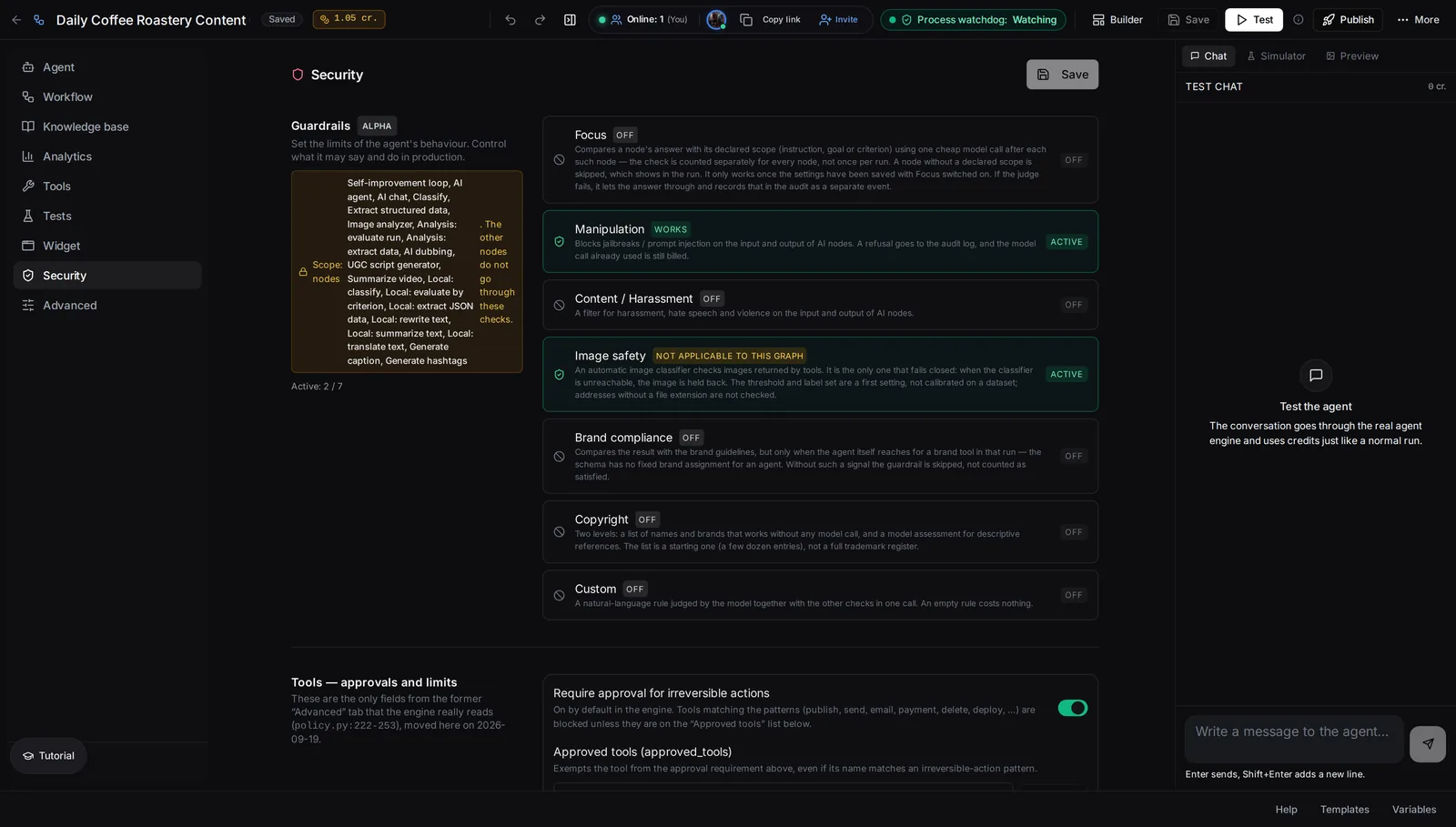
There are two separate safety nets, and they work together. The approval node is a gate you place in the workflow, where you want to review a specific result. The tool consent in the Security tab is a standing rule that blocks irreversible tools (publish, send, pay, delete) until you allow them. Use the approval node for judgement calls, and keep the consent rule on as a backstop.
The workflow: from topic to approval
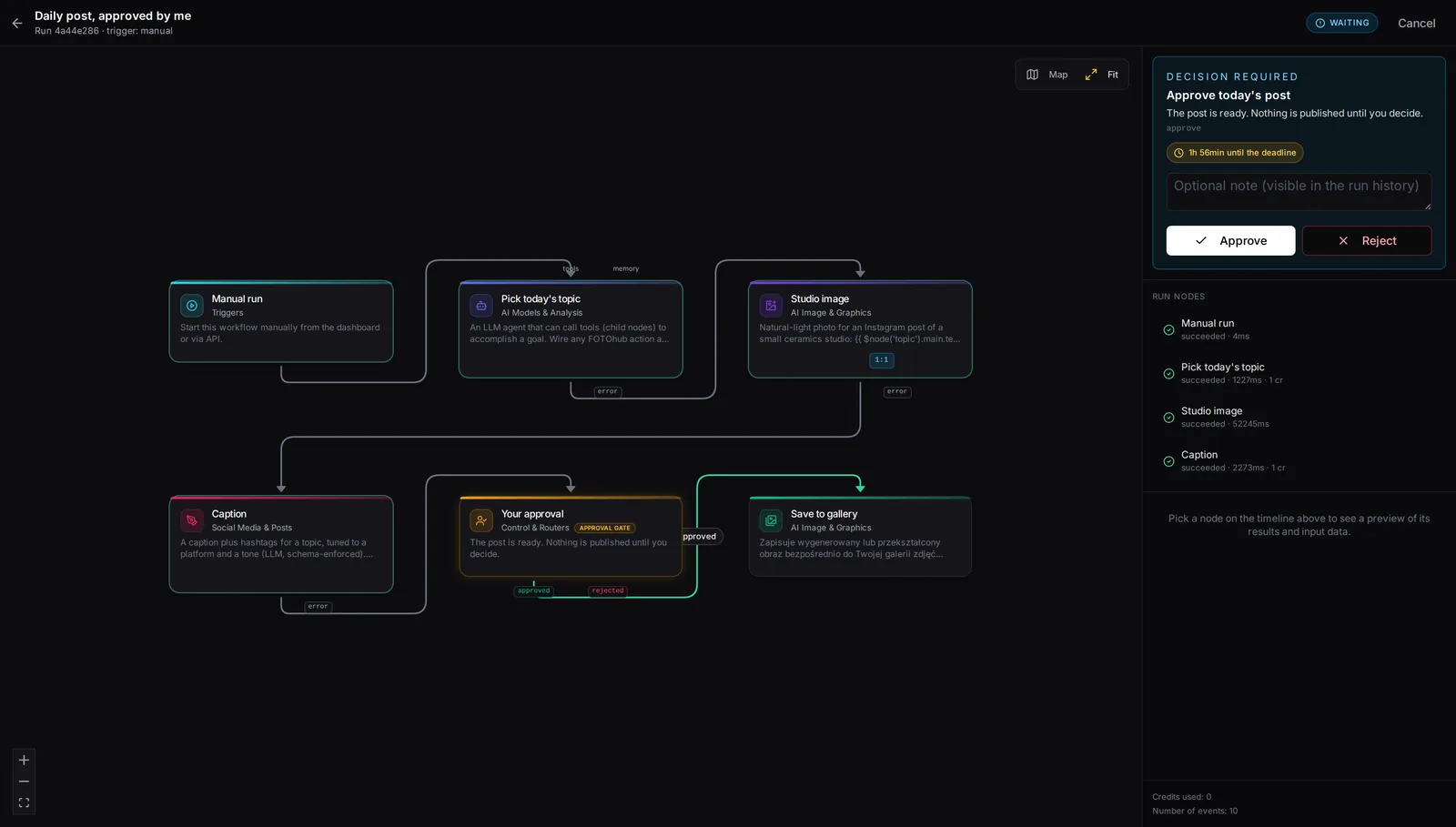
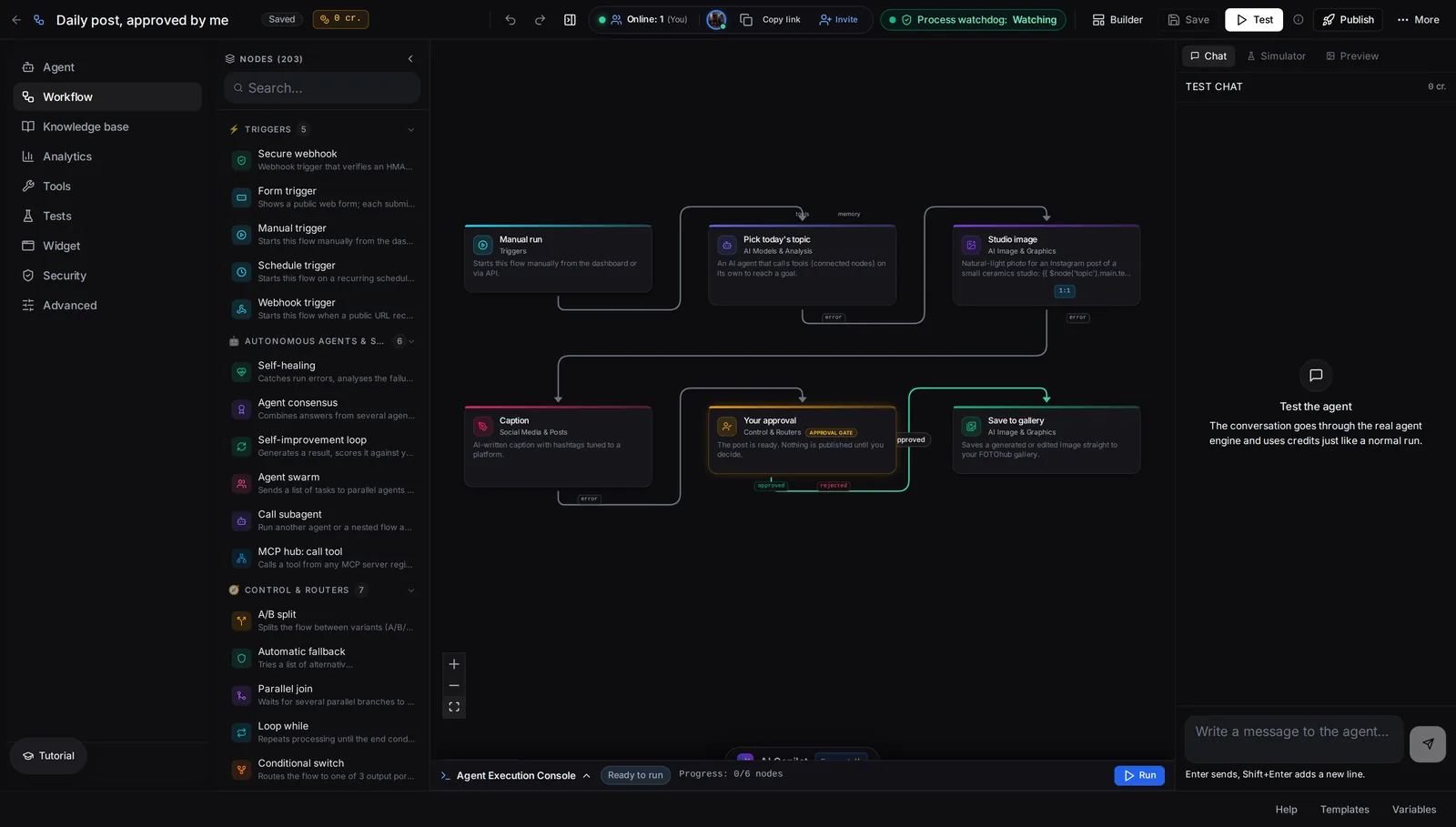
The agent Daily post, approved by me has six nodes: a Manual run trigger, Pick today's topic (an AI step that chooses a topic), Studio image (generates a photo), Caption (writes the caption), Your approval (the gate) and Save to gallery. The approval node has two outputs, approved and rejected; only the approved branch continues to the save step.
Configure the approval node
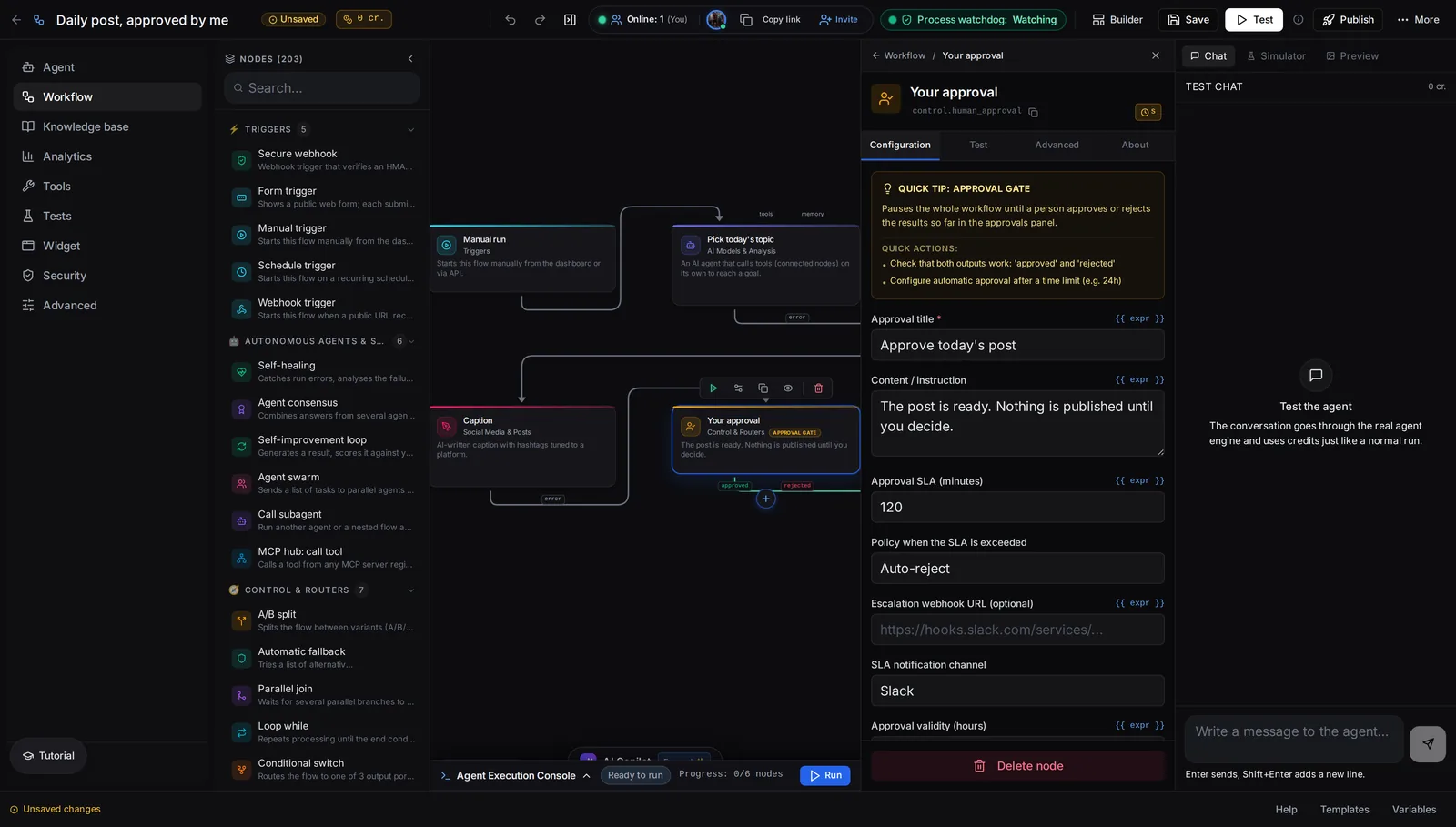
In the advanced builder, search the palette for approval (category Control and routers), drag the approval node onto the canvas and connect it between the step that produces a result and the step that acts on it. Select it to open its settings:
| Setting | What it does |
|---|---|
| Approval title | The headline you see on the decision card. Say what you are approving, for example "Approve today's post". If left empty, a default title is used, so always set one. |
| Content / instruction | The message for the reviewer: what to check and what the result is. |
| Approval SLA (minutes) | How long the gate waits for you. The engine default is 60 minutes; the sample agent uses 120. |
| Policy when the SLA is exceeded | What happens if nobody decides in time: Auto-reject (safe default) or auto-approve. Choose auto-approve only for low-stakes steps. |
| Escalation webhook URL, SLA notification channel | Optional hooks for alerting someone when a decision is waiting. Check on your account that the channel you pick is actually connected before you rely on it. |
| Approval validity (hours) | The longest the checkpoint stays valid after it was created. |
A run that stops and asks
Start the agent (in the builder, Test runs the working version for real, and it is not a dry run, so it costs credits like any run). The run page opens. When the flow reaches the gate, the status pill turns to WAITING and the right side shows a Decision required card with your title and message, a countdown to the deadline and a note field. Everything before the gate is already done and visible in the list of run nodes below.
- Review the result Click a finished step in the list, for example the image step, to see its result as a picture. A Continue with button on the preview hands the picture to another FOTOhub tool if you want to retouch it first.
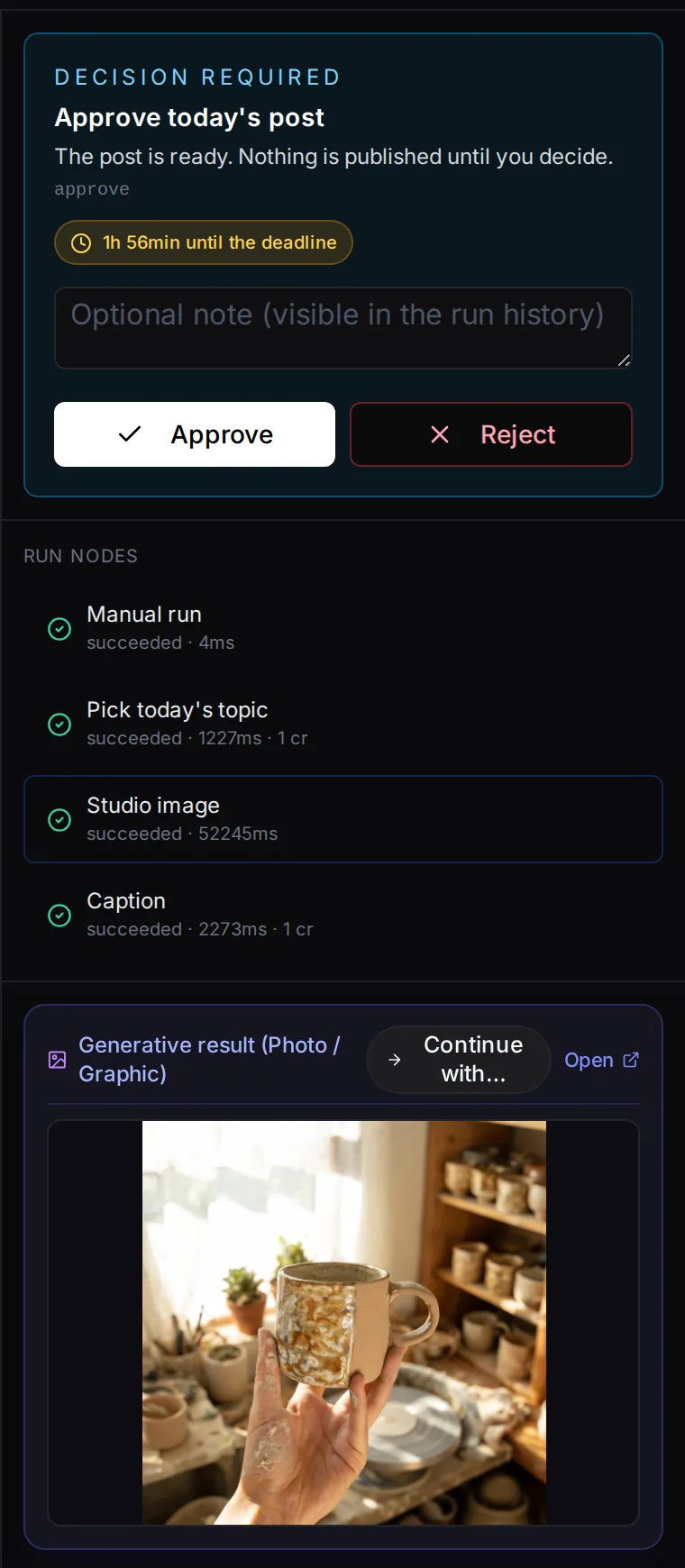
- Add a note (optional) Type a short reason or instruction in the note field. It is saved in the run history, which makes later audits and handovers easier.
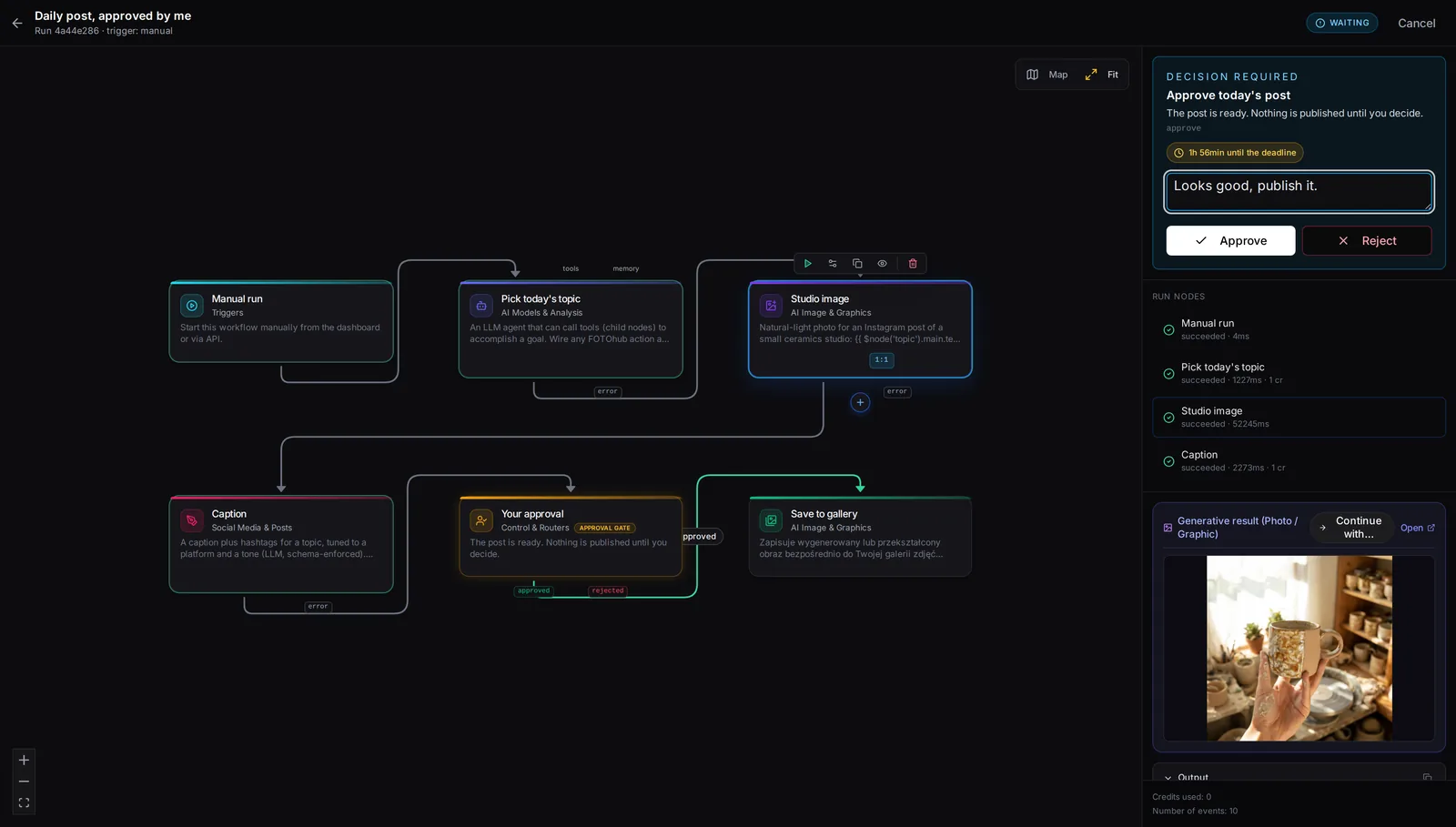
- Approve or Reject Approve continues down the approved branch; Reject follows the rejected branch (or ends the run if nothing is connected there). The pill changes from WAITING back to running and then to SUCCEEDED. Reload the page to see the latest status.
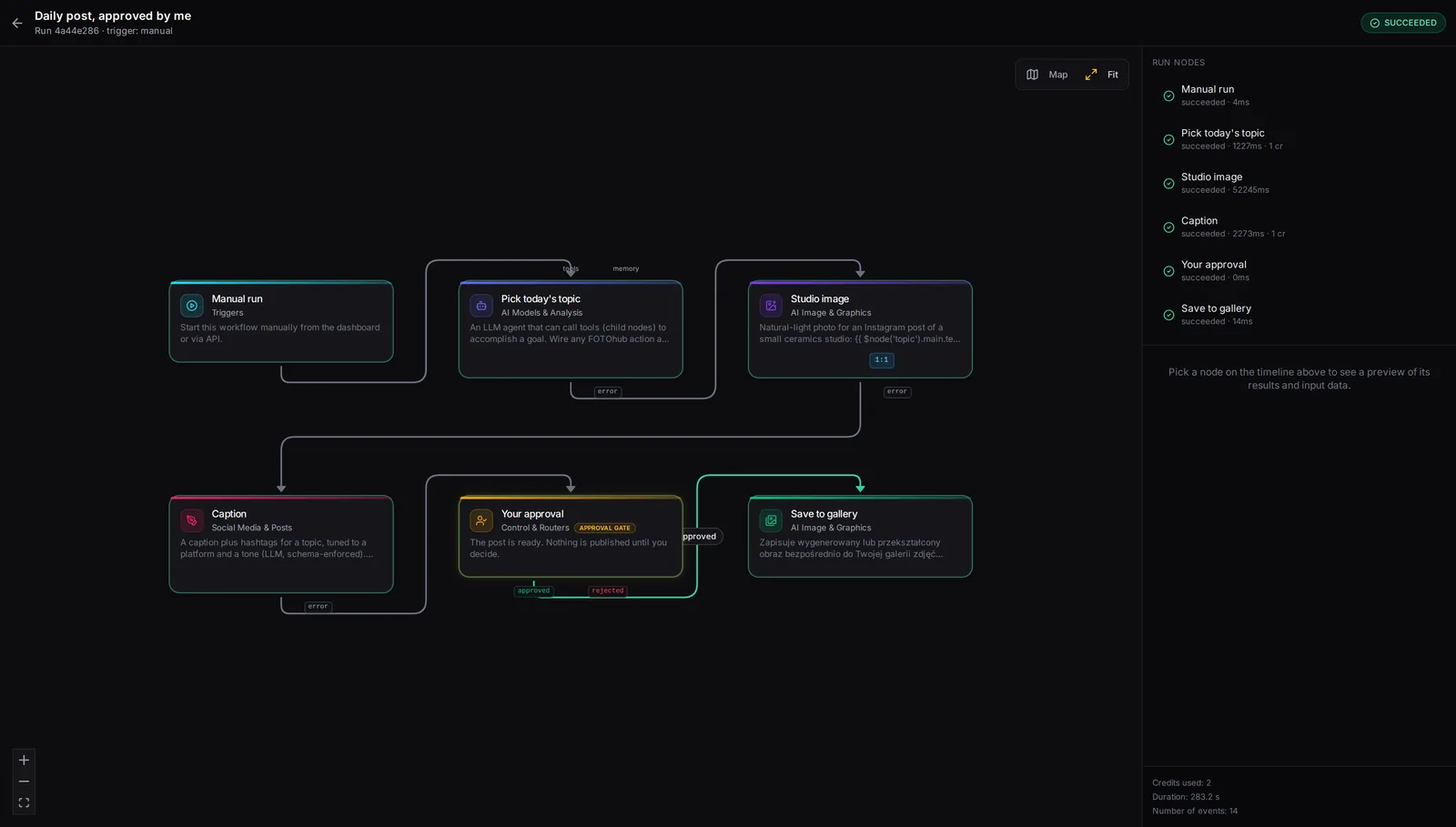
Approving the daily post
Goal. Let the agent prepare the post and decide yourself whether it is saved.
| Setting | Value |
|---|---|
| Gate title | Approve today's post |
| SLA | 120 minutes, Auto-reject |
| Decision | Approve + note |
Why it works. In the run we recorded, the topic step took about a second, the image about fifty seconds and the caption about two. The run then waited at the gate; after we approved with a short note, the save step finished in milliseconds and the run succeeded after roughly five minutes of wall-clock time, most of it spent waiting for the decision. The credits it used stayed low because only the AI steps are metered.
Where you can decide, and what if you do not
- On the run page, as shown above. The decision card is built to work on a phone, which is where owners most often unblock a waiting agent.
- In the builder. While a run waits, an Approval required pill appears in the top bar with the node's name; click it to jump to the node. A Human approval required dialog lists the node, the instructions and the data to review, with Approve and continue and Reject task, a notes field and a line stating how long the checkpoint stays valid.
- In the agents list, a card whose run is waiting for a decision is flagged, so you can find it without opening the run history.
If nobody decides before the deadline, the gate applies its policy: with Auto-reject the run takes the rejected branch and stops there; with auto-approve it continues. Either way the run page records that the decision was automatic. Deadline and policy are properties of the node, so each gate can differ.
- I approved but nothing happened.
- Reload the run page; it shows the state at the moment it loaded. If the run is still waiting, check that the approval node is connected to the next step on its approved output.
- Can two people approve?
- One decision settles a gate. For a four-eyes rule, put two approval nodes in a row.
- Does waiting cost credits?
- Waiting for you is not metered; the billing page states that time spent waiting is free. You pay for the steps that run.