AI Agents: automations that think, act and report
Understand what an agent is, how it differs from a flow, how the library, runs and billing work, and how to read a run from start to finish. The first stop before you build your own.
What an agent is
An agent is an automation that can decide. You give it a goal, instructions, tools and a trigger (a button, a schedule, a webhook or a chat message), and it runs steps on FOTOhub's agent engine: it can call an AI model to think, generate images, video or audio, search your documents, call other services, wait for your approval and save the result. Every run is recorded, with each step, its time and its credits, so you can see exactly what happened.
| Flows | Agents | |
|---|---|---|
| Shape | A fixed chain you run on the canvas | A workflow with an AI that can choose tools, plus triggers and approvals |
| Runs | When you press Run in the open canvas | On a schedule, from a webhook, from a chat, or by you, without the canvas open |
| Human in the loop | You are there while it runs | It can pause and ask you, then continue |
| Best for | Producing media chains you watch | Repeating work you want off your plate |
The Agents library
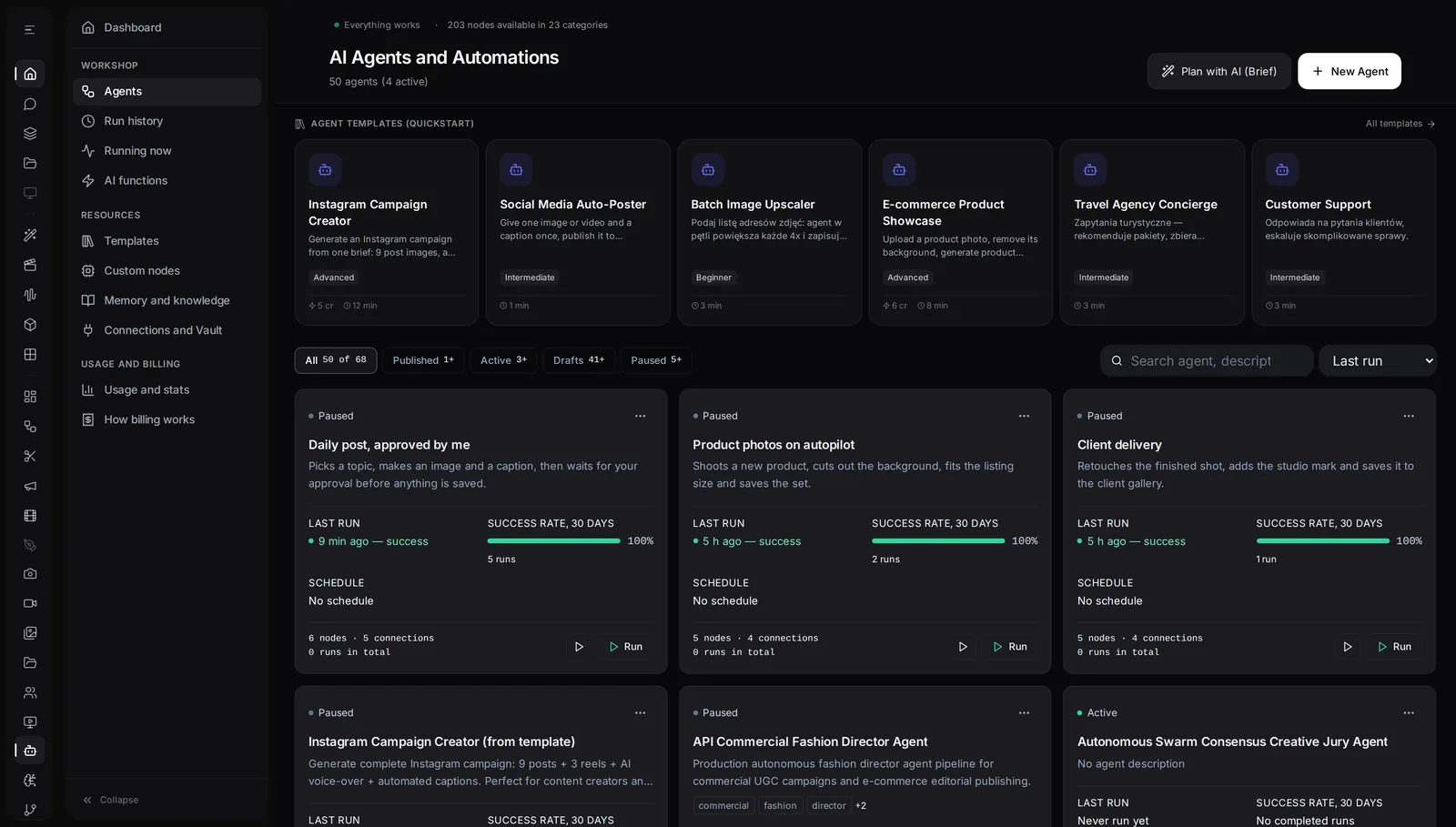
Open Agents in the sidebar (/dashboard/agents). The module has its own left menu: Agents, Run history, Running now, AI functions, then the resources Templates, Custom nodes, Memory and knowledge and Connections and Vault, and finally Usage and stats and How billing works. A status pill at the top reports whether the engine is healthy, and the header counts the nodes available (203 in 23 categories) and your agents.
- Plan with AI (Brief) and New Agent at the top right start a new agent (covered in the creation guide). The row of template cards under Agent templates (quickstart) installs a ready agent in one click; All templates opens the gallery.
- The filter chips All, Published, Active, Drafts and Paused show counts; the search box looks through names, descriptions and tags; Sort orders by last run, date created or name; two buttons switch tile and list view.
- Each agent card shows its status (Active, Draft or Paused), the description, the last run and its result, the 30-day success rate and the number of runs, the schedule, and the size of the graph (nodes and connections). Run, Resume or Activate, Pause and More actions (rename, duplicate, delete) sit on the card.
Two ways to build
The same agent can be edited in two modes. The guided wizard (the default) walks through eight short steps and suits chat-style agents. The advanced builder is a canvas with a node palette for real workflows with branches, approvals and many tools. A switch in the top right (Advanced mode) moves between them; if an agent contains something the wizard cannot show safely, such as a graph without an AI agent node, the wizard says so and offers Open in advanced mode instead of editing it blindly. The next guides cover the wizard, the tools, approvals and publishing.
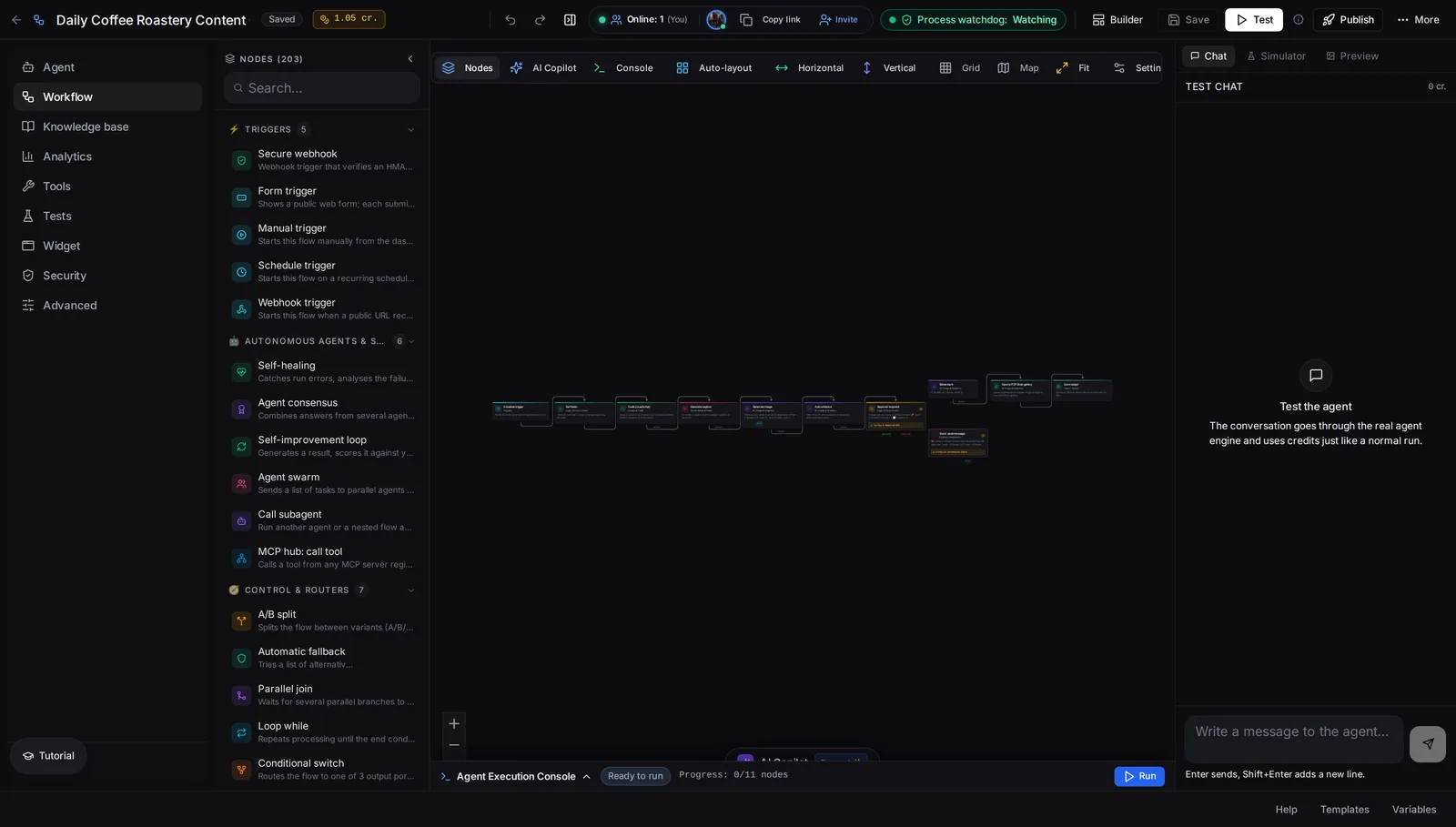
| Tab | What it holds |
|---|---|
| Agent | The AI agent node: instructions, model and settings, plus the test chat |
| Workflow | The canvas and the palette of nodes grouped by category (triggers, agents and swarm, control and routers, image, video, audio, social, integrations, logic and more) |
| Knowledge base | Documents, links and files the agent searches, and its long-term memory |
| Analytics | Where the agent spends effort and which steps are the heaviest |
| Tools | The tool catalogue, OAuth connections and MCP servers |
| Tests | Saved test scenarios (they start real paid runs) |
| Widget | The embeddable chat widget (not available yet, see the publishing guide) |
| Security | Guardrails and approval for irreversible tools |
| Advanced | The run schedule |
Reading a run
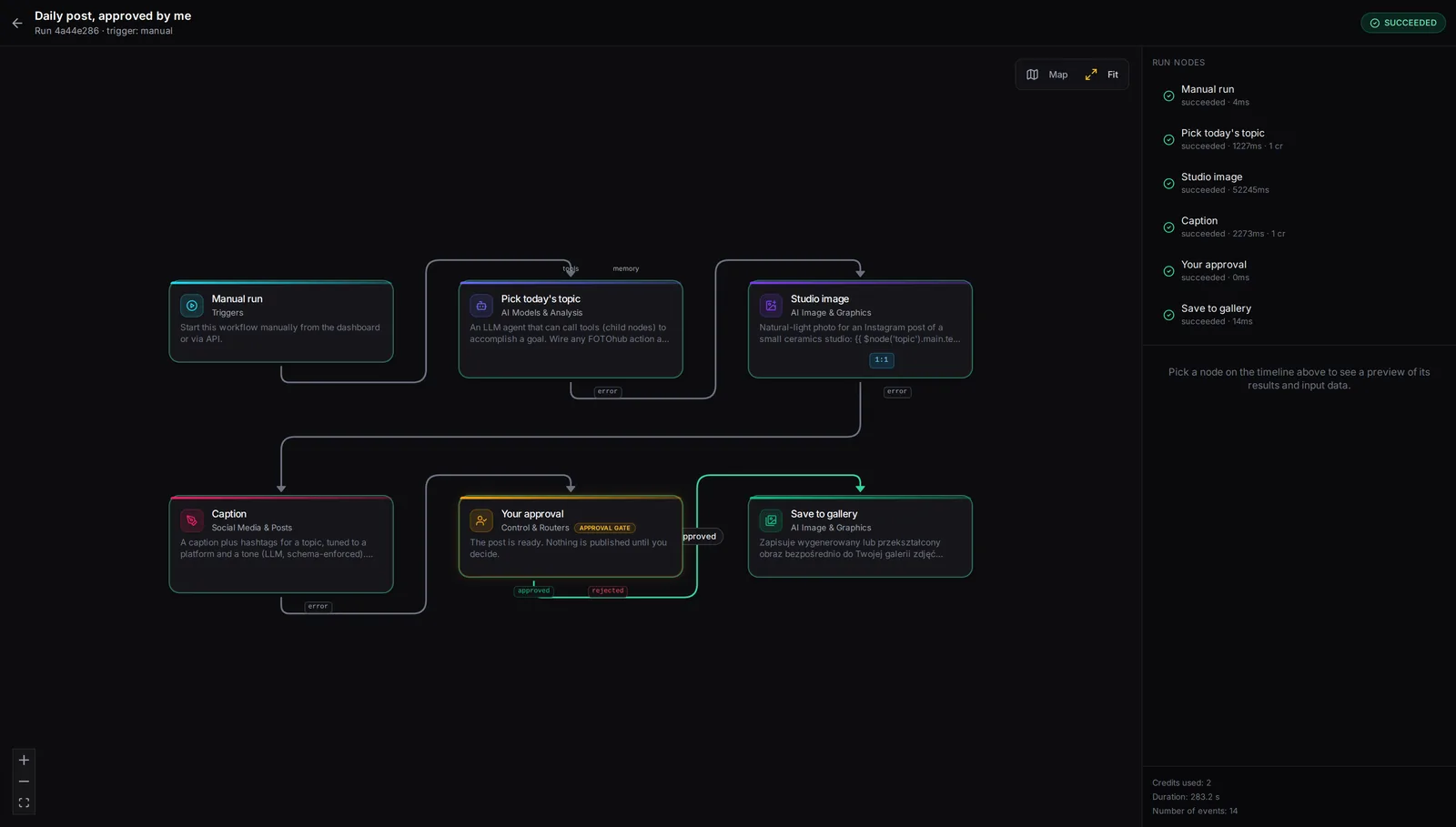
Every run has its own page at /dashboard/agents/runs/<id>. The top shows the agent name, the run id and trigger (manual, schedule, webhook), and a status pill: RUNNING, WAITING (it needs your decision), SUCCEEDED, FAILED or CANCELLED; Cancel stops a running run. The graph shows every node with its state, the Run nodes list on the right gives each step's time and credits, and the footer sums Credits used, Duration and the number of events. Click a step to see its result: a generated photo appears as a picture with a Continue with button.
What it costs
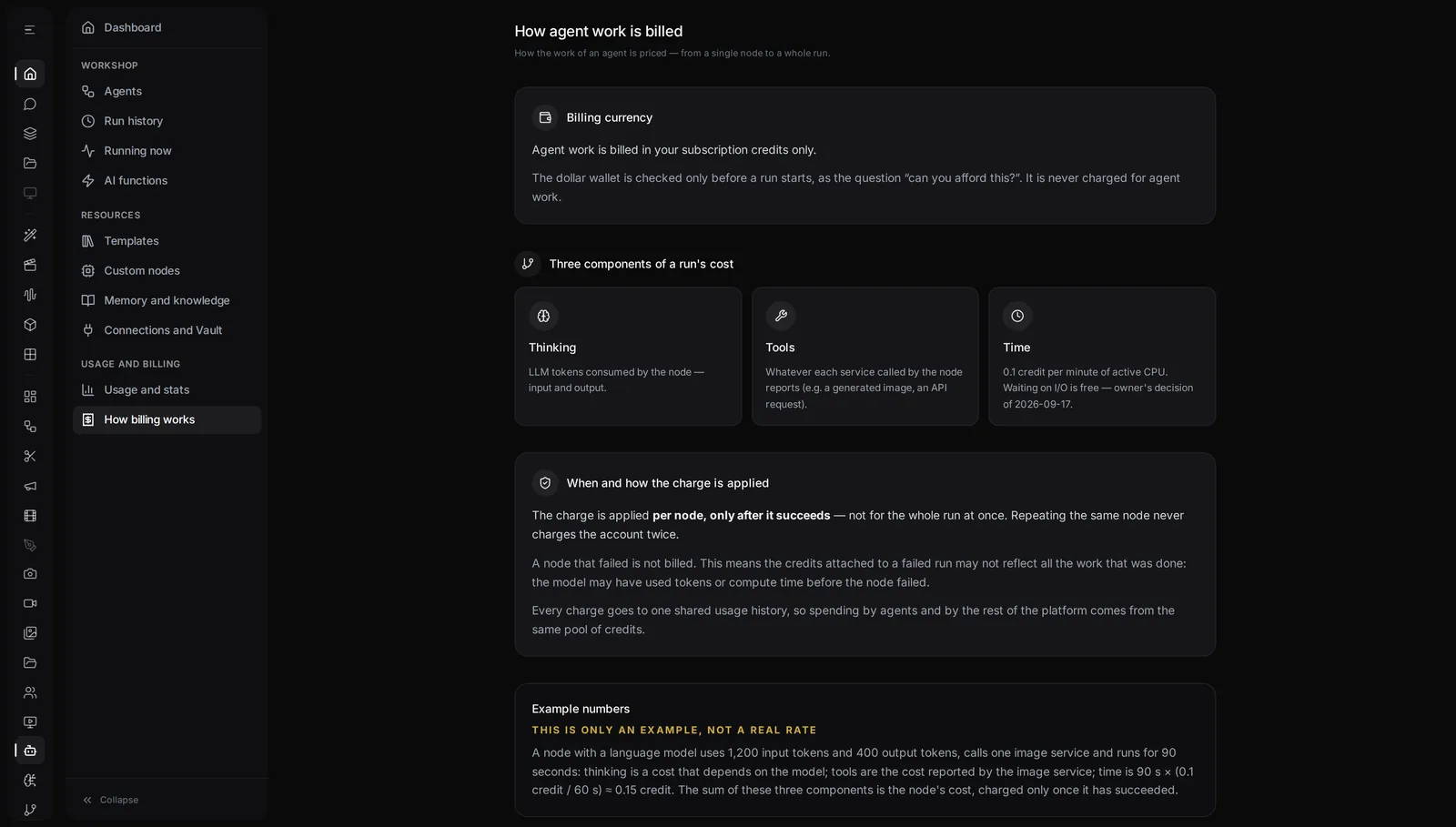
Agent work is billed in your subscription credits, per step that succeeds. The How billing works page explains the three components of a run: Thinking (the tokens of the AI model, input and output), Tools (whatever each tool reports, such as a generated image) and Time (metered per minute of active compute; time spent waiting on a service or on you is free). The dollar wallet is only checked before a run starts, to answer "can you afford this?", and is not charged for agent work. Before you run, the builder shows an estimate (the credit badge in the top bar, and the Cost estimate and wallet dialog with a per-node breakdown); steps whose price is not known yet say so instead of showing a number.
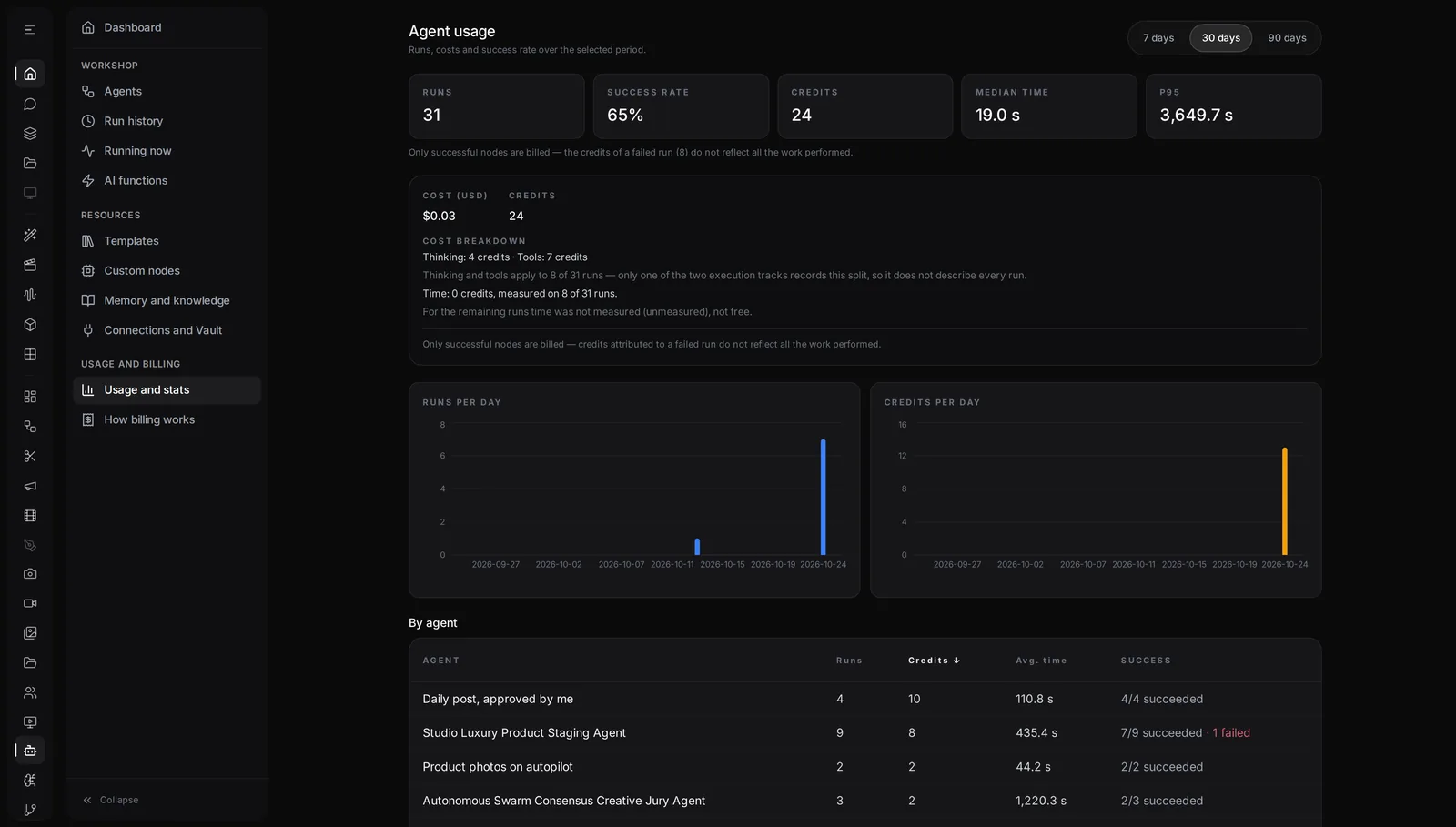
Usage and stats shows the runs, success rate, credits and median duration over 7, 30 or 90 days with a breakdown of thinking and tools. It notes that the credits of a failed run do not capture all the work done, and that the thinking and tools split is only recorded for some runs, so read it as a guide, not an invoice.
Start from a template
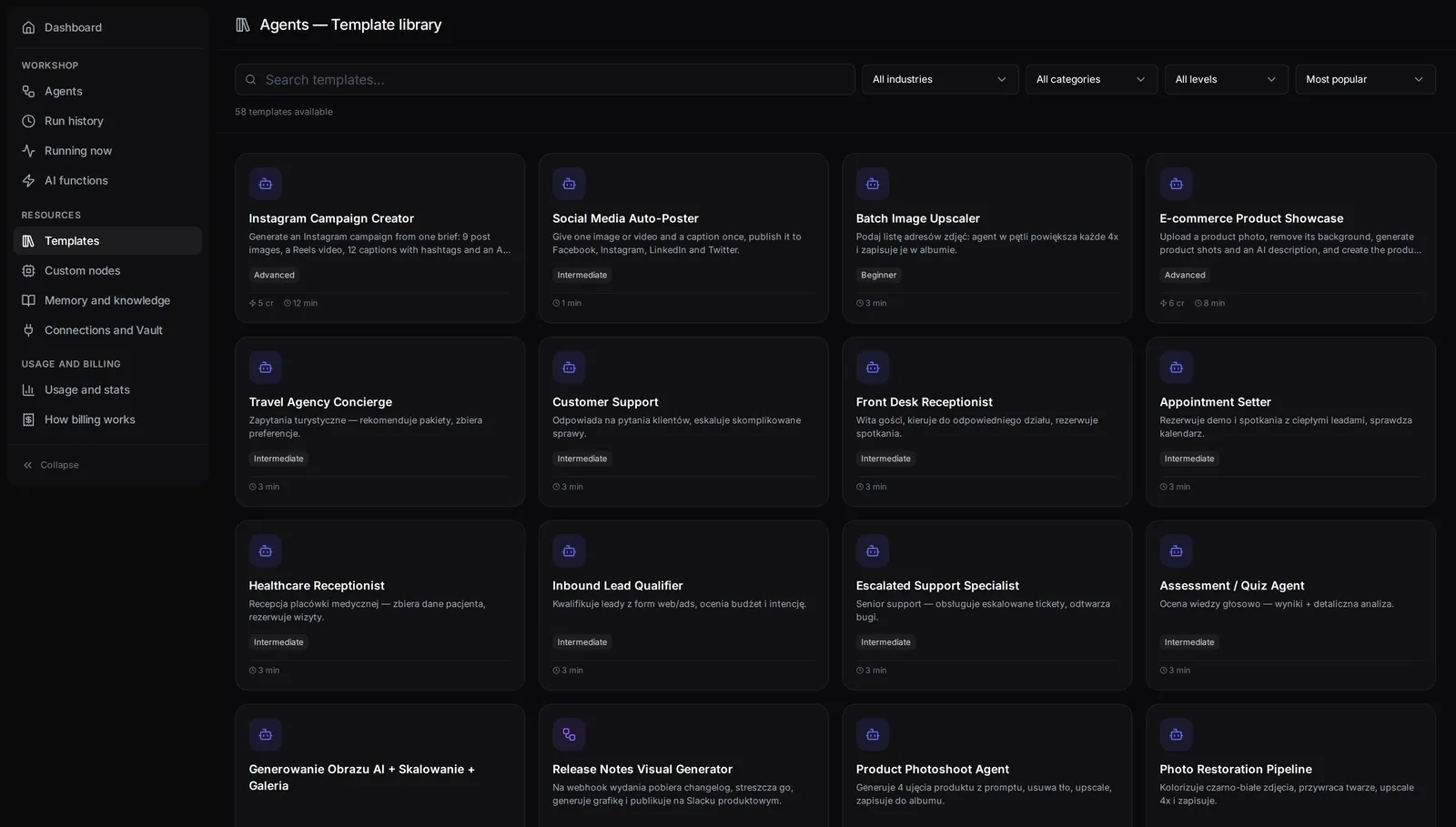
Templates is a gallery of ready agents with filters for industry, category and level, sorted by popularity. Each card gives the level (Beginner, Intermediate, Advanced), an estimated time and often a credit hint. Installing creates your own copy (named "... (from template)"), which you can open, edit and test. Simple templates open in the guided wizard; complex ones open in advanced mode. Some template descriptions are written in Polish; the agent's instructions are yours to edit in any language.
- Agent or flow: which should I use?
- Use a flow when you design a media chain and watch it run. Use an agent when it should run by itself, decide between tools, or wait for your approval.
- Can I stop a run that costs too much?
- Yes: Cancel on the run page. You can also set a credit budget and a time limit in the builder's Settings; the run aborts when it is exceeded.
- Where are the results saved?
- Where the agent's last steps put them: for example a Save to gallery node stores images in your FOTOhub gallery. The run page lists the steps that saved something.