Integrations hub: connect apps, shops and automations
Connect cloud storage, shops, chats and social accounts, set up automations and backups, and wire FOTOhub to Zapier, Make, webhooks and MCP servers.
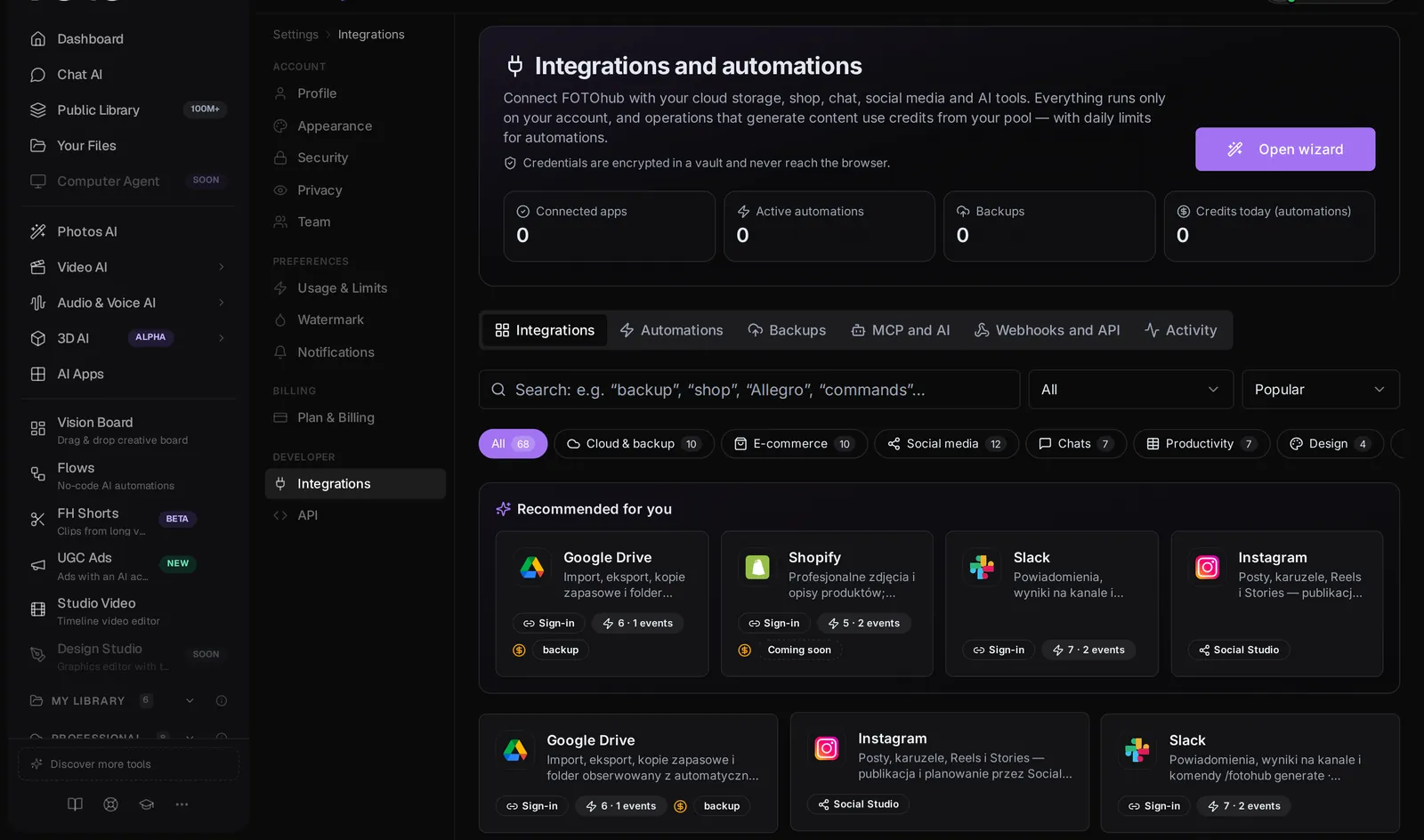
What the integrations hub is
The integrations hub connects FOTOhub to the tools you already use. It lives in Settings → Developer → Integrations (/settings/integrations) and works on your own account only. You can pull photos and product images in from a cloud drive or a shop, let FOTOhub process them, push the results back, send notifications to a chat, back up your library to your own storage, and trigger all of it from events or on a schedule.
| Tab | What it holds |
|---|---|
| Integrations | The catalogue: browse, connect and open each app |
| Automations | Rules that react to events or run on a schedule |
| Backups | Incremental backups of your photos and video to your cloud |
| MCP and AI | External MCP servers and FOTOhub inside AI assistants |
| Webhooks and API | Zapier, Make, incoming webhook and HTTP request integrations, plus your webhooks |
| Activity | A log of integration actions with source, cost and errors |
Browse and connect an app
The catalogue lists 68 integrations in categories: cloud and backup, e-commerce, social media, chats, productivity, design, marketing, communication, automation, AI and MCP, and developer tools. Search by name or purpose, narrow by status (All, Connected, Available to connect, Need setup), sort by popularity or A to Z, and pick a category. Cards show the number of actions and events, a backup badge for apps that can hold backups, and a marker for actions that use credits.
What is live today
A card marked Coming soon is built but waiting for FOTOhub to register the app with the provider, so it cannot be connected yet. At the time of writing these are live:
| Category | Live | Coming soon |
|---|---|---|
| Cloud and backup | Google Drive, Google Photos, S3-compatible storage (AWS S3, R2, B2, Wasabi, MinIO), WebDAV, Nextcloud and ownCloud, Cloudinary, Bunny Storage | Dropbox, OneDrive, Box, pCloud |
| E-commerce | WooCommerce, BaseLinker, Shoper (Poland), PrestaShop, BigCommerce, Magento 2, Printful | Shopify, Allegro (Poland), Etsy |
| Social media | Instagram, Facebook, LinkedIn, X, YouTube, TikTok (through the Social Studio), Bluesky, Mastodon | Pinterest, Threads, Tumblr, Vimeo |
| Chats and communication | Slack, WhatsApp Business, Google Chat, Mattermost, SendGrid, Twilio, Resend, ntfy, Pushover | Discord, Telegram, Microsoft Teams, Mailchimp |
| Productivity and marketing | Google Sheets, Google Calendar, Google Business Profile, Brevo, MailerLite, Klaviyo | Airtable, Trello, Asana, ClickUp, monday.com, HubSpot, Notion |
| Automation and developer | Zapier, Make, WordPress, MCP servers, incoming webhook, HTTP request | |
| Design | Webflow, Canva, Figma, Miro |
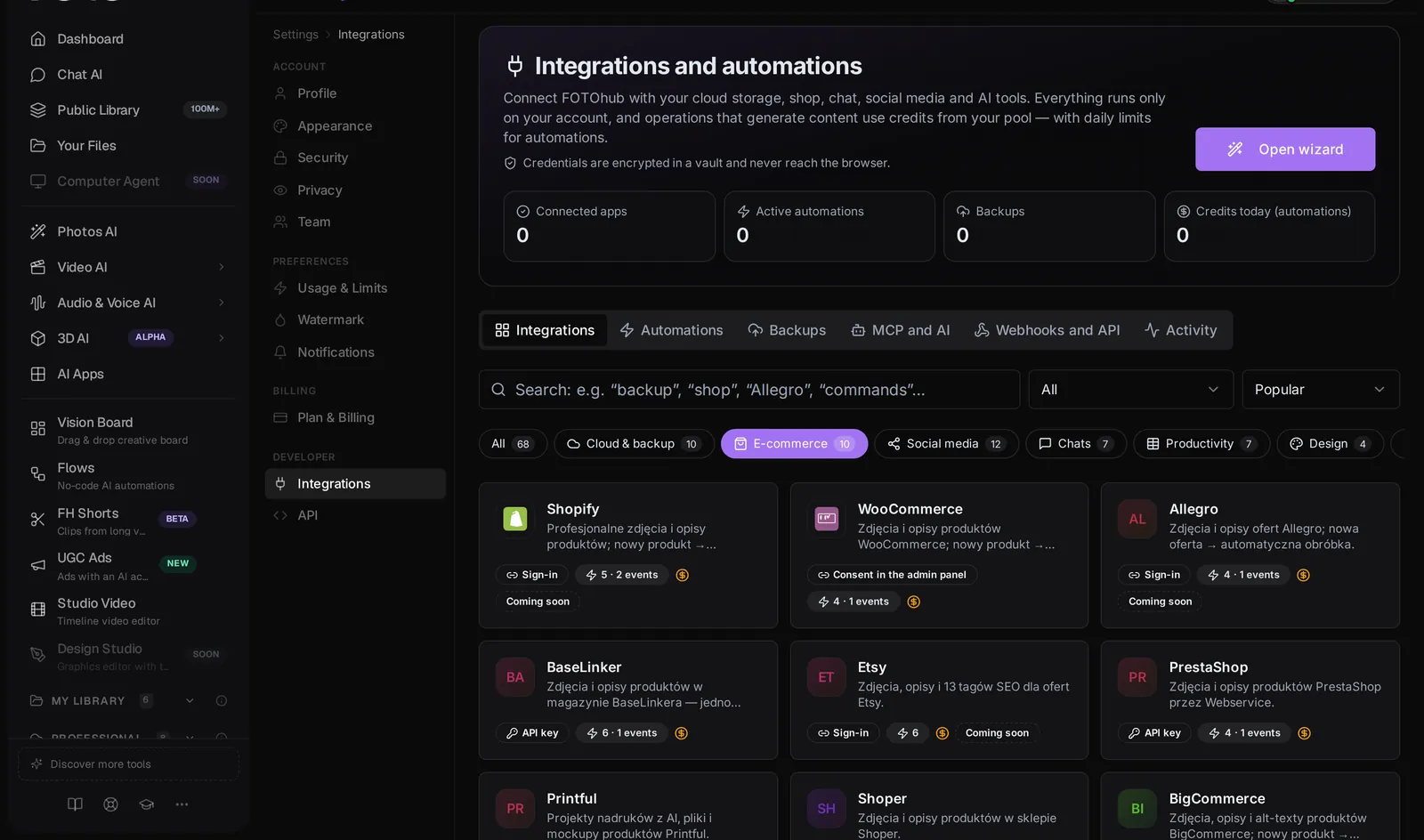
Connect an app
- Open the card Click an app to open its details. You see what it can do (actions), which events can trigger automations, and what it needs from you.
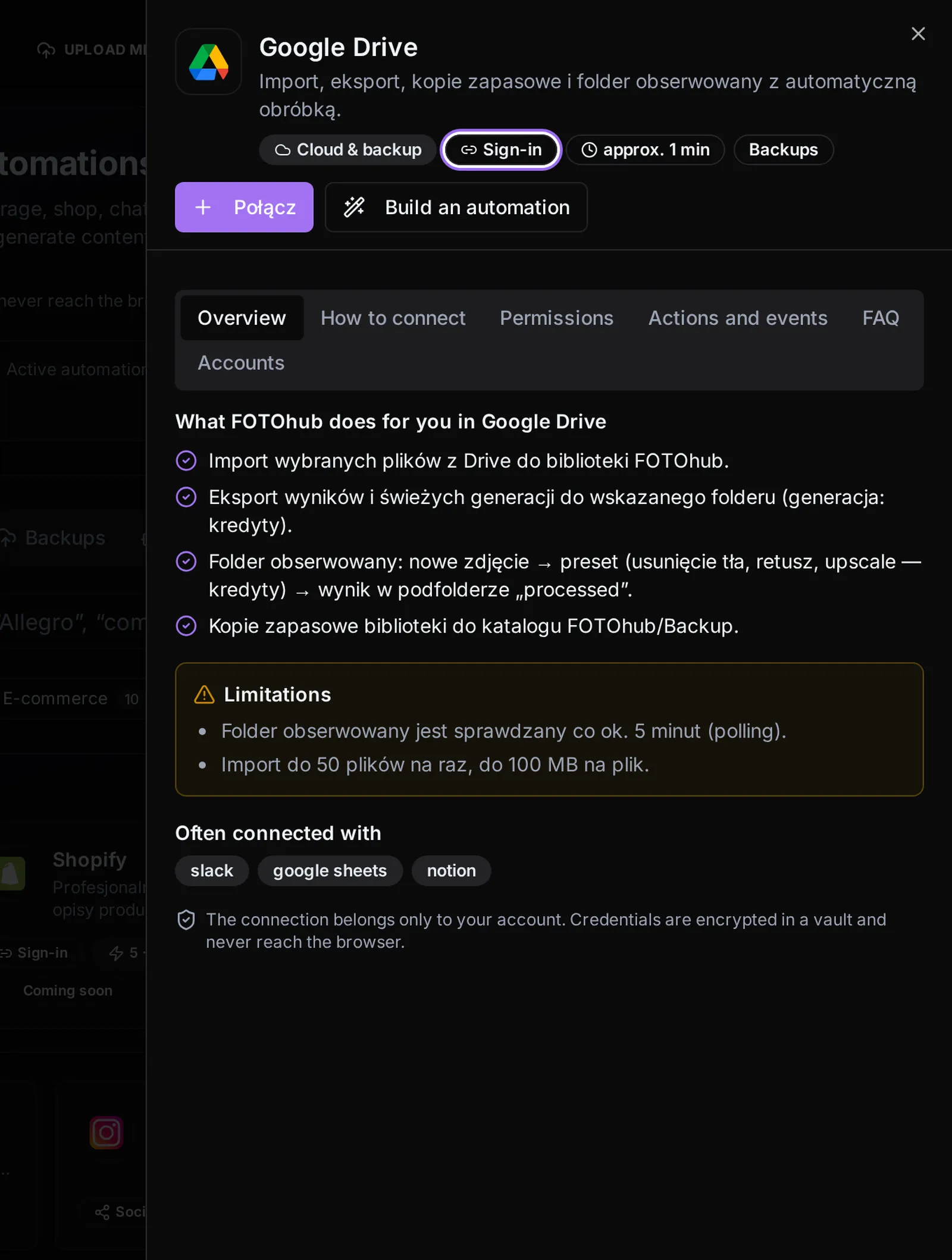
- Authorise in the way the app needs Most apps open the provider's own sign-in and consent page. Others take an API key or token that you paste into a form, WooCommerce and WordPress use app authorisation in your site's admin, and social accounts connect through the Social Studio. The table below lists each app's method.
- Finish and test After you approve, the hub brings you back and shows the connected account. Use Test connection to check it. Credentials are encrypted in a vault and never reach your browser again.
How each app authorises
Every card says how it connects. Today 42 of the 68 entries can be connected and 26 are marked coming soon.
| Label | What you do | Live connectors |
|---|---|---|
| Sign-in | Approve permissions at the provider; FOTOhub never sees your password | Google Drive, Google Photos, Slack, Google Sheets, Google Calendar, Google Business Profile |
| Sign-in (instance) | Enter your own server's address, then sign in there | Mastodon |
| API key | Paste a key, token or login made at the provider; it is stored encrypted | 24 connectors, among them every shop except WooCommerce, S3-compatible, WebDAV, Cloudinary, Bunny, WhatsApp Business, incoming webhook |
| Consent in the admin panel | Enter the site address, approve on its own consent screen | WooCommerce, WordPress |
| Social Studio | Connect once in the Social Studio | Instagram, Facebook, LinkedIn, X, YouTube, TikTok |
| Connect in the app, MCP server | Sign in from the partner app, or add the MCP server and approve its tools | Zapier, Make; MCP servers |
The wizard: start from a goal
If you do not know which tab you need, press Open wizard. It asks what you want to achieve and walks you through every step, showing costs and safeguards before anything runs.
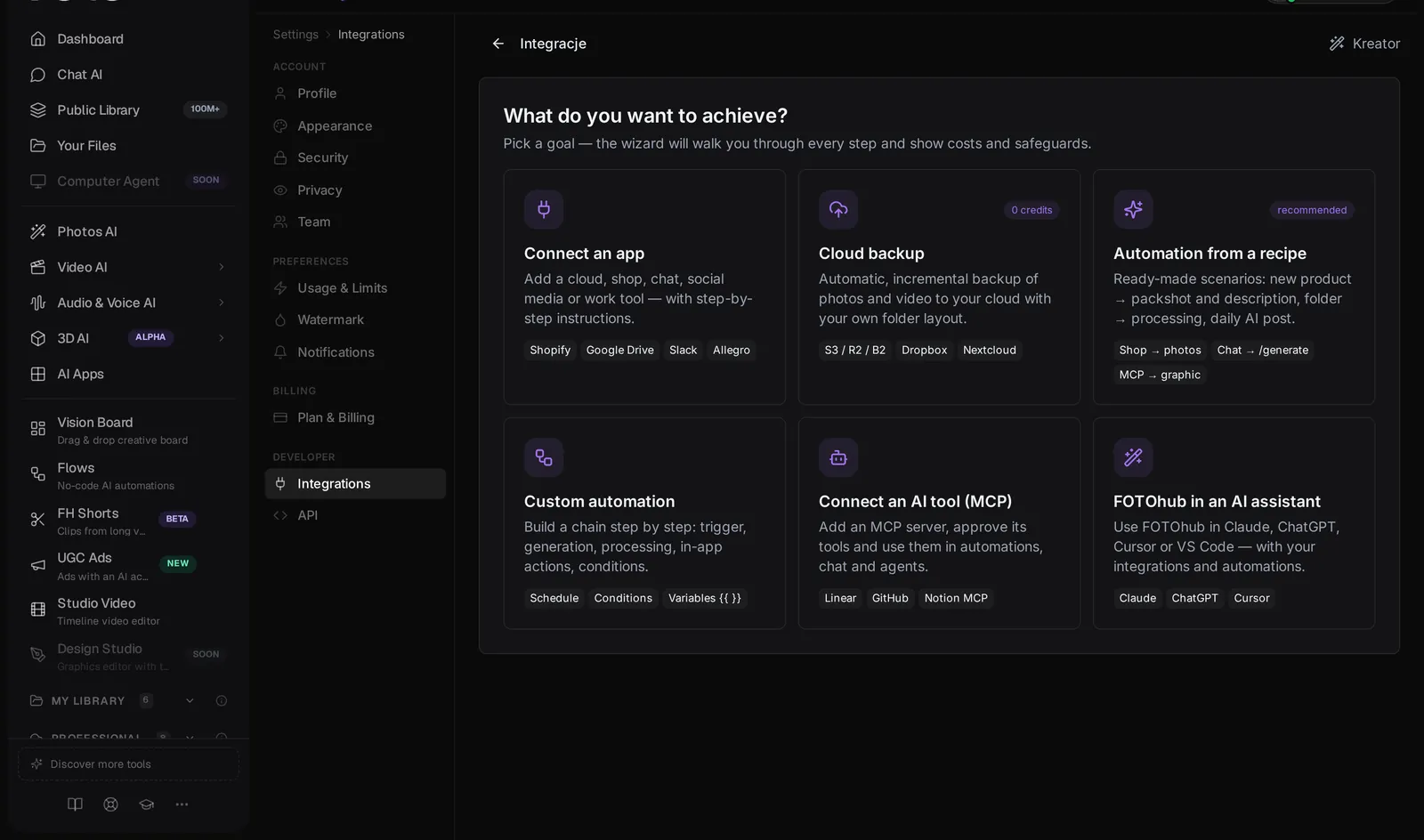
| Goal | What it sets up |
|---|---|
| Connect an app | Step-by-step instructions for a cloud, shop, chat, social or work tool |
| Cloud backup | An automatic, incremental backup with your own folder layout (no credits) |
| Automation from a recipe | Ready scenarios such as new product to packshot and description, folder to processing, or a daily AI post |
| Custom automation | A chain built step by step: trigger, generation, processing, actions, conditions, schedule, variables |
| Connect an AI tool (MCP) | Add an MCP server, approve its tools, use them in automations, chat and agents |
| FOTOhub in an AI assistant | Config snippets for connecting FOTOhub's MCP server to an assistant or editor |
Recipes and their cost hints
The recipe goal opens a gallery of ready automations: new product to photos and description, cloud folder to processing, generate from chat, a daily AI post, every generation to backup, webhook to graphic and more. You pick the connections, fill in a few options, and the wizard previews an estimate for one run built from your own price table. Recipes also show a cost hint (Polish data), for example about 3 to 5 credits per photo plus 0.2 per description for the shop recipe, and 0 credits for the backup recipes. Trust the preview: actions billed by real usage, such as AI texts and MCP tools, are only approximated.
Connector guides: what you enter and what each can do
Card texts are partly Polish data; action names below are the catalogue identifiers. Each action has a kind (read, import, write, notify or publish), and cards flag those that spend credits.
Shops
Six shop connectors share four actions: list_products (read), import_product_images (import), enhance_product_images and generate_description (write, both spend credits). Enhancing applies a preset such as white background or retouch and adds the result or replaces the original, which is removed only after the new image uploaded. A description is saved to the shop only if you ask for that.
| Connector | What you enter | Notes |
|---|---|---|
| WooCommerce | Site address (HTTPS, public), then approve on the WooCommerce consent screen | Event woocommerce.product.created arrives as a signed webhook |
| BaseLinker | API token from My account, API | Adds list_inventories and configure to pick the watched inventory; at most 60 requests per minute |
| Shoper | Shop address, WebAPI user login and password | New products are detected by polling |
| PrestaShop | Shop address and the 32-character Webservice key (products and images rights) | Polling; saving a description needs PrestaShop 8 or newer |
| BigCommerce | Store hash (from stores/{hash} in the API address) and the API account access token | Adds generate_alt_text (credits); webhook with a secret |
| Magento 2 | Store address (HTTPS) and the integration access token (Catalog access) | Polling |
| Printful | Private API token, optional store id | Own actions: upload_file, design_from_prompt (credits), create_mockup_task, get_mockup_result; no event, mockups are asynchronous |
Cloud storage
Google Drive signs in with the narrow drive.file scope, so FOTOhub sees only files it created or that you pick. Actions: list_files, import_files, export, create_folder, process_file and configure. The event google_drive.file.created fires for a new file in the watched folder (polled about every five minutes) and runs process_file: download, apply a preset (credits), upload into a processed subfolder that the watcher skips. An import takes up to 50 files of 100 MB each.
S3-compatible storage, WebDAV, Cloudinary and Bunny share five actions: test, list, import_files, export and configure (the backup root, default FOTOhub/Backup). Only HTTPS and public endpoints are accepted. For S3 the key needs PutObject, plus GetObject and ListBucket for imports. The forms differ:
| Connector | Fields |
|---|---|
| S3-compatible | Provider (aws, r2, b2, wasabi, spaces, minio, other), bucket, access key id, secret; optional region (auto for R2), account id (R2 only), HTTPS endpoint (MinIO or other), path prefix |
| WebDAV, Nextcloud, ownCloud | WebDAV address (Nextcloud: https://…/remote.php/dav/files/<login>/), login, app password; optional base folder |
| Cloudinary | Cloud name, API key, API secret |
| Bunny Storage | Storage zone, region (de, uk, ny, la, sg, se, br, jh, syd), zone password; optional pull zone address |
Slack, Google Sheets and WordPress
Slack signs in to a workspace. Actions: list_channels, send_message, send_media, import_files, reply_command, run_command, configure. Events: slack.command for the /fotohub slash command (generate, removebg, upscale) and slack.file_shared. Slack wants an answer within three seconds, so FOTOhub acknowledges at once and posts the result when ready. Invite the bot to private channels with /invite @FOTOhub.
Google Sheets needs a sheet with a prompt column and a status column. Actions: append_row, read_range, generate_from_sheet (up to 20 rows per call, credits), generate_for_row, configure. The event google_sheets.row.ready fires for a new row with a prompt. Values are written as plain values, never formulas, and rows left in progress return to an empty status if credits run out.
WordPress (5.6 or newer, HTTPS) uses an application password you approve in the admin and can revoke under Profile. Actions: list_media, import_media, upload_media (with alt text), create_post (draft or published, text and gallery) and optimize_media, which processes a library image with a preset (credits) and uploads it as a new file, so originals are never overwritten. It has no events.
Automations and backups
Automations
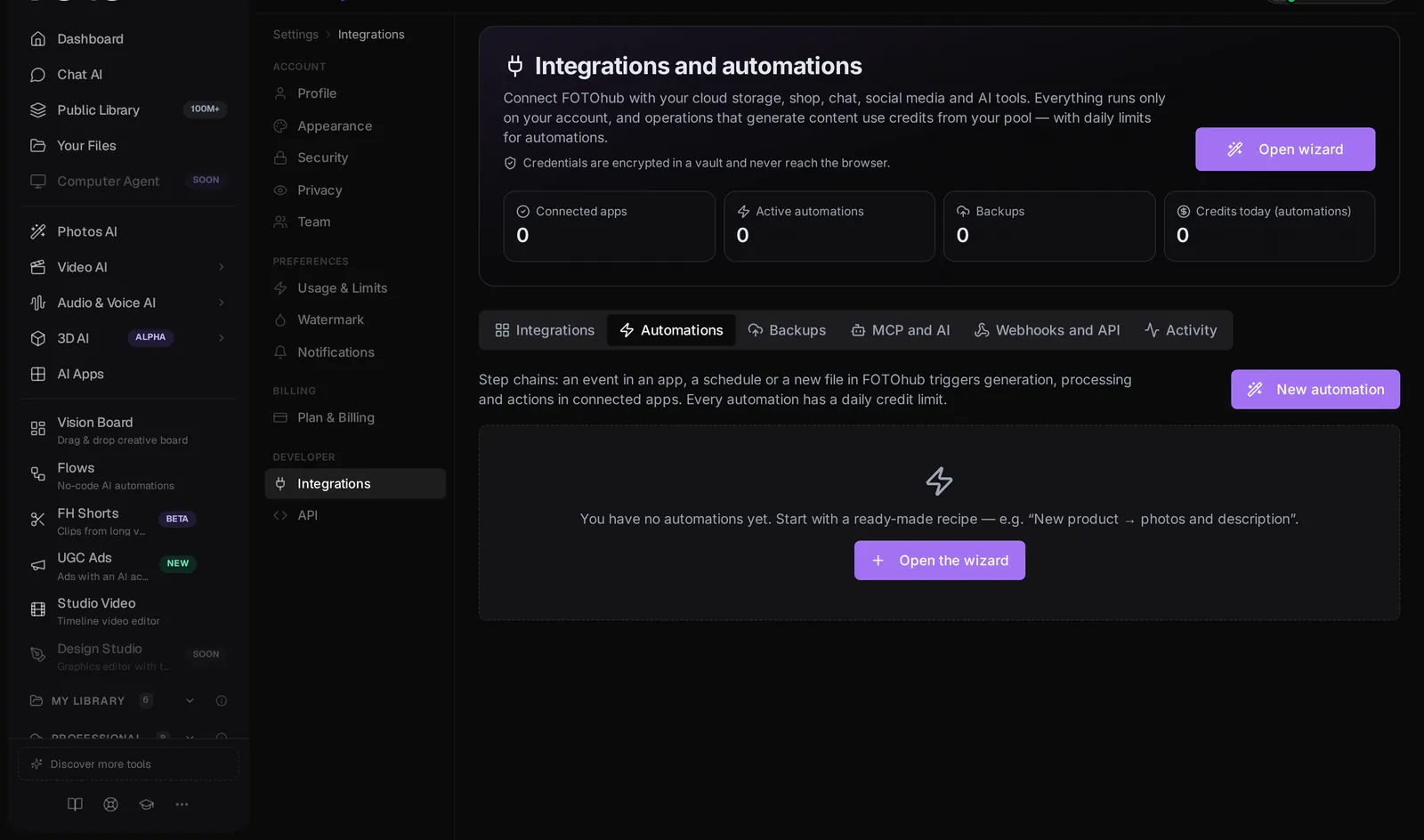
An automation is a rule: When an event happens in a connected app, do an action, optionally with a processing preset. Open a connected app's details, press Add rule, choose the event and the action, set a daily credit limit (0 to 1000 credits; once it is used up the rule pauses until tomorrow) and enable it. The Automations tab lists all rules, and Recent jobs in each app shows what ran and what it cost.
Designing an automation
The hub has two similar tools. An app rule (the Add rule form in a connected app) maps one event to one action with an optional preset (remove background, white background, upscale, retouch, edit, studio product photo, lifestyle scene; edit and lifestyle need a prompt). Its daily limit is 0 to 1000, starting at 50. An automation (wizard recipe or custom goal, listed in the Automations tab) is a chain of 1 to 12 steps with a daily limit of 0 to 5000; the wizard suggests ten runs' worth of its estimate, at least 5.
- App event: a connected app reports an event such as
slack.commandorwoocommerce.product.created. - Schedule: every hour, day or week at an
HH:MMtime in a named time zone; weekly needs a weekday. - New file in FOTOhub:
photo.createdorvideo.created, optionally AI results only and one tag. It starts from the moment you save, so your existing library is not processed, and results the hub itself creates never re-trigger it. - Manual: Run now, or an API key or the MCP bridge. Keys can read and run automations; creating and changing them works from the panel only.
Steps come in five types: a FOTOhub operation (generate, edit, remove background, upscale, preset, write text), an app action, an MCP tool call, save to storage, and a condition (exists, does not exist, equals, does not equal, contains, greater, less). A failed condition ends the run as *Stopped by condition*. Later steps read earlier output with {{trigger.<path>}}, {{steps.<id>.<path>}}, {{now.date}} and {{now.iso}}: plain substitution, no expressions, and a reference to a later step is rejected on save.
How the daily credit limit behaves
- It counts credits spent without you clicking: events, schedules and API or MCP-bridge runs. Credits today on the stats strip adds them up.
- Credits are reserved before each paid step. If the next charge would pass the limit, that step is blocked with *This automation has used up its daily credit limit* and paid steps wait until the next day. Credits returned after a failed step go back into the budget.
- Run now in the panel is an owner test: it ignores the daily limit, but paid operations still use your credits. Runs from an API key or the MCP bridge count against the limit.
Parameters you set override what an event carries, so an outside system cannot change the preset or target folder, and provider retries are de-duplicated. A chat event runs only for the user ids on the allowed list or, if the list is empty, only for the person who connected the integration. Treat that list as a spending permission.
Backups
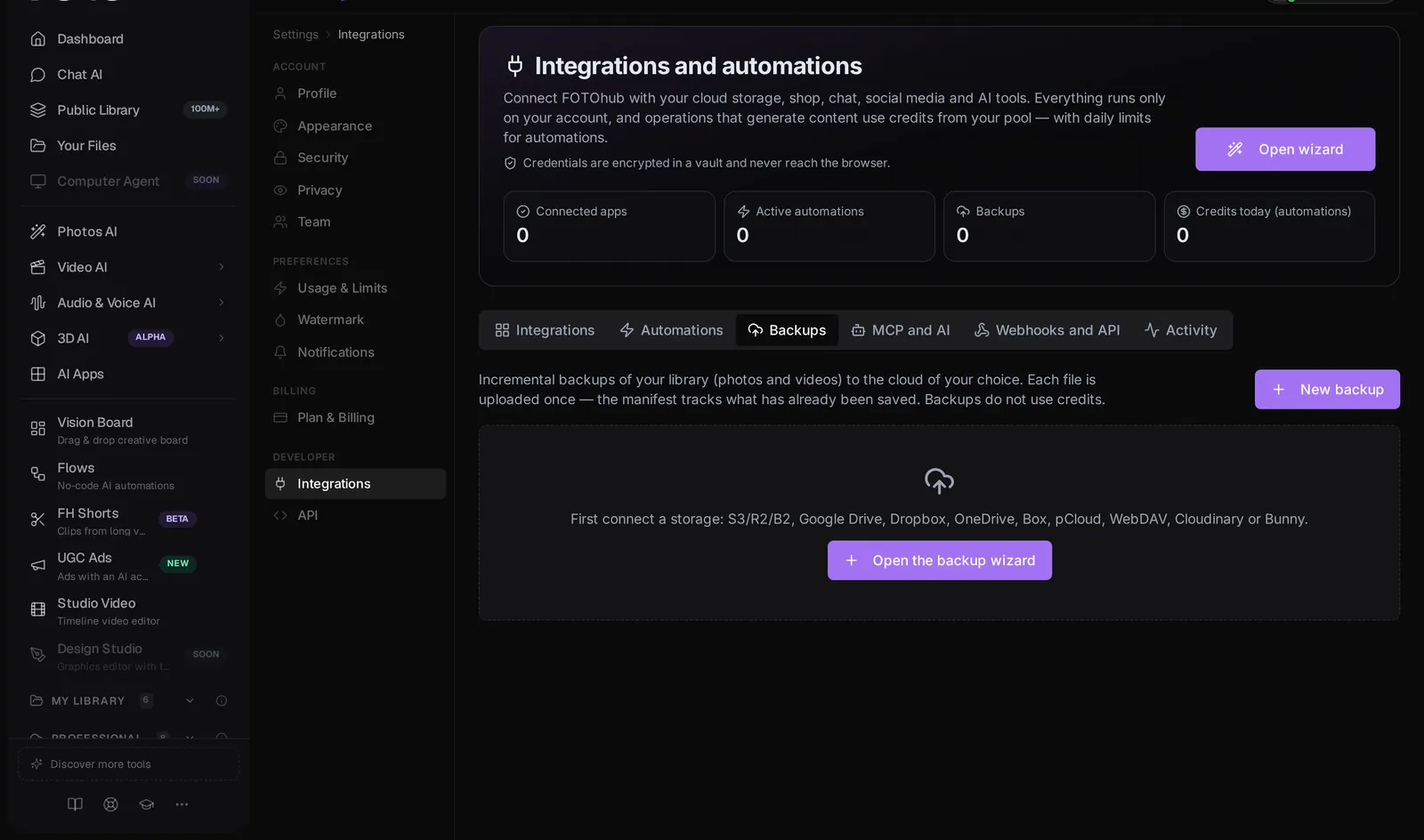
A backup policy copies photos and video from your library to a connected storage: S3-compatible storage, Google Drive, WebDAV, Cloudinary or Bunny (more targets are marked coming soon). Backups are incremental: each file is uploaded once and a manifest remembers what is already saved. They do not use credits. In the Backups tab you see each policy's status (up to date, partial, in progress, error), the last run, file counts, a Run now button and the last 50 files saved.
Folder layout, schedule and what is copied
The Cloud backup goal asks for the storage, what to copy (photos and graphics, video or both; AI results only; optionally files carrying one of up to ten tags), how often, a folder layout and a name. The default layout is {root}/{yyyy}/{mm}/{kind}/{name}, and the preview shows a sample path. Tokens: {root} (the backup folder at the provider, default FOTOhub/Backup), {yyyy} {mm} {dd} (creation date in UTC), {kind} (zdjecia for photos, wideo for video), {source} (generated, library or the integration name), {name} (safe file name plus 8 characters of the id), {id} (full id with extension) and {ext}.
A template is 1 to 300 characters and must contain {name} or {id}, otherwise files would overwrite each other and the wizard refuses it. Frequency is continuous (about every five minutes, most API calls), hourly, daily (recommended for most accounts) or weekly. The first run copies the whole matching library in batches; later runs take only newer files, and a manifest records every saved file so a retry never uploads one twice. Run now starts a run within a minute. Deleting a policy leaves your cloud untouched.
MCP and AI, webhooks and activity
MCP and AI
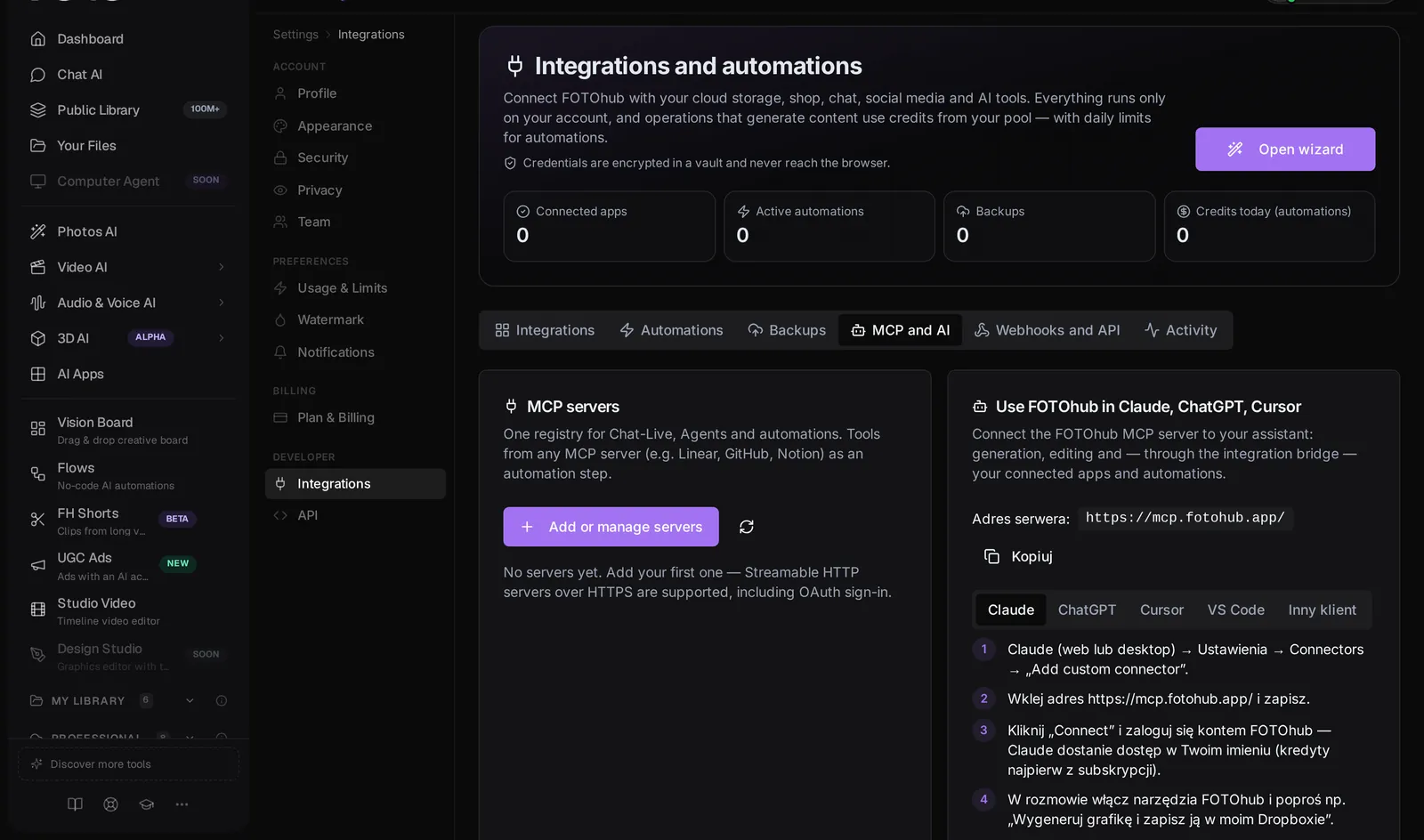
This tab is where FOTOhub acts as an MCP client. Add a remote MCP server (Streamable HTTP over HTTPS, with sign-in if it needs one) and the hub discovers its tools. None are allowed by default: tick the ones automations, chat and agents may use. Each tool carries a badge from what the server declares, read-only, write or destructive, and approving a destructive tool shows a warning because automations call it without asking. Try an approved tool with JSON arguments in the Test call box first. The lower half has ready snippets for using FOTOhub inside an AI assistant, which the MCP server guide explains.
Webhooks and API
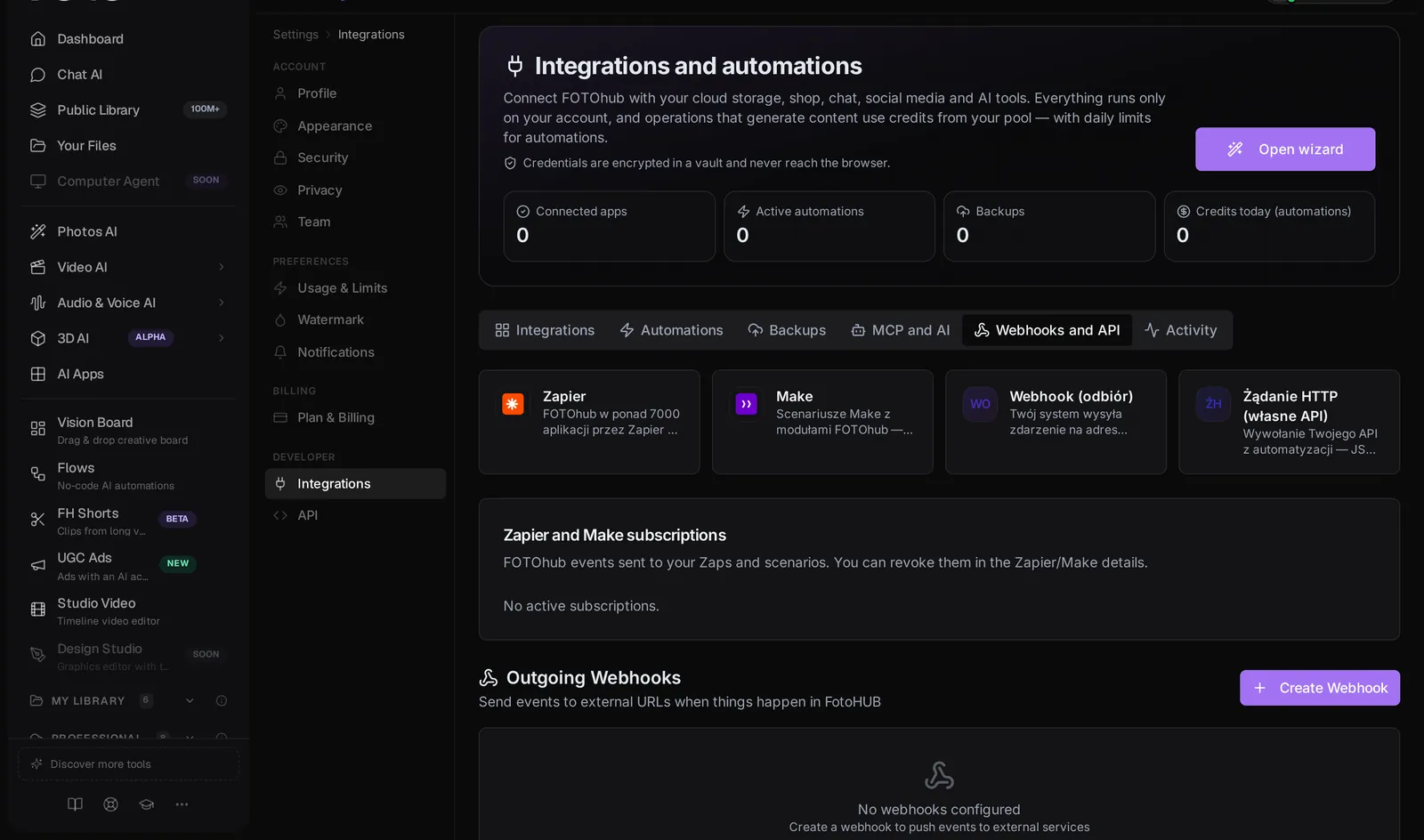
Four developer cards live here: Zapier and Make (connect with a FOTOhub sign-in so Zaps and scenarios can subscribe to FOTOhub events), Webhook (odbiór), the incoming webhook, and Żądanie HTTP (własne API), the HTTP request step. Some card names and descriptions stay in Polish whatever language you picked. Below them are the Zapier and Make subscriptions and your registered webhooks, the ones the API console manages.
Incoming webhook, HTTP request, Zapier and Make
Incoming webhook. Connecting gives you a unique address. Your system sends a POST with a JSON object of up to 256 KB; FOTOhub answers 202 with {"accepted":true} and raises webhook.received, and your fields reach an automation as {{trigger.payload.<field>}}. Without a shared secret the address is the secret, so keep it private. With a secret of at least 24 characters every request must be signed, either X-FotoHub-Signature: sha256=<hex HMAC-SHA256 of the raw body> or X-FotoHub-Token: <secret>.
BODY='{"prompt":"red sneaker on a white background","requestId":"order-1042"}'
SIG=$(printf '%s' "$BODY" | openssl dgst -sha256 -hmac "$WEBHOOK_SECRET" | sed 's/^.* //')
curl -X POST "$WEBHOOK_URL" \
  -H "Content-Type: application/json" \
  -H "X-FotoHub-Signature: sha256=$SIG" \
  -d "$BODY"
Signing a request to your incoming webhook (address and secret come from the connection details)
HTTP request. The step calls your own API under the saved base URL with GET, POST, PUT, PATCH or DELETE (send_request), or uploads a file as multipart/form-data (send_media). Only public HTTPS paths under the base URL are allowed, the optional auth header (Authorization, X-API-Key, Api-Key or X-Auth-Token) is stored encrypted, and later steps can read the response, up to 16 KB.
Zapier and Make. Connect from the partner side: add the FOTOhub app and sign in with your FOTOhub account (a limited API key also works). Their triggers subscribe to FOTOhub events and their actions run on your credits; you can revoke subscriptions under the cards. Zapier hooks must point to hooks.zapier.com, Make accepts its own hook hosts, and an account holds at most 25 subscriptions in total.
Activity
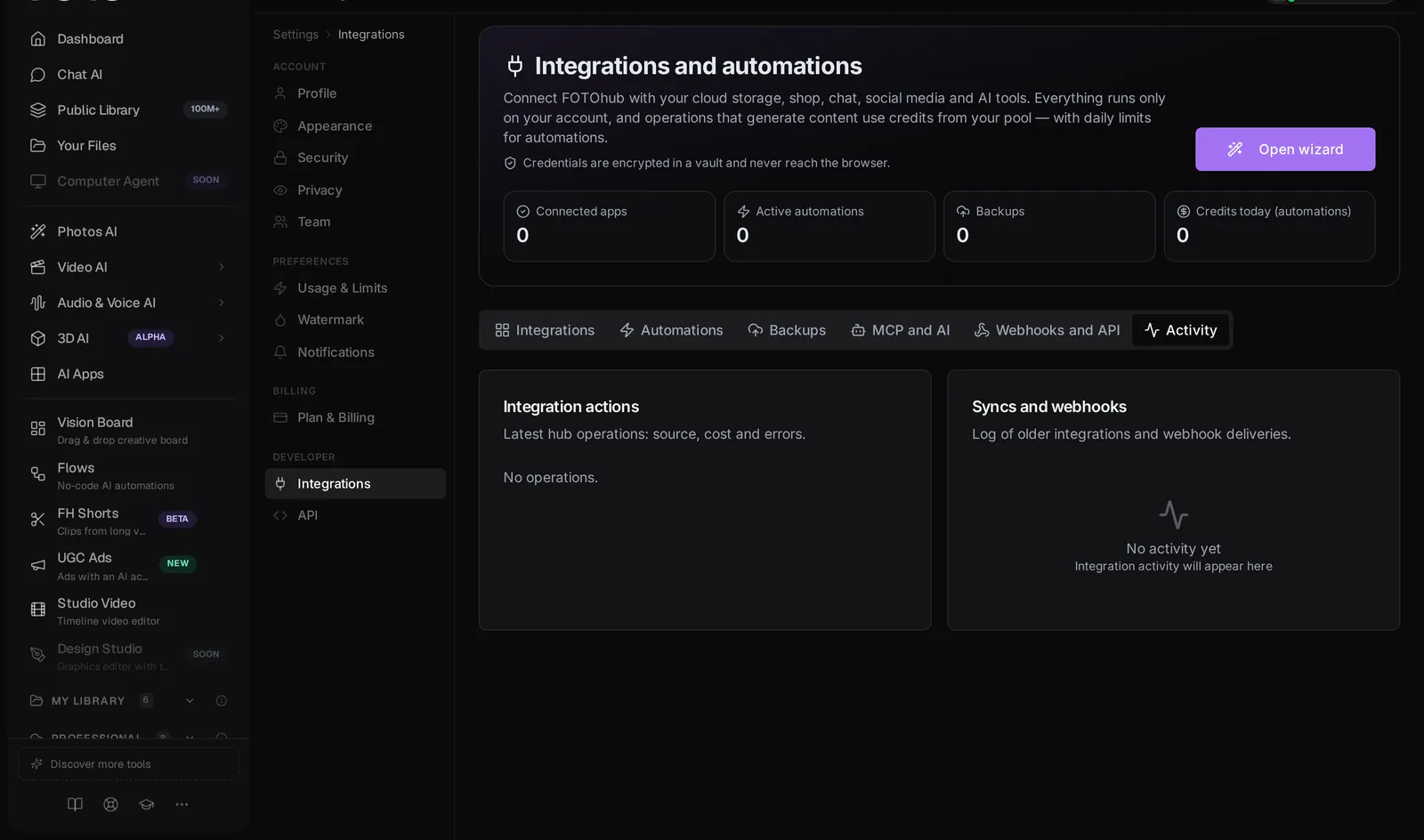
The Activity tab lists the latest hub operations with their source, cost and errors, and a second log of older integrations' syncs and webhook deliveries. Open it first when an automation seems to do nothing.
Worked examples
New product, better photos, written description
Goal. Every time a product appears in your WooCommerce shop, clean up its photos and draft the description without opening FOTOhub.
Input you can copy.
1. Catalogue → E-commerce → WooCommerce → enter your site address → approve the app in your shop admin.
2. Test connection.
3. Add rule: When `woocommerce.product.created`, do `enhance_product_images` with the white background (packshot) preset, daily credit limit 50.
4. Add a second rule on the same event: do `generate_description`.
5. Create a test product in the shop and watch Recent jobs.| Setting | Value |
|---|---|
| Trigger | woocommerce.product.created |
| Actions | enhance_product_images, generate_description |
| Cost control | Daily credit limit per rule |
Why it works. The two rules are independent, so a failed description never blocks the photos. The daily limit caps the credits a busy catalogue import could spend. Start with a limit of a few products' worth and raise it once the output looks right.
Daily backup of AI results to your own bucket
Goal. Keep every image you generate in a Cloudflare R2 bucket you control, sorted by day, without spending credits.
Input you can copy.
1. Catalogue → S3-compatible: provider `r2`, region `auto`, your account id, bucket, access key id and secret with write access. Run `test`.
2. Open wizard → Cloud backup → pick that storage.
3. Photos and graphics, AI results only.
4. Every day.
5. Layout `{root}/{yyyy}/{mm}/{dd}/{source}/{name}`; read the sample path.
6. Save, press Run now on the Backups tab, then open Files.| Setting | Value |
|---|---|
| Schedule | daily |
| Path template | {root}/{yyyy}/{mm}/{dd}/{source}/{name} |
| Credits | none |
Why it works. With the default root, a generated image named Jesienna kawa.png created on 24 October 2026 is saved as FOTOhub/Backup/2026/10/24/generated/Jesienna kawa-3f2a9c1e.png. Eight characters of the file id keep same-named files apart. After a clean run the Backups tab reads Up to date.
Your own system asks for a graphic and gets the id back
Goal. A shop backend posts a prompt and an order number; FOTOhub generates the image and calls your API back with its id.
Input you can copy.
1. Connect the incoming webhook (secret of 24+ characters) and HTTP request (your API's base URL and auth header).
2. Wizard → Automation from a recipe → webhook to graphic; keep callback path `/fotohub/callback`, format 1:1.
3. Check the estimate, set a daily limit, save, and send the signed request above.| Setting | Value |
|---|---|
| Trigger | webhook.received |
| Steps | condition (prompt exists), generate, send_request |
| Reply | POST /fotohub/callback { photoId, requestId } |
Why it works. The first step checks that trigger.payload.prompt exists; a request without it ends as *Stopped by condition* and spends nothing. Otherwise the image is generated and your API receives the new photo id with the requestId you sent, so you can match it to order-1042. Look in the Activity tab for the outcome.
Limits and costs
The hub adds no fee of its own. Reading, importing, notifying and backing up use no credits; generating, processing and AI text do, at the price in the wizard's preview. Limits:
| What | Limit |
|---|---|
| Automations; backup policies; Zapier and Make subscriptions | 50; 10; 25 per account |
| Steps per automation; allowed chat user ids | 12; 50 |
| Daily credit limit | 0 to 1000 per app rule, 0 to 5000 per automation |
| MCP servers | HTTPS on port 443 only; text result up to 20,000 characters, images up to 20 MB |
Troubleshooting and what to read next
- A connection shows Expired, Error or Revoked.
- Expired means access ran out and automations on it are paused. Error means the last operation failed: press Test connection and read the message. Revoked means access was cancelled at the provider. Reconnect the app, and if the message names missing permissions, accept all of them.
- An automation never fires.
- Check that the rule is enabled, that today's credit limit is not used up, and the Activity tab for errors. For shop events the product must be created after the rule exists; for New file in FOTOhub only files created after you saved count. A chat command from someone not on the allowed list is ignored.
- Runs stop with a daily limit message.
- The automation has spent its budget for the day and paid steps resume tomorrow. Raise the limit if the spending was expected. If the message is *Not enough credits for this operation*, your account balance itself is empty.
- A backup shows Partial or Error.
- Read the last error on the policy and run Test on the storage connection. Common causes are a revoked key, a bucket without write permission and a full destination. Fix it and press Run now: the manifest means files already saved are not sent again.
- A card says Coming soon.
- The integration is ready but FOTOhub has not registered its app with the provider yet, so you cannot connect it today. This covers Shopify, Allegro and Etsy, among others. eBay and OLX are not in the catalogue at all.
Continue in the MCP server guide to use FOTOhub inside an AI assistant, the API webhooks guide for events delivered to your own endpoints, the API keys guide for scoped keys, and the S3 storage guide for buckets you can use as a backup target.