Lip Sync: make a face speak your audio
Sync the mouth of a person in a video to a new audio track, in Fast mode for quick previews or Ultra mode for the best quality, and know what the consent step and the price depend on.
What Lip Sync does
Lip Sync takes a video with a visible face and an audio recording, and makes the mouth in the video move to the audio. Use it to re-voice a spokesperson, to match a dub to the speaker, or to make a character in a generated clip say a line you recorded.
| Fast | Ultra | |
|---|---|---|
| Best for | Previews and social media | Best visual quality |
| How it works | Real-time lip sync | Three stages: lip sync, face enhancement, expression restore |
| Speed | About 5 seconds per 10 seconds of video | About 2 minutes per 10 seconds of video |
| Quality | Good | Highest, at the native resolution |
| Longest video | 120 seconds | 120 seconds |
Open Lip Sync Studio
Open Lip Sync Studio with the button at the end of this article, or use Continue with, Lip Sync on a finished video, which loads that clip as the video source (an audio file sent from Files lands in the audio slot). The left side has the mode selector, the two sources and the advanced settings. The Generate panel with the estimated cost is on the right.
Sync a face to your audio
- Pick a mode Click Fast or Ultra. Start with Fast to check that the face is found and the timing is right, then run Ultra on the final.
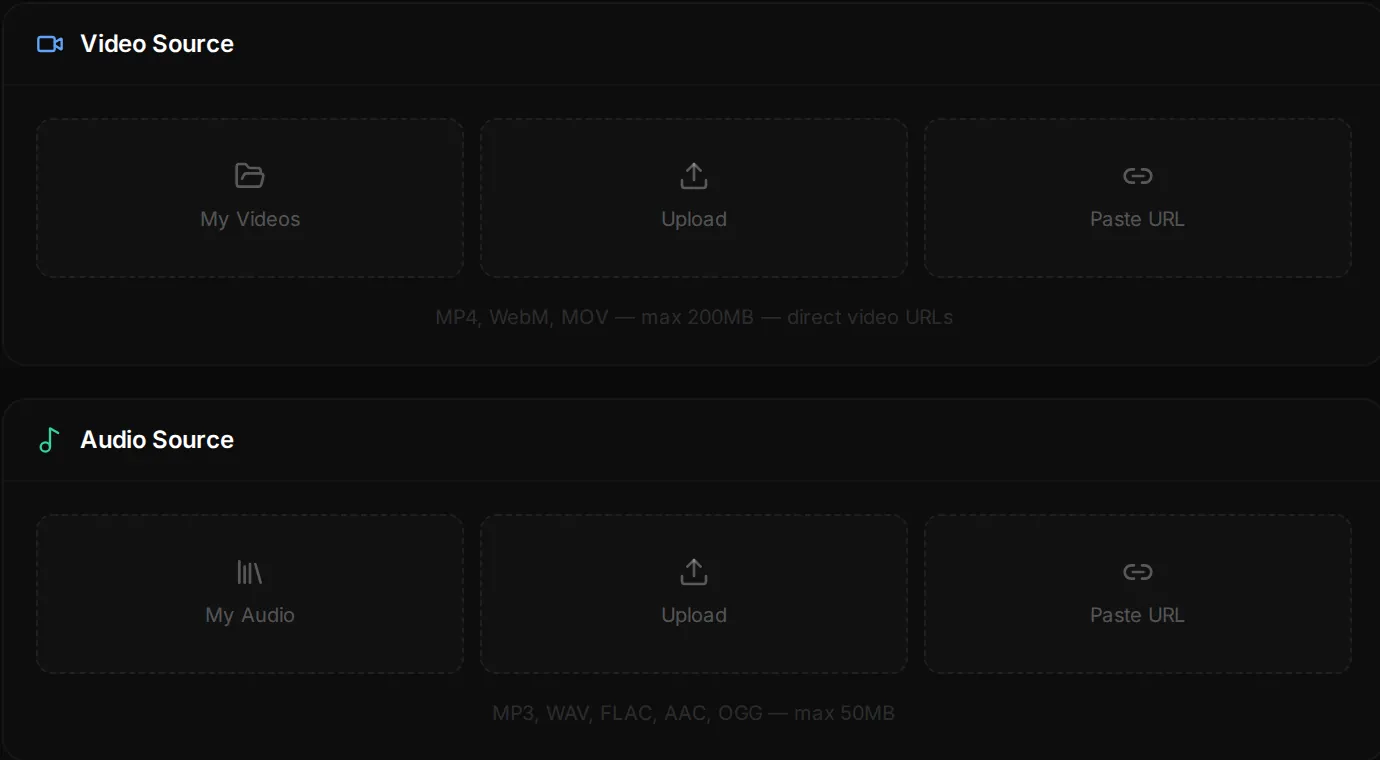
- Choose the video My Videos opens your library. Upload takes an MP4, WebM or MOV up to 200 MB. Paste URL takes a direct link to a video file. Use a video with a frontal face.
- Choose the audio My Audio opens your completed audio generations, with a search box. Upload takes an MP3, WAV, FLAC, AAC or OGG up to 50 MB. Paste URL takes a direct link. Match the audio and video lengths.
- Confirm the consent Once a video is chosen, a box appears in the Generate panel: “I have the right to use this material and the consent of the person shown in it.” Tick it. Without it the Generate button stays off. Creating the likeness or voice of a real person without their consent is prohibited.
- Generate The button names the mode, for example Generate - Fast, and the Generate panel shows Model, Video, Audio and the Estimated cost before you press it. A progress bar follows the job. When it finishes the result plays in the panel and you can download it.
Advanced settings
Click Advanced Settings to open the controls for the mode you chose. Defaults work for most clips.
| Mode | Setting | What it does |
|---|---|---|
| Fast | Face Crop Shift (-20 to 20) | Moves the area around the mouth that is processed. Raise or lower it when the mouth looks too high or too low. |
| Ultra | Lip Syncer Model | Chooses the lip sync method, from faster to highest resolution. |
| Ultra | Face Enhancer (a list from Sharpest to Maximum detail), Enhancer Blend (0 to 100) | Improves the face after lip sync. The blend slider sets how much of the enhanced face is mixed in. |
| Ultra | Expression Restorer, Expression Factor (0 to 100) | Restores the original expression after lip sync. The factor sets how strongly. |
| Ultra | Output Quality (50 to 100) | File quality of the result. |
Limits, price and fixes
- Price depends on the mode and the length of the video, with a minimum per run. The estimated cost is on the page before you start; if a job fails, the credits are refunded and the page says whether the refund is done or pending.
- Length: videos over the mode limit are refused before anything is charged.
- One clear face works best. Use a clip where the speaker is the main subject.
- Consent: the consent box must be ticked before a run can start.
- The mouth does not move.
- Use a clip with a frontal face that is clearly visible, and try Fast first to check that the face is found.
- The sync is off by a fraction of a second.
- Match the audio and video lengths so speech starts where the speaker starts, then run it again.
- The picture is blurry around the mouth.
- Try Ultra with a higher Enhancer Blend, or start from a sharper source.
- Generate is disabled.
- You need a video, an audio file and the consent box ticked. The consent box appears after you choose a video.