Dubbing Studio: put a video into other languages
Translate and dub a video into up to five languages, review the translation line by line before any voice is made, keep names and terms, optionally use your own voice, and add lip sync.
What Dubbing Studio does
Dubbing Studio takes a video with speech and gives it back in other languages. It finds who speaks, transcribes the speech, translates it, makes a new voice for each speaker, takes out the old speech and mixes the new voices with the original background sound. Each language is delivered as its own video.
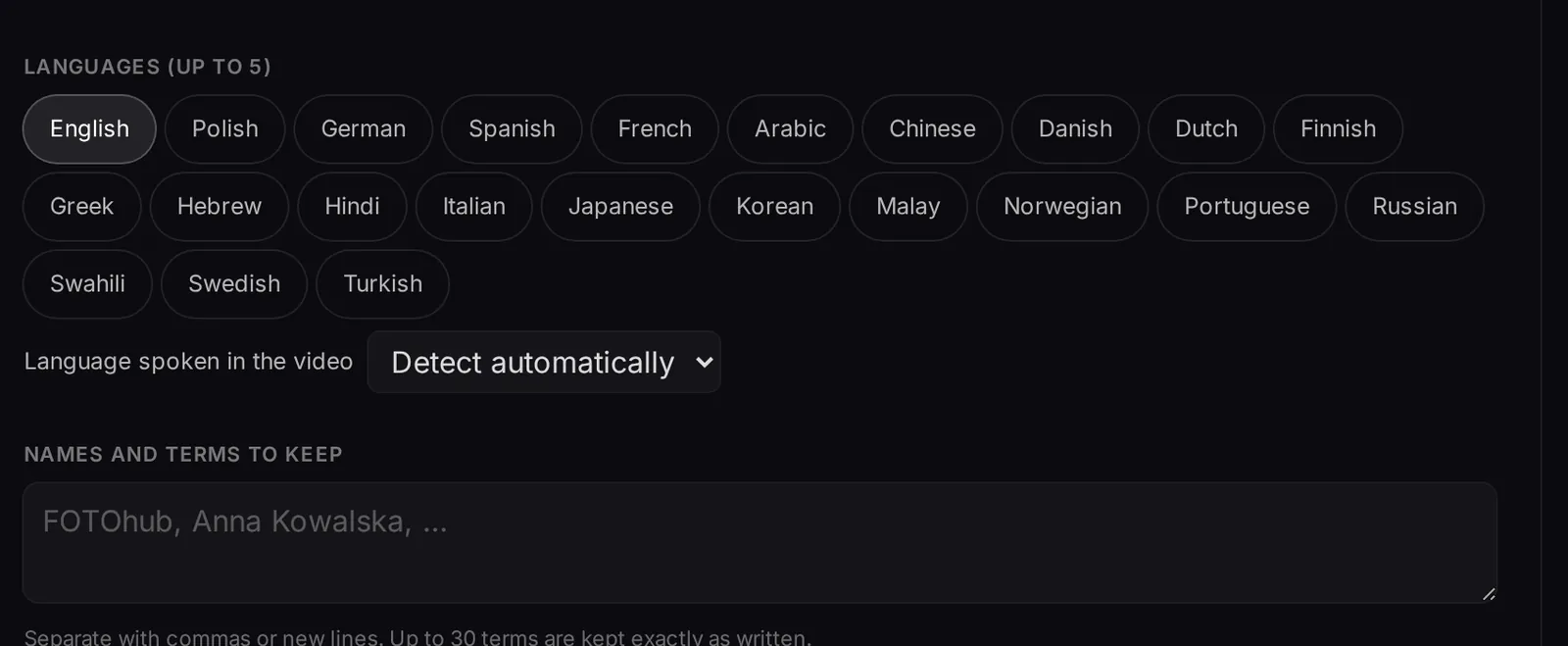
- Up to five languages in one run, from a list of more than twenty including English, Polish, German, Spanish, French, Italian, Portuguese, Japanese, Korean, Chinese, Hindi and Arabic.
- Speakers are detected for you. Each gets a voice that fits their gender, or a clone of the original voice, or your own recording.
- You approve the translation first. The job can pause after the translation so you can edit every line; continuing costs nothing extra.
- Names and terms are protected. List brand names and people that must stay exactly as written.
- Lip sync is an optional extra, started from the finished dub.
Open Dubbing Studio
In Audio & Voice AI choose Dubbing under Tools, or use Dub (translate the voice)… on a clip in the video editor. The page header reads Video Dubbing. A short How dubbing works note gives three steps, and the main area has your video, languages and options.
Dub a video
- Choose the video Select a video from your library in the Video to dub list, or click Upload to add one from your computer (the page names MP4 and MOV; a file that is too large or of an unsupported type is refused without a charge). The page reads its length first. A video with no sound cannot be dubbed and is refused before anything is charged.
- Pick the languages Click the language buttons, up to five. Then set Language spoken in the video, or leave Detect automatically.
- Add names and terms to keep Type brand names, product names and people's names separated by commas or new lines, for example “FOTOhub, Anna Kowalska”. Up to 30 terms are kept exactly as written.
- Choose the voices By default every speaker gets a built-in voice. Under Your own voice (optional) choose My recording to let the dub speak in a clone of a recording of yours (a clean recording of one voice, about 10 to 30 seconds, from your own files). For this the page shows a Voice confirmation that you must accept. Without the confirmation built-in voices are used.
- Turn on translation review (recommended) Switch on Let me review the translation before voices are made. The job pauses after the translation. Continuing is free; voices are made afterwards.
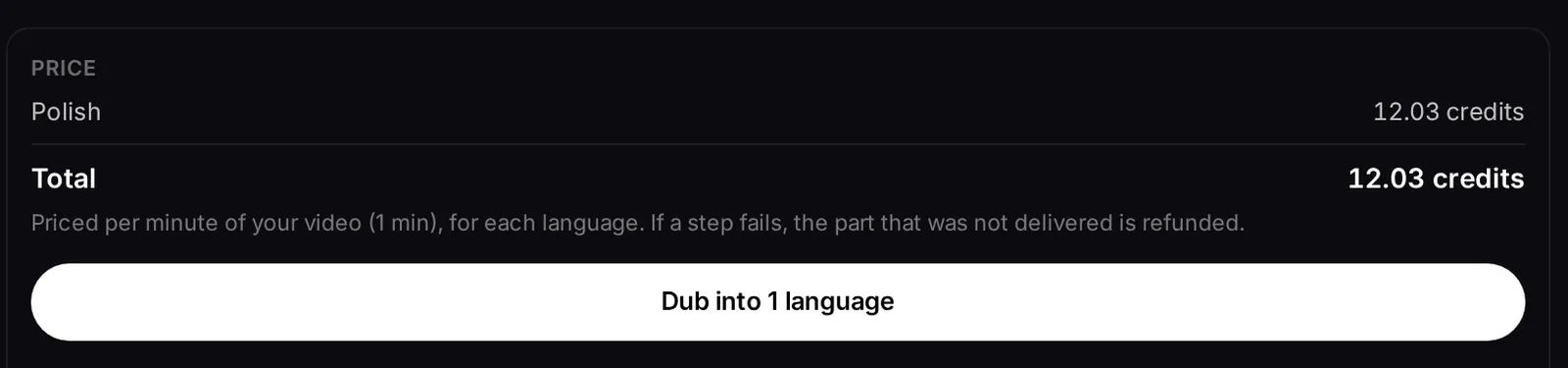
- Check the price and start The Price panel shows the total. It is priced per minute of your video, for each language, and shows the figure before you click. The start button reads Dub into n languages, with the number you chose. If the price changes while you look, you are asked to confirm the new one and nothing is charged until you do.
Review the translation
After the transcription and translation the job waits for you. The list shows each line twice: What was said and What will be said. You can edit the translation of a line, Skip a line, Play original, and rename the speakers (“Speaker 1” to “Anna”). A line that is too long for its time slot is flagged: it will be sped up a little or shortened. Pick the voice for each speaker. When you are happy, click Continue with these voices. At least one line must stay.
The result
Progress follows the stages: extracting the audio, transcribing and finding speakers, translating, making the voices, separating the background sound, mixing the dub and marking it as AI-generated. Each language then shows Your dub is ready, with a preview and Download, and the video is saved to your Files and to Video Studio. Lines that did not fit are listed with their time so you can shorten them and run again. If the background could not be separated, the original sound runs quietly underneath instead, and the page says so.
Add lip sync
A dub changes the words but not the mouth. Add lip-sync on a finished dub starts a second job that matches the speaker's lips to the new language. It has its own price, shown before you start, and works on dubs up to the length the page states. Lip sync shows in the history as its own entry, marked lip-sync.
Dub a clip inside the video editor
In the Video Studio editor, right-click a video clip and choose Dub (translate the voice)…. Pick the Target language and a Voice, either a built-in one or your own cloned voice, and press Dub. The editor transcribes the speech, translates it, records the new voice and places it on a lane named after the language, with the stages shown as it goes. Switch on Also match lips to the new voice to follow with lip sync. This runs on FOTOhub hardware and is included in your plan; on the free plan it is charged in credits. For several languages at once, a review step and a price per language, use Dubbing Studio.
Limits and fixes
- Privacy: speech is processed on FOTOhub servers in the EU. For the translation only the text is sent to an AI language model hosted by a cloud provider, and that processing is not limited to the EU: the text may be processed outside it, including in the United States. The notice on the page says the same.
- Length: a video has a maximum duration; a longer one is refused with the limit shown, and you are not charged.
- One run at a time: while a dubbing job is running you may be asked to wait before starting another.
- Failed parts are refunded: if a step fails, the part that was not delivered is refunded.
- “A target language is the same as the spoken one.”
- Remove that language from the selection or change the spoken language.
- Two speakers sound the same.
- In the review step give each speaker a different voice, or set the gender of a speaker the system misjudged.
- A line is cut off at the end.
- The translation was longer than the original time slot. Shorten the line in the review step.
- My own recording was not used for one speaker.
- There was too little clean speech from that speaker to copy the voice, or the declaration was not confirmed. A built-in voice was used instead.