Motion Control: move a character with a video
Transfer the movement of any video, a dance, a gesture, a facial expression, onto a still image of a character, and download the animated result.
What Motion Control does
Motion Control takes two inputs: a character image and a driving video. It makes the character in the image move the way the person in the video moves. A portrait starts to speak and gesture, a cartoon mascot dances, an anime figure copies a walk.
- Works on portraits, anime, mascots and 3D characters, as long as the face and body are clearly visible.
- Copies dance, gestures, head movement and facial expressions from the driving video.
- Result: an MP4 at 720p and 25 frames per second, made from a driving video of 3 to 30 seconds.
Open Motion Control
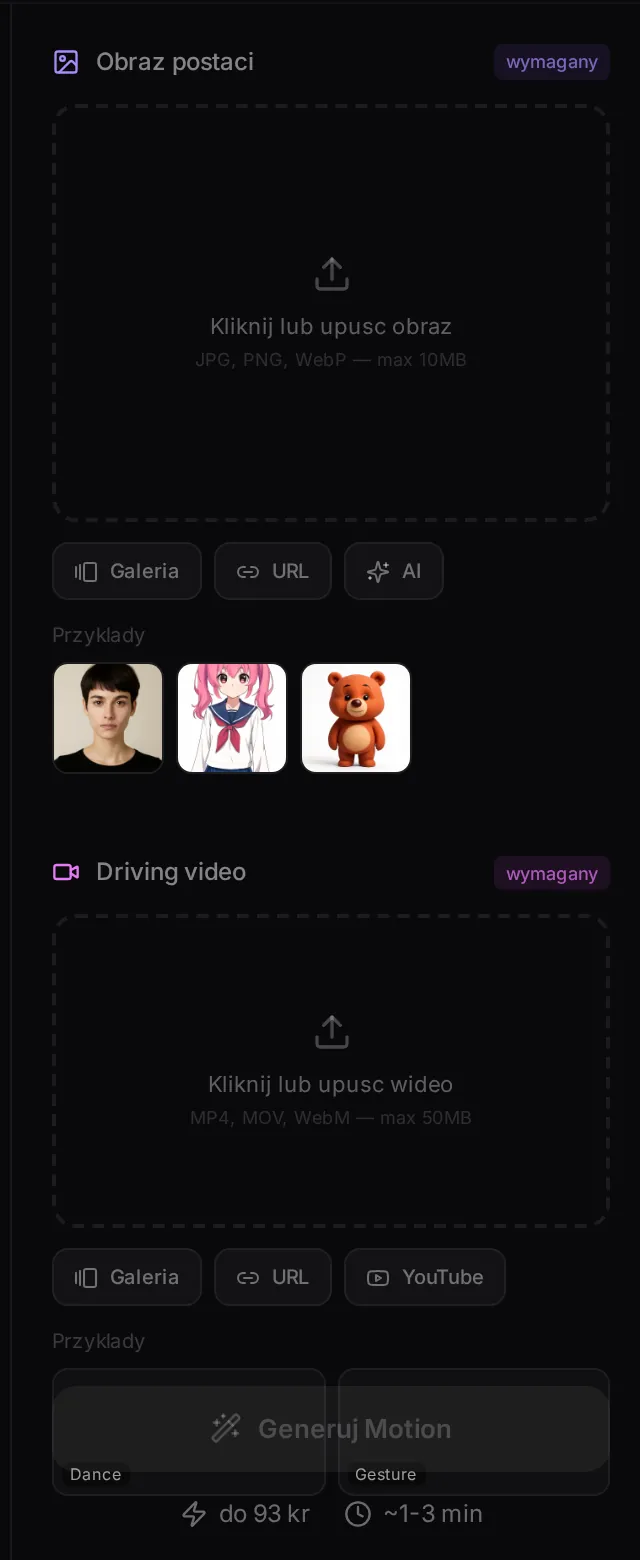
Open Video AI in the sidebar and choose Motion Control in its menu, or open the address directly. The left side is the preview and result area, the right-hand panel holds the two inputs, the settings and the Generate button.
Animate a character
- Add the character image In the character image box, click or drop a JPG, PNG or WebP up to 10 MB. Other sources are on the buttons under it: Galeria (your photos), URL (a link to an image), AI (generate one) and Przyklady (examples: Portrait, Anime, Cartoon). Use a clear front-facing picture with the whole face visible and a neutral pose.
- Add the driving video In the driving video box, click or drop an MP4, MOV or WebM up to 50 MB. Galeria takes one of your videos, URL a link, YouTube a YouTube address, and the examples Dance and Gesture are there to try the tool without a file of your own. A video of 3 to 10 seconds gives the best results; the limit is 3 to 30 seconds.
- Check the settings Przytnij 1. sekunde (trim the first second) is on by default and cuts the first second of the driving video (the page describes it as removing the transition at the start). The output is fixed at 720p, 25 fps and MP4.
- Generate Under the button “Generuj Motion” the page shows the price and the estimated time (about one to three minutes). The price is an upper limit (“do …”) until the length of your video is known; after the video loads it shows the price for that length. Click the button. Progress shows in the preview area on the left.
- Download or continue When it is ready the result plays in the preview area. Use Pobierz MP4 to download it, Kopiuj URL to copy its link, Otworz to open it in a new tab, or the Continue with menu to send it to other tools.
Get better results
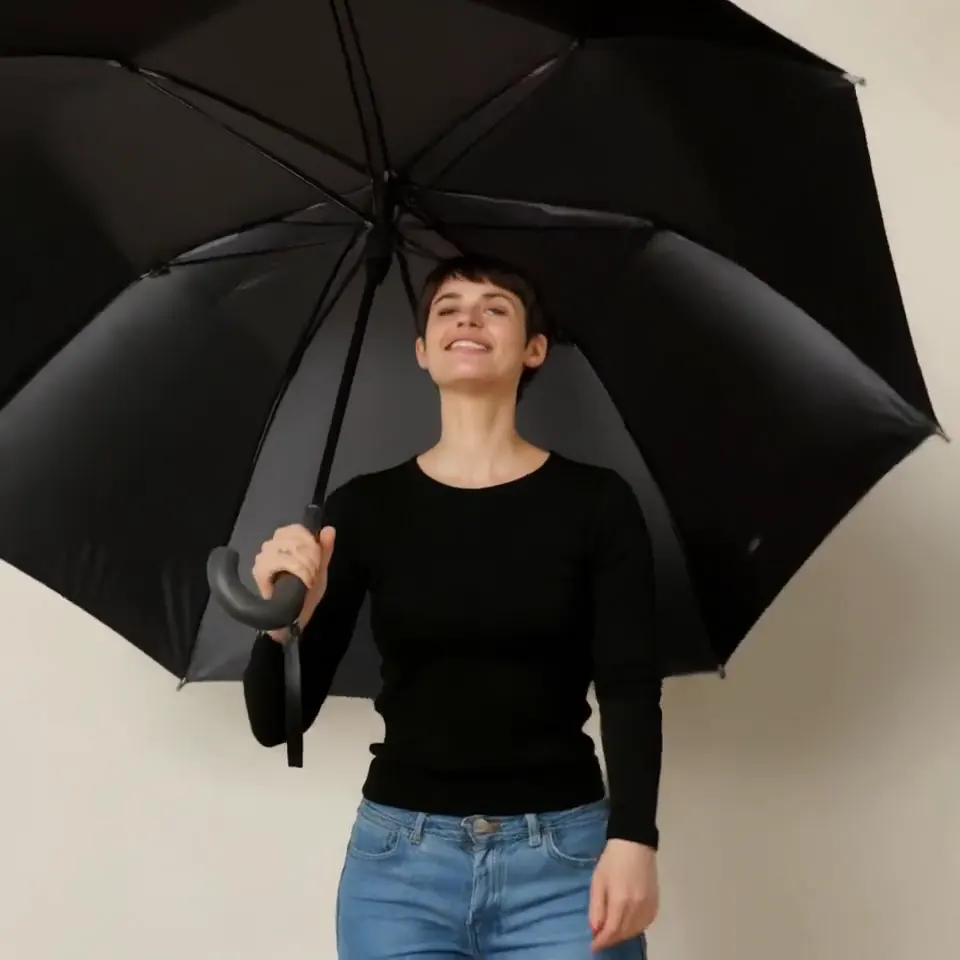
- Match the framing. If the driving video shows a person from the waist up, use a character image that also shows the character from the waist up, and pair a full-body dance with a full-body character.
- One person. Use a driving video of a single person with the body or face clearly visible.
- Neutral pose in the image. A clear front-facing picture with the whole face visible, arms down, looking at the camera.
- Keep it short. Three to ten seconds is where the results are strongest. Cut a longer video into shorter pieces in the video editor first.
- Higher quality in, higher quality out. Use sharp inputs. A blurry image gives a blurry character.
Price and billing
Motion Control is billed per second of the driving video. The browser measures the length of your video; that measurement is what the price is based on. If the length cannot be read, for example from a link on a third-party site, the page shows “up to” and the server bills for the 30 second maximum, so it is cheaper to upload the file or pick it from your gallery. The amount is shown under the Generate button before you run it. A job that fails is refunded.
- The Generate button is grey.
- It needs both a character image and a driving video. Add the missing one.
- My YouTube link does not work.
- The field only accepts a normal YouTube address (watch, shorts, embed or youtu.be). The page cannot read the length of a link, so it prices the job at the maximum. For an exact price and the most reliable run, upload the video file.
- The face looks distorted.
- Try a clear, neutral front-facing image and keep the trim option on. A shorter driving video of 3 to 10 seconds also gives the best results.
- The result is shorter than my video.
- With the trim option on, the first second is removed.