Generate video with AI: text, images and frames
Create video from a description or from your pictures: choose a model, set length, format and resolution, add start and end frames and references, and manage everything in My Studio.
What Video AI does
Video AI turns words and pictures into video. Type what should happen and you get a clip. Add a photo as the first frame and the photo comes alive. Add a start and an end frame and the model fills in the movement between them. Every clip you make is saved to My Studio, the gallery on the same page, so a project is a conversation: generate, look, remix, extend.
| You have | You choose | You get |
|---|---|---|
| A description | A model and a length | A new clip (text to video) |
| A photo | Frames, then Start | The photo animated (image to video) |
| Two photos | Frames: Start and End | A transition from one to the other |
| A character or product picture | Reference images | A clip that keeps its look (models that support references) |
| A clip you made | Extend | The story continues |
Open Video AI and find your way around
Choose Video AI in the sidebar. The page has two layers: the gallery behind, and a floating panel at the bottom where you write and set everything.
- My Studio is your gallery. Stock (the other tab at the top) browses ready-made FOTOhub examples you can learn from.
- Assistant (top right) opens the AI assistant for questions without leaving the page.
- The panel can be collapsed to a slim bar when you want to look at results, and expanded again from the same bar.
Make your first video
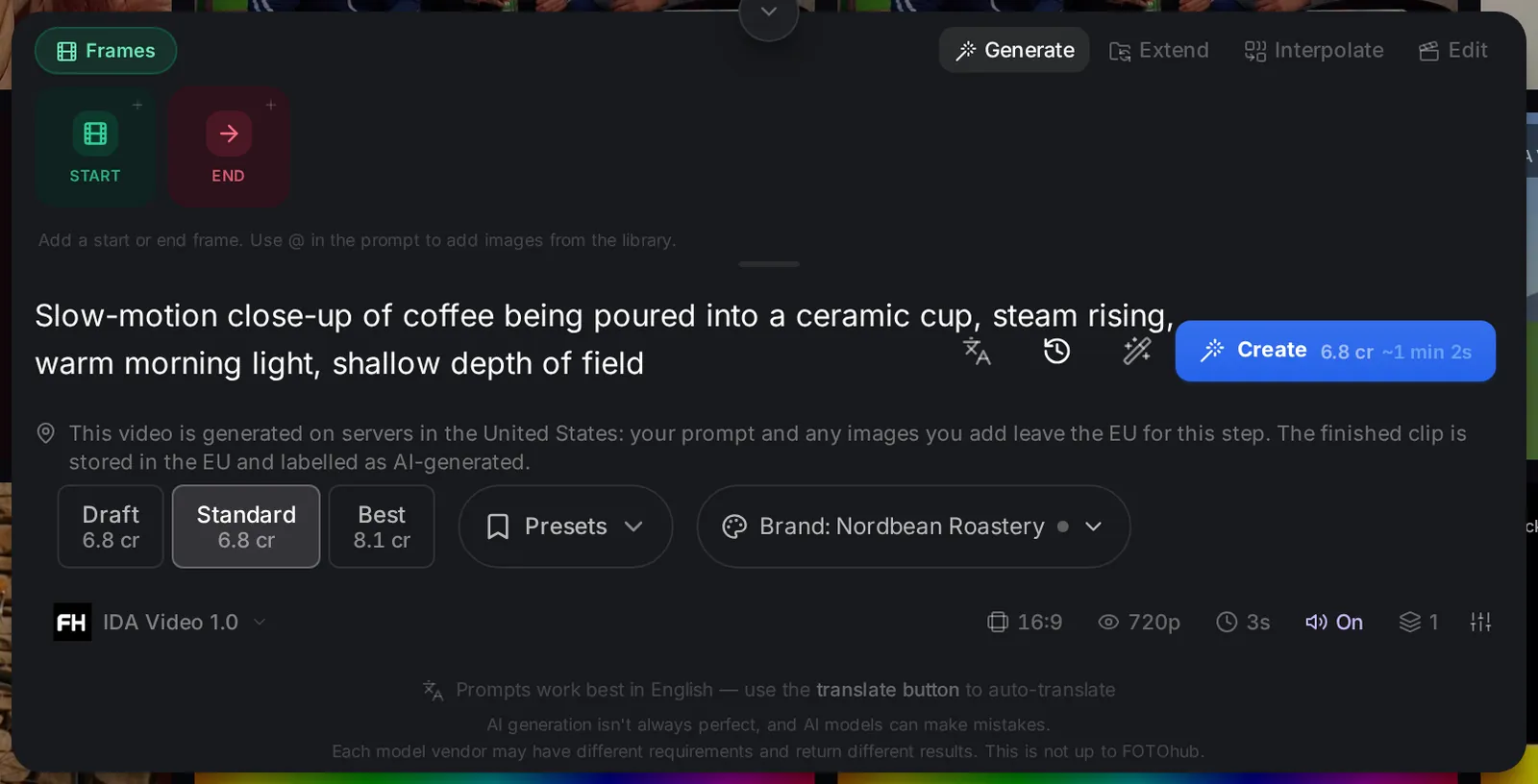
- Pick a model Click the model name at the bottom left of the panel. The picker lists the models with a search box, filter chips (Text to Video, Image to Video, Audio, Ref. subject, Fast, Cheap, 4K, Ultra HD) and provider chips. Each card shows what the model does, its price for the length you have selected and its top resolution. For a first run type IDA in the search box and choose IDA Video 1.0, FOTOhub's own video model: it makes both text-to-video and image-to-video, supports a first and a last frame and can add sound.

- Write the prompt Describe one shot: subject, action, light, camera, mood. Keep it to a few sentences.
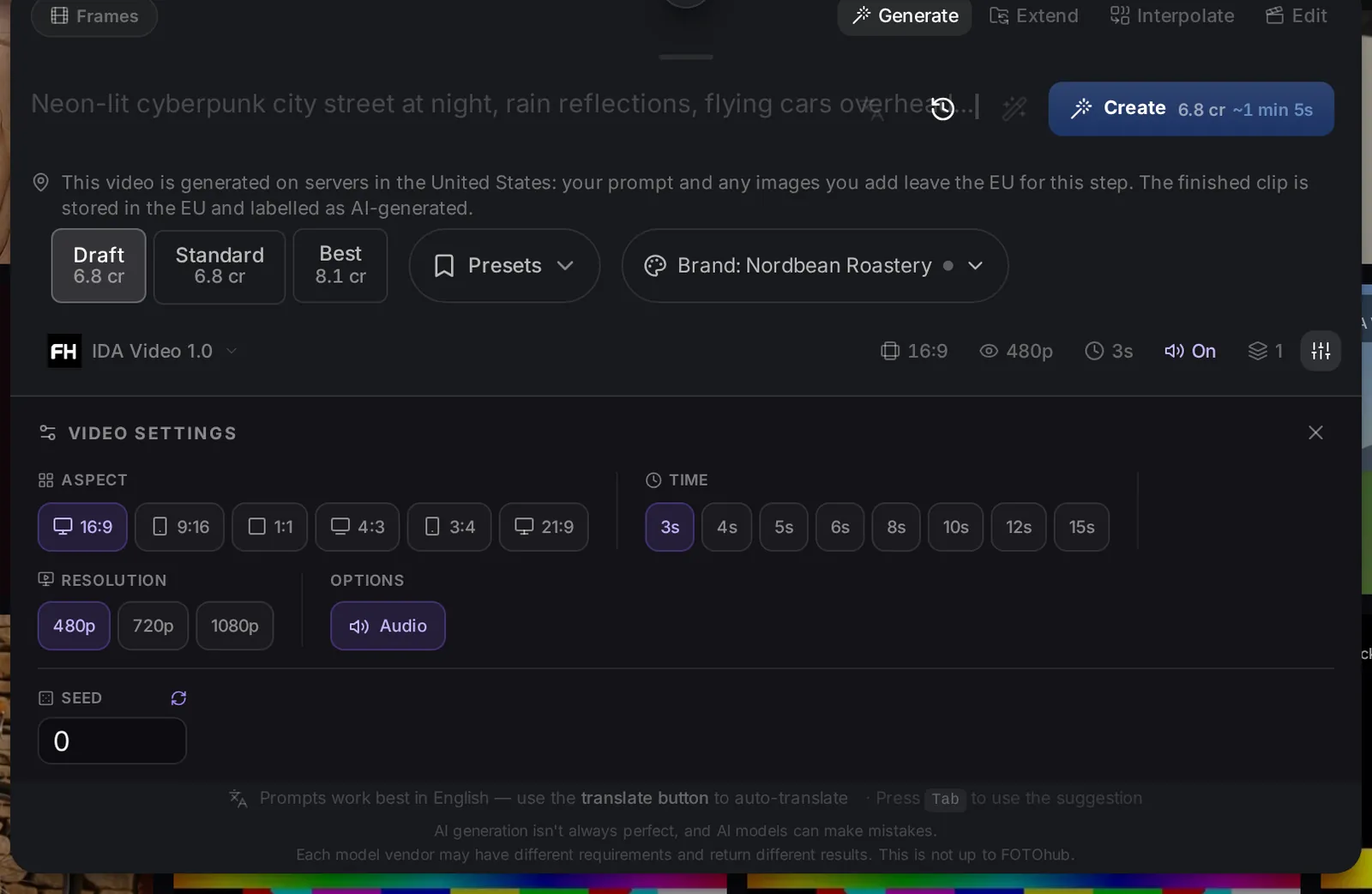
- Set the format, resolution and length The row under the model name has pills for aspect ratio, resolution, length, audio and the number of generations. Click a pill to change it. The choices depend on the model: IDA Video 1.0 offers 480p, 720p and 1080p, lengths from 2 to 15 seconds (shorter at 1080p) and six aspect ratios.

- Choose quality Draft, Standard and Best show their price side by side. A model that has no distinct setting for a preset says so.
- Press Create The button shows the price in credits and the expected time. Ctrl+Enter (Cmd+Enter on a Mac) does the same. A progress card appears at the top of My Studio and the finished clip replaces it.

Slow-motion coffee pour
Goal. A short product-style shot with steam and warm light.
Input you can copy.
Slow-motion close-up of coffee being poured into a ceramic cup, steam rising, warm morning light, shallow depth of field| Setting | Value |
|---|---|
| Model | IDA Video 1.0 |
| Format | 16:9 |
| Resolution | 720p |
| Length | 3 s |
| Audio | On |
| Quality | Standard |
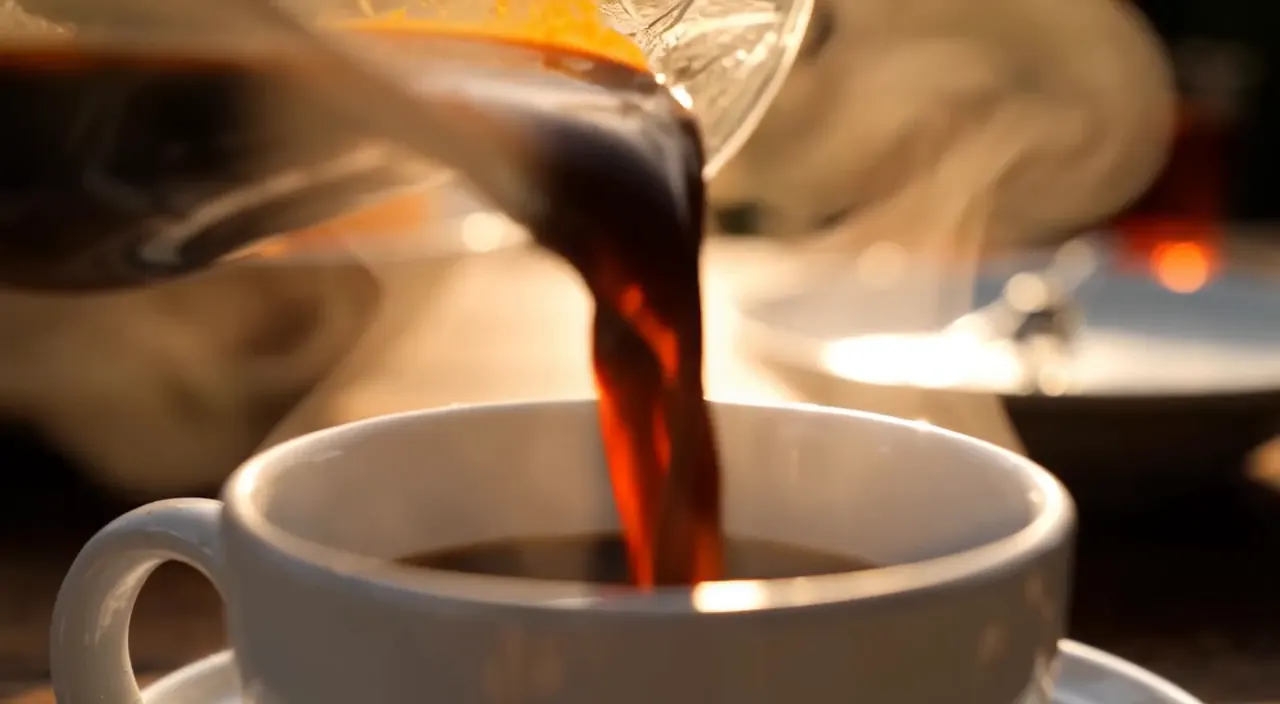
Why it works. One subject, one action, one light. The words slow-motion and shallow depth of field tell the model how the camera and the time should behave. A short length keeps the cost low while you check the idea.
Choosing a model
Models differ in what they accept, how long a clip can be, whether they make sound and what they cost. The picker shows all of that on the card, so you rarely need to remember it.
| Filter chip | Use it to find |
|---|---|
| Promo | Models with a current promotion. |
| Text to Video, Image to Video | Models that start from words, from a picture, or both. A card badge says T2V, I2V or T2V+I2V. |
| Audio | Models that generate sound with the picture. |
| Ref. subject | Models that keep a reference subject consistent. |
| Fast, Cheap | Quick or inexpensive options for drafts. |
| 4K, Ultra HD | Top resolution. |
Settings reference
| Setting | Where | What it does |
|---|---|---|
| Aspect ratio | Settings row | 16:9 landscape, 9:16 portrait for Reels and TikTok, 1:1 square, and more. Some models also offer Smart, where the model picks. |
| Resolution | Settings row | 480p to 4K depending on the model. Higher costs more. 4K needs a higher plan. |
| Length (Time) | Settings row | Seconds. Available values depend on the model and resolution; lengths a model cannot do at the current resolution are greyed out. Some models need a minimum length when you add reference images, and the list tells you. |
| Audio | Settings row | On or Off. Generates sound with the picture on models that support it. |
| Number of generations | Settings row | 1 to 4 variants in one run. Each uses credits separately. |
| Full settings | Icon at the right of the row | All of the above in one popover, plus Seed and model-specific Options. |
| Seed | Full settings | Shown for models that support it. Reuse a seed to get a similar look again. |
| Quality: Draft, Standard, Best | Above the model row | Trade price for render quality. Prices are shown on each button. |
| Presets | Above the model row | Save the current settings as a named preset (up to 50) and reuse them later: “Save current settings as preset…”. |
| Brand | Above the model row | Applies your brand profile to the prompt when turned on. It shows the brand name and Off or On. |
Pictures, frames, characters and references
The row of chips above the prompt decides what the model sees besides your words. A counter next to them shows what the chosen model accepts, for example 0/9 images, 0/3 videos, 0/3 audio files.
Frames: start and end
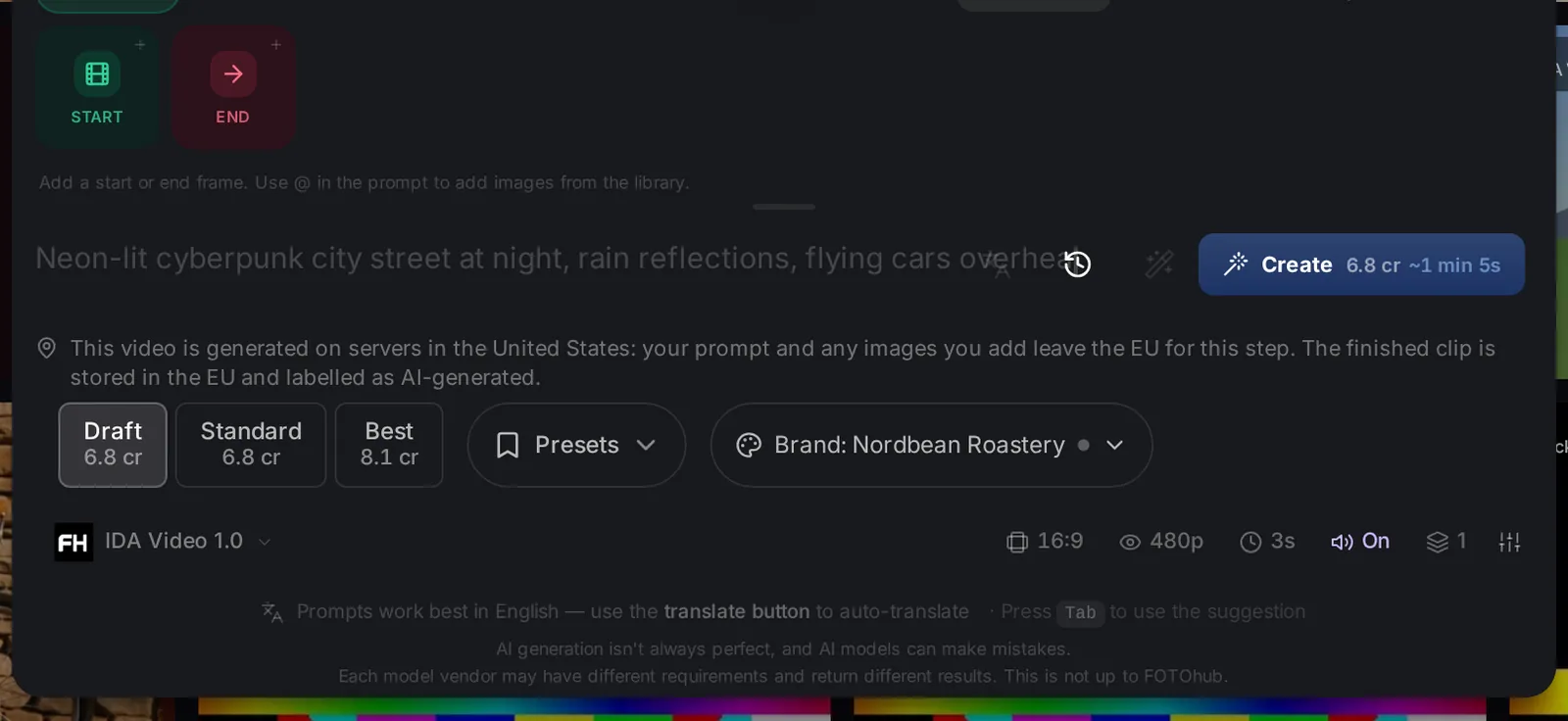
Click Frames. Start is the first picture of the clip, End is the last. With only a Start frame you animate a photo. With both, the model builds the motion between them. A frame can come from your computer or your photo library. Models that do not accept an end frame hide that slot.
Reference images, video and audio
The next chips hold reference material: the reference images chip, and on the multi-reference models also Ref video and Audio Ref. IDA Video 1.0 takes frames only, so you will not see these chips for it. The panel tells you each limit. In the prompt, type @ to pick an item from your library, or # to insert a tag such as Image 1, Video 1, Audio 1 so you can refer to it in words: “the person from Image 1 walks along the beach”.
Characters, templates and elements
- Choose character opens your saved characters with their identity-lock score. Pick one and the model keeps the same person across shots.
- Templates lists ready-made prompts by category (Viral Trends, Commercial and more). Choosing one shows a preview and fills the prompt.
- Elements is a library of reusable images, videos and audio (for example clothing) you can add as references.
- Digital characters are ready-made virtual people you can use as the subject. Templates, Elements and Digital characters appear for the multi-reference models, not for IDA Video 1.0.
Writing prompts that work
- English works best. If you write in another language, press the translate button next to the prompt to convert it before you generate.
- Enhance (the sparkle button) adds camera movement, lighting and detail to a short prompt. A chip lets you undo the change.
- Prompt history (the clock) lists your recent and starred prompts. They are stored only in your browser, never sent to our servers.
- Camera commands: on models with camera control, click the camera tags to add moves such as Push in, Pull out, Pan left, Tilt up, Zoom in, Tracking shot or Static shot. You can combine up to three moves in one bracket.
- One idea per clip. Two actions in four seconds rarely work. Make two clips and join them in the editor.
| Weak | Better |
|---|---|
| A cat | A ginger cat walks along a sunny garden wall, shallow depth of field, soft morning light, slow tracking shot |
| Make a cool ad | A perfume bottle on black glass, a slow orbit, soft rim light, drops of water slide down, premium commercial look |
| A man talking | A close-up of a man in his fifties speaking to the camera, warm window light, subtle handheld movement |
My Studio: your gallery
Every video you generate is kept in My Studio. The header shows how many videos you have.
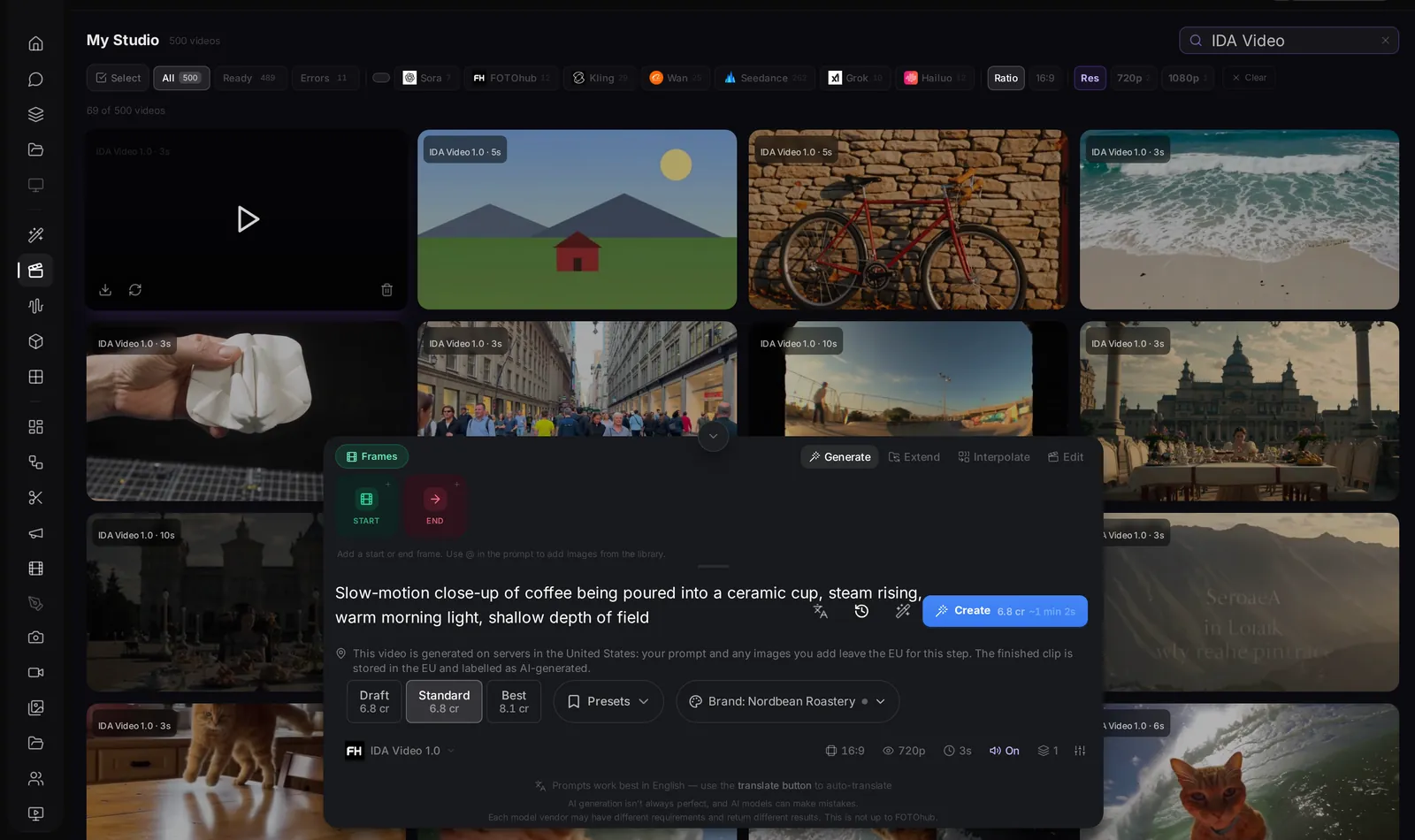
- Filters: All, Ready, Errors, plus provider, aspect ratio and resolution chips. Search looks in prompts and model names.
- Select switches to multi-select for deleting several at once.
- Card actions: Download, Remix (puts the prompt back into the panel so you can change one thing) and Delete.
- Open a card to see the clip large with its prompt, provider and format. From there you can download, copy the prompt, share a link, Continue from the last frame (the last frame becomes the start frame of a new generation) and, on models that support them, Extend video or Keep editing.
- Failed cards show why in plain words and say if credits were refunded. A job that looks stuck is flagged as probably stuck, and the Stuck button clears it.
Continue in other tools
A finished video has a Continue with list that sends it straight to the next tool, with no download in between.
- Video editor: open the clip on a timeline to trim, add titles and music.
- Lip Sync: make the face speak a recording.
- Cut clips: cut a long video into short clips (FH Shorts).
- Video tools such as upscale, slow motion, object removal and colorize.
- Social composer: draft a post with the clip.
Limits and good habits
- Plan limits: each model has a limit per plan. A model your plan does not include is marked and asks for an upgrade.
- Safety filters: a prompt that a model refuses is reported as Prompt blocked, with advice (rewrite in English, avoid proper names and words suggesting a real person). The card says whether credits were refunded.
- Draft first: use the cheapest model, a short length and a low resolution to test the idea, then regenerate the winner with a better setting.
- Real people: do not generate or animate a real person without their consent. Face and likeness features are subject to the AI content rules and the platform will decline some requests.
- Labelled: clips from IDA Video are labelled as AI-generated.
- Create is greyed out.
- The button names the reason: describe the video, or add the image or video the model needs.
- The clip is shorter than I asked for.
- The model may cap the length at your resolution. In the length list, lengths that are not available at that resolution are greyed out.
- It says the model is unavailable.
- Models are switched off automatically when their service has problems. Pick another model or try again later.
- I want the same look again.
- Open the card and use Remix to bring the prompt back, and reuse the seed in Full settings if the model offers one.