Navigation and the dashboard
Learn the sidebar, the top bar, the search and command palette, workspaces, notifications, language and the dashboard views, so you can reach any tool in two clicks.
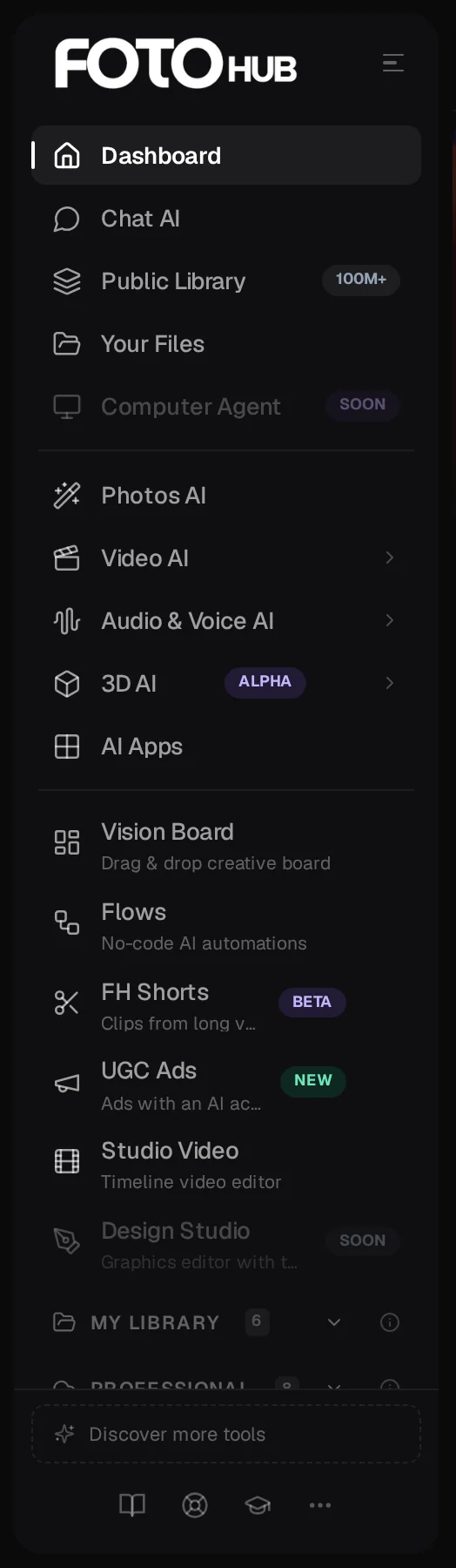
The frame around every page
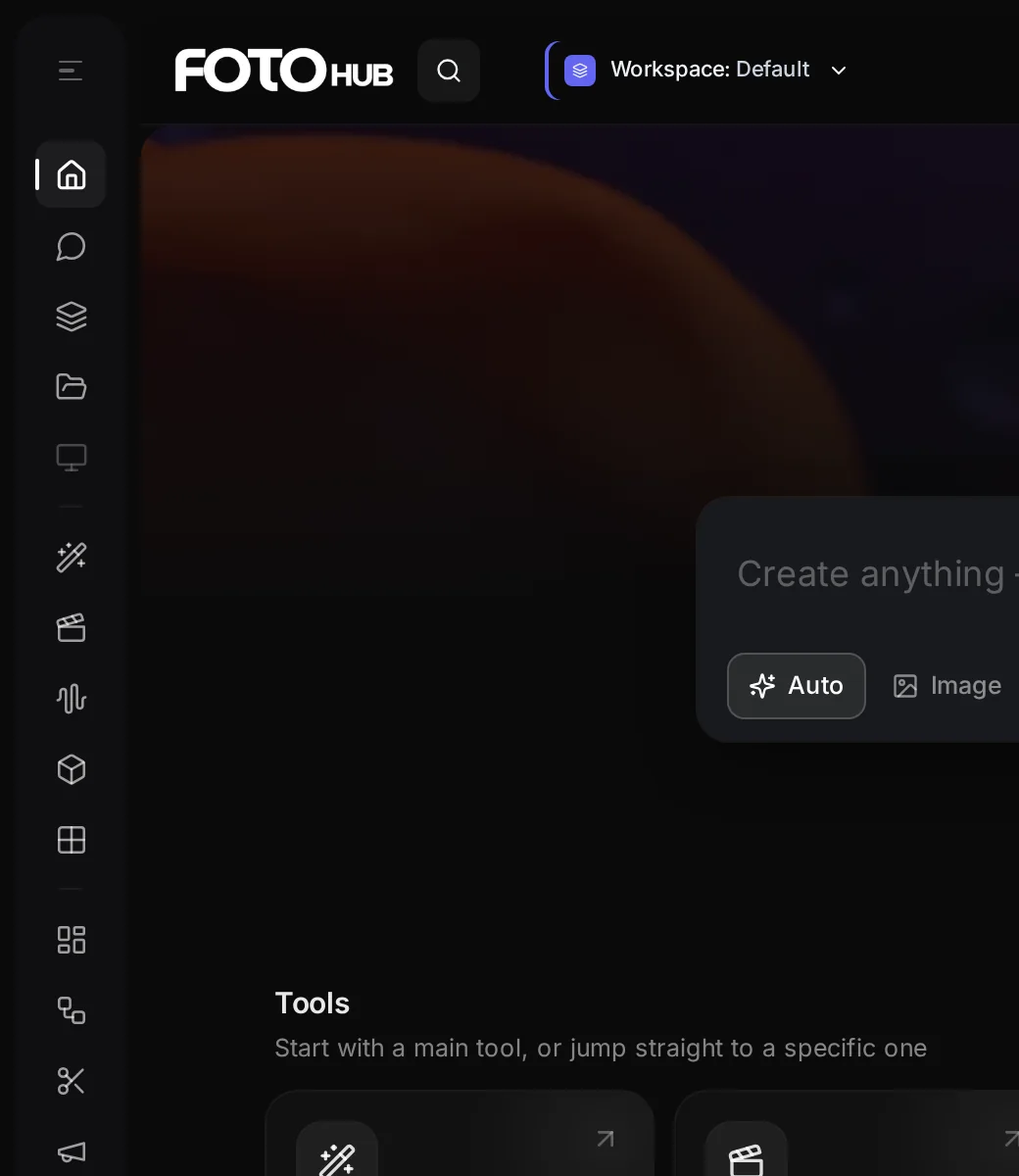
Every page after sign-in sits inside the same frame: a sidebar on the left with all tools, a thin top bar with search and your account, and your page in the middle. Learn these two strips once and you can find your way anywhere in FOTOhub.
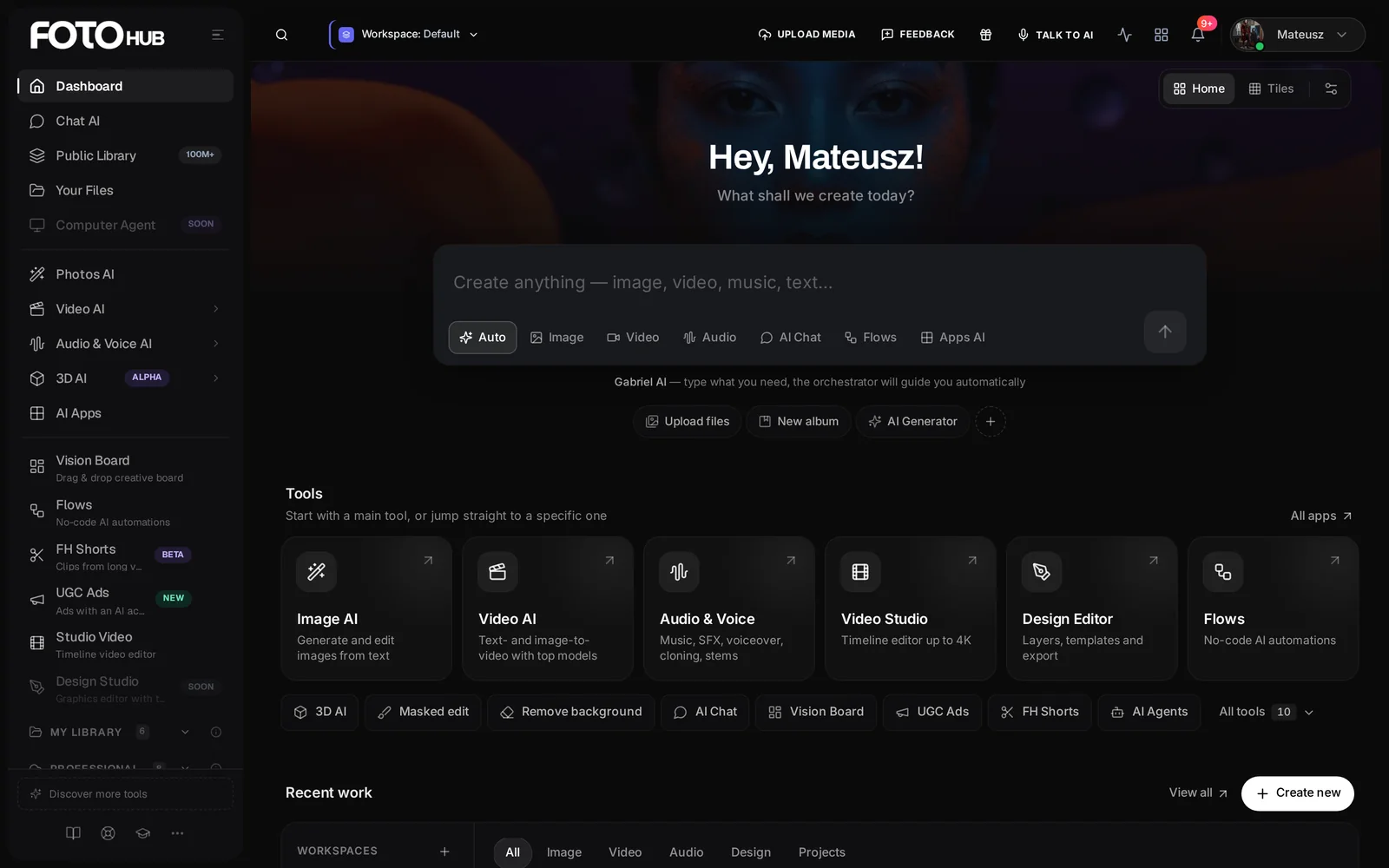
The sidebar
From top to bottom the sidebar has four zones. You see all of them, whatever your plan. What you may actually use is decided on each tool's own page.
| Zone | Items | Use it for |
|---|---|---|
| Home and library | Dashboard, Chat AI, Public Library, Your Files, Computer Agent (soon) | Your starting page, conversations, ideas and your files. |
| Generators | Photos AI, Video AI, Audio & Voice AI, 3D AI (alpha), AI Apps | Making something new from a prompt. |
| Studios | Vision Board, Flows, FH Shorts (beta), UGC Ads (new), Studio Video, Design Studio (soon) | Working on a project over a longer time. |
| Groups | My Library, Professional, Marketplace | Everything else, folded away until you click. |
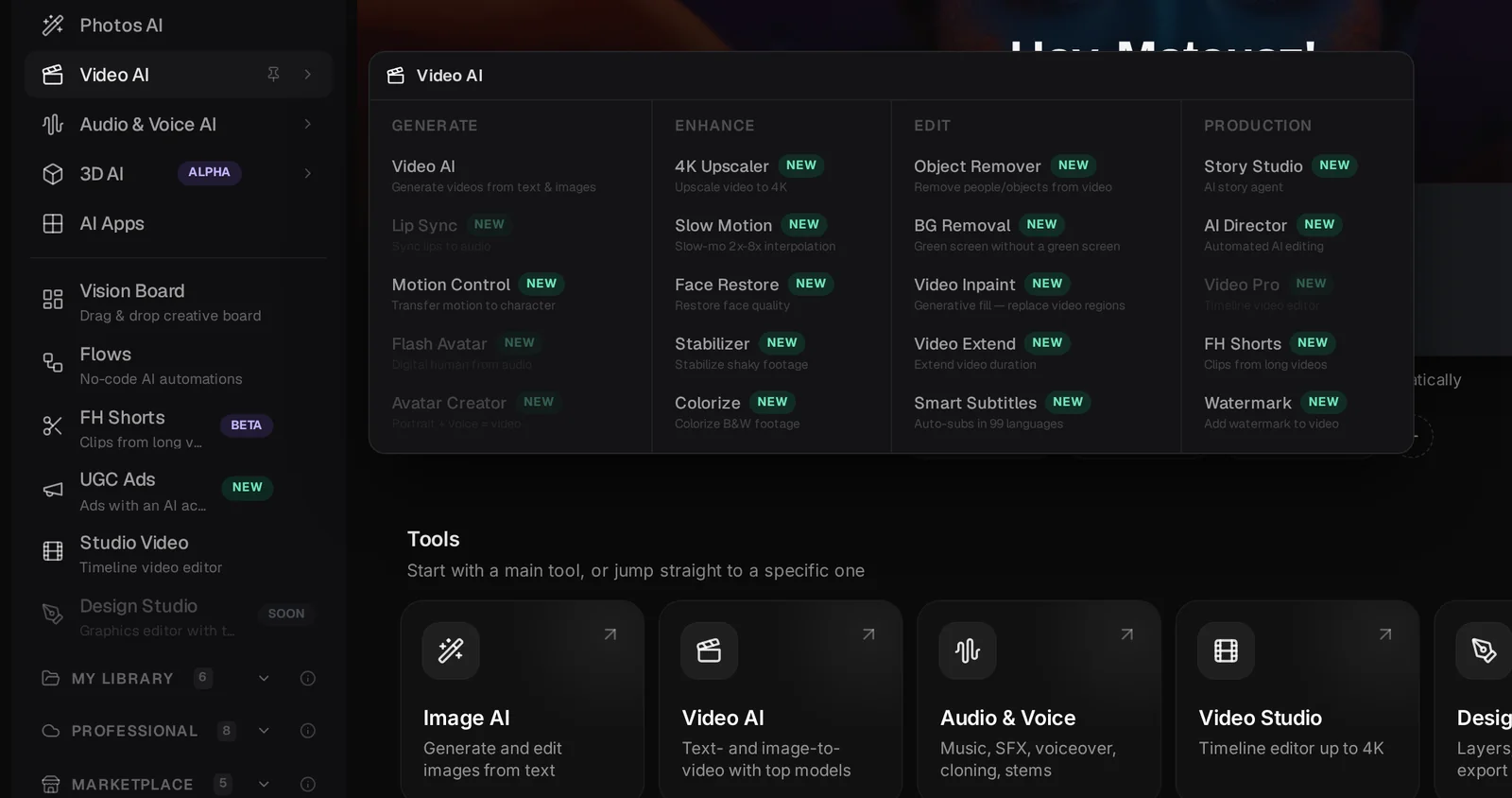
Rows with an arrow open a flyout
Video AI, Audio & Voice AI, 3D AI and AI Agents have a submenu. Move the mouse over the row and a panel opens to the right. Video AI is the biggest one: Generate, Enhance (4K Upscaler, Slow Motion, Face Restore, Stabilizer, Colorize), Edit (Object Remover, BG Removal, Video Inpaint, Video Extend, Smart Subtitles) and Production (Story Studio, AI Director, FH Shorts, Watermark).
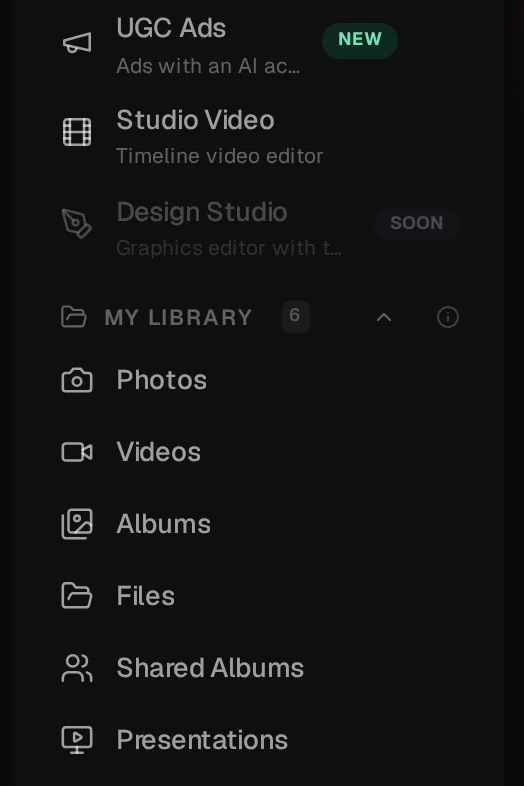
The three groups
- My Library: Photos, Videos, Albums, Files, Shared Albums and Presentations (live shows for clients).
- Professional: AI Agents, Brand AI, Workflow Board, Cloud GPU/CPU, Storage Buckets, Integrations Hub, API Console, and Create team (or Team, once you have one).
- Marketplace: Partner Program, Marketplace, My Purchases, Orders and Sell.
What the little badges mean
| Badge | Meaning |
|---|---|
| NEW | Recently added and ready to use. |
| BETA | Works, but is still changing. |
| ALPHA | Early access. Expect rough edges. |
| SOON | Not open yet. The row is greyed out and cannot be clicked. |
| 100M+ | A marketing figure on the Public Library, not a live count. |
Collapse it, pin favourites
- The three-line button at the top of the sidebar folds it into a narrow rail of icons. The next time you open FOTOhub it remembers your choice.
- Hover over a row and click the pin. Pinned rows collect in a Favourites block under the main list.
- At the bottom there are shortcuts to the guides (the book icon), the Help Center and AI Academy, and a ... button with links to pricing, the blog, legal pages and contact.
The top bar

| Control | What it does |
|---|---|
| Magnifier | Opens the search and command palette (next section). |
| Workspace: Default | Switches between your separate spaces. |
| Upload Media | Opens a sheet to upload photos into your gallery. Hidden on small screens. |
| Feedback | A short form for bugs and ideas. The form is in Polish for now. |
| Gift icon | Redeem a gift or promo code. |
| Talk to AI | A voice conversation with the FOTOhub assistant. Free accounts get a shorter call. It needs microphone permission. |
| Activity | A panel with your running and finished jobs. A number shows how many are running. |
| Apps and AI tools | A small menu of tools, new additions and platform pages. |
| Bell | Your notifications. |
| Your name | The account menu. |
Free accounts also see a Go Premium button that goes to the plans.
Search and the command palette
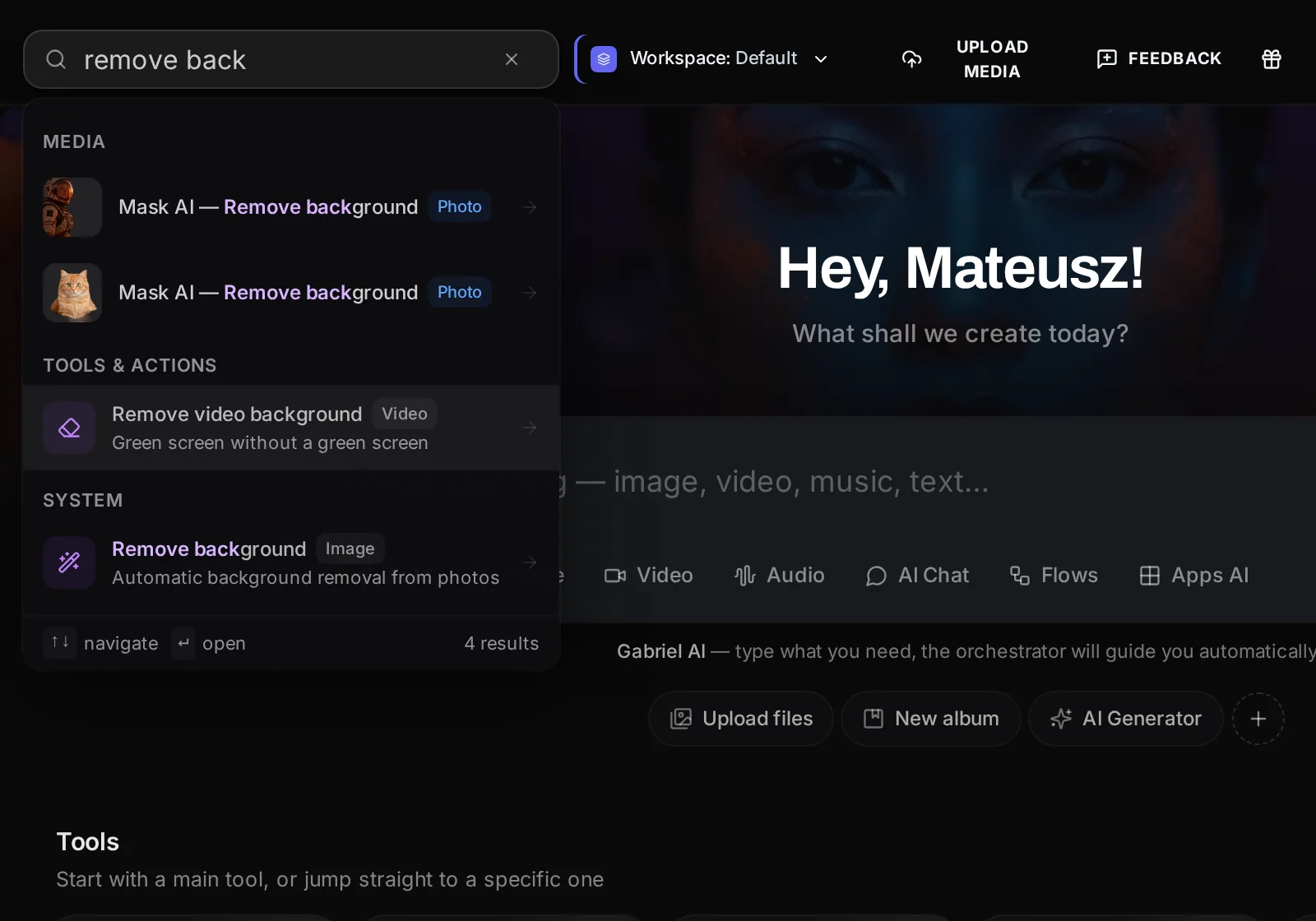
The fastest way around FOTOhub is not the sidebar at all. It is the search. Press Ctrl+K (Cmd+K on a Mac), or click the magnifier, and start typing. It is both a search for your own files and a launcher for every tool and setting.
| Shortcut | Action |
|---|---|
| Ctrl/Cmd+K | Open search and the command palette |
| Ctrl/Cmd+Shift+P | Same, an alternative |
| Ctrl/Cmd+/ | Same, an alternative (not while typing in a text field) |
| Up / Down | Move through results |
| Enter | Open the highlighted result |
| Esc | Close search |
- Tools & actions are matched from two characters. Typing "upscale", "logo" or "subtitles" finds the tool directly.
- System commands cover places and settings: Profile, Security, Usage and limits, Buster packs, Team, Integrations, API console, Referral program, Pricing, Help and many more. You can type in Polish or English.
- Media is your own photos, albums and videos by title or description. It starts after three characters and shows up to five of each.
- AI match finds photos by meaning, not by title, from four characters. Each shows a relevance percentage.
- An empty box shows your last searches (with a Clear button), recent tools and popular commands.
Workspace, notifications and your account menu
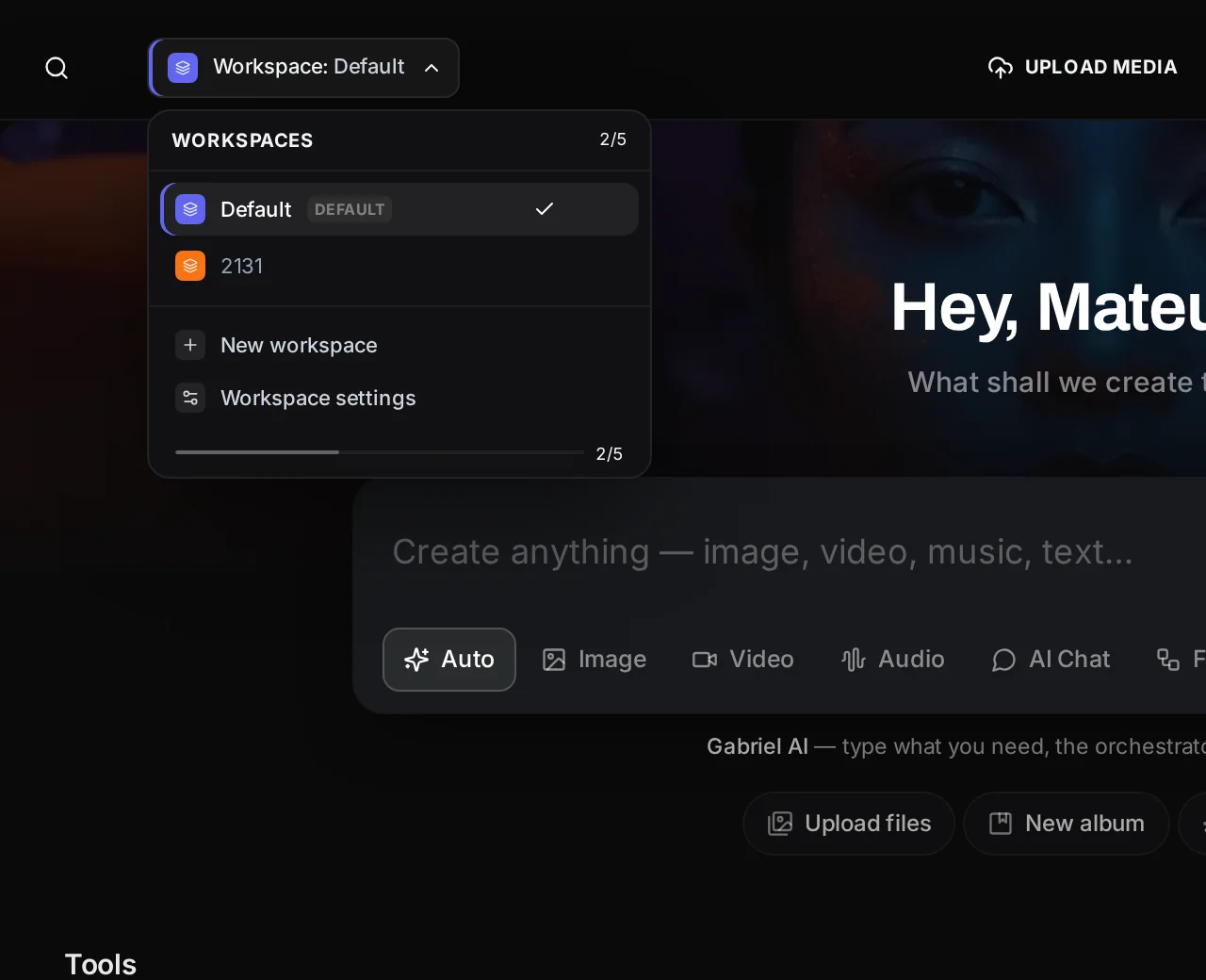
Workspaces
The chip Workspace: Default lets you keep separate spaces in one account, for example one per client. Click it to switch, rename, delete or create. Free accounts can have 2, others 5. Team workspaces from a team plan are listed under Team. See the account settings guide for details.
Notifications
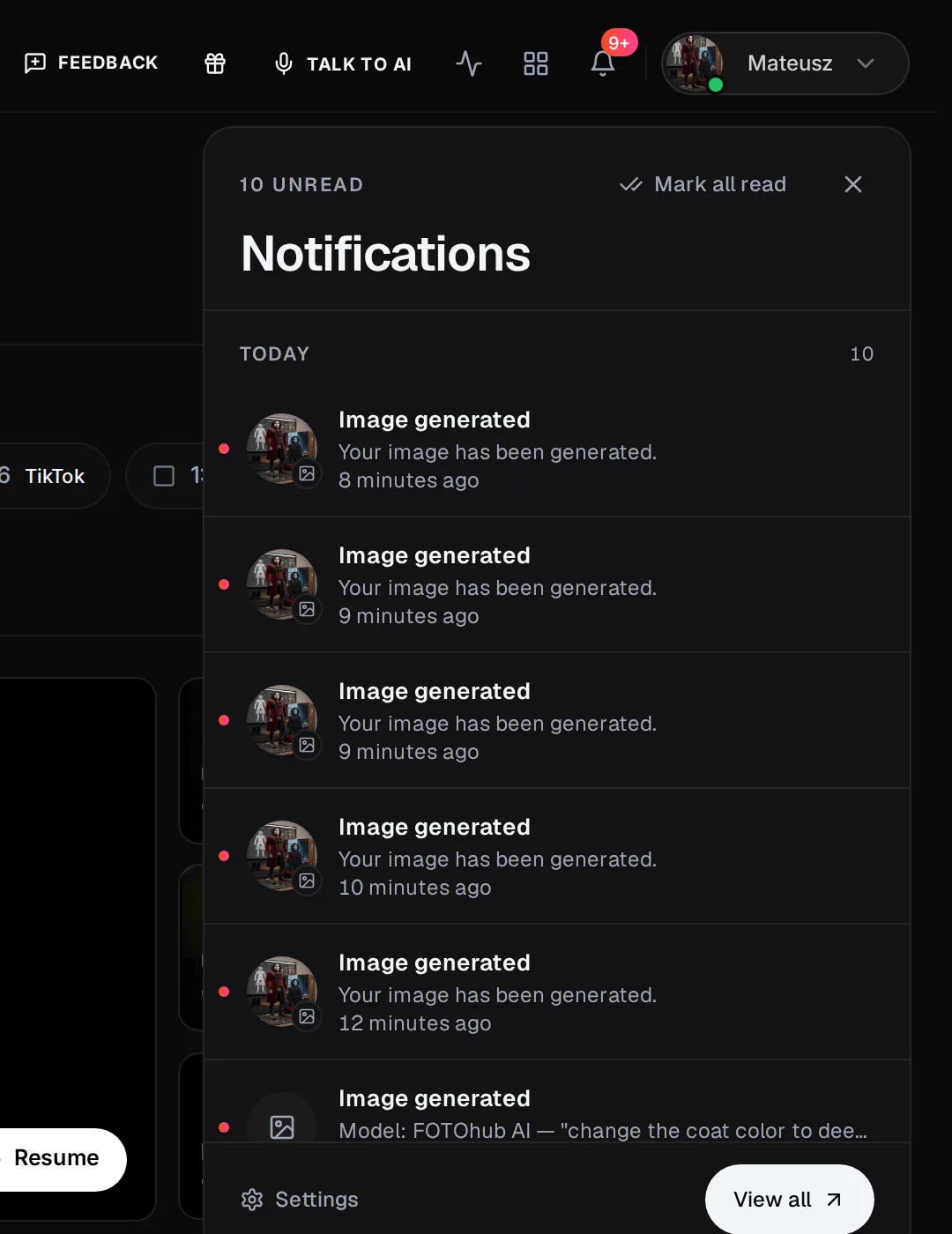
The bell shows a number for unread items. Click it for the last ten, grouped by day, with Mark all read, Settings and View all. Finished generations, team invitations, orders and system messages land here.
The account menu
Click your name for everything about your account in one place.
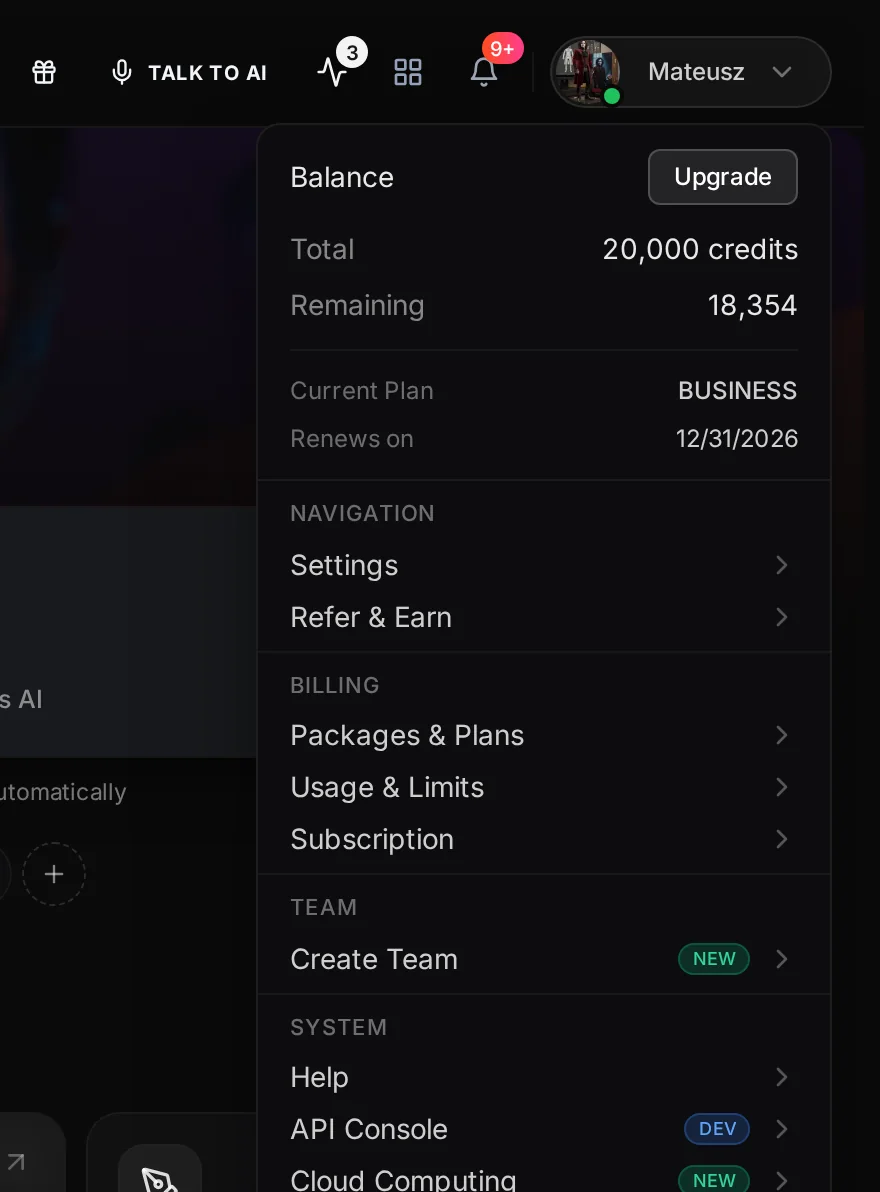
- Balance card: credits total, remaining, your plan and renewal date, with an Upgrade link.
- Settings, Refer & Earn.
- Packages & Plans, Usage & Limits, Subscription.
- Create Team (or Team Dashboard and Team Settings if you are in a team).
- Help, API Console, Cloud Computing.
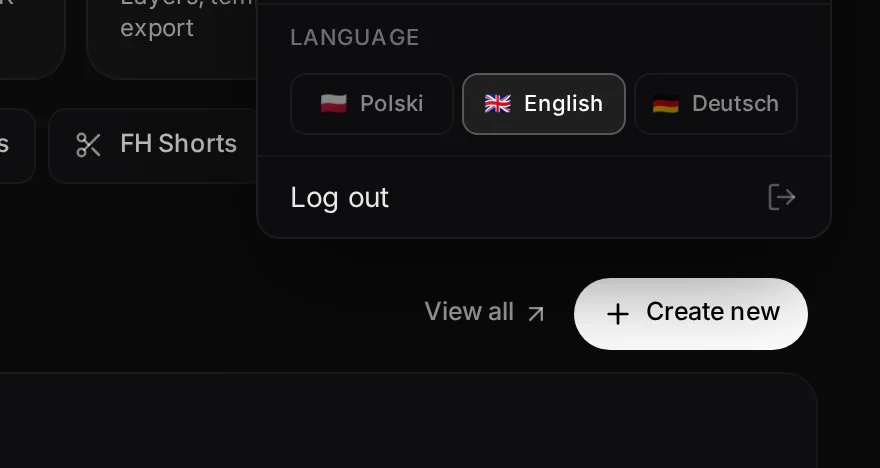
- Language with English, Polish and German.
- Log out.
Changing the language
- Open the account menu Click your name at the top right.
- Find the Language row It shows three buttons: Polski, English, Deutsch.
- Click one The whole app switches at once. The menu stays open so you can check.
On the sign-in and sign-up pages the same choice is the flag button at the top right. On a phone, use Settings, Profile, Interface language.
Making the dashboard yours
The two-part switch at the top right of the dashboard flips between Home and Tiles. Next to it, a small settings icon (its tooltip says Personalize dashboard) opens a side panel called Personalization.
- Hero background: none, a dark picture, random, or one from your gallery.
- Visibility and order: show, hide and move widgets (Tools, Recent work, Showcase, Creative apps, Inspiration gallery) with the arrows.
- Section layout: ready arrangements such as Standard, Analytics, Creator and Workflow.
- Shortcuts: add your own with a name and an address, or pick one from FOTOhub.
The Recent work widget has a Create new button with Image, Video, Audio and Canvas entries, a column of workspaces on the left and filters for All, Image, Video, Audio, Design and Projects. View all opens your Activity page in Work view.
Quick routes to remember
| I want | Do this |
|---|---|
| To go anywhere fast | Ctrl+K, type, Enter. |
| To start an image | Dashboard, Image mode, type, Enter. Or Photos AI. |
| To see my credits | Click your name. |
| To find a file I made | My Library, Photos. Or Ctrl+K and type its title. |
| To see running jobs | The Activity button. |
| To change the language | Click your name, Language. |
| To get help | The Help entry in the account menu, or the lifebuoy icon at the bottom of the sidebar. |
- A tool I saw is greyed out.
- It is marked SOON. It is not open yet.
- The sidebar is only icons.
- You or a full-screen page collapsed it. Click the menu button at the top left of the sidebar, or the three-line button, to expand.
- Where did the Admin items go?
- They exist only for staff accounts.
- The search finds nothing in my photos.
- Media search needs at least three characters, and it looks at titles and descriptions. Use the AI switch in Photos to search by meaning.
- How do I use FOTOhub on a phone?
- See the guide Using FOTOhub on your phone.