Account settings, privacy and team
Find every setting in the right place: your profile and language, security and two-step sign-in, privacy and data export, notifications, your public page, workspaces and teams, and the partner program.
The settings map
All account settings live under Settings. Open it from the account menu (click your name at the top right, then Settings) or type "profile" or "security" into the search at the top. On a computer you get a list on the left, on a phone you get a menu at the top that says Settings and the name of the page.
| Group | Page | What it is for |
|---|---|---|
| Account | Profile | Name, photo, bio, links and your interface language. |
| Account | Appearance | Designs your public profile page. It is not a dark or light mode switch. |
| Account | Security | Password, email, two-step sign-in, linked accounts, devices and sign-in history. |
| Account | Privacy | Consent switches, data export and account deactivation. |
| Account | Team | Seats, members and invitations. Only with a Teams plan. |
| Preferences | Usage & Limits | Credits, the 4-hour window and the usage history. See Plans and credits. |
| Preferences | Watermark | A default watermark look. |
| Preferences | Notifications | What notifies you in the app and on your device. |
| Billing | Plan & Billing | Subscription, invoices, transactions and statistics. |
| Developer | Integrations | Connect cloud storage, shops, chat and other apps. |
| Developer | API | A signpost to the API Console, where keys live. |
Profile and language
Settings, Profile is the card people see when they open your public page, so everything on it is optional. Fill in what you like.
- Profile photo: click Change photo or drag a PNG or JPG onto the box. The hint says up to 1 MB. A photo is saved the moment you pick it, without pressing Save changes. Remove deletes it.
- Username: 3 to 20 letters, digits or underscores. It becomes part of your public link. You can change it once every 30 days.
- First Name, Last Name, Title / Occupation and Bio (up to 300 characters, with a counter).
- Location, Country and Website / Portfolio.
- Contact & Social Links: Instagram, Email, Phone, Telegram or WhatsApp.
- Interests: pick tags that describe what you do. The tag list is in Polish for now.
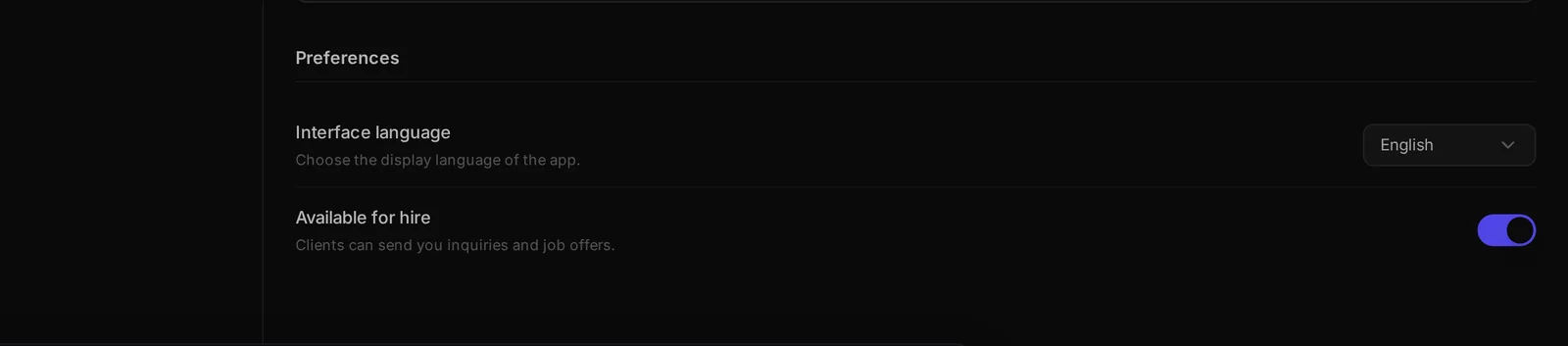
- Available for hire: lets clients send you inquiries.
Changes are only stored when you press Save changes at the bottom. A line next to it says You have unsaved changes or All changes saved, and Revert puts everything back.
Changing the interface language
FOTOhub speaks English, Polish and German. The app starts in English the first time you visit, whatever language your browser uses. Two places change it:
- The account menu has a Language row with the three languages. This is the quickest way on a computer.
- Settings, Profile, Interface language works everywhere, including on a phone.
Security
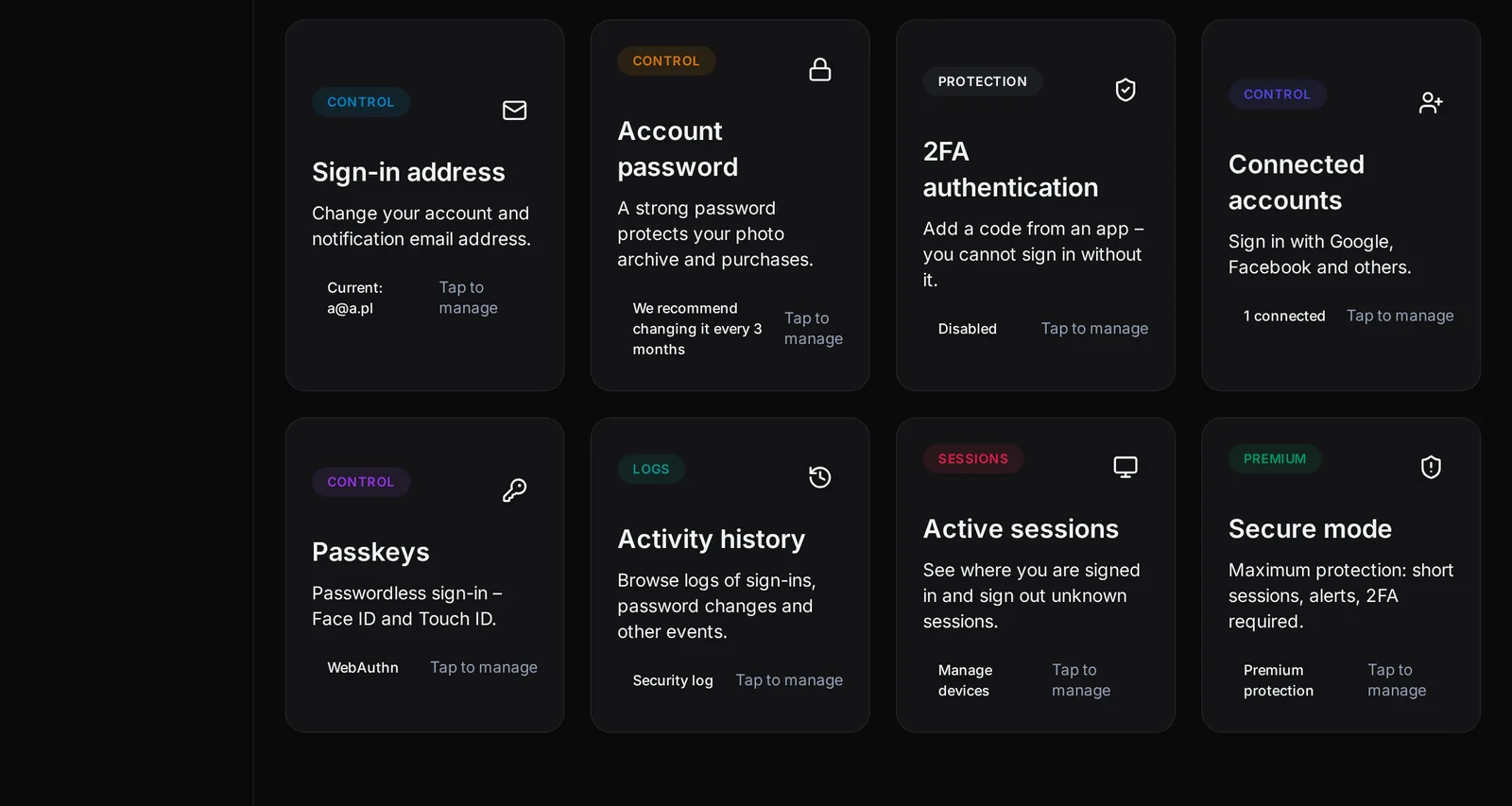
Settings, Security is a small control center. At the top a ring shows a security score and whether two-step sign-in is on. Below are tiles. Click one to open its panel on the right.
Change your password
- Open the Account password tile A panel called Change password opens.
- Type the new password twice It needs 8 or more characters with an uppercase letter, a lowercase letter, a digit and a special character. Click Send verification code.
- Enter the 6-digit code from your email The code is valid for 15 minutes. You can ask for a new one after a short countdown.
- Confirm You see Password changed. You do not need to type your old password, because the email code is the proof that it is you.
Turn on two-step sign-in
- Open the 2FA authentication tile and click Enable 2FA You need an authenticator app on your phone, for example Google Authenticator, 1Password or Authy.
- Scan the QR code Open the app, add an account and scan the code on the screen.
- Enter the 6-digit code Click Verify and enable. You see 2FA enabled successfully.
From now on, after your password you are asked for a 6-digit code. If you lose the phone, the code screen has Lost access to 2FA app?, which sends a code to your email. Keep access to that email. To turn it off use Disable 2FA in the same panel.
The other tiles
- Sign-in address: change your email. FOTOhub sends a message to the new address that you must confirm.
- Connected accounts: link or unlink Google, Facebook, Discord, Slack, Twitch, GitHub or LinkedIn for sign-in. You cannot remove your last sign-in method.
- Passkeys: add a passkey as an additional factor if your account has it enabled.
- Active sessions: your signed-in devices with browser, system and last activity, and a button to sign out of all other devices. This panel is shown in Polish for now.
- Activity history: sign-ins, failed sign-ins, password changes. Addresses are partly masked. Also in Polish.
- Secure mode: a stored preference with switches for login alerts and session length. Treat it as a note to yourself for now: it does not shorten sessions or force two-step sign-in. Use two-step sign-in itself for real protection.
Privacy and your data
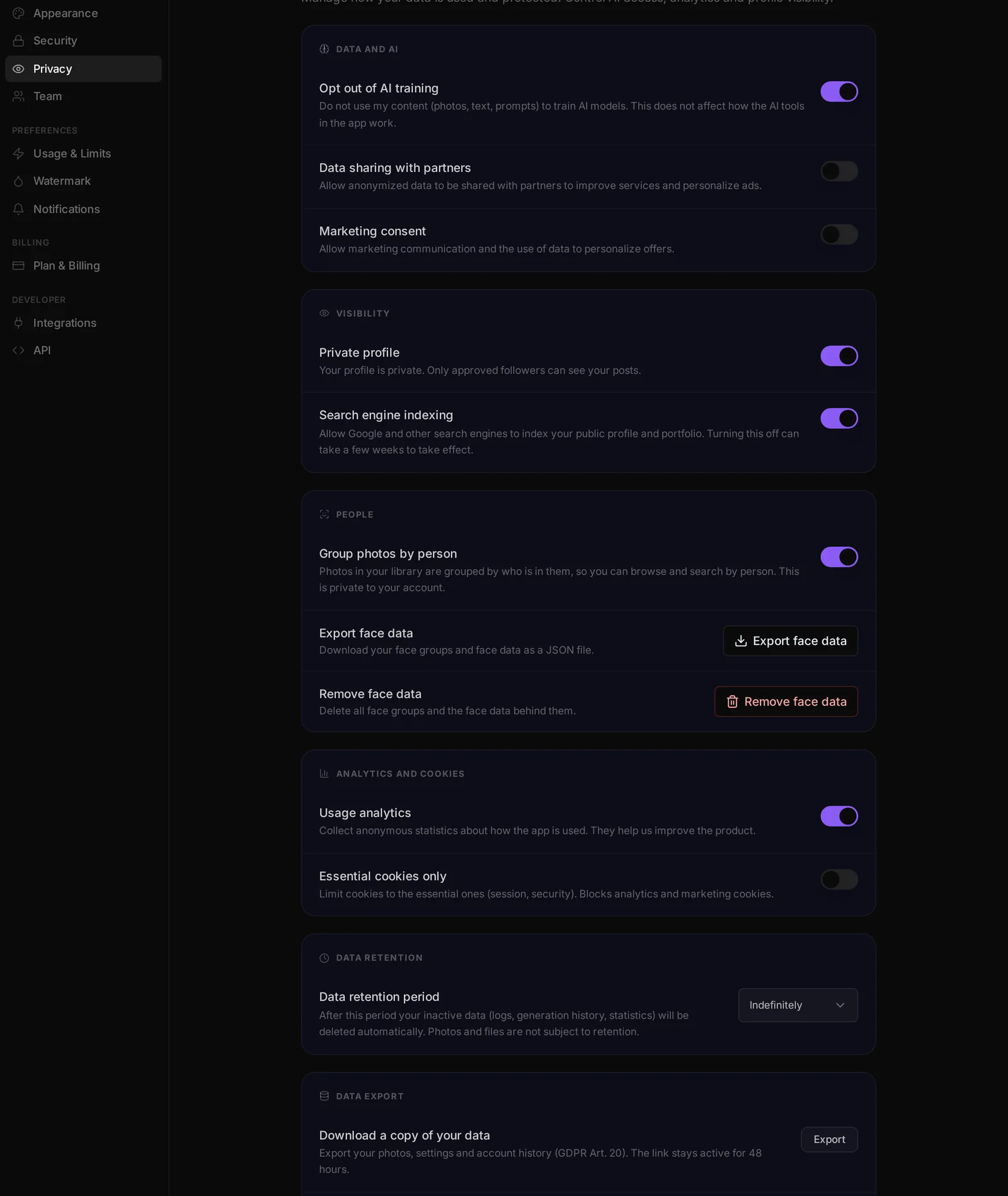
Settings, Privacy collects the switches that control how your data is used. Each switch saves the moment you flip it and confirms with Settings updated.
| Card | What you can set |
|---|---|
| Data and AI | Opt out of AI training, data sharing with partners and marketing consent. All start off. |
| Visibility | Make your profile private, and choose whether search engines may index your public page. Search engines can take weeks to catch up with a change. |
| Analytics and cookies | Usage analytics and essential-cookies-only. |
| Data retention | How long inactive logs, generation history and statistics are kept: 90 days, 180 days, 1 year, 2 years or indefinitely. Photos and files are not affected. |
| Data export | Download a copy of your data. See below. |
| Danger zone | Deactivate the account. |
Download your data
- Click Export in the Data export card A dialog asks what to export: Account data, Photos and files, or a Full export.
- Wait for the status to read Ready The Export history list shows Pending, Processing, Ready or Error. The list refreshes by itself.
- Click Download The download button works for 48 hours after the export is created. After that the row says Expired and you start a new export.
Deactivate your account
In the Danger zone, Deactivate asks you to type the phrase deactivate my account. Your account is then marked for deletion in 180 days and you are signed out. If you change your mind, sign in again during that time and the deactivation is cancelled. There is no instant, irreversible delete button on purpose. If you need your data removed sooner, write to support.
Notifications
Notifications reach you in two ways: in the app (the bell in the top bar, plus small pop-ups called toasts) and as browser push on your device. Email is not part of this page.
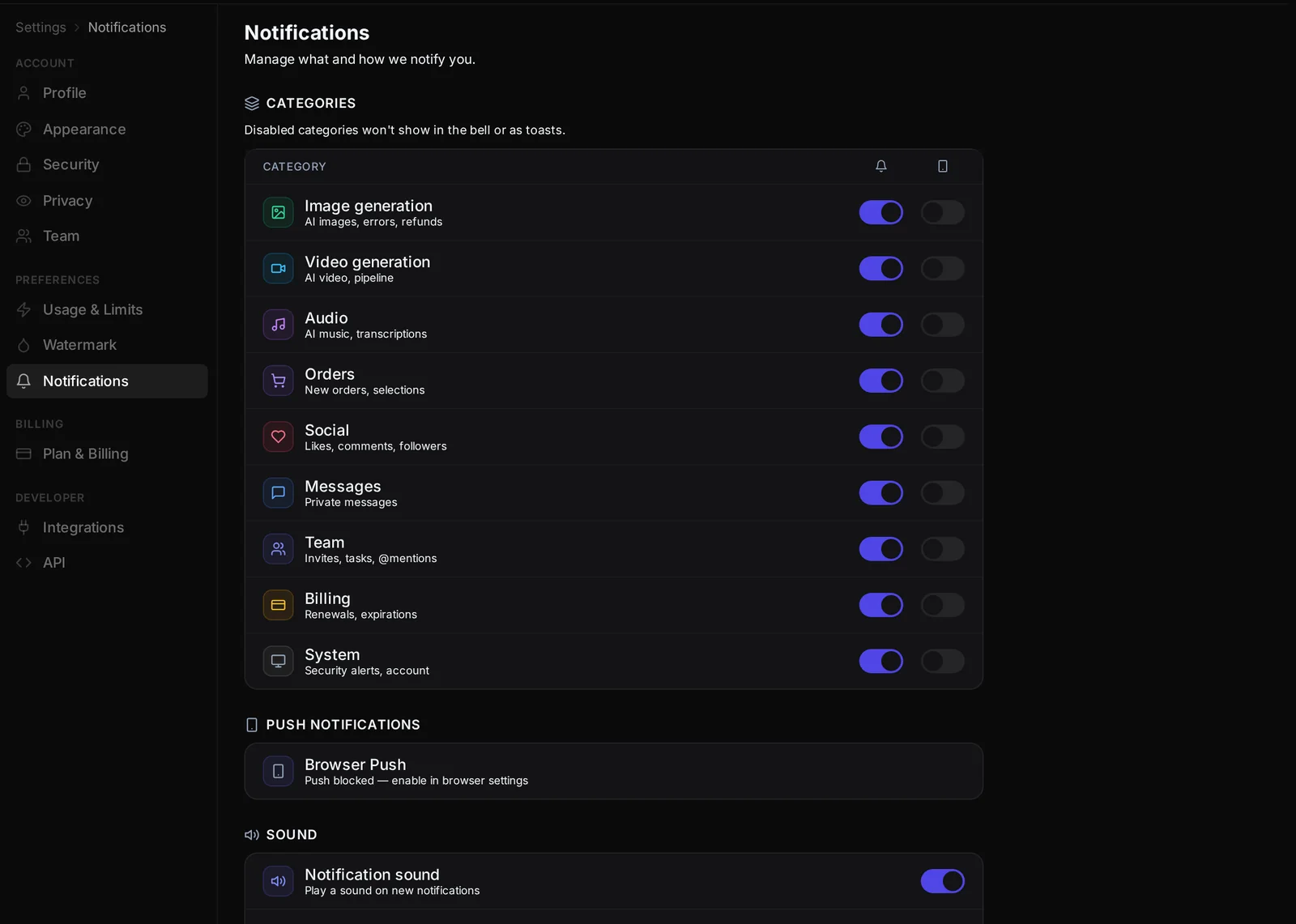
- Categories: Image generation, Video generation, Audio, Orders, Social, Messages, Team, Billing and System. For each you choose the bell and push separately. A disabled category does not show in the bell or as a toast. By default everything is on in the app and push is off.
- Browser Push: turn it on to get notifications even when FOTOhub is closed. Your browser asks for permission once. If it says push is blocked, allow it in the browser's site settings.
- Sound: a switch, a volume slider and a Test button.
- Display: toast pop-ups with a duration of 2 to 8 seconds, an unread badge on the bell and grouping of similar notifications ("3 photos ready").
- Quiet hours: from and to times when notifications arrive silently, with no sound and no toasts.
The bell in the top bar shows the last ten notifications, with Mark all read and View all. View all opens the notification center at /notifications, which you can filter by All and Unread.
Your public page: Appearance
Settings, Appearance is where you design the public page that belongs to your profile. It is meant for photographers, designers and anyone who wants a portfolio page.
- Design: choose a template (Portfolio, Business card, Creative, Link-in-Bio, Magazine or Minimal), a header style, an accent colour, rounded corners, fonts and card style.
- Content: switch sections on or off and reorder them, decide what is visible (albums, services, statistics, links, a contact form) and optionally protect the page with a password.
- Gallery: layout (masonry, grid, columns, carousel), spacing, captions and a hover effect.
- Links: a list of links like a link-in-bio page.
- Domain & SEO: your page is available at an address under fotohub.app, at a free subdomain, and optionally at your own domain. Add a CNAME record at your domain provider and press Verify. The same tab sets the page title, description and the image used when the page is shared.
Press Preview to see the page and Save profile at the bottom to publish your changes.
Workspaces and teams are two different things
Workspaces: your own separate spaces
The chip at the top that says Workspace: Default opens the workspace menu. A workspace is a separate space in your own account, for example one for each client or project. Every account has a workspace called Default that cannot be renamed or deleted. Free accounts can have 2 workspaces, others 5.
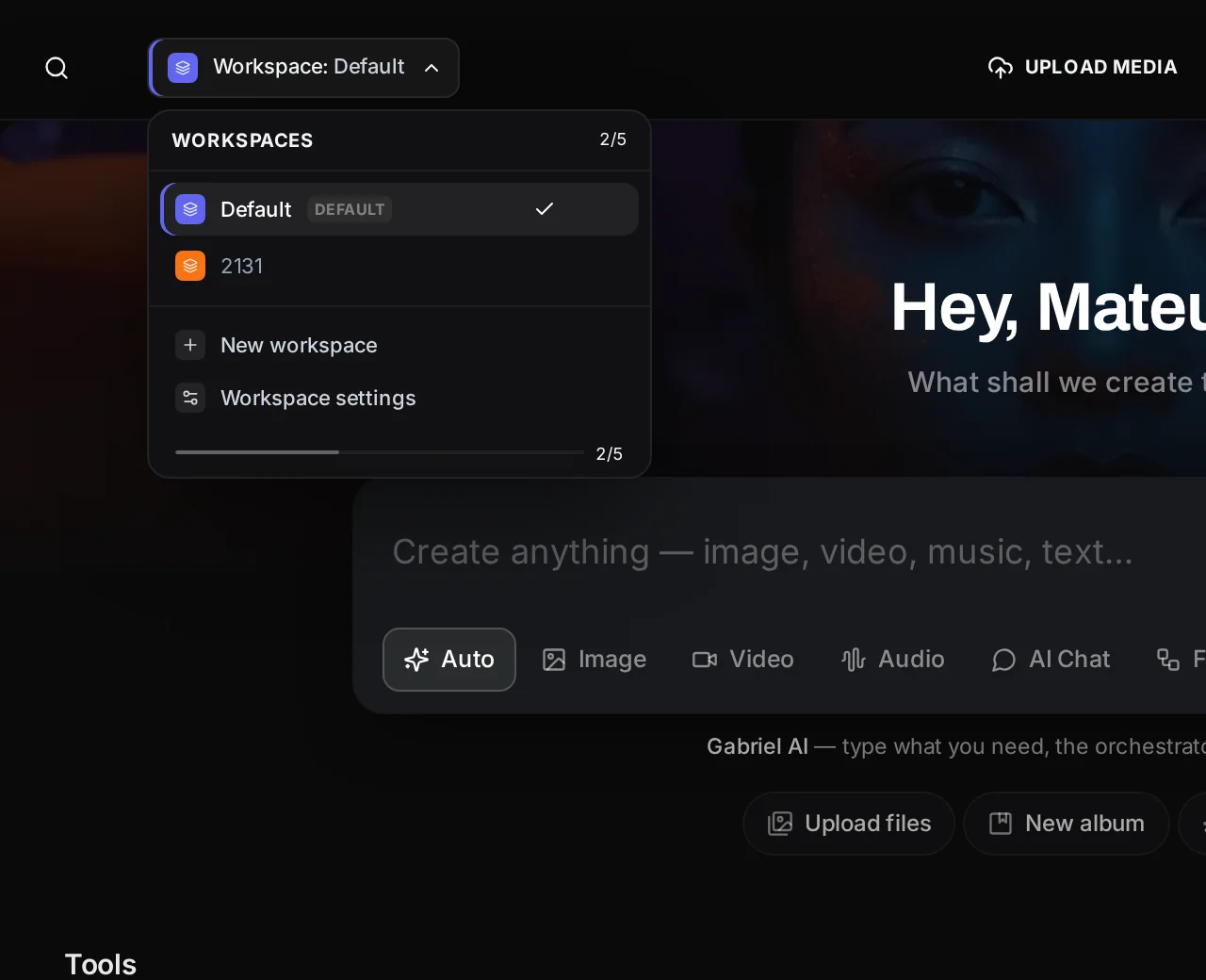
- Click a workspace to switch to it. A toast says Switched to the name.
- New workspace opens a dialog: a name up to 40 characters, a colour and an icon.
- Workspace settings gives you name, description, colour, a delete protection switch and a Sharing tab where you can invite people by email as Owner, Editor or Viewer.
- Deleting a workspace asks what to do with its files, generations and chats: move them to another workspace or delete them.
Teams: a plan for working together
A team is a paid plan, called Teams, with one shared credit pool, roles, a team dashboard and shared boards. You can be in one team at a time. The page called Team that you may find through search is the company page, not your team.
- Choose Create Team In the account menu, or in the Professional group of the sidebar. A short overview explains what a team includes.
- Configure the team Give it a name and choose the number of seats, at least 3. Pick monthly or annual billing.
- Pay Continue to payment and, afterwards, see Team activated with links to Team Settings and the Team Dashboard.
- Invite people In Settings, Team, enter an email and a role (Member or Admin) and press the invite button. Invitations are valid for 7 days and also arrive as a notification if the person already has an account.
| Role | What they can do |
|---|---|
| Owner | Everything, including changing roles and managing workspaces. There is one owner per team. |
| Admin | Invite and remove members, revoke invitations and set credit limits per member. |
| Member | Use the shared credit pool and the team dashboard. Sees the team's overview but cannot manage it. |
Part of the team area, such as the settings page, is shown in Polish for now. The team dashboard has four views: Cockpit, Kanban, Files and Hub.
The partner program
FOTOhub pays you for people you bring in. Open Partner Program in the Marketplace group of the sidebar, or choose Refer & Earn in the account menu. There is nothing to apply for: your link exists the moment you open the page.
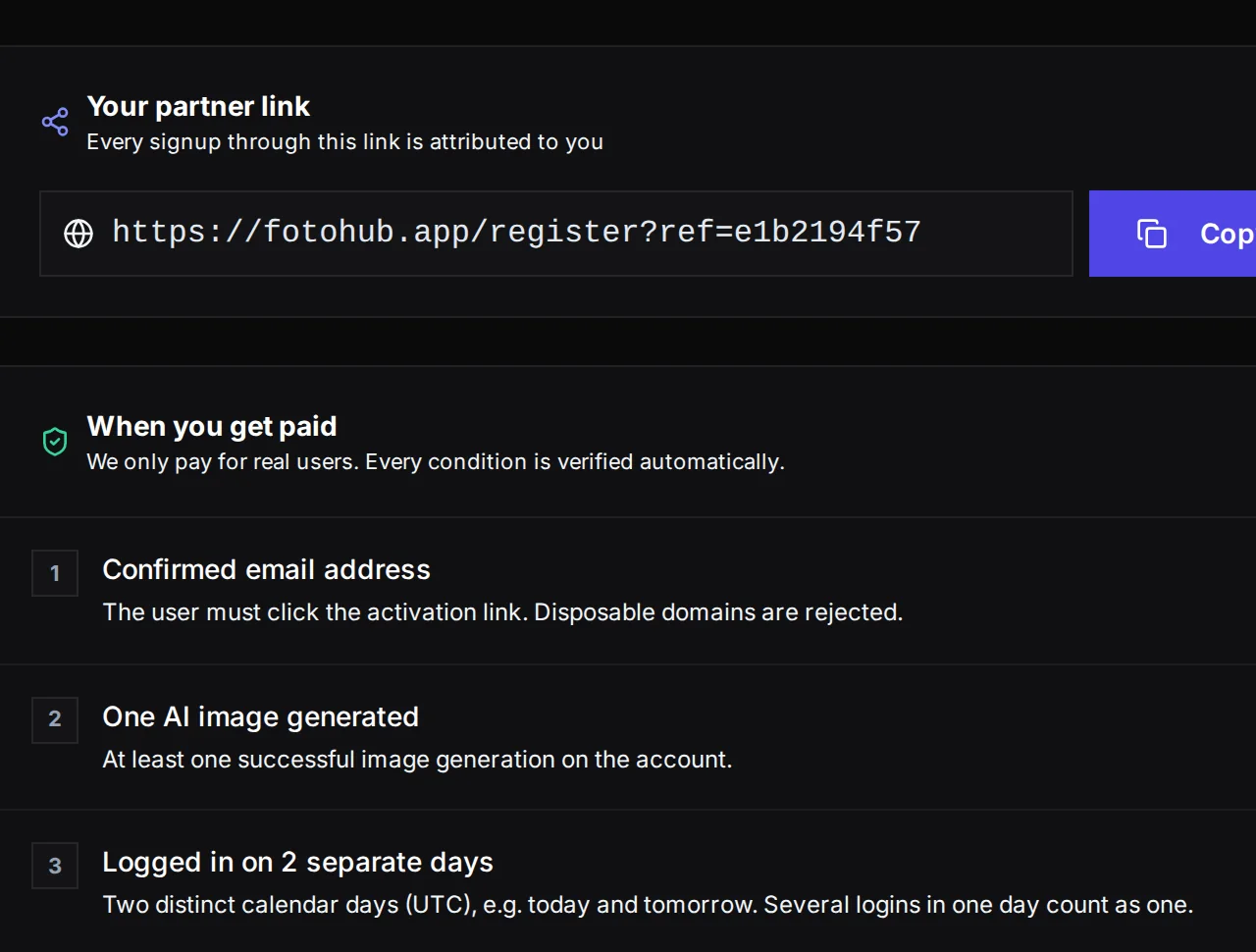
- Copy your partner link The card Your partner link has a Copy button. The link looks like
fotohub.app/register?ref=YOURCODE. - Share it The person opens it and the registration form already has the code. It is remembered for 30 days, even if they sign up with Google.
- Watch the referral qualify A referral is paid when three things are true: the email is confirmed, the person has made at least one AI image and they have signed in on two different days.
- Request a payout After the 30-day hold, money becomes withdrawable. When it reaches the minimum, press Request payout and choose a bank transfer or PayPal.
- You earn a fixed amount per qualified person and a share of their subscription payments for the first payment and the following 12 months. Your tier (Partner, Ambassador, Elite) goes up with the number of qualified referrals. The panel shows the exact amounts, which are in US dollars.
- The person you refer does not get a bonus from the code.
- You cannot refer yourself, and suspicious sign-ups are held for review.
- Switching on Professional Account adds campaigns, tracking links and pixels for advanced partners.
Integrations and the API
Settings, Integrations (also reachable under the name Connectors) connects FOTOhub to cloud storage, shops, chat and social apps, and has tabs for automations, backups, AI assistants and webhooks. Operations that generate content use credits from your pool, with daily limits for automations.
Settings, API is a signpost. API keys, usage and billing for developers all live in the API Console. The developers series explains it.
- Where do I switch to light mode?
- There is no light mode. The interface is dark. Settings, Appearance designs your public profile page.
- How do I delete my account?
- Settings, Privacy, Danger zone, Deactivate. The account is marked for deletion after 180 days and signing in again cancels it.
- Why is my language back to English?
- The language is stored per browser. Choose it again in the account menu or in Settings, Profile.
- I forgot which email I used.
- Try the one you use most on the login page with Forgot password. The reset email only arrives if the address has an account.
- Can two people share one account?
- Do not share a login. Use a Teams plan, or workspaces with invited people, so each person has their own sign-in.