Video editor: music, voice-over, mixing and sound
Add licensed music and sound effects, record a voice-over, balance levels with the mixer and buses, duck music under speech, clean up audio, isolate voices, split stems and generate sound for a shot.
Audio in the editor
Sound lives on audio lanes and inside every video clip. Open Audio in the left rail to add it, Mixer to balance it, and the Audio tab of the inspector to shape a single clip.
| Tab | What it is for |
|---|---|
| Music | Describe a track and generate it right in the panel (prompt, model, duration, Instrumental) and browse the music you made before. Search by title, file name or model. |
| Speech | Type text, choose a model and a voice and generate speech; the take appears in the list, ready to add. Your earlier text-to-speech and cloned-voice takes are listed too. |
| Sound effects | Describe a sound and generate it, or start from the categories: Cinematic, Whoosh, Impacts, Nature, UI, Sci-Fi, Ambience, Foley, Animals, Horror, Comedy and Game. |
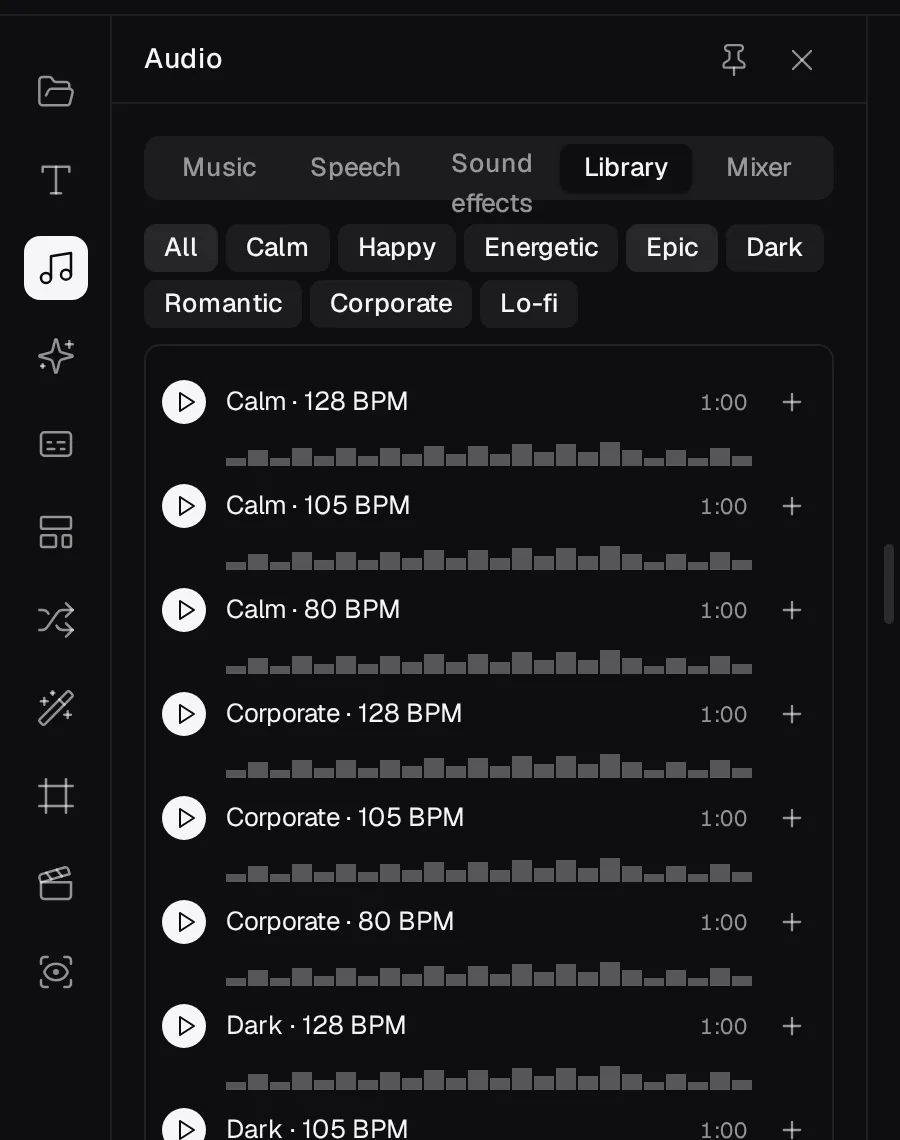
| Library | The FOTOhub library of music and effects, which you may use in commercial projects too. Switch between Music and Effects, and filter music by mood: Calm, Happy, Energetic, Epic, Dark, Romantic, Corporate or Lo-fi, with the tempo shown for each track. |
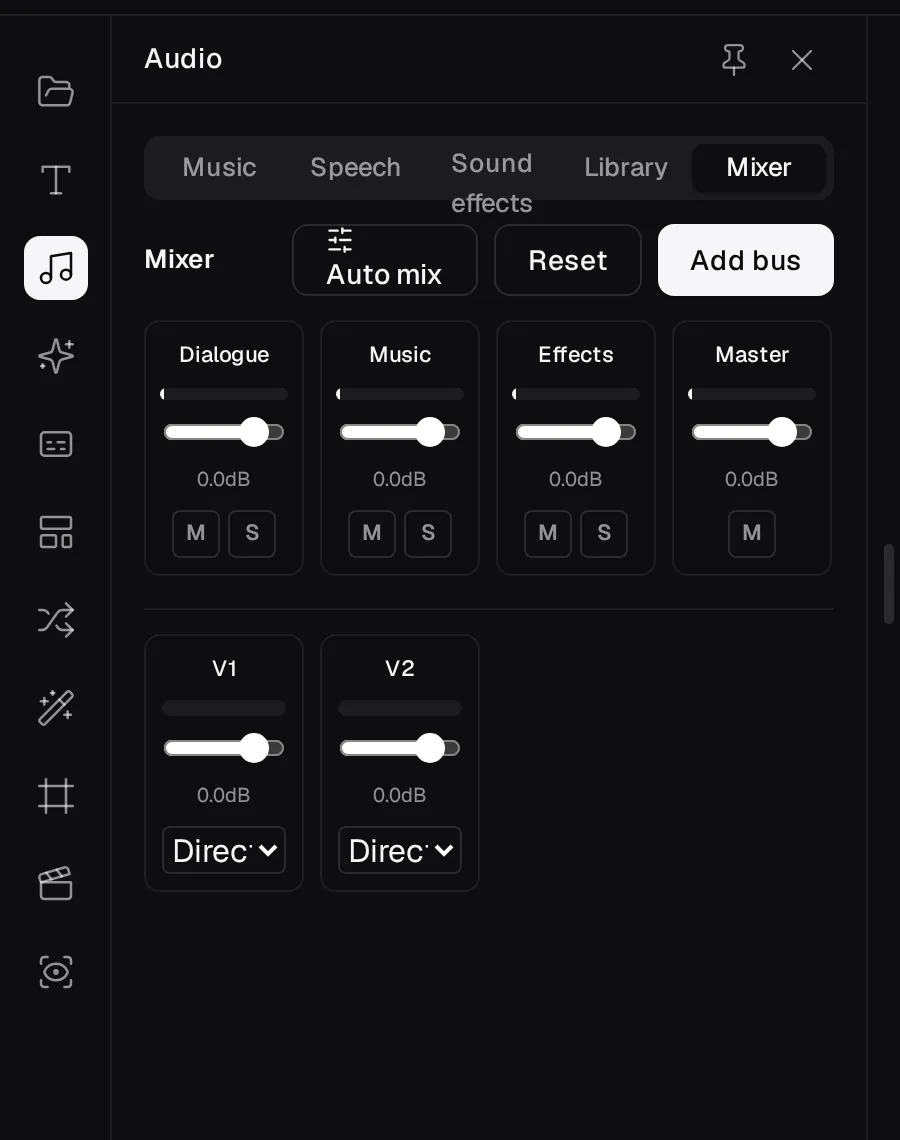
| Mixer | Faders, mute and solo per lane, and buses. |
Add music and sound effects
- Find or generate In Music, Speech or Sound effects either pick from the lists or describe what you need in the composer at the top of the panel; the price shows before you generate, and finished takes appear in the list with an Add button.
- Preview Click a track to listen. Play, Pause, Loop and Volume are on the card. A track marked “File unavailable” is no longer stored; choose another.
- Add it Drag it onto an audio lane, or use Add at playhead, Add as new lane or Add to timeline.
- Trim to the video Drag the end of the music clip to the last picture, or split and delete.
- Fade it Select the clip, open Inspector > Audio and set Fade in and Fade out.
Record a voice-over
Open Media > Upload files and click Record a voice-over, or choose Record in the project menu. A short Get ready… countdown runs, then you speak; Stop ends the take and it lands on the timeline as “Voice-over” with its length in seconds. Discard the recording throws it away. If the browser blocks the microphone, allow it for this site and try again.
Balance with the mixer
The Mixer tab lists every lane with a Track fader (dB), M (mute) and S (solo). Add bus creates a shared channel: assign lanes to it with the Bus menu, and the Bus fader moves them together. Lanes not assigned to a bus play Direct. Reset returns the faders to zero. Per-track and per-bus meters are not available in the preview, so judge by ear and by the project check, which warns when summed audio peaks above 0 dBFS and may clip.
- Dialogue near the top of its fader, music much lower under it.
- Duck under voice (inspector, Audio): the music lowers automatically whenever there is speech; Duck amount sets how far.
- Auto mix (button at the top of the Mixer): works out which audio clips are voice, music or effects, sets each clip's volume and turns on Duck under voice for music and effects. One Undo reverts it.
Shape the sound of one clip
Select a clip and open Inspector > Audio.
| Control | What it does |
|---|---|
| Level and mute | Volume, Mute, Fade in, Fade out. |
| Duck under voice | Lowers this clip when speech plays, by the Duck amount. |
| Effects | Enhance improves speech and is applied on export (you will not hear it in preview); Apply on server processes the clip now; Remove silence; Remove filler words. |
| Equalizer | Low, Mid and High bands. |
| Reverb | Off, Room, Hall or Plate. |
| Visualizer | Draws the sound as Bars, Circular, Wave or Particles, with colour, size and sensitivity. |
| Clone voice from clip | Starts a voice clone from this recording. See the voice cloning guide. |
Questions and fixes
- I hear nothing in the preview.
- Check the lane's mute icon, the clip's Mute and Volume, and the mixer faders. At extreme speeds the preview mutes the sound; the export keeps it.
- “The library is still empty”.
- Tracks are loaded from the server. “Could not load the library” with a Try again button means the load failed, not that the library is empty.
- The music is too loud over the voice.
- Turn on Duck under voice on the music clip or lower the music lane in the mixer.
- The sound is out of sync after a speed change.
- Keep Preserve pitch on and check that the clip has no leftover speed ramp.