Video editor: Auto edit, Assistant and AI Vision tools
Let Auto edit build a first cut, direct the Assistant in chat, cut people out, erase objects, track and remove them, extend or relight a shot, make a vertical version and run clip tools from the Tools menu.
AI at every level
The Video Studio editor puts AI at three levels. Auto edit and the Assistant work on the whole project. Vision in the left rail and the AI tools in the clip menu work on the selected clip. The Tools menu in the top bar runs heavier jobs on one clip. Each tool's panel or menu entry says whether it is included in your plan or charged; some show the exact amount only once the run has finished. A tool never starts without you pressing its button.
Auto edit
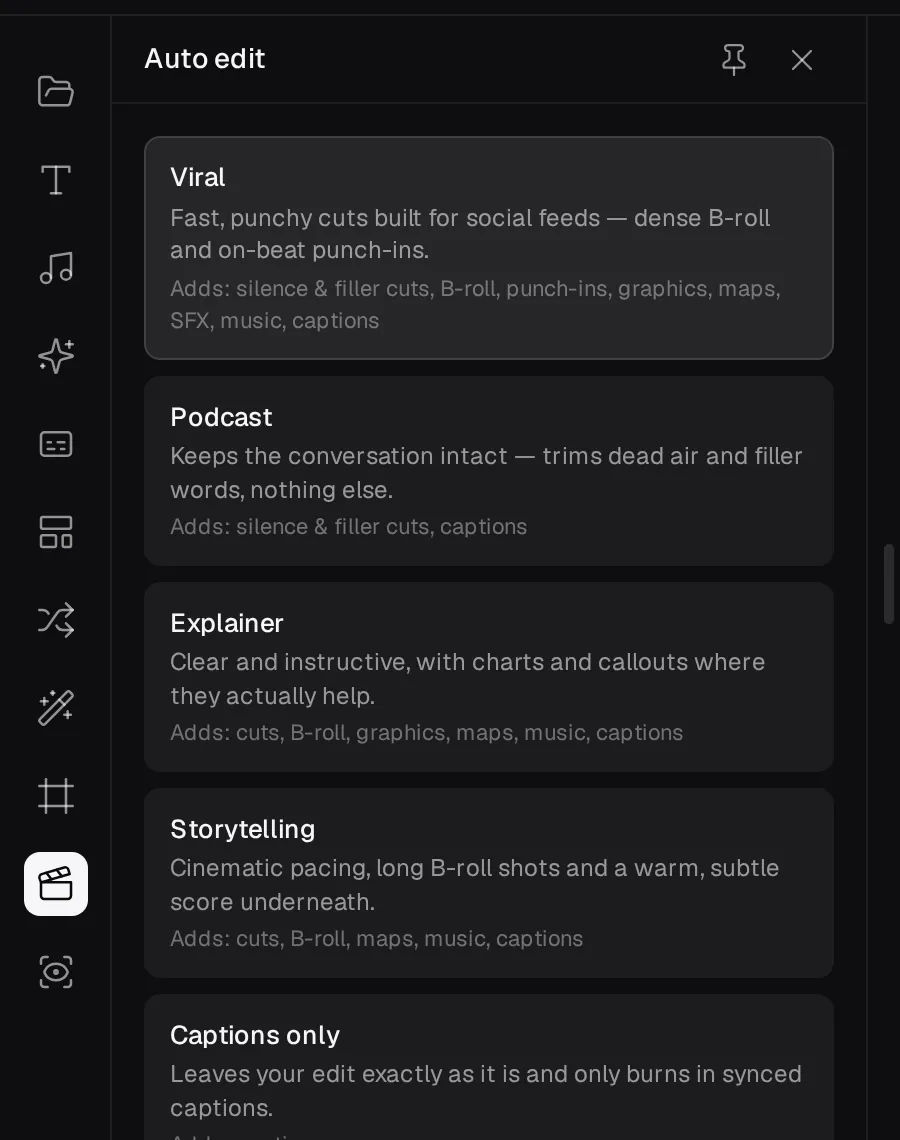
Click Auto edit at the top. Choose a Style, adjust the helpers, press Start.
| Style | What it adds |
|---|---|
| Viral | Silence and filler cuts, B-roll, punch-ins, graphics, maps, sound effects, music and captions |
| Podcast | Silence and filler cuts and captions only |
| Explainer | Cuts, B-roll, graphics, maps, music and captions |
| Storytelling | Cuts, B-roll, maps, music and captions, with a warm subtle score |
| Captions only | Burns in synced captions and changes nothing else |
- Cut silences: trims pauses longer than the style's threshold.
- Remove filler words: cuts spoken “um” and “uh”.
- B-roll: covers key moments with stock or AI-generated footage.
- Punch-in zooms: zooms on emphasised words.
- Graphics, Maps, Sound effects, Music: overlays, location pins and routes, small effects on cuts, a score.
The Assistant
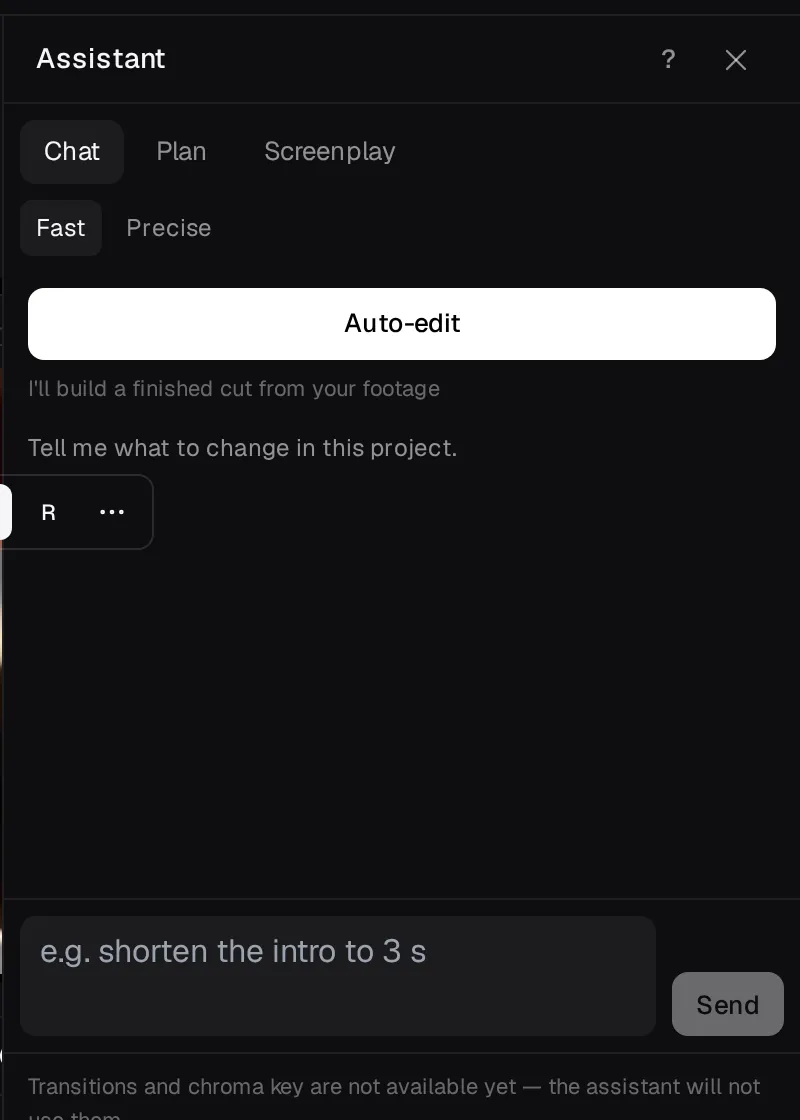
Click Assistant (or Ctrl+J). The panel offers Chat, Plan and Screenplay, and Fast or Precise. Tell it what you want: “I'll build a finished cut from your footage” is its default Auto-edit entry, and “Tell me what to change in this project” is the chat prompt. It acts on the project through the same commands you use by hand, so every change is undoable. It states what it cannot do yet: for example it does not use transitions or chroma key.
Vision: select, cut out and erase
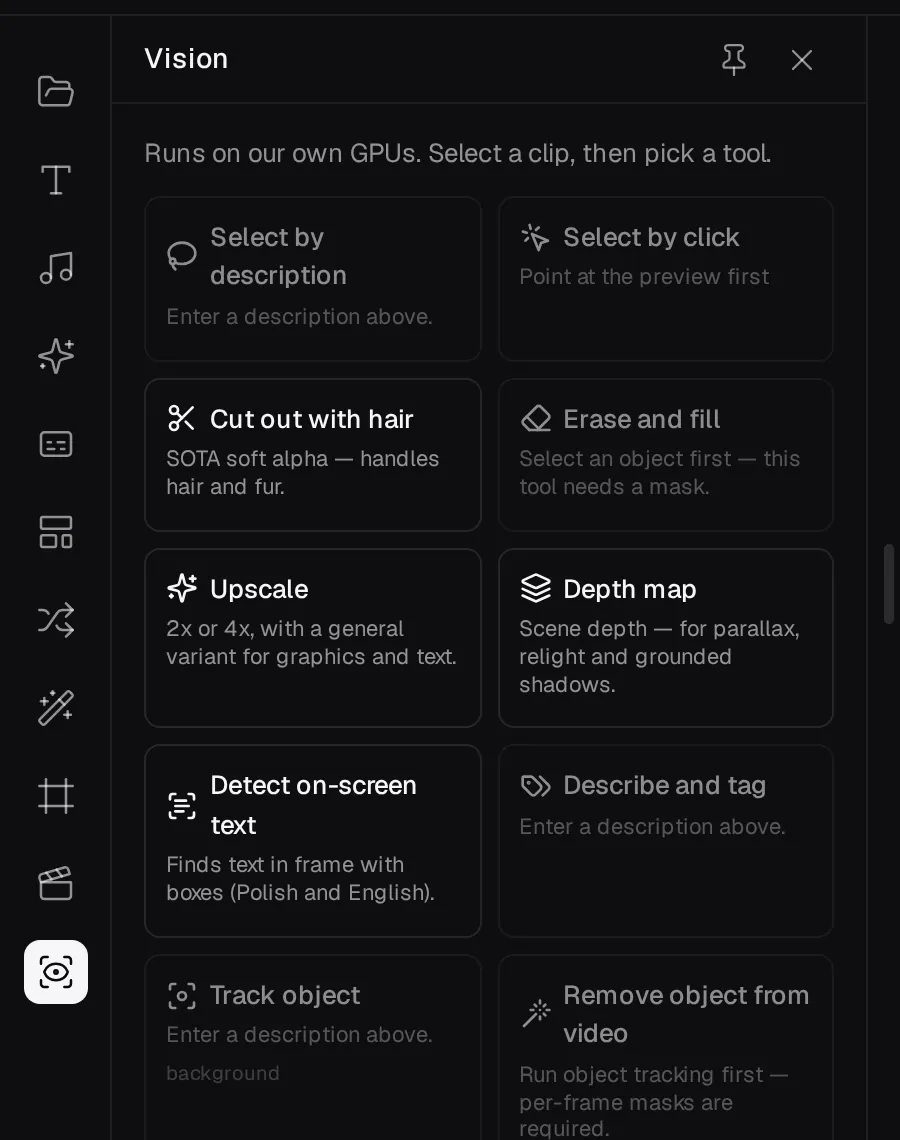
Vision in the left rail lists tools that run on your own GPUs. Select exactly one clip, pick a tool and press Run. Each tool tells you why it is unavailable (“Select a clip on the timeline”, “Select exactly one clip”, “Enter a description above”).
| Tool | What it does |
|---|---|
| Select by description | Type what to select (car, face, logo) and the model finds every match. |
| Select by click | Fast single-object selection by pointing at the preview. |
| Cut out with hair | A soft alpha matte that handles hair and fur. The result is saved as a new version of the clip, and Restore original brings the first one back. |
| Erase and fill | Removes the masked area and paints in a matching background. |
| Upscale | 2x or 4x, with a general variant for graphics and text. |
| Depth map | Scene depth, for parallax and relighting. |
| Detect on-screen text | Finds text in the frame with boxes (Polish and English). |
| Describe and tag | Scores how well labels you type fit the frame. |
| Track object | A per-frame mask of an object you describe or box: rotoscoping. |
| Remove object from video | Erases an object through the whole shot. |
- Select the clip Click the clip on the timeline and open Vision.
- Mark the object In Remove object drag a box around it on the frame, or click it. You may add a description. The panel checks the selection and tells you if nothing was found.
- Run Press Remove. The progress shows as a percentage. When it finishes the clip's video is replaced; Restore original is in the clip menu.
More AI tools in the clip menu
| Tool | What it does |
|---|---|
| Remove background | Cuts the subject out of a video or image clip. The price is shown first; if it went up since you looked, nothing is charged and you confirm the new price. |
| Auto reframe | Finds the subject and keeps it in frame when you change the aspect ratio. |
| Make a 9:16 version | Project menu. Reframes the clips of a horizontal project for vertical, and reports how many were reframed and how many left unchanged. |
| Object effects | Blur or pixelate an object (a face, a number plate), keep colour only on the object, make an AI mask from it, cut it out to its own layer, retouch a face or outline it. |
| Generative fill, Expand frame | On image clips: paint something new into a marked area, or extend the picture beyond its edges. |
| Extend video frame | Paints in the missing edges so a clip fills the project frame instead of showing bars. |
| Change lighting | Move a light: choose its direction, height, strength, ambient light and colour, preview a frame, then apply to the clip. |
| Extend video | Continues a shot past its last frame by a number of seconds. The price is shown on its menu entry. |
| Talking photo | Type what the person in a photo should say. The voice is generated and the lips are matched. You confirm that you have the rights to the photo and the consent of the person. |
| Dub, Match lips | Translate the voice of a clip, optionally matching lips to the new voice. |
| Sound for this shot | Generate sound for the picture. |
| Detect beats, Split at scene cuts, Auto-cut silence | Analysis tools that cut or mark the clip. |
The Tools menu
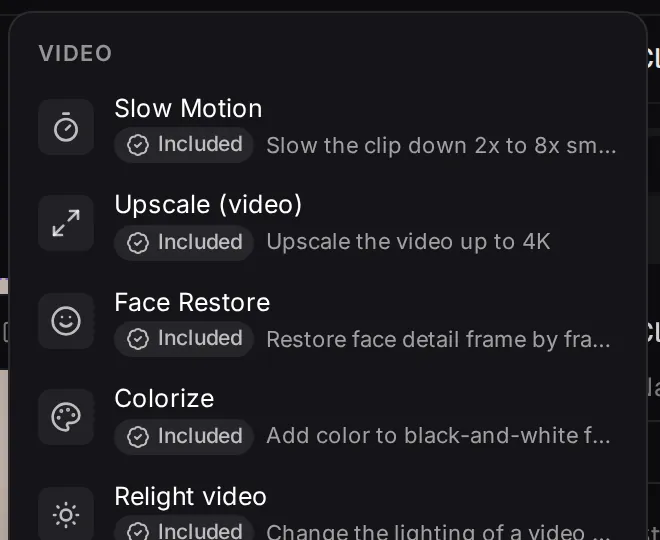
The Tools button in the top bar lists tools that run on the selected clip. For a video clip: Slow Motion (slow the clip 2x to 8x smoothly), Upscale (video) up to 4K, Face Restore (frame by frame), Colorize (colour for black-and-white footage) and Relight video. An Audio group holds Dubbing Studio, which shows its price on its row. Each row says Included or shows the price.
- A tool is disabled.
- Hover over it: it says what is missing, for example a clip with a source file, exactly one selected clip, or speed set to 1x.
- Nothing changed after a tool finished.
- The result may be saved as a new version or on a new lane. Look at the lanes and the clip menu: Restore original appears when the clip was replaced.
- The price changed.
- The clip is longer or larger than first quoted. Nothing was charged; read the new price and run again.