Video editor: export, platform presets and delivery
Render your project for TikTok, Reels, Shorts, YouTube or X, pick resolution, format and quality, render several aspect ratios in one run, read the warnings, and share or hand off the project.
How export works
Export renders the whole timeline into a video file. By default the render runs on FOTOhub servers, so the result does not depend on your computer. The Export button downloads the file, and Save to gallery keeps a copy in your library. Before you start, the Export dialog shows the estimated file size and what, if anything, will look different from the preview.
Export a video
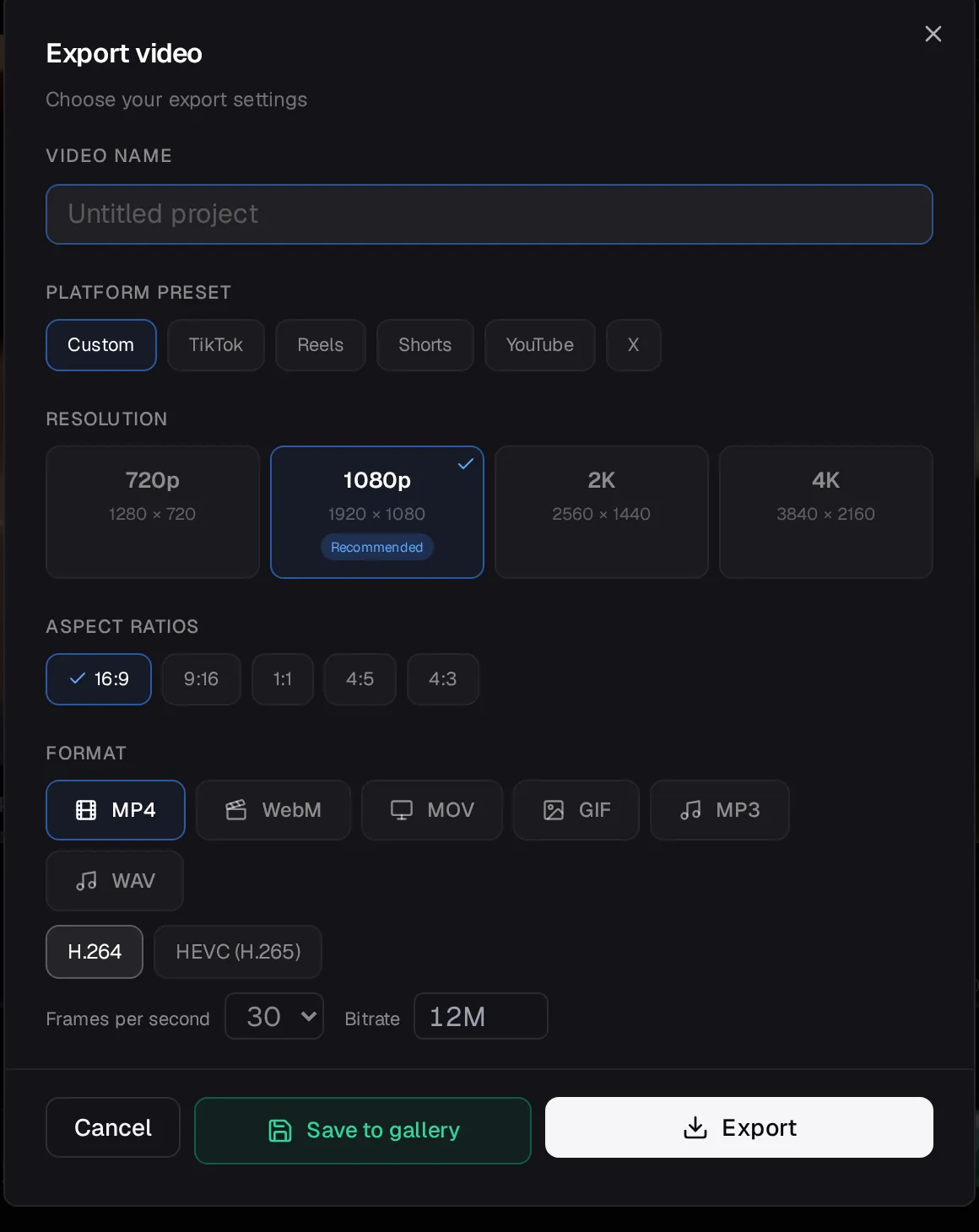
- Open Export Click Export in the top bar. The dialog is titled Export video, Choose your export settings.
- Name it Type a Video name. The default is Untitled video.
- Pick a platform preset Custom, TikTok, Reels, Shorts, YouTube or X. A preset sets the resolution, frame rate and bitrate ceiling for that platform. It does not change your project's aspect ratio. Picking a resolution yourself switches the preset back to Custom.
- Choose resolution 720p (1280 by 720), 1080p (1920 by 1080, recommended), 2K (2560 by 1440) or 4K (3840 by 2160).
- Format and quality Pick the Format, then Quality: Standard (smaller file), High (recommended) or Ultra (best quality). A GIF is exported at 720p, the maximum for the format, and has its own FPS and Loop the animation settings.
- Check the estimate The dialog shows the Estimated size. When the render runs on the FOTOhub server it can also show an Estimated cost row, or Included in your plan. If no cost row is shown for your project, nothing is quoted before you start.
- Export Click Export. Progress runs through Preparing, Sending to the renderer, Rendering with a percentage and Done, and the file downloads. Save to gallery keeps a copy in your library. Stop render cancels a running export.
Several shapes in one run
Under Aspect ratios tick more than one shape, for example 16:9 for YouTube and 9:16 for Shorts. The editor renders each in turn (“Rendering 9:16 (2/2)”) and the summary says how many finished and how many failed. Each shape is rendered as its own job, and the cost row, when it is shown, adds them up. For a vertical version made by reframing the picture, use Make a 9:16 version in the project menu first and check the framing.
What the warnings mean
The dialog groups its notes. Some effects will not be in the exported file lists things the renderer cannot draw and will leave out. Notes about this export lists things that will look slightly different. Typical ones:
- Colour wheels and gamma are applied with different maths than the preview: a small difference.
- Grain and some video effects have the same strength but a different random pattern.
- A karaoke caption font that the renderer does not have is replaced by a metrically identical one, or exported in its default typeface.
- Push, slide up or down and dip to white only work between two clips; on a single clip edge they are dropped.
- A transparent overlay animation previews as a still frame but plays fully in the exported video.
- A filter that is “applied permanently and cannot be removed afterwards” is marked, so you know to keep your project.
Price, failures and refunds
- When the Estimated cost row is shown, it appears before you press Export. If your balance is too low you see “Not enough credits for this export. Top up or change your plan, then use Retry.”
- A failed export says whether credits were refunded or nothing was charged (“The N credits charged for it were refunded.”, “Nothing was charged for this export.”).
- Busy renderer: “The render server is busy. Try again in a moment.” Retry resubmits the same job.
- Renders restored: if you closed the tab, an export in progress is picked up again the next time you open the editor, with a note “Export from another session”.
Cover, frames, share and interchange
- Use current frame as cover (project menu) sets the cover image of the project.
- Save frame as PNG / JPG downloads the frame on the stage. Pause playback first.
- Share: creates a read-only link with an expiry you choose; you can revoke it from the same dialog, and viewers can leave comments. Comments: leave notes on the project.
- Import / Export…: exchange the project with other editing software.
- Version history: save a named version and restore it or an automatic snapshot later.
- Pre-render the In/Out range: render the loop range ahead of time for smooth playback of heavy sections.
- My export has black gaps.
- Check project reports a gap in the picture. Fill it with a clip, or trim the clips so they touch.
- A clip says its source link expired.
- Most refresh automatically. If the check says it cannot, relink the file.
- The render is taking very long.
- If the dialog says the render is taking too long, it was left running in the background. An export in progress is picked up again when you reopen the editor.