Video editor: titles, captions and subtitles
Add and style titles, animate text, generate captions from speech or song lyrics, import an SRT file, translate captions and cut your video by editing its transcript.
Text and captions at a glance
The editor has two text tools that share the timeline but do different jobs. Text in the left rail is for titles, lower thirds and any wording you place yourself. Captions in the left rail makes subtitles from the speech in your clips and keeps them in time with the audio. Both create clips you can move, trim and style like any other.
| Text | Captions | |
|---|---|---|
| You use it for | Titles, name bars, call-outs, end cards | Speech or song lyrics that must be readable without sound |
| Created by | Clicking a style, or typing under New text | Generate (from speech or song lyrics) then Add to timeline, or Import SRT |
| Look | Styles, fonts and entrance or exit animations | Caption styles and word-by-word presets |
Add a title
- Open Text Click Text in the left rail. Three tabs sit at the top: Styles, Edit and Animated.
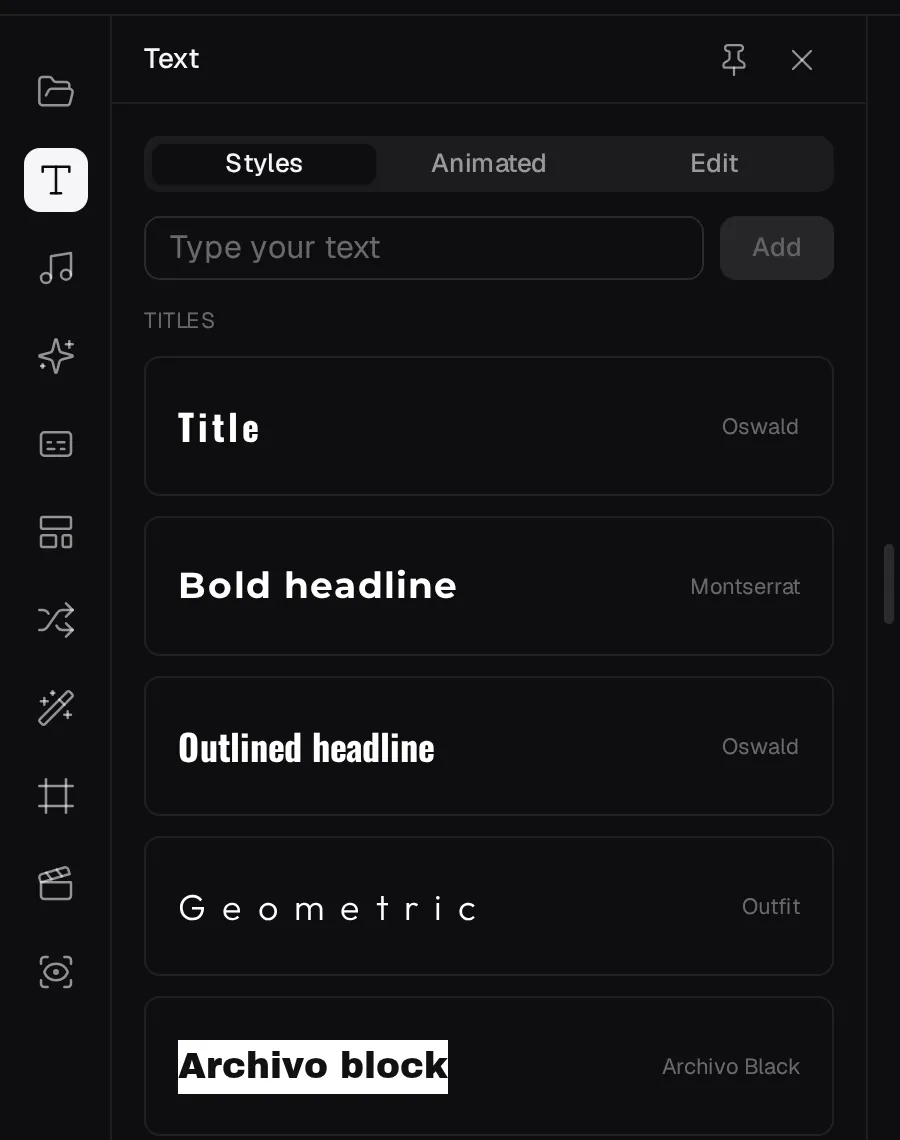
- Pick a style Click a card in Styles, for example Title, Bold headline, Lower third, Neon, Cinematic, Retro, Minimal, Meme, Outlined headline, Clean caption, Elegant serif, News ticker, Comic shout, Handwritten note or Brand bar. The text lands at the playhead on an overlay lane.
- Or type your own Type under New text (“Type your text”) and press Add.
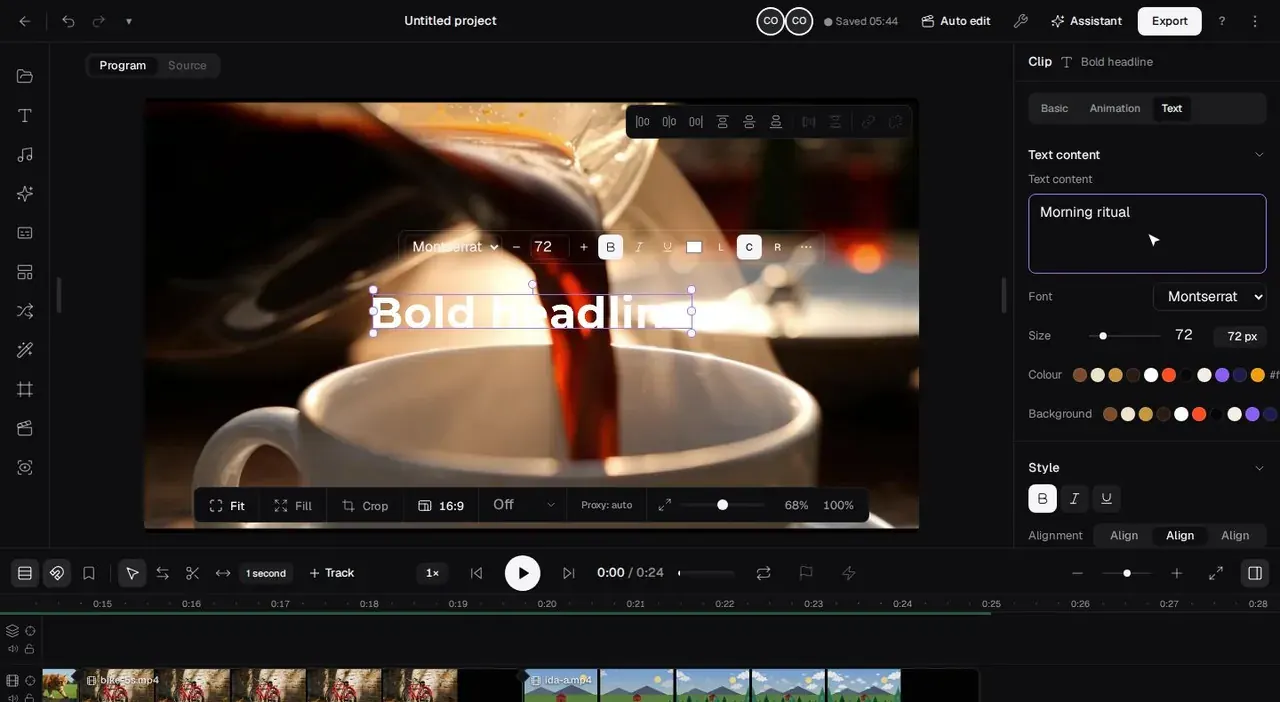
- Edit the wording and look Select the text clip. The Edit tab shows Text content, Font, Size, Bold, Italic, Underline, alignment, Colour, Background, Outline and Opacity. Fonts come in families: Modern, Impact, Cozy, Springy, Elegant, Technical, Handwritten and Graceful.
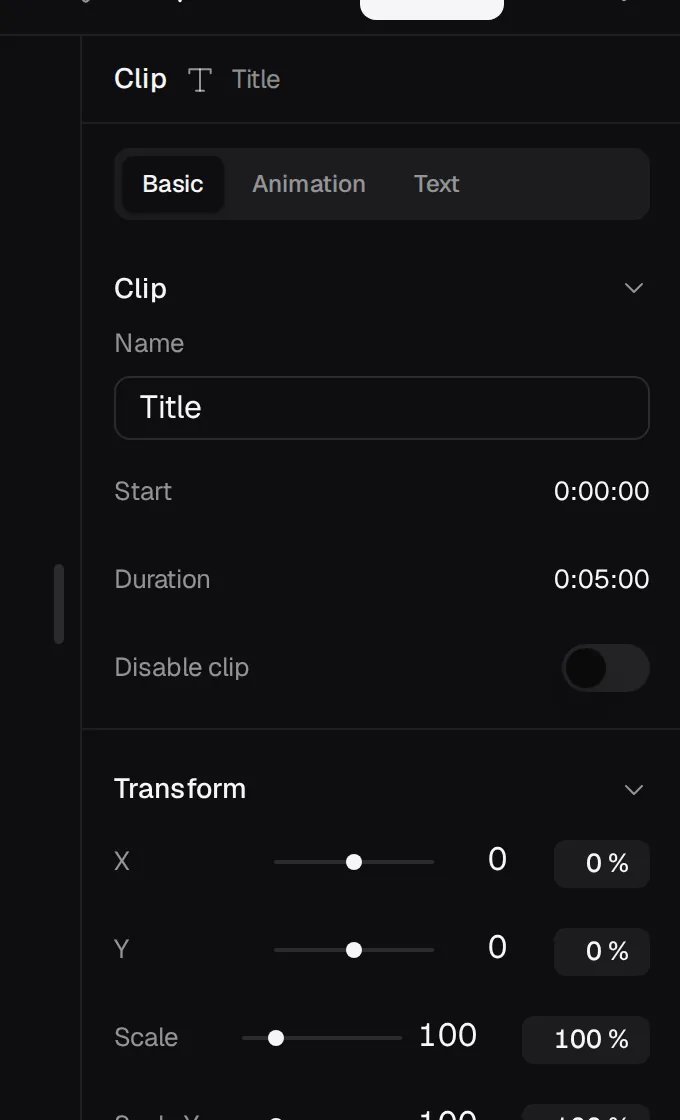
- Place and time it Drag the text in the preview to position it and its handles to scale it. Drag the clip's edges on the timeline to set how long it stays. A title reads well for two to four seconds.
Animate text
Open Animated for ready-made motion: Fade in, Slide up, Slide down, Slide left, Slide right, Slow fade, Quick punch, Pop caption, Highlight pop, Lower third, Big title drop, Graceful rise, Swipe in, Pop in, Zoom-in title, Scale up, Typewriter, Typewriter news bar, Spin in, Blur reveal, Pan glide, Bouncing caption, Haze, Drop bounce, Soft zoom, Punch, Cinematic focus and more. In the inspector, Entrance and Exit headings let you choose a separate animation for each end, and the Animation tab holds the same In and Out controls with a duration.
Generate captions from speech
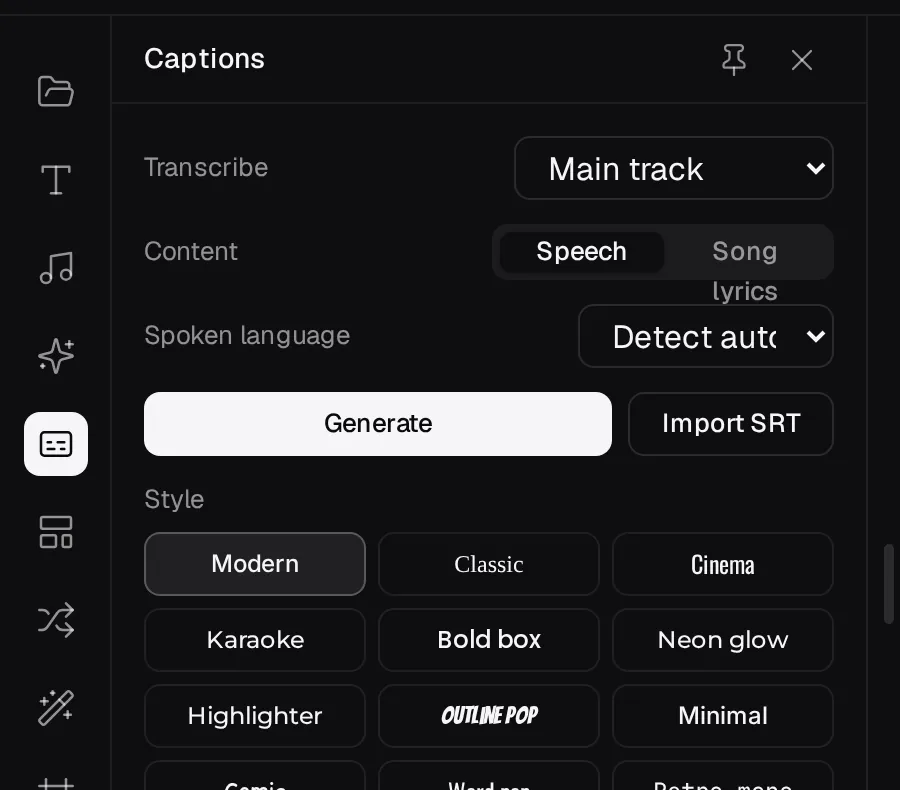
- Select the source Click Captions in the left rail. Under Transcribe choose what to transcribe: the Main track or one of your clips.
- Choose the content Speech for talking, or Song lyrics, which first separates the vocals from the music so the lyrics are heard cleanly.
- Set the spoken language Pick the language of the recording or leave it automatic.
- Pick a style Click a style card: Modern, Classic, Cinema, Karaoke, Bold box, Neon glow, Highlighter, Outline pop, Minimal, Comic, Word pop or Retro mono. Below them are word-by-word presets: Classic (one word), Cascade, Spotlight, Paper, Pop and Stark. Set Position (Top, Centre, Bottom) and Font size.
- Options Highlight the key word emphasises the important word in each line. Add a matching emoji places an emoji beside the word it fits. Karaoke already highlights the spoken word, and word-by-word presets style every word themselves, so those two switches turn off when they would repeat the effect.
- Generate Click Generate. The result is listed under Generated captions. Check the list, then click Add to timeline to place the captions as clips on a Captions lane, or Export to download them as an SRT file. If there is no speech you get “No speech was found in this video”; if speech lies only outside the trimmed clips you are told so.
Readable captions for a vertical clip
Goal. Word-by-word captions that keep up with a fast speaker.
Input you can copy.
A 9:16 clip with someone talking.| Setting | Value |
|---|---|
| Content | Speech |
| Style | Word-by-word preset: Pop |
| Position | Centre |
| Highlight the key word | Off (the preset styles every word) |
Why it works. One word at a time at the centre of the frame reads at a glance on a phone. The preset styles the current word itself, so the extra highlight switch is not needed.
Import and translate captions
- Import SRT: loads an .srt file into the same Generated captions list, ready for Add to timeline. An empty file shows “The SRT file has no captions”.
- Translate captions: choose Translate to a language and click Translate captions. Quick translates into one language, free of charge, and can show bilingual captions (original above the translation). Where an Engine switch also offers Studio, it translates into up to 30 languages, shows its price before it runs and lets you review and download each language.
- Karaoke text: on a text clip, Generate from transcript builds word-timed karaoke text; Split into clips cuts it into pieces of a given number of words.
Edit the video by editing the transcript
When a clip has a transcript with word timing, the Transcript section lists the words per clip. Strike out words you do not want and click Remove struck words. The footage for those words is cut out and the gap closes; the message tells you how many words and seconds were removed. Captions that were already generated may still show the removed words, so regenerate them afterwards.
Questions and fixes
- Transcription failed.
- The message says why: the service is temporarily unavailable, the audio could not be read, it took too long, or the connection dropped. Try again in a moment.
- Two captions overlap.
- Check project flags them. Trim one so they no longer share time and screen position.
- The captions are not in the exported video.
- They are clips on a lane: make sure the lane is not hidden or muted, then export again.
- My caption font looks different in the export.
- The export dialog lists every difference (for example a font weight rounded to regular or bold) under “Some effects will not be in the exported file” before you render.