Troubleshooting the basics
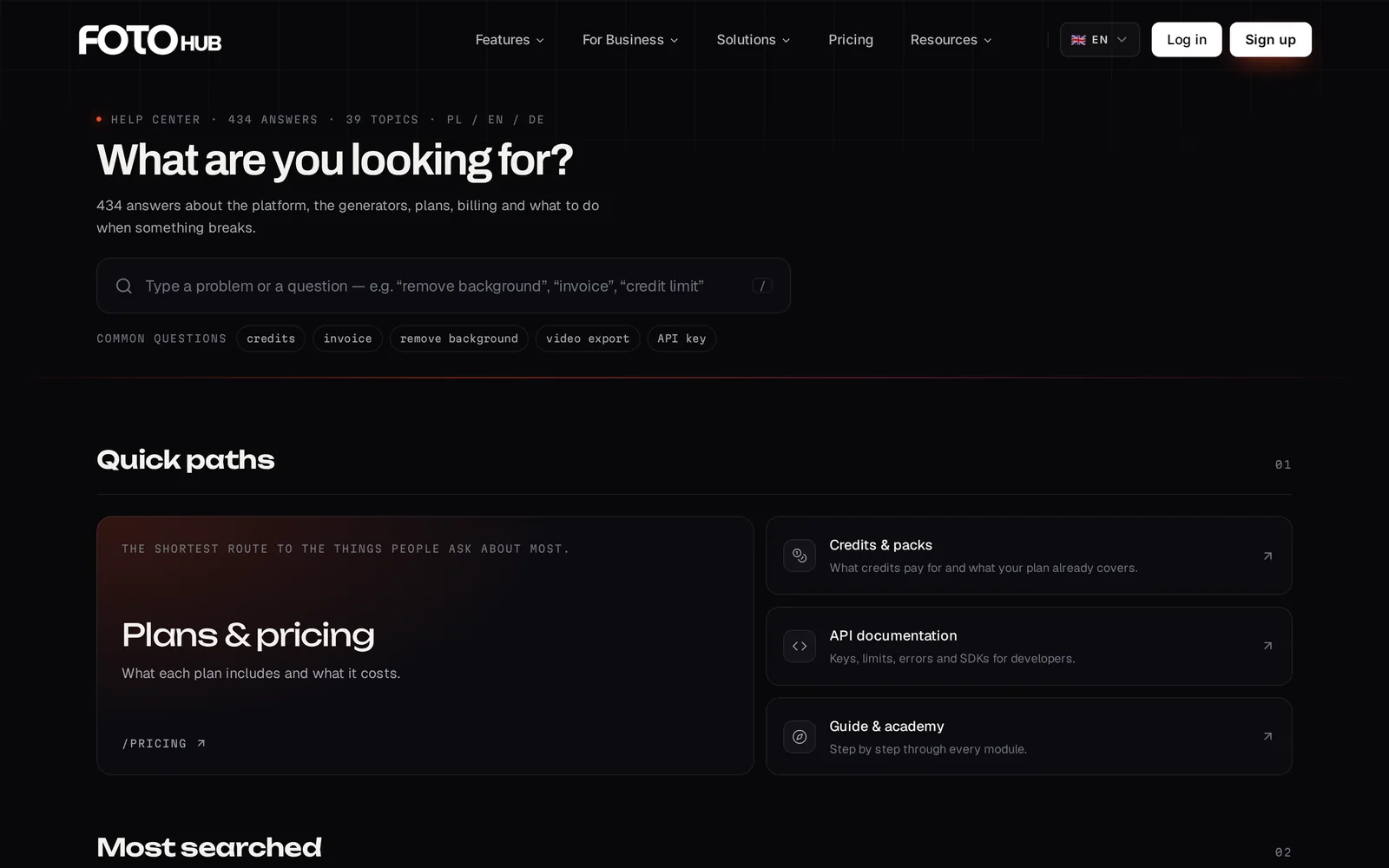
What to do when a generation fails, credits run out, you cannot sign in or a page will not load, and how to reach support with the details that get you an answer fast.
First aid in five steps
Most problems in FOTOhub fix themselves in under a minute once you know what the message is telling you. Work through these steps in order and stop as soon as it works.
- Read the title of the message, not the whole thing Error messages in FOTOhub have a fixed shape: a short title, one sentence of explanation, a line that says what to do, and a small
Code:at the bottom. The title already tells you the cause ("Not enough credits", "High load", "Session expired"). Most also tell you whether you were charged. - Check whether you were charged Look for Nothing was charged or Credits for this attempt were refunded in the message. If you are unsure, open Settings, Usage & Limits, Usage history and look at the last rows.
- Retry once, or try another model Busy servers and timeouts often clear in seconds. A failed tile in the generator has Retry, Edit prompt and sometimes Try with another model right on it.
- Reload the page A normal reload fixes a surprising number of things. If the page looks broken or half loaded, use a hard reload: Ctrl+Shift+R on Windows and Linux, Cmd+Shift+R on a Mac.
- Still stuck? Write to support with the details Quote the title, the
Code:, the tool you were in, the time and what you clicked. The last section of this guide lists exactly what to include.
A generation failed
FOTOhub never shows you the raw error text from the engine behind a model. It translates every failure into one of a handful of plain messages. These are the ones you will meet and what they mean.
| Title you see | What happened | What to do |
|---|---|---|
| Prompt blocked / Content blocked | The prompt or the reference image broke the content rules. No credits were charged. | Change the prompt or the reference image. Describe adults explicitly. |
| The model declined the prompt | The model's own safety filter refused the prompt or the result. Credits were not charged or were refunded. | Rephrase the prompt, or use the Try another model button on the message. |
| High load / Heavy load on the AI servers | The servers are busy right now. Credits were not charged or were refunded. | Wait a few seconds and try again, or pick another model. |
| Model unavailable | The model is temporarily off, for example for maintenance. | Try again shortly or pick another model. It comes back automatically. |
| Generation timed out | The run took too long and was stopped. Credits were refunded. | Ask for fewer images or write a shorter prompt. |
| Request rejected | The engine did not accept these settings. | Change the prompt or the settings and try again. |
| No image returned | The run finished without an image. Credits were refunded. | Change the prompt or try another model. |
| Image engine error / Generation failed | Something went wrong on FOTOhub's side. Credits were refunded if they had been charged. | Try again. If it keeps happening, contact support and quote the code. |
| File too large / Invalid image | A reference image is too big or in a format the tool cannot read. | Use a smaller file in JPG, PNG or WebP, or fewer reference images. |
| No connection | Your browser could not reach FOTOhub. | Check your internet connection and try again. |
The failed tile in the image generator
When a run fails, a tile with the error stays in your generator history. Depending on the cause, it offers these buttons:
- Retry for busy servers, timeouts and engine problems. The price of the retry is shown on the button, and it is free when the credits were returned.
- Try followed by a model name, for safety blocks: it puts your prompt into another model without starting a paid run.
- Edit prompt: brings the settings back into the form so you can change them.
- Get credits: for credit problems, opens the Usage page.
- Remove: clears the tile.
- A badge Credits returned confirms the refund.
Queued models and long waits
Some models, such as the IDA Q image models, run through a queue. You see a position ("#3 in queue"), then Generating, Finalising and Ready. You can leave the page: the result lands in History. If a queue is full the message says to try again in a few minutes. If you have too many active jobs for one model, wait for one to finish. After a long idle time a model can need a minute or two to warm up on the first run.
Credits, limits and refunds
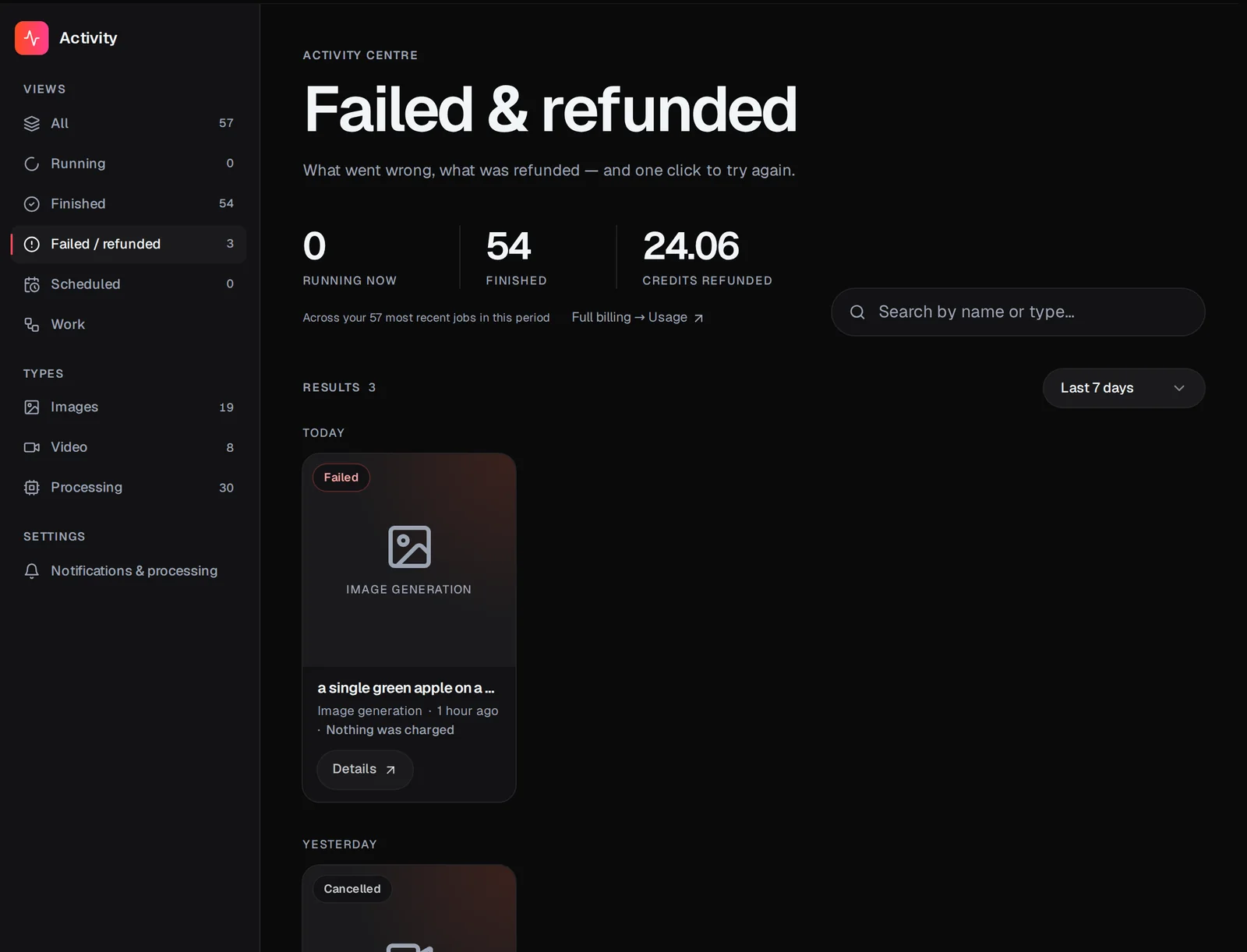
Messages about credits always say Nothing was charged, because FOTOhub checks your balance before it starts. There are three different limits, and the title tells you which one you hit.
- 4h limit reached: Free, Starter and Medium plans cap how much you can spend in a rolling 4 hours. It renews on its own.
- Monthly limit reached or Monthly limit and bonus credits used up: your plan credits are gone until the 30-day reset. A Buster Pack or an upgrade helps at once.
- Not enough credits: this one run costs more than you have left. A cheaper model or fewer images will fit.
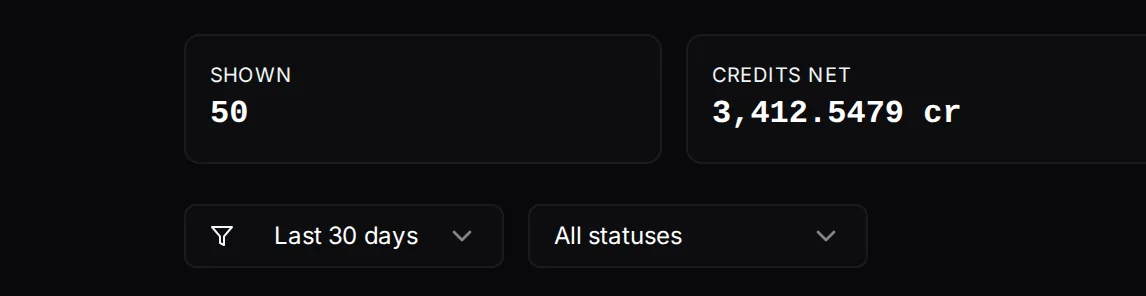
The notice has a Check Limits and Usage button. Everything else, including how refunds appear in the ledger, is explained in the guide called Plans and credits.
Too many requests
To protect everyone, FOTOhub limits how many generations you can start in a short time. The title is Too many requests, the message says nothing was charged and the advice is to wait a few seconds. New accounts have tighter limits during the first day. If you start many jobs in a row, spread them out or use batch features that queue the work for you.
Sign-in and sign-up have their own limits, covered in the next section.
Sign-in problems
| Message | Reason | Fix |
|---|---|---|
| Incorrect email or password. Attempts remaining: N | Wrong password or email. | Check for typos and a caps lock. Use Forgot password if you are not sure. |
| Account locked | Three wrong passwords for the same email within 30 minutes lock the account for 30 minutes. | Wait out the lock, or use Magic Link, or reset the password. A correct login clears the counter. |
| A security check appears on the login form | After two failed attempts in this browser the form asks for an automatic check. | Let it finish, then try again. |
| Your account has not been activated | The email address was never confirmed. | Find the confirmation email (check spam) and confirm it. The sign-up page can send you a new code. |
| Too many login attempts | Too many tries from your network in a short time. | Wait a few minutes. |
| Session expired | You were away for a long time, or the session was revoked. | Sign in again. You come back to the page you were on. |

Reset your password
- Click Forgot password? On the login page, under the password field.
- Enter your email and click Send instructions You can request a reset three times per email in 15 minutes.
- Open the email and click Set new password The link is valid for 60 minutes. You do not need your old password.
- Choose a new password and sign in Use at least 8 characters. You are sent back to the login page.
If you would rather not use a password at all, Magic Link on the login page emails you a one-time link that is valid for 60 minutes.
The confirmation code does not arrive
- Look in the spam folder first.
- On the sign-up page, wait for the countdown and click Send a new code. You can ask for three codes per email in 15 minutes.
- Wrong address? Click Use a different email.
- The code you type must be the newest one. An older code stops working when a new one is sent.
Two-factor sign-in
If you turned on an authenticator app, you are asked for the 6-digit code after your password. Codes change every 30 seconds, so check that your phone's clock is set automatically. If you lost the phone, use Lost access to 2FA app? on that screen. It sends a 6-digit code to your email.
The page is blank, stuck or slow
FOTOhub is updated often. If you leave a tab open for days and we publish an update, the tab may ask for files that no longer exist. The app notices and reloads itself once. That is normal and shows no message. If it still looks wrong after that, do this:
- Hard reload Ctrl+Shift+R (Windows, Linux) or Cmd+Shift+R (Mac).
- Try a private window If it works there, an extension or old cached data is the cause. Turn off ad and script blockers for fotohub.app and clear the site data.
- Check your connection Generators and editors need a stable connection. A very slow connection makes uploads and previews slow, not just the page.
- Try another browser A current Chrome, Edge, Firefox or Safari should work.
Browsers and devices
- Use a current version of Chrome, Edge, Firefox or Safari. FOTOhub is built for modern browsers and does not show an unsupported-browser notice, so an old browser simply fails in odd ways.
- The photo editor and the video editor preview use your graphics card (WebGL). If an effect preview looks flat, turn on hardware acceleration in your browser settings. The exported file always has the effect.
- The video editor's Fast export in the browser needs Chrome or Edge. In other browsers, or when your computer cannot do it, the editor says so and exports on the FOTOhub server instead.
- For voice features the browser asks permission to use the microphone. If you said no, click the lock icon in the address bar and allow it. If another app or tab is using the microphone, close it first.
- Some tools are desktop only. On a phone they show This tool works best on a computer. See the mobile guide.
Uploads that fail
Upload limits differ by tool, so the tool tells you its own limit. The ones most people meet:
- Your Files: 50 MB per file. A file that is too big is skipped with a message and the others still upload.
- Upload Media (photos): use JPG, PNG, WebP, GIF, HEIC or TIFF. The upload box also accepts SVG, AVIF, BMP and RAW files, but they are rejected after upload. Convert them first.
- Reference images in generators: JPG, PNG or WebP, and a limited number per model.
- Importing from a link into Your Files works only if the other website allows it. If it fails, download the file and upload it yourself.
Getting help
There are three ways to reach us, from fastest to most thorough.
- Help Center (
/help): search answers in Polish, English or German. If nothing fits, it offers a contact button that writes to support. - Open a ticket (
/fh/helpcenter, button New Ticket): pick a category, write a subject and the details. You can follow the reply under My Tickets. We answer within one business day. - Feedback button in the top bar (desktop only): a short form for a bug, an idea or a question. Be aware that this form is shown in Polish. It takes a description of at least 10 characters, optional steps and the place in the app. It sends only what you type.
Nothing is attached to a report automatically: no screenshot, no page address and no job number. So tell us:
- Which tool you were in and the page address.
- What you clicked, step by step.
- The error title and the
Code:line. - The date and time, and the browser you use.
- Whether you were charged, and what you see in Usage history.
Quick answers
- I was charged but got no image.
- Wait a minute: refunds are automatic and the failure message says when credits were returned. Then check Usage history for a Refund row. If it is missing after a few minutes, send support the code and the time.
- Can I get credits back for an image I do not like?
- No. A refund happens when a run fails, not when the result is a matter of taste. Use Redo with another model or a changed prompt.
- It says the model is unavailable.
- The model is paused for maintenance or provider problems. It comes back by itself. Pick another model for now.
- Why do I see Polish in an English app?
- A few screens are not translated yet: the Feedback form, some error screens and some security panels. This does not mean your language setting is wrong.
- Where is the status page?
- There is a Status link in the footer of the public website. The green badge in the Help Center is static, so do not rely on it.
- My account is locked.
- After three wrong passwords the lock lasts 30 minutes. Reset your password or use Magic Link in the meantime.