Buckets (S3): S3-compatible storage in the console
Create a dedicated bucket, read its 16 tabs, connect with the S3 API using the bucket's own access keys, and route API output into it.
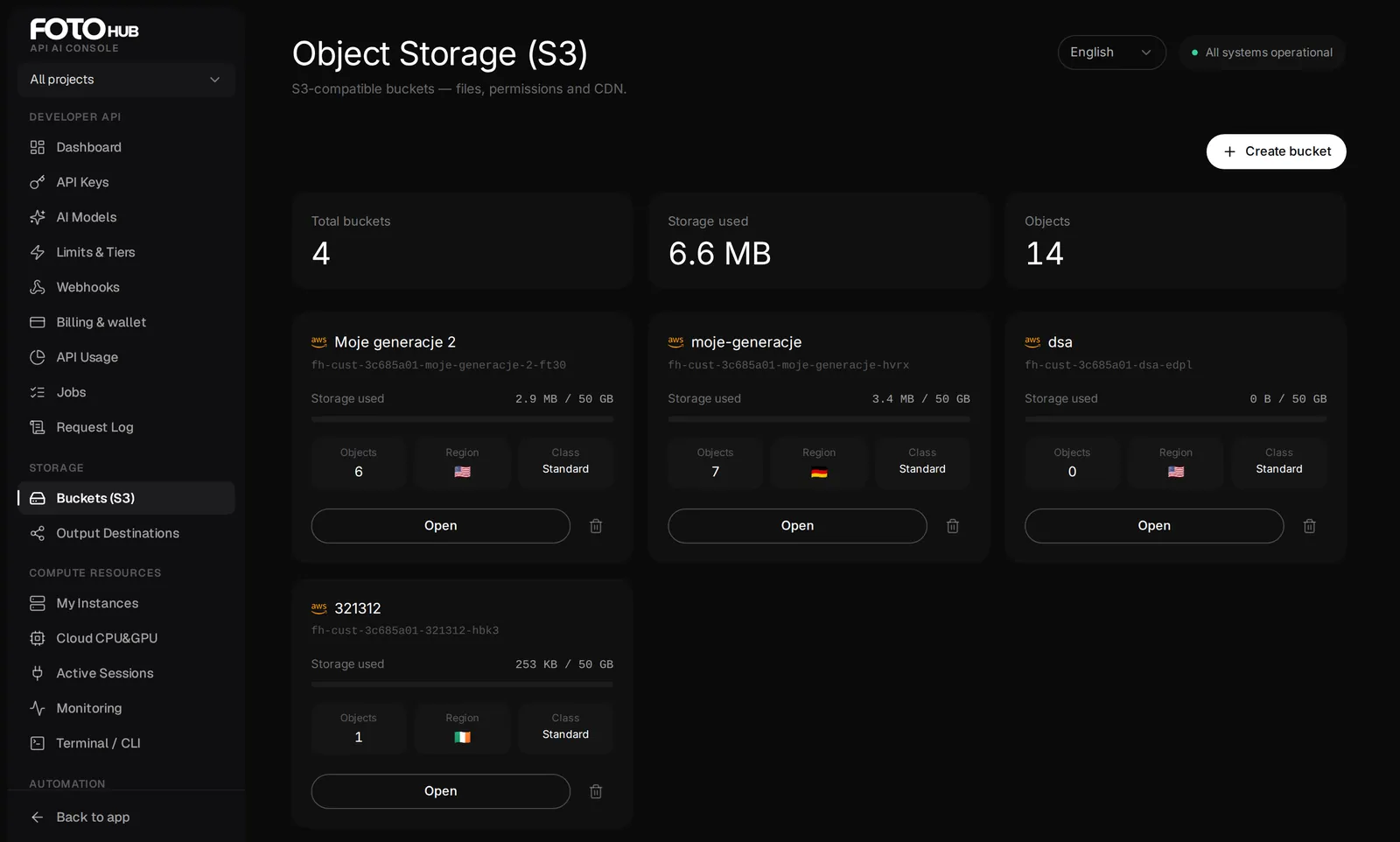
What a FOTOhub bucket is
The Buckets (S3) tab of the developer console (/console/storage) rents you a dedicated AWS S3 bucket in the region you choose, with its own access keys. Fill it from code with any S3 client, publish parts of it on a public hostname, put a CDN in front of it, and let FOTOhub write the files your API calls generate straight into it.
The totals count only buckets that were actually measured; one still provisioning is left out and mentioned in a note, so "0 B" never silently means "unknown". Each card offers Open, Settings and Delete; deleting schedules the removal with a 7-day grace period.
Create a bucket
The Create bucket wizard has four steps: Region, Class, Quota & security, Payment. Next stays disabled until the current step is valid.
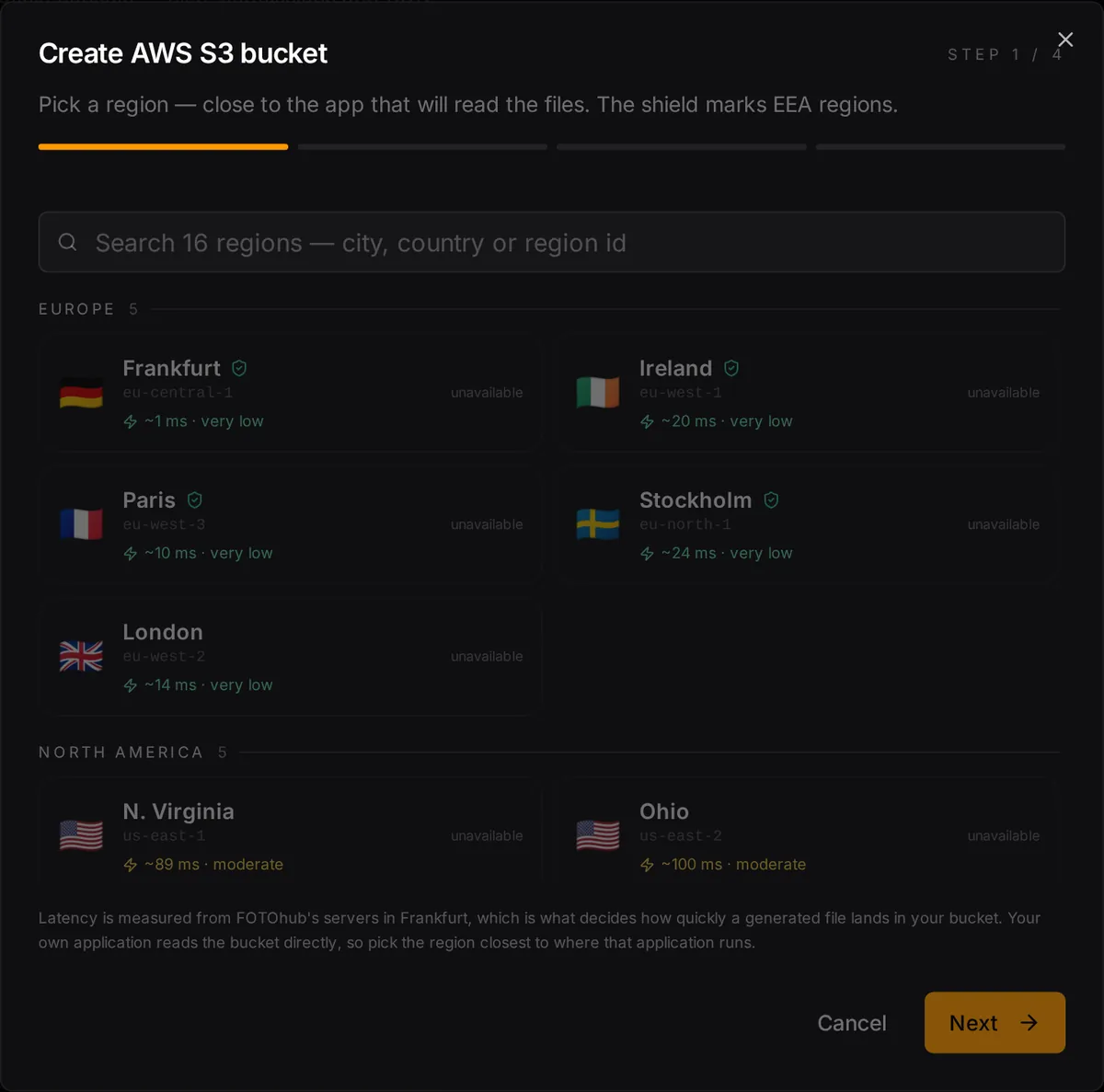
- Pick a region Choose the region closest to the application that will read the files. A search box filters by city, country or region id, and a shield marks EEA regions. The latency shown is measured from FOTOhub's servers in Frankfurt and decides how fast a generated file lands in your bucket; your own application reads the bucket directly. On the day this guide was captured most regions were greyed out as unavailable (all of Europe, North America and South America) and only the Asia Pacific regions could be selected. Availability is live, so check the dialog. The region cannot be changed later.
- Pick a storage class The class sets the per-GB rate, whether reads carry a retrieval fee and the minimum billing period. Each tile shows the rate for your region. Use Standard unless you know the access pattern.
- Name it, size it, set security Enter a display name (3 to 64 characters; it becomes part of the globally unique AWS bucket name). Set the quota with the slider, 10 GB to 10 TB, default 50 GB. The quota is soft: uploads beyond it are still accepted and you are only warned. Then choose versioning, SSE-KMS encryption, MFA Delete and Block public access. The last one is on by default, and switching it off asks you to confirm.
- Review the price and provision Step 4 summarises your choices and shows a first-month estimate: subtotal, a flat service fee and the monthly total. The wizard shows the price, so read it there; it assumes sample traffic. Press Provision bucket. It takes about 15 seconds, a small reservation is debited from your wallet and usage is billed hourly afterwards.
- Save the credentials A "Bucket ready" dialog shows the Access Key ID, Secret Access Key, endpoint, S3 URI and bucket name once. FOTOhub keeps only an encrypted copy, so the plaintext secret never appears again. Copy it into your secret manager, then press I've saved it.
| Class | Retrieval | Minimum billing period |
|---|---|---|
| Standard | - | None |
| Intelligent-Tiering | - | 30 days |
| Standard-IA | Immediate, with a retrieval fee | 30 days |
| One Zone-IA | Immediate, single zone, 20% cheaper than Standard-IA | 30 days |
| Glacier Instant Retrieval | Milliseconds | 90 days |
| Glacier Flexible Retrieval | 1 to 12 hours | 90 days |
| Glacier Deep Archive | 12 to 48 hours | 180 days |
Creation can be refused in two ways. 402 with error: "insufficient_funds" and the fields required_usd, balance_usd and shortfall_usd means the wallet cannot cover the reservation (the console offers Top up). 403 with error: "plan_gate_exceeded", current, limit and tier means you reached the bucket count for your plan; topping up does not lift it, except that an account without a paid tier gets one bucket and a funded wallet raises that to 25. A failed provisioning credits the reservation back.
The bucket page: 16 tabs in 5 groups
Open on a card leads to /console/storage/s3/:bucketId. The header shows the display name, the AWS bucket name, the region and a status badge when the bucket is not simply active: Provisioning, Suspended, Payment overdue, Being decommissioned (with the removal date) or Deleted. A left menu lists the tabs in five groups, and each tab loads and fails on its own.
| Group | Tab | What you do there |
|---|---|---|
| General | Overview | Read usage, quota, region, cost and the bucket's configuration |
| General | Files | Browse, upload, download and delete objects |
| Access & security | Permissions | Block Public Access, bucket policy, object ownership, CORS |
| Access & security | Security | Versioning, Object Lock status, default encryption |
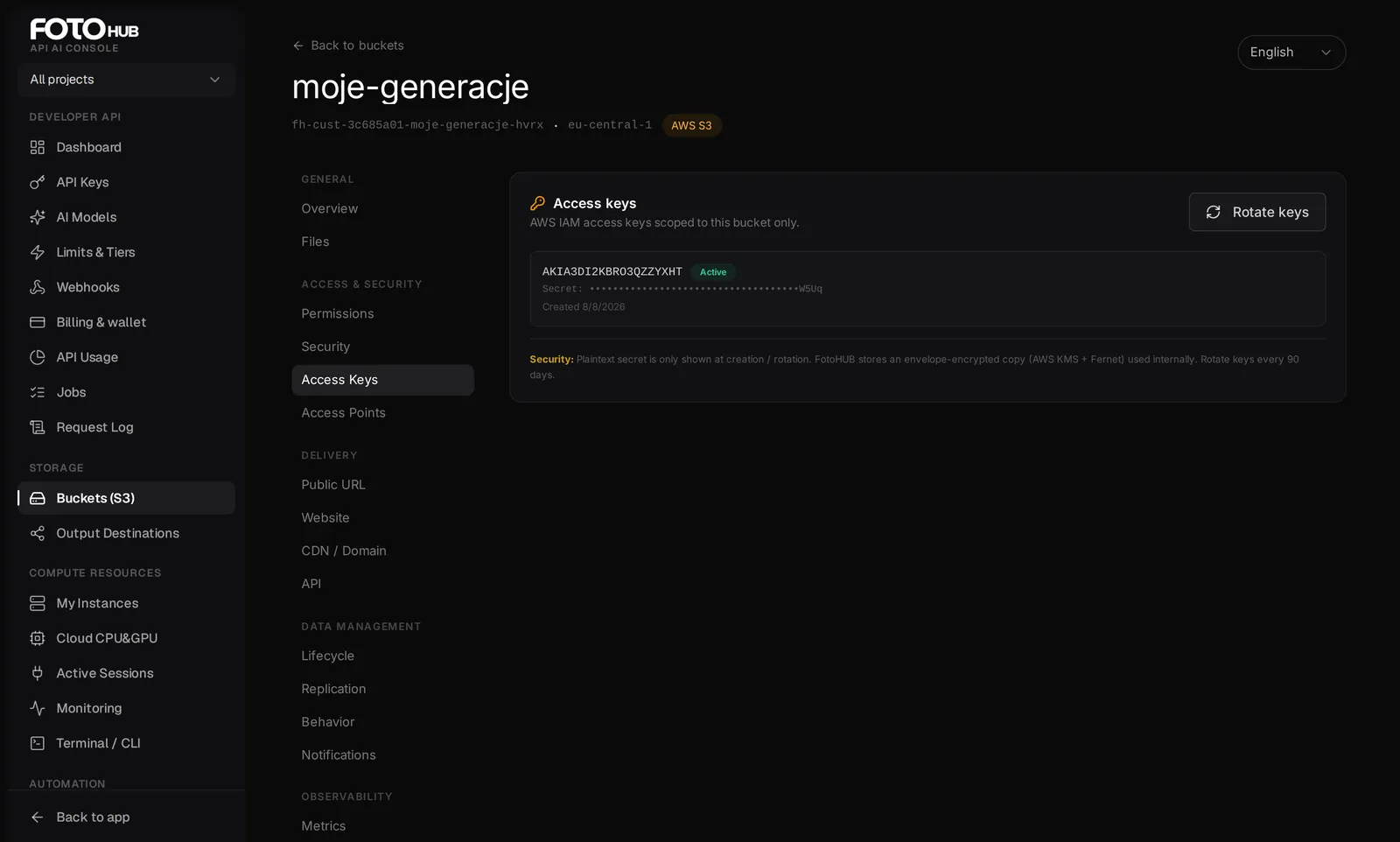
| Access & security | Access Keys | See and rotate the keys scoped to this bucket |
| Access & security | Access Points | Named endpoints with their own policy |
| Delivery | Public URL | Publish chosen key prefixes on your own hostname |
| Delivery | Website | Static website hosting or a redirect |
| Delivery | CDN / Domain | CloudFront distribution with a custom HTTPS domain |
| Delivery | API | Endpoint, bucket name and ready-made client snippets |
| Data management | Lifecycle | Rules that transition, expire and clean up objects |
| Data management | Replication | Copy new objects to another bucket |
| Data management | Behavior | Tags, access logging, acceleration, Requester Pays, tiering, inventory |
| Data management | Notifications | Send object events to SNS, SQS, Lambda or EventBridge |
| Observability | Metrics | Storage size and object count over time |
| Observability | Audit trail | Every recorded action on this bucket |
Overview and Files
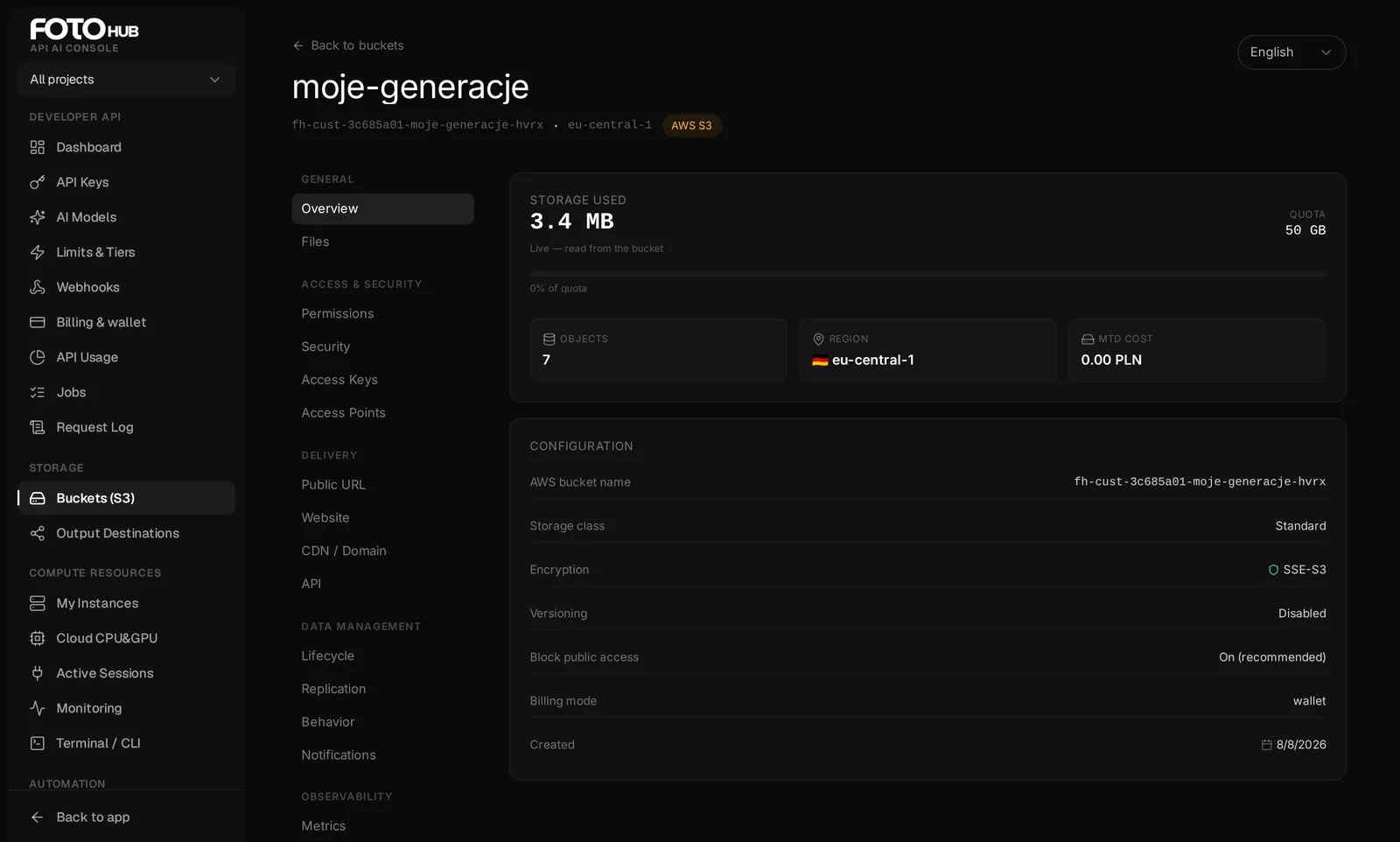
Overview opens with five figures: storage used (read live from the bucket), quota with percentage, objects, region and the month-to-date cost. The Configuration block repeats the facts every other tab relies on: AWS bucket name, storage class, encryption, versioning, Block public access, billing mode (wallet) and creation date.
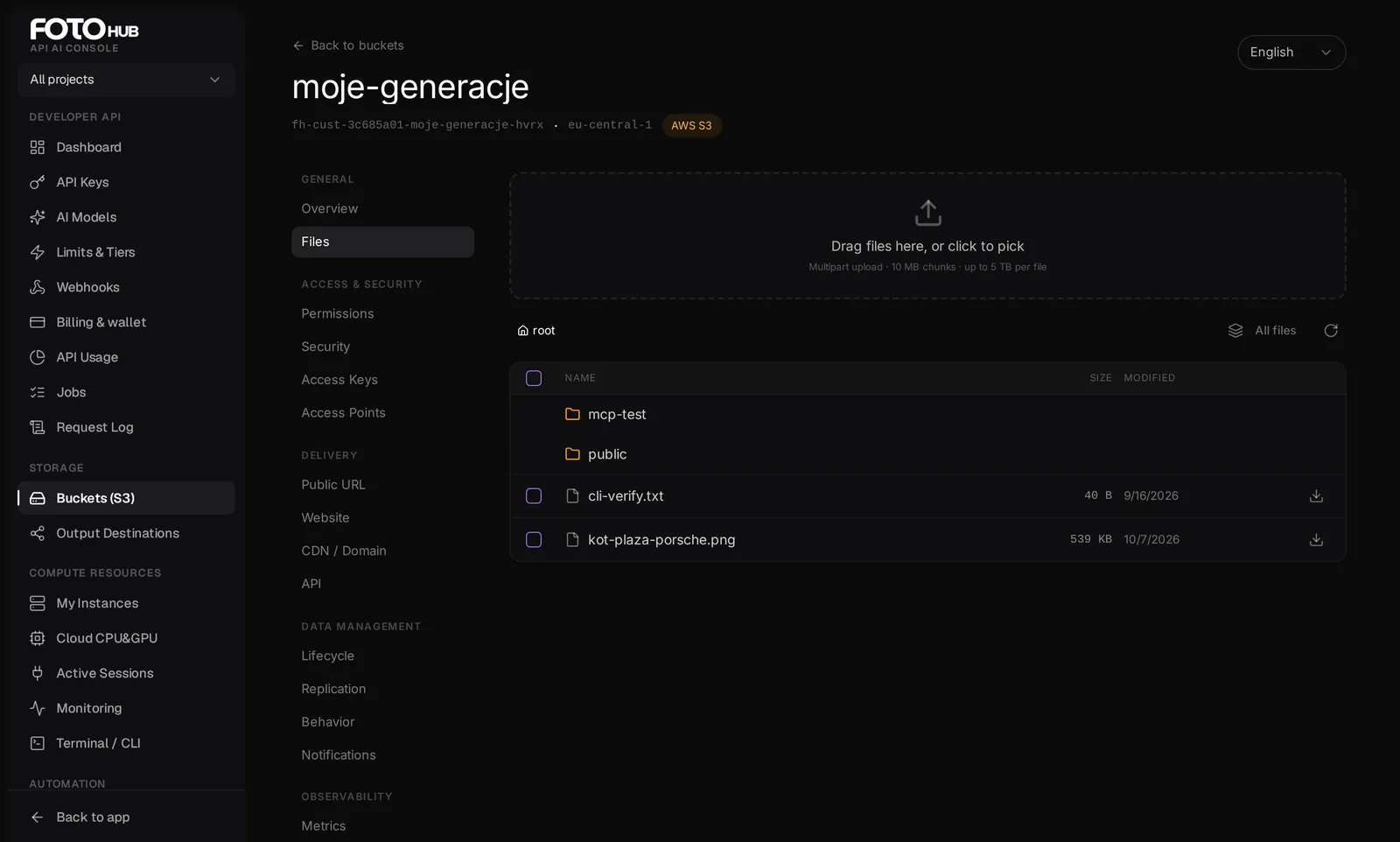
Files is a small file manager. Drop files on the upload area or click to pick; uploads are multipart in 10 MB chunks, up to 5 TB per file. A toggle lists every key under the current prefix instead of one folder level. Select rows to delete several objects (the console asks first and warns it cannot be undone), or use a row's download button, which fetches a presigned link.
Access and security tabs
Permissions
Block public access is one master switch (Block all public access) plus the four individual AWS flags; fully blocked is the recommended default. The bucket policy editor takes JSON, offers Templates, validates it with AWS Access Analyzer before applying, and the demo bucket's policy already denies insecure transport and old TLS versions. Object ownership has three modes: Bucket owner enforced (recommended, ACLs disabled, required for Access Points), Bucket owner preferred and Object writer. The CORS editor holds up to 100 rules and starts with a default rule for FOTOhub's own origins and localhost ports; add yours before calling the bucket from a browser.
Security
Versioning is Disabled, Enabled or Suspended: enabling keeps every version of every object, suspending stops creating versions but keeps existing ones. Object Lock (write-once retention) can only be enabled when a bucket is created. Default encryption applies to uploads without their own headers: SSE-S3 (recommended), SSE-KMS or DSSE-KMS (two independent layers); the tab lists the KMS request costs next to the options.
Access Keys and Access Points
Access Keys lists the IAM keys scoped to this bucket only: key id, status, a masked secret, creation date and last use. Rotate keys asks for confirmation ("A new access key will be created. The old key will be revoked.") and shows the new pair once, so update every application first. Rotate every 90 days. Access Points are named endpoints with their own policy, handy for delegating access to a team or VPC; the tab is empty until you create one.
Use the bucket with the S3 API
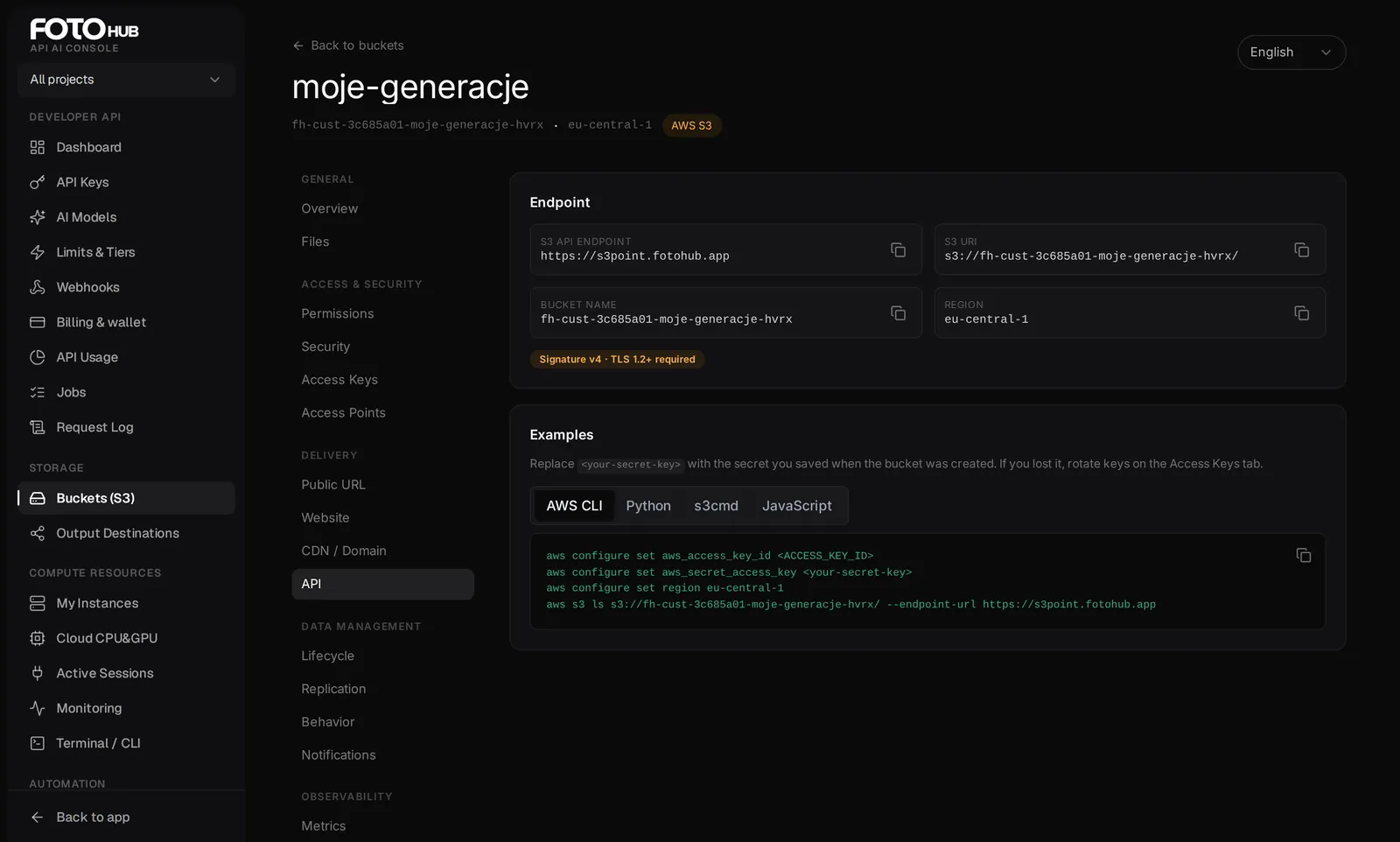
Any S3 client works, because the bucket speaks the S3 protocol at FOTOhub's own gateway. The API tab shows the four values every client needs and copy buttons for each.
| Value | What the tab shows |
|---|---|
| S3 API endpoint | https://s3point.fotohub.app |
| S3 URI | s3://<bucket-name>/ |
| Bucket name | The AWS bucket name, which begins with fh-cust- |
| Region | The region you picked, for example eu-central-1 |
Requests must use Signature v4 over TLS 1.2 or newer. The key id and secret come from the Access Keys tab or the one-time dialog; the API tab never prints the secret and shows <your-secret-key>. It has snippets for AWS CLI, Python, s3cmd and JavaScript. The AWS CLI one is exactly:
aws configure set aws_access_key_id <ACCESS_KEY_ID>
aws configure set aws_secret_access_key <your-secret-key>
aws configure set region eu-central-1
aws s3 ls s3://<bucket-name>/ --endpoint-url https://s3point.fotohub.app
From the API tab. Use the region and bucket name your tab shows.
The Python tab uses boto3 and forces Signature v4:
import boto3
from botocore.config import Config

s3 = boto3.client(
    's3',
    aws_access_key_id='<ACCESS_KEY_ID>',
    aws_secret_access_key='<your-secret-key>',
    region_name='eu-central-1',
    endpoint_url='https://s3point.fotohub.app',
    # Force SigV4, required by the FOTOhub gateway
    config=Config(signature_version='s3v4'),
)

for obj in s3.list_objects_v2(Bucket='<bucket-name>').get('Contents', []):
    print(obj['Key'], obj['Size'])
The s3cmd tab gives a ~/.s3cfg with host_base = s3point.fotohub.app and host_bucket = %(bucket)s.s3point.fotohub.app. The JavaScript tab is for browsers, where a secret must never live: it asks the FOTOhub API for a presigned upload link and PUTs the file to it.
BASE=https://apis.fotohub.app/v1/storage/s3/buckets/<BUCKET_ID>
curl -s -X POST "$BASE/objects/presign-upload" \
  -H "Authorization: Bearer $TOKEN" -H "Content-Type: application/json" \
  -d '{"key": "photo.jpg", "content_type": "image/jpeg"}'
# the JSON answer has a "url" field: PUT the file body to it
Presigned upload. $TOKEN is a signed-in session token or an API key with the Storage scope.
List and upload with the AWS CLI
Goal. Check from your laptop that the new bucket and its keys work, then upload a file.
Input you can copy.
1. Configure the three `aws configure set` lines with the key id and secret you saved and the region from the API tab.
2. Run `aws s3 ls s3://<bucket-name>/ --endpoint-url https://s3point.fotohub.app`.
3. Run `aws s3 cp ./report.pdf s3://<bucket-name>/reports/report.pdf --endpoint-url https://s3point.fotohub.app`.
4. Open the Files tab and look for the `reports` folder.
Why it works. --endpoint-url points the AWS CLI at FOTOhub instead of Amazon. An empty listing on a new bucket is normal; if step 2 is rejected, re-check the secret and region or rotate the keys. The cp line is the standard AWS CLI upload; the API tab itself prints only ls.
Delivery: public URL, website and CDN
Public URL
A public URL gives the bucket a hostname of the form <label>.s3point.fotohub.app and lets you decide which key prefixes anyone can read without a signature. Block Public Access stays on and no object ACL is ever changed; FOTOhub signs the anonymous reads on your behalf, and only for prefixes you published. Publish nothing and nothing is readable. A link looks like https://<label>.s3point.fotohub.app/<object-key>.
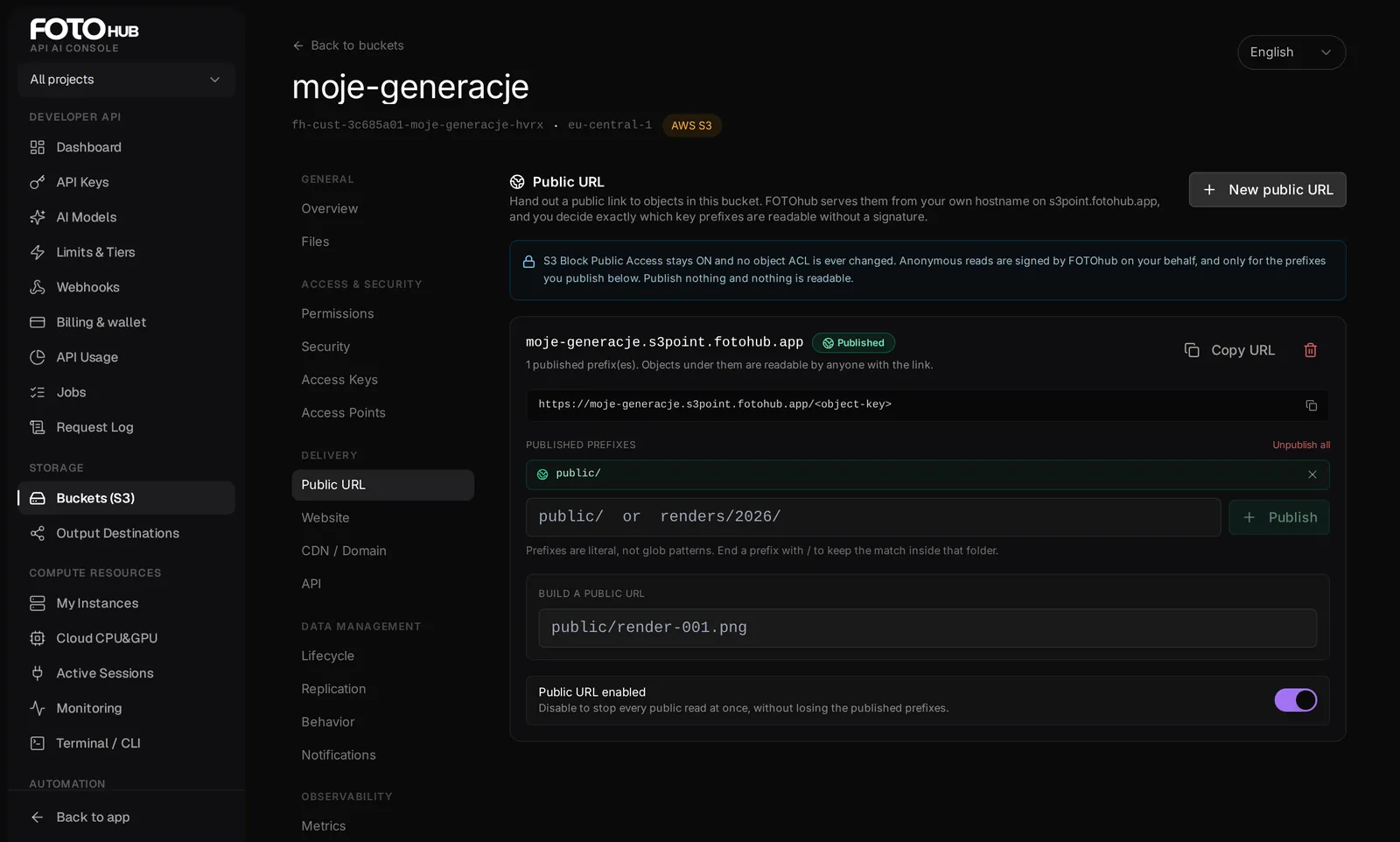
- Label: 3 to 63 characters, lowercase letters, digits and hyphens, starting and ending with a letter or digit, no dots, no
xn--; a few labels are reserved. Deleting the public URL releases the label for anyone to claim. - Prefixes are literal, not globs. End one with
/to stay inside a folder:publicalso publishespublic-private/secret.jpg, and the console warns about it. It rejects an empty prefix,*,/, a leading slash,..and anything over 512 bytes. Over the API one hostname takes at most 20 prefixes. - Switches: publishing asks you to confirm that everything under the prefix becomes readable by anyone with the URL, with no login and no expiry. Unpublish all stops links within about a minute. The Public URL enabled toggle stops every public read at once and keeps the prefixes; keys outside them answer
403.
Website and CDN / Domain
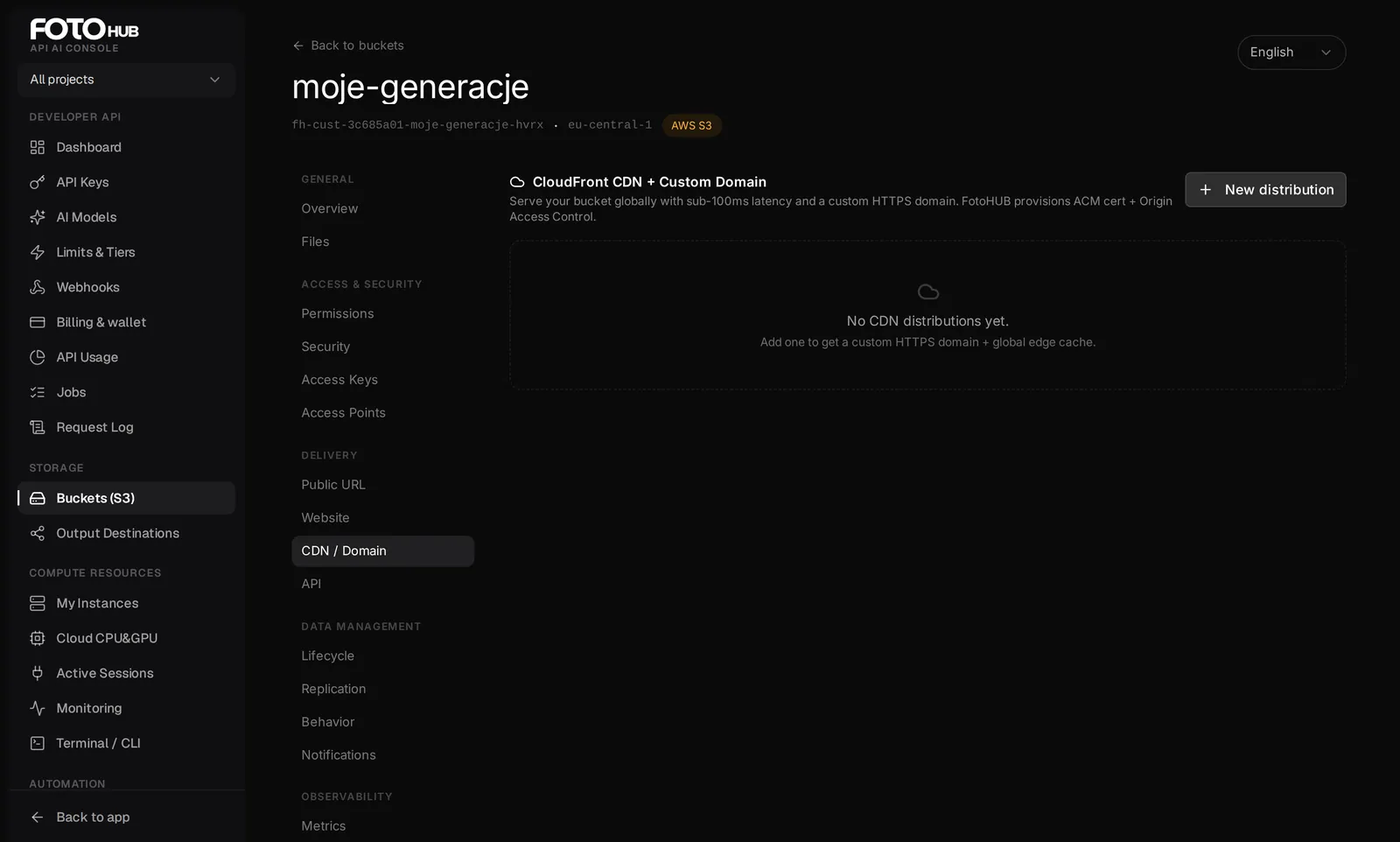
Website turns the bucket into static hosting: Host documents (an index document and an optional error document) or Redirect all requests to another host. CDN / Domain creates a CloudFront distribution with your own HTTPS domain; FOTOhub provisions the ACM certificate and an Origin Access Control, and you can invalidate the cache from the tab. Both tabs were empty on the demo account, so they are described here from the interface and API, not from a live run.
Publish one folder and nothing else
Goal. Serve product images from public/ on a short hostname while the rest of the bucket stays private.
| Setting | Value |
|---|---|
| Block public access | On, untouched |
| Hostname label | shop-assets (becomes shop-assets.s3point.fotohub.app) |
| Published prefix | public/ |
| Link to share | https://shop-assets.s3point.fotohub.app/public/hero.jpg |
Why it works. Create the public URL (it starts with nothing published), add public/ and confirm. public/hero.jpg is now readable by anyone; private/invoice.pdf still answers 403. The Audit trail records the publish with the before and after prefix lists, and each anonymous read appears as an s3_public_get entry.
Data management: lifecycle, replication, behavior, notifications
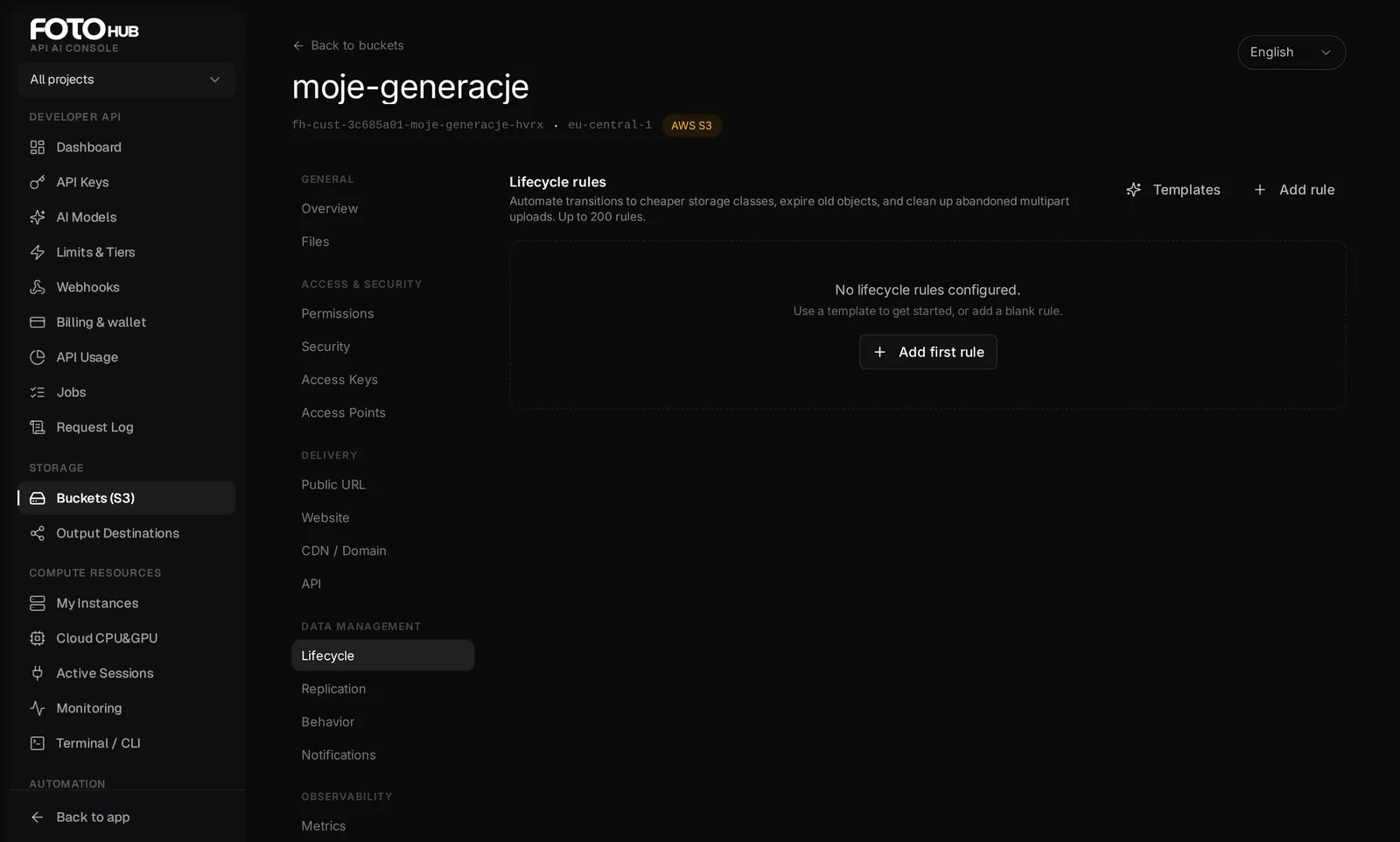
Lifecycle holds up to 200 rules that move objects to cheaper classes, expire old ones and clean up abandoned multipart uploads. The Templates menu adds a ready rule: archive old objects (30 days to Standard-IA, 90 to Glacier, 365 to Deep Archive), clean up old versions and incomplete uploads, or expire logs/ after 365 days. A fresh bucket has no rules.
Replication copies new objects to another bucket, in the same or another region, with an IAM role FOTOhub creates for you; it needs versioning, and the tab blocks Add rule until you enable it on Security. Behavior holds tags (up to 50), access logging, Transfer Acceleration, Requester Pays, Intelligent-Tiering archival rules and inventory reports. Notifications sends object events to SNS, SQS, Lambda or the EventBridge default bus; the target must grant S3 permission before you save. KMS requests, acceleration and request metrics carry extra charges, which the tabs state next to the switches.
Metrics and the audit trail
Metrics draws CloudWatch charts over 1 hour, 24 hours, 7 days or 30 days: storage size by class and number of objects. Storage metrics update daily, so a new file can take a day to appear (Overview reads the bucket live). The request charts, total requests and 4xx/5xx errors, need a Request Metrics Configuration, an extra cost that FOTOhub enables on request.
The Audit trail lists every recorded action, newest first: When, Action, Category, Outcome, Origin, Duration and Detail. Filter by category and by outcome (all, only succeeded, only failed). The Detail column holds the raw record: a delivered object shows key, bytes and etag, a public read shows bytes_out and status_code, a published prefix shows added, removed and public_prefixes. Files delivered by FOTOhub itself carry the origin "FOTOhub internal". The first moment of creating a bucket is logged before it has an id, so those entries are not listed.
Send API output into a bucket
An output destination makes a bucket the target for files your API calls generate. On the Output Destinations tab, under Buckets (S3) in the console menu, you attach a bucket you rented here (kind console_bucket, no credentials) or your own S3-compatible bucket (kind external_s3, verified by writing, reading and deleting a probe object). Then you point an API key at it, or add per-model routing rules, on the key's Output tab; the key article explains the four levels that decide where a file goes.
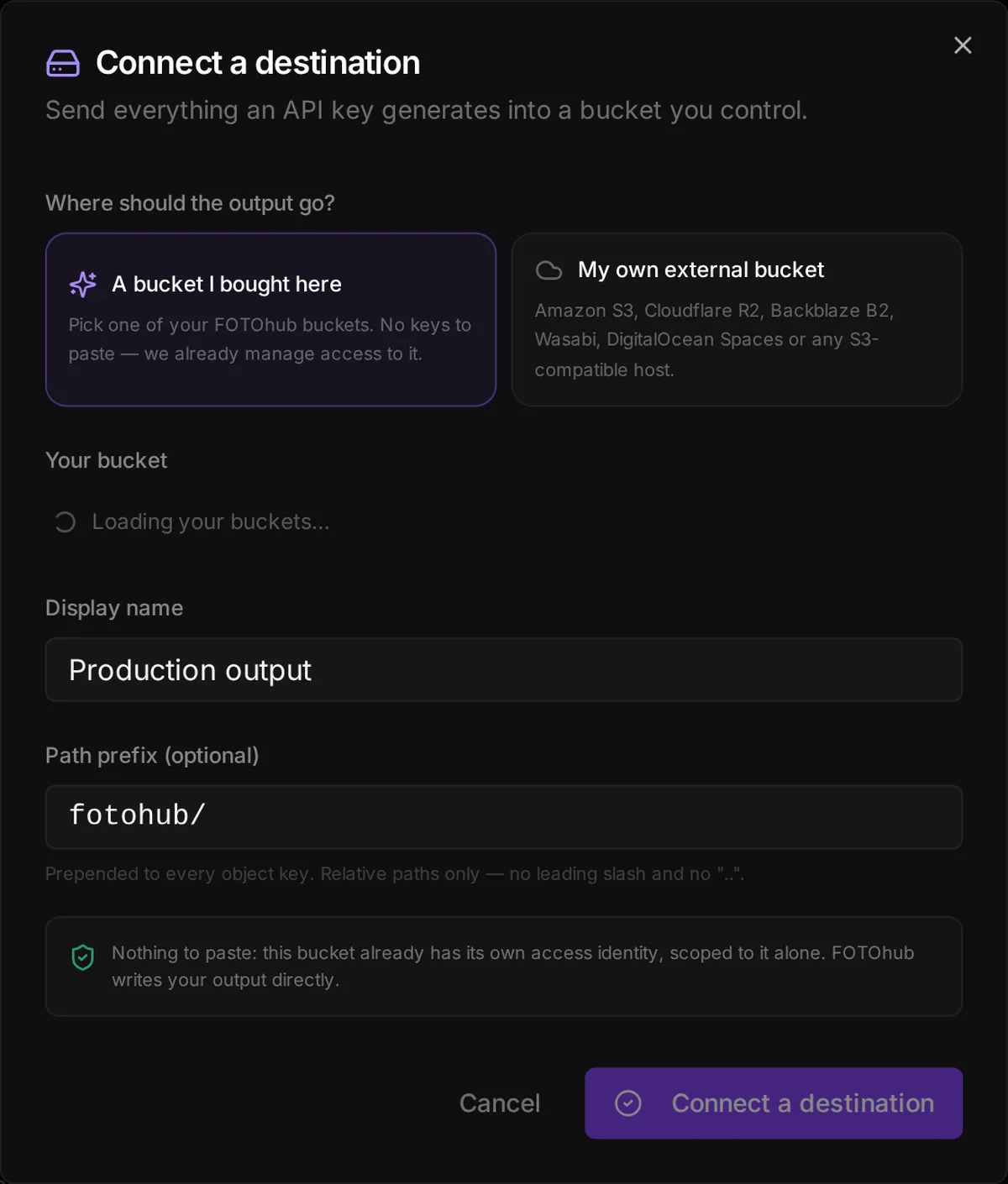
Destinations are managed with your signed-in session, not with an API key, under /v1/destinations. For a bucket from this article the create body is small:
{
  "name": "Renders archive",
  "kind": "console_bucket",
  "bucketId": "<bucket id from the bucket page URL>",
  "pathPrefix": "renders"
}
POST /v1/destinations. Sending accessKeyId or secretAccessKey with this kind is refused with credentials_not_allowed.
Ownership is checked when you save and again at delivery, so a bucket removed later never receives files. A destination that cannot be used does not fail your generation: the file falls to the next routing level, and the destination shows failed after Verify (POST /v1/destinations/{id}/verify). Detaching one that keys or rules still use is refused unless you pass force=true. External destinations have presets for Amazon S3, Cloudflare R2, Backblaze B2, DigitalOcean Spaces, Wasabi and custom S3-compatible endpoints. A plan cap answers 403 with plan_gate_exceeded.
Archive every render in your own bucket
Goal. Have a production API key write each generated image into a bucket you control, while FOTOhub keeps a copy for a week.
| Setting | Value |
|---|---|
| 1. Bucket | Create it in the wizard, Standard class, Block public access on |
| 2. Destination | Output Destinations, kind console_bucket, path prefix renders |
| 3. Key | Output tab: Deliver output to the new destination, Also keep a copy with us on, keep files for 7 days |
| 4. Check | Generate one image, then open Audit trail and filter by Delivery |
Why it works. A bucket_object_delivered entry appears with the key under renders/, the byte count and the etag, and the object shows in Files. Because FOTOhub keeps its copy for 7 days, a failed delivery cannot lose the file. Add a Lifecycle rule on renders/ to age the archive into a cheaper class.
The storage API
The console is a client of https://apis.fotohub.app/v1/storage/s3. Routes marked Session or API key work with an API key that has the Storage scope; the rest need the session token of a signed-in console user. Another account's bucket answers 404 bucket_not_found, like one that does not exist.
| Route (under /v1/storage/s3) | Purpose | Accepts |
|---|---|---|
POST /buy | Create a bucket: display_name, region, default_storage_class, quota_gb, versioning_enabled, encryption_type, block_public_access, mfa_delete_enabled, billing_mode, tags. Answers 201. | Session or API key |
GET /buckets, GET /buckets/{id}, POST /buckets/{id}/upgrade | List, read, change quota_gb or default_storage_class | Session or API key |
DELETE /buckets/{id} | Schedule deletion with the 7-day grace period | Session |
GET .../credentials, POST .../regenerate-keys | List key ids (never the secret); rotate keys, optional label, revoke_old_immediately, grace_period_days (0 to 30) | Session or API key |
GET .../usage, GET .../metrics, GET /regions, GET /pricing, POST /estimate | Usage, metrics (metric, start, end, period), regions, price matrix, cost estimate | Session or API key |
POST .../objects/list, presign-upload, presign-download, delete, copy | List (prefix, delimiter, max_keys up to 1000), presigned PUT and GET (key, expires_in 60 to 604800 s), delete up to 1000 keys, copy source_key to dest_key | Session or API key |
GET/POST .../aliases, PATCH/DELETE .../aliases/{alias} | Public URLs: alias, public_prefixes, status (active or disabled) | Session or API key |
.../policy, .../encryption, .../tags, .../website, .../notifications, .../replication, .../cdn, .../access-points, .../inventory, GET .../audit | The other tab settings. The audit route takes limit (1 to 200), offset, category, success_only and returns entries, limit, offset, has_more. | Session |
While a bucket is being decommissioned, reads still work so you can export your data, but writes answer 410 bucket_decommissioning. After deletion, object calls answer 410 bucket_deleted; the audit trail stays readable.
Limits, billing and deletion
- Billing: the mode is
wallet: a small reservation at creation, then hourly usage from your prepaid USD wallet. The price is shown in the wizard (step 4), on each class tile, inGET /v1/storage/s3/pricingandPOST /v1/storage/s3/estimate; Overview shows the month-to-date cost. - Empty wallet: the bucket is marked Suspended until you top up.
- Deletion: Delete schedules the removal. For 7 days the bucket is read-only so you can export, then the data is removed; the header shows the date. There is no instant delete in the console.
- Sizes: the quota is soft, 10 GB to 10 TB in the wizard (the API accepts 1 to 1,048,576 GB), so watch the percentage on Overview. Objects reach 5 TB, uploaded in 10 MB multipart chunks. Presigned links live from 60 seconds to 7 days.
Production checklist
- Keep Block public access on, publish only slash-terminated prefixes, and add your own origins to CORS before a browser calls the bucket.
- Enable versioning before you need Replication, and decide on Object Lock at creation: it cannot be added later.
- Keep the secret in a secret manager, rotate every 90 days after updating the consumers, and add Lifecycle rules for abandoned multipart uploads.
Troubleshooting
- Every region in the wizard is greyed out.
- The list is live and unavailable regions are not offered for now. Pick a selectable one or try later. Need data in a region you cannot rent? Connect your own bucket as an output destination.
- Creating a bucket answers 402 or 403. Which is which?
402 insufficient_funds: the wallet cannot cover the reservation, the body gives the shortfall, so top up.403 plan_gate_exceeded: you reached the bucket count for your plan; delete one or change plan.- I lost the secret key.
- It cannot be shown again. Press Rotate keys on the Access Keys tab and update every application that used the old pair.
- My S3 client is rejected. What do I check?
- Use
https://s3point.fotohub.app(not an Amazon hostname), Signature v4, TLS 1.2 or newer, the bucket name and region from the API tab. In boto3 setsignature_version='s3v4'; with the AWS CLI add--endpoint-url.
Where to go next
Read api-keys for the Output tab, routing rules and path templates that decide which generated files go to your bucket, api-console for the rest of the developer console, and integrations if you want to connect the bucket to other tools.